Collections
Last verified 2026-10-16
Monitor upcoming payment milestones, track overdue balances across customer accounts, filter by collection status and currency, and record installment payments.
Before you start
- ValueRamp Finance role
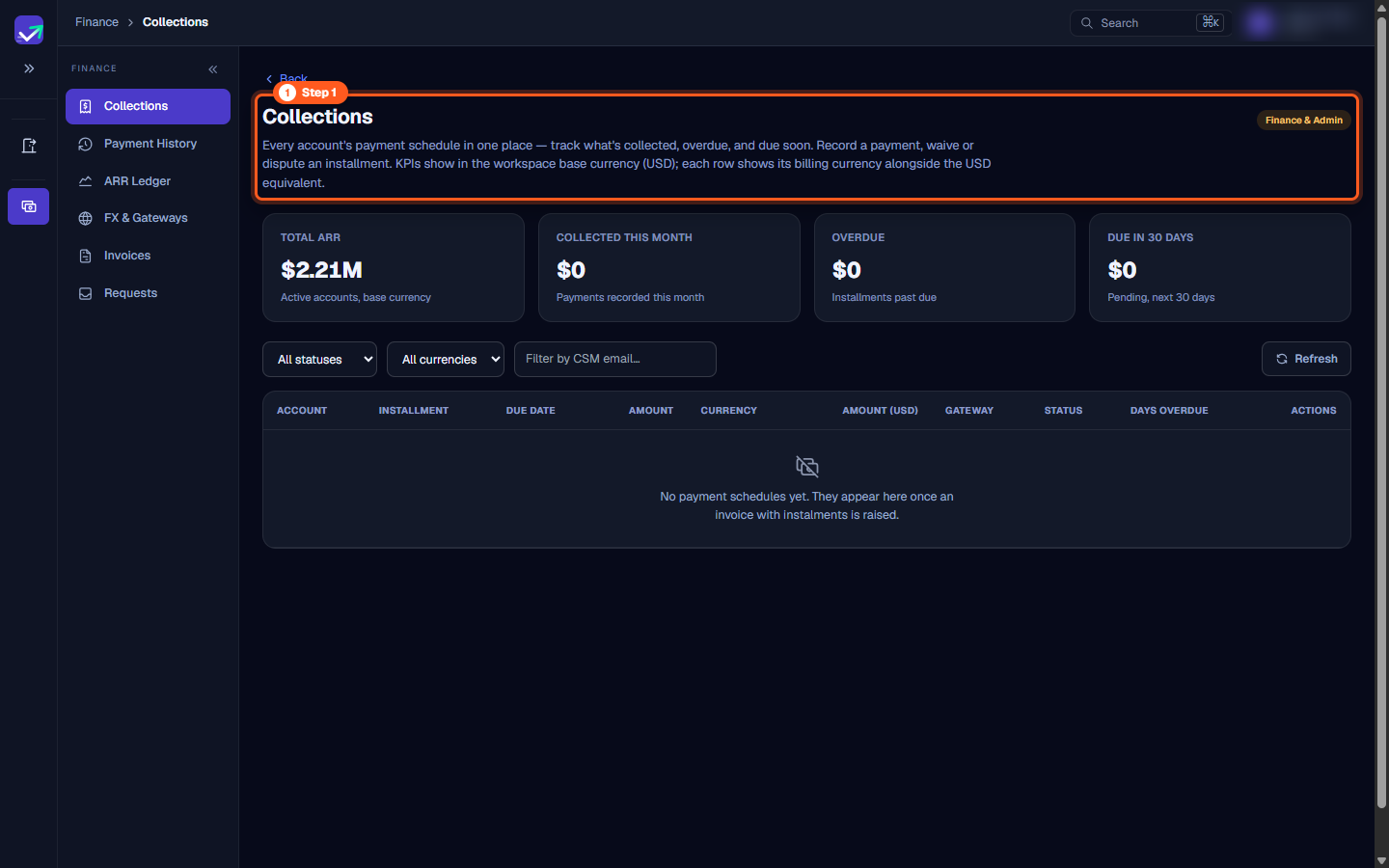
The Collections workspace (/finance/collections) is the central operational command center for the Finance team to track, reconcile, and follow up on customer payment commitments. It aggregates all contract installments, schedules, and aging receivables across the entire customer base.
Key capabilities
- Global schedule monitoring: Track upcoming, due, and past-due installments in one centralized schedule.
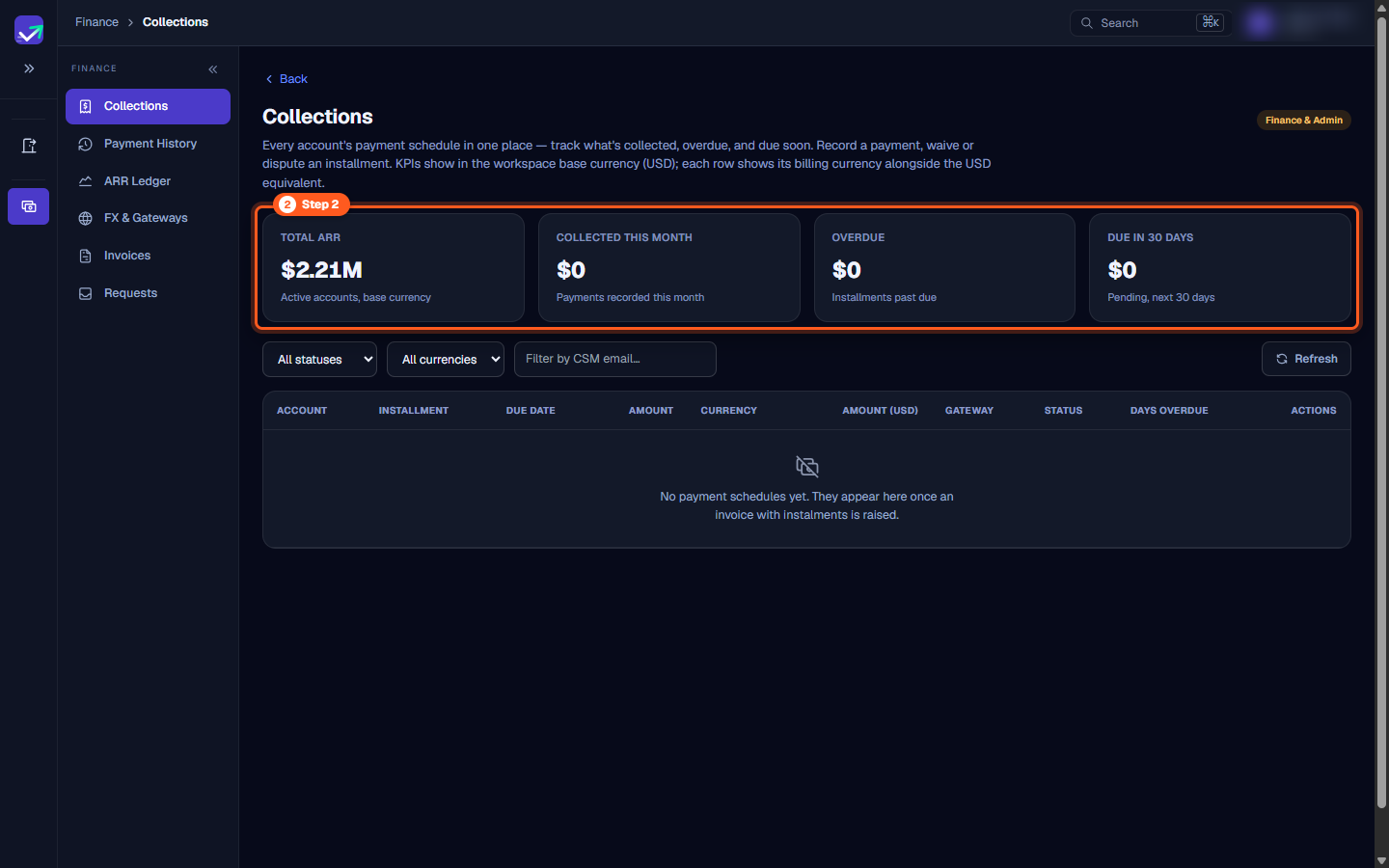
- Top-line collection KPIs: Total ARR, payments collected this month, the overdue total, and what is due in the next 30 days — all in the workspace base currency.
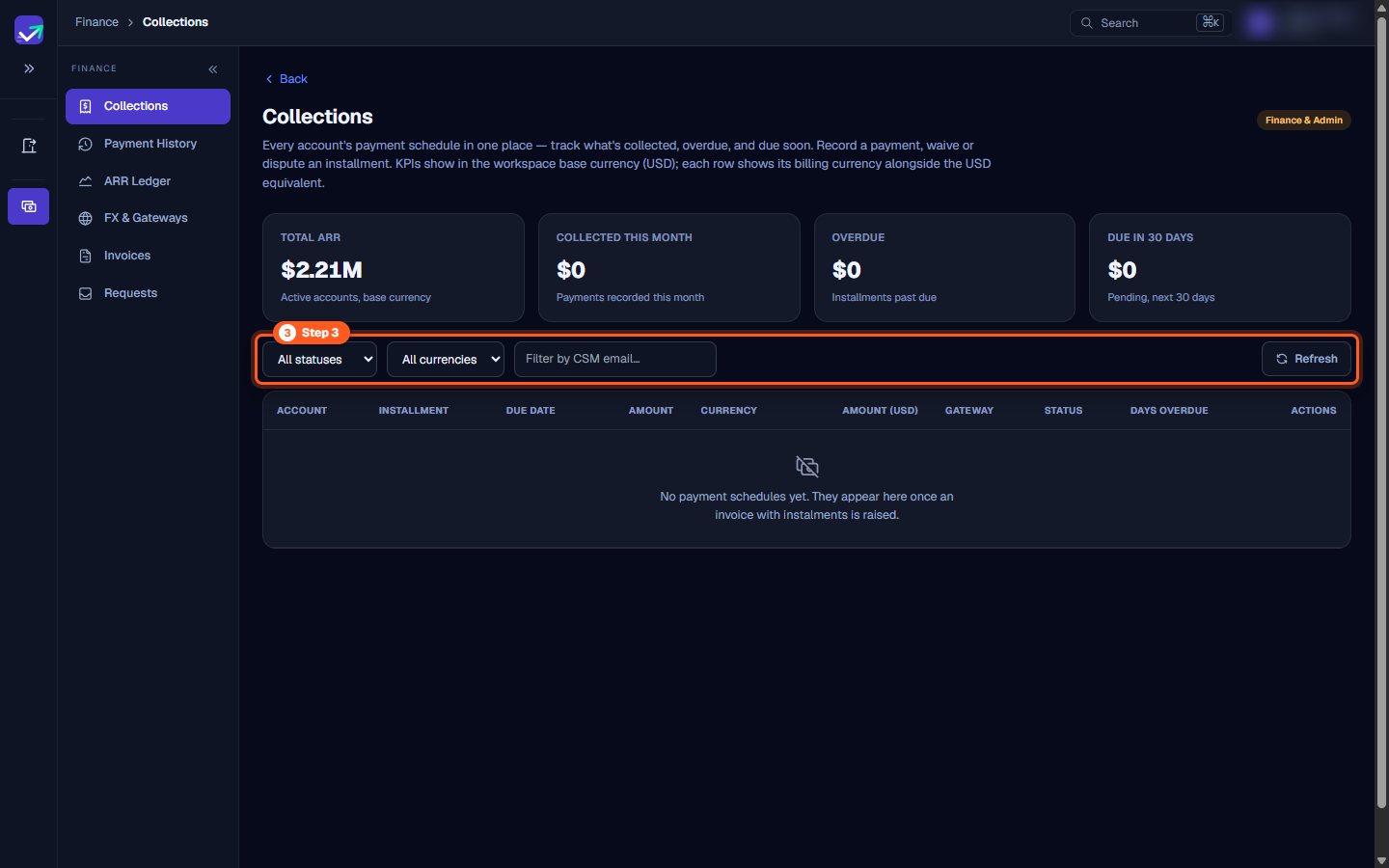
- Targeted segmentation: Filter schedules by installment status (Pending, Overdue, Partially Paid, Paid, Waived, Disputed), billing currency, or CSM email.
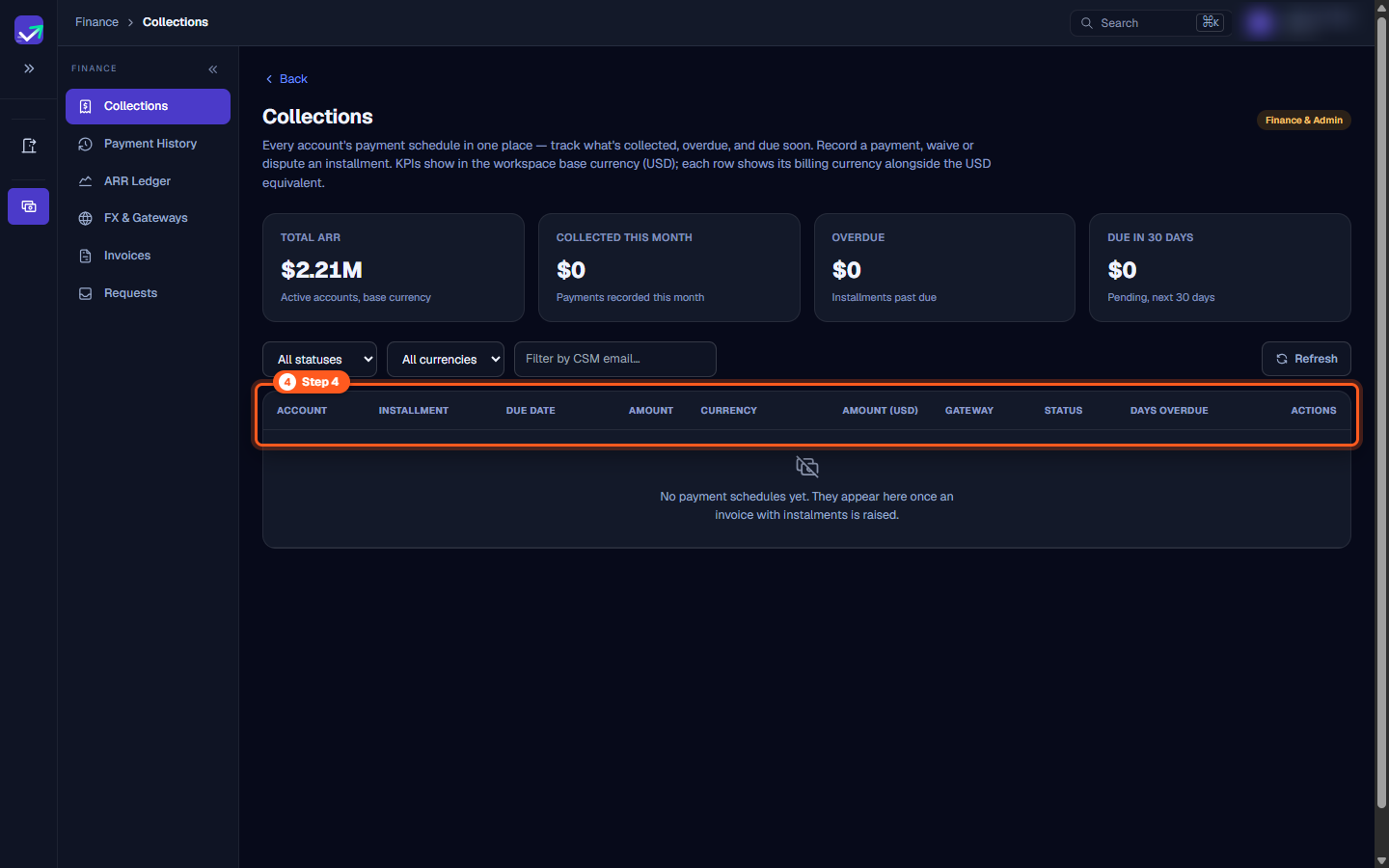
- Dual-currency accounting: View contracted invoice values in their local billing currency alongside converted USD equivalents.
- Direct payment operations: Record received payments, mark disputed items, or waive uncollectible balances.
Step 1: Open Collections to view payment schedules
- In the left navigation sidebar under the Finance section, select Collections (
/finance/collections). - The Collections page displays a high-level summary explaining that payment schedules across customer accounts track what is collected, overdue, and due soon.
- This workspace serves as your primary daily dashboard for working through customer receivables and monitoring upcoming payment deadlines.
Step 2: Review collection KPI metrics
- At the top of the workspace, inspect the four KPI cards:
- Total ARR: The ARR of the workspace's active accounts, in the base currency (e.g.,
$2.21M). - Collected this month: The sum of payments recorded in the current calendar month (e.g.,
$0). - Overdue: The total of installments past their due date.
- Due in 30 days: The total of pending installments due in the next 30 days.
- Total ARR: The ARR of the workspace's active accounts, in the base currency (e.g.,
- These figures refresh when you record a payment or click Refresh.
Step 3: Segment installments with filter controls
- Use the interactive filter toolbar positioned above the schedules table to narrow your operational view:
- Status filter: Isolate schedules by payment state (All statuses, Pending, Overdue, Partially Paid, Paid, Waived, Disputed).
- Currency filter: All currencies, or any billing currency present in the schedule.
- Filter by CSM email: Type a Customer Success Manager's email address to audit schedules tied to specific account owners.
- Refresh: Click the Refresh button to pull the latest transaction records and status updates from the database.
Step 4: Inspect schedule columns and currency conversions
- Examine the payment schedules table layout:
- Account: The customer organization name associated with the contract.
- Installment: The installment number within the schedule.
- Due date: The contractual payment due date.
- Amount and Currency: The installment in its billing currency.
- Amount (USD): The converted equivalent based on the workspace FX rates.
- Gateway: The gateway a recorded payment was made against.
- Status: Pending, Overdue, Partially Paid, Paid, Waived or Disputed.
- Days overdue: Counter showing aging days for past-due balances.
- Actions: Mark paid, and for Finance Waive and Dispute.
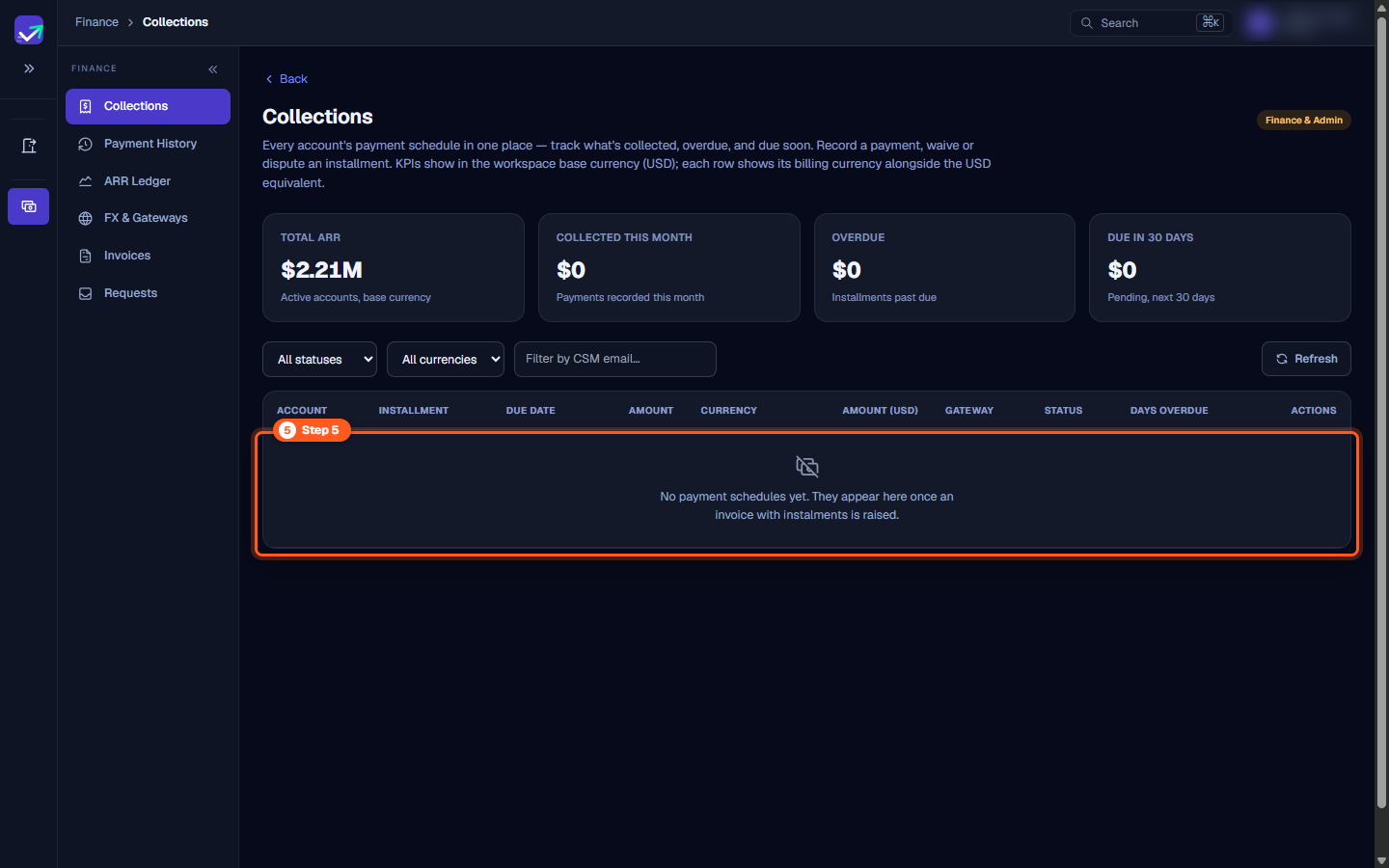
Step 5: Track installment states and record payments
- When an account has a payment schedule, each installment is a row with its status and action buttons.
- With no schedules yet, the table shows No payment schedules yet and, for Admin and Finance, an Add first payment schedule button (see Add a payment schedule below).
- On a row that exists, Mark paid opens a form for the amount received, payment date, gateway, payment mode (Bank Transfer, Credit Card, UPI, Wire Transfer, Cheque, Other) and reference; a partial amount leaves the row Partially Paid.
Add a payment schedule
Admin and Finance can split a raised invoice into instalments, each with its own due date.
- Click Add payment schedule (or Add first payment schedule on an empty table).
- Choose the Invoice. Only a Draft, Sent or Overdue invoice that does not already have a schedule can be picked. Its total, currency and due date load, starting as one instalment for the whole amount.
- Set the instalments: a label, a due date and an amount for each. Split 50/50 and Split 3 equal fill them in for you, and Add another instalment adds a line.
- The instalments must add up to the invoice exactly, to the cent. Until they do, saving is disabled and the form says how far off they are.
- Click Save payment schedule. The instalments appear as rows in the Collections table.
How the invoice status follows its schedule
- When every instalment is Paid, the invoice turns Paid.
- An invoice with instalments turns Overdue only when one of its instalments is late: past its own due date and neither Paid nor Waived. The invoice's own due date does not decide it.
- An invoice without instalments turns Overdue once its own due date passes. The account's CSM then gets one internal overdue notice; no email goes to the customer.
- These checks run in the nightly overdue sweep.
Steps
Navigate to Collections to view global payment schedules across accounts
Review summary KPI cards for Total ARR and current month collections
Filter installment schedules by status, currency, or assigned CSM
Inspect payment schedule columns, original currencies, and USD conversions
Track installment row states and execute payment recording actions
Common questions
What does the Collections workspace track?
When do schedules appear in the Collections table?
How do currency conversions work in the Collections ledger?
What actions can Finance take on a payment schedule row?
Was this helpful? Tell us what was missing