The Context tab
Last verified 2026-09-17
Access commercial deal history, customer commitments, internal AE notes, and signed contract terms on the account Sales Handoff context tab in ValueRamp.
Before you start
- ValueRamp account access (CSM, Admin, or OM role)
The Context tab (/accounts/[id]/context), labeled Sales Handoff in the account sub-navigation, bridges the critical gap between sales closing and post-sales delivery. It captures essential commercial context, special sales promises, stakeholder dynamics, and signed contract terms so the Customer Success team can kick off onboarding without misaligned expectations.
This guide explains how to review transferred sales context, request missing handoff notes, differentiate shared customer notes from internal intelligence, and inspect signed commercial terms.
The Sales Handoff framework
ValueRamp structures sales handoff data into two distinct operational scopes:
Customer-Facing Context (Visible): Fields that can be shown to the customer. Each is toggled individually (Click to make visible to customer); when visible, it appears on the customer portal's Journey page — Why they bought, Commitments made (shown as "What we've committed to you"), Why they chose us, and the key contacts:
- Why they bought: The overarching business drivers and strategic initiatives behind the purchase.
- Commitments made: Specific product capabilities, delivery timelines, or custom agreements made during sales negotiations.
- Key contacts: The primary operational lead, technical owner, and executive sponsor.
- Why they chose us: The key differentiator or value proposition that won the deal over competitors.
Internal Intelligence (Internal): Sensitive operational insights reserved exclusively for your internal CS, implementation, and executive teams:
- Customer concerns: Pre-sales objections, hesitation points, or past vendor disappointments.
- Political map: Buying committee dynamics, internal blockers, and executive sponsors.
- AE notes: Candid guidance from the closing Account Executive to ensure a smooth kickoff.
Commercial Details: Core contract terms captured at signing, including initial ARR, term duration, billing cadence, payment terms, and contracted products.
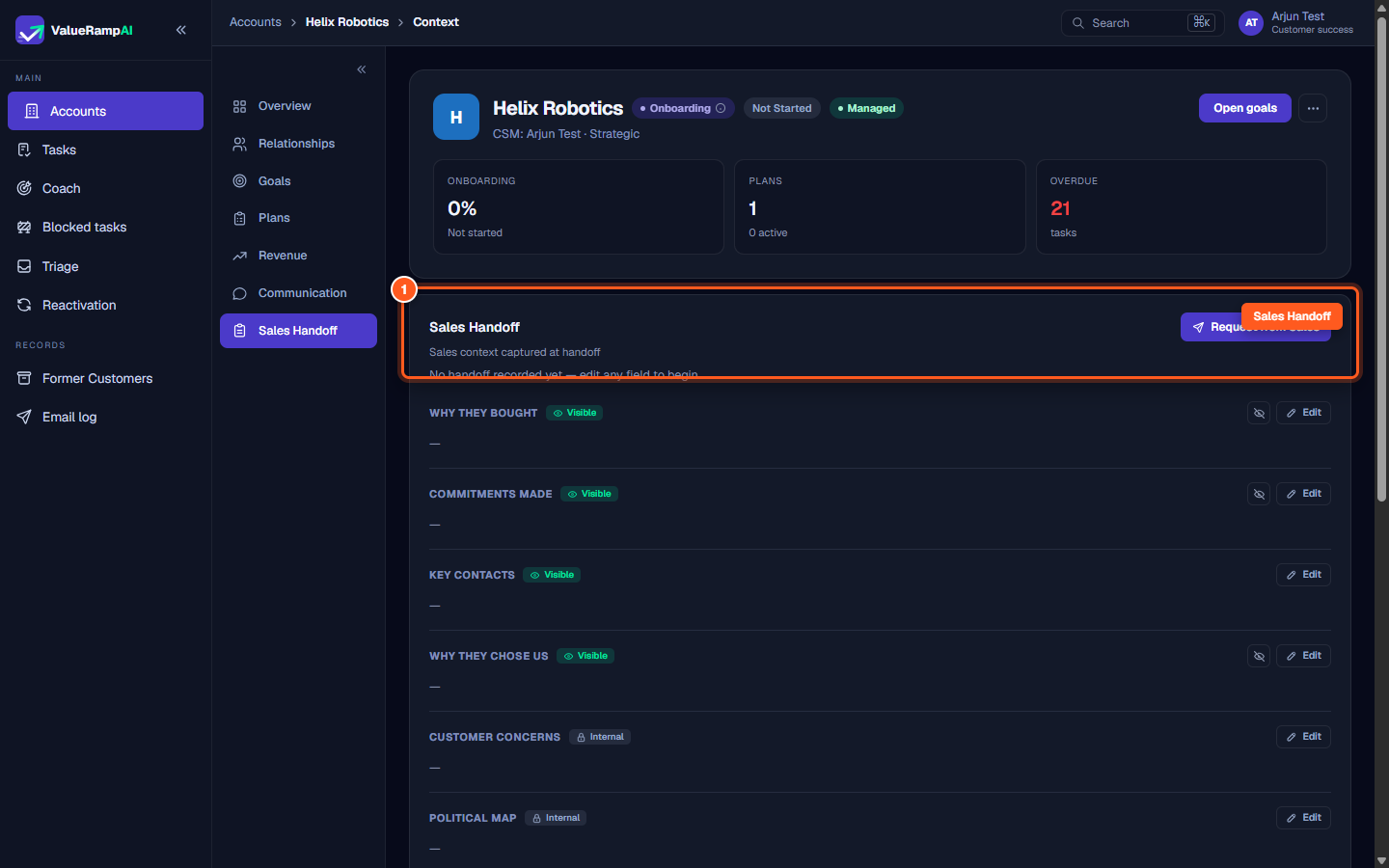
Step 1: Open Sales Handoff to review account context
- In the customer account view, locate the sub-navigation sidebar on the left.
- Click Sales Handoff (
/accounts/[id]/context). - The handoff workspace displays the record of commercial context and discovery notes captured during the sales cycle.
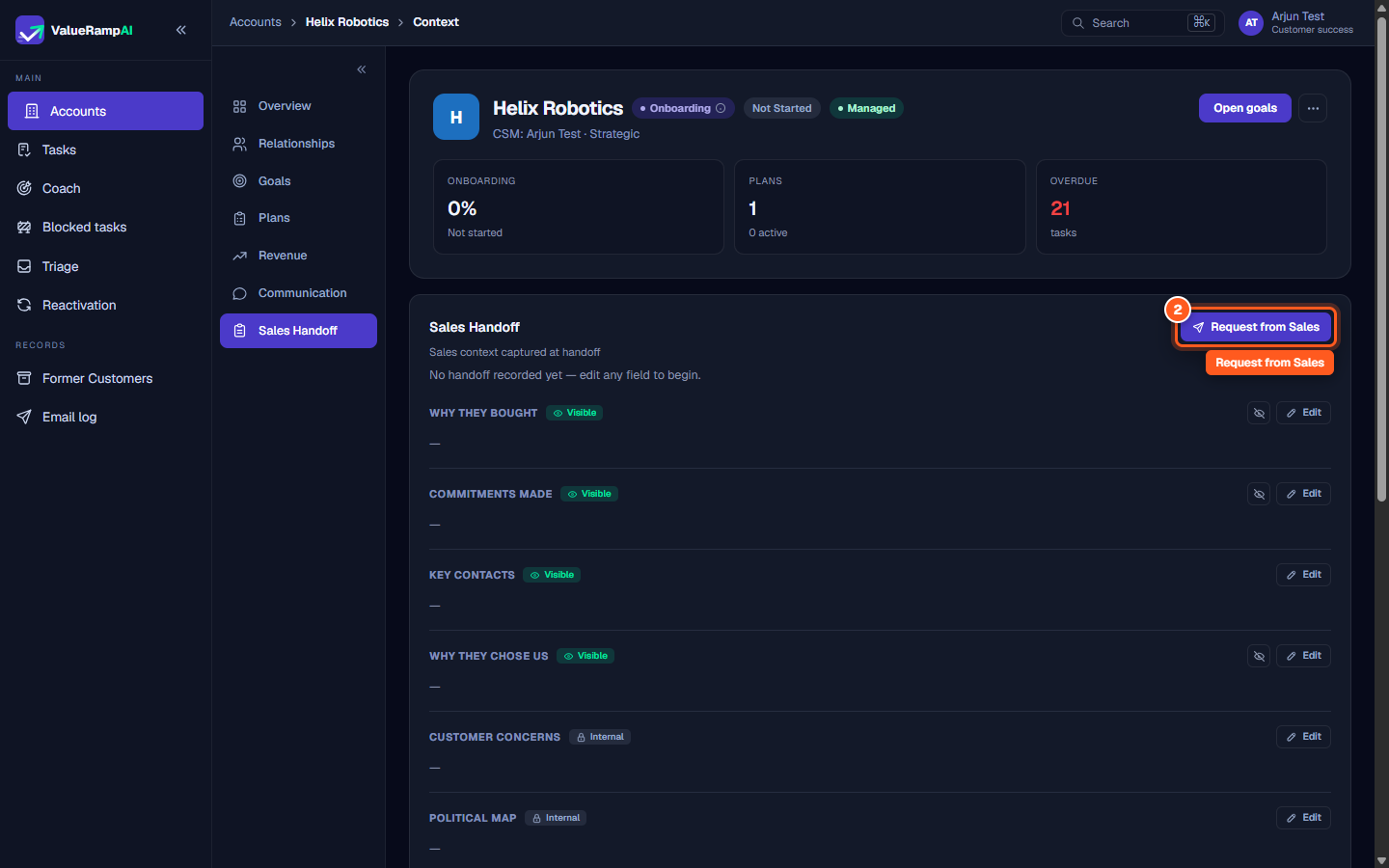
Step 2: Request handoff notes from the Account Executive
- If an account arrives with incomplete handoff information, look to the top right of the Sales Handoff card.
- Click Request from Sales and enter the closing rep's email address.
- ValueRamp emails them a link to the handoff questionnaire; the strip shows Requested from … until they submit, then Submitted by ….
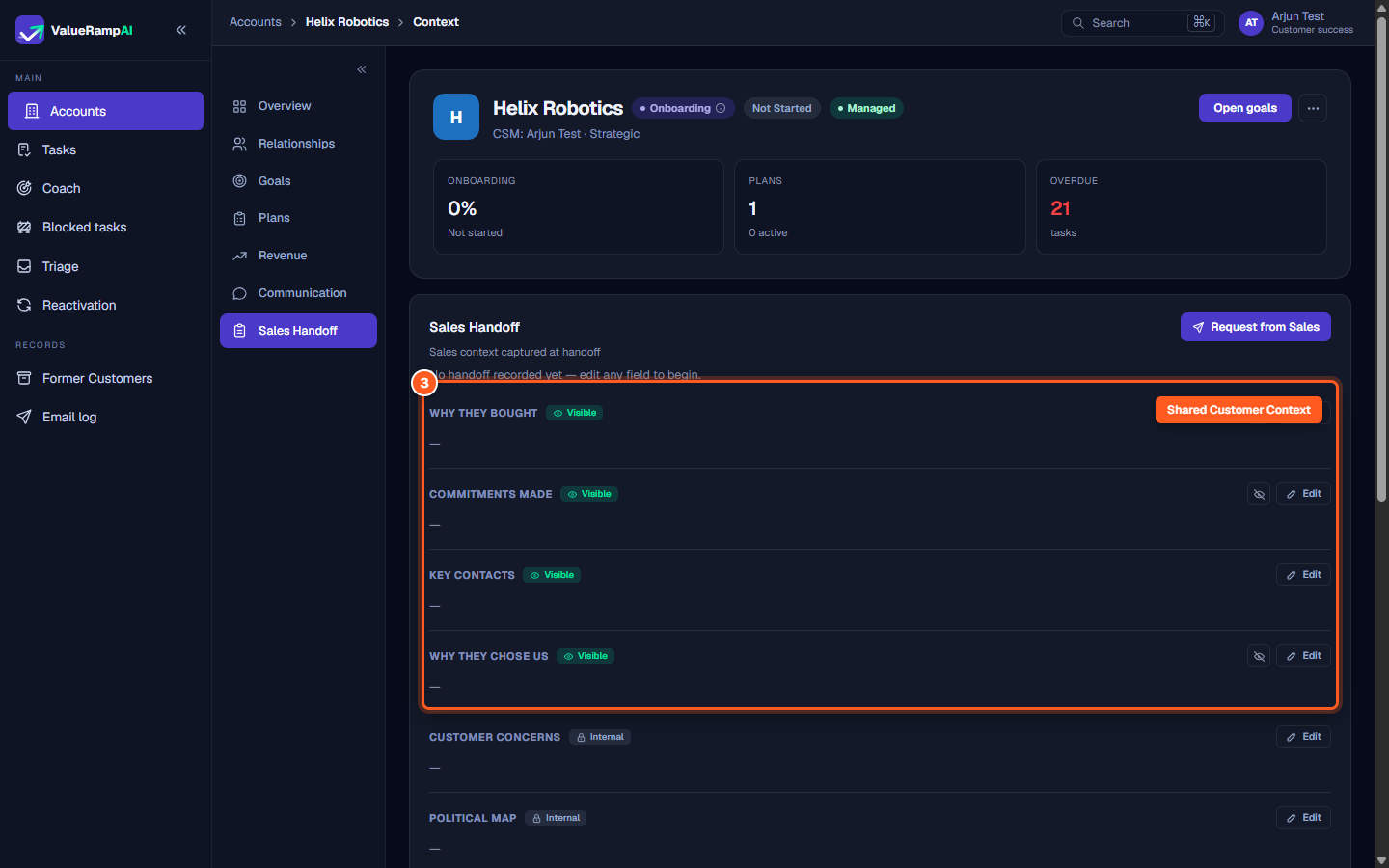
Step 3: Review customer-visible commitments and purchase drivers
- Review the fields labeled with the Visible badge:
- Why they bought: Understand the client's high-level strategic objectives to frame your onboarding goals.
- Commitments made: Validate specific commitments so no promises fall through the cracks during kickoff.
- Key contacts: Confirm customer contacts and their anticipated roles in the rollout.
- Why they chose us: Identify what value propositions mattered most to the customer's decision-makers.
- Click Edit next to any field to add updates or refine notes.
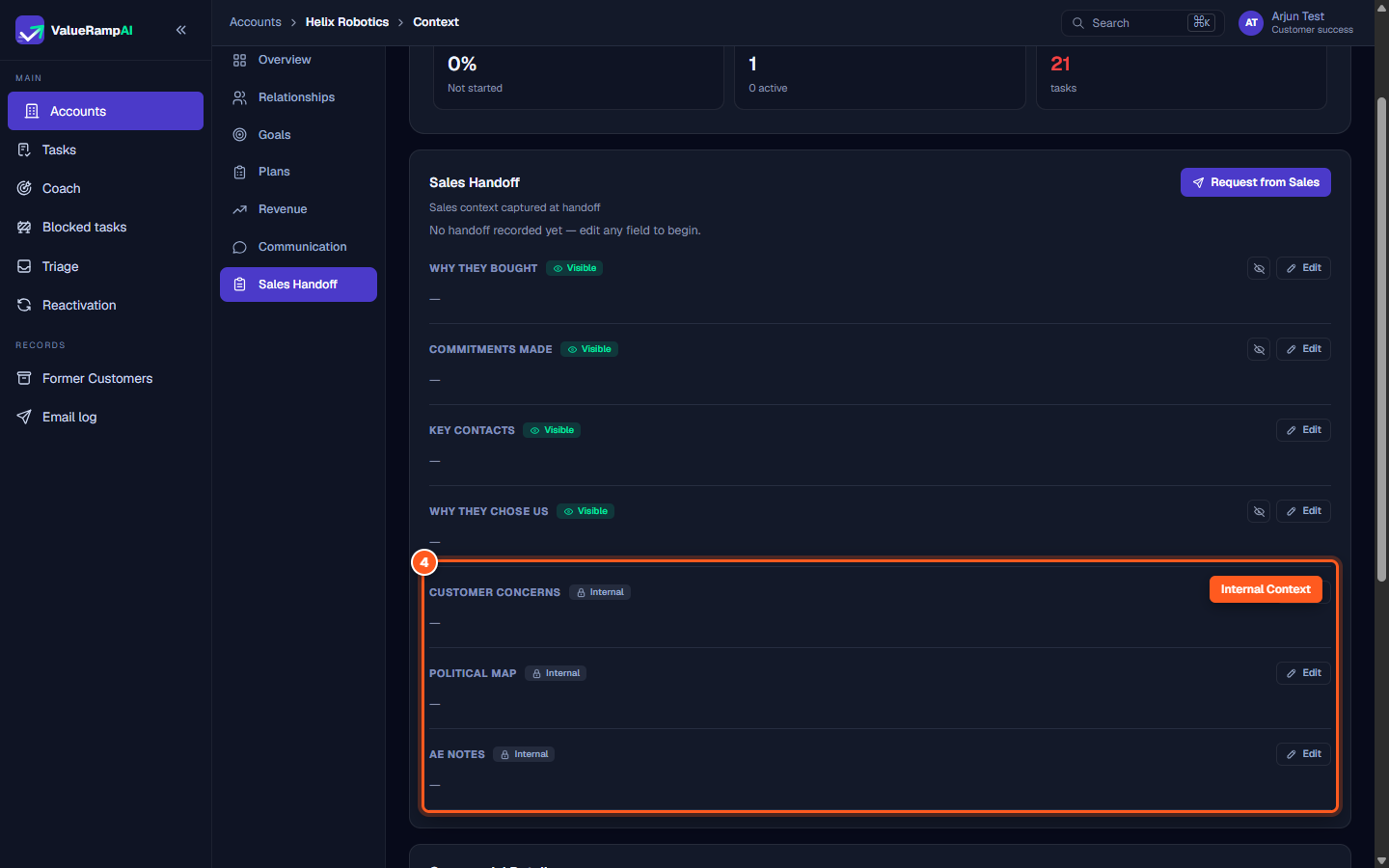
Step 4: Examine internal risks, political dynamics, and AE notes
- Scroll down to the fields marked with the purple Internal badge:
- Customer concerns: Identify customer anxieties or risk areas to proactively address them during onboarding.
- Political map: Understand stakeholder alignment and potential detractors within the client organization.
- AE notes: Read direct, unfiltered recommendations from the sales team.
- These fields are strictly masked from customer-facing portal views.
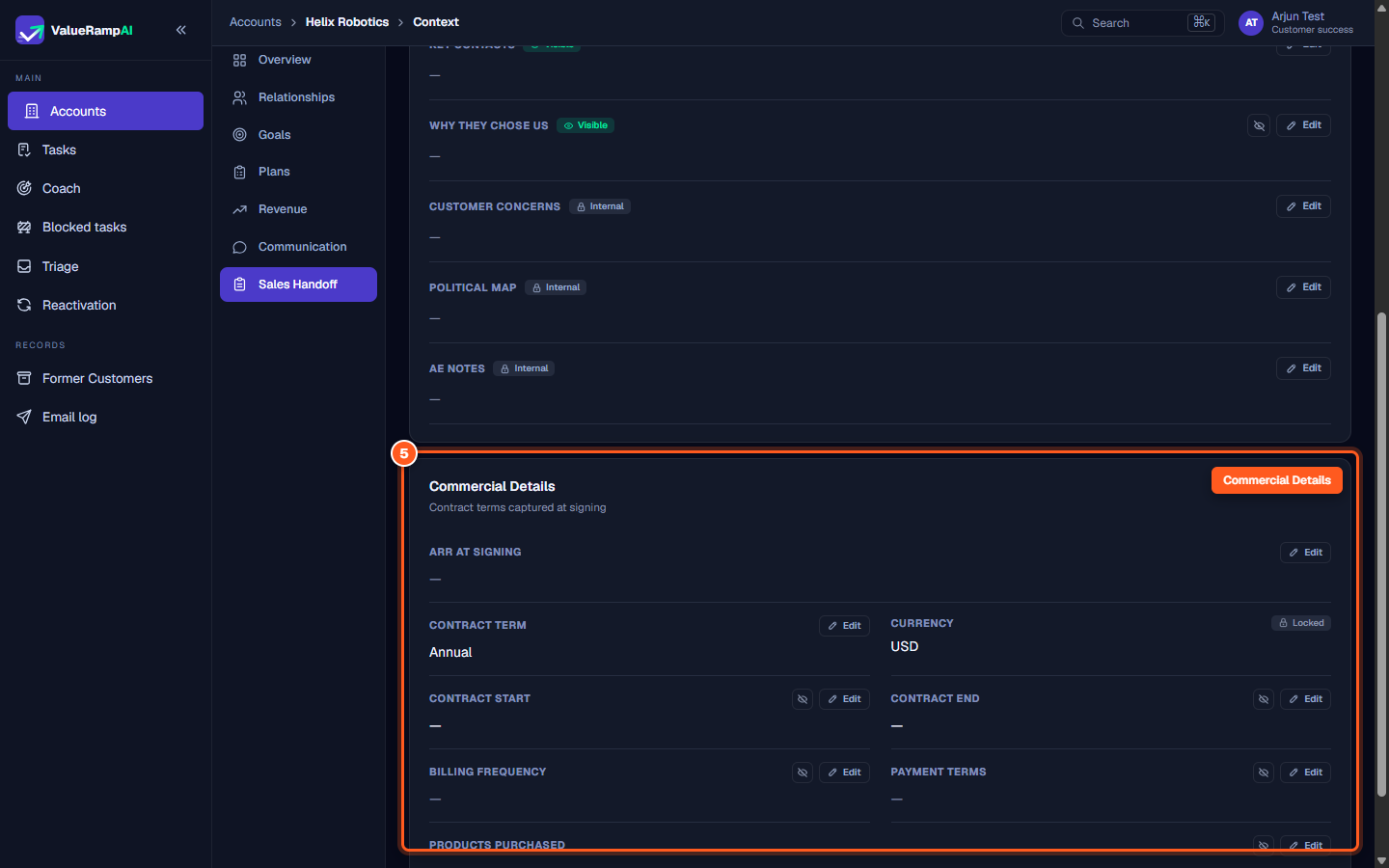
Step 5: Verify signed commercial details and contract terms
- Scroll to the bottom section: Commercial Details.
- Review the verified contract parameters captured at deal closing:
- ARR at Signing: The baseline contract value.
- Contract Term: Contract duration (e.g. Annual, Multi-year).
- Billing Frequency & Payment Terms: Net terms and invoicing schedule.
- Products Purchased: The specific software tiers, add-ons, or professional services included in the agreement.
Steps
Open Sales Handoff to review commercial background and sales context
Click Request from Sales to notify the Account Executive for missing handoff notes
Review shared customer context including purchase rationale and commitments
Inspect internal risk factors, political landscape, and AE notes
Inspect signed commercial details, contract duration, and payment terms
Common questions
What is the difference between Visible and Internal fields?
What happens when I click 'Request from Sales'?
Can CSMs edit sales handoff fields after the deal closes?
Was this helpful? Tell us what was missing