Reply to a customer from the Messages tab
Last verified 2026-09-28
Read shared customer portal conversations, send replies to customers and stakeholders, and track email notifications from the account Messages tab.
Before you start
- ValueRamp CSM, Admin, or OM role
- Access to the target customer account
The Messages tab on an account record (/accounts/[id]/messages) provides a direct, two-way communication channel between your customer success team and client contacts collaborating in the customer portal.
Instead of managing siloed external email threads, the Messages tab centralizes all customer communications into a single chronological feed bound directly to the account record.
How account messaging works
1. One shared conversation per account
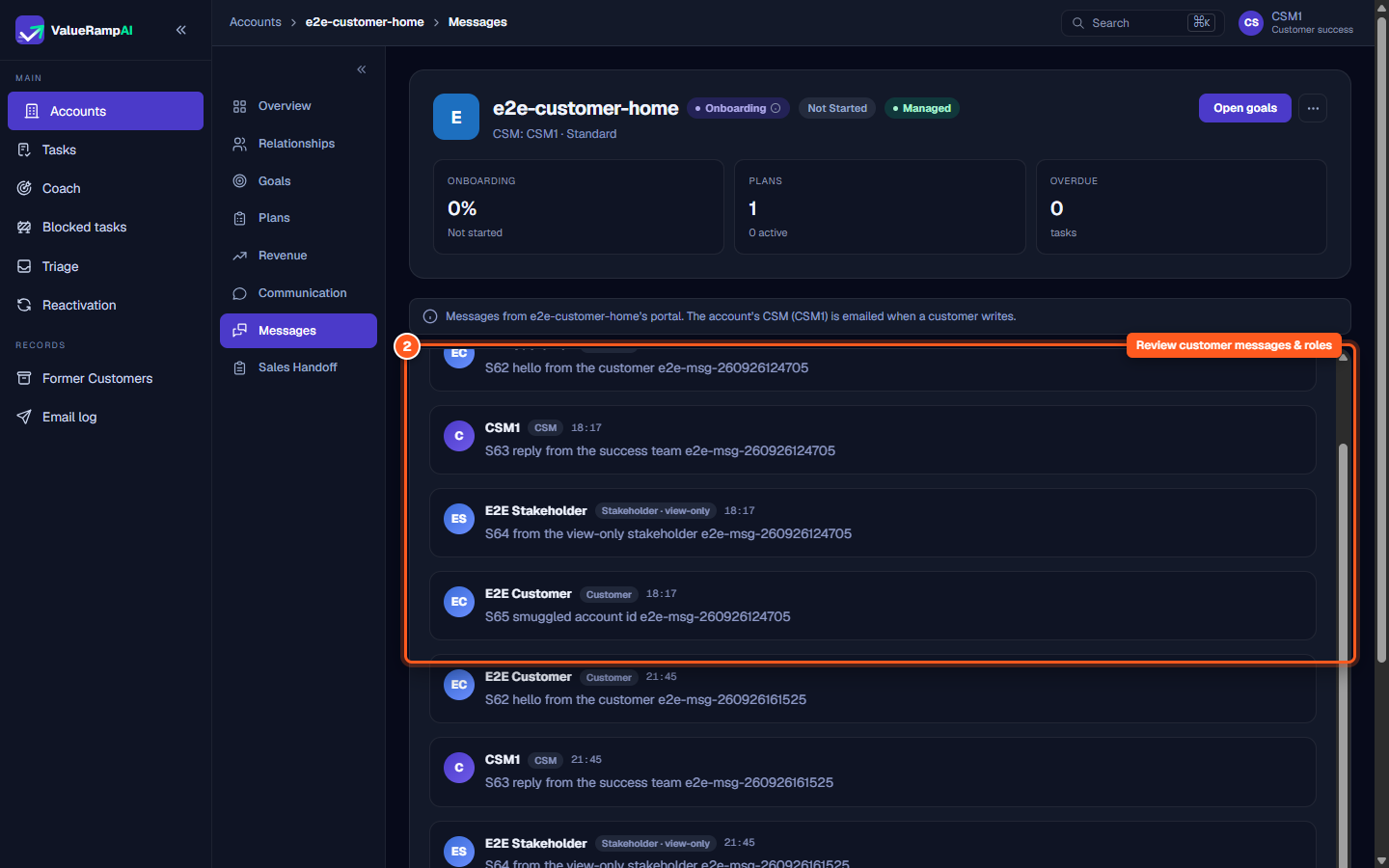
Every customer account has exactly one unified conversation thread. All contacts who have access to that customer's portal—including primary implementation leads and view-only executive stakeholders—can view and post messages in this shared thread.
2. Multi-role participation on the success team
Customer messages are not restricted to a single CSM inbox. While the assigned Customer Success Manager receives email alerts for new incoming customer messages, any authorized team member with an Admin, CSM, or Onboarding Manager (OM) role can view the discussion history and reply directly.
The tab is hidden from Finance users, and external portal users cannot access internal staff routes.
Notification routing and email delivery
ValueRamp keeps both sides in sync with automatic email alerts:
- When a customer posts a message: the account's Customer Success Manager is emailed. If that CSM is no longer an active member of your workspace, the alert goes to all active workspace Admins.
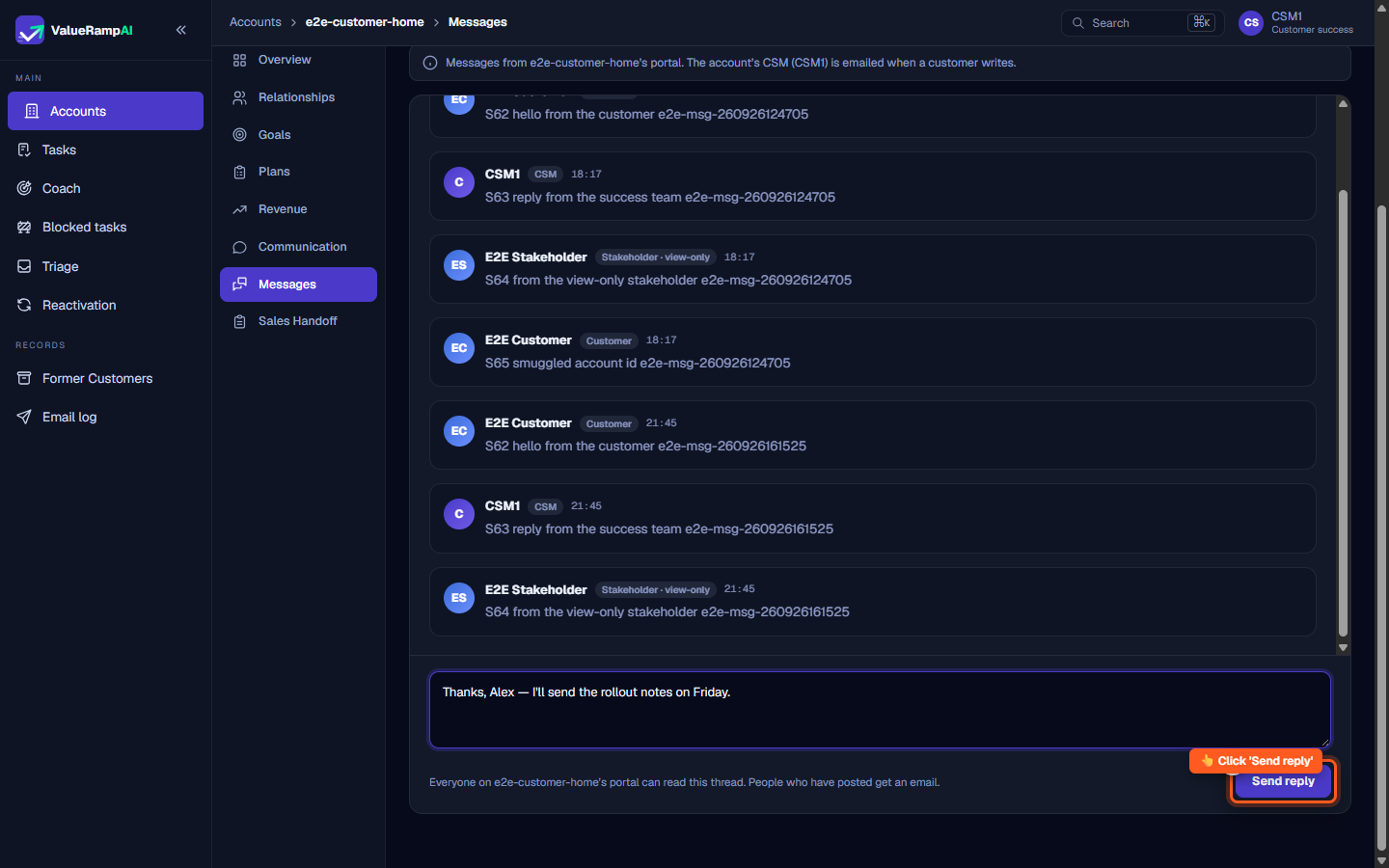
- When your success team replies: ValueRamp emails every customer-side user who has written in the thread and can still sign in to the portal. If nobody like that exists yet, the account's main contact is emailed.
Staff email alerts clearly state the individual team member who authored the message, ensuring transparency across team handoffs.
Message composition and safety limits
The message composer enforces clean operational standards:
- Plain text formatting: Messages support plain text up to 4,000 characters. A character counter appears once you exceed 3,500 characters.
- Keyboard shortcuts: Press ⌘ + Enter (macOS) or Ctrl + Enter (Windows/Linux) to dispatch replies immediately without leaving the keyboard.
- Rate limiting: To protect customer inboxes from accidental loops or automated spam, ValueRamp enforces a rate limit of 20 messages per author per account per hour.
- No editing or deleting: Messages can't be edited or deleted once sent.
- Sending status: In the customer portal, a sent message shows a clock while it is sending and a single checkmark (
✓) once it is saved and sent. There are no delivery or read receipts.
Steps
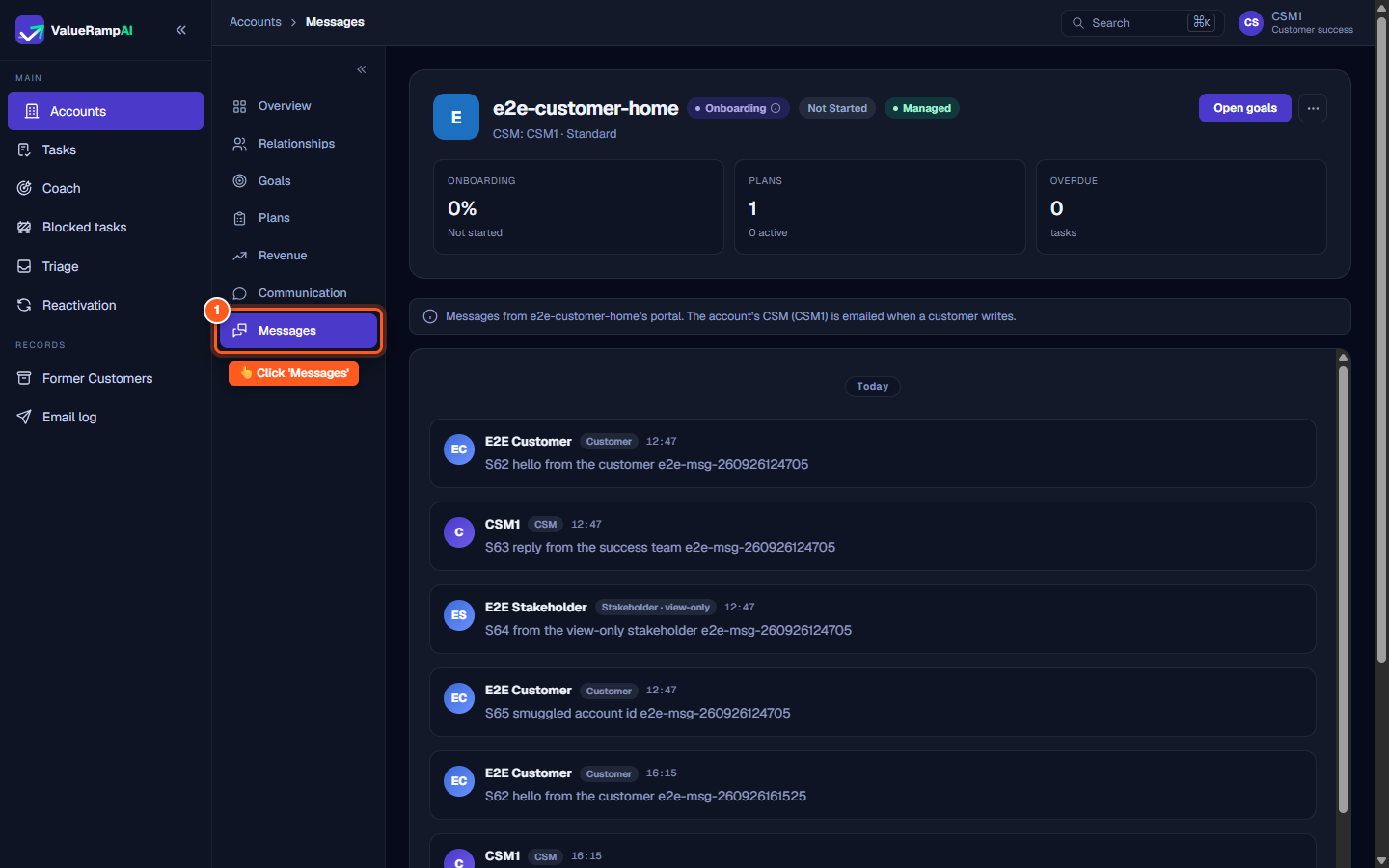
Click 'Messages' in the account sub-navigation
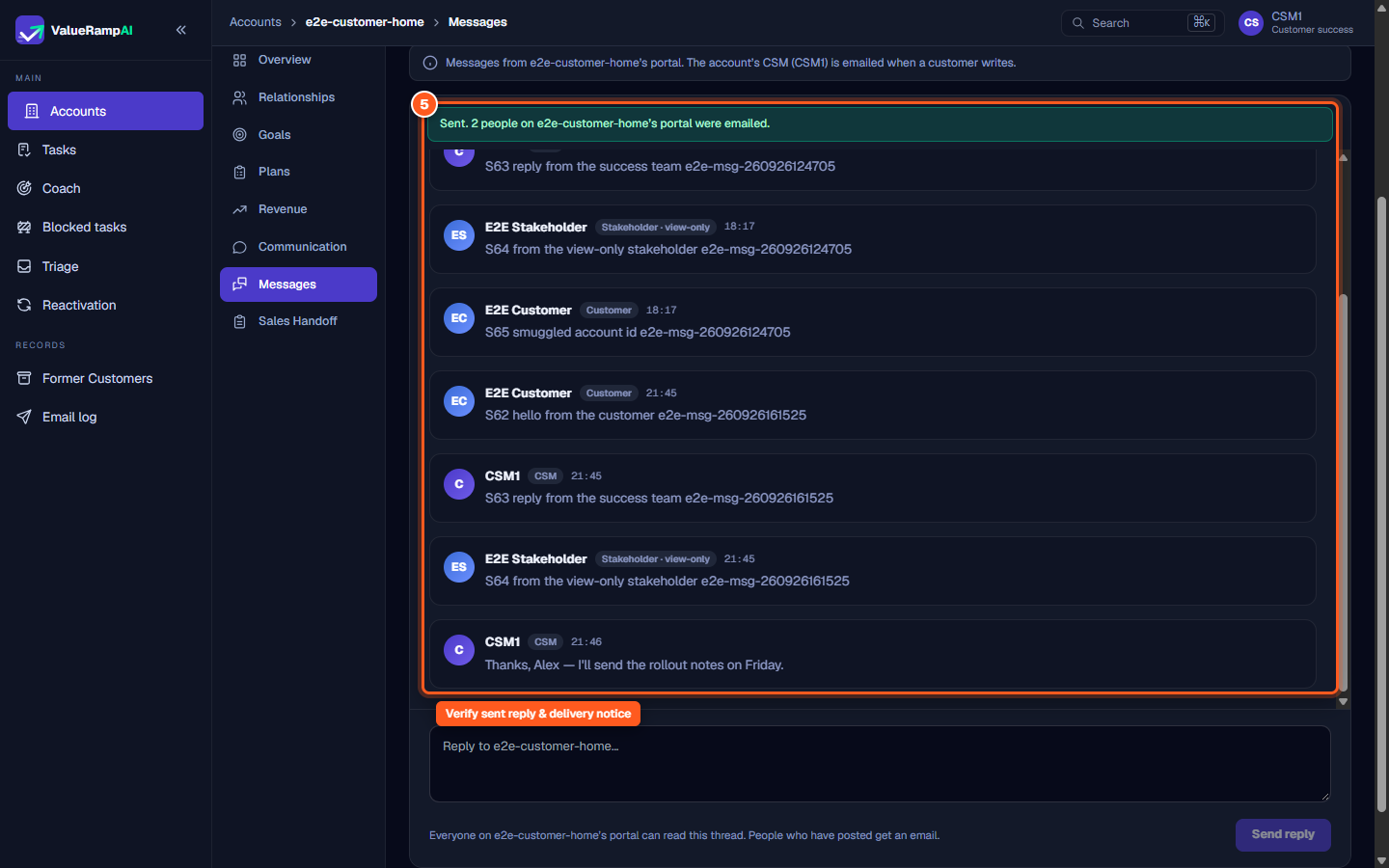
Review incoming customer messages and participant roles in the conversation thread
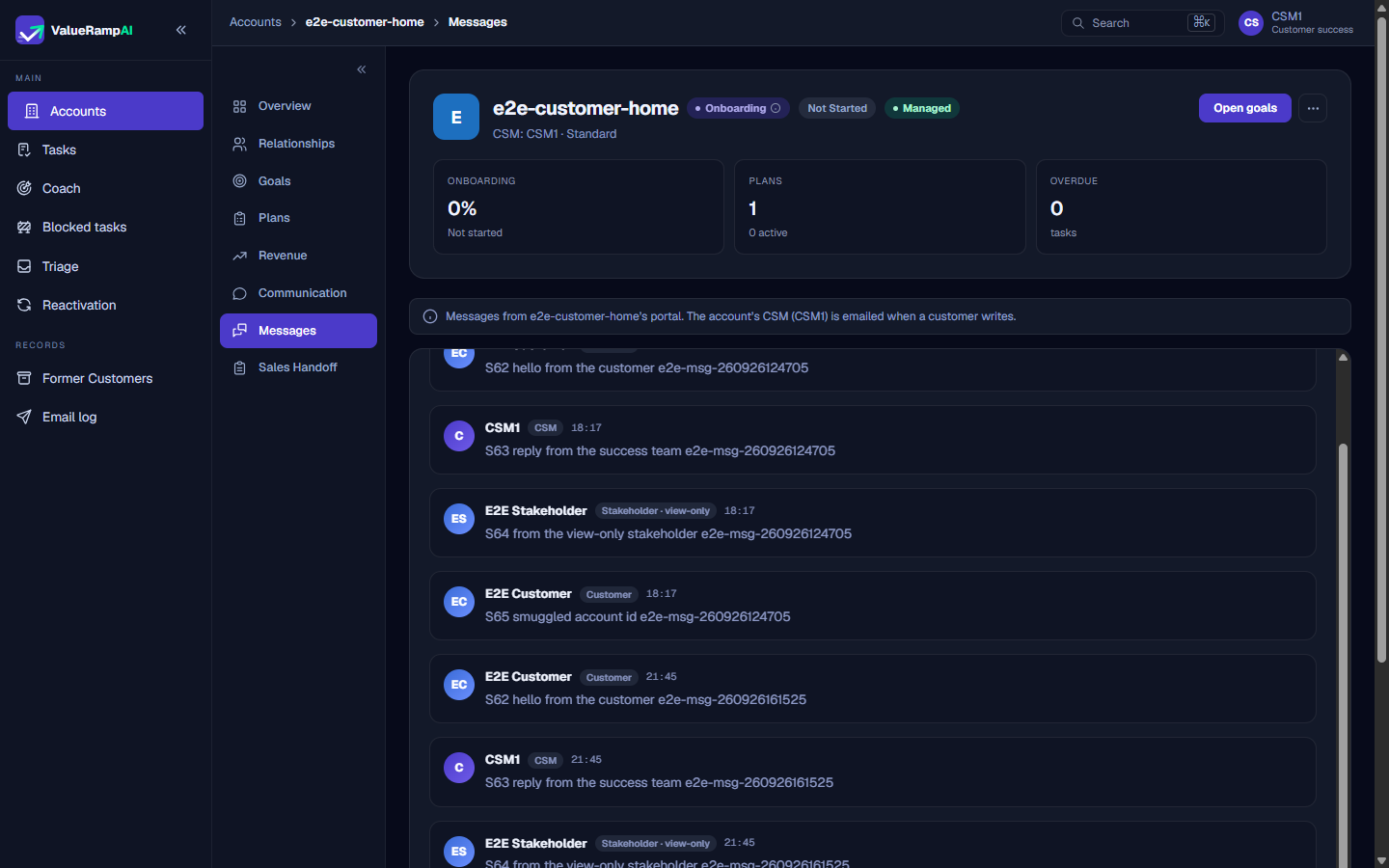
Type your response in the message composer
Click 'Send reply' to post your message and email the customer contacts who have written and can still sign in
Check your sent reply and the notice that says how many people were emailed
Common questions
Who can read and reply to account messages?
Who receives an email notification when a message is sent?
Can I edit, delete, or add attachments to messages?
What is the message sending rate limit?
Was this helpful? Tell us what was missing