An account's overview page
Last verified 2026-09-17
Track onboarding velocity, read AI health summaries, watch churn risk signals, and move between the workspaces inside a ValueRamp account.
Before you start
- ValueRamp account access (CSM, Admin, or OM role)
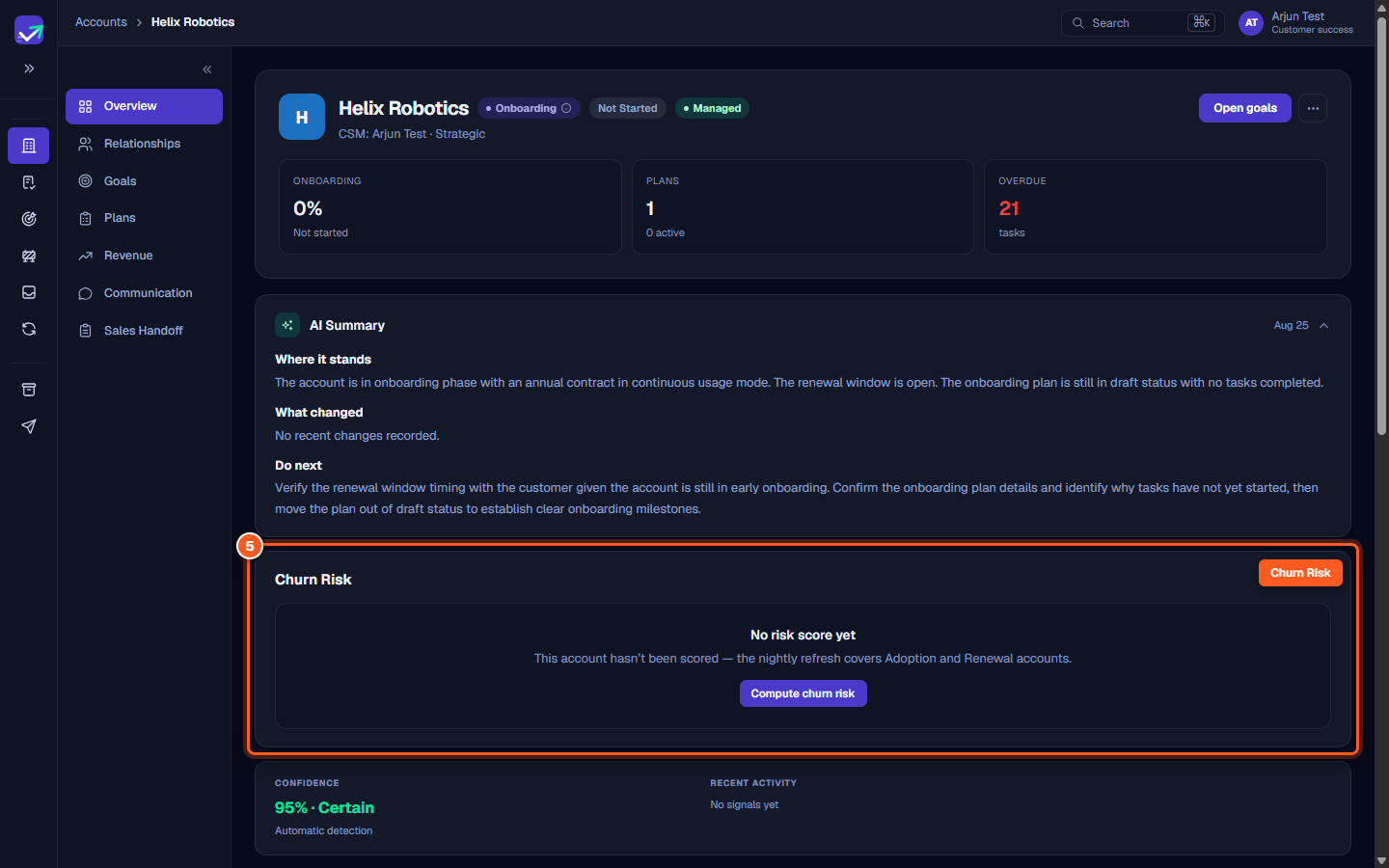
The Account Overview page (/accounts/[id]) provides a unified operational command center for an individual customer organization. It brings together lifecycle progression status, implementation metrics, AI-generated executive summaries, and proactive churn risk detection.
This guide walks through the key components of an account record, how to interpret summary metrics, and how to navigate between specialized account sub-views.
Anatomy of the account overview
The account overview organizes essential post-sales information into structured sections:
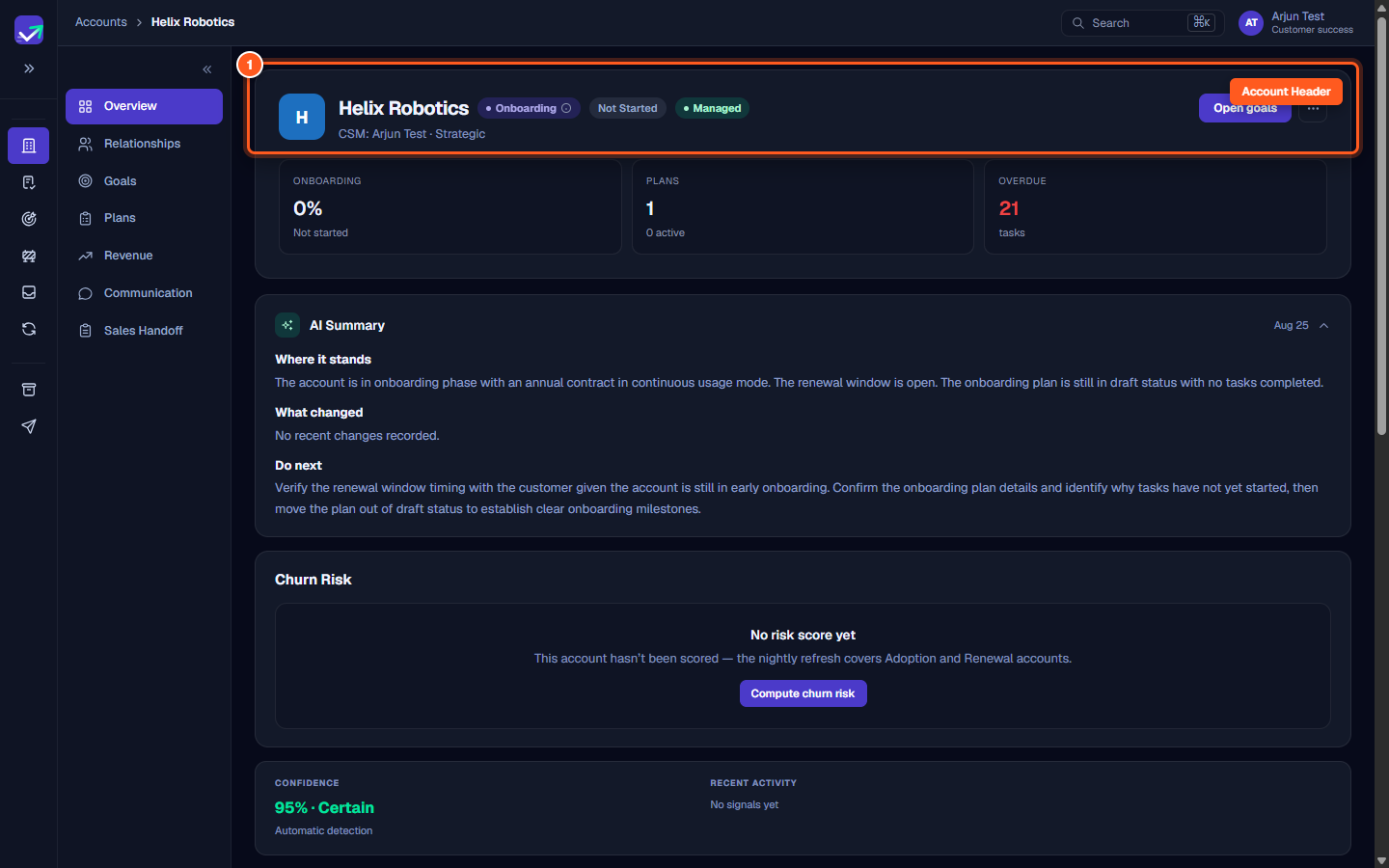
- Account Header: Highlights identity, lifecycle phase (Onboarding, Adoption, or Renewal), management tier, and assigned team members.
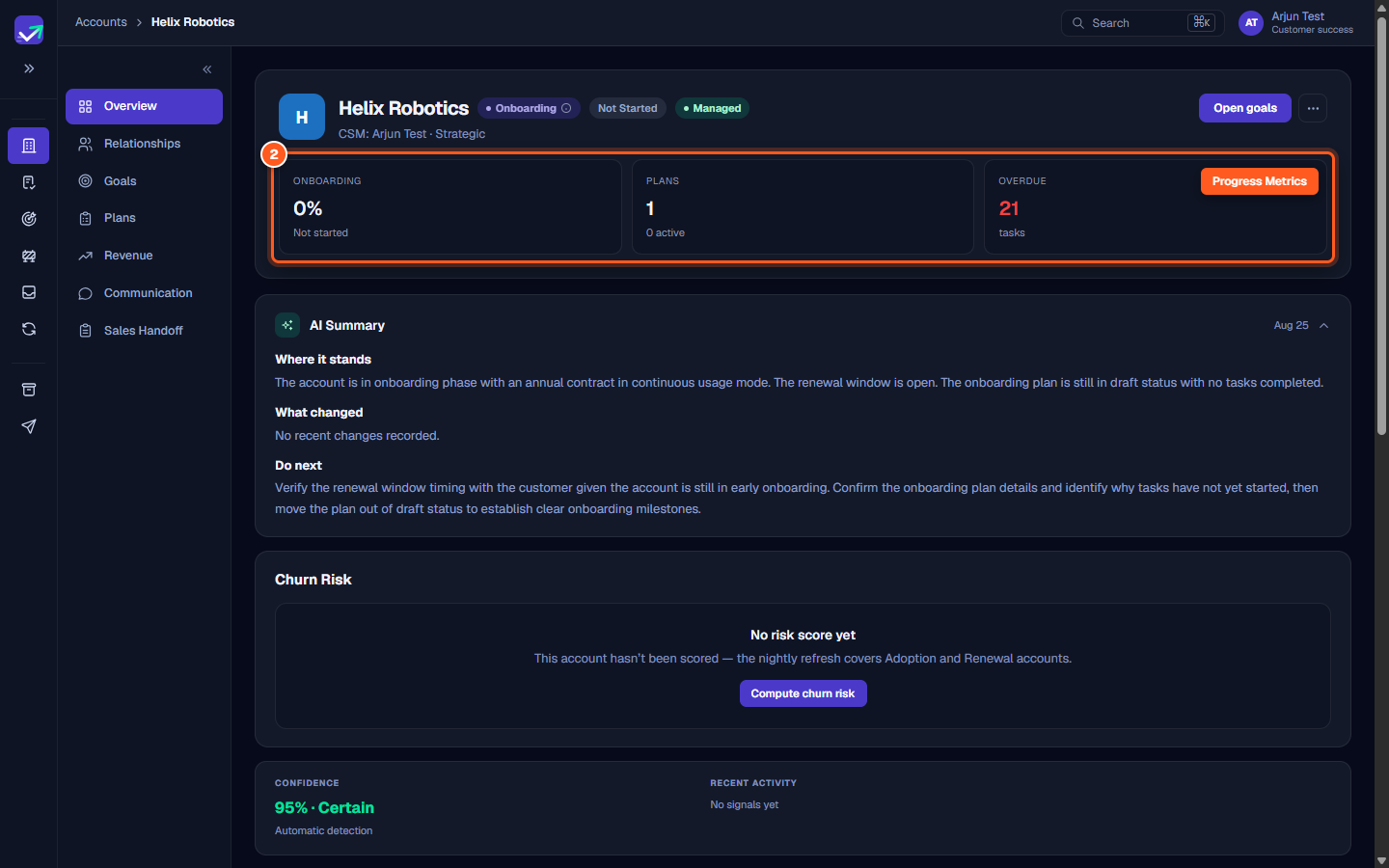
- Key Metric Cards: Surfaces quantitative health metrics including onboarding completion percentage, active implementation plans, and overdue deliverable counts.
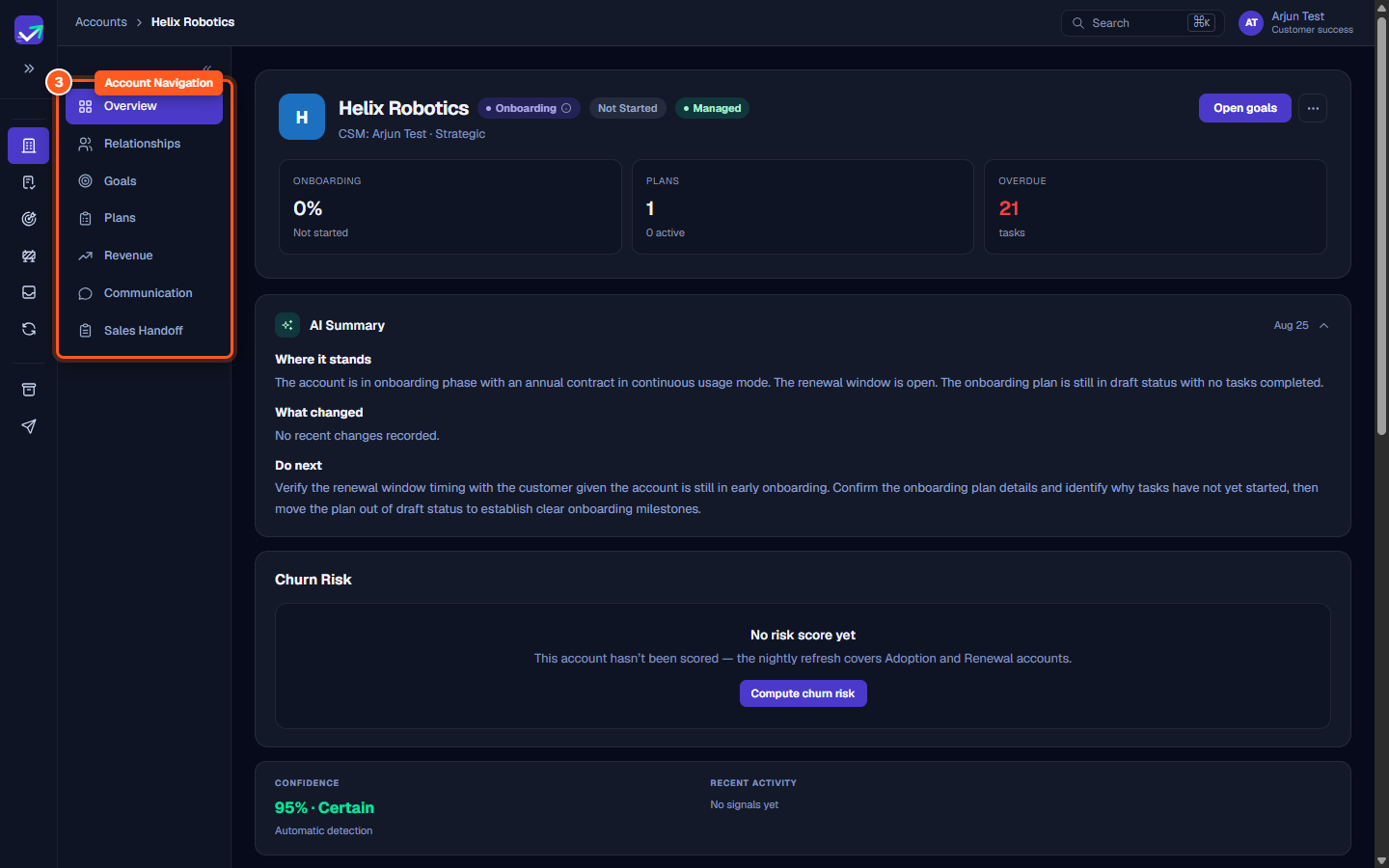
- Sub-Navigation Tabs: A dedicated sidebar providing one-click access to specialized account tabs: Overview, Relationships, Goals, Plans, Revenue, Communication, Churn (once the account churns or is paused), and Sales Handoff.
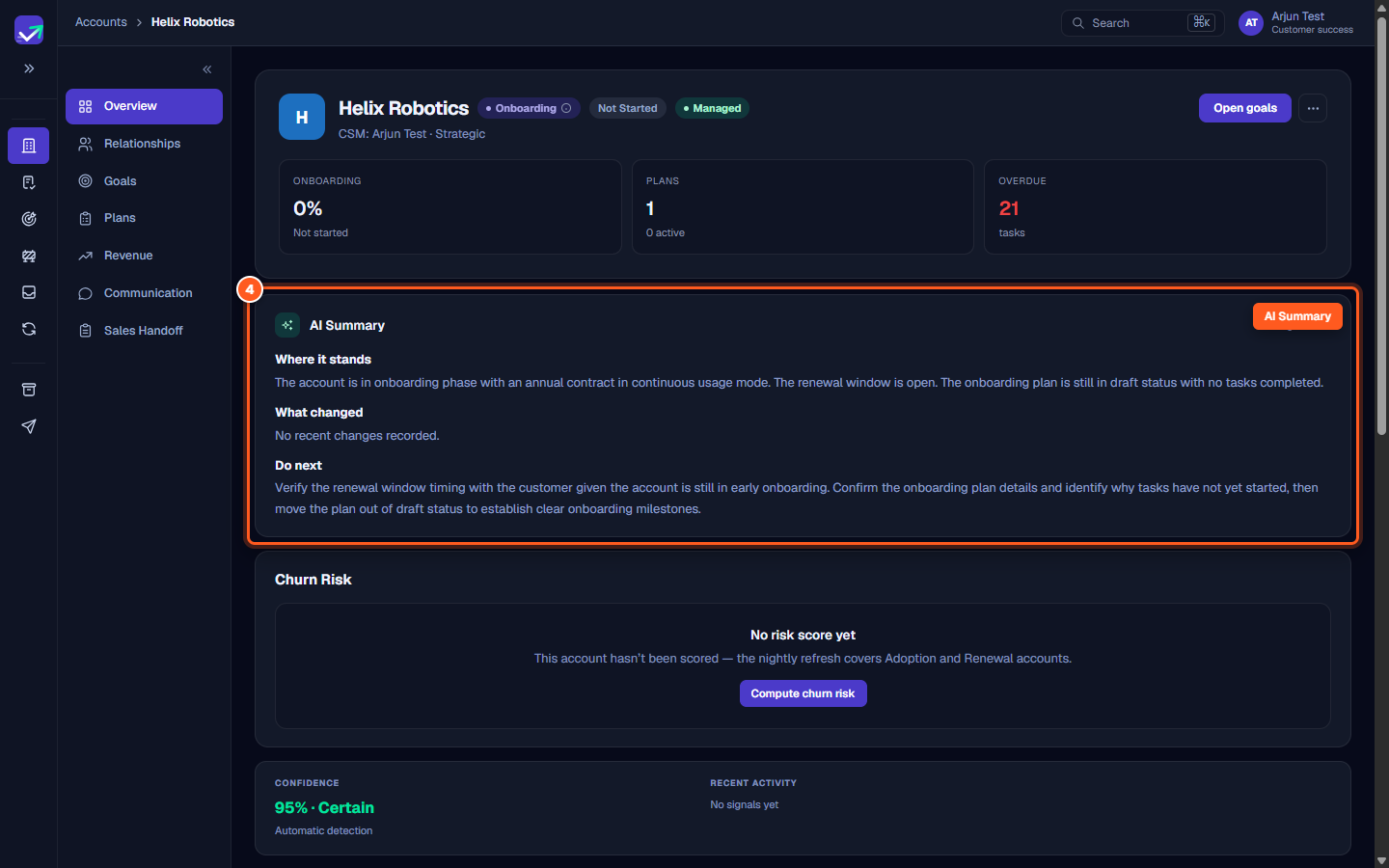
- AI Summary: A synthesized brief of where the customer stands, what changed and what to do next — regenerated when the underlying signals change, at most once a day.
- Churn Risk & Confidence: Proactive health assessment showing model detection confidence and an action button to compute churn risk on demand.
Step 1: Inspect the account header and lifecycle status
- Open any customer account from the Accounts directory (
/accounts). - The account header at the top displays:
- Company Avatar & Name: The customer's formal corporate identity.
- Lifecycle Phase Badge: Identifies whether the organization is in Onboarding, Adoption, or Renewal.
- Management Tier: Managed or Unmanaged. The account tier (Standard, Core, Strategic) is a separate field.
- Assigned CSM: Displays the designated Customer Success Manager responsible for the account relationship.
Step 2: Track onboarding velocity, active plans, and overdue tasks
- Below the header, three metric cards summarize execution velocity:
- Onboarding (%): Tracks overall percentage completion of the account's onboarding plan.
- Plans: Displays total plans created versus currently active plans.
- Overdue Tasks: Flags tasks whose milestone target dates have passed without completion, helping you spot delivery bottlenecks early.
Step 3: Navigate between specialized account workspaces
- On the left side of the account workspace, use the sub-navigation tabs to access dedicated modules:
- Overview: The primary dashboard with executive summaries and health metrics.
- Relationships: Stakeholder mapping, executive sponsors, and customer portal invitations.
- Goals: Strategic business objectives, milestone achievements, and success criteria.
- Plans: Detailed task breakdowns, roadmaps, and delivery schedules.
- Revenue: Contract ARR, renewal windows, and pipeline opportunities.
- Communication: Synced email exchanges, conversation logs, and sentiment analysis.
- Churn: Churn summary, root cause, exit capture and save attempts — present only once the account enters churn or is paused.
- Sales Handoff: Commercial context, notes, and CRM handoff criteria captured at closing.
Step 4: Read the AI Summary for synthesized health insights
- Scroll to the AI Summary card.
- The engine reads contract details, milestone activity and communication signals and writes a three-part brief, refreshed at most once a day when its inputs change:
- Where it stands: Current progress, contract mode and renewal timing.
- What changed: What moved since the last brief.
- Do next: Concrete next steps.
Step 5: Evaluate churn risk and calculate health indicators
- Locate the Churn Risk panel.
- Review the account's health score, risk band, and automatic detection confidence.
- For accounts in early onboarding or to recalculate scores following major milestone completions, click Compute churn risk to trigger an on-demand scoring run.
Steps
Inspect the customer organization header, lifecycle phase, and CSM assignment
Track onboarding velocity, active plans, and overdue deliverable counts
Use the account sub-navigation to switch between specialized workspaces
Read the AI Summary for synthesized account health and milestone status
Evaluate churn risk assessment and calculate real-time health indicators
Common questions
What information is included in the AI Summary?
When are accounts automatically scored for churn risk?
What sub-navigation tabs are available on an account?
Was this helpful? Tell us what was missing