The Churn tab and churn risk
Last verified 2026-09-17
Review churn summaries, AI root-cause hypotheses, exit interview captures, save attempts, offboarding plans, and pre-churn risk scoring on account records.
Before you start
- ValueRamp account access (CSM, Admin, or OM role)
The Churn tab (/accounts/[id]/churn) and Churn Risk card (/accounts/[id]) provide Customer Success Managers and leadership with a rigorous framework for detecting early churn signals, managing the offboarding experience, and recording structured learnings when a customer cancels or pauses.
Churn tab activation states
ValueRamp preserves a clean user interface by activating the Churn tab only when an account is actively churning, post-churn, or paused:
- Active accounts (
/accounts/[id]/churn): Navigating directly to the URL on an active customer shows a quiet notification stating "This account isn’t churned or paused — the Churn tab activates when it enters the churn window." - Churned and post-churn accounts: The sub-navigation displays the red-badged Churn tab containing eight panels: Churn summary, Goodbye Brief, Churn root cause, Exit capture, Save attempts, Stakeholder transitions, Reactivation watch list, and Offboarding plan.
- Paused accounts: When a temporary pause is negotiated (e.g., seasonal suspension), the Churn tab tracks pause duration, expiration dates, and reactivation dates.
Core sections of the Churn tab
1. Churn summary
The top panel captures essential churn metadata at a glance:
- Lifecycle phase: Displays
CHURNorPOST_CHURN. - Stated reason: The reason reported by the customer, from a fixed list (e.g.,
pricing,budget_cuts,champion_departure,product_fit,competitor_switch). - ARR lost: The recurring revenue removed from the active portfolio.
- Risk at churn: The quantitative churn score calculated immediately prior to cancellation.
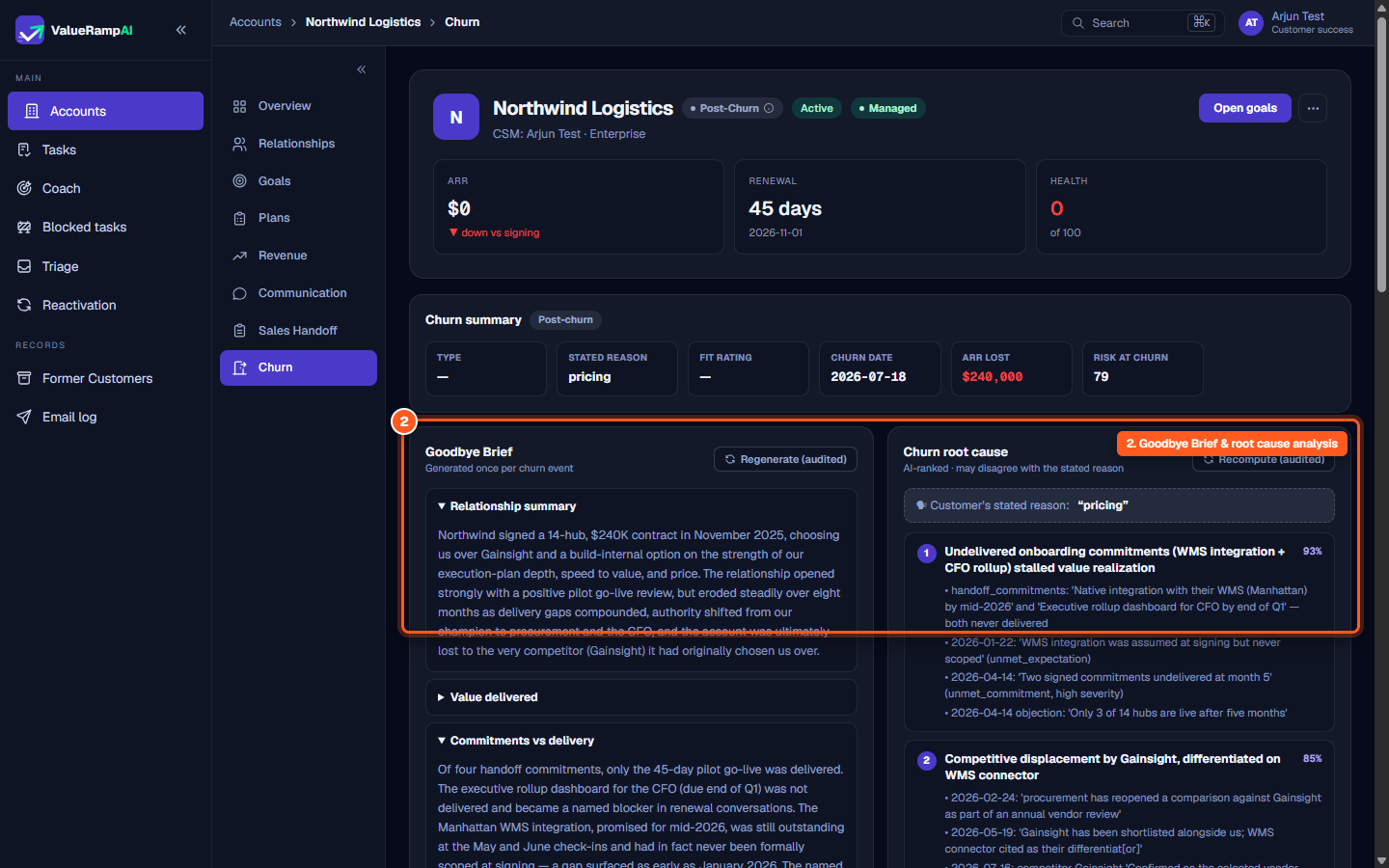
2. Goodbye Brief & AI root-cause analysis
- Goodbye Brief: An executive summary generated automatically to capture key milestones, account history, and context for post-mortem reviews.
- Churn root cause: An AI-ranked analysis that evaluates telemetry signals, health drop-offs, champion turnover, and communication silence to identify actual drivers that may differ from the stated exit reason. A ranking computed since 30 October 2026 lists each piece of evidence as a source chip, with the source's own words where the cause quoted them. A chip from a conversation, a goal, the sales handoff or the exit capture opens where that source lives. An older ranking shows a note until it is recomputed.
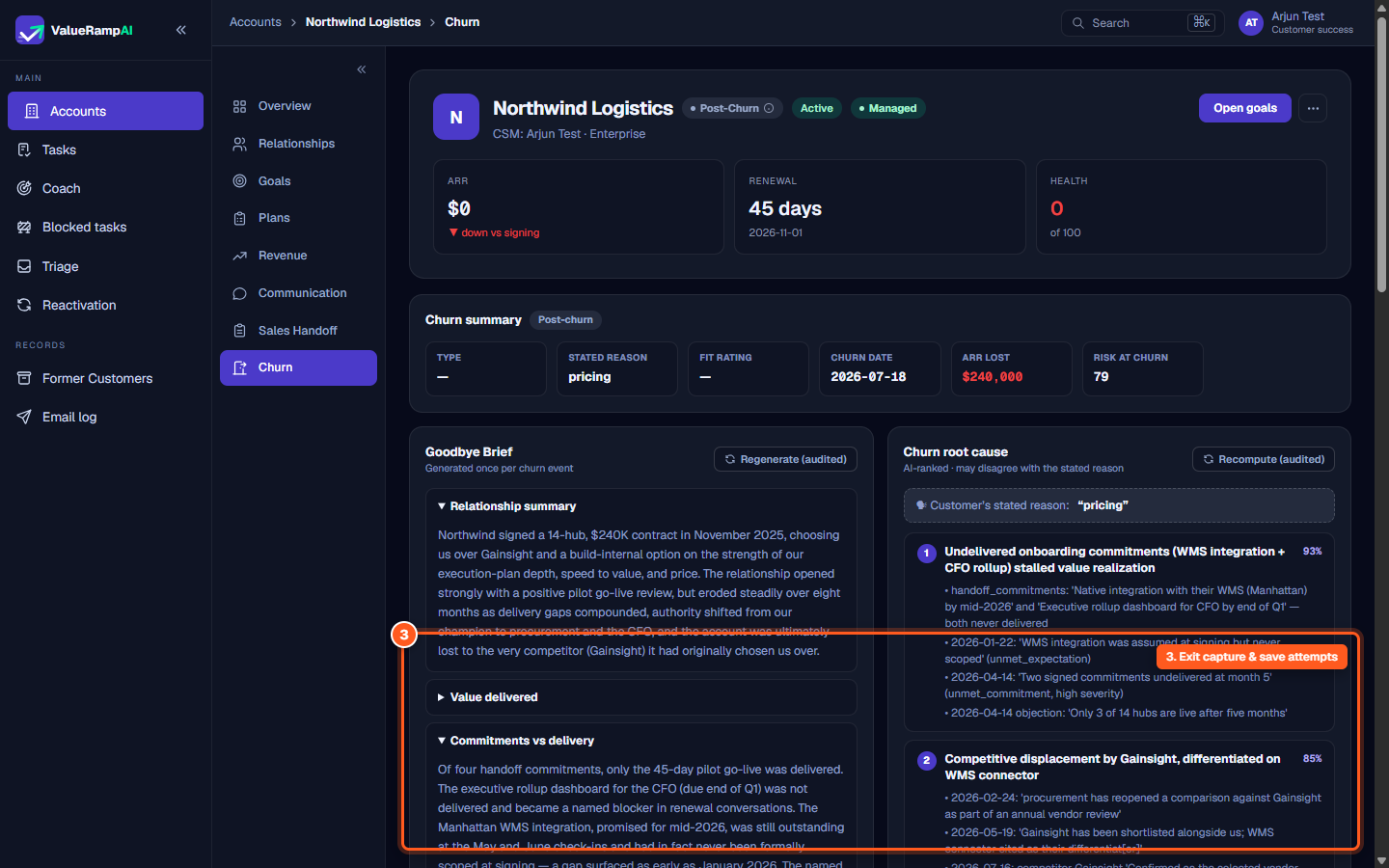
3. Exit capture & save attempts
- Exit capture: Records structured interview attributes including voluntary vs. involuntary churn, replacement competitors, relationship temperature, and fit ratings.
- Save attempts: Logs every retention offer extended to the client (pause, discount, escalation, re-onboarding, handover, or other). A discount attempt is refused unless the captured primary reason is pricing-related and discount offers are enabled in the workspace's settings.
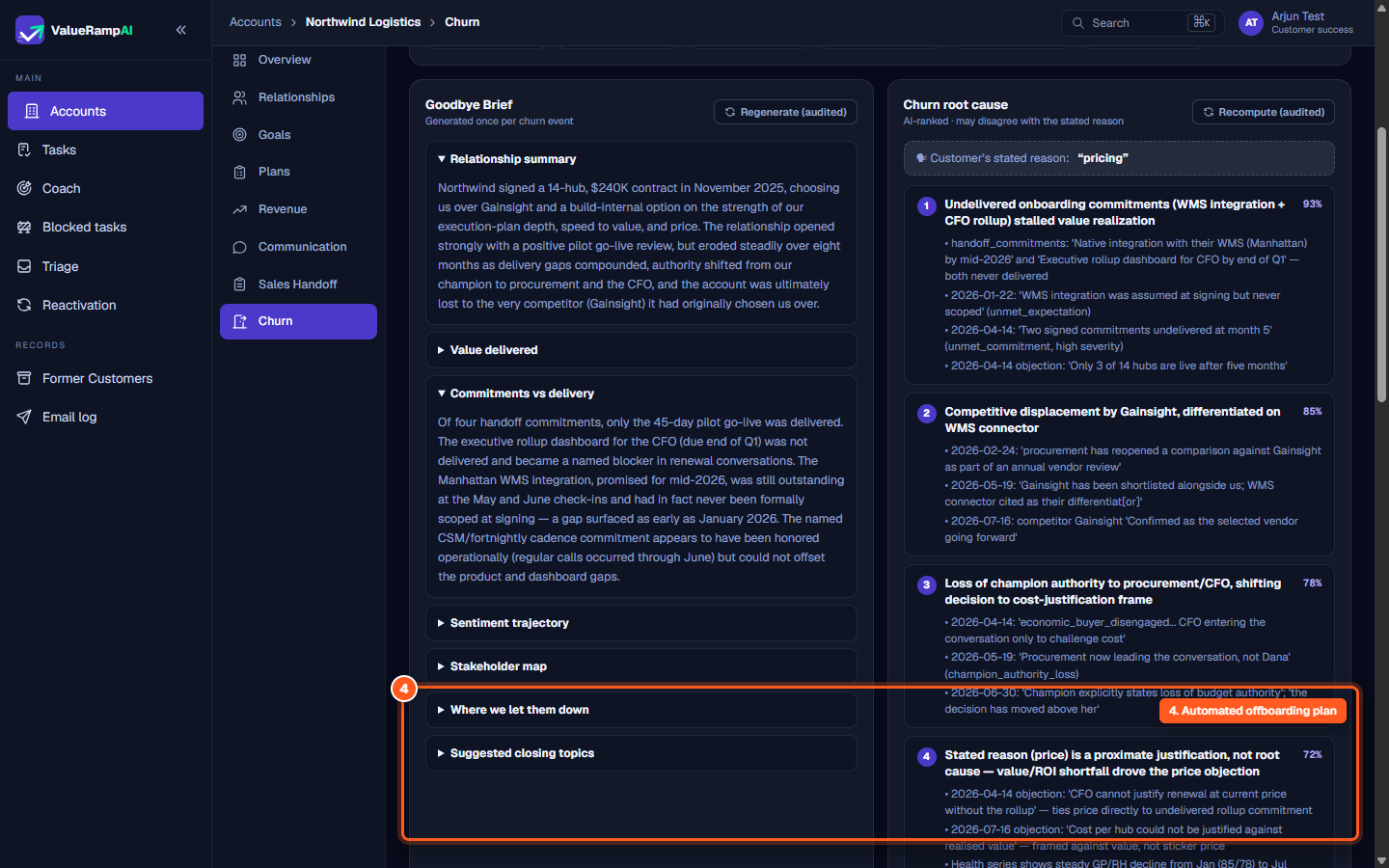
4. Automated offboarding plan
Upon transitioning to churn, ValueRamp automatically generates an Offboarding Plan:
- Provisions checklists for data exports, security credential revocation, and contractual wrap-up.
- Provides a direct link (
Open plan →) to track execution and assign offboarding milestones to team members.
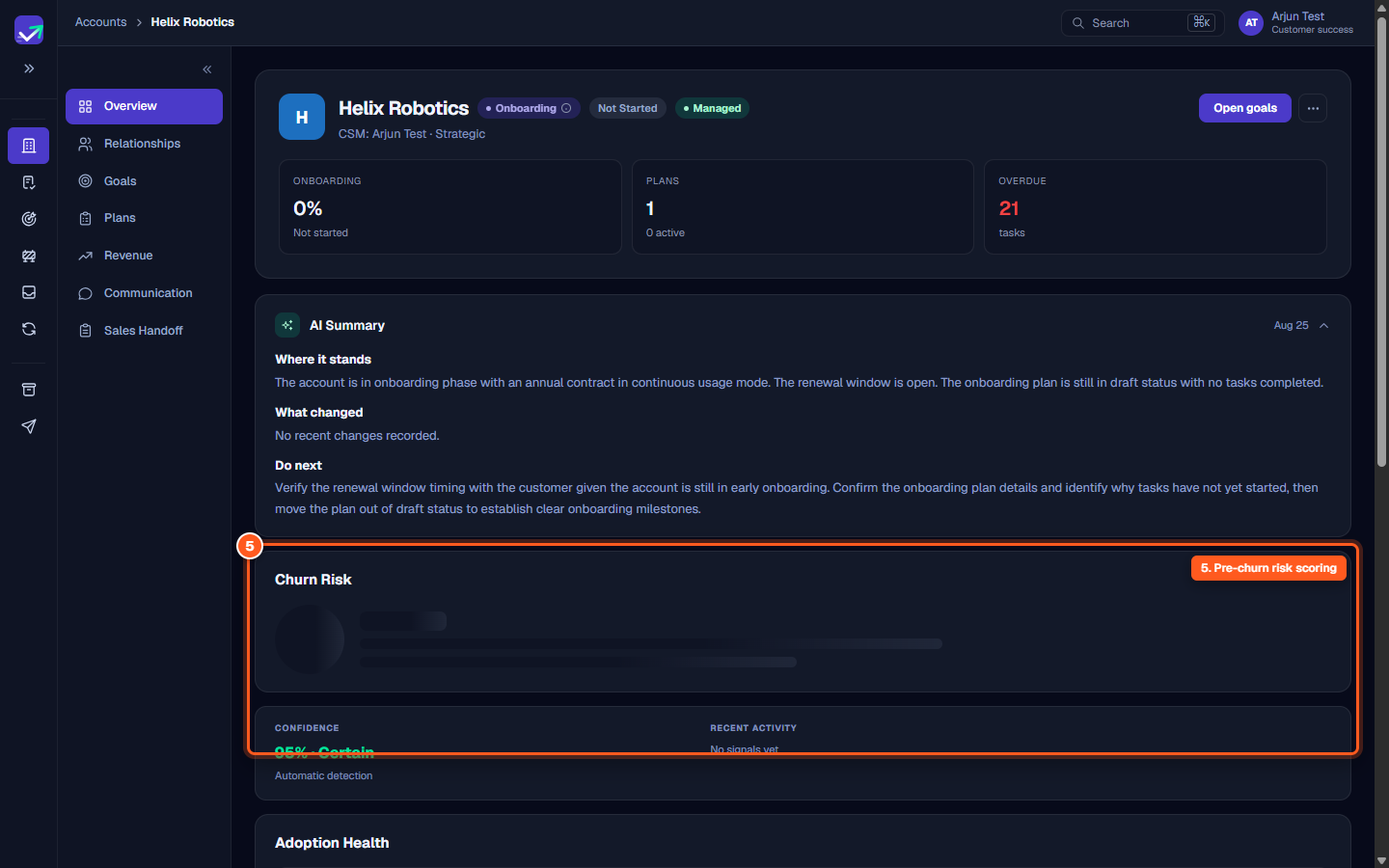
Pre-churn risk monitoring on the Account Overview
CSMs do not wait for churn to act. On the Account Overview page (/accounts/[id]):
- The Churn Risk card displays current predictive risk bands: Low, Medium, High, or Critical.
- The score evaluates five core behavioral dimensions: Comms risk, Health trajectory, Usage decay, Champion stability, and Renewal proximity.
- CSMs can click Compute churn risk to re-score the customer on demand based on latest product and communication data.
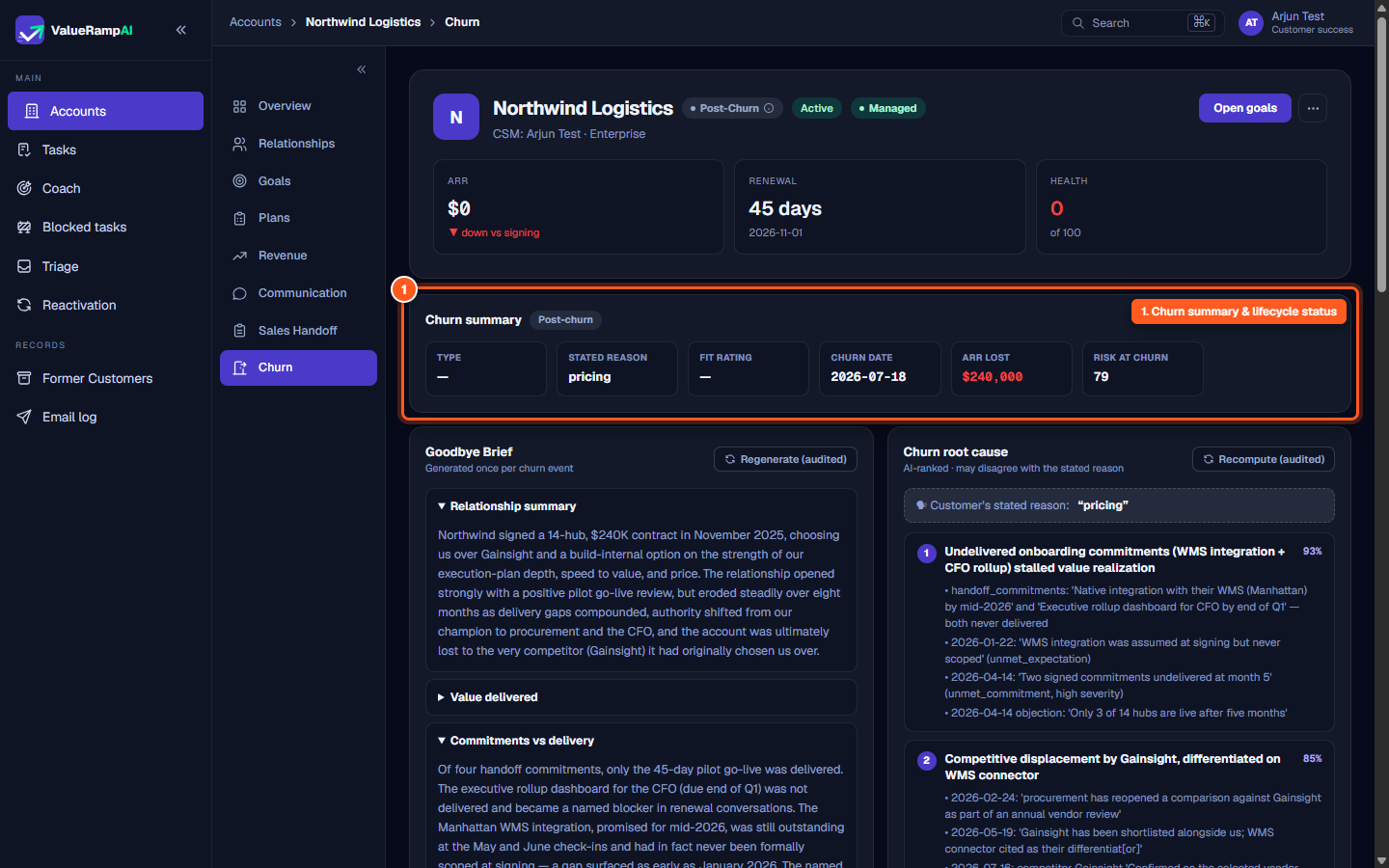
Steps
Access the Churn tab to inspect churn summary metrics and lifecycle status
Review the Goodbye Brief and trigger AI root-cause ranking
Log structured exit interview details and monitor past save attempts
Open the automated offboarding plan provisioned upon churn entry
Monitor pre-churn risk factors on the Account Overview page before churn occurs
Common questions
When does the Churn tab appear in the account navigation?
Who can access the Churn tab?
What happens when an account enters the churn window?
Can a CSM recompute churn risk on demand?
Was this helpful? Tell us what was missing