The Communications tab
Last verified 2026-09-26
Monitor client conversations, review meeting extractions, track connected channel signals, and inspect synced calendar events on the account Communications tab.
Before you start
- ValueRamp account access (CSM, Admin, or OM role)
The Communications tab (/accounts/[id]/communications), labeled Communication in the account sub-navigation, is the unified conversation intelligence hub for a customer organization. Post-sales success requires tracking touchpoints across multiple channels—meeting recordings, emails, scheduled calendar syncs, and team messaging. ValueRamp synthesizes these interactions to monitor relationship momentum and detect early risk signals.
This guide explains how to navigate communication channels, monitor engagement flow metrics, review call extractions, and inspect synced calendar events.
Unified conversation intelligence
Rather than scattering notes across disjointed apps, ValueRamp unifies customer communications into focused sub-workspaces:
- Overview: Executive health indicators showing interaction frequency, connected account owners, and automated risk extractions.
- Channel Views: Filtered streams for Meeting notes, Email, Calendar, and Slack, isolating conversations by origin.
- Ask Vali: Ask a question about this account's conversations and get an answer that cites the messages it came from.
- Recent Extractions: Analyzed summaries of client interactions with participant rosters and extracted sentiment.
Step 1: Open Communication to review conversation channels
- In the account view, locate the sub-navigation sidebar on the left.
- Click Communication (
/accounts/[id]/communications). - The channel sub-navigation bar displays available streams: Overview, Meeting notes, Email, Calendar, Slack, Teams, and Settings.
Step 2: Inspect flow metrics and connected account owners
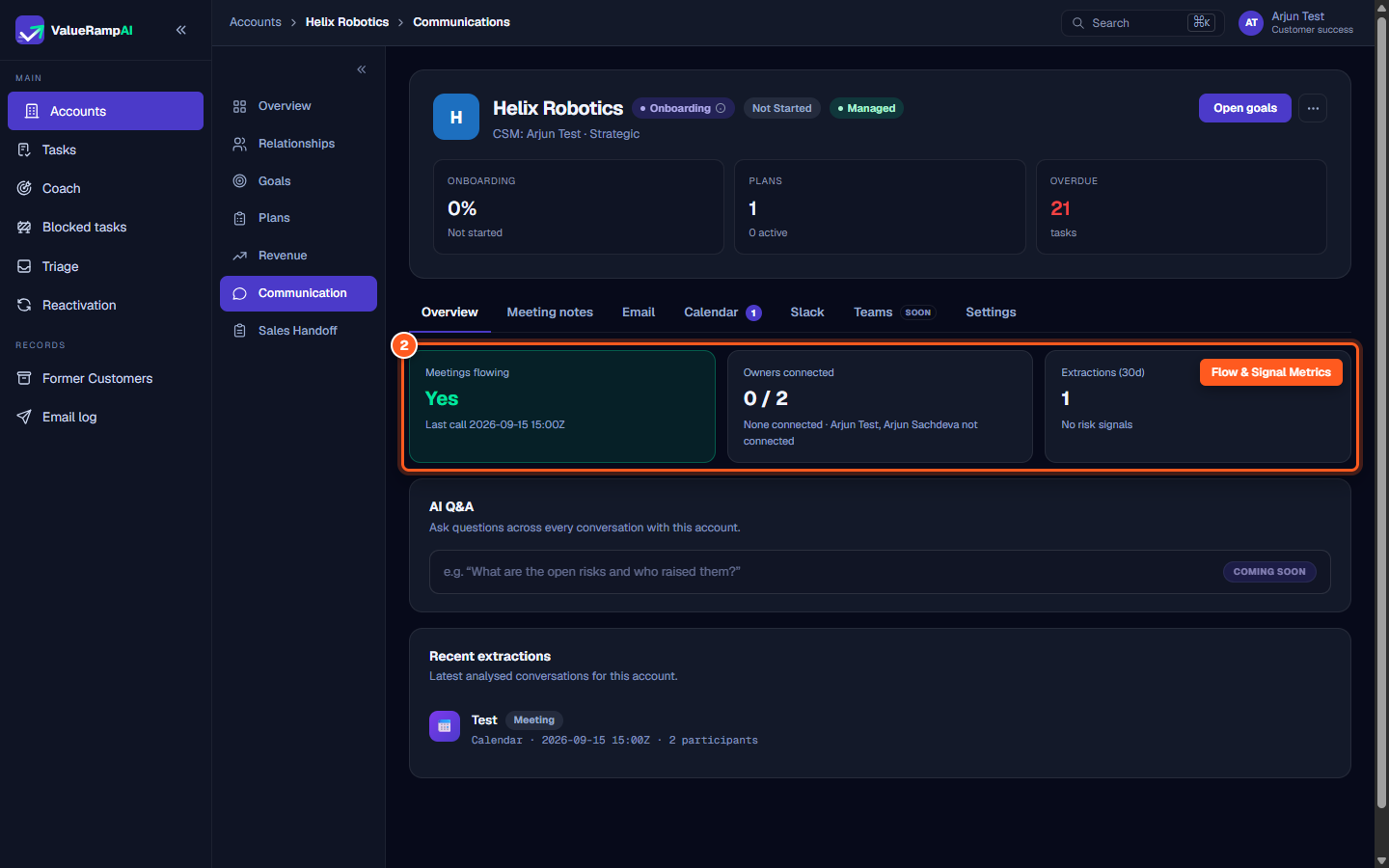
- On the Overview screen, review the top metric cards:
- Meetings flowing: Confirms whether customer calls and syncs are actively being detected.
- Owners connected: Shows how many assigned team members have connected their individual calendars or mailboxes.
- Extractions (30d): Summarizes conversation volume analyzed over the past month.
Step 3: Ask Vali about the account
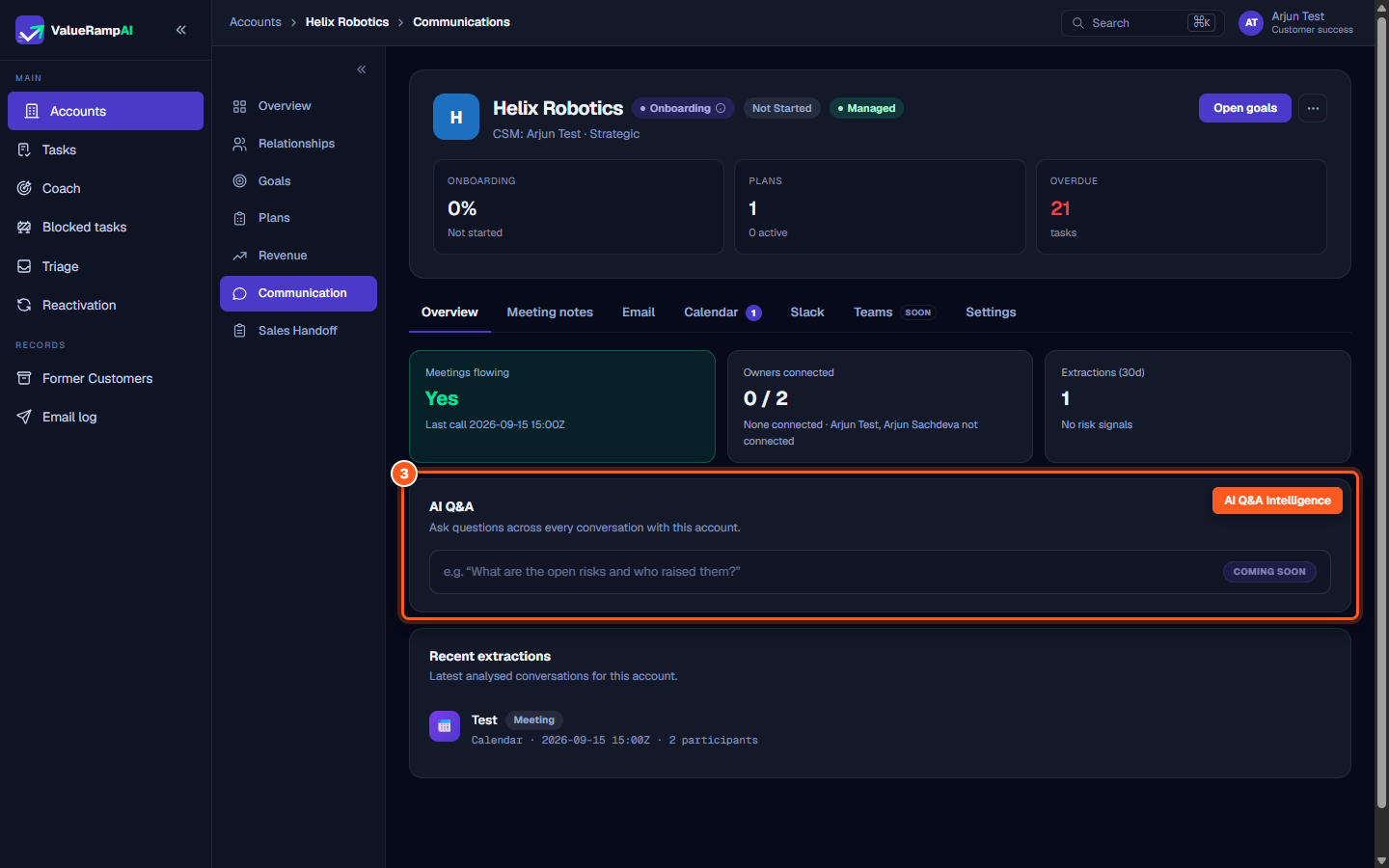
Ask Vali answers questions about this account using only its analysed conversations: emails, meeting transcripts and chats.
- Type a question in the Ask Vali box and click Ask, or pick one of the suggested questions. For example: What did they say about renewal?, Which competitors came up?, or Tell me about this account for a summary.
- Vali answers in a few sentences, with markers such as S1 pointing to the conversations it used. Those conversations are listed under Cited conversations. Click a marker or a conversation to open it in its tab.
- Under the answer, Vali says how many conversations it read. For an account with a long history, it reads the most recent ones.
- Ask What can you help with? at any time to see what Vali can do.
Good to know:
- Vali only uses this account's conversations. If they don't answer your question, Vali says so rather than guessing. If it can't back an answer with the conversations, it tells you and suggests rephrasing.
- AI can be wrong. Check the cited conversations before acting on an answer.
- Nothing you ask is saved. Questions and answers disappear when you leave the page.
- Vali is off when Communication Intelligence is off for your workspace, or when the account is marked do not analyse or is unmanaged. The card says which.
- Each person can ask up to 30 questions an hour.
- Admins, CSMs and OMs can use Vali.
Step 4: Examine Recent extractions for call details
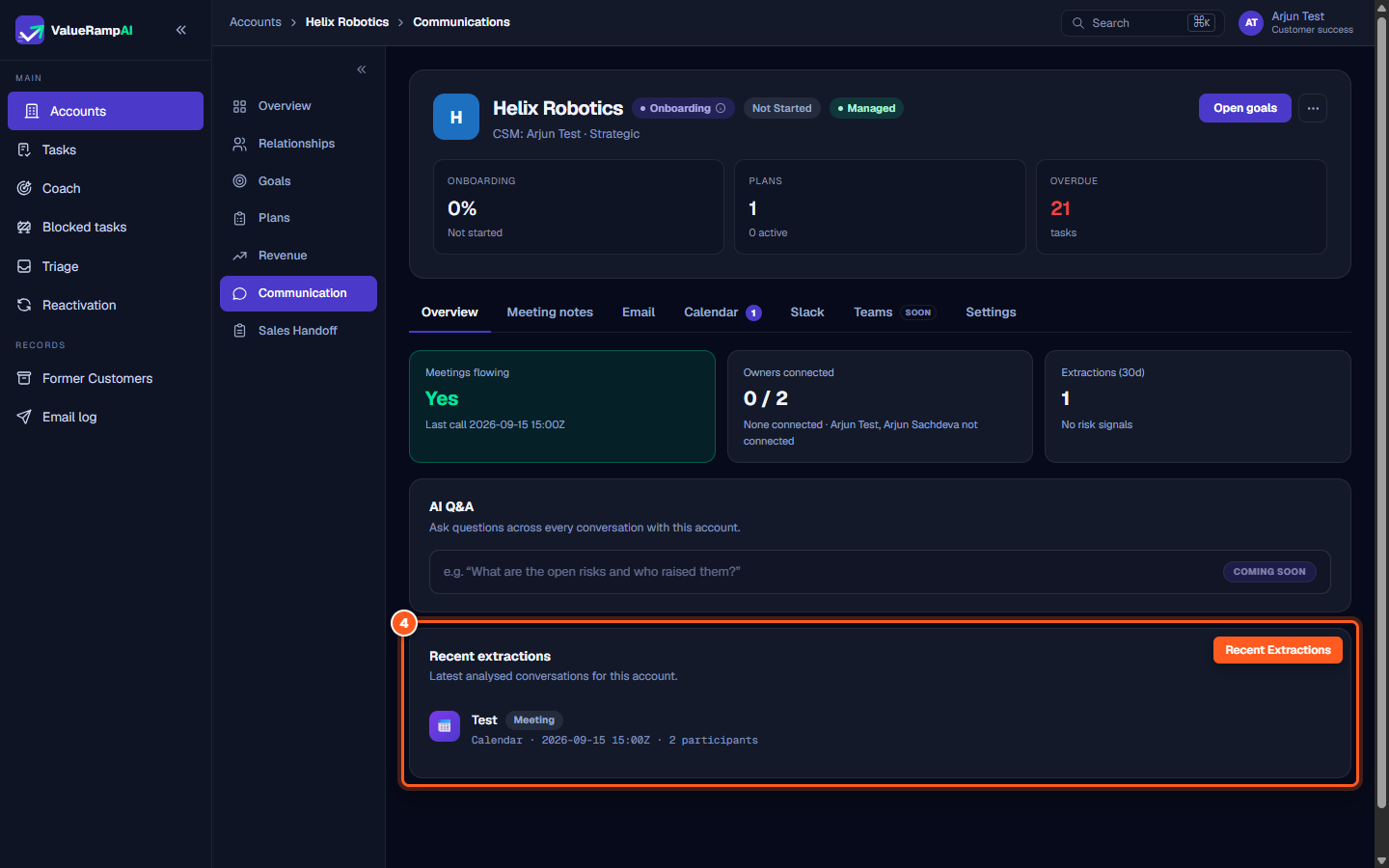
- Scroll to Recent extractions.
- Each entry represents a processed meeting or customer interaction, detailing:
- Meeting title and event platform (e.g. Calendar, Fathom).
- Timestamp and participant count.
- Key discussion items and extracted risk signals.
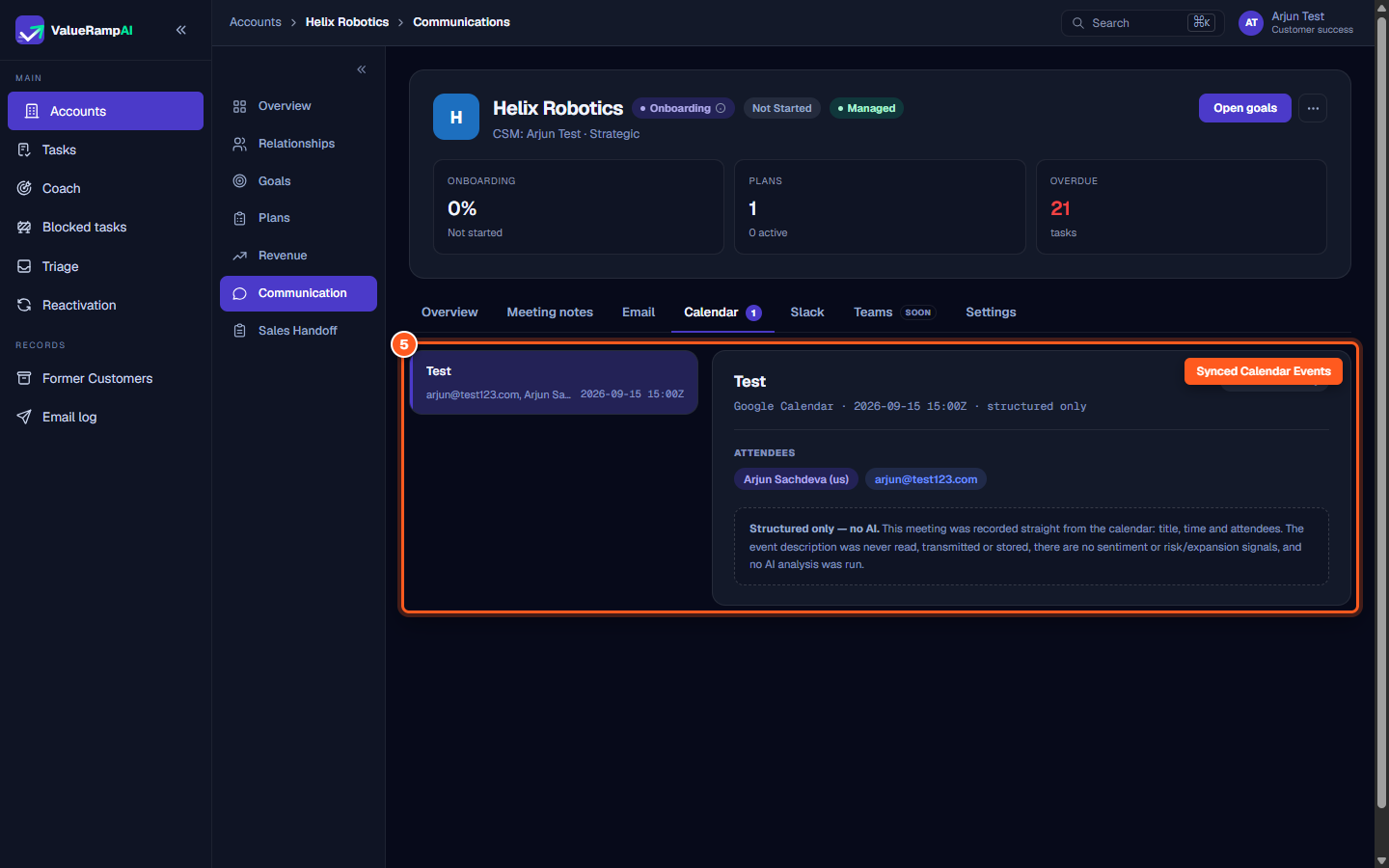
Step 5: Switch to Calendar to view meeting details and attendees
- In the sub-tab bar, click Calendar.
- A split-pane view opens displaying:
- Events List: Chronological feed of synced meetings.
- Meeting Details: Verified attendee lists (internal team vs. external client participants), event source, and structured extraction status.
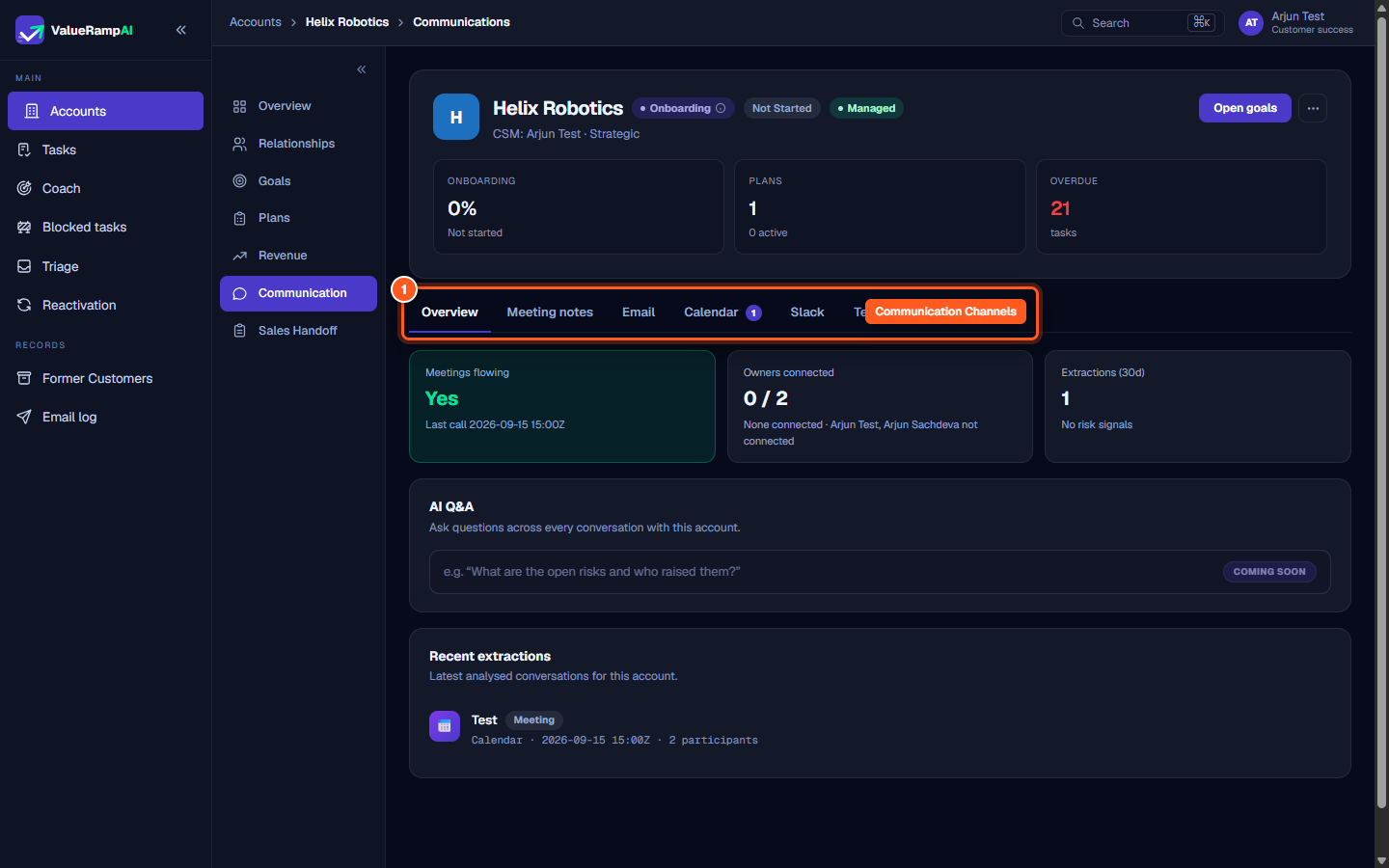
Steps
Open Communication to review customer conversation intelligence
Inspect conversation flow metrics, owner connections, and 30-day signal volume
Ask Vali a question about the account's conversations
Examine Recent extractions to review analysed customer meetings and call notes
Click Calendar to view synced meeting events, attendees, and structured transcripts
Common questions
What channels feed into the Communications tab?
What does 'Meetings flowing' mean?
Can customer stakeholders see the internal Communications tab?
Was this helpful? Tell us what was missing