Blocked tasks and raising a blocker
Last verified 2026-09-17
Monitor obstructed plan tasks across customer accounts, filter by blocker category, triage unresolved delays, and raise formal blockers with customer outreach.
Before you start
- ValueRamp account access (CSM, Admin, or OM role)
The Blocked tasks hub (/blocked-tasks) aggregates every task flagged with an impediment across all active customer plans, providing customer success teams and managers with a centralized operational center to diagnose and resolve roadblocks.
The operational blocker metric cards
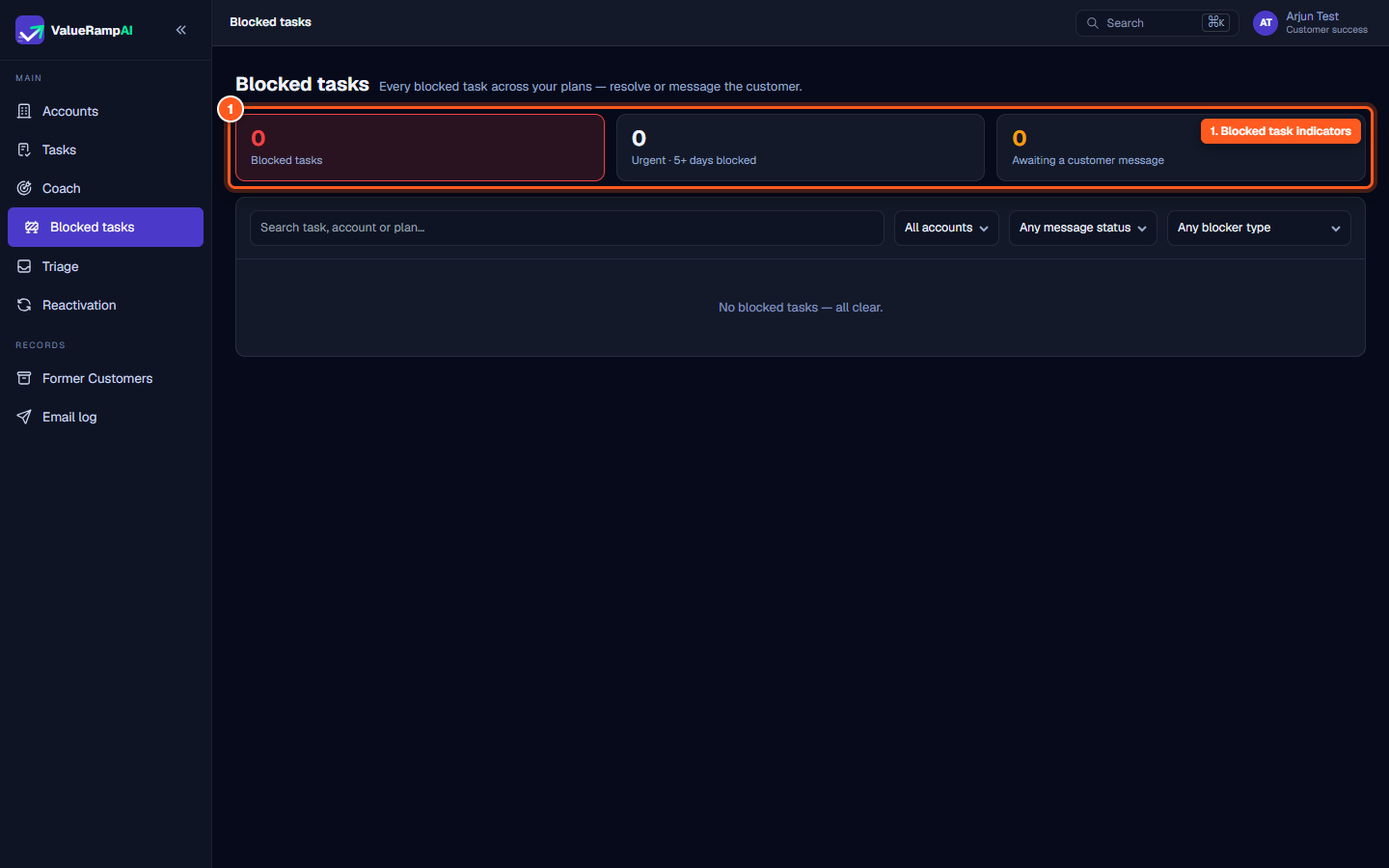
At the top of the Blocked tasks page, three operational metric cards provide immediate visibility into your portfolio's blocked deliverables:
- Blocked tasks: The aggregate count of all tasks across all active plans currently flagged with the
Blockedstatus. - Urgent · 5+ days blocked: The subset of blocked tasks that have remained unresolved for five or more days, highlighting prolonged stalls that threaten contract timelines.
- Awaiting a customer message: Blocked tasks — of any blocker type — for which no blocker message has been sent yet.
Filtering the blocker queue
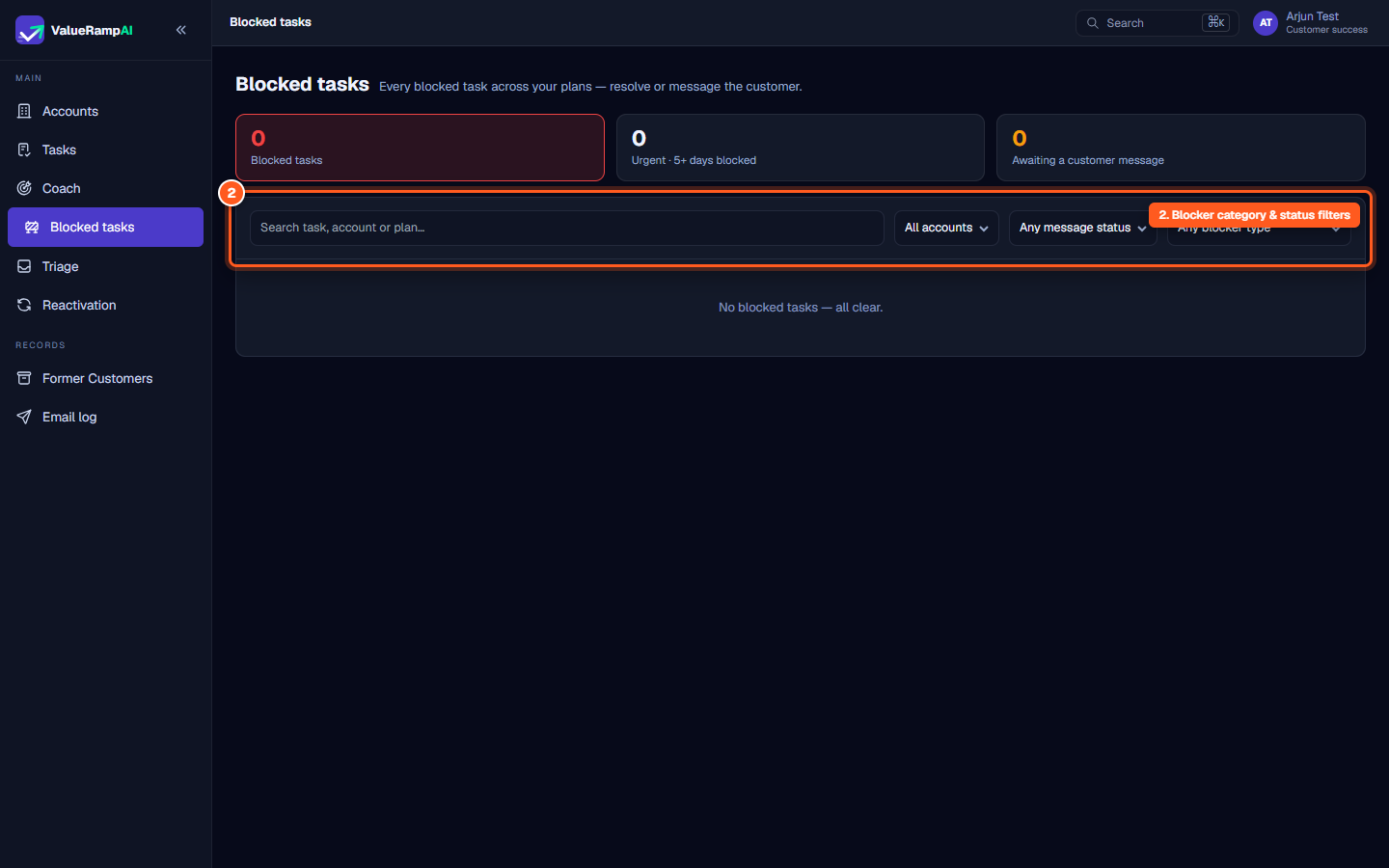
The filter strip allows CSMs to slice the queue across three operational dimensions:
- Account selector: Choose
All accountsor narrow the list to a single customer organisation. - Message status: Quick-toggle between
Any message status,Message sent, andNo message yetto prioritize accounts needing proactive follow-up. - Blocker type: Filter by the underlying cause:
Awaiting Customer Input— Missing data, configurations, or responses from the client team.Awaiting Internal Resource— Engineering, solutions architecture, or executive sponsorship required.Technical Dependency— API rate limits, third-party integrations, or infrastructure provisioning.Approval Pending— Security, legal, or procurement approvals awaiting sign-off.Scheduling Conflict— Workshop, training, or kickoff rescheduling.Other— Uncategorized external impediments.
The operational queue and health state
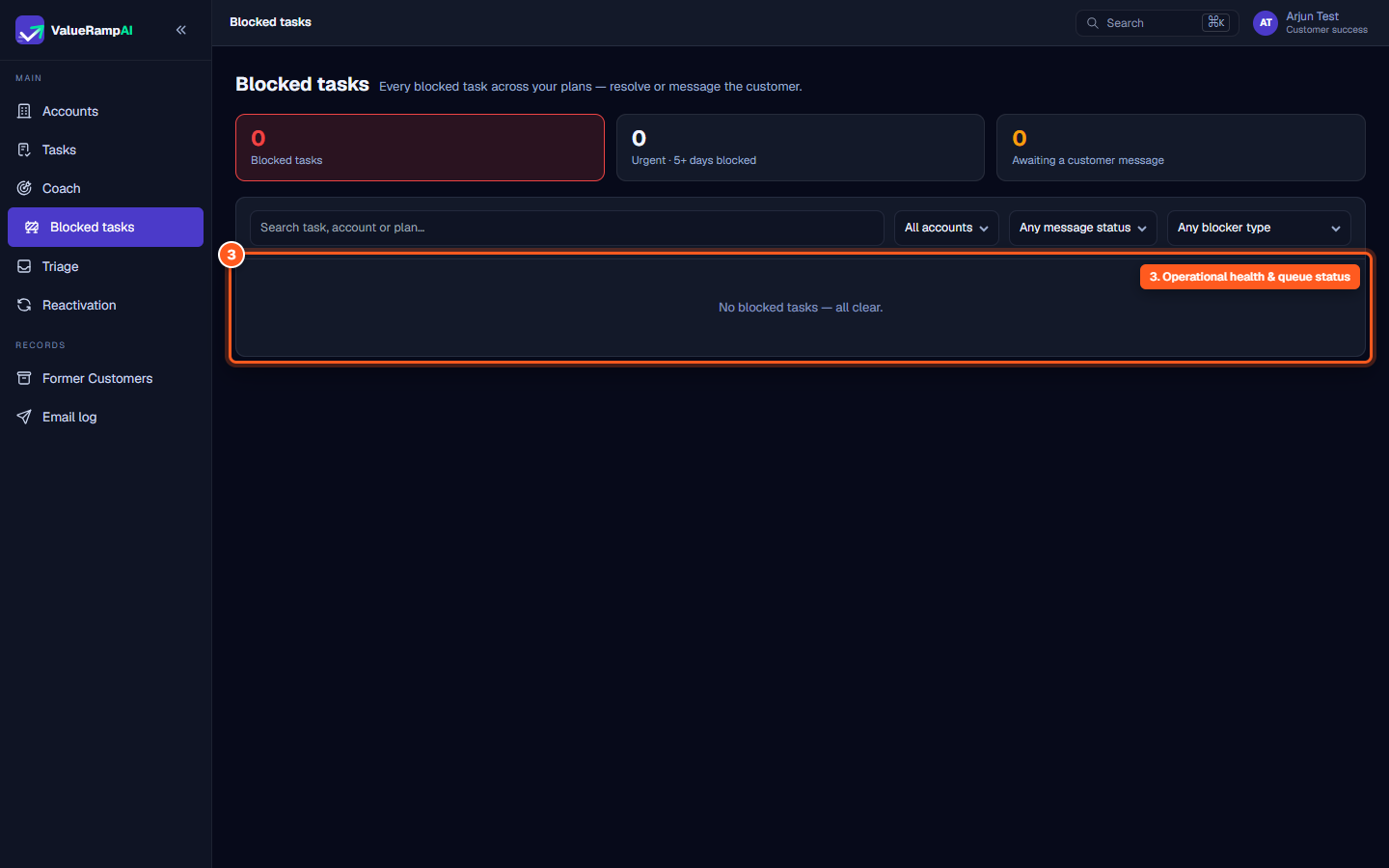
Below the filter strip, the task list displays all active impediments. When all customer plans are progressing according to schedule with no tasks flagged as blocked, the queue displays the clean operational state: No blocked tasks — all clear.
When blocked tasks are present, each row details:
- Task title and account link: Direct navigation to the task and parent account.
- Plan reference: The parent plan.
- Blocker badge: High-contrast badge indicating the specific blocker type.
- Duration: Days elapsed since the blocker was declared.
- Action triggers: Quick buttons to compose an update email or clear the blocker.
Raising a blocker from the plan detail page
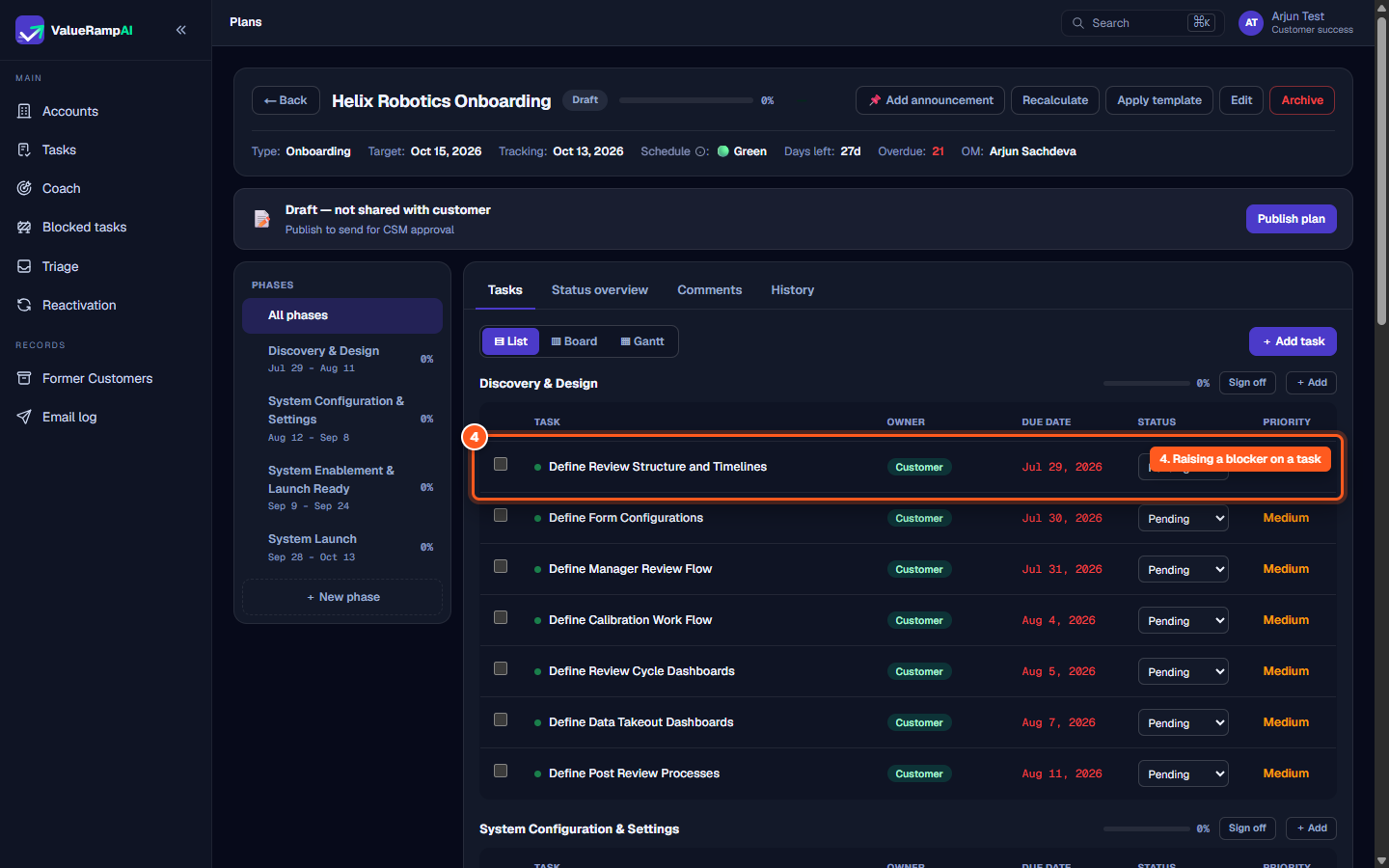
CSMs can declare a blocker from any task row within an active plan at /plans/[id]:
- Locate the stalled task in the plan's task table.
- In the row's status dropdown, change the value from
PendingorIn Progressto Blocked. - ValueRamp immediately opens the Block this task modal dialog without changing the database status until confirmed.
The blocker dialog and customer messaging
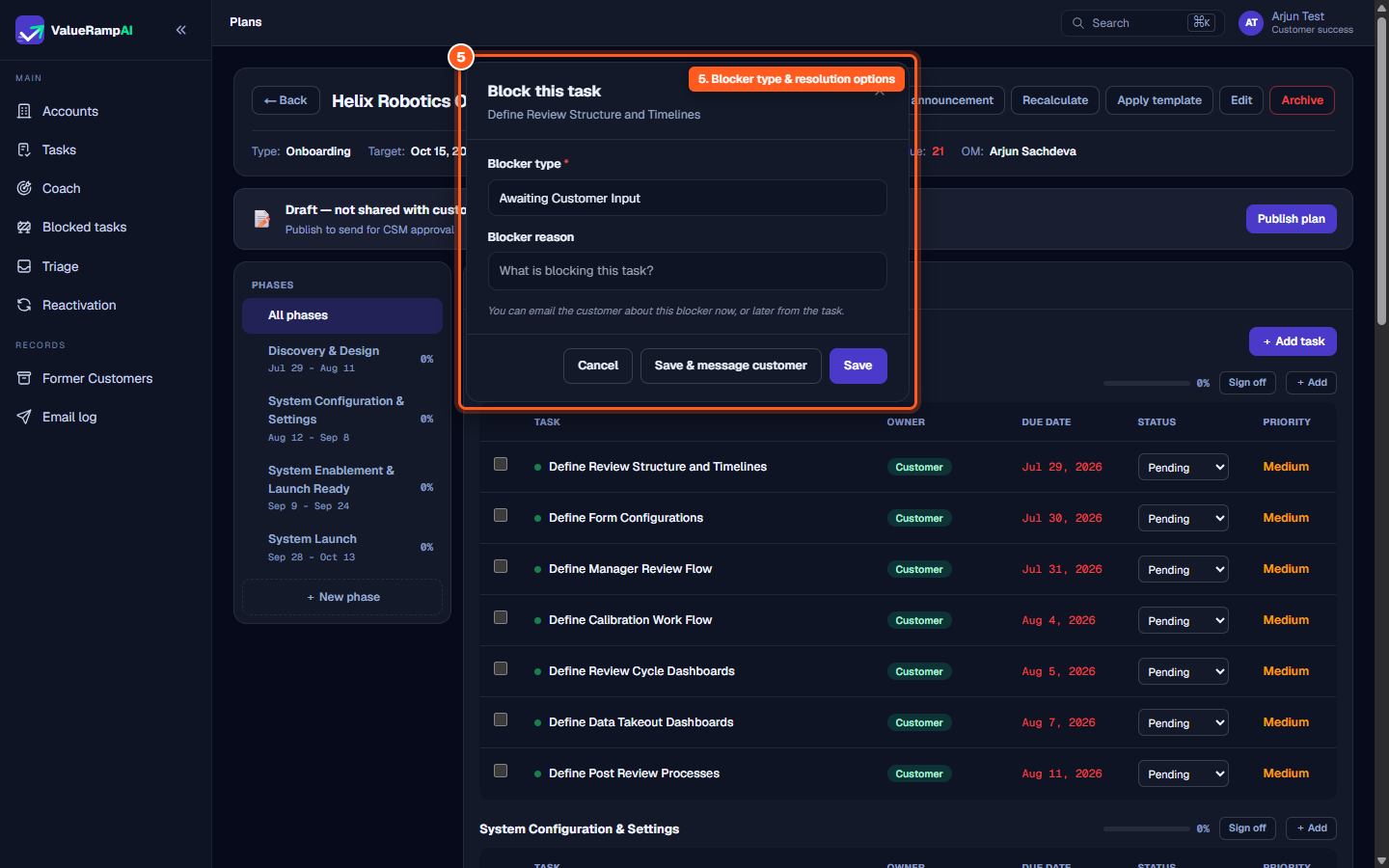
The Block this task dialog standardizes obstacle reporting across the organization:
- Blocker type (required): Select one of the six standardized categories from the dropdown.
- Blocker reason (optional, required for Other): Provide specific context explaining what is missing, who is holding up progress, or what technical dependency is failing.
- Action options:
- Cancel: Closes the dialog and restores the task to its previous status.
- Save: Confirms the blocked status internally without sending external communications.
- Save & message customer: Saves the blocker and immediately launches the Blocker Composer, pre-filling an email draft to the customer sponsor explaining the obstacle and next steps needed.
Steps
Review cross-account blocked task indicator tiles
Filter blocked tasks by account, outreach status, and blocker type
Inspect the blocked tasks queue and operational health
Raise a blocker from the plan detail task list
Specify the blocker classification and trigger customer outreach
Common questions
What qualifies a task as 'Urgent · 5+ days blocked'?
What blocker types can I assign to an obstructed task?
Does raising a blocker notify the customer automatically?
Who can resolve a blocked task?
Was this helpful? Tell us what was missing