Plans and the plan detail page
Last verified 2026-09-17
Navigate account plan rosters, filter by status and plan type, evaluate schedule pacing indicators, and manage multi-phase onboarding plans.
Before you start
- ValueRamp account access (CSM, Admin, or OM role)
The Plans tab (/accounts/[id]/plans) and Plan Detail page (/plans/[id]) form the execution engine of ValueRamp, allowing Customer Success Managers and Onboarding Managers to plan, schedule, and track customer implementations from contract signing through launch and recurring renewals.
The account Plans roster
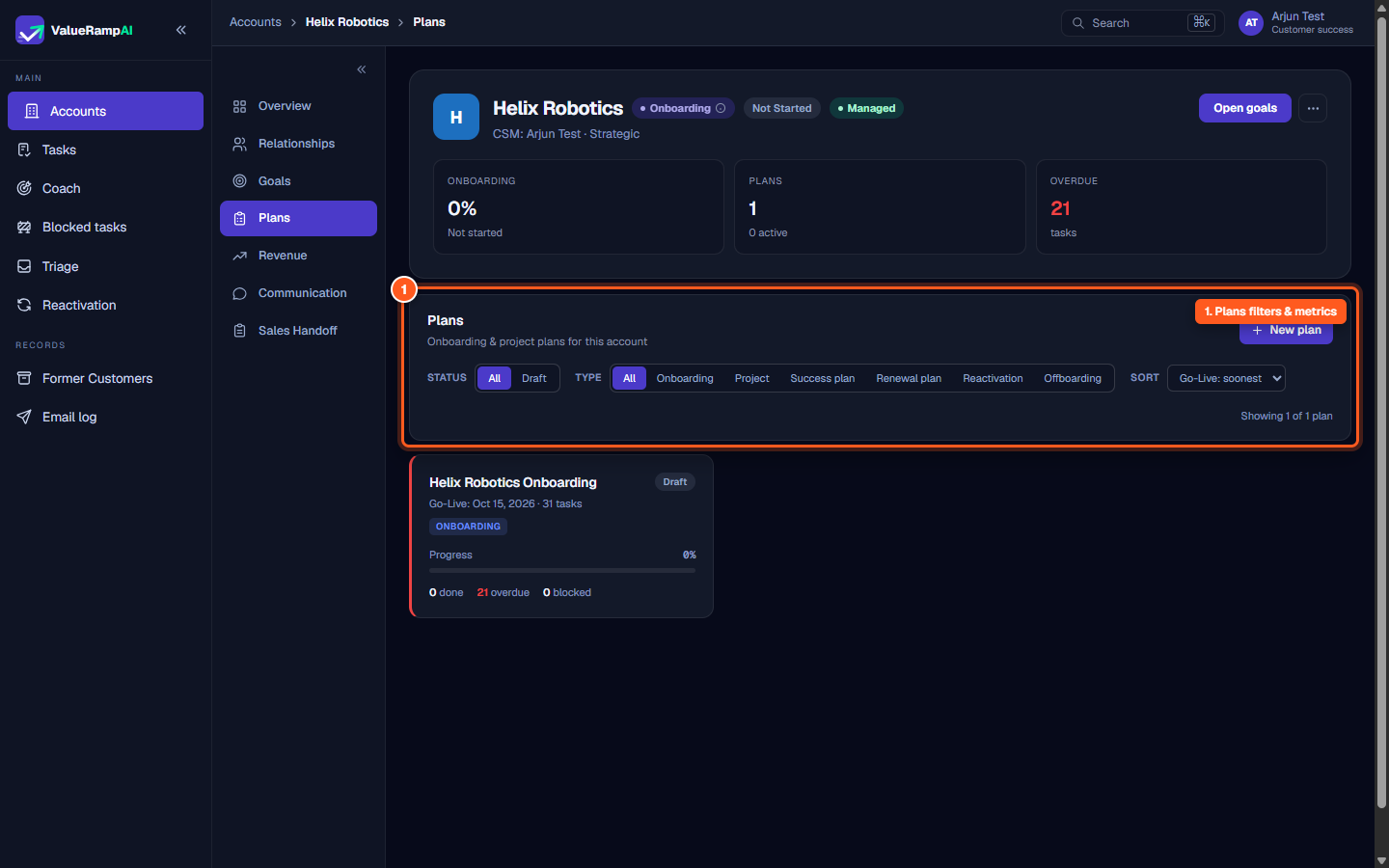
On any customer account record, navigating to Plans provides a centralized index of all active, draft, and completed plans:
- Filter bar: Filter plans by Status (
Draft,Pending Approval,Active,Closed) and Type (Onboarding,Project,Success plan,Renewal plan, plus the engine-createdReactivationandOffboarding), and sort by soonest or latest go-live. Archived plans are never listed here. - Metric strip: Displays high-level phase metrics including total plans, active execution count, overall progress, and overdue tasks.
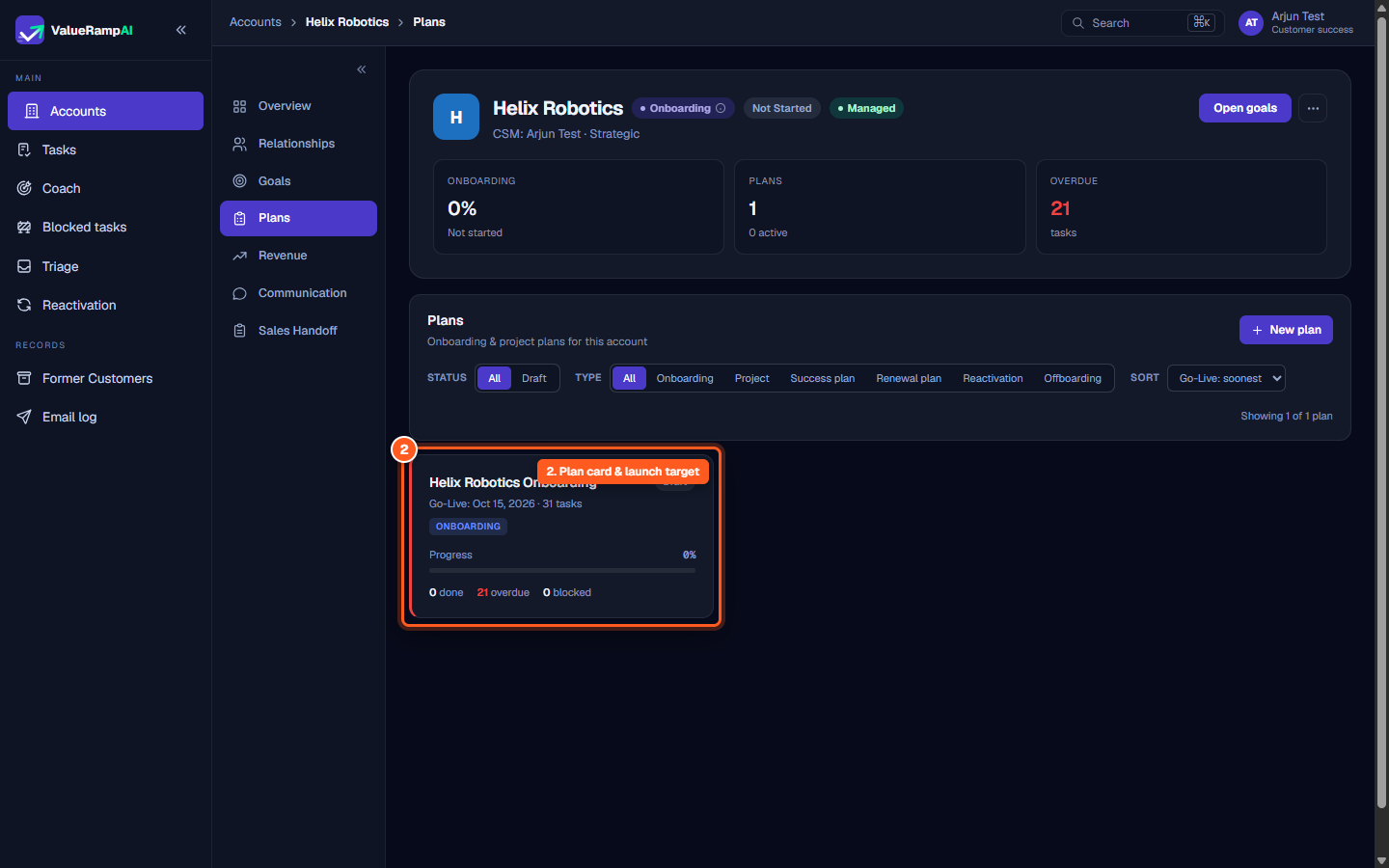
- Plan cards: Each card displays the plan title, target go-live date, total task count, lifecycle tag, and real-time completion progress bar.
Anatomy of the Plan Detail page
Clicking any plan card opens the comprehensive Plan Detail view (/plans/[id]):
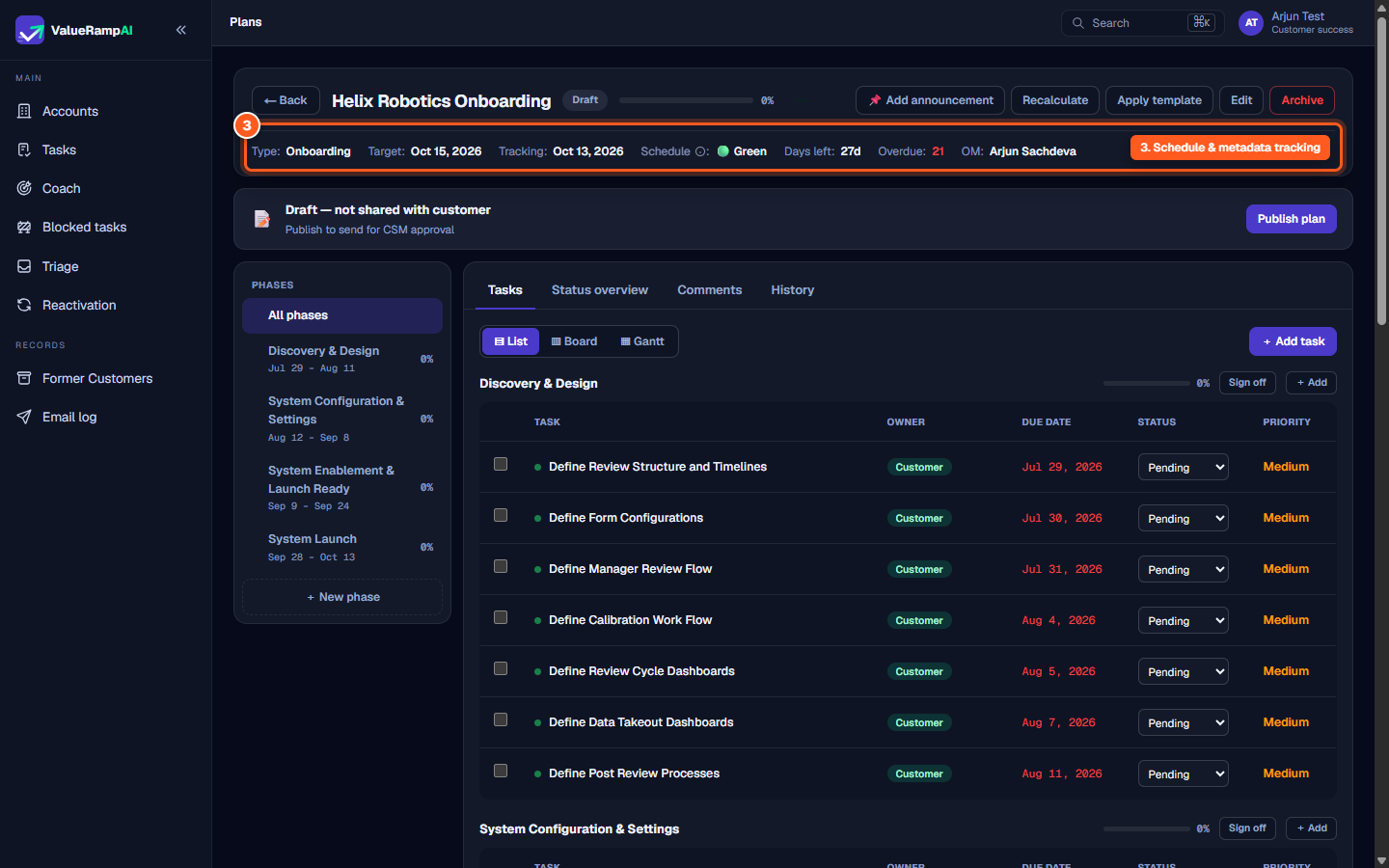
1. Header and schedule tracking strip
- Target vs. Tracking dates: Compares the contractual target go-live date against the algorithmically tracked completion date calculated from task durations and dependencies.
- Schedule indicator:
- 🟢 Green: The projected end is on or before the target go-live date (or the plan has no target yet).
- 🟡 Amber: The projected end overruns the target by up to the workspace's amber allowance (5 days by default).
- 🔴 Red: The projected end overruns the target by more than that.
- Days left & Overdue count: Tracks remaining execution runway and immediately surfaces delinquent tasks.
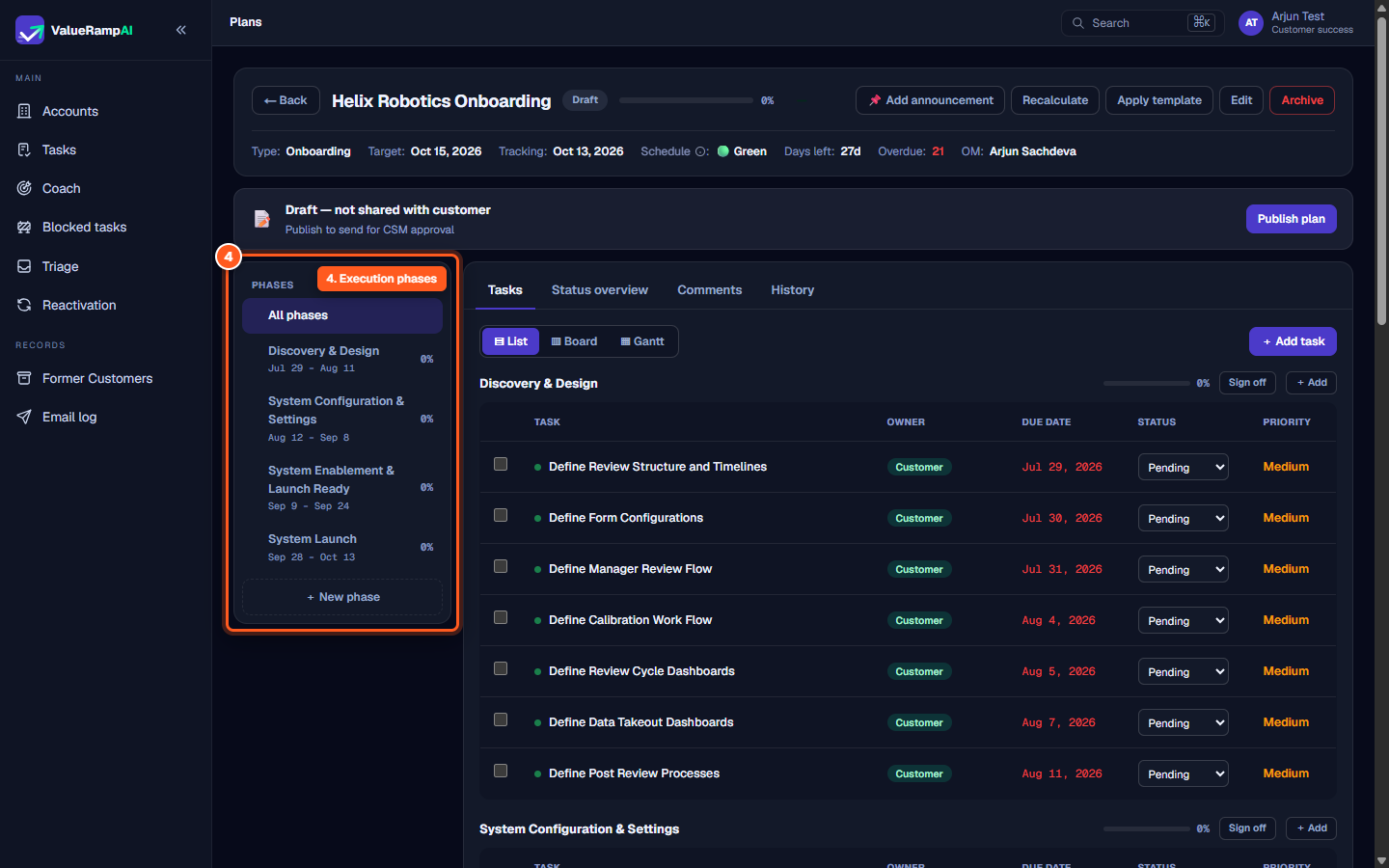
2. Lifecycle phases sidebar
Plans are organized chronologically into sequential phases (e.g., Discovery & Design, System Configuration & Settings, System Enablement & Launch Ready, and System Launch):
- Each phase displays its start date, end date, and completion percentage.
- Clicking any phase filters the main workspace to display tasks belonging exclusively to that milestone.
- Team members can sign off on entire phases once exit criteria are verified.
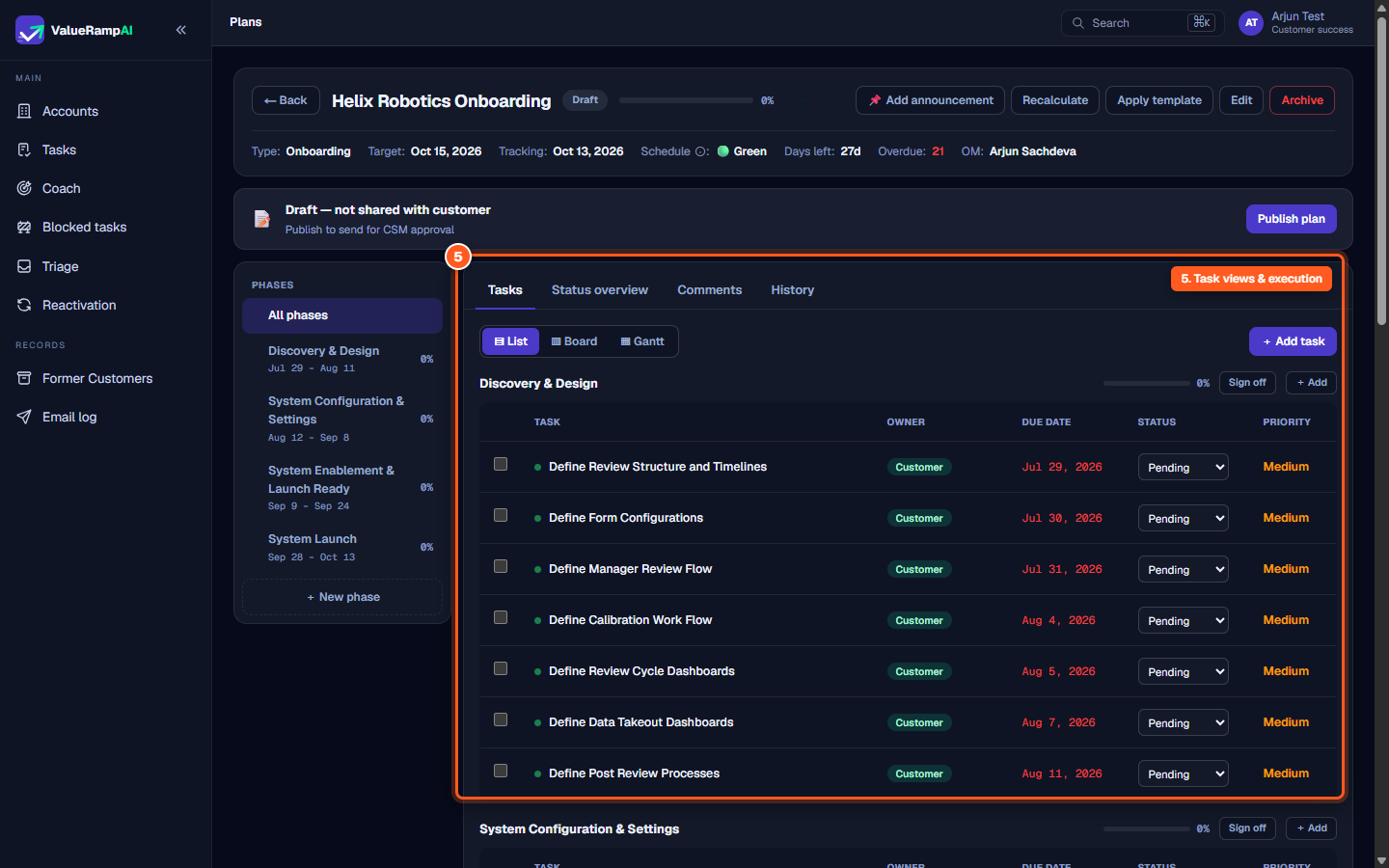
3. Task execution toolbar and views
ValueRamp provides three viewing modes to support different working styles:
- List view (
▤ List): A dense, spreadsheet-style table displaying task names, assigned owners, due dates, statuses, and priority flags. - Board view (
▥ Board): A visual Kanban board grouping tasks by status — Pending, In Progress, Done, Blocked — with a one-click regroup by owner, priority or phase. - Gantt view (
▦ Gantt): An interactive timeline chart illustrating task dependencies, critical path items, and scheduling buffers.
Steps
Filter account plans and review summary metrics
Inspect the plan card and open plan detail
Examine the plan header and schedule tracking health strip
Review the execution phases sidebar
Switch between task views and execute work items
Common questions
What is the difference between Schedule status and Account Health?
What plan types are supported in ValueRamp?
Who can edit a plan once it is published?
Can tasks be viewed in different layouts?
Was this helpful? Tell us what was missing