Plan templates and automation blueprints
Last verified 2026-09-17
Create, version, and apply reusable phase and task blueprints for customer onboarding, implementation, offboarding, and reactivation plans.
ValueRamp's Plan Templates engine allows Customer Success and Onboarding teams to build standardized, reusable blueprints for customer lifecycle plans. Instead of manually creating dozens of repetitive tasks for every new customer kickoff, implementation milestone, offboarding sequence, or win-back campaign, teams can seed an entire structured plan with a single click.
Templates are managed under Automation → Plan Templates (/templates), with dedicated visual phase builders at /templates/[id]. When a blueprint is applied to a Draft plan, ValueRamp automatically back-schedules all task due dates and milestone targets from the customer's intended go-live date.
Plan Templates vs. Email Notification Templates:
This guide covers Plan Templates (/templates), which define phase and task workflows. To customize automated email notifications (such as task assignment alerts, blocker digests, and survey emails), navigate to Settings → Emails & Notifications → Email Settings (/settings/emails), as documented in the Email Settings guide.
Key concepts
- Phases: Groupings of related sequential tasks (e.g. Discovery & Design, Configuration, Launch Ready, Go-Live).
- Default Owner Roles: Each task carries a default owner role (
OM,CSM,Admin, orCustomer). The role travels with the task when the template is applied; assigning a named person is done on the plan. - Working Days Duration: Each task defines a duration in days. When the plan's working days only setting is on, weekends are skipped; dates on the workspace's Leave Calendar are always skipped.
- Milestones: Critical gating deliverables flagged with a milestone star. Milestones are marked on the customer portal's plan timeline.
- Immutable Versioning: Editing a template publishes a new minor version (
v1.0→v1.1). Any existing customer plans seeded from an earlier version remain completely untouched.
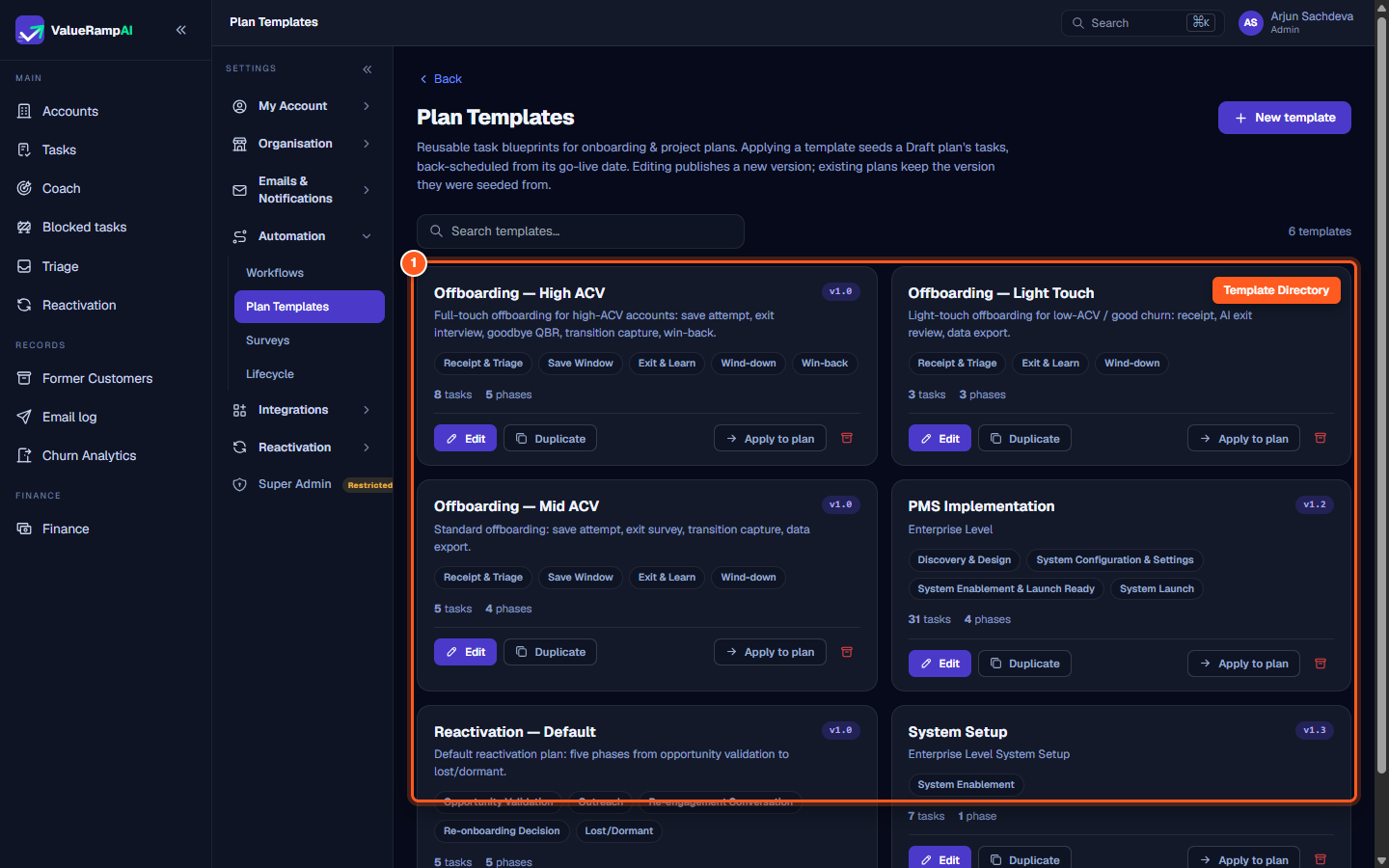
Step 1: Open the Plan Templates directory
- In the main navigation under the Automation section, click Plan Templates (
/templates). - The directory displays all workspace blueprints across onboarding, implementation, offboarding, and reactivation playbooks.
- Each template card provides an instant summary:
- Template Name & Description: Core use case and scope.
- Version Badge: Active published version (e.g.
v1.0,v1.2). - Phases: Tags showing the sequential stages.
- Metrics: Total count of tasks and phases.
- Card Actions: Direct links to Edit, Duplicate, and Apply to plan.
Step 2: Create a new blueprint or duplicate an existing template
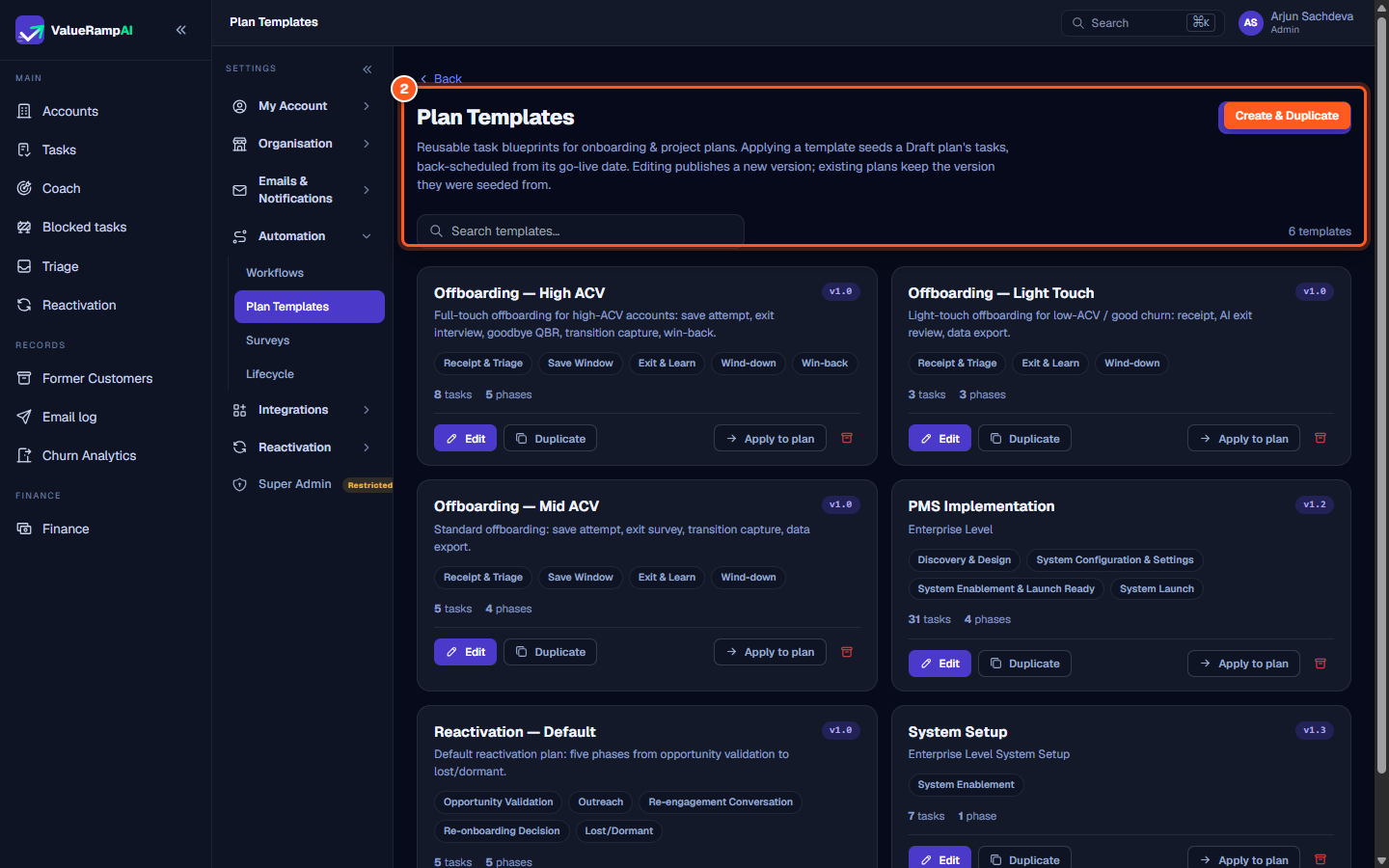
- To build a new playbook from scratch, click New template in the top-right corner. Enter a template name and a first phase name, then click Create & edit.
- To fork an existing playbook (for example, creating a specialized enterprise version of a standard onboarding template), click Duplicate on any card. ValueRamp copies all phases, task definitions, duration offsets, and milestone tags into a new draft blueprint.
- Use the search bar at the top of the directory to quickly filter templates by name, phase title, or keyword.
Step 3: Organize phases and configure tasks in the template builder
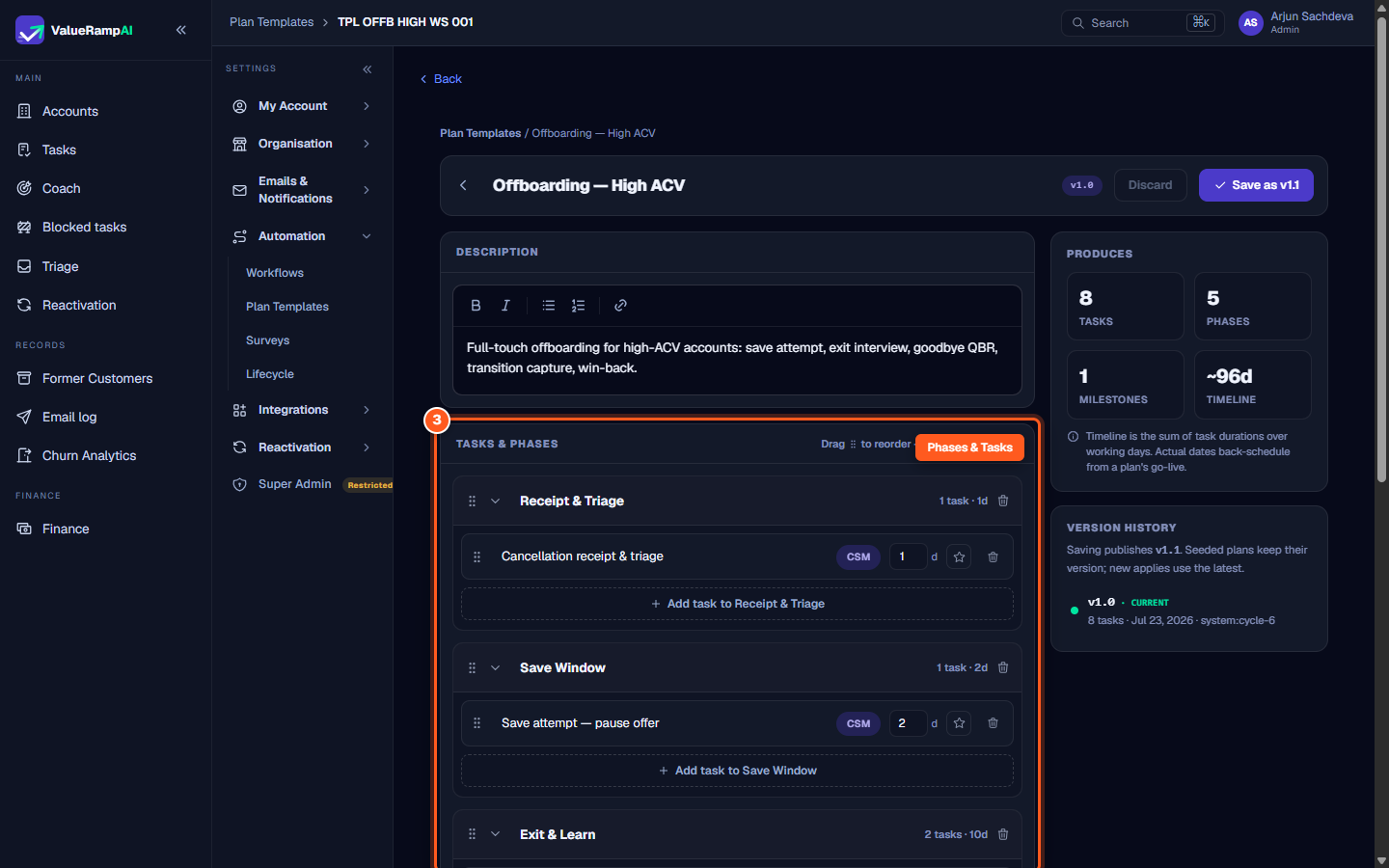
Click Edit on any template card to open the visual drag-and-drop builder (/templates/[id]):
- Phases:
- Click Add phase to create a new milestone grouping.
- Click and drag the phase handle to reorder the entire sequence of deliverables.
- Tasks:
- Click Add task to [Phase] to append a new deliverable.
- Enter the task name and select a Default Owner (
OM,CSM,Admin, orCustomer). - Specify the task's Duration in working days (e.g.
2d,5d). - Toggle the Milestone Star icon for key gating deliverables that require customer sign-off or executive visibility.
- Drag-and-Drop Reordering: Drag tasks within a phase or move them across phases to fine-tune execution flow.
- Summary Stats Bar: The builder continuously updates total working days, total task counts, and milestone quantities as you adjust task durations.
Step 4: Publish new template versions without affecting active plans
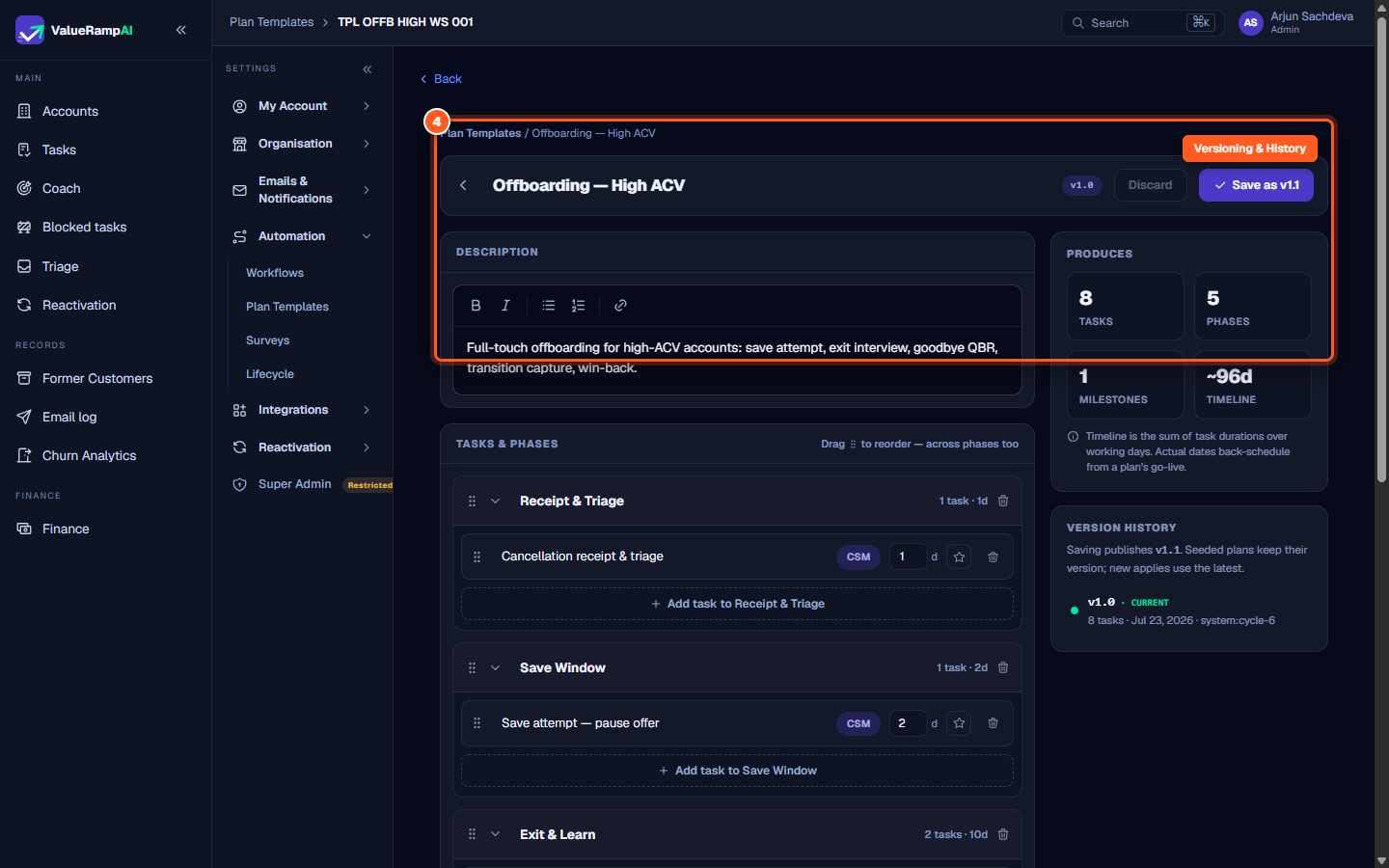
ValueRamp employs strict version isolation to protect in-flight customer plans:
- In the top bar of
/templates/[id], review the template name, rich-text description, and current version tag (e.g.v1.0). - As soon as you make modifications to tasks or phases, the primary button updates to indicate the next version (e.g. Save as v1.1).
- Click Save as v1.1. ValueRamp publishes the updated blueprint and records the version increment in the template history.
- Active Plan Safety: Any active customer plans that were previously seeded from
v1.0remain onv1.0. Only plans seeded in the future will receive the newv1.1tasks.
Step 5: Apply a blueprint to seed tasks into a Draft plan
Once a blueprint is ready, apply it to seed a customer's plan:
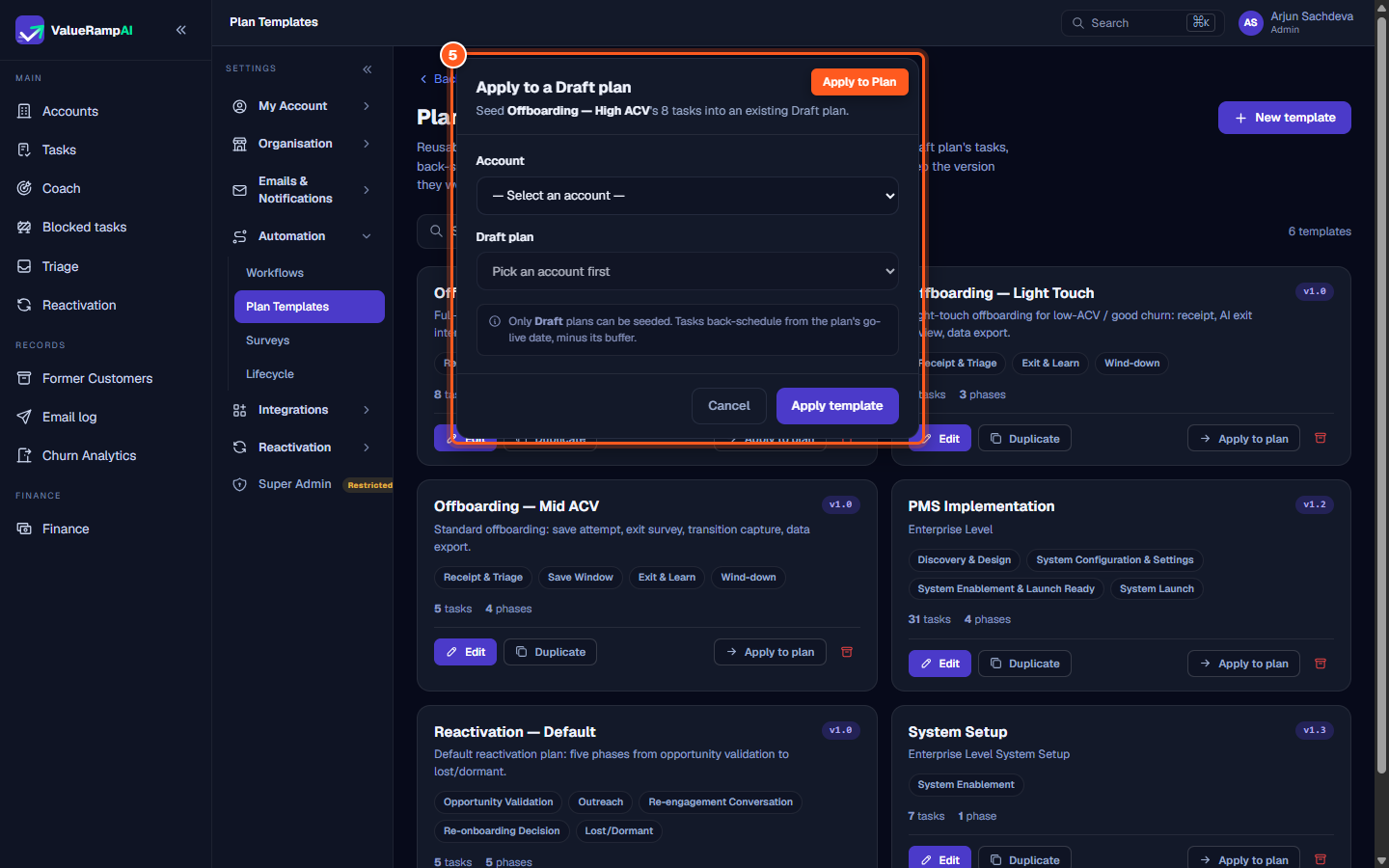
- From the Plan Templates directory, click Apply to plan on the desired template card.
- The Apply to a Draft plan modal opens:
- Select the target Customer Account.
- Select the account's existing Draft Plan.
- Automatic Back-Scheduling:
- If the Draft plan has a Target Go-Live / Launch Date, ValueRamp calculates backwards from that date to set every task's due date (skipping weekends when the plan is set to working days only, and always skipping Leave Calendar dates).
- If the plan does not yet have a launch date, the same back-scheduling runs from today's date, so tasks still receive due dates — set the launch date first if you want them anchored to it.
- Click Apply template. All phases, tasks, milestone flags, and default owner roles are created instantly.
Frequently asked questions
Can I apply multiple templates to the same plan?
Yes. You can apply a foundational onboarding template first, and later apply an add-on blueprint (such as an SSO Integration or ERP Data Sync module). ValueRamp appends the new phases and tasks into the existing plan without overwriting prior tasks.
What happens if an account does not have an assigned Onboarding Manager?
The task keeps its default owner role (OM) — nothing reassigns it automatically. Assign a named owner on the plan once the account has one.
Where do I configure the emails that get sent when tasks are assigned?
System emails are configured under Settings → Emails & Notifications → Email Settings (/settings/emails). There, Admins can edit each template's subject line and rich-text body. The sender address is fixed.
Steps
Review active plan templates, stages, and version badges
Create a new blueprint or duplicate an existing template
Configure phases, task durations, owner roles, and milestone stars
Version templates safely without altering active customer plans
Apply blueprint to a draft customer plan with automated scheduling
Was this helpful? Tell us what was missing