Surveys
Last verified 2026-09-17
Create reusable CSAT, NPS, onboarding, and exit surveys, configure question types and logic, manage system templates, and embed merge tags.
ValueRamp's Surveys tool empowers Customer Success and Implementation teams to gather structured sentiment, CSAT ratings, NPS scores, and qualitative feedback throughout the customer journey. All submitted responses roll up automatically to the customer's account profile, directly informing health scores, churn indicators, and executive digests.
Surveys are created and managed at /surveys. ValueRamp sends them through its own flows — the CSAT survey when a plan closes, the exit survey when an account churns, and the sales handoff request — minting a single-use link for each recipient that needs no login or password. (The {{survey:…}} tag shown on each card is not yet honoured by email templates; do not paste it into an email.)
Architecture and response aggregation
- Tokenized Customer Links: Every send generates a random, single-use token tied to the specific recipient and account.
- Account Rollup: On submission, answers write back to the account — the narrative, commercial details, and CSAT score.
- CSM Notifications: The Notify CSM on response setting is stored with the survey but does not yet send a notification.
- Expiration Windows: Surveys enforce configurable expiration limits (from 1 to 365 days). Once expired, survey tokens are deactivated to prevent stale data entry.
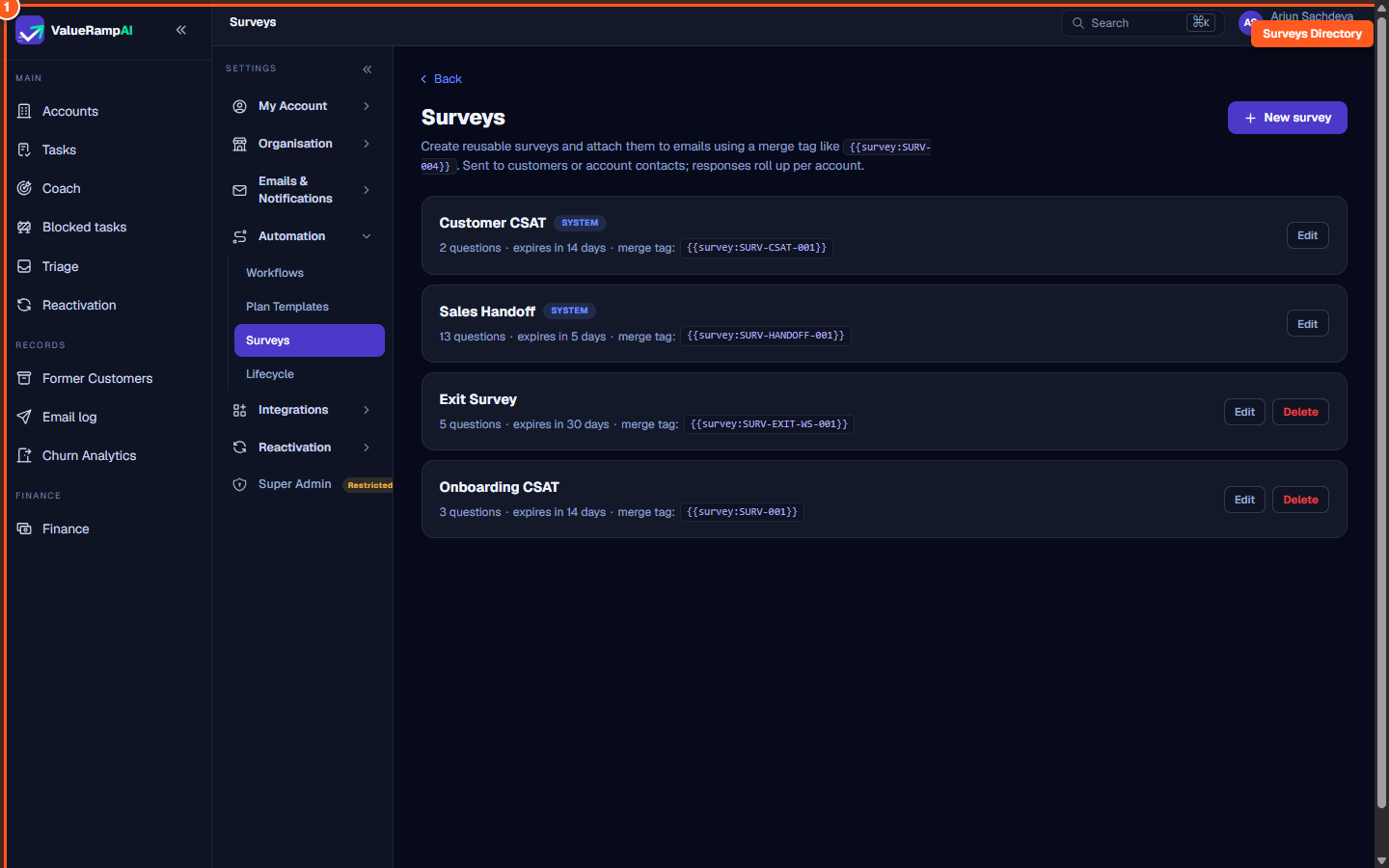
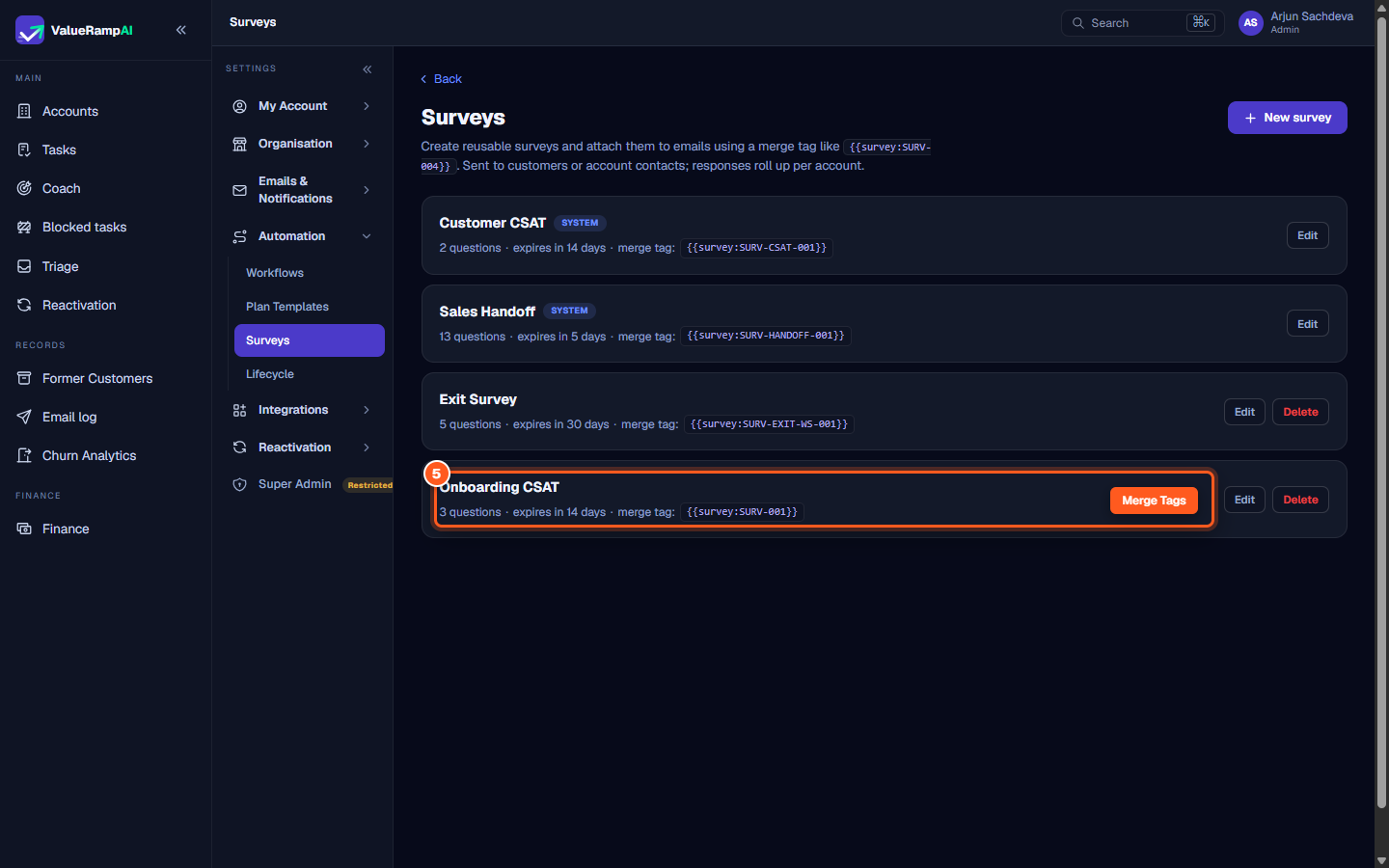
Step 1: Open the Surveys directory and review active templates
- In the sidebar under Automation, click Surveys (
/surveys). - The directory lists all existing survey templates in your workspace.
- Each survey card displays:
- Survey Title: Name and description of the survey.
- System Badge: Indicates core platform surveys whose structure is protected.
- Question Count: Total number of prompts.
- Expiration Window: Active lifespan of generated survey links (e.g.
expires in 14 days). - Merge Tag: Ready-to-copy code (e.g.
{{survey:SURV-CSAT-001}}). - Actions: Edit to modify parameters, or Delete (available for non-system surveys).
Step 2: Configure survey name, expiry window, and CSM notifications
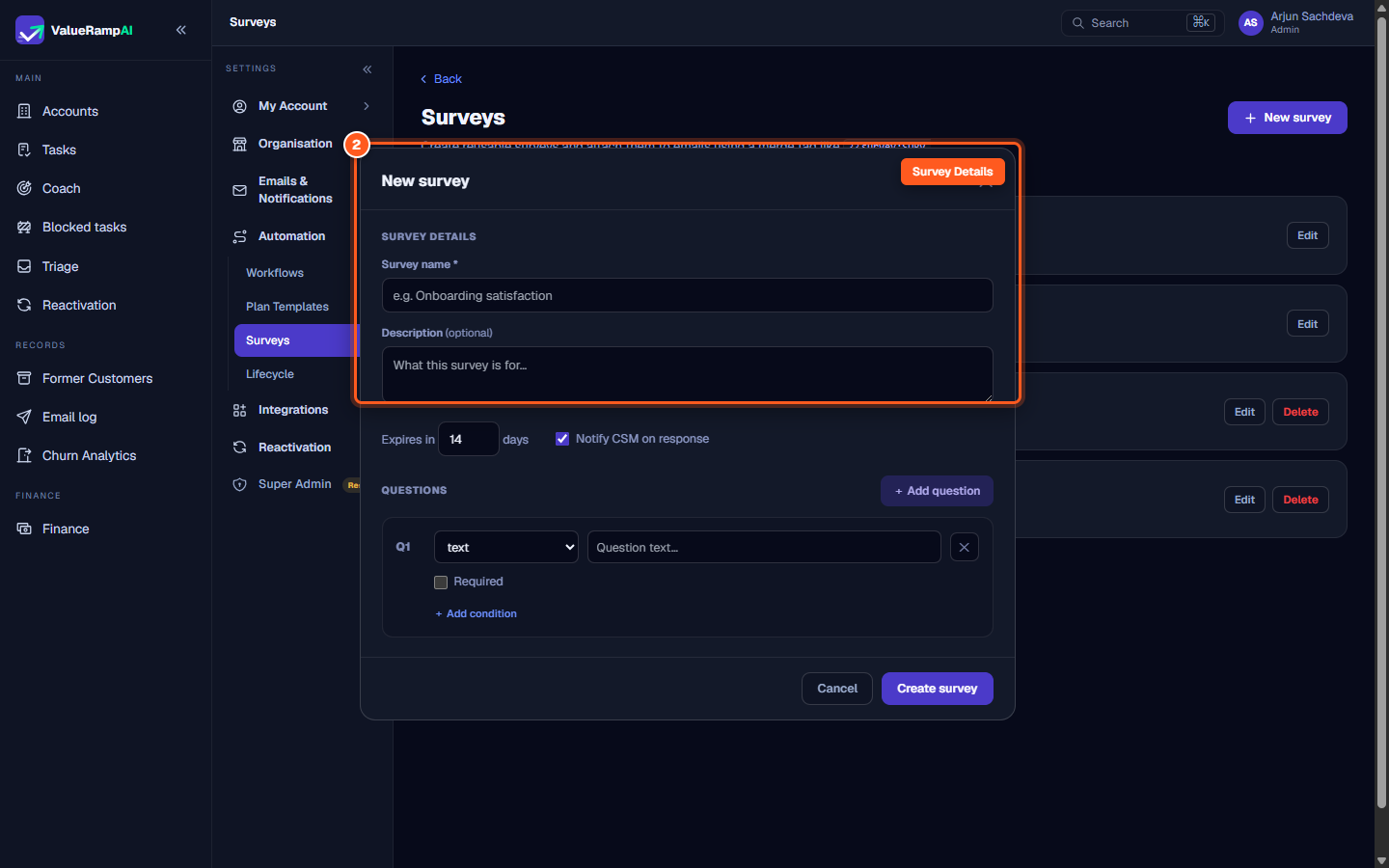
- Click New survey in the top-right corner to open the Survey Builder modal.
- Survey Details:
- Survey Name: Enter a clear, user-facing title (e.g.
Onboarding Satisfaction Survey). - Description (Optional): Internal summary of when and why this survey is dispatched.
- Survey Name: Enter a clear, user-facing title (e.g.
- Delivery Settings:
- Expiration Window: Set the number of days the link remains active (between 1 and 365 days; defaults to 14 days).
- Notify CSM on response: Check this box to alert the account's assigned CSM the moment a customer submits their response.
Step 3: Add question types: ratings, NPS, multiple choice, and text
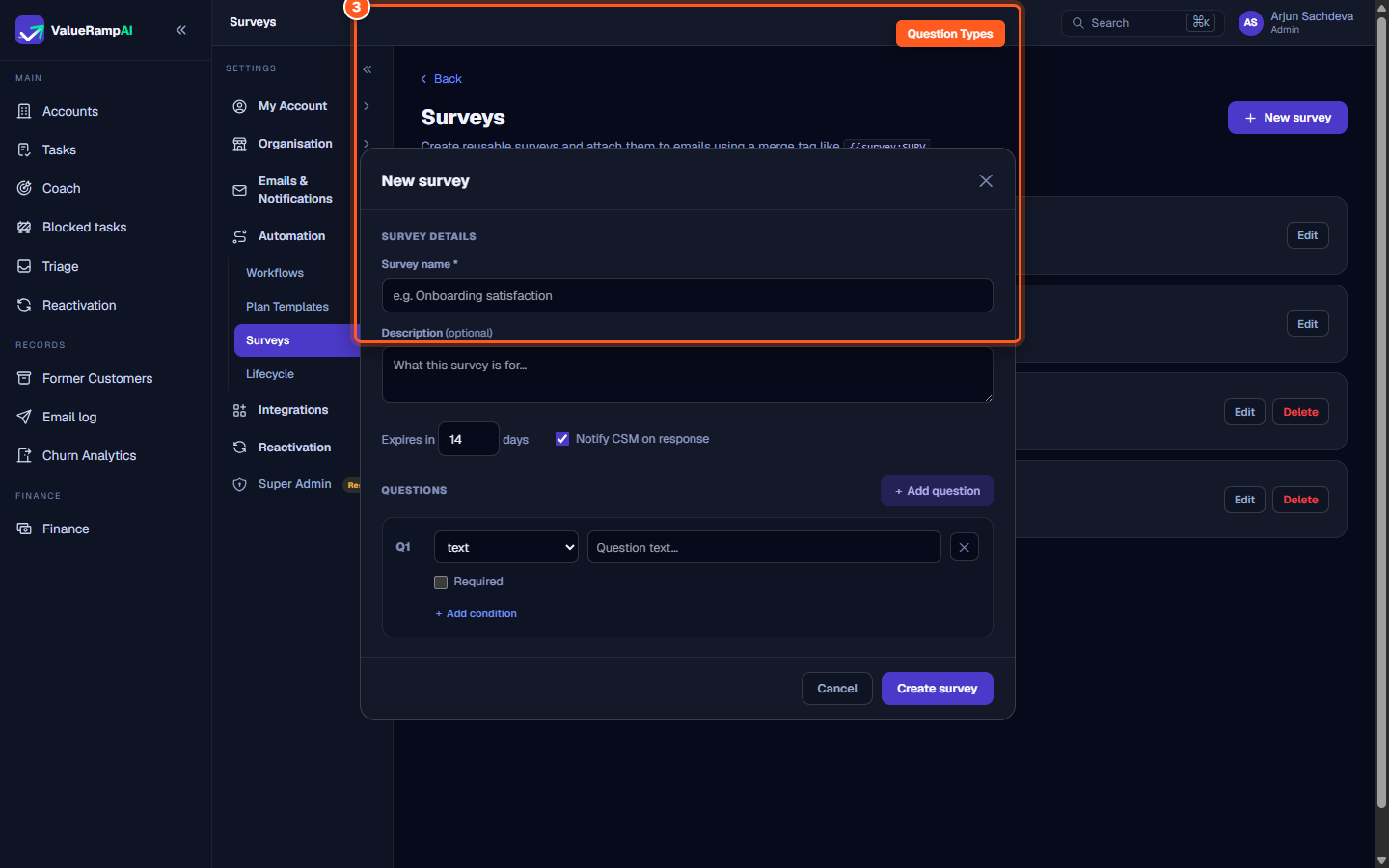
In the Questions section of the builder, configure the prompts presented to your customer:
- Click + Add question to add a prompt.
- Select a Question Type:
- csat: A satisfaction rating, ideal for CSAT and milestone feedback.
- nps: The 0–10 Net Promoter Score scale (Promoters, Passives, Detractors).
- text: Open-ended text box for qualitative comments.
- single_select: One choice from the options you define.
- multi_select: Several choices from the options you define.
- Enter the Question Text (e.g. "How satisfied are you with your implementation kickoff?").
- Check Required if the customer must answer before submitting.
- Conditional Logic (Optional): Expand conditional logic to display follow-up questions only when certain criteria are met (for example, displaying a text box asking "What could we improve?" only if the rating is 3 or below).
Step 4: Inspect locked System Surveys and tune delivery settings
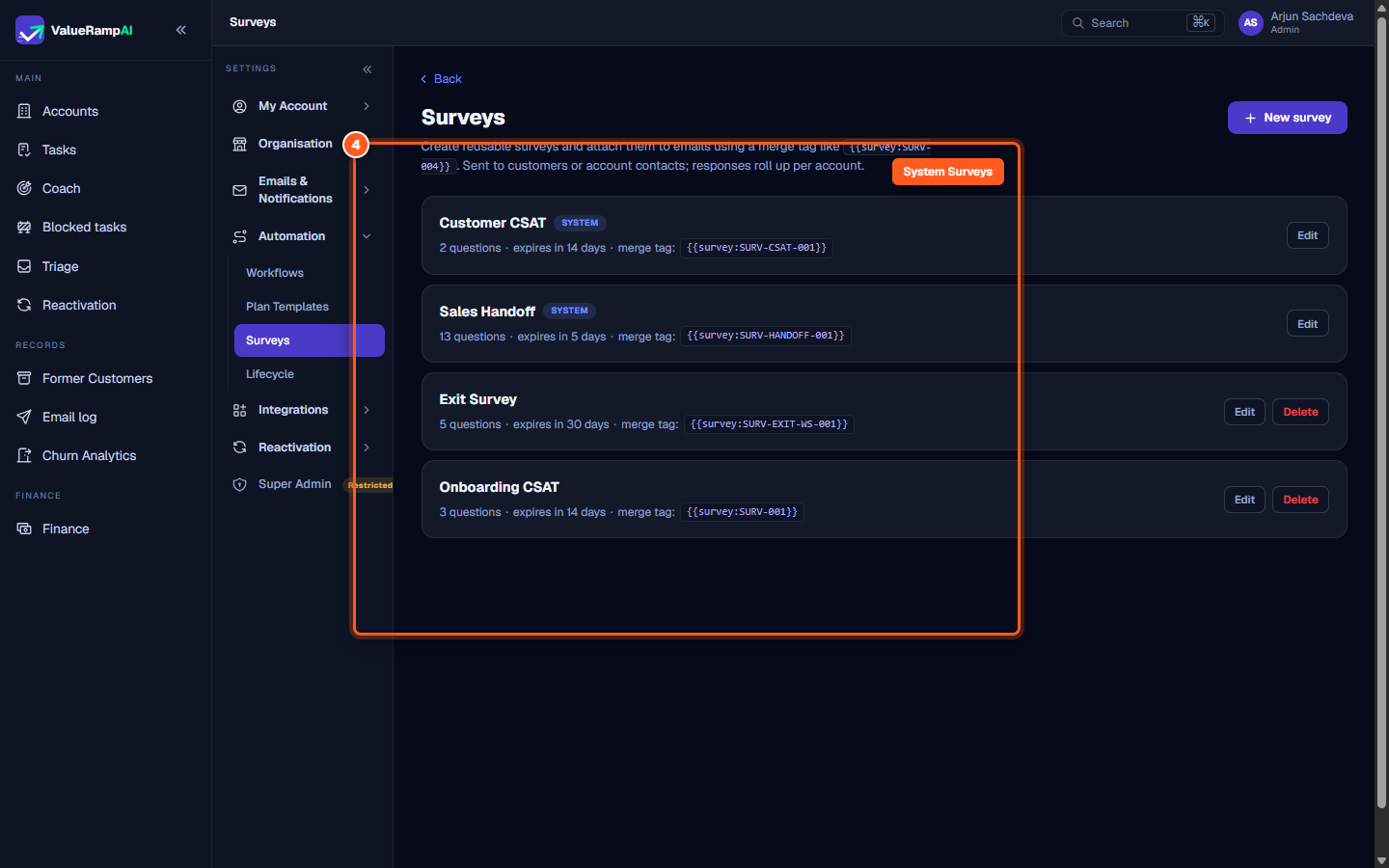
ValueRamp includes built-in System Surveys (such as Customer CSAT and Sales Handoff) that power standard lifecycle workflows:
- In the survey list, system templates carry a blue System badge.
- Click Edit on a system survey. A notice informs you that question prompts and types are locked to protect cross-workspace benchmarking and automated reporting.
- You can safely adjust operational delivery parameters:
- Modify the Expiration window (e.g. extending from 14 to 30 days).
- Toggle Notify CSM on response on or off (stored; not yet acted on).
- Click Save survey to apply changes.
Step 5: How surveys reach customers
Surveys are delivered by ValueRamp's own flows, each minting a single-use link for the recipient:
- CSAT on plan close: when an onboarding plan is closed, the CSAT survey goes to the account's customer contact.
- Exit survey on churn: when an account is churned, the exit survey goes to the departing contact.
- Sales handoff: the Request from Sales action on an account's Sales Handoff tab sends the handoff questionnaire to the deal owner.
The merge tag shown on each survey card (e.g. {{survey:SURV-001}}) is not yet expanded by email templates or workflow actions — pasting it into an email sends the literal text.
Frequently asked questions
Do customers need a ValueRamp login to submit survey answers?
No. Every recipient receives an encrypted, single-use token in their email URL. Clicking the link takes the customer straight to a clean, mobile-responsive survey page where they can submit feedback without logging in.
What happens if a customer clicks an expired survey link?
The customer is shown a polite message stating that the survey has expired. No responses can be submitted, preventing outdated sentiment from impacting current account metrics.
Can I delete a survey that already has responses?
System surveys cannot be deleted. Custom surveys can be deleted by Admins; historical response data already rolled up to customer accounts is preserved, but the template and merge tag can no longer be used for new dispatches.
Steps
View active surveys, question counts, and merge tags
Configure survey title, expiry window, and CSM notifications
Add question types: ratings, NPS, multiple choice, and text
Inspect locked System Surveys and tune delivery settings
How surveys reach customers
Was this helpful? Tell us what was missing