Workflows: what sends, and when
Last verified 2026-09-17
Configure automated event rules, plain-English AI generation, multi-channel actions, sequenced playbooks, and monitor the execution audit log.
ValueRamp's Workflows engine automates real-time actions, customer notifications, and internal alerts based on lifecycle signals. Whether alerting CSMs when a critical onboarding task is blocked, sending a CSAT survey when an onboarding plan is closed, or launching an executive outreach motion when an account flags churn risk, Workflows ensures no customer event falls through the cracks.
Workflows are managed at /workflows and consist of three core components:
- Event Rules: Continuous listeners that trigger actions immediately when specific lifecycle events occur.
- Playbooks: Sequenced, multi-step motions that combine automated tasks with timed delay intervals.
- Run History: An immutable execution log providing complete visibility over every triggered, skipped, and completed automation.
Architecture and automation mechanics
Every workflow rule follows an event-driven evaluation cycle:
Trigger Event ──> Filter Conditions ──> Cooldown Check ──> Multi-Channel Actions
- Trigger Events: System signals including Account Created, Account Churned, Plan Approved by Customer, Plan Closed, Task Completed, Comment Added, and Blocker Raised. Plan Approved by Customer fires only when the customer-approval step is completed: the customer approves the plan in the customer portal and it moves from Pending Approval to Active. It does not fire when a plan is published for approval, when the CSM gives the first approval, or when a plan is archived; a closed plan has its own trigger, Plan Closed.
- Filter Conditions: Granular criteria based on account tier, health score, ARR, lifecycle stage, or specific phase names. Conditions can be evaluated with
ALL(AND) orANY(OR) logic. - Cooldown Window: A configurable suppression timer (e.g. 60 minutes), applied per rule and per entity (the task, else the plan, else the account), preventing repetitive triggers from flooding customers or teammates.
- Action Dispatch: Immediate execution across supported channels:
- Email: Transactional notification dispatched via Resend.
- Webhook / Slack: JSON payload posted to a URL you provide — a Slack incoming-webhook URL posts to that channel.
- Task: Internal task created for an owner role with a due-date offset.
- Notify in-app: An in-app notification to a recipient role.
- Playbook: Trigger a multi-step sequence.
Step 1: Open the Workflows manager and browse event rules
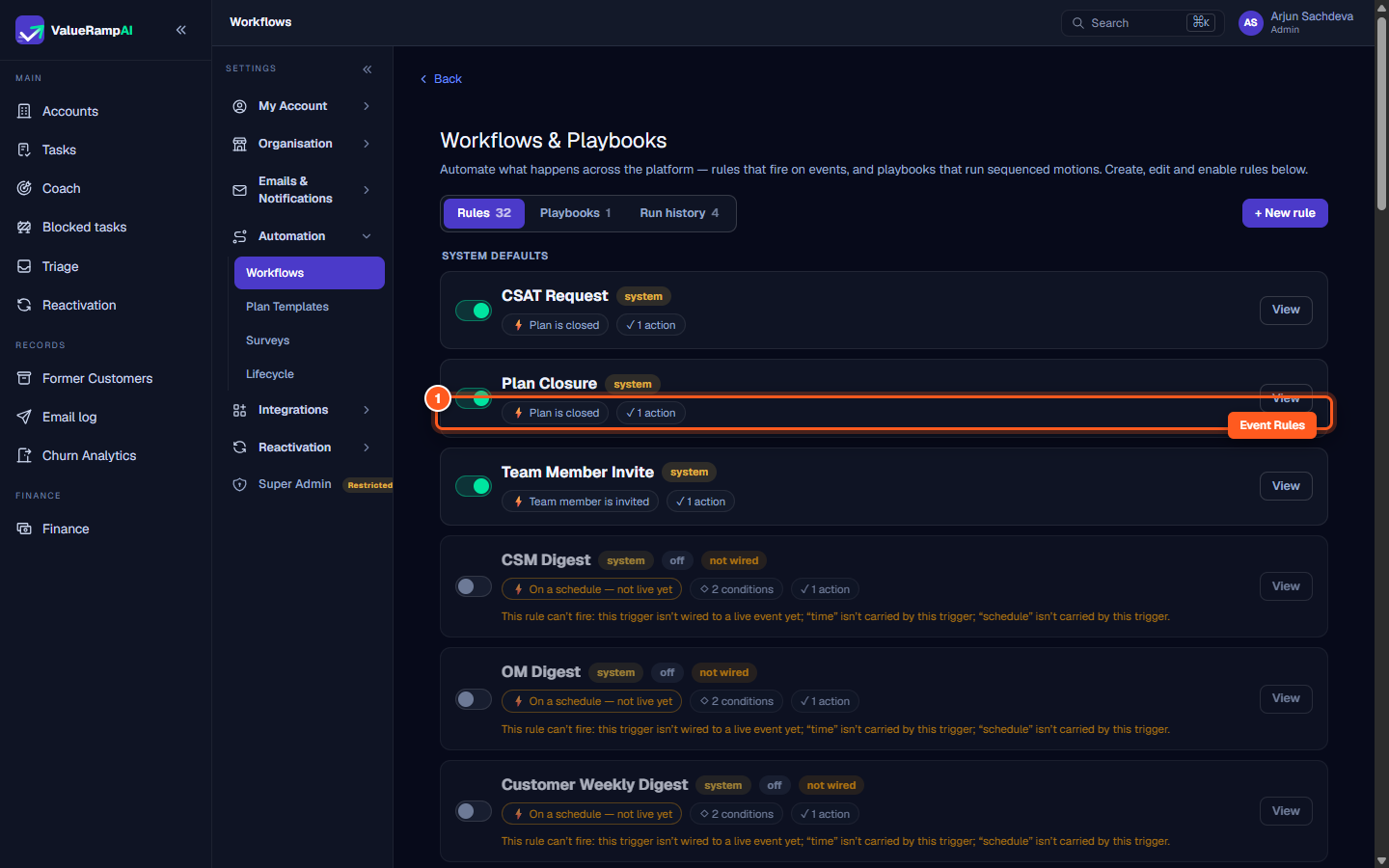
- In the left navigation under Automation, click Workflows (
/workflows). - The Rules tab lists all active and paused automation rules in your workspace.
- Rules are organized into:
- System Defaults: Pre-configured rules powering essential notifications (such as CSAT survey dispatch on plan closure or blocker alerts).
- Custom Rules: Workspace-specific automations created by Admins.
- Each rule card displays:
- Event Trigger Badge: The triggering action (e.g.
⚡ Plan is closed). - Condition Summary: Filter criteria required for the rule to fire.
- Action Count: Number of downstream actions executed.
- Status Badge: Active or Paused status.
- Execution Count: Total times the rule has successfully fired.
- Event Trigger Badge: The triggering action (e.g.
Step 2: Define event triggers and filter conditions in Rule Builder
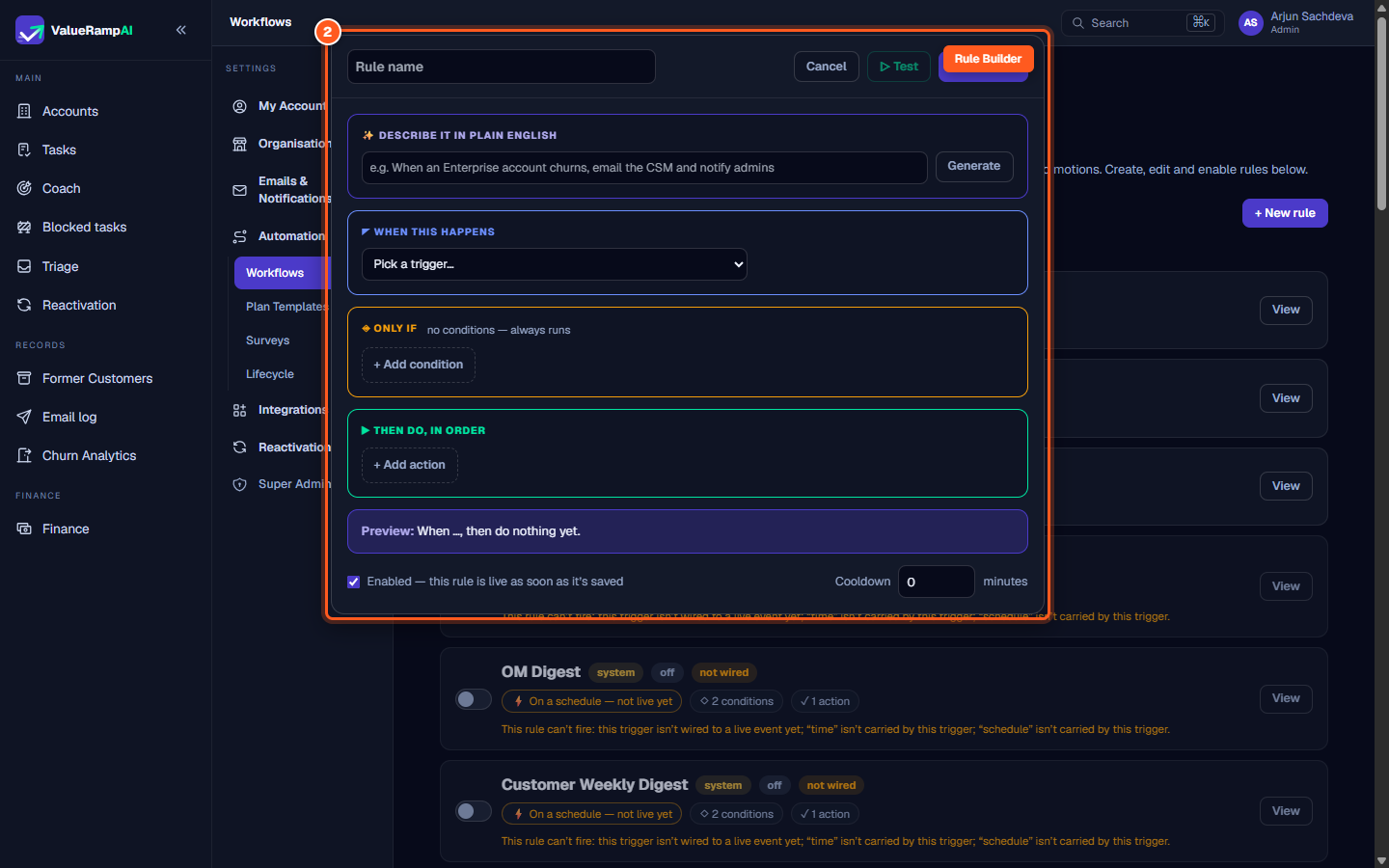
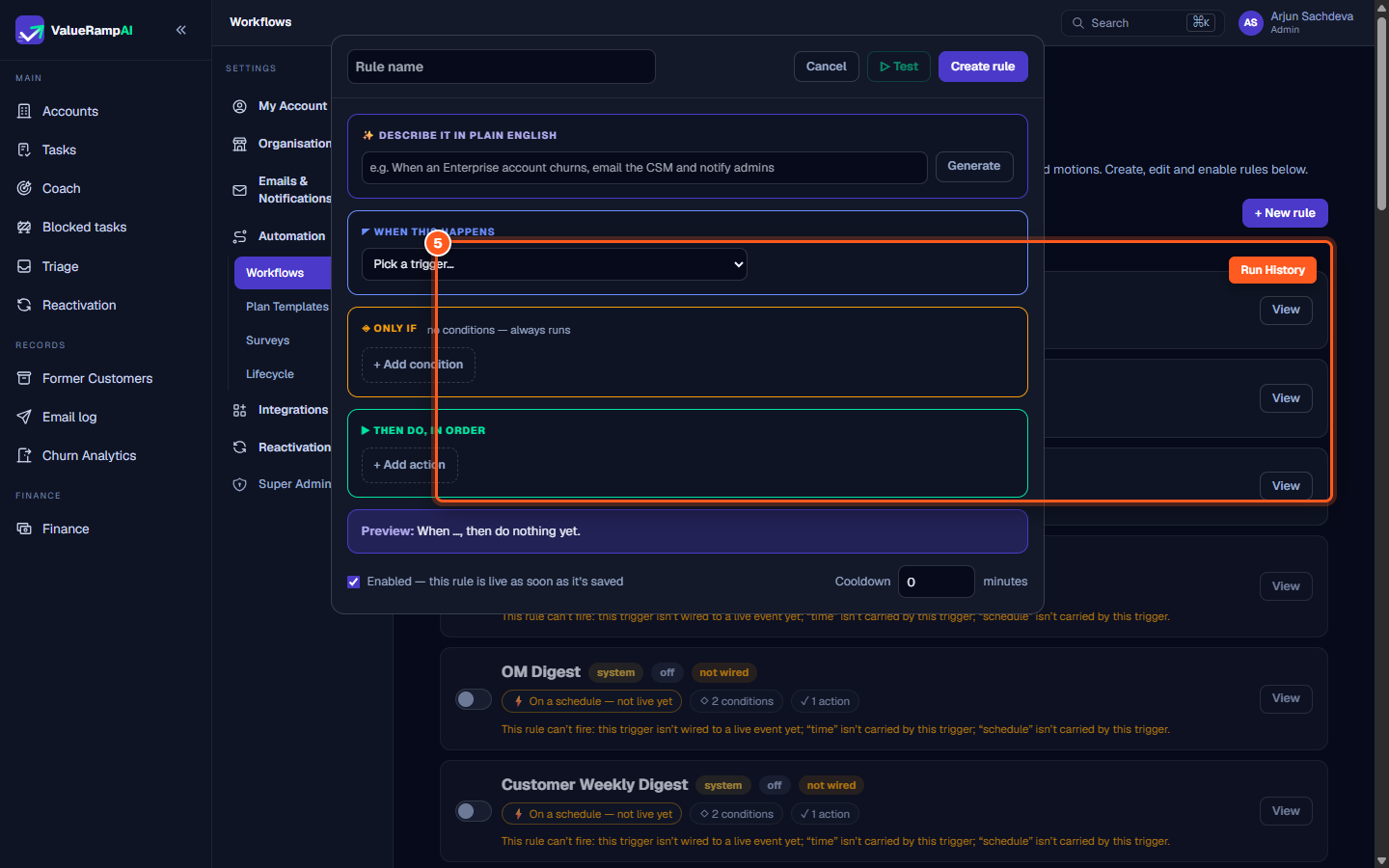
- Click + New rule in the upper-right corner to launch the Rule Builder modal.
- Plain-English Generation: In the Describe it in plain English field, type what you want to happen (for example, "When a high-ARR customer raises a blocker, send an urgent Slack alert to #cs-escalations and assign a task to the CSM"), then click Generate. ValueRamp automatically populates the trigger, conditions, and actions.
- Manual Trigger Selection: Alternatively, open the When this happens dropdown to pick a system event trigger (e.g. Task is completed, Plan approved by customer).
- Configure Filter Conditions:
- Choose whether the rule requires Match ALL conditions (AND) or Match ANY condition (OR).
- Add condition rules matching account properties (e.g.
Account Tier equals Enterprise,ARR greater than 50000).
Step 3: Configure multi-channel actions and test rule logic
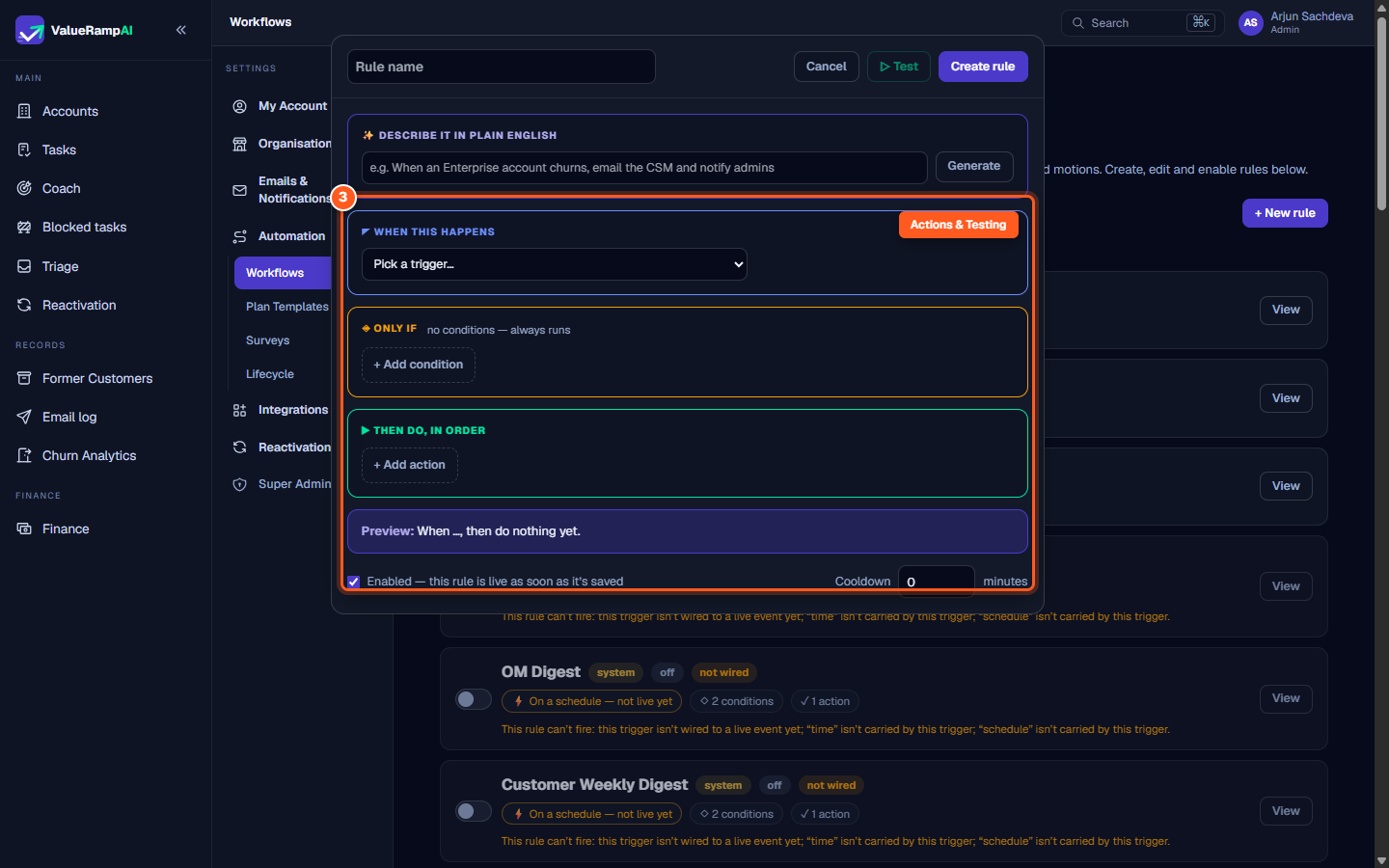
- Add Actions: In the Do this section, add one or more execution steps:
- Send email: Choose a template and a recipient (
customer,csm,om,csm_and_om,admin,admin_and_csm,invitee, ordynamic). - Webhook / Slack: Paste the URL (for Slack, an incoming-webhook URL) and an optional secret.
- Create task: Specify the task title, the owner role, and the due-date offset in days.
- Send email: Choose a template and a recipient (
- Cooldown Suppression: Set the Cooldown window in minutes. If the same trigger fires repeatedly for the same task, plan or account within this window, subsequent triggers are suppressed to prevent spam.
- Dry-Run Testing: Click ▷ Test in the modal header. ValueRamp simulates the rule against recent account records and displays a simulation report showing:
- Evaluated records count.
- Would-fire count.
- Each record's evaluated conditions and whether it would fire.
- Once verified, click Create rule to activate the automation.
Step 4: Launch multi-step Playbooks with actions and timed waits
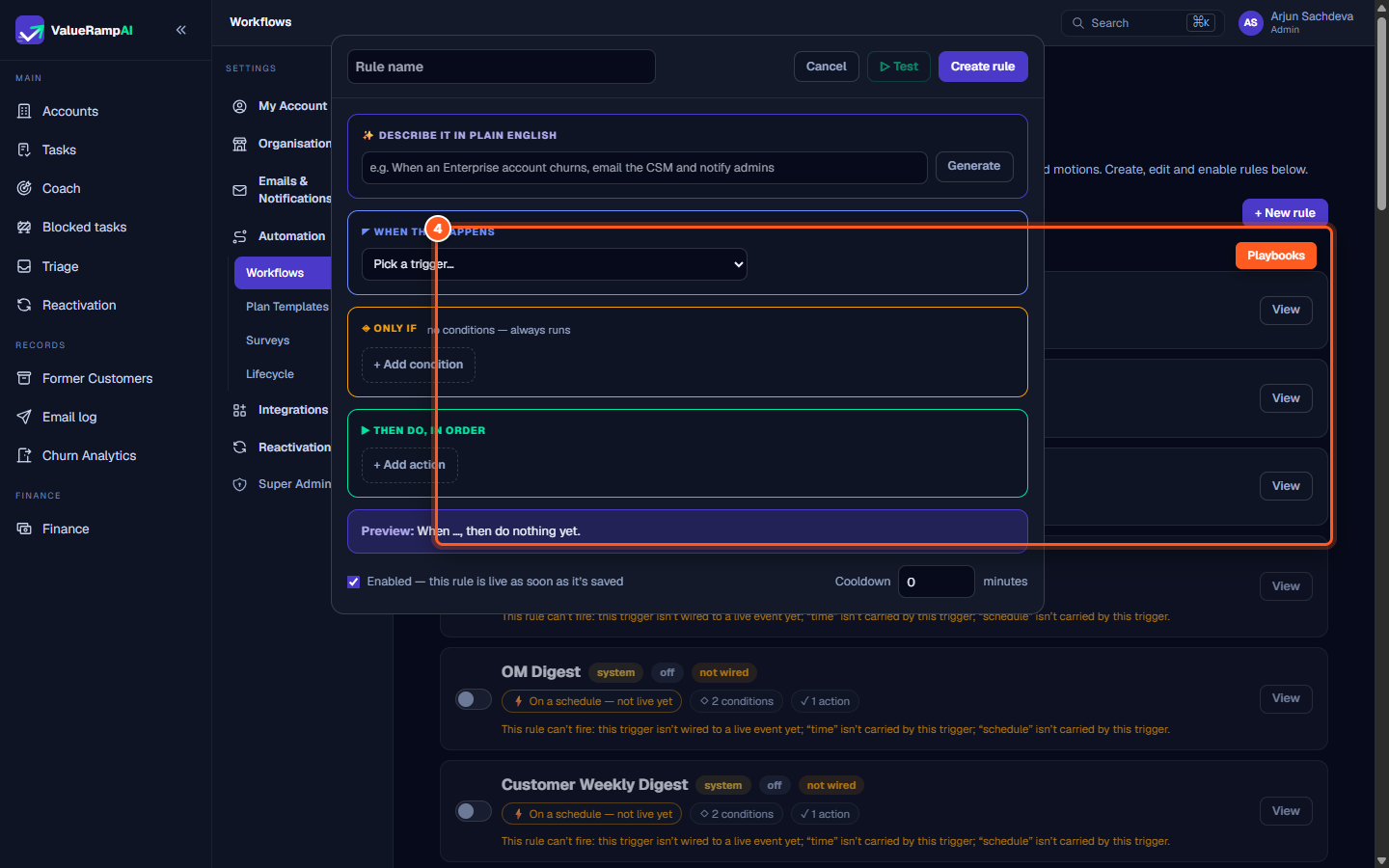
Playbooks provide structured, multi-step motions for scenarios that require staged execution over several days or weeks:
- Click the Playbooks tab at the top of
/workflows. - Each playbook card outlines its sequenced workflow:
- Total actions and timed wait steps (e.g.
2 actions · 1 wait). - Detailed step description (for example: create kickoff task → wait 3 days → dispatch sponsor check-in email).
- Total actions and timed wait steps (e.g.
- Launch a Playbook:
- Both Admins and CSMs can click Run playbook.
- Select the target Customer Account from the dropdown.
- Click Run now. ValueRamp begins executing step 1 immediately and schedules subsequent steps based on defined wait intervals.
Step 5: Inspect the execution history and audit trail
- Click the Run history tab (Admins only) to view the audit log of all automated actions.
- The ledger records:
- Timestamp: Exact date and time of execution.
- Rule / Playbook: Name of the automation that evaluated.
- Trigger Event: The underlying lifecycle event that initiated evaluation.
- Account: Target customer account context.
- Status:
- Fired: The rule met all conditions and successfully executed all actions.
- Partial: Some actions completed while others failed (e.g. email delivered but Slack webhook rejected).
- Skipped: The trigger occurred, but the account did not satisfy filter conditions or cooldown limits.
- Failed: Action execution encountered an error.
Frequently asked questions
Can customer portal users see or trigger internal workflow rules?
No. Workflow rules execute purely in server-side background processes. Portal users cannot view internal automation rules, trigger actions directly, or inspect Slack channels.
What happens if an automated email fails to send?
If an email fails to deliver (for example, due to an invalid email address or third-party service interruption), the execution log marks the run as Partial or Failed. Check Run history for failures — nothing alerts Admins automatically.
How do cooldown timers handle different accounts?
Cooldown timers are scoped per rule and per entity — the task if the event has one, else the plan, else the account. A rule with a 60-minute cooldown will suppress repeated triggers for Account A, but will still fire immediately for Account B if Account B encounters the same trigger event.
Steps
Review active event rules and system automation defaults
Configure rule triggers, AI natural language generation, and cooldowns
Define multi-channel actions and run dry-run simulations
Manage sequenced multi-step motions in Playbooks
Audit past execution logs in Run history
Was this helpful? Tell us what was missing