Message your success manager
Last verified 2026-09-28
Send direct messages to your Customer Success Manager from your portal dashboard, review shared conversation history, and stay connected on mobile.
Before you start
- Authenticated ValueRamp customer portal access
The customer portal messaging channel (/workspace/messages) provides a direct, shared line of communication between your team and your success team.
Instead of losing context across fragmented external email chains, portal messaging keeps all project questions, milestone clarifications, and feedback organized in one shared thread directly connected to your account.
How portal messaging works
1. One unified conversation per account
Your organization shares a single conversation thread with your success team. All team members who have portal access—including primary customer administrators and view-only executive stakeholders—can view the complete message history and send new updates.
2. Direct email notifications
Whenever you post a message, your assigned Customer Success Manager receives an immediate email notification containing your update and author details. When your success manager replies, everyone on your team who has written in the conversation and can still sign in to the portal is emailed. If nobody like that exists yet, your account's main contact is emailed.
3. Sending status
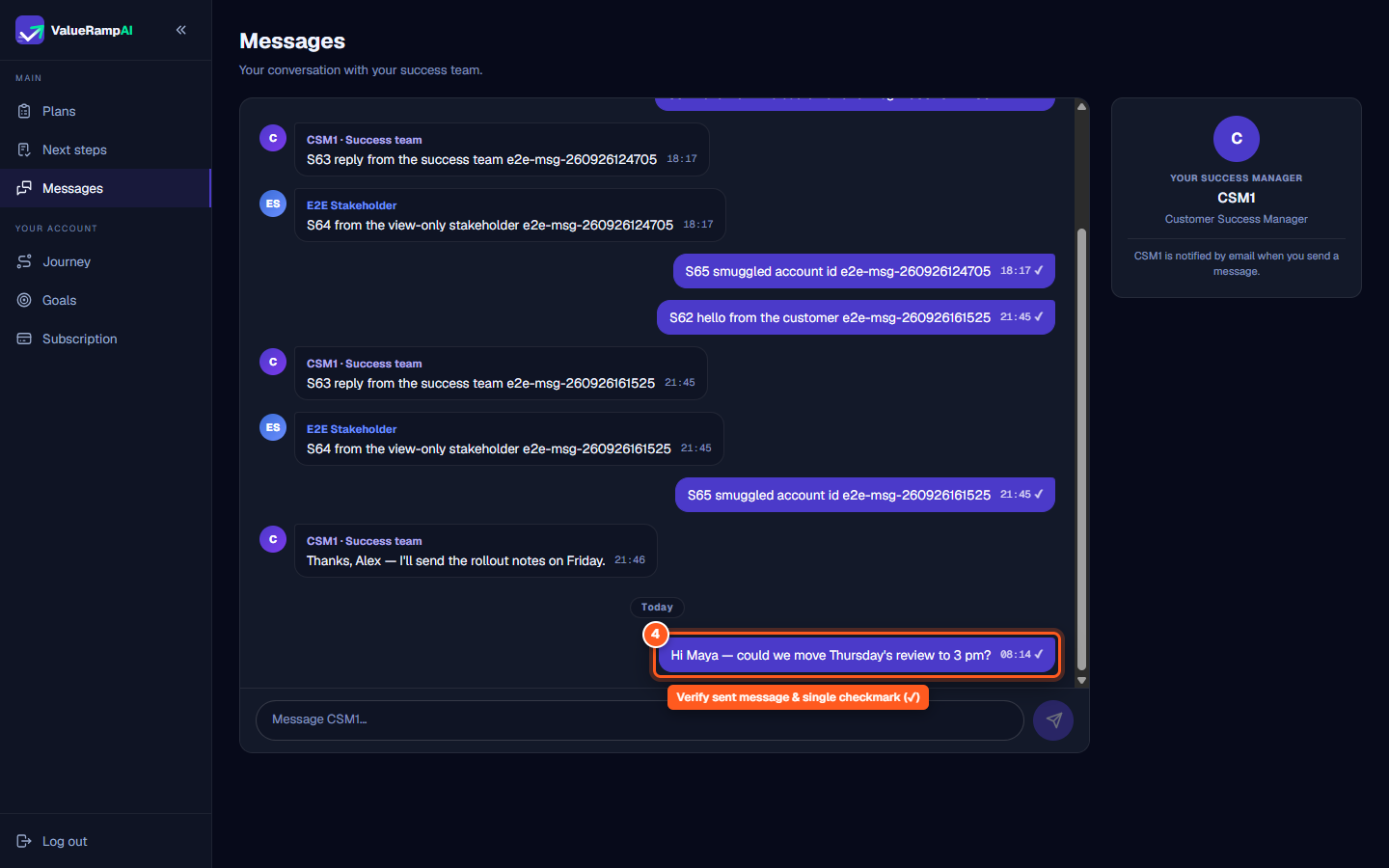
Each sent message shows a clock while it is sending, then a single checkmark (✓) once it is saved and sent. There are no delivery or read receipts.
Message composer and formatting
The portal composer is built for fast, transparent communication:
- Plain text formatting: Messages support up to 4,000 characters of plain text. A character counter automatically appears once you exceed 3,500 characters.
- Keyboard shortcuts: Press ⌘ + Enter (macOS) or Ctrl + Enter (Windows/Linux) to send your message directly without clicking the send button.
- Hourly rate limits: Each collaborator can send up to 20 messages per account per hour to keep communications organized and prevent accidental duplicate sends.
- No editing or deleting: Messages can't be edited or deleted once sent.
Mobile access
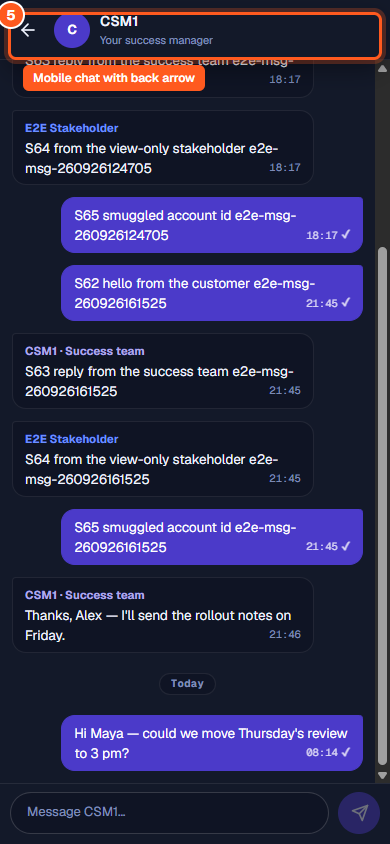
On a phone or other narrow screen, the messaging route automatically transitions into a focused, full-screen chat experience. You can review recent messages, draft and send updates, and tap the back arrow in the header to return to your workspace dashboard.
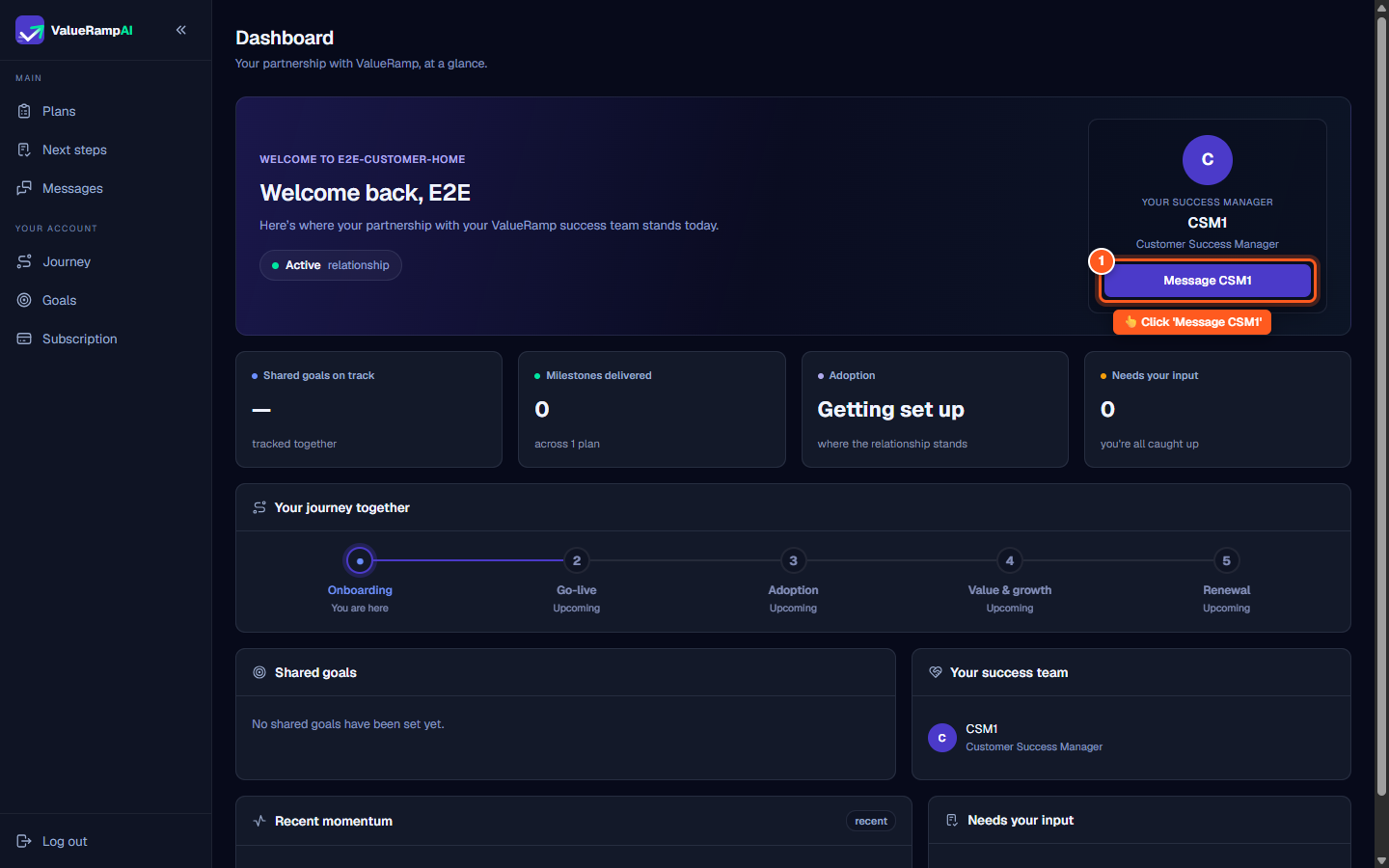
Steps
Click 'Message' followed by your CSM's first name on the Your success manager card at the top of your dashboard, or 'Messages' in the sidebar
Review your shared conversation history
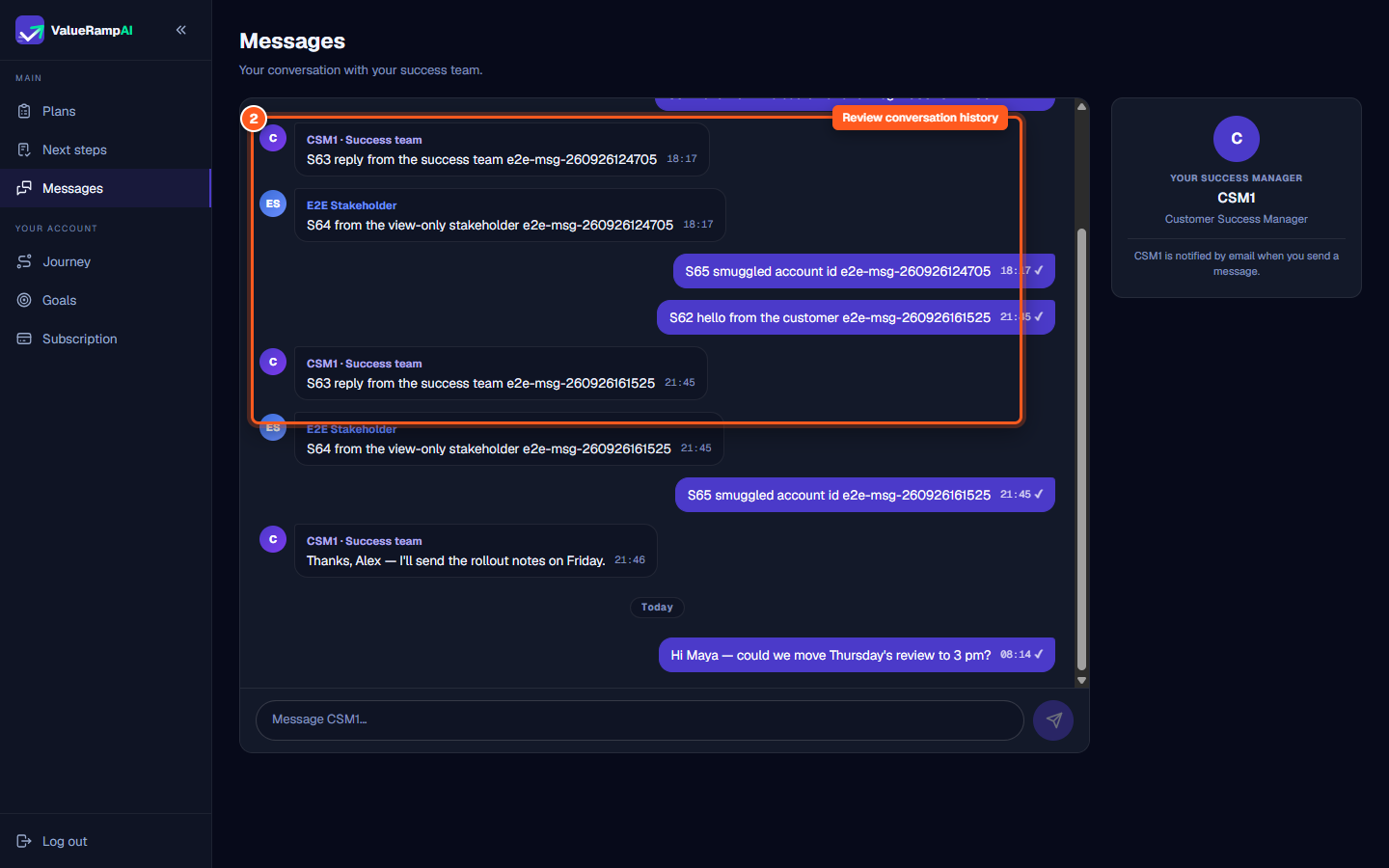
Type your message in the composer using plain text
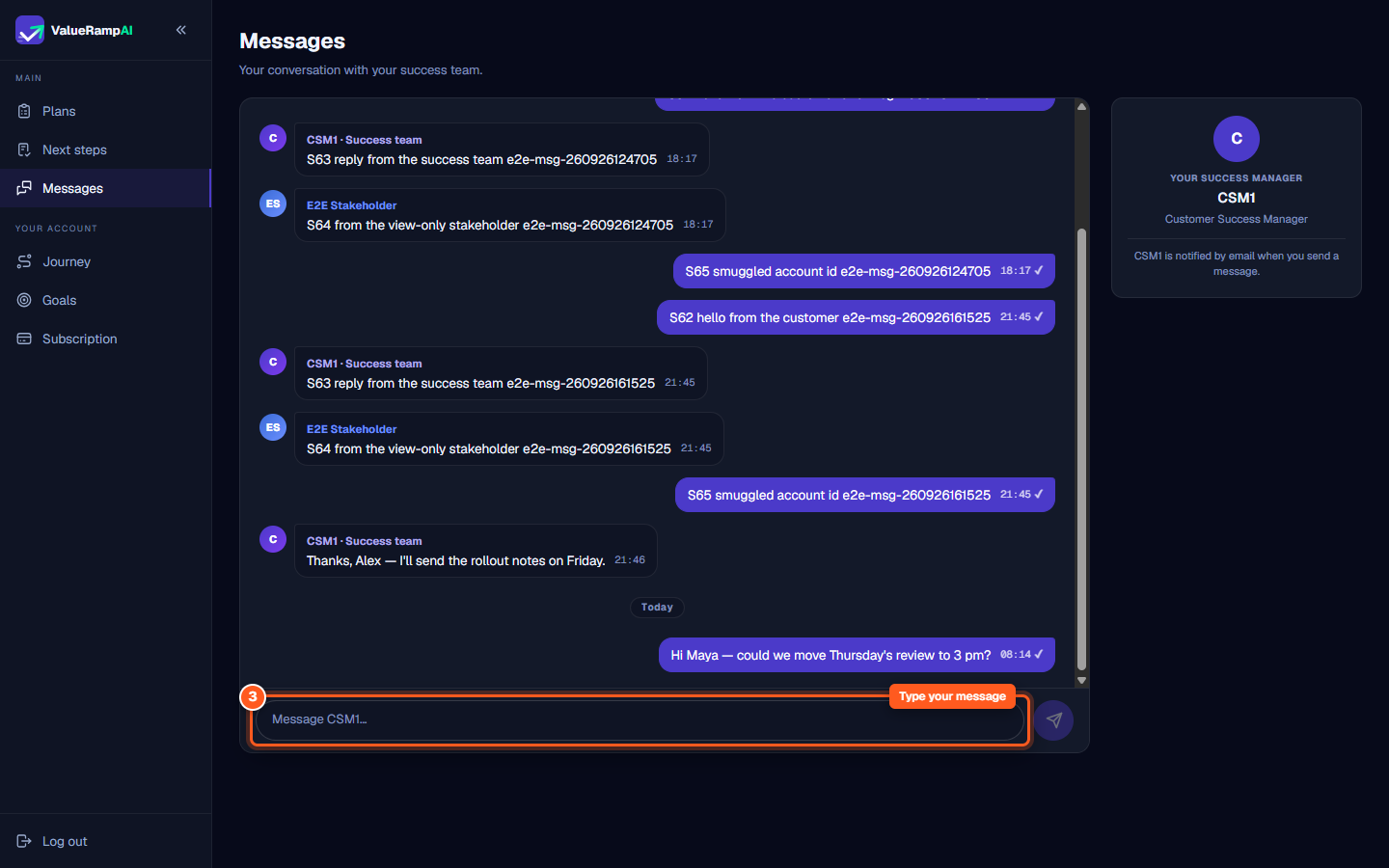
Send your message and look for the single checkmark
Access your full conversation thread and back navigation on mobile devices
Common questions
Who can see and send messages in the portal?
Who is notified when I send a message?
What does the single checkmark next to my message mean?
Can I edit, delete, or attach files to messages?
Is there a limit on how many messages I can send?
Was this helpful? Tell us what was missing