Your next steps
Last verified 2026-09-18
Review and complete customer-assigned deliverables, prioritize overdue milestones, and unblock implementation workflows from the Next Steps queue.
Before you start
- ValueRamp customer portal login
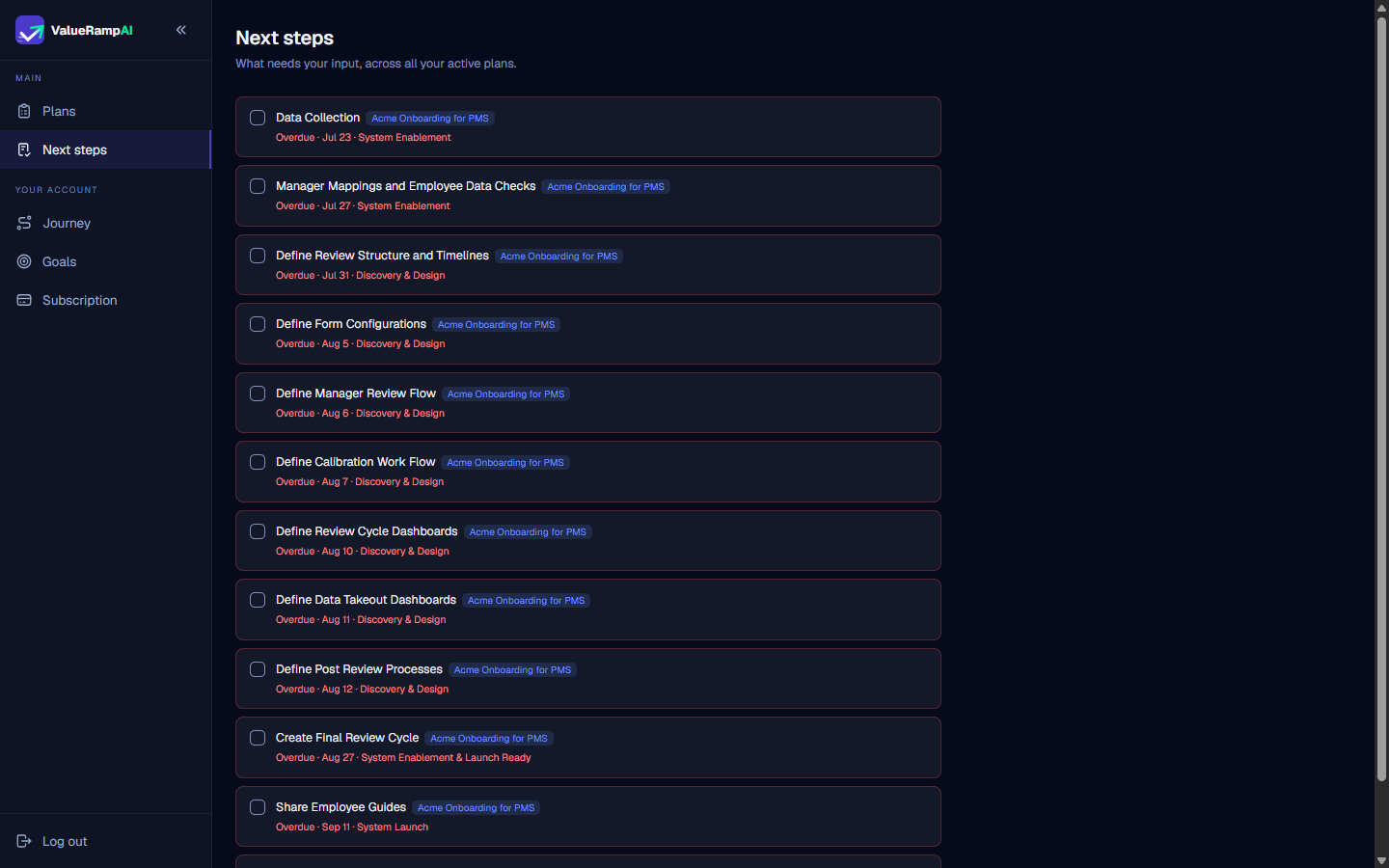
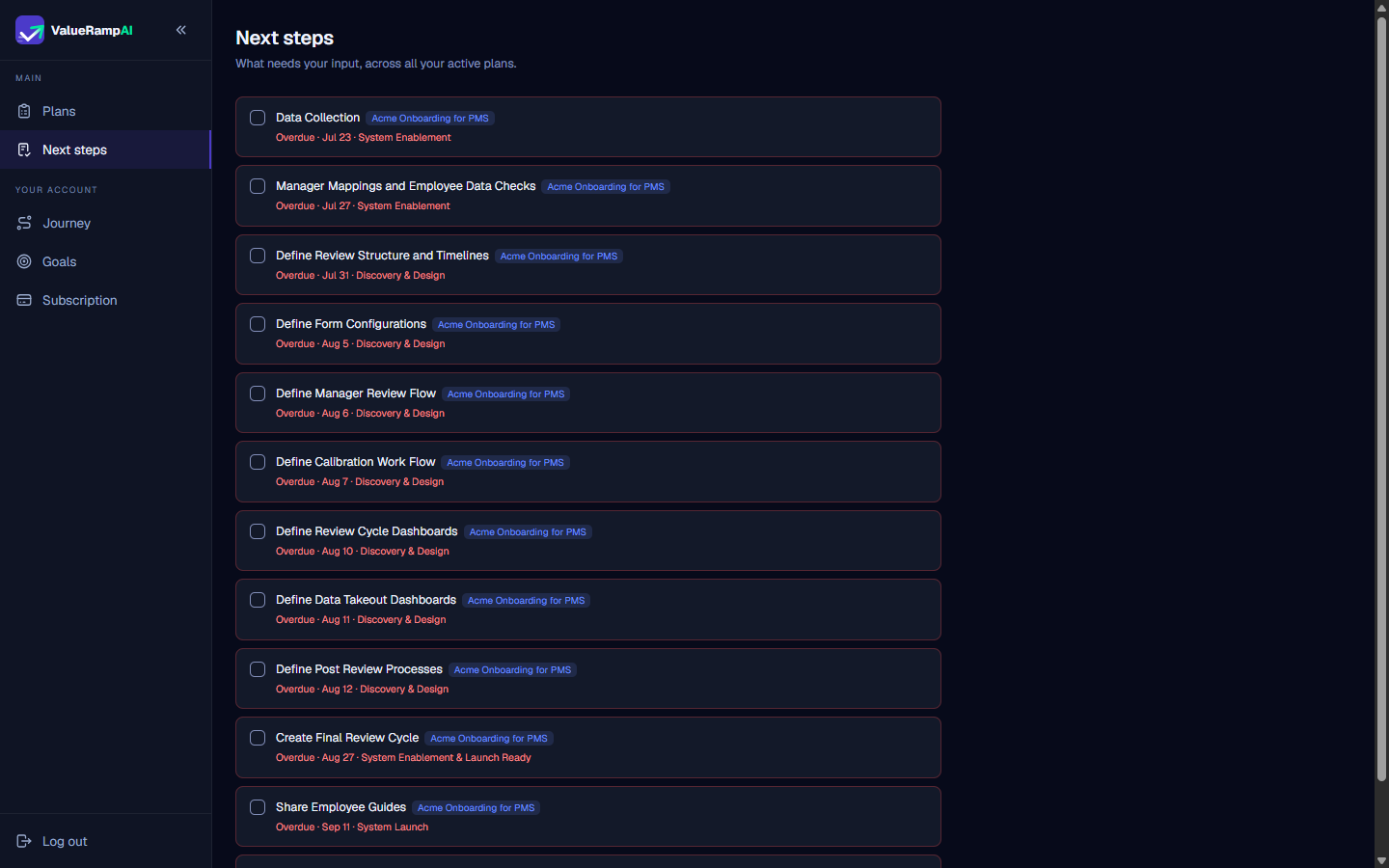
The Next steps screen (/workspace/next-steps) is your single operational inbox. Instead of searching through long plan outlines to find what your team owes, Next steps filters across all active projects to present an organized checklist of deliverables waiting on your input.
Why Next steps matters
During technical onboarding and platform deployment, implementation velocity depends heavily on customer configuration—submitting user rosters, configuring SSO parameters, confirming field mappings, and testing workflows.
When customer tasks stall, project timelines slip. The Next steps queue ensures that your team always has immediate clarity on:
- Exactly what deliverable is required.
- Which parent plan and delivery phase it belongs to.
- The original target deadline and whether it is currently overdue.
Executing items from your queue
- Review urgency tags: Items with red Overdue tags or upcoming due dates should be tackled first to prevent downstream milestone delays.
- Open the task: Click any card in the queue. ValueRamp opens its parent plan (
/workspace/plans/[id]); find the task in the Tasks tab. - Take action: Do the work the task describes on your side.
- Mark done: Click the Mark done button to register completion. The item leaves your Next steps queue and the plan's progress recalculates.
Steps
Access Next steps to review all deliverables requiring customer action
Prioritize urgent items flagged with overdue timeline warnings
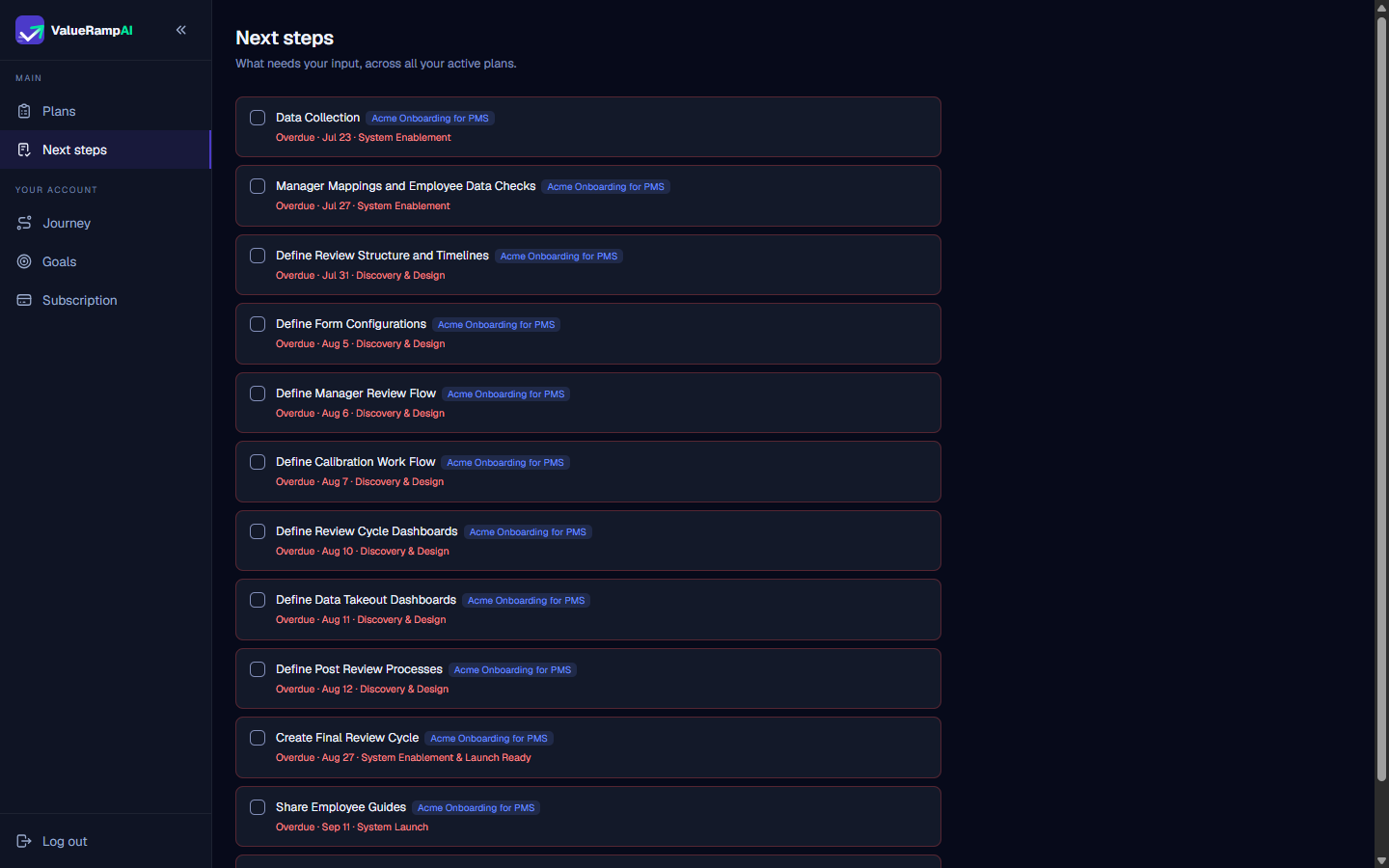
Review parent plan associations and delivery phase contexts
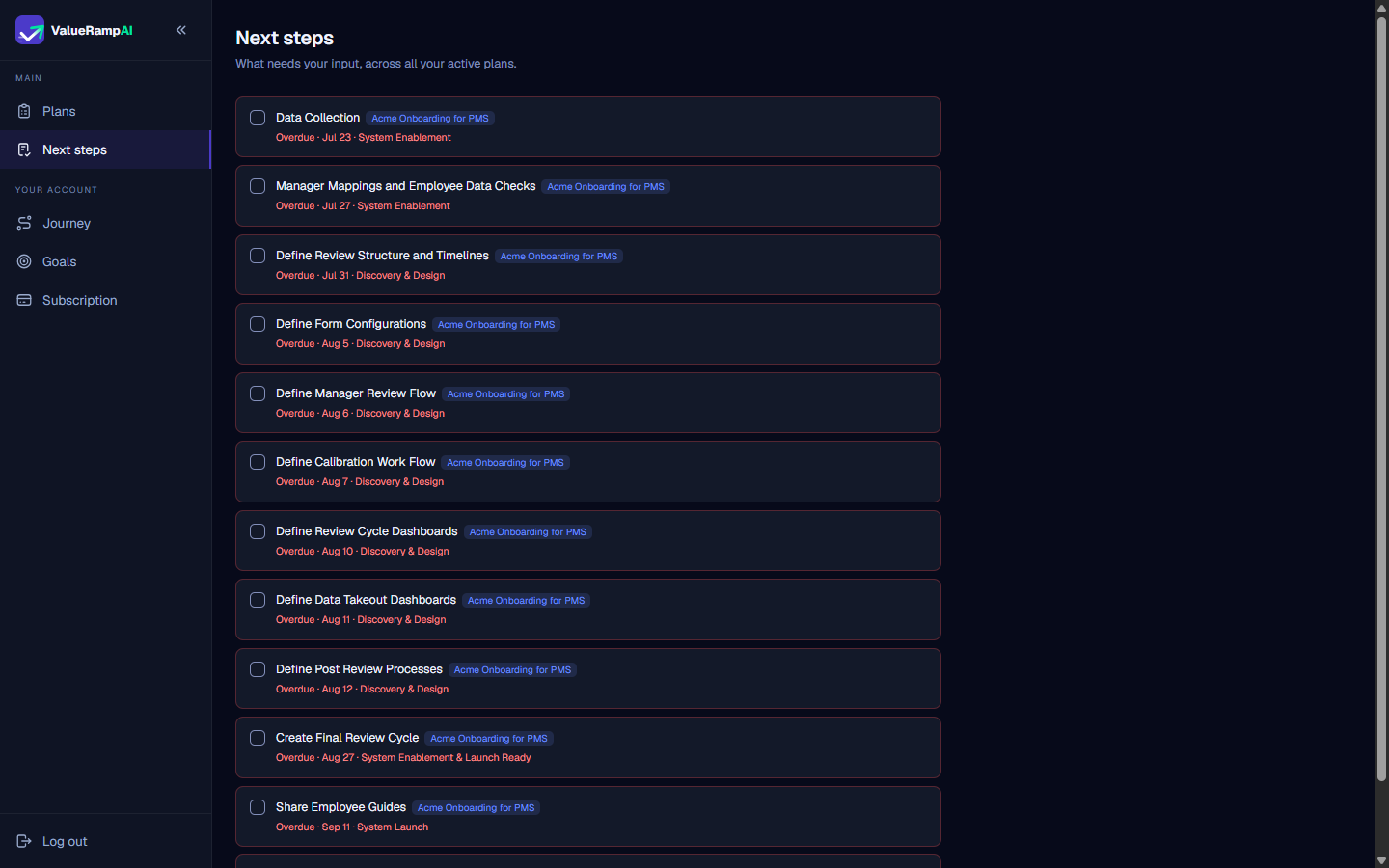
Select an item to jump directly into the delivery plan
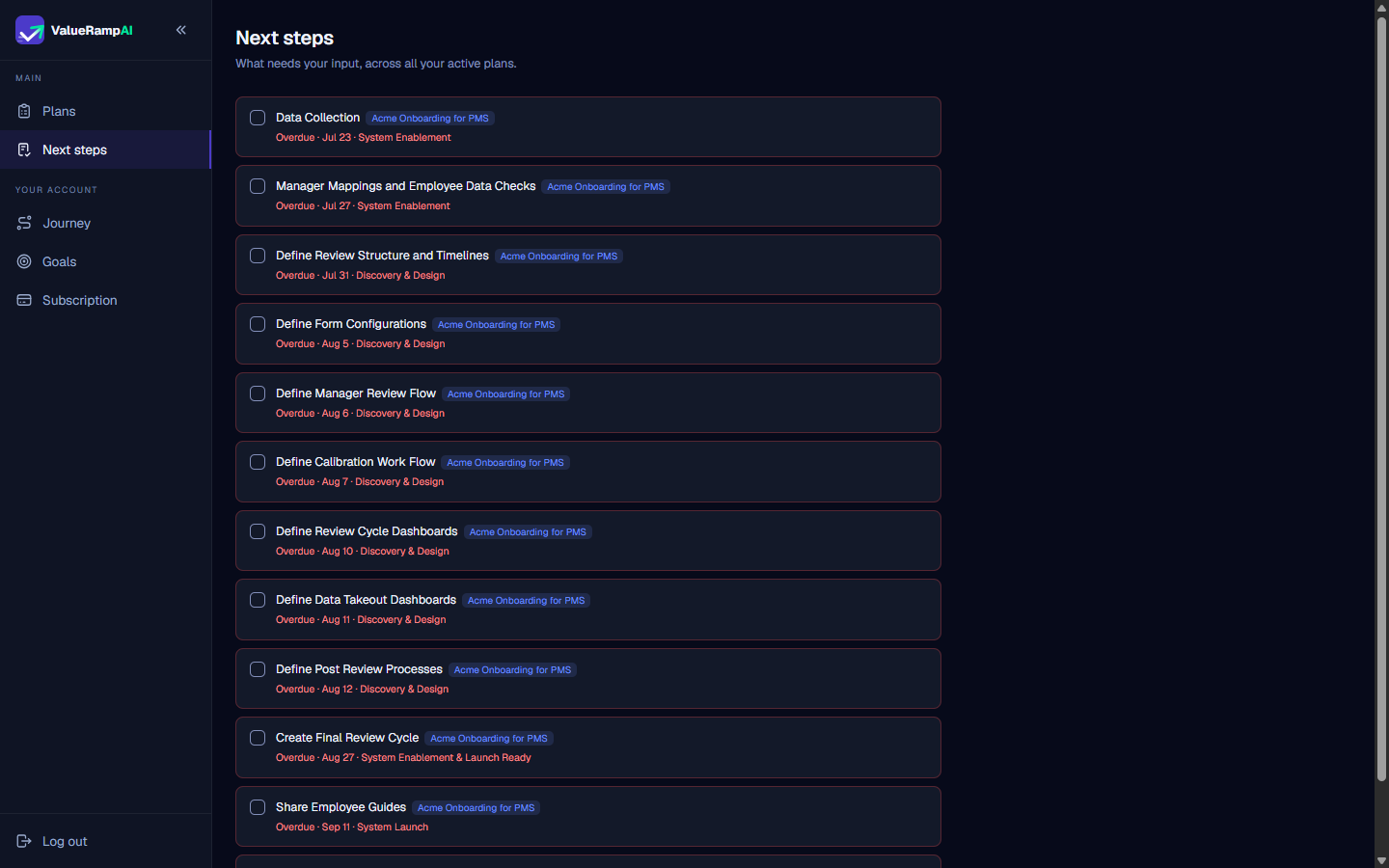
Maintain momentum across multi-phase configuration workflows
Common questions
What appears in the 'Next steps' list?
Does completing a task in Next steps update the parent plan?
What should I do if an action item cannot be completed due to a blocker?
Why are some items marked 'Overdue'?
Was this helpful? Tell us what was missing