Review, comment on and approve a plan
Last verified 2026-09-18
Examine onboarding and project delivery plans, authorize kickoff milestones, complete customer action items, and collaborate via threaded phase comments.
Before you start
- ValueRamp customer portal login with Customer role access
Shared delivery plans (/workspace/plans) keep your implementation aligned across both organizations. Rather than tracking progress across disconnected spreadsheets, ValueRamp provides an interactive delivery environment where you can review upcoming phases, complete customer-assigned deliverables, and formalize project sign-offs.
Plan lifecycle and approval
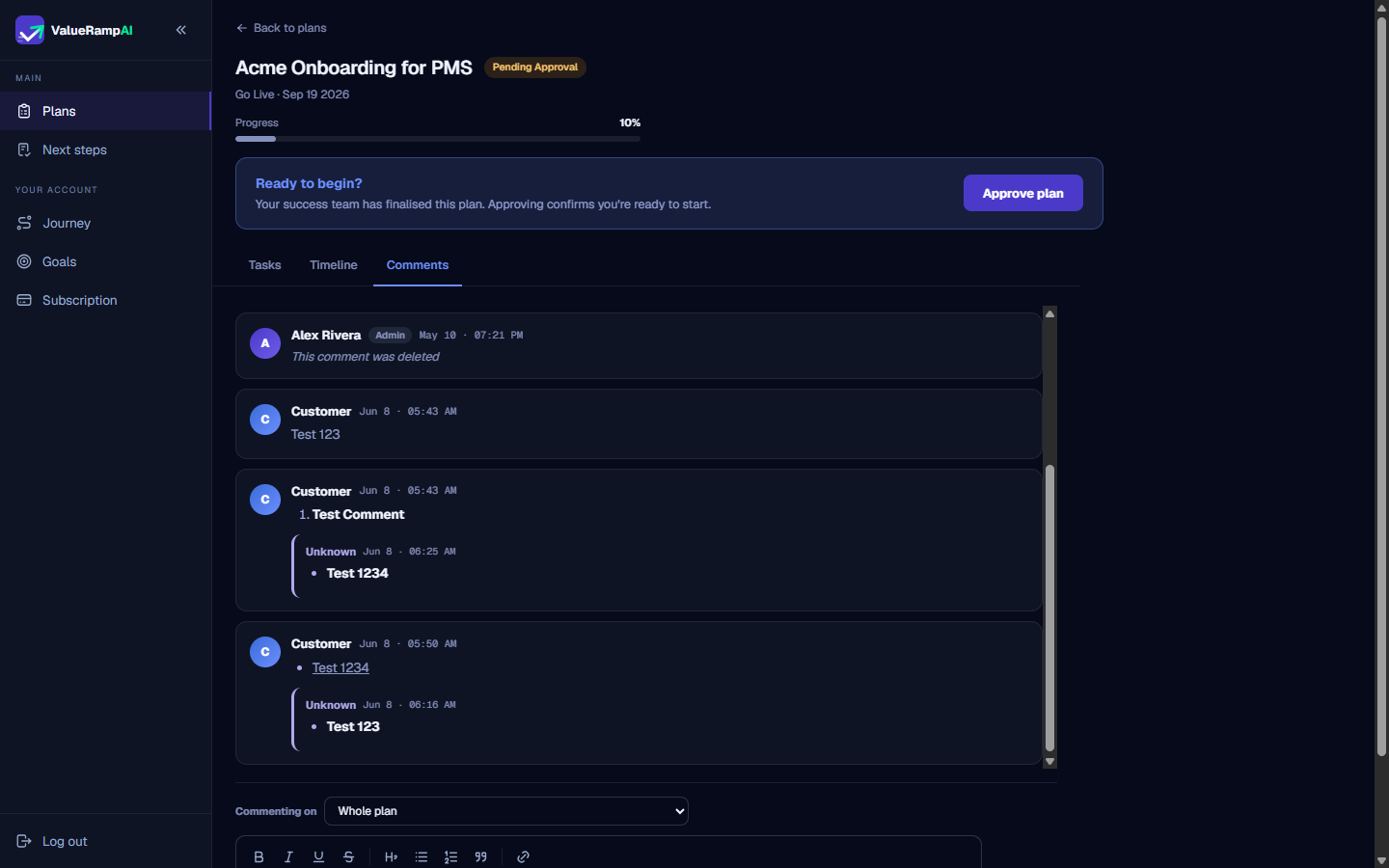
When your vendor publishes a delivery plan, it arrives in your portal with the status Pending Approval. Once your Customer Success Manager has approved it on their side, the Approve plan button appears for you.
- Inspect delivery phases: Review the phase structure (e.g. Discovery & Design, System Enablement, Launch Ready) to ensure milestones and deliverables align with your internal business requirements.
- Review key dates: Confirm that target phase completion dates and the overall Go Live deadline accommodate your internal resource availability.
- Approve the plan: Click Approve plan in the header banner to formally initiate delivery.
Working with tasks
The Tasks tab organizes work across the active engagement:
- Ownership: Every task clearly indicates whether it is owned by your team (Customer), your Customer Success Manager (CSM), or the technical Onboarding Manager (OM).
- Completing tasks: Tasks owned by your side feature a Mark done button. Clicking it records completion and recalculates the plan's progress. Each phase also has a Sign off phase button once you are satisfied with it.
- Due dates: Tasks display due dates and highlight overdue items to help both teams prevent go-live slippage.
Collaborative comments
Switch to the Comments tab to discuss specific phases or deliverables. Comments create a durable, shared audit record of decisions, scope clarifications, and timeline adjustments without relying on buried email threads.
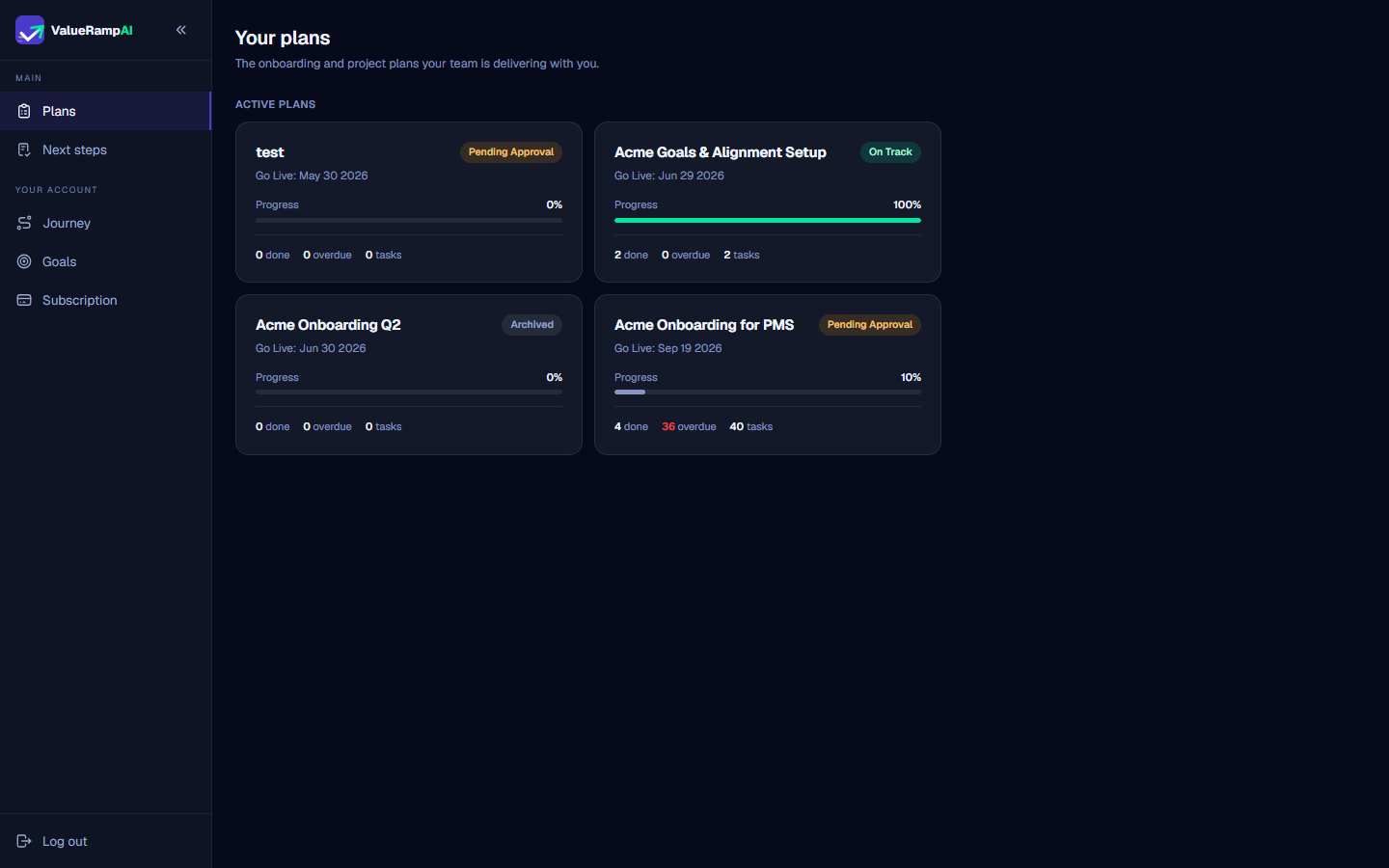
Steps
Select an active onboarding or project plan card to open its delivery workspace
Review the plan timeline and click Approve plan to formalize kickoff
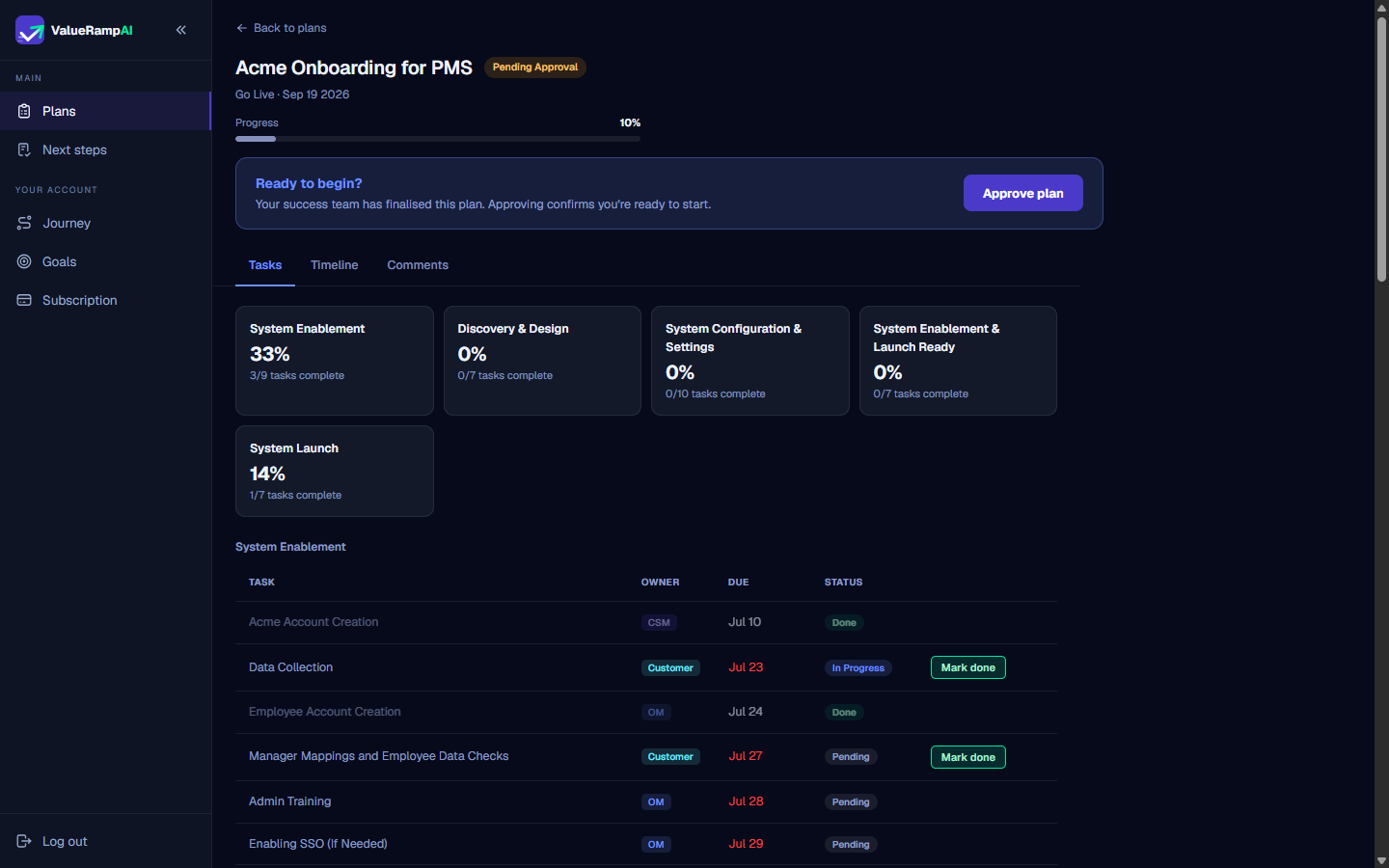
Track milestone progression and task counts across structured delivery phases
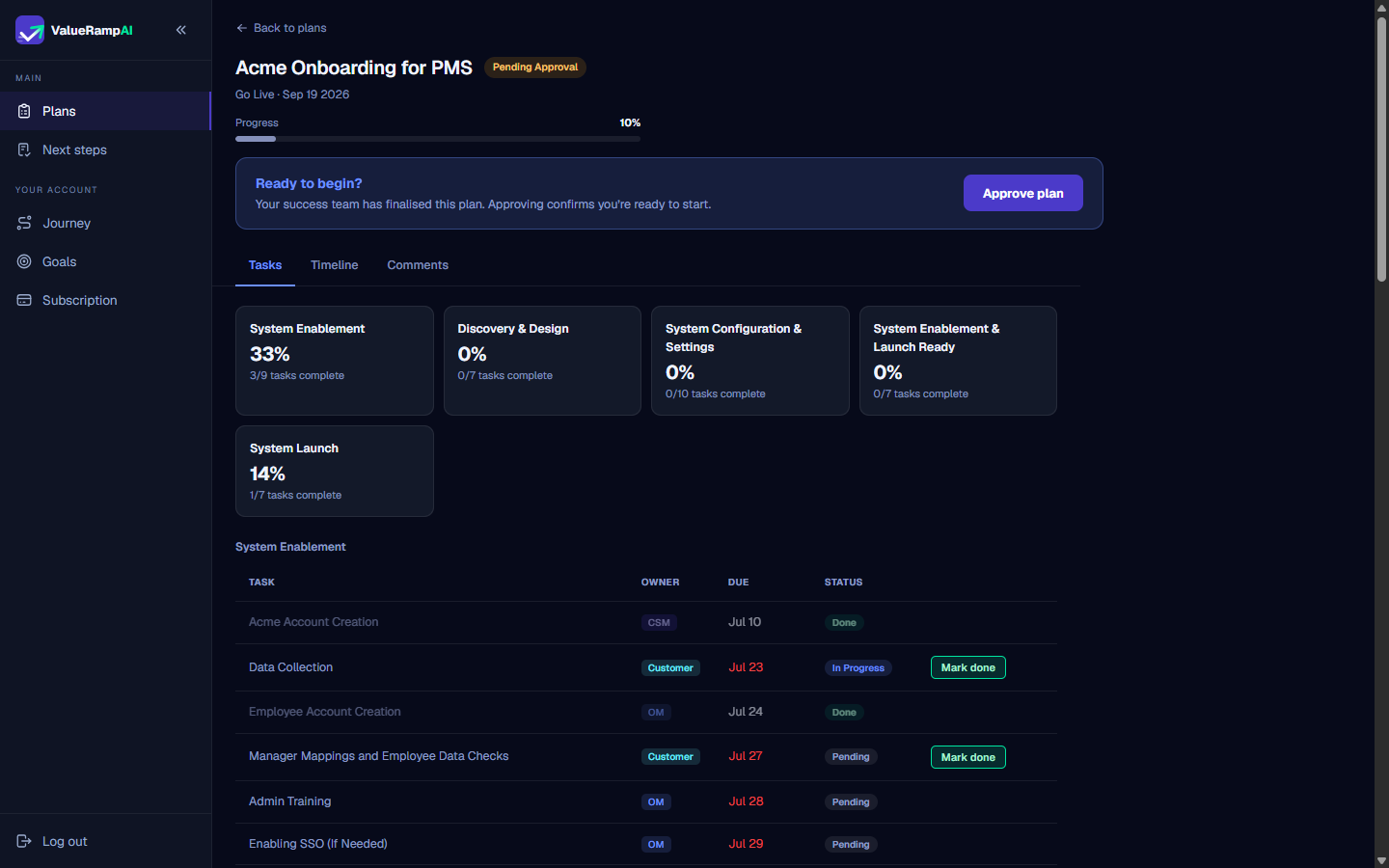
Complete assigned deliverables and click Mark done on customer action items
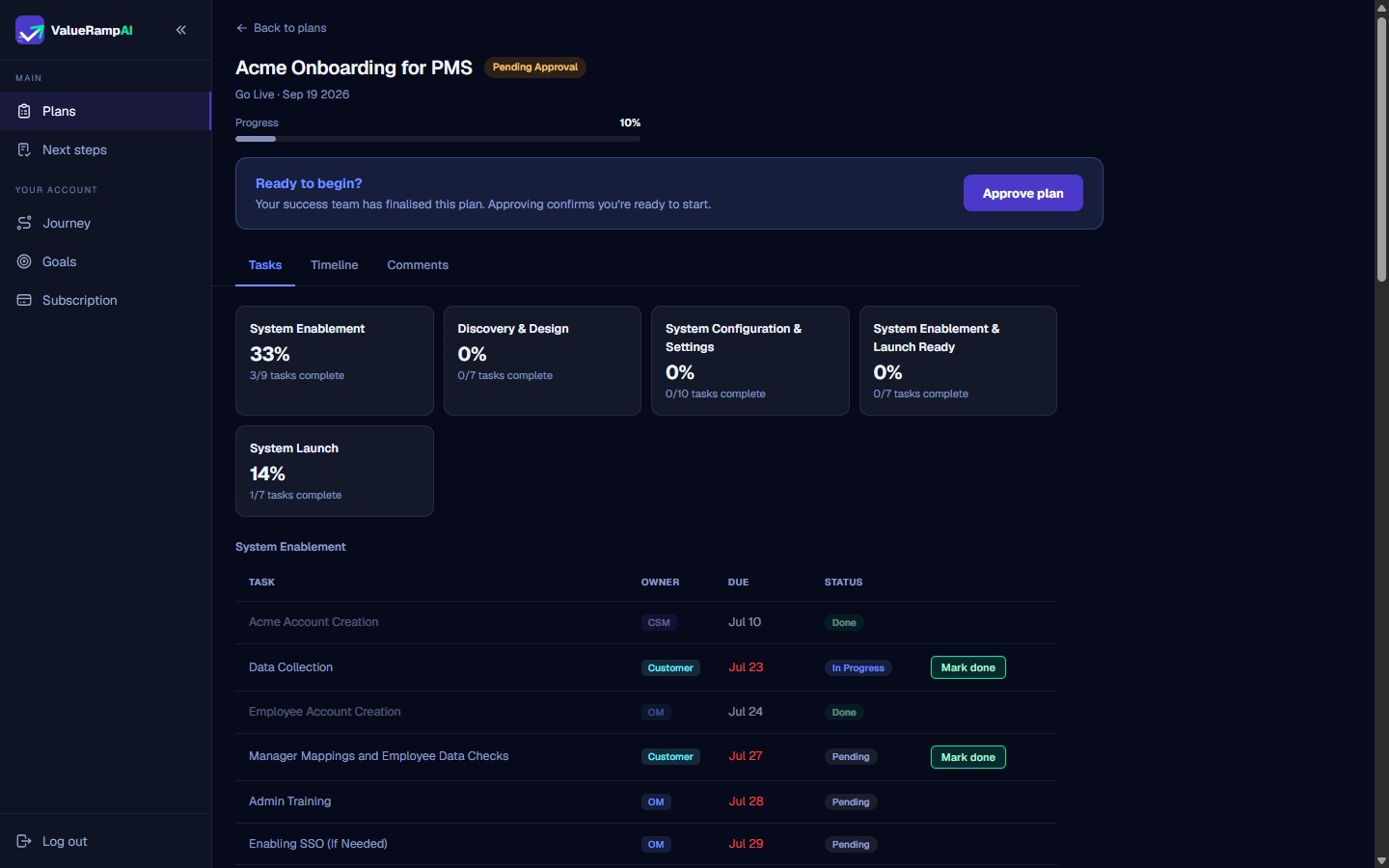
Submit questions and collaborate with your delivery team in the Comments tab
Common questions
What happens when I click 'Approve plan'?
Can customer stakeholders approve plans?
Who can mark a task as done in the plan?
Where do threaded comments appear?
Was this helpful? Tell us what was missing