FX rates and payment gateways
Last verified 2026-09-18
Check the exchange rates ValueRamp uses to convert to USD and how old each rate is, open currency settings, and configure payment gateways.
Before you start
- ValueRamp Finance role
The FX & Gateways page (/finance/fx-gateways) serves as the operational reference for foreign exchange conversions and multi-channel payment processing in ValueRamp. Because customer contracts and invoices may be billed in diverse currencies (EUR, GBP, INR, CAD, AUD, etc.), ValueRamp relies on a central USD conversion pivot to standardize ARR metrics, collection dashboards, and revenue ledger movements.
Key capabilities
- Conversion rate reference: View current exchange rates for every supported currency relative to base USD.
- Rate hygiene auditing: Monitor effective start dates, elapsed rate age in days, and whether a rate is Current or Due for review (set before the current financial year began).
- Centralized rate governance: Rates are edited in Settings → Currencies, which Finance can open.
- Gateway management: Audit active payment gateways, default billing currencies, and merchant account labels.
- New gateway provisioning: Add gateways (types stripe, razorpay, bank_transfer, paypal, other) directly from this page. A gateway is a label payments are recorded against, not a live processor connection.
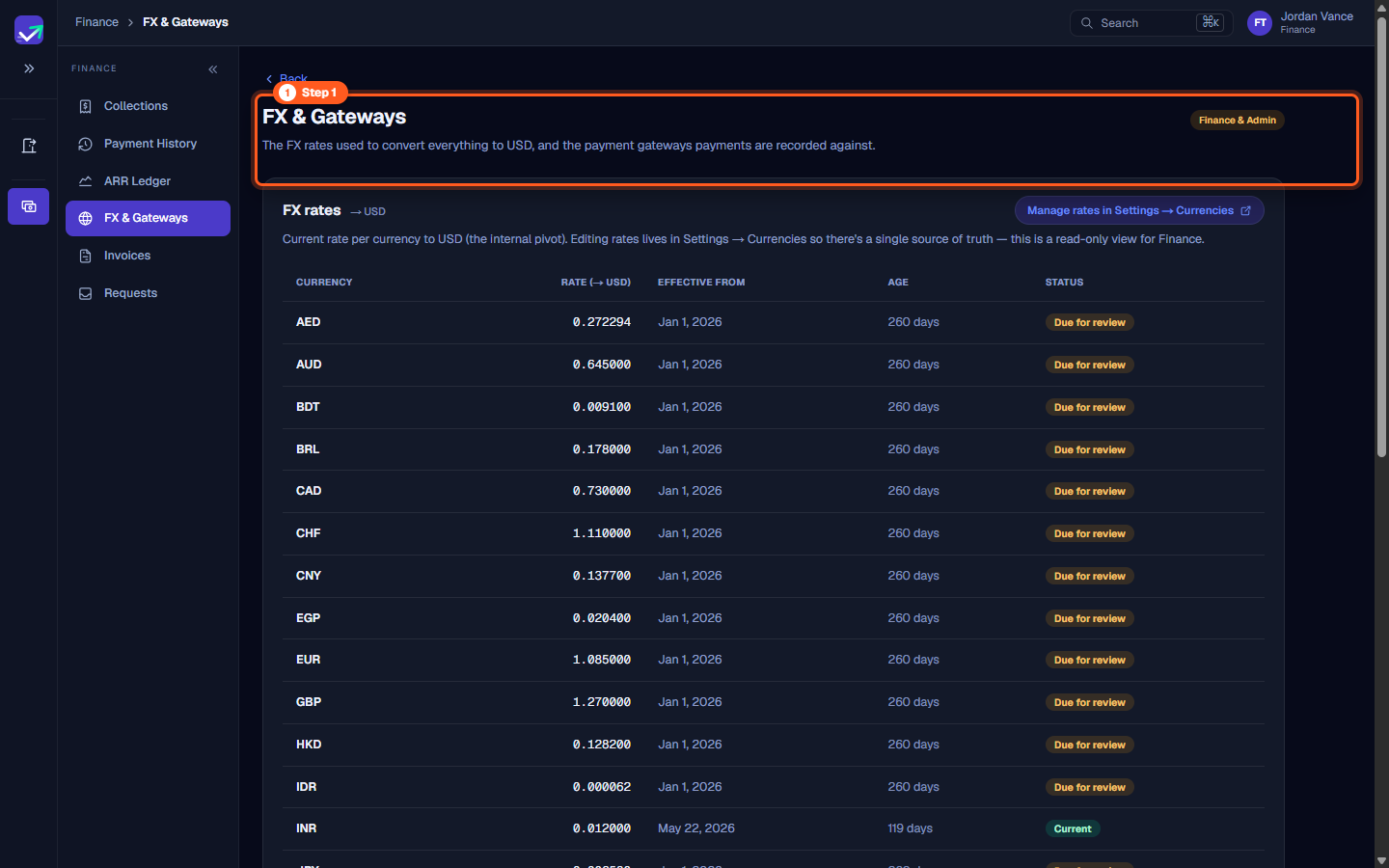
Step 1: Open FX & Gateways
- In the left navigation sidebar under Finance, click FX & Gateways (
/finance/fx-gateways). - The page header indicates Finance & Admin clearance and summarizes the workspace scope:
"The FX rates used to convert everything to USD, and the payment gateways payments are recorded against."
- This workspace ensures that Finance operators always know the exact conversion multipliers applied to foreign client contracts.
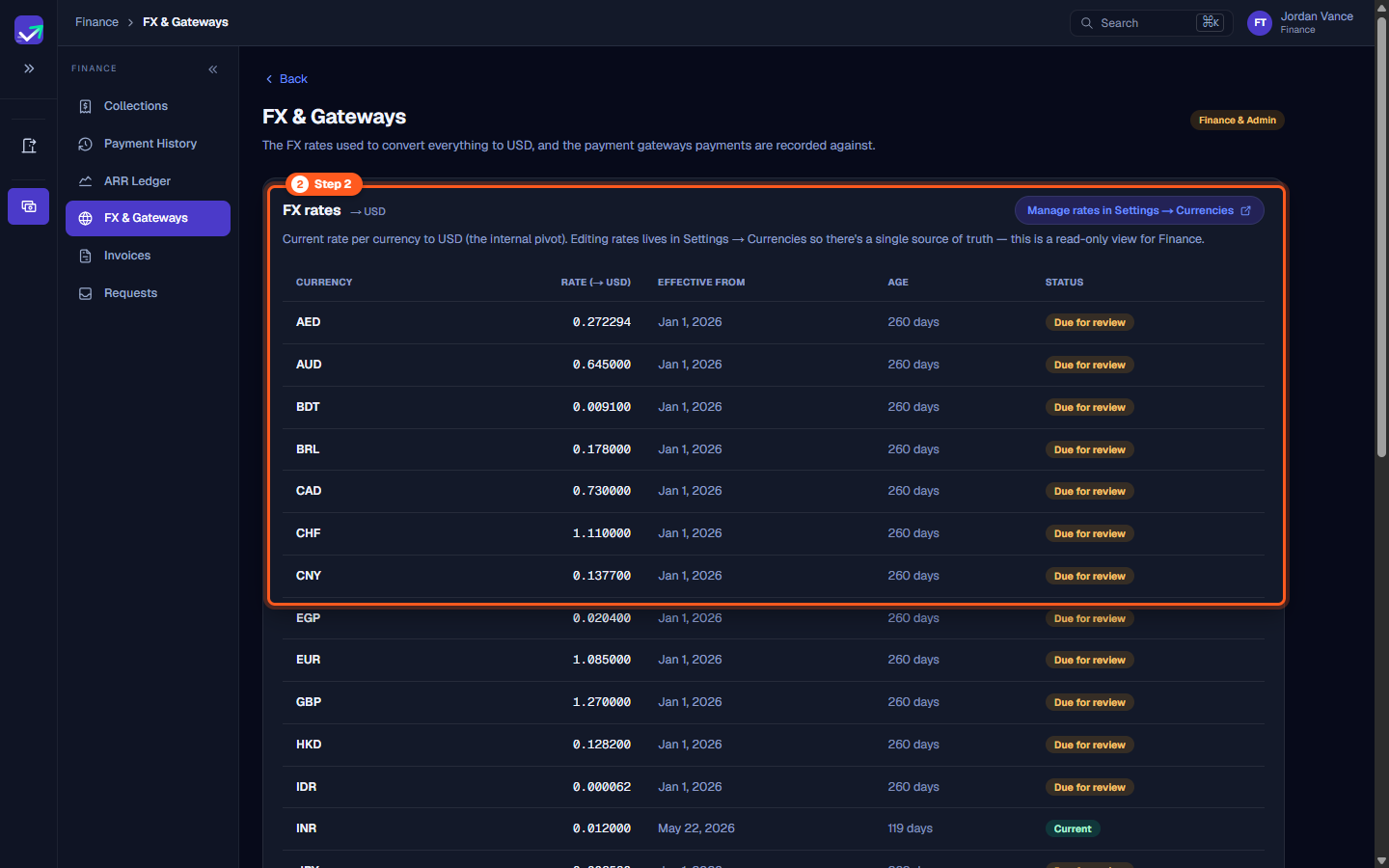
Step 2: Audit active FX rates and review flags
- In the primary table, review the conversion multipliers for international currencies:
- CURRENCY: Three-letter ISO code (e.g.,
AED,AUD,CAD,EUR,GBP,INR). - RATE (→ USD): The multiplier used to convert 1 unit of foreign currency into base USD.
- EFFECTIVE FROM: The date when this exchange rate was locked into the workspace.
- AGE: Days elapsed since the rate was established (e.g.,
119 days,260 days). - STATUS: Current, or Due for review when the rate was set before the current financial year began.
- CURRENCY: Three-letter ISO code (e.g.,
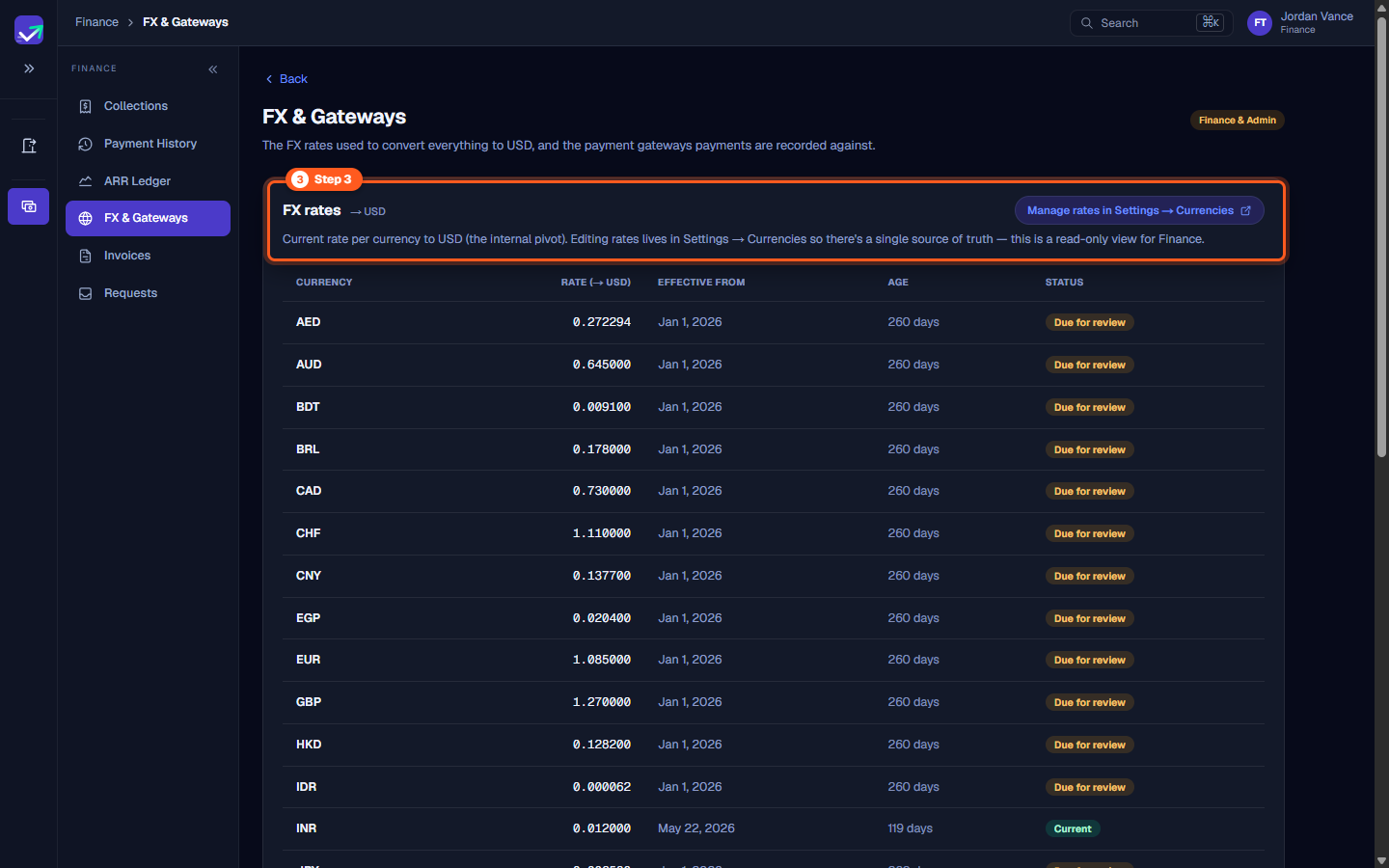
Step 3: Access rate management in Settings
- Note the guidance banner above the table:
"Current rate per currency to USD (the internal pivot). Editing rates lives in Settings → Currencies so there's a single source of truth — this is a read-only view for Finance."
- To update a rate that is due for review, click Manage rates in Settings → Currencies — Finance can edit rates there; only the base currency and the active currency set are Admin-only.
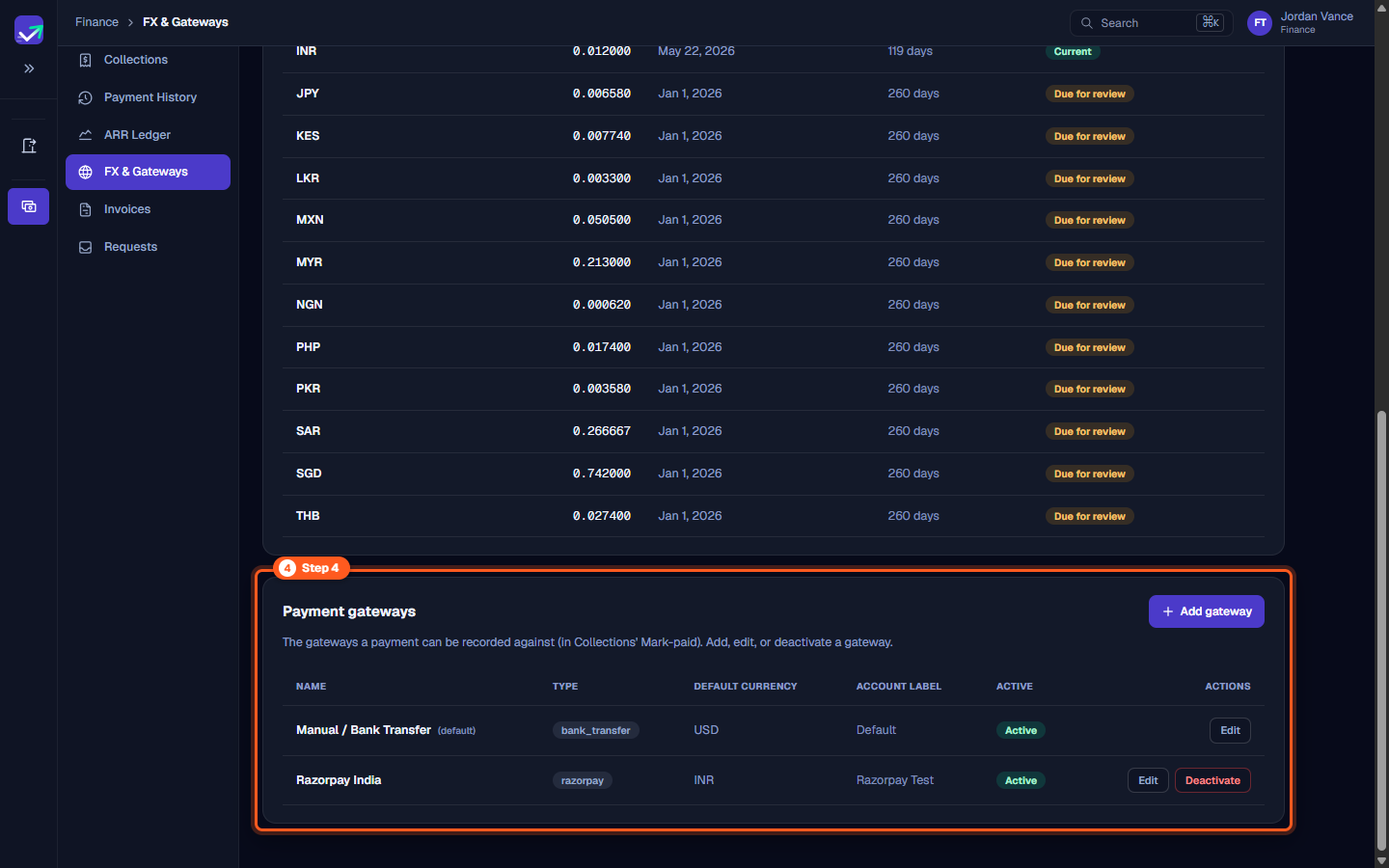
Step 4: Review configured payment gateways
- Scroll down the page to the Payment gateways section:
"The gateways a payment can be recorded against (in Collections' Mark-paid). Add, edit, or deactivate a gateway."
- Inspect the payment gateway directory:
- Manual / Bank Transfer (default): Type
bank_transfer, currencyUSD, statusActive. - Razorpay India: Type
razorpay, default currencyINR, account labelRazorpay Test, statusActive.
- Manual / Bank Transfer (default): Type
- Use Edit to modify labels or default currencies, or Deactivate to retire legacy settlement routes.
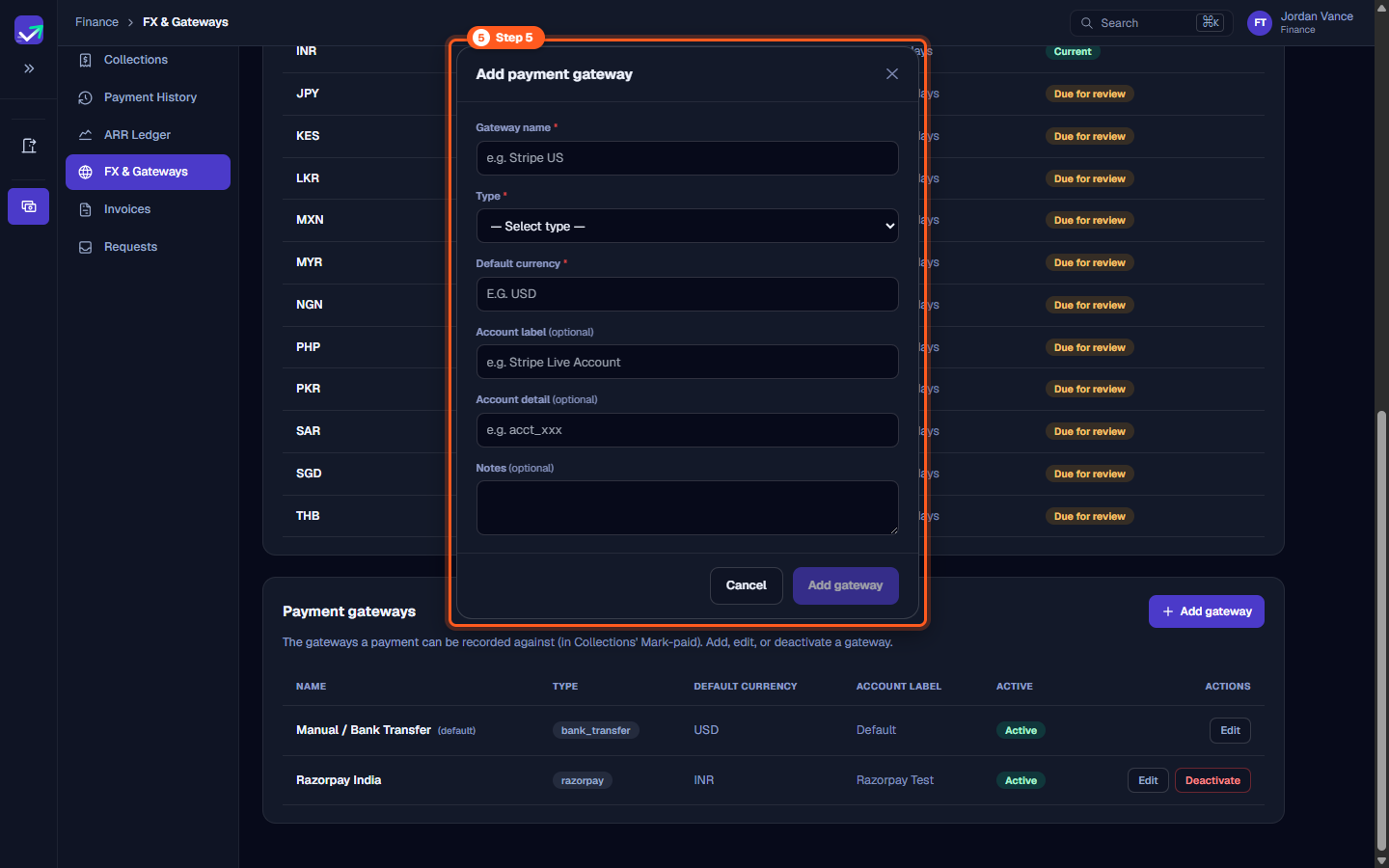
Step 5: Add a new payment gateway
- Click the Add gateway button above the gateways table.
- In the modal dialog, complete the gateway configuration fields:
- *Gateway name : Enter an internal descriptive name (e.g.,
Stripe US,Wire European Entities). - *Type : Select from
stripe,razorpay,bank_transfer,paypal, orother. - *Default currency : Enter the standard settlement currency for this channel (e.g.,
USD,EUR). - Account label (optional): Specify descriptor (e.g.,
Stripe Live Account). - Account detail (optional): Enter processor account identifier or wire details.
- Notes (optional): Add internal instructions for reconciling payments.
- *Gateway name : Enter an internal descriptive name (e.g.,
- Click Add gateway. It is immediately offered in the gateway dropdown of Collections' Mark paid form.
Steps
Open FX and Gateways to review currency exchange configurations and processors
Inspect the FX rates table comparing conversion factors, effective dates, and review status
Use the link to Settings to update foreign exchange rates from the central source of truth
Scroll to Payment Gateways to audit configured processing channels and default currencies
Click Add gateway to configure new processors and assign default settlement currencies
Common questions
Why is the FX Rates table read-only for Finance on this page?
What does the 'Due for review' status indicate?
What payment gateway types are supported?
How do configured payment gateways appear in Collections?
Was this helpful? Tell us what was missing