Payment history
Last verified 2026-09-18
Audit every recorded customer payment in your workspace, filter by date or account, export to CSV, and compare native currency with USD.
Before you start
- ValueRamp Finance role
The Payment History workspace (/finance/payment-history) provides a reconciled audit trail of every customer payment processed across your ValueRamp workspace. Designed for Finance and Admin users, it gives complete visibility into incoming cash flow, transaction methods, applied foreign exchange rates, and accounting references.
Key capabilities
- Global payment reconciliation: Access a unified record of all customer payments across contracts and accounts.
- Summary collection metrics: Instantly review workspace-wide Total Collected revenue and the total count of processed transactions.
- Date interval filtering: Filter payments between specific From and To dates to match monthly, quarterly, or annual accounting cycles.
- Account search: Search by account name to audit payment compliance for a specific customer.
- Dual-currency visibility: Review payments in their original billed currency alongside normalized USD amounts and snapshot FX rates.
- One-click CSV export: Download the filtered payment ledger directly to CSV for bookkeeping and external audits.
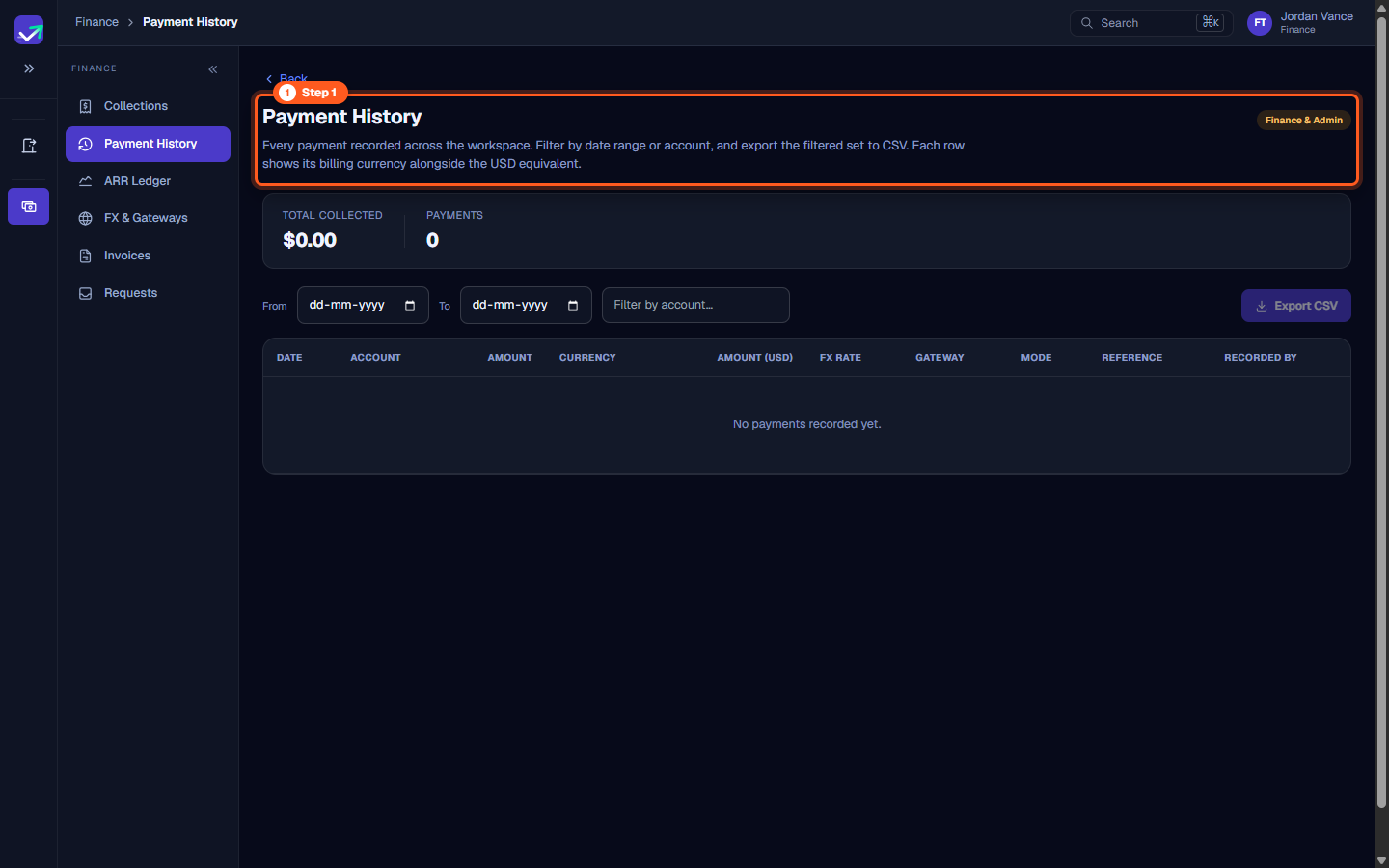
Step 1: Open Payment History to inspect transaction records
- In the sidebar under Finance, select Payment History (
/finance/payment-history). - The page header confirms Finance & Admin access and describes the workspace purpose:
"Every payment recorded across the workspace. Filter by date range or account, and export the filtered set to CSV. Each row shows its billing currency alongside the USD equivalent."
- Use this page to verify that customer invoices have been satisfied and that payments match expected settlement terms.
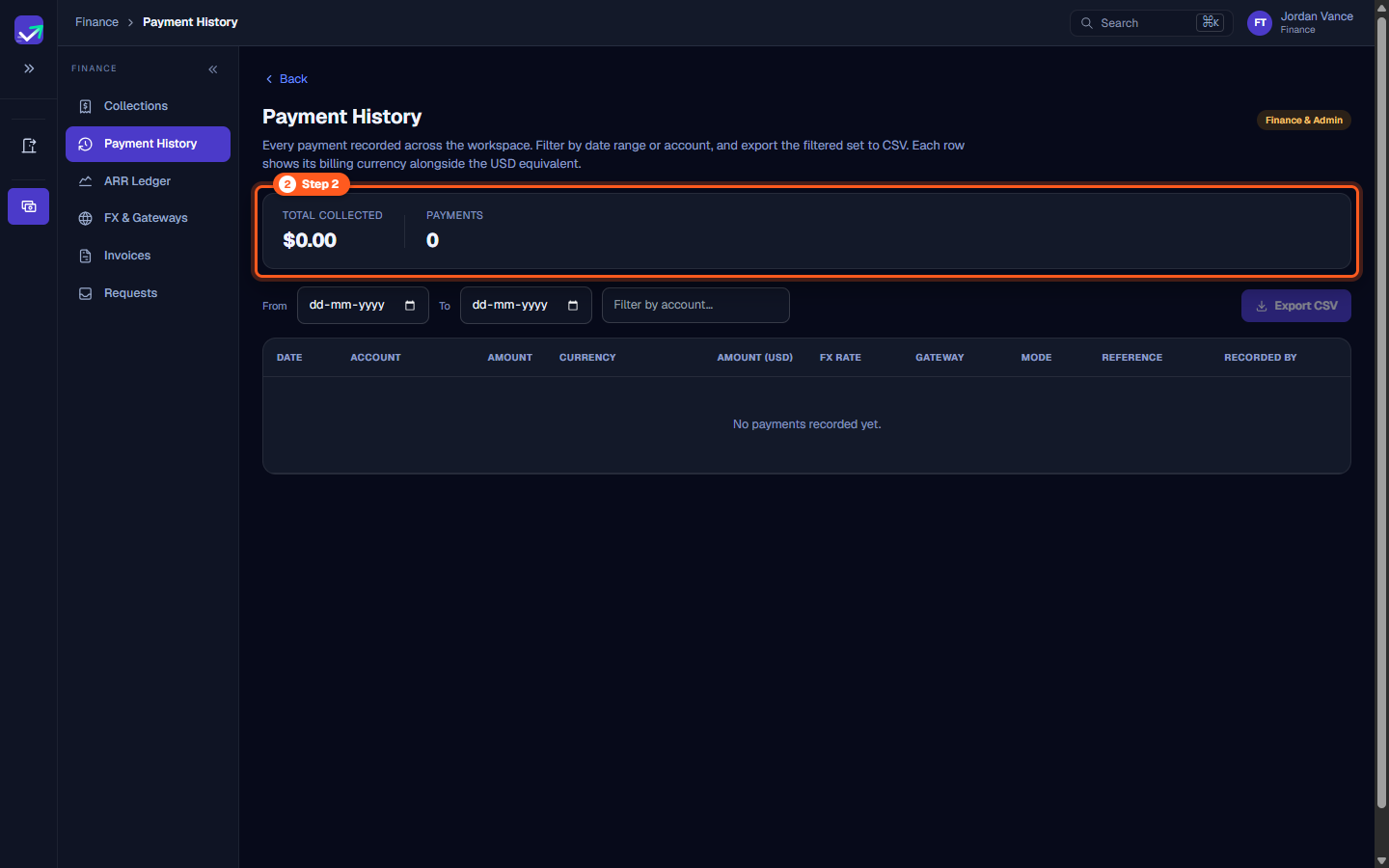
Step 2: Audit top-level collection metrics
- Examine the summary KPI cards directly below the page description:
- TOTAL COLLECTED: The USD sum of all recorded payments (e.g.,
$0.00); with a filter active it reads Collected (filtered). - PAYMENTS: The count of recorded payment entries (e.g.,
0).
- TOTAL COLLECTED: The USD sum of all recorded payments (e.g.,
- Both recalculate as payments are recorded and as you filter.
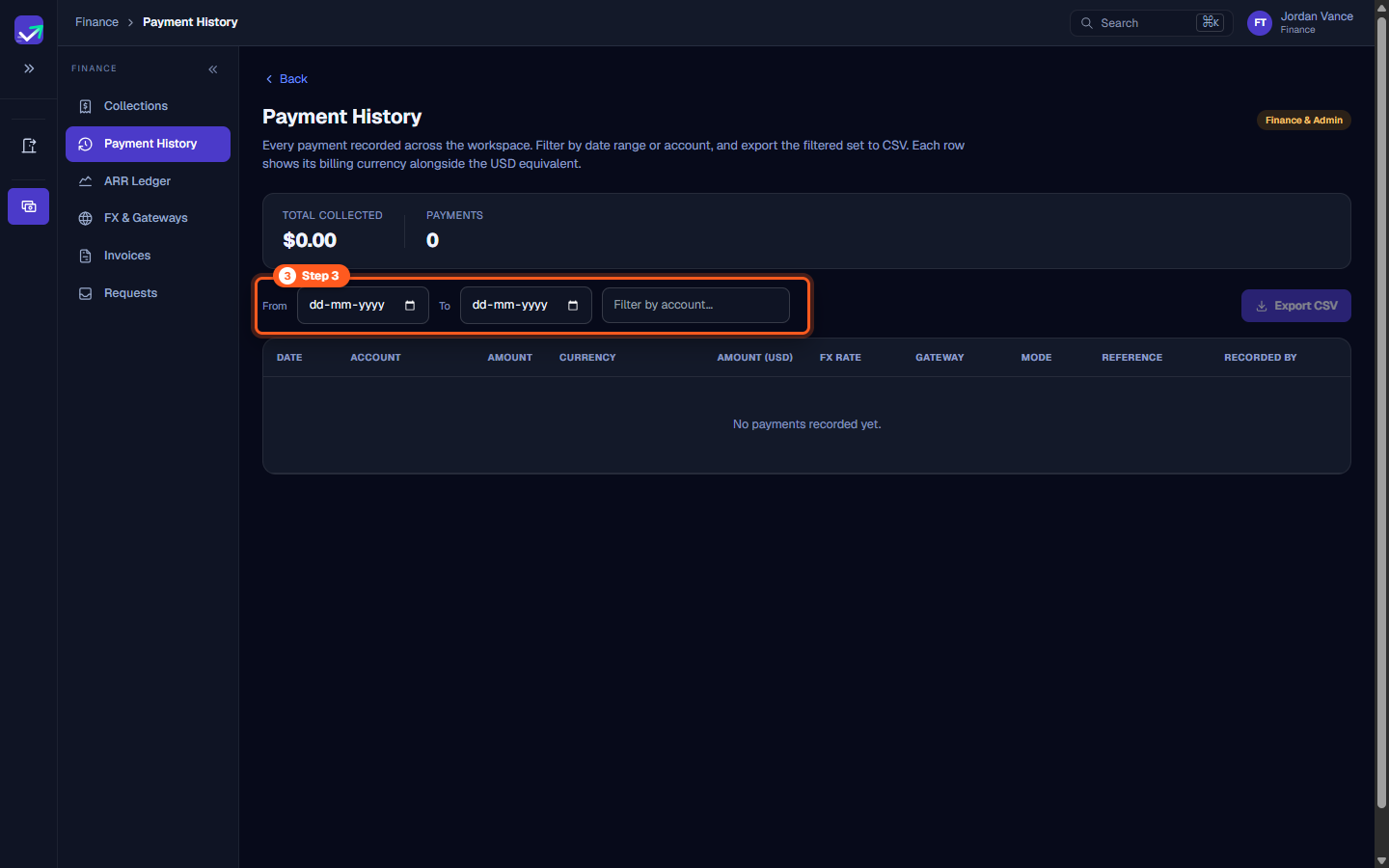
Step 3: Filter payments by date range and account
- Positioned directly above the transaction ledger, use the filter controls to target specific records:
- From: Select a beginning date to narrow the settlement window.
- To: Select an ending date for the accounting period.
- Filter by account…: Type part of an account name to isolate that account's payments.
- Filter criteria apply instantly to both the table rows and the CSV export.
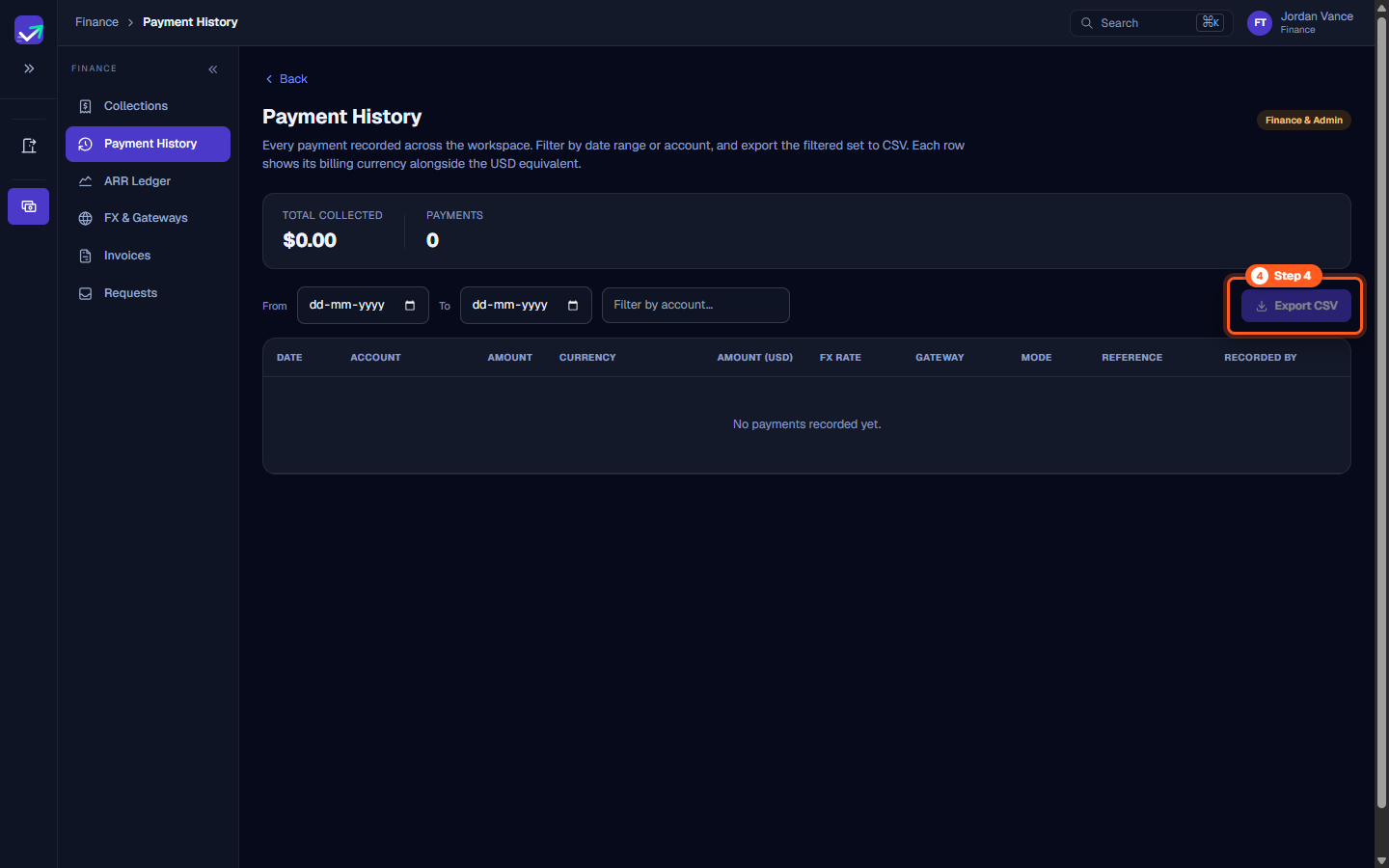
Step 4: Export transaction data to CSV
- On the far right of the filter toolbar, click Export CSV.
- The browser automatically downloads a
.csvfile containing the full set of payment records matching your active filters. - The file has the same columns as the table, one row per payment.
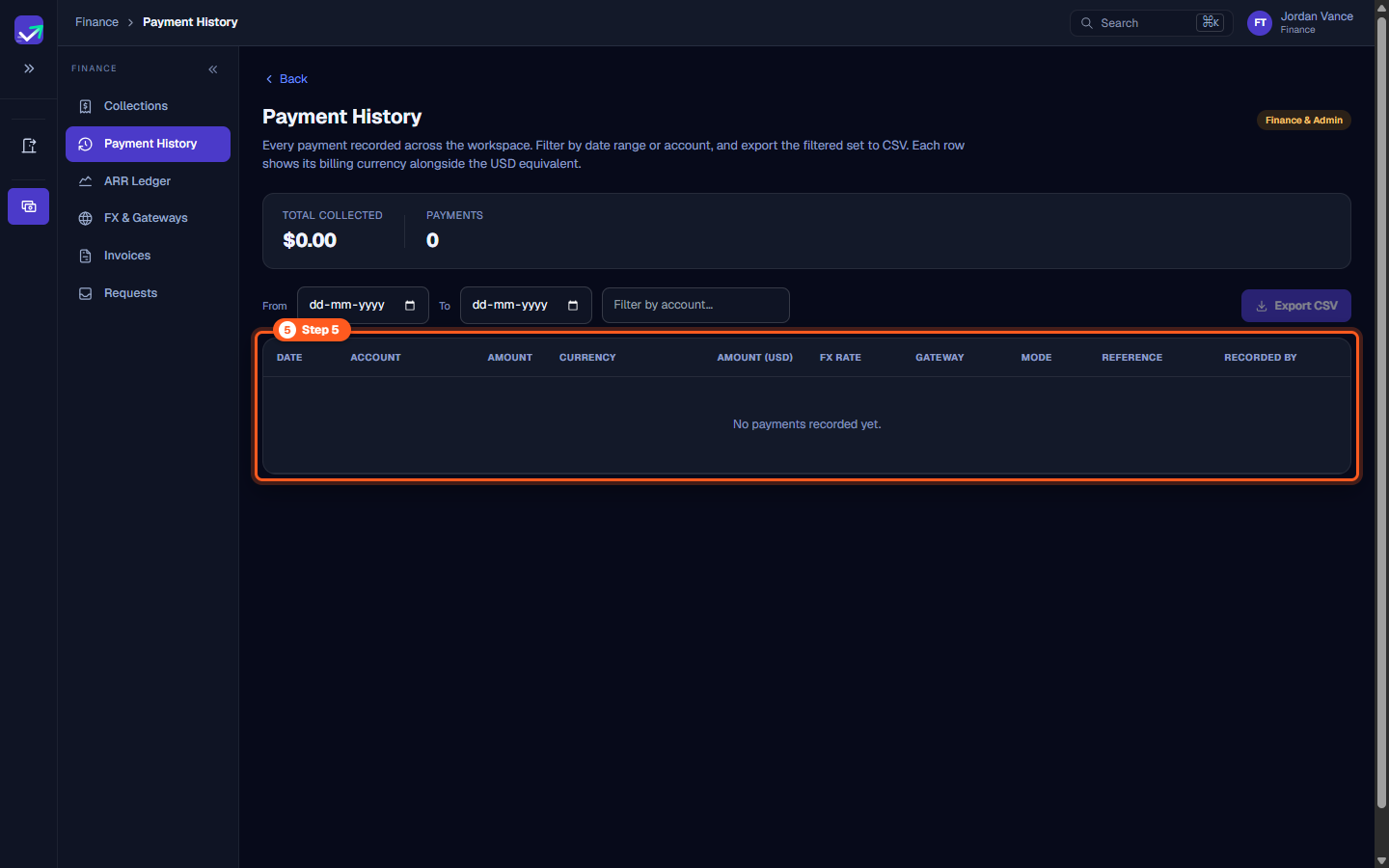
Step 5: Review payment ledger columns and payment details
- Inspect the columns in the Payment history table:
- DATE: The date the payment was completed or recorded.
- ACCOUNT: The paying customer organization.
- AMOUNT: The payment amount in the original billing currency.
- CURRENCY: The ISO currency code (USD, EUR, GBP, etc.).
- AMOUNT (USD): Converted USD equivalent at the recorded exchange rate.
- FX RATE: Snapshot exchange rate applied at transaction time.
- GATEWAY: The payment gateway the payment was recorded against (configured on FX & Gateways).
- MODE: How the money moved — Bank Transfer, Credit Card, UPI, Wire Transfer, Cheque or Other.
- REFERENCE: The reference typed when the payment was recorded.
- RECORDED BY: The team member who recorded the payment.
- In a new workspace or prior to first billing runs, the table displays:
"No payments recorded yet."
Steps
Navigate to Payment History to inspect verified transaction records across the workspace
Audit high-level KPI cards for Total Collected revenue and cumulative payment count
Filter transactions by date interval or search for specific customer accounts
Click Export CSV to download the filtered transaction ledger for accounting and audit
Review payment transaction columns, dual currency amounts, exchange rates, and gateways
Common questions
Who has access to the Payment History workspace?
How are multi-currency transactions recorded in Payment History?
What data is included in the CSV export?
What should I see if no payments have been processed yet?
Was this helpful? Tell us what was missing