Invoices
Last verified 2026-09-18
Manage customer invoices and credit notes, track running balances and net payable totals, attach PDF documents, and issue new billing statements.
Before you start
- ValueRamp Finance role
The Invoices workspace (/finance/invoices) provides a dedicated commercial portal for managing billing statements, credit notes, and running receivable balances on an account-by-account basis. It combines live contract invoicing with formal document management, enabling Finance operators to issue invoices, deduct credit notes, attach legal PDFs, and track net customer liabilities.
Key capabilities
- Account-centric billing ledgers: Select any client account to review its full invoice history and payment lifecycle.
- Running balance metrics: Audit Total Invoiced, Credit Notes, Net Payable, and Outstanding balances in real time.
- Nested credit note tracking: Attach credit notes directly to parent invoices, automatically updating net payable balances.
- PDF attachment & replacement: Upload, replace, and view official customer billing PDFs (under 10 MB per file).
- Invoice creation: Record invoices with your own invoice number, amount, dates, currency, billing contact and notes; the PDF itself is uploaded, not generated.
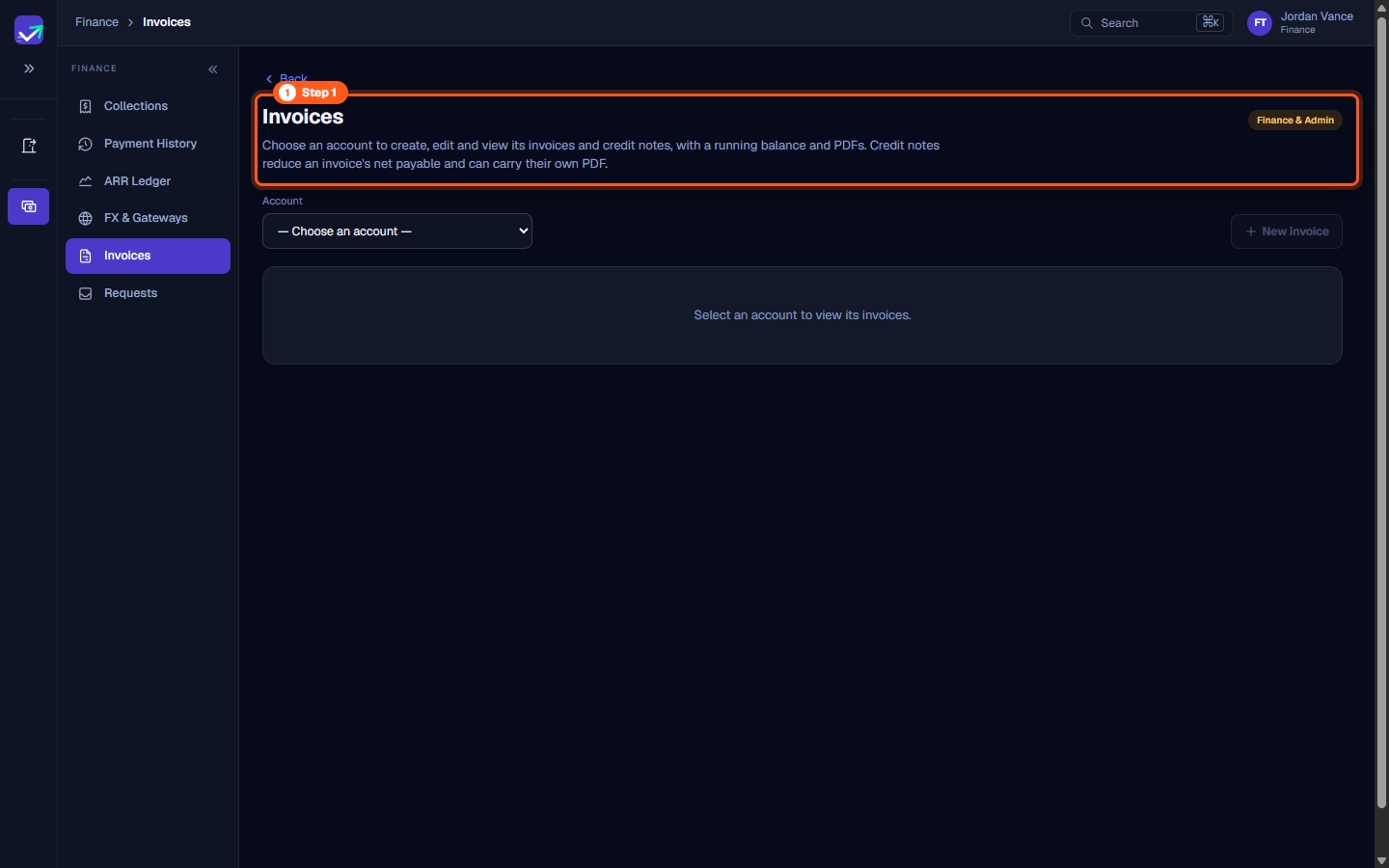
Step 1: Open the Invoices workspace
- In the sidebar under Finance, select Invoices (
/finance/invoices). - The page header indicates Finance & Admin clearance:
"Choose an account to create, edit and view its invoices and credit notes, with a running balance and PDFs. Credit notes reduce an invoice's net payable and can carry their own PDF."
- Initially, the page displays a prompt instructing you to select an account before loading invoice records.
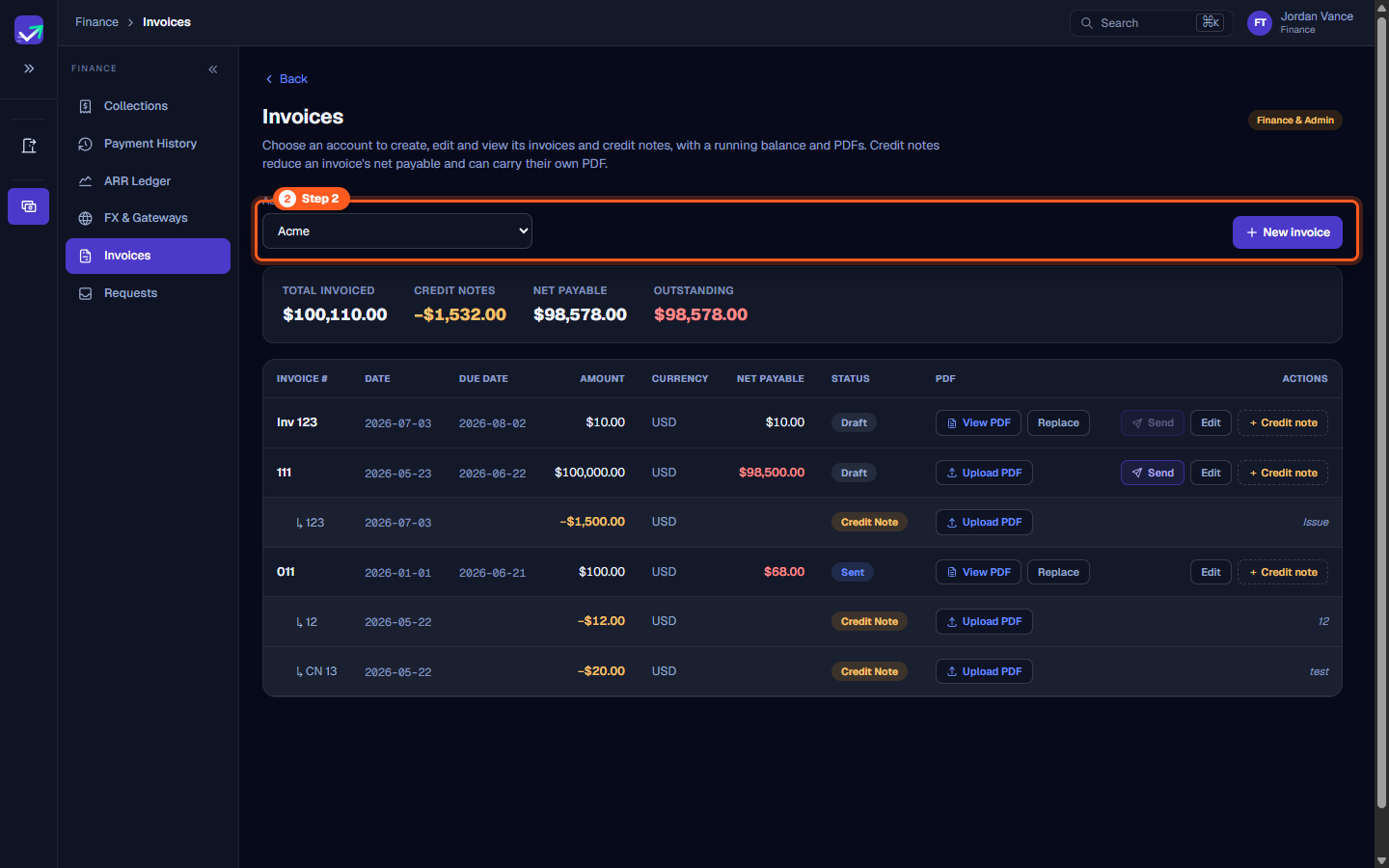
Step 2: Select a customer account
- Click the Account dropdown menu.
- Select a client organization (e.g.,
Acme,Northwind Logistics). - Selecting an account loads its complete commercial history and activates the New invoice button on the right.
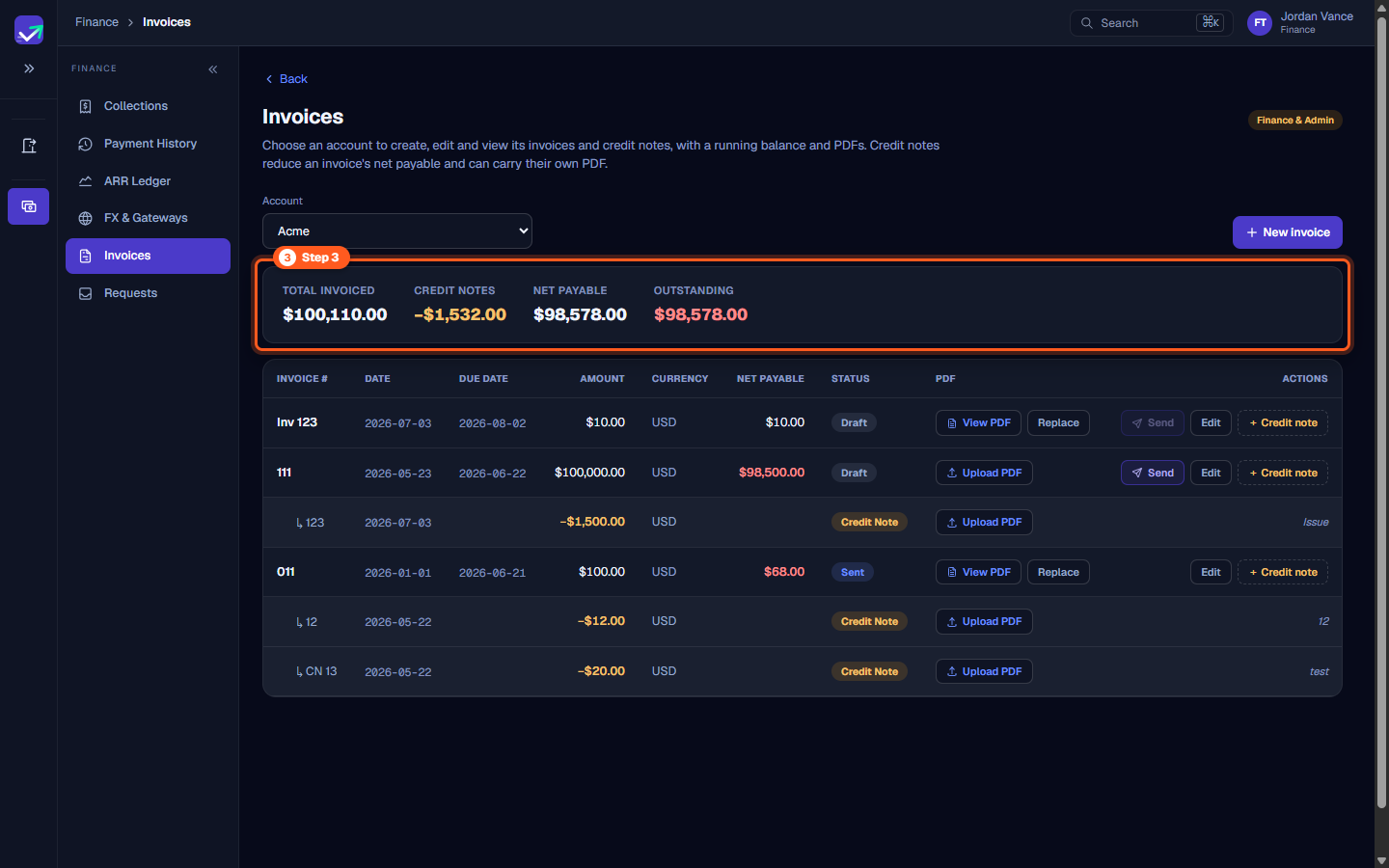
Step 3: Review account running balances
- Above the invoice list, inspect the four financial summary cards:
- TOTAL INVOICED: Cumulative gross amount billed across all invoices (e.g.,
$100,110.00). - CREDIT NOTES: Sum of all issued credit deductions (e.g.,
−$1,532.00). - NET PAYABLE: Invoiced gross minus credit note deductions (e.g.,
$98,578.00). - OUTSTANDING: Remaining unpaid balance currently due from the customer (e.g.,
$98,578.00).
- TOTAL INVOICED: Cumulative gross amount billed across all invoices (e.g.,
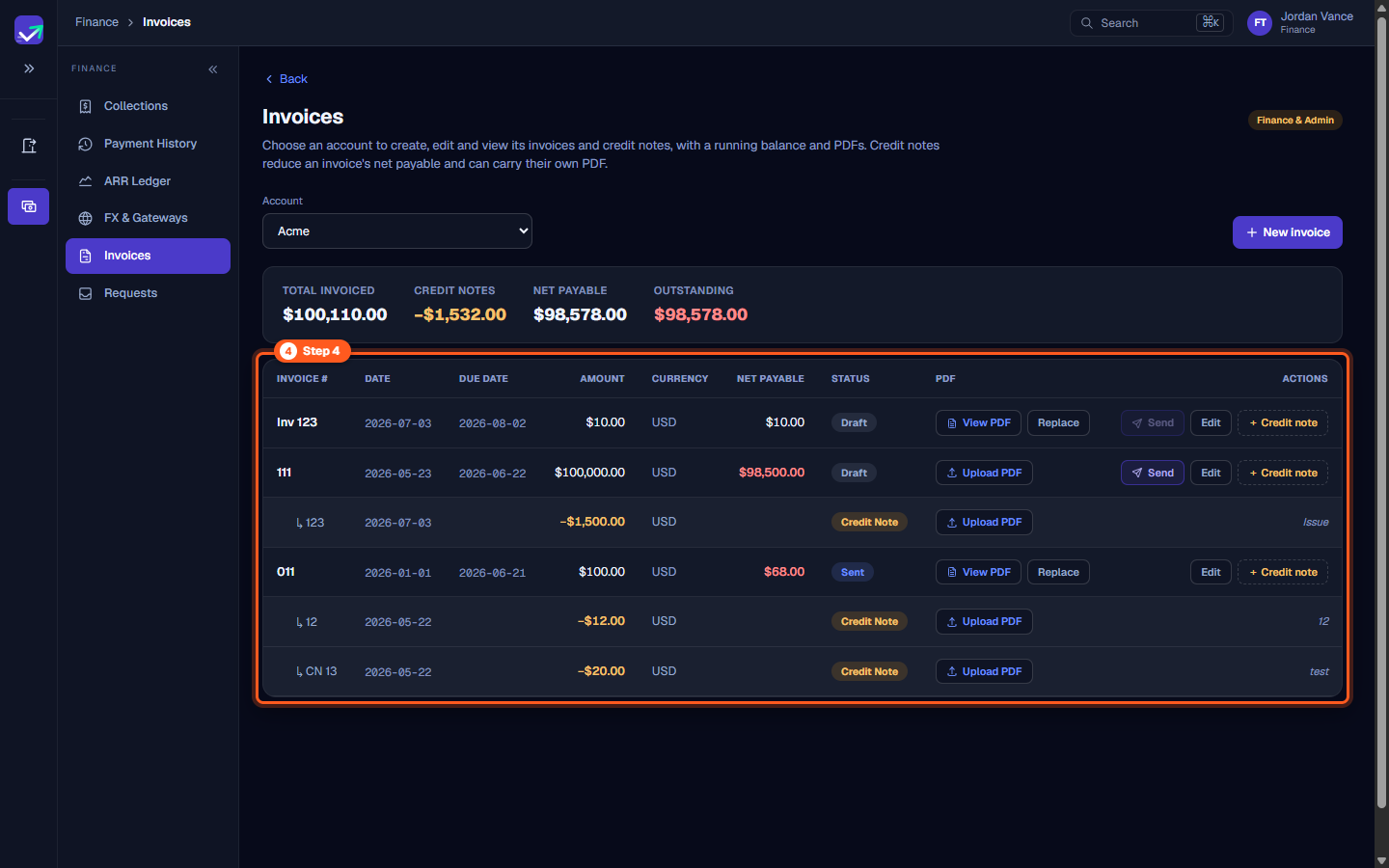
Step 4: Audit invoices and nested credit notes
- Examine the Invoices table:
- INVOICE #: Invoice identifier (e.g.,
Inv 123,111,011). - DATE & DUE DATE: Statement issue date and contractual payment deadline.
- AMOUNT & CURRENCY: Gross billed value and ISO currency code.
- NET PAYABLE: Net receivable after deducting linked credit notes.
- STATUS: Draft, Sent or Cancelled (a credit-note row is labelled Credit Note).
- PDF: View PDF, Upload PDF, or Replace.
- ACTIONS: Send (emails the invoice to the billing contact and moves it to Sent; needs a billing contact email), Edit (until the invoice is Paid or Cancelled), or + Credit note to deduct an amount against that invoice.
- INVOICE #: Invoice identifier (e.g.,
- Notice nested credit notes (indicated by
↳) indented under their parent invoice showing deduction amounts (e.g.,−$1,500.00 USD).
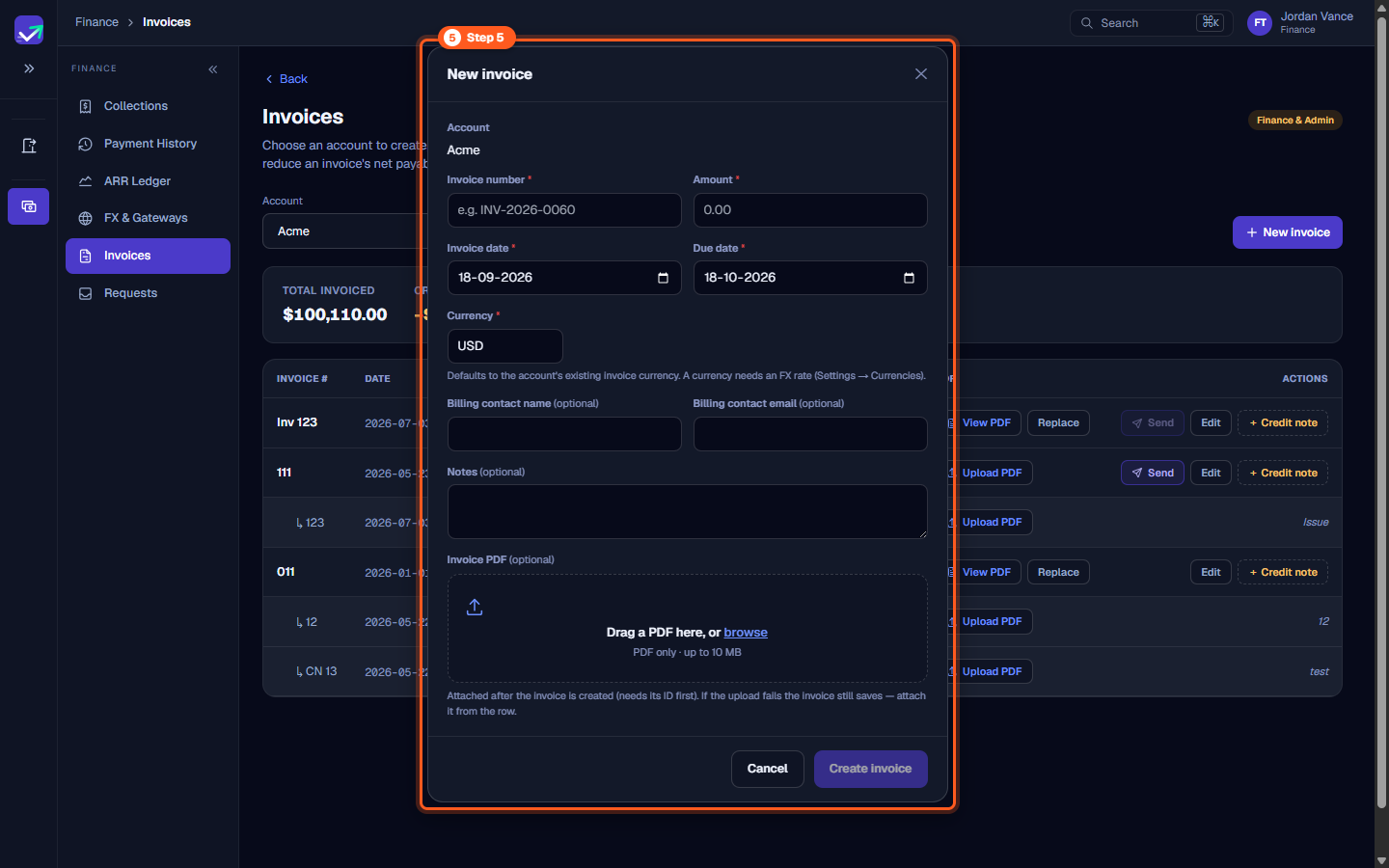
Step 5: Create a new invoice
- With the account selected, click New invoice.
- In the modal dialog, complete the invoice details:
- *Invoice number : Enter identifier (e.g.,
e.g. INV-2026-0060). - *Amount : Enter gross invoiced total.
- *Invoice date * & Due date : Select settlement milestone dates.
- *Currency : Defaults to the account's standard billing currency.
- Billing contact name & email (optional): Specify dedicated accounts payable contact.
- Notes (optional): Enter payment instructions, bank routing details, or purchase order numbers.
- PDF Document: Drag and drop or browse to attach the signed customer PDF.
- *Invoice number : Enter identifier (e.g.,
- Click Create invoice to add the statement to the account's ledger.
Steps
Navigate to Invoices to manage billing statements and customer receivables
Select a customer account to load its invoice ledger and enable creation tools
Audit account running balances for total invoiced, credit notes, and outstanding amounts
Review the invoices table with nested credit notes, payment statuses, and PDF actions
Click New invoice to configure terms, due dates, billing contacts, and PDF uploads
Common questions
How do credit notes affect an invoice in ValueRamp?
Can I upload custom PDF invoices generated by external accounting software?
Why is the 'New invoice' button disabled initially?
What invoice statuses exist in ValueRamp?
Was this helpful? Tell us what was missing