Finance requests
Last verified 2026-09-18
Handle billing requests from Customer Success Managers: filter by approval status, check the suggested terms, and turn a request into an invoice.
Before you start
- ValueRamp Finance role
The Invoice Requests queue (/finance/requests) bridges Customer Success workflows with Finance accounting operations. When CSMs close contract expansions, upsells, or renewal terms, they raise an invoice request directly from the customer account. Finance uses this workspace to audit commercial submissions, verify billing contacts and amounts, and convert approved requests into official invoices.
Key capabilities
- Centralized billing inbox: Aggregate all pending billing and renewal requests initiated across the customer portfolio.
- Status lifecycle tracking: Requested → In Progress (an invoice is linked) → Ready for Review (the CSM is emailed) → Sent; or Cancelled. Approved appears in the filter but no action on this page sets it.
- Commercial terms auditing: Inspect account names, request types (upsell, cross_sell, renewal, expansion, manual), suggested amounts, and billing contacts.
- One-click invoice conversion: Click Create invoice on a Requested row to open the New invoice form pre-filled.
- Cancellation governance: Cancel duplicate or superseded requests; the row stays in the queue.
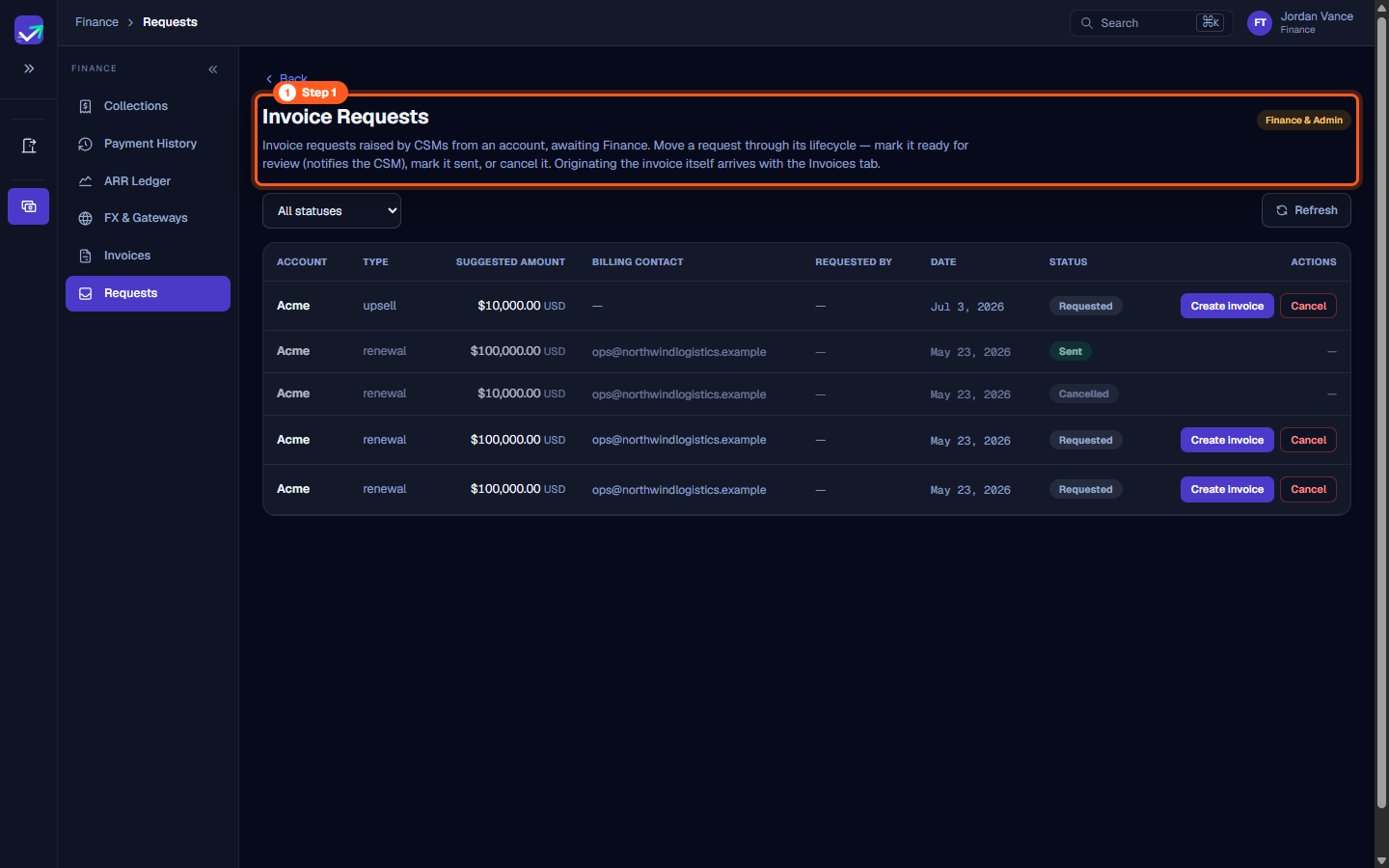
Step 1: Open Invoice Requests
- In the sidebar under Finance, select Requests (
/finance/requests). - The page header indicates Finance & Admin clearance and explains:
"Invoice requests raised by CSMs from an account, awaiting Finance. Move a request through its lifecycle — mark it ready for review (notifies the CSM), mark it sent, or cancel it. Originating the invoice itself arrives with the Invoices tab."
- Use this queue to ensure incoming commercial changes are promptly invoiced and accounted for.
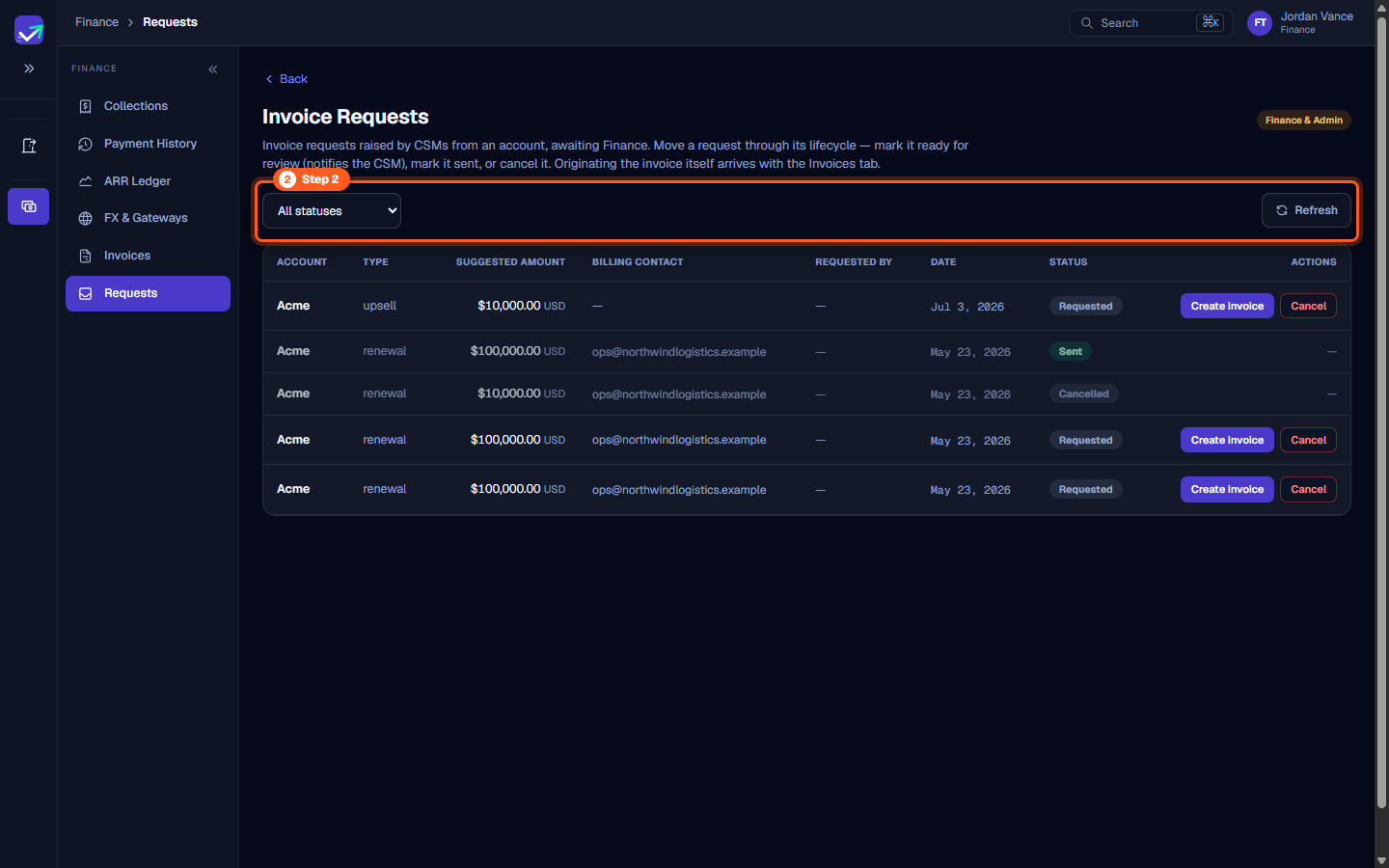
Step 2: Filter requests by workflow status
- Use the status dropdown filter above the table to manage your review workflow:
- All statuses: View historical submissions across all phases.
- Requested: Newly submitted requests requiring Finance assessment.
- In Progress: Requests currently being drafted or verified.
- Ready for Review: Finance has marked the request ready; the CSM was emailed.
- Approved: Listed in the filter; no action on this page sets it.
- Sent: Finance has marked the request sent.
- Cancelled: Inactive or rejected requests.
- Click Refresh to sync the queue with recent submissions from CSMs.
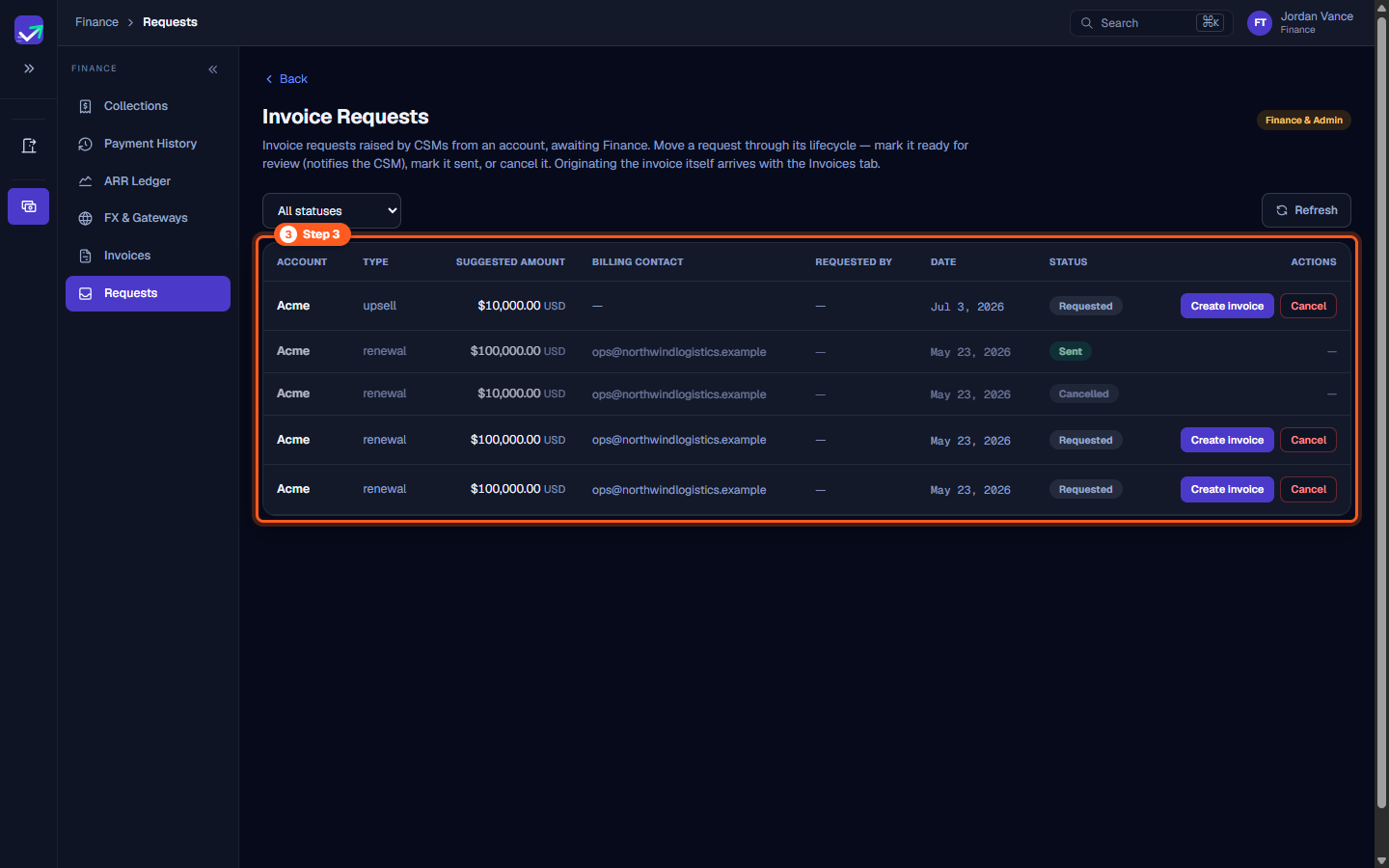
Step 3: Audit commercial request terms
- Review the details presented in the Invoice requests table:
- ACCOUNT: The client organization (e.g.,
Acme). - TYPE: Commercial classification badge (e.g.,
upsell,renewal). - SUGGESTED AMOUNT: Proposed billing amount in base currency (e.g.,
$10,000.00 USD,$100,000.00 USD). - BILLING CONTACT: Customer email designated for invoice delivery.
- REQUESTED BY: Account CSM who submitted the request.
- DATE: Date of initial submission.
- STATUS: Current workflow state badge.
- ACCOUNT: The client organization (e.g.,
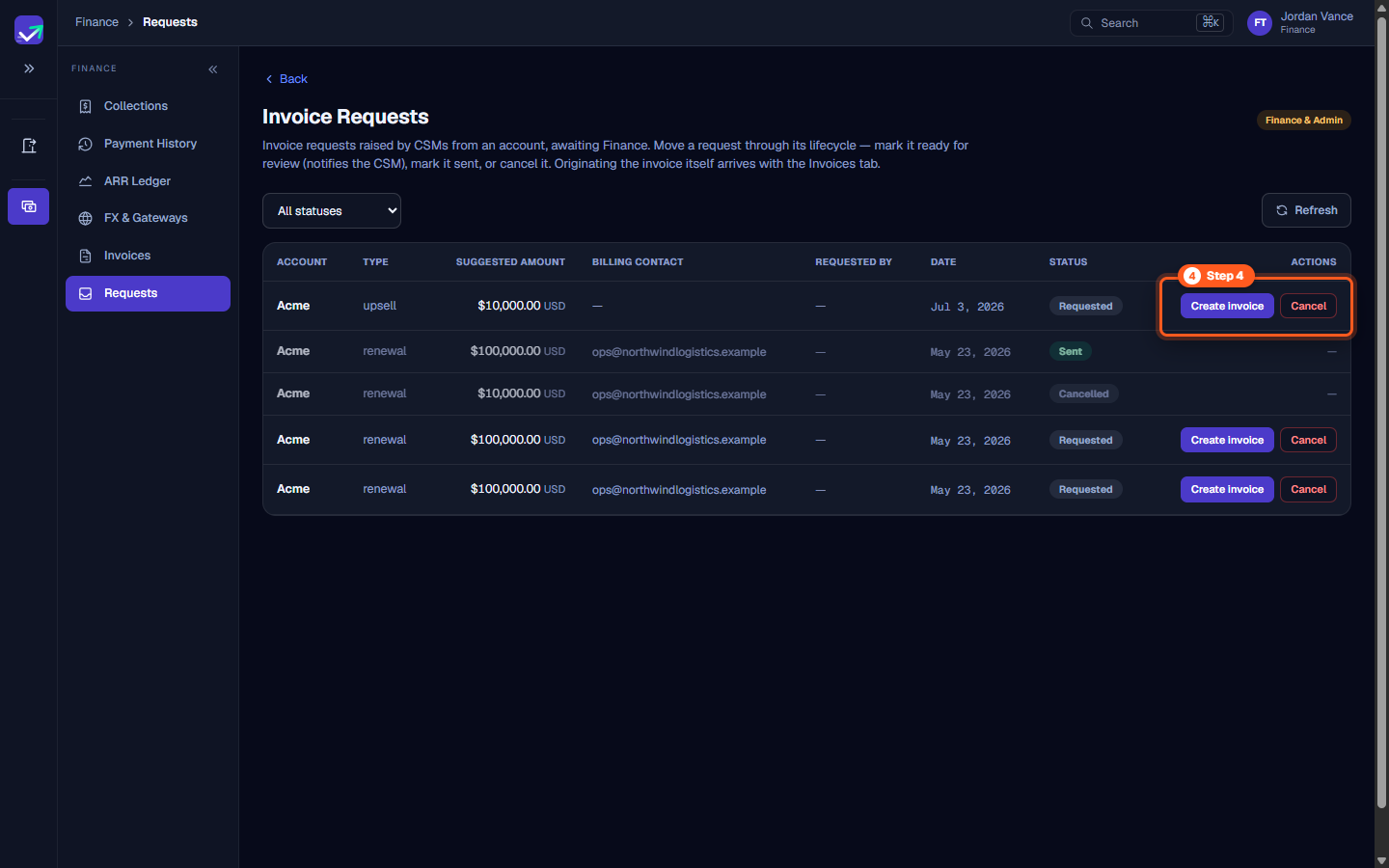
Step 4: Advance or cancel pending requests
- The actions depend on the status:
- Requested: Create invoice (opens the New invoice form) and Cancel.
- In Progress: Mark ready (emails the account's CSM) and Cancel.
- Ready for Review: Mark sent and Cancel.
- Sent and Cancelled requests are dimmed and show
—under Actions.
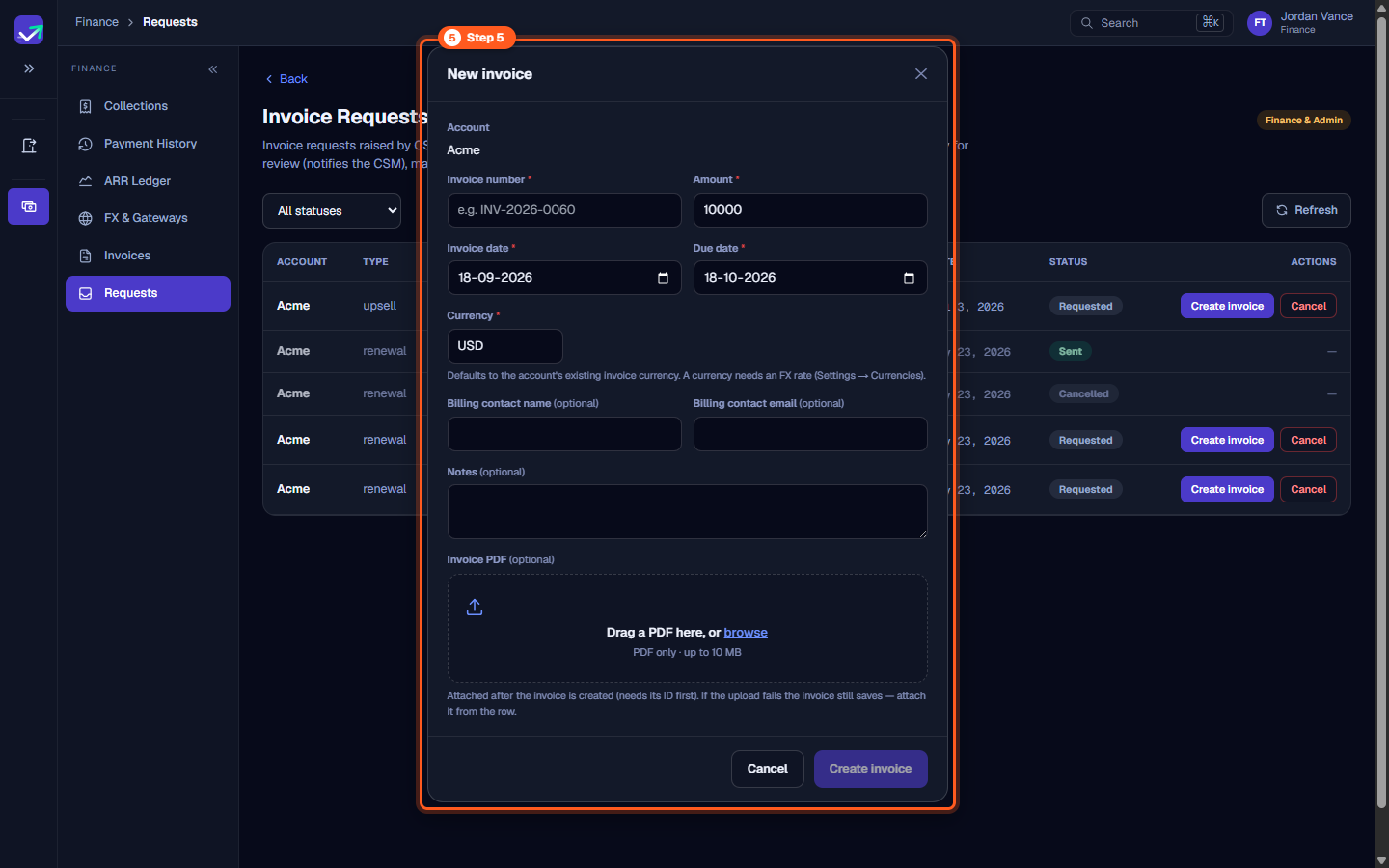
Step 5: Convert the request into an active invoice
- Click Create invoice on an active request row.
- The New invoice form opens with the account, suggested amount and billing contact pre-filled:
- Enter the Invoice number (e.g.,
INV-2026-0060). - Confirm or adjust the Amount, Invoice date, and Due date.
- Verify the Billing contact email.
- Optionally attach the invoice PDF.
- Enter the Invoice number (e.g.,
- Click Create invoice. The invoice is created as a Draft on the Invoices page and linked to the request, which moves to In Progress. It does not create a Collections schedule.
Steps
Navigate to Invoice Requests to review incoming billing submissions from CSMs
Filter requests by workflow status and refresh the queue for live submissions
Audit the requests queue comparing account names, request types, and suggested amounts
Use row action buttons to advance or cancel pending invoice requests
Convert the approved request into a commercial invoice with custom terms and PDF files
Common questions
How do requests arrive in the Invoice Requests queue?
What happens when Finance clicks 'Create invoice' on a request?
Can a request be cancelled if commercial terms change?
Does approving or advancing a request notify the CSM?
Was this helpful? Tell us what was missing