Give a customer access to the portal
Last verified 2026-10-21
Invite customer contacts to the ValueRamp portal, configure role permissions, set notification frequencies, and manage plan-level visibility.
The ValueRamp Customer Portal gives client teams a dedicated, secure environment to track onboarding milestones, review deliverable progress, complete client tasks, and sign off on key implementation phases.
Managing portal access is handled on the account's Relationships tab, where Customer Success Managers (CSMs) and Admins can define stakeholder roles, set granular permission tiers, and configure notification preferences.
Portal access tiers
When provisioning portal access, ValueRamp provides two distinct access tiers:
| Access Tier | Permissions & Capabilities | Typical Persona |
|---|---|---|
| Customer | Collaborative & Actionable: Can comment on tasks, approve deliverables, and formally sign off on milestones. | Project Lead, Onboarding Champion, Operations Manager |
| Stakeholder | View-Only: Can view plan timelines, status updates, and milestone progress, but cannot edit or sign off on items. | Executive Sponsor, Billing / Finance, Security Lead |
Both tiers set a password when they accept their invitation, then sign in at the portal's login page with their email address and that password.
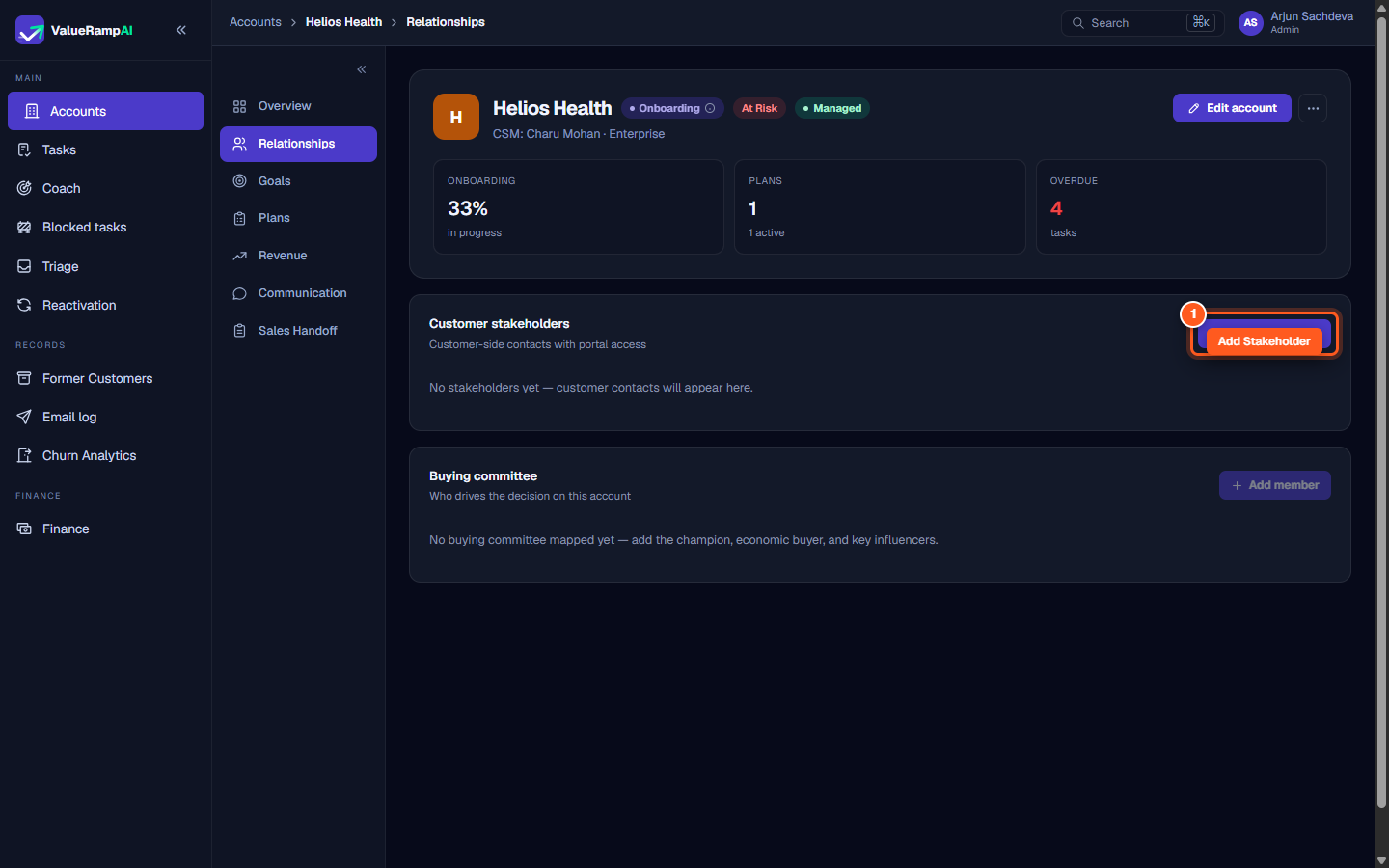
Step 1: Navigate to Relationships and click Add stakeholder
- From the main navigation, open Accounts and select the target customer account.
- In the account sub-navigation tabs, click Relationships (
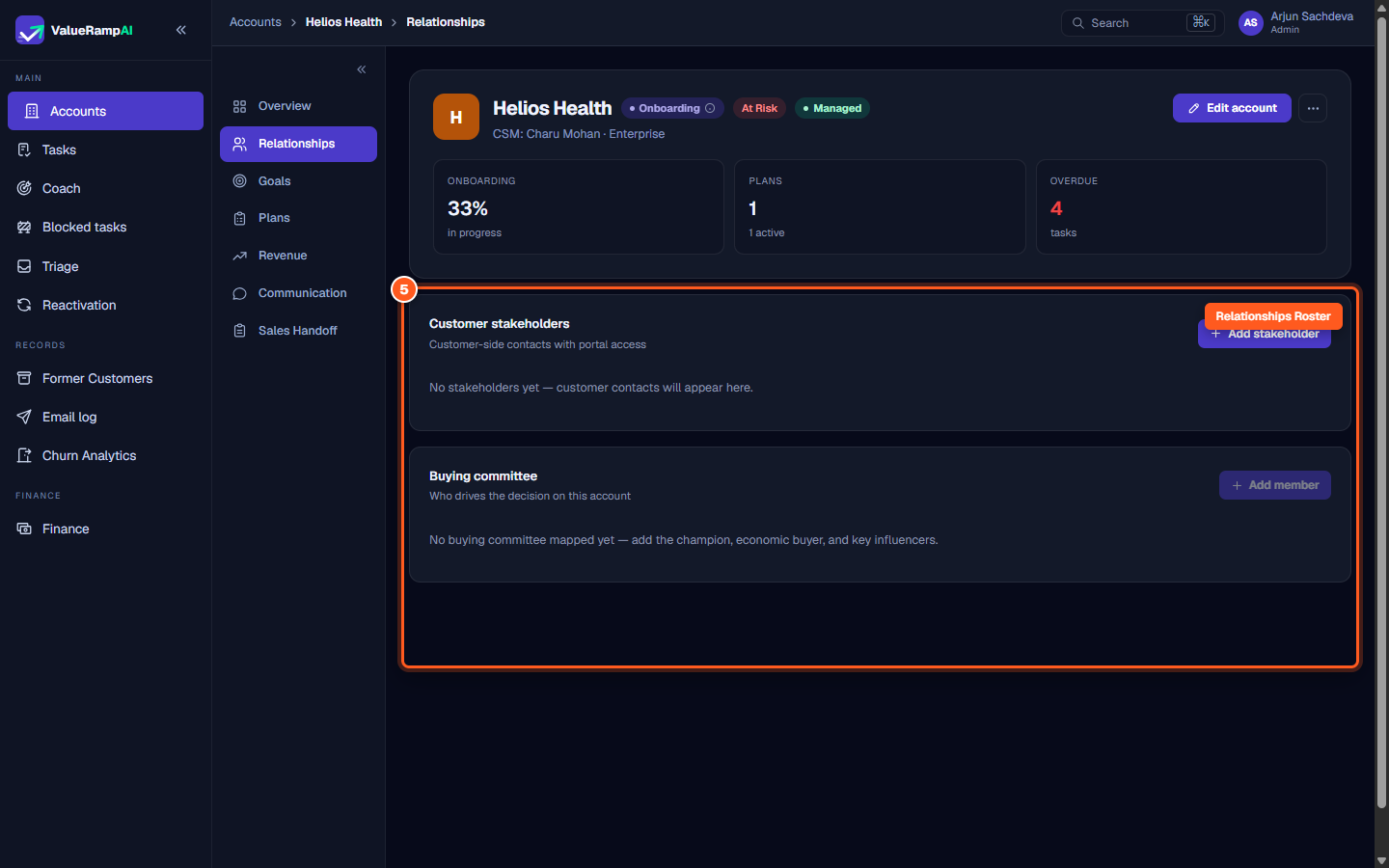
/accounts/[id]/relationships). - Scroll down to the Customer stakeholders card. This table lists all customer-side contacts currently associated with the account.
- Click the purple + Add stakeholder button in the upper-right corner of the card.
Step 2: Enter contact details and business identity
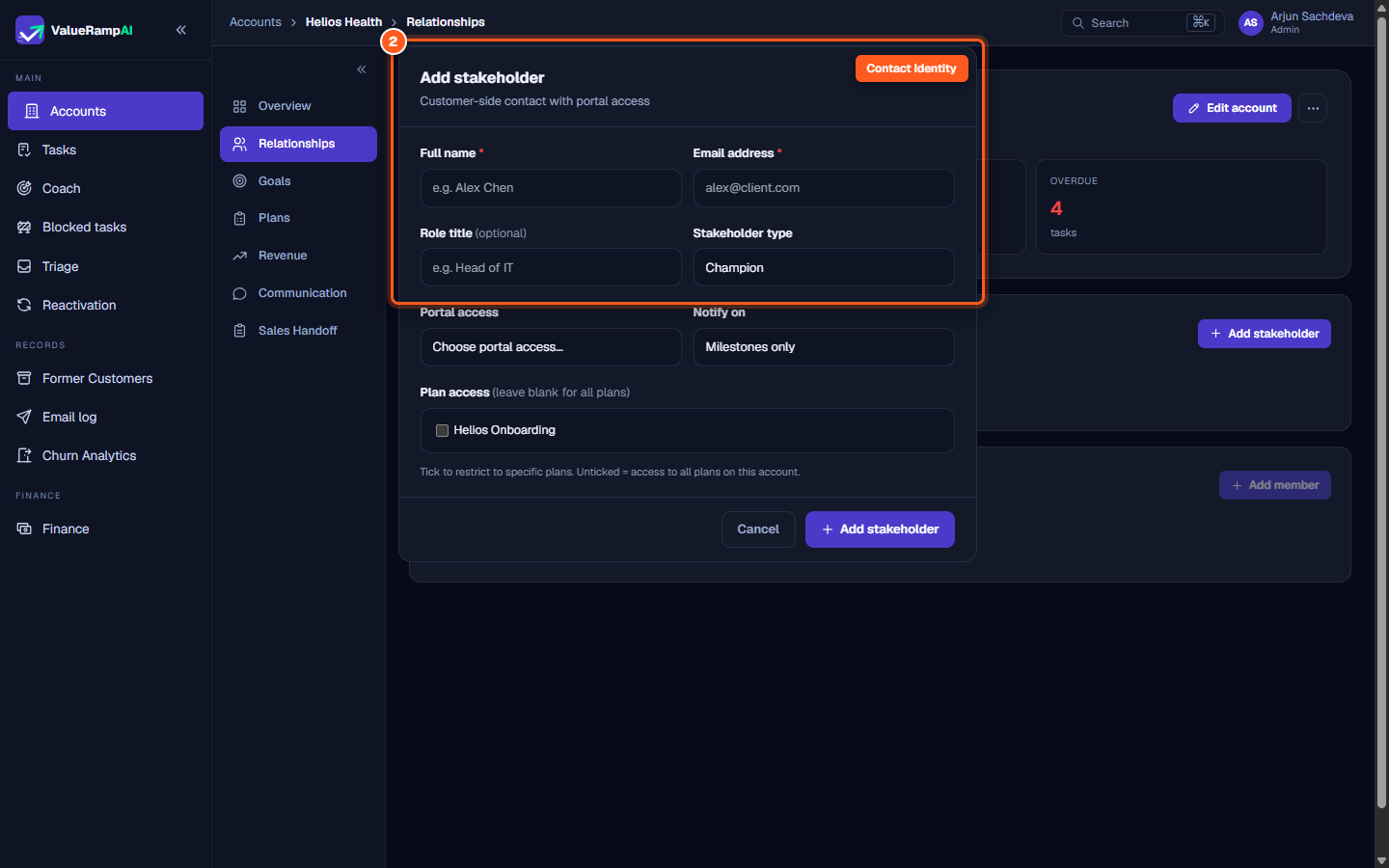
In the Add stakeholder modal:
- Full name *: Enter the contact's first and last name (e.g. Sarah Connor).
- Email address *: Provide their primary corporate email address. This is the address they will sign in with, and where status updates are sent.
- Role title (optional): Specify their formal corporate title within their organization (e.g. VP of Operations or Lead Systems Architect).
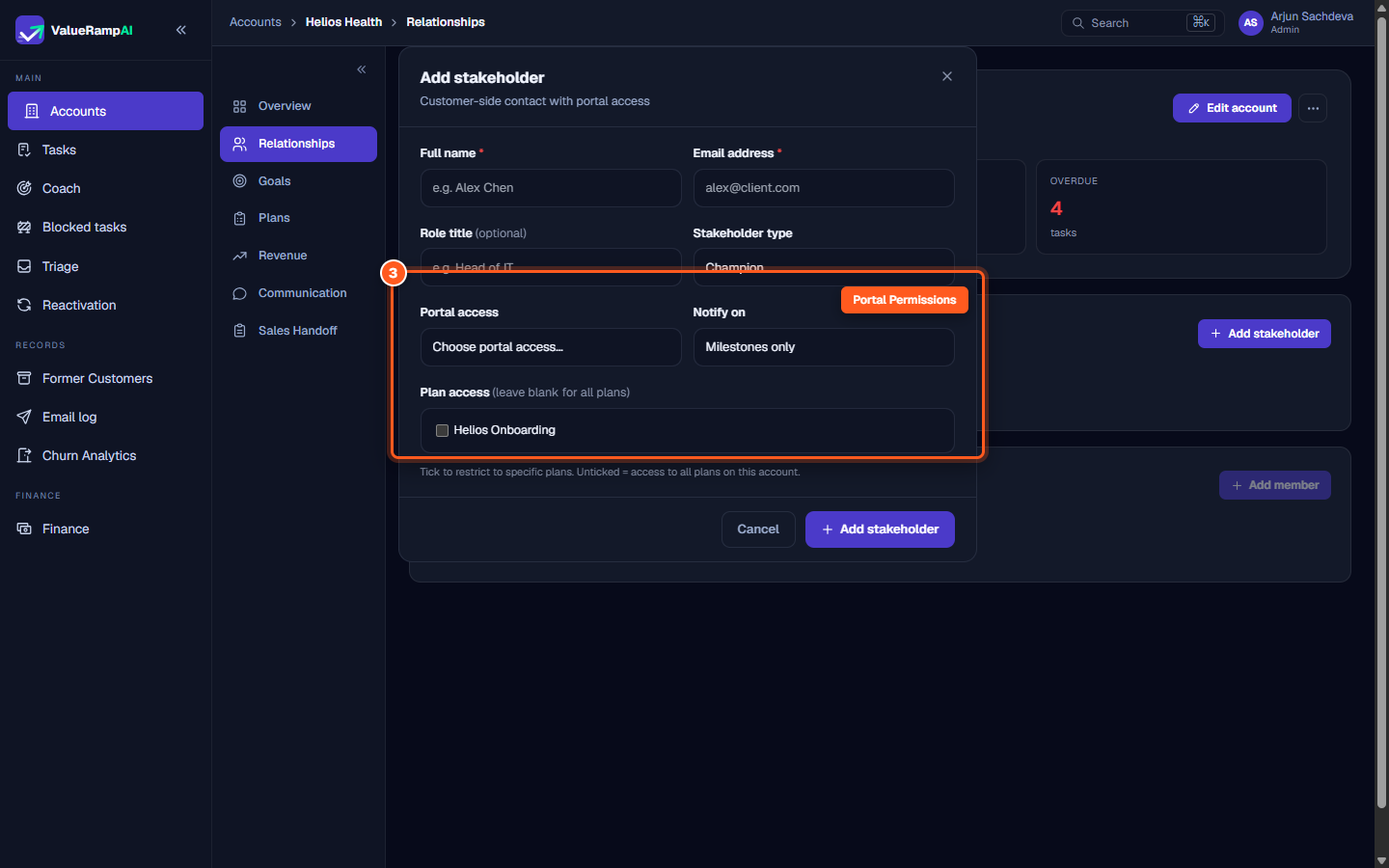
Step 3: Choose stakeholder type and portal permission tier
- Stakeholder type *: Select the persona category that describes the contact's relationship to your implementation:
- Champion: Your primary operational ally driving adoption internally.
- Executive Sponsor: Senior decision-maker who signed off on the purchase.
- IT Lead: Technical owner overseeing SSO, integrations, or security.
- Operations Lead: Day-to-day workflow owner.
- Finance / Security / Other: Supporting procurement or governance leads.
- Portal access: Select the level of operational control:
- Customer — can comment, approve, sign off: Select this for active project collaborators who need to complete assigned client tasks and approve milestone transitions.
- Stakeholder — view only: Select this for leaders who only need visibility into progress charts and executive summaries.
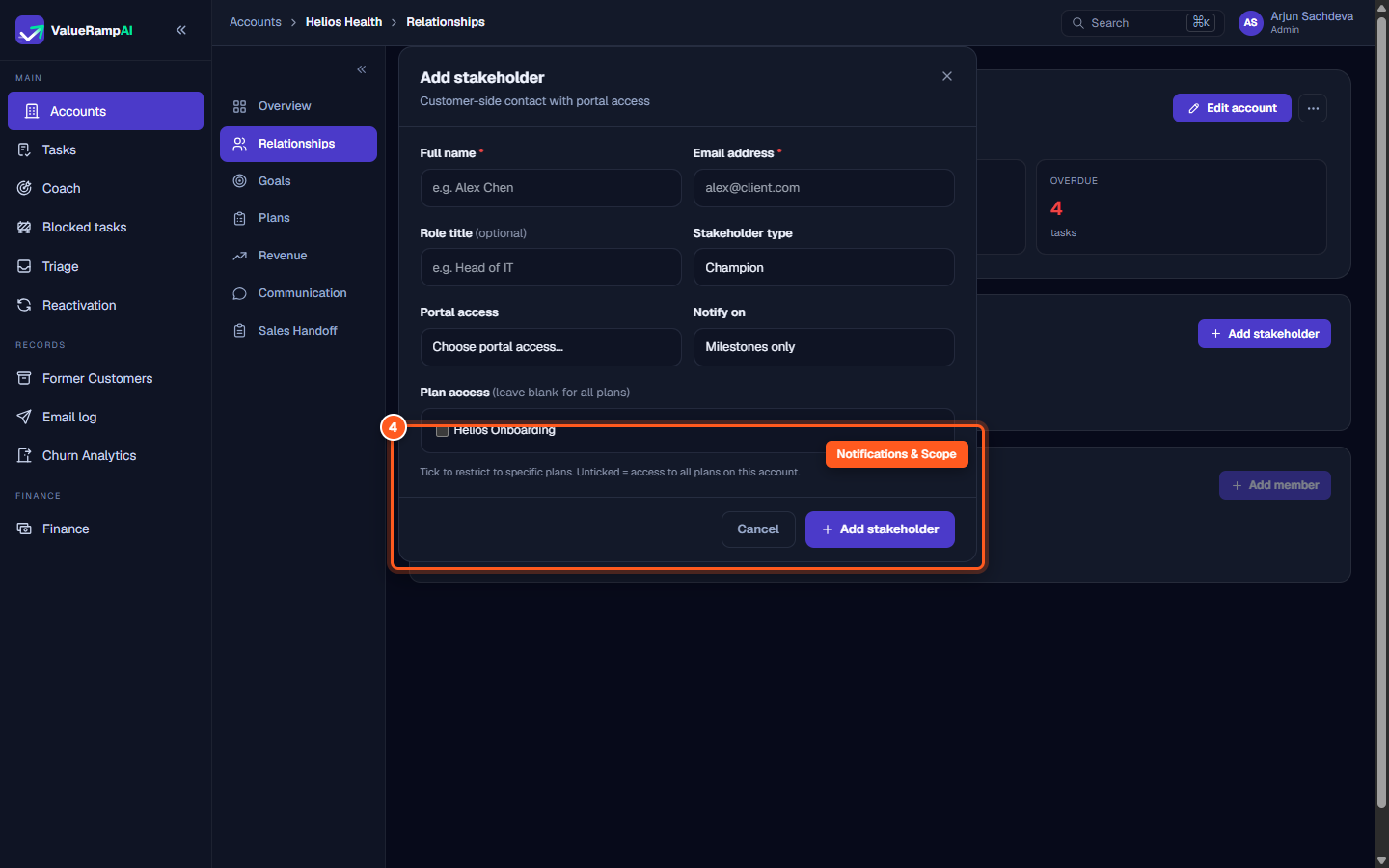
Step 4: Configure notification triggers and plan access scope
- Notify on: Choose when ValueRamp sends automated email updates to this stakeholder:
- Milestones only: Dispatches notifications only when a major phase or plan milestone is completed.
- All updates: Dispatches notifications for task completions, comments, and milestones.
- Phase completions: Notifies when an entire onboarding phase concludes.
- Task assignments: Sends an alert whenever a task is assigned to the customer team.
- Digest only: Bundles account activity into a scheduled summary email.
- Plan access:
- Leave all plan checkboxes unchecked to grant the stakeholder access to all current and future plans for this account.
- To restrict their view (for example, limiting a specialized technical contact strictly to an Infrastructure Migration plan), check only the relevant plan(s).
- Click Add stakeholder to create the stakeholder record. Portal access is granted in the next step.
Step 5: Invite the contact, then review the roster
- The newly created contact now appears in the Customer stakeholders table. On their row, click Invite to portal. ValueRamp creates a one-time invitation link and shows it to you (it is also emailed to the contact when possible) — share it with them. Opening the link takes them to an accept page where they set their password; from then on they sign in at the portal login page. Only one invitation link is live per contact: inviting again cancels the earlier link.
- The roster displays their name, title, stakeholder type, portal access level (
CustomerorStakeholder), and notification trigger status. - You can align customer contacts with your Buying committee panel on the same page, ensuring that champions and economic buyers are tracked against renewal and expansion targets.
- To edit a stakeholder's details, click their entry in the table to update notification settings or adjust plan visibility.
Frequently asked questions
How does the customer receive their portal login?
Through the Invite to portal action on their row (Step 5). The invitation link opens an accept page where they set a password; after that they sign in at the portal login page with their email address and password. If they lose the link before accepting, invite them again — the new link replaces the old one.
Can I revoke portal access for a stakeholder?
Yes. Open the stakeholder from the Customer stakeholders table on the Relationships tab and Deactivate them. Their access ends on their next request — every portal request re-checks that the contact is still active.
What happens if an account has multiple active plans?
By default, leaving the plan access checkboxes unchecked grants the contact visibility across all active plans. If you restrict access to a specific onboarding plan, the customer will only see that plan in their portal dashboard.
Steps
Navigate to Relationships and click Add stakeholder to invite a customer contact
Enter the stakeholder's full name, business email address, and job title
Assign stakeholder type and select Customer or Stakeholder portal access
Configure update notifications and restrict plan access if needed
Review customer stakeholders and align champions in your buying committee
Was this helpful? Tell us what was missing