Run an onboarding from kickoff to go-live
Last verified 2026-09-18
Take an account through its onboarding phases, track the schedule against the target go-live date, work the tasks, and coordinate the team.
Before you start
- ValueRamp Onboarding Manager, CSM, or Admin role
- Customer account with an active onboarding plan
Customer onboarding is the cornerstone of long-term retention. Delivering a structured, transparent onboarding experience reduces Time to First Value (TTFV) and establishes organizational momentum before handoff to long-term adoption.
ValueRamp operationalizes implementations through dedicated Onboarding Plans (/plans/[id]) and account-level roadmap tracking (/accounts/[id]/plans), coordinating deliverables between internal implementation specialists and client stakeholders.
The Onboarding Implementation Lifecycle
Every structured customer onboarding in ValueRamp progresses through four core stages:
- Kickoff & Discovery: Review closed-won intelligence, validate technical prerequisites, and establish customer stakeholder alignments.
- System Configuration: Configure workspace settings, provision data integrations, and customize customer workflows.
- Enablement & Readiness: Conduct admin training, distribute documentation, and verify user role provisioning.
- Go-Live & Transition: Execute production cutover, achieve stakeholder sign-off, and transition the account to customer success managers for adoption.
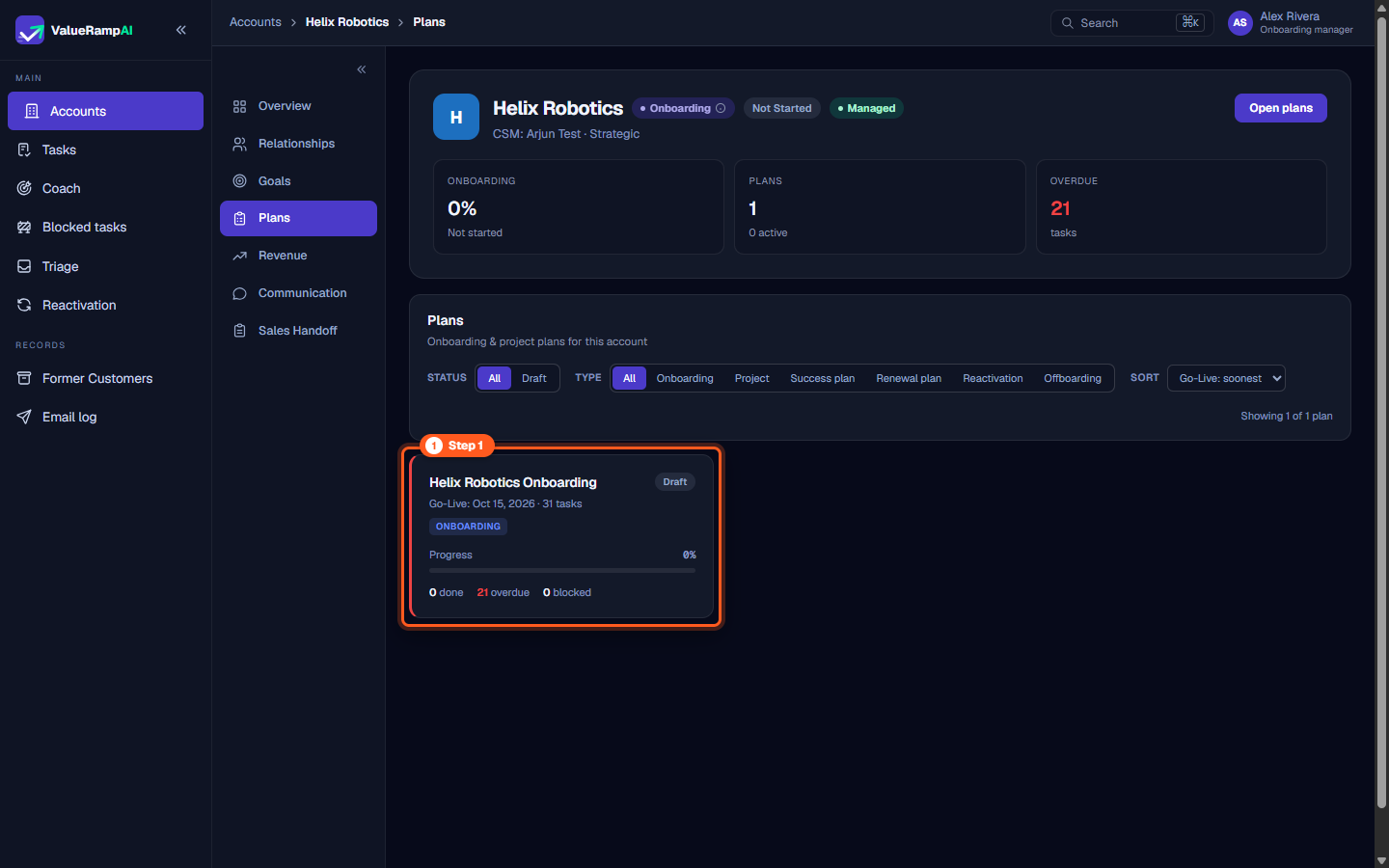
Step 1: Open the account Plans tab to select the active onboarding plan
- Navigate to Accounts and open the customer organization workspace.
- In the account sub-navigation tabs, click Plans (
/accounts/[id]/plans). - The directory lists all historical and active roadmaps for the account.
- Locate the active onboarding plan card (e.g. Helix Robotics Onboarding).
- The card displays critical baseline metrics:
- Plan Type & Status: Shows
Onboardingand lifecycle state (e.g.DraftorIn Progress). - Go-Live Target: The committed launch date (e.g.
Oct 15, 2026). - Deliverables Count: Total task volume, completed tasks, overdue items, and active blockers.
- Plan Type & Status: Shows
- Click the plan card to enter the dedicated plan workspace.
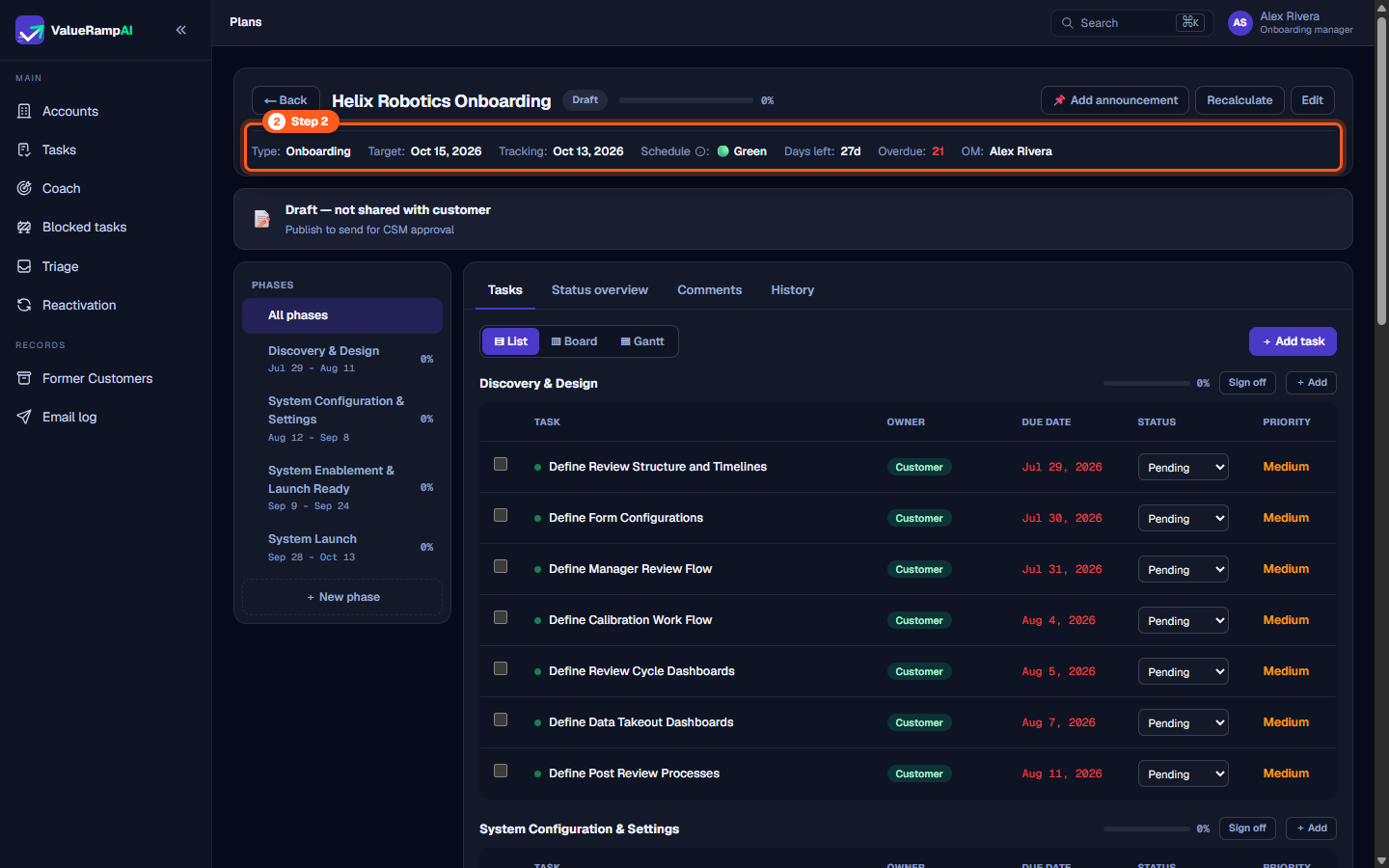
Step 2: Verify launch targets, tracking schedules, and milestone velocity
- In the plan workspace header (
/plans/[id]), review the high-level roadmap telemetry:- Type: Verifies the plan is categorized as
Onboarding. - Target Date: The contracted customer go-live milestone.
- Tracking Date: The latest task due date in the plan — the projected finish.
- Schedule status (RAG):
Greenwhen the tracking date is on or before the target date;Amberwhen it overruns by up to the workspace's amber grace window (5 days by default, set in Settings → Organisation);Redbeyond that.
- Type: Verifies the plan is categorized as
- Keeping the tracking date on or ahead of the target date ensures the implementation stays on schedule without unexpected delays.
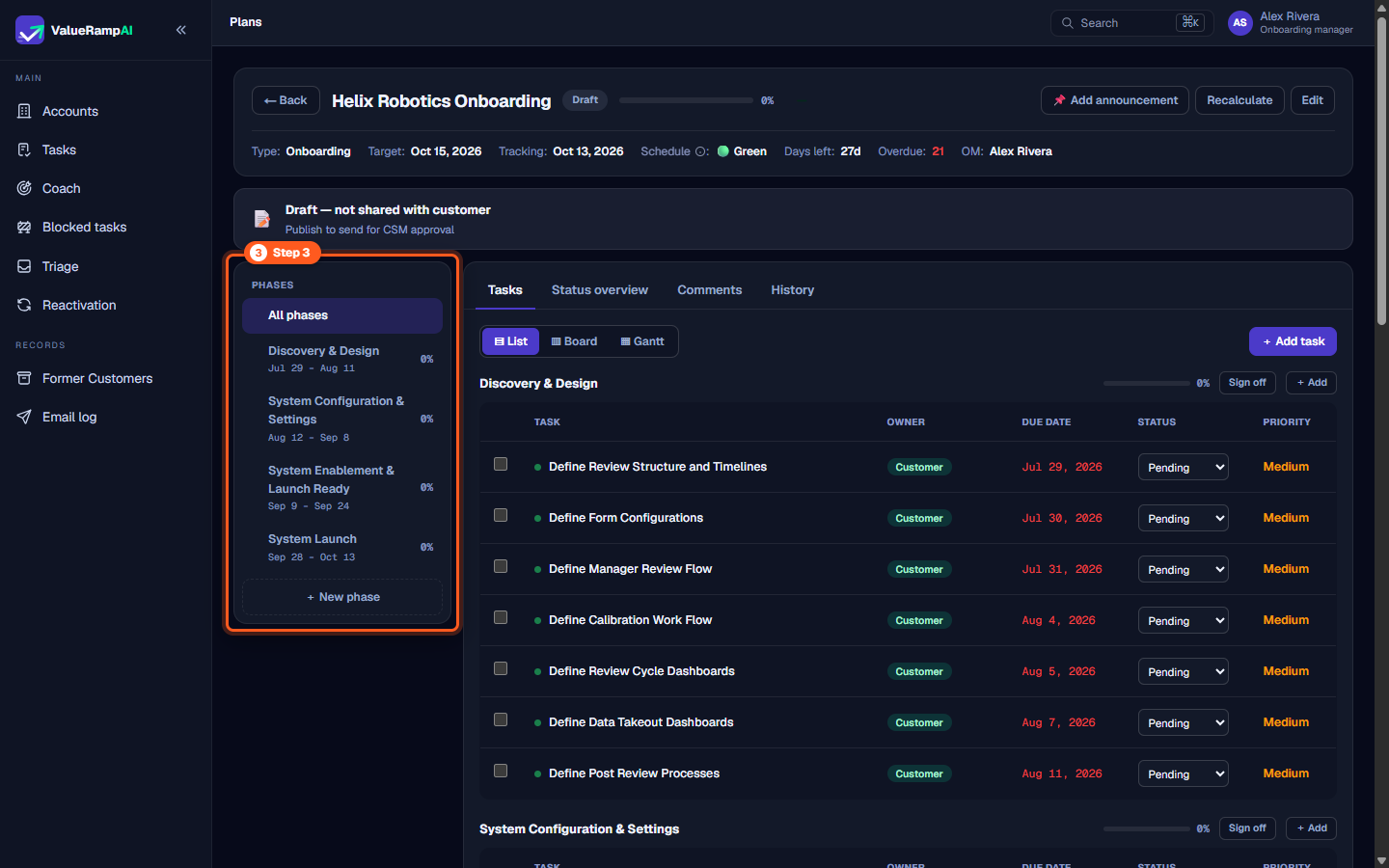
Step 3: Navigate implementation phases across the project timeline
- The plan phases navigation sidebar breaks down the onboarding project into manageable sequential stages:
- Discovery & Design: Requirements gathering and workflow scoping.
- System Configuration & Settings: Core platform configuration and integrations.
- System Enablement & Launch Ready: User training and acceptance testing.
- System Launch: Go-live cutover and executive review.
- Each phase tile indicates its scheduled date window and live completion percentage.
- Click any phase to filter the workspace view to that phase's specific deliverables.
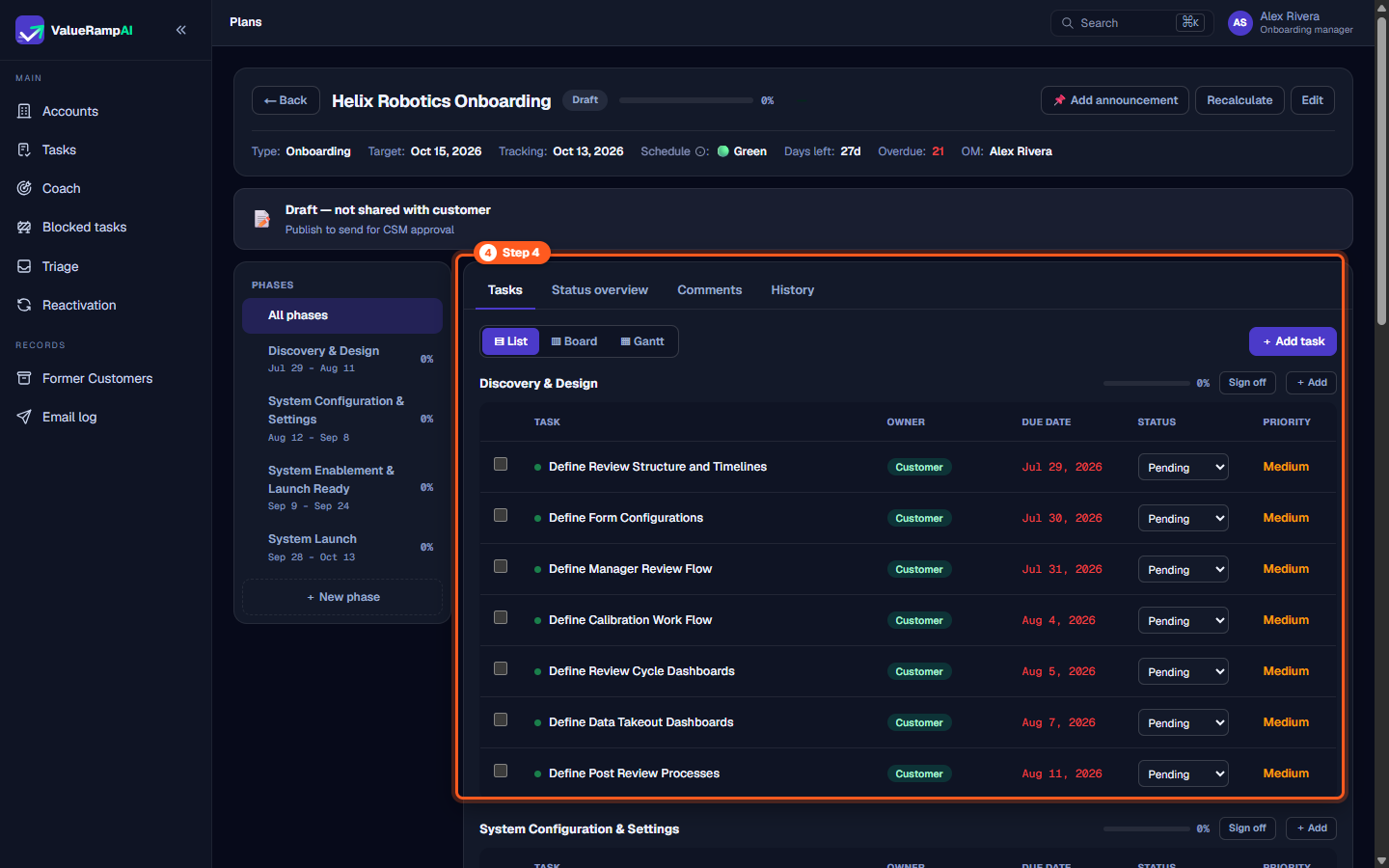
Step 4: Execute deliverables, assign tasks, and advance execution status
- In the Tasks tab of the plan workspace, manage individual implementation deliverables:
- Task Title & Description: Clear operational scope of work.
- Primary owner: The OM, the CSM, or a named customer stakeholder (or "Customer" when the account has no stakeholders yet).
- Due Date & Priority: Enforce milestone sequencing.
- Status Actions: Advance deliverables from
PendingtoIn Progressor mark themDone.
- If a deliverable encounters an external dependency (such as waiting on client SSO metadata), set the status to
Blocked: the task appears in the Blocked Tasks dashboard at once, and if it stays blocked past the workspace's escalation threshold (3 days by default) the CSM and OM receive an escalation email.
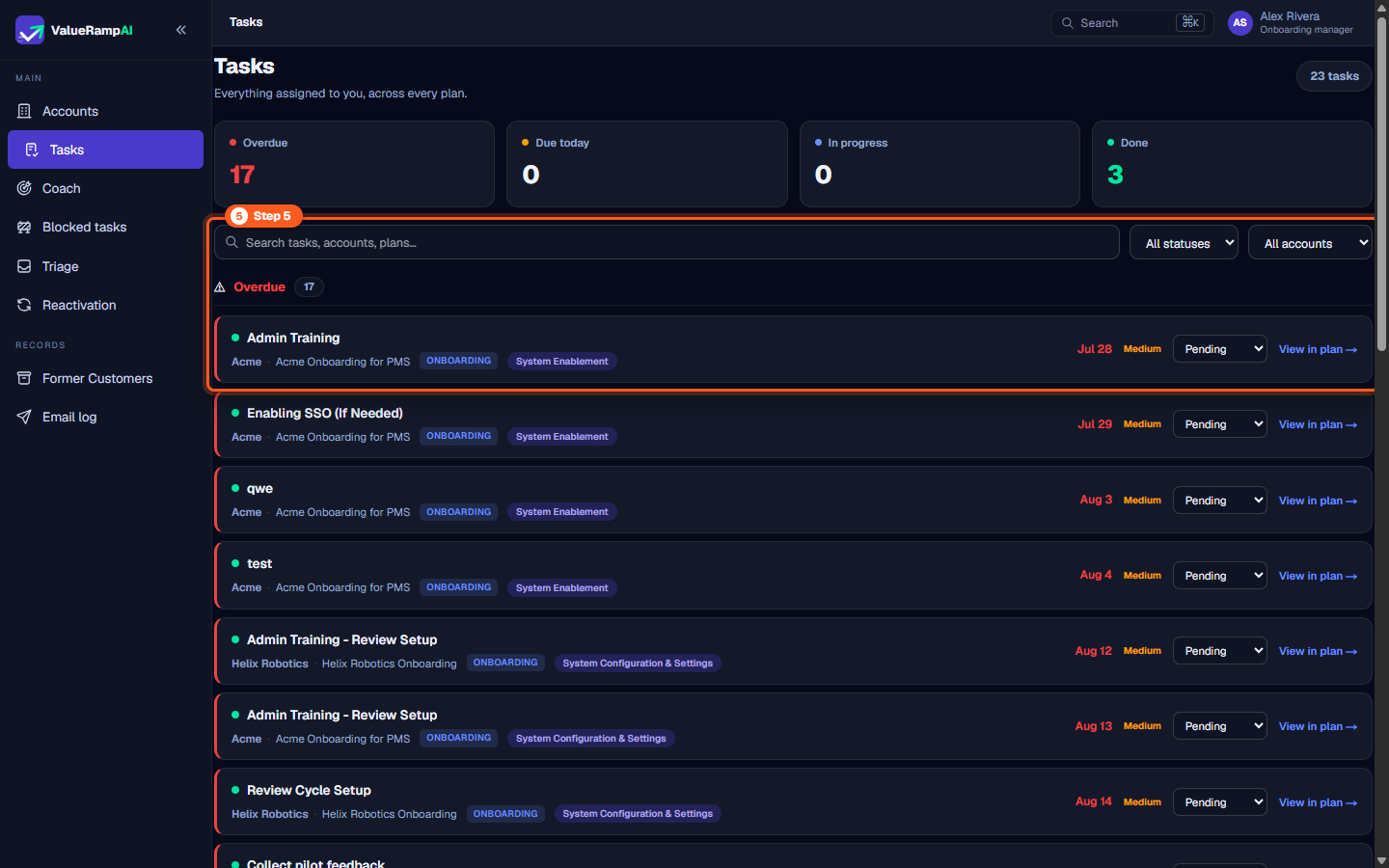
Step 5: Monitor cross-account deliverables in the centralized Tasks list
- Open Tasks (
/tasks) from the main navigation sidebar. - The Tasks page ("My Tasks") lists the tasks owned by you across your plans, bucketed by due date (Overdue, Due today, Due this week, Upcoming, Done).
- Use the filter controls to isolate tasks by status (
Pending,In Progress,Blocked) or customer organization. - Review overdue milestones daily to maintain execution momentum and protect committed launch dates across your portfolio.
Frequently asked questions
How is the plan Schedule status calculated?
The Schedule badge reflects dates, not health scores. Green means the latest task due date is on or before the plan's launch (target) date. Amber means it overruns by up to the workspace's amber grace window — 5 days by default, set in Settings → Organisation — and Red means it overruns by more than that.
Can an onboarding plan have multiple sequential phases?
Yes. Plans are typically partitioned into phases such as Discovery & Design, System Configuration, Enablement & Launch Ready, and System Launch, each with distinct date windows and completion percentages.
What triggers an account transition from Onboarding to Adoption?
An account stays in the Onboarding lifecycle phase until its onboarding plan is closed — status Closed, Closed with CSAT or Closed without CSAT (an Admin or CSM closes it from the plan). Closing the plan moves the account to Adoption (the nightly lifecycle check would also catch it); finishing every task on its own does not.
How do customer stakeholders participate during onboarding?
Customer contacts invited to the Customer Portal can read the plan, approve it once the CSM has, sign off a completed phase, mark their own tasks done, and comment on the plan, a phase or a task. Nothing is uploaded through the portal.
Steps
Open the account Plans tab to select the active customer onboarding plan
Verify launch dates, schedule tracking status, and plan health in the header
Navigate implementation phases from discovery and design through system launch
Execute phase deliverables, assign owners, and advance task statuses
Monitor cross-account deliverables and overdue milestones in the centralized Tasks list
Common questions
How is the plan Schedule status calculated?
Can an onboarding plan have multiple sequential phases?
What triggers an account transition from Onboarding to Adoption?
How do customer stakeholders participate during onboarding?
Was this helpful? Tell us what was missing