Set up a plan with tasks and milestones
Last verified 2026-09-17
Create onboarding and project plans, organize tasks into milestone phases, track schedule health, and assign internal and customer owners.
Before you start
- ValueRamp CSM, Admin, or OM role
- An active customer account
Overview
Setting up a structured plan with phases, milestones, and actionable tasks is central to driving rapid time-to-value for new customer accounts. ValueRamp's plan architecture (/plans/[id]) gives customer success managers, onboarding managers, and customer sponsors shared visibility into project delivery timelines.
Plans can be created from scratch or instantiated from standardized workspace templates, ensuring operational consistency across your entire team.
Phase & Milestone Hierarchy
Effective customer plans decompose complex implementations into manageable sequential milestones:
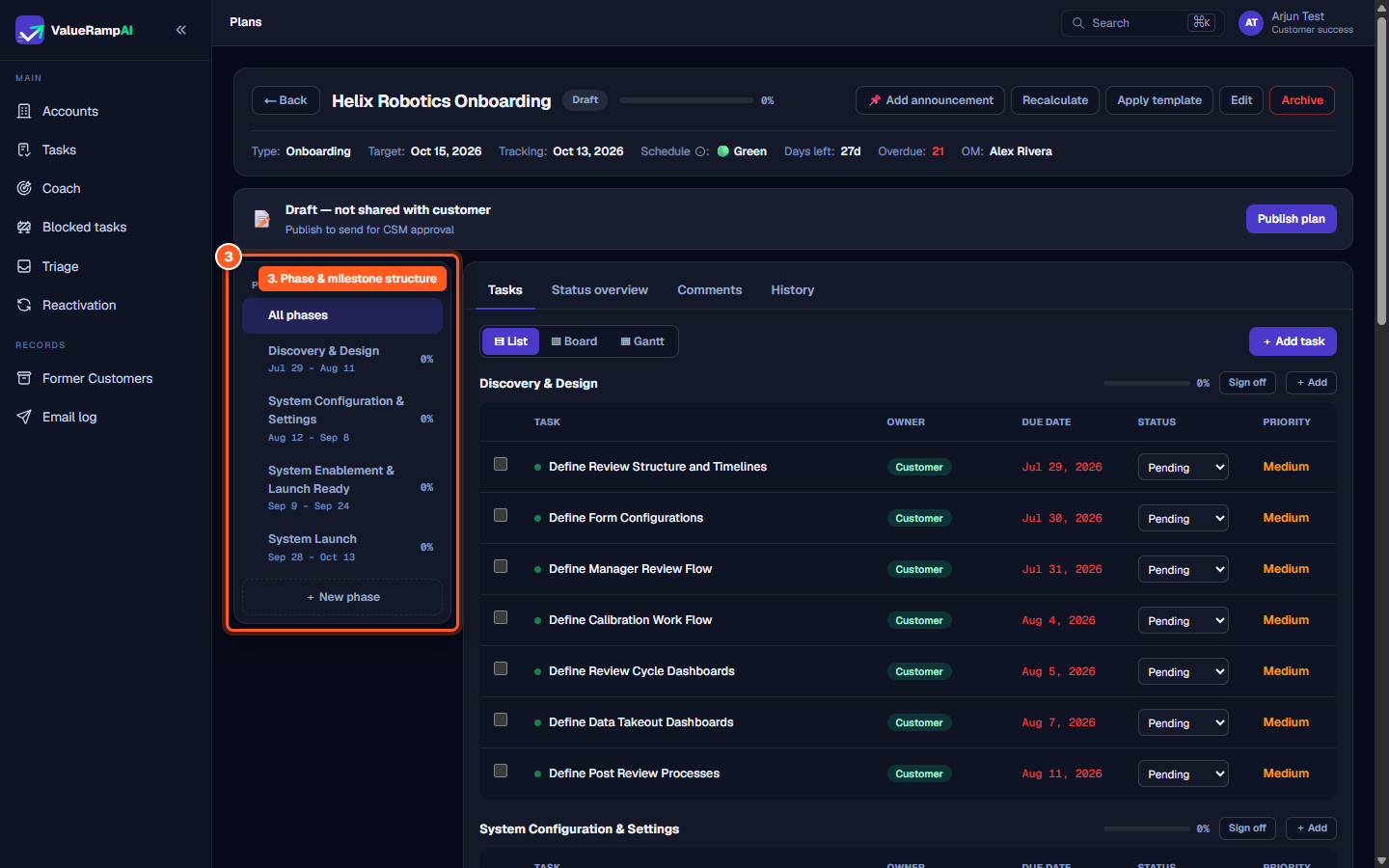
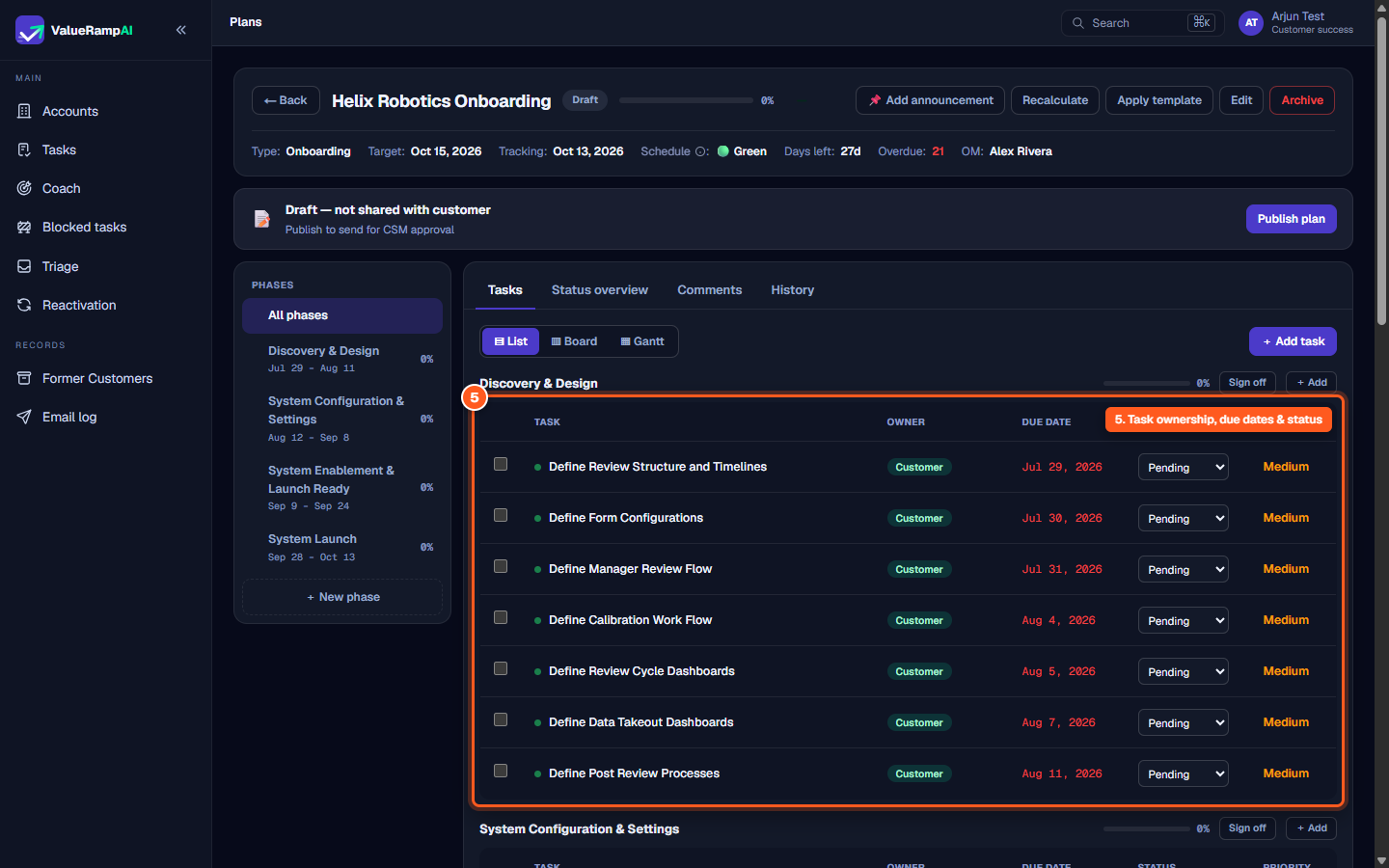
- Phases: Distinct chronological stages of the customer journey, named per plan (for example Discovery & Design, System Configuration, Enablement, and Launch). Selecting a phase in the left navigation filters the workspace to its specific deliverables; a phase can be signed off as a whole.
- Milestones: Tasks flagged Milestone? Yes — the delivery checkpoints. Completing a final-launch milestone records the plan's go-live date.
- Tasks: Granular operational action items assigned to specific individuals with explicit due dates and priority classifications.
Task Assignment and Accountability
Every task in a plan enforces mutual accountability across organizational boundaries:
- Cross-Functional Owners: Each task has an owner side — Internal, Customer, or Both — and a named internal owner; priority is High, Medium or Low.
- Dynamic Statuses: Tasks move through
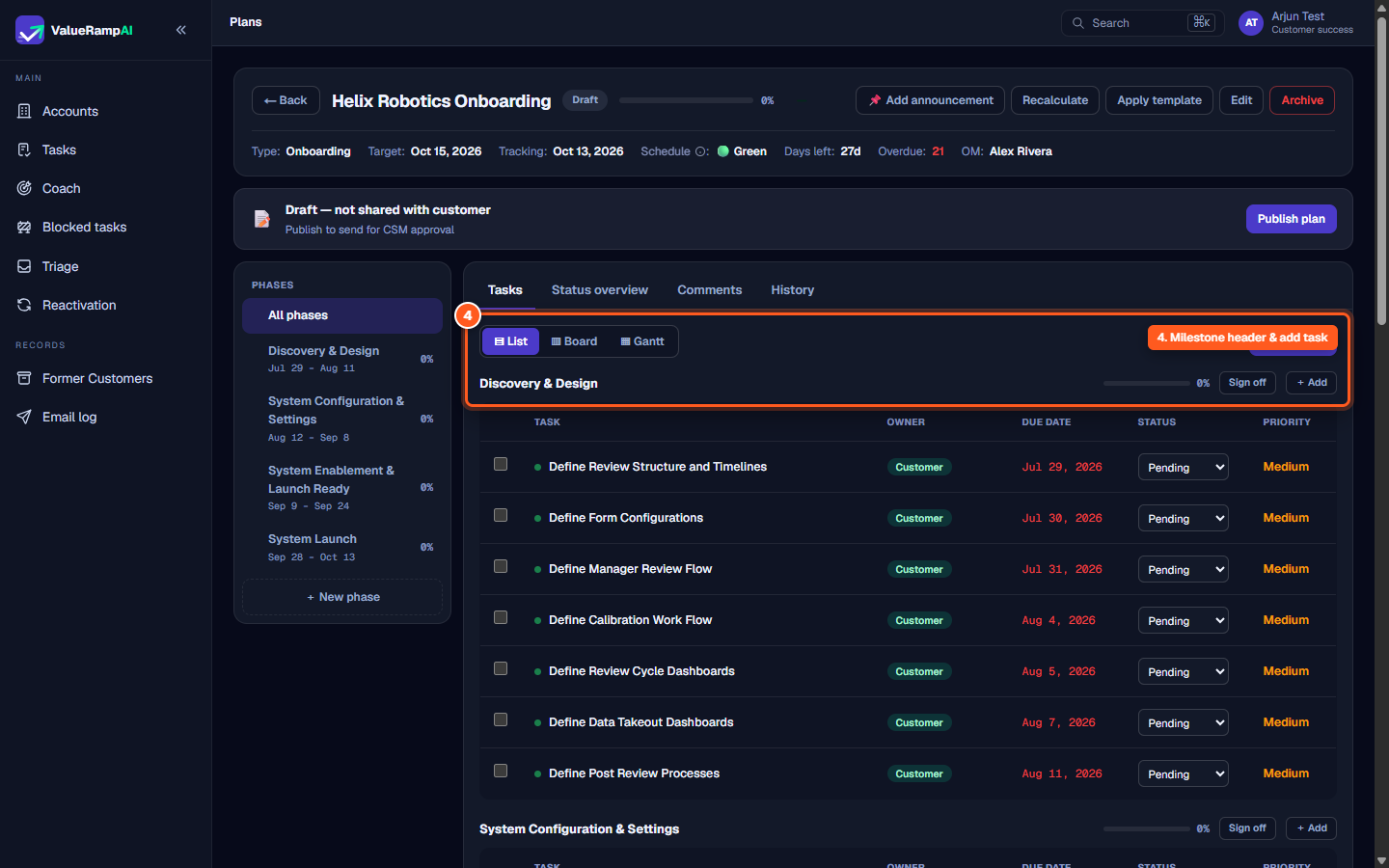
Pending,In Progress,Done, orBlocked. Flagging a task as blocked immediately surfaces an alert in the Blocked Tasks queue. - Multi-View Flexibility: Switch between high-density tabular List view, operational Board view, and visual timeline Gantt view to accommodate team preferences.
Steps
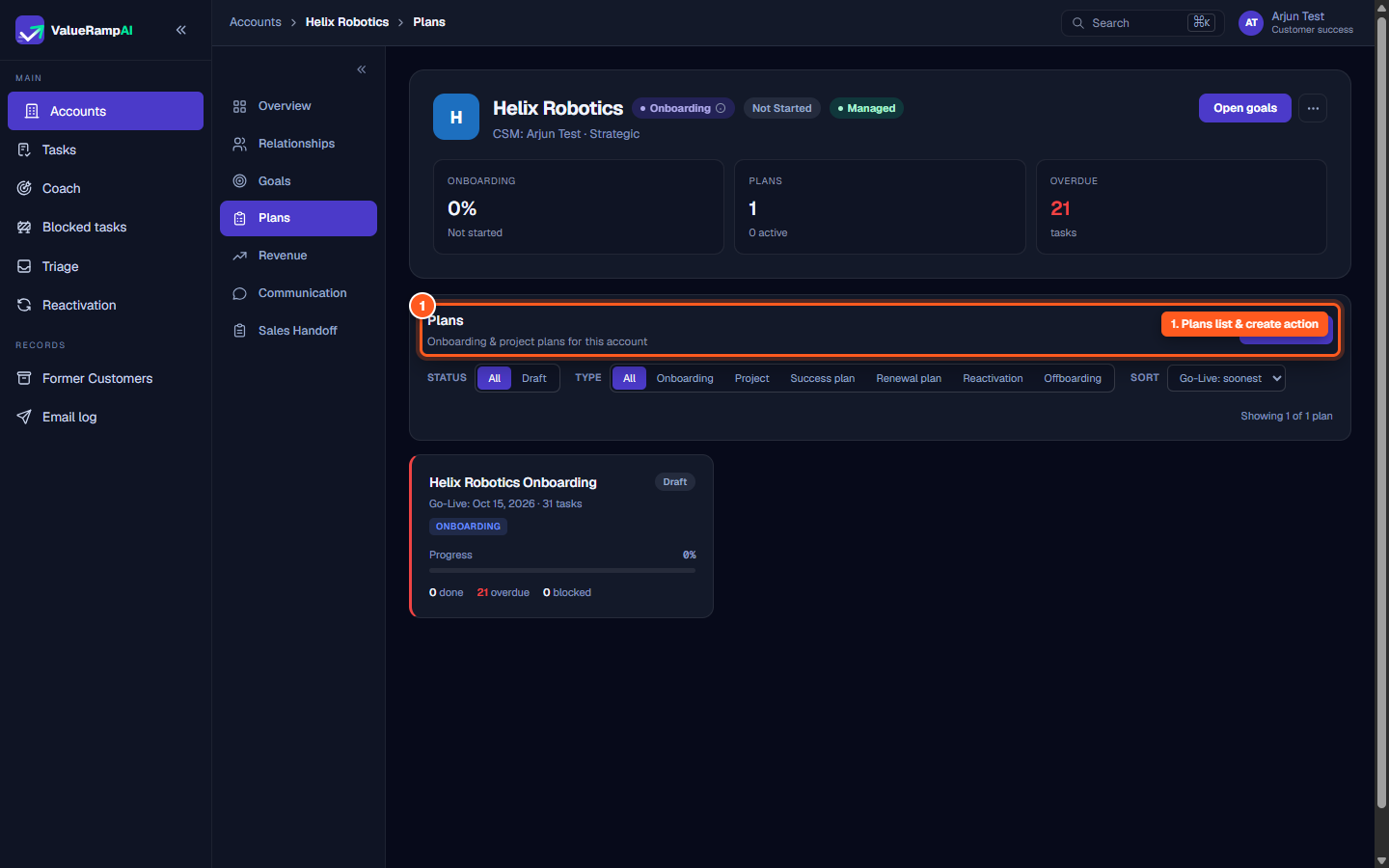
Open the account Plans tab and click New plan to initialize an engagement
Configure target launch dates, tracking checkpoints, and schedule health indicators
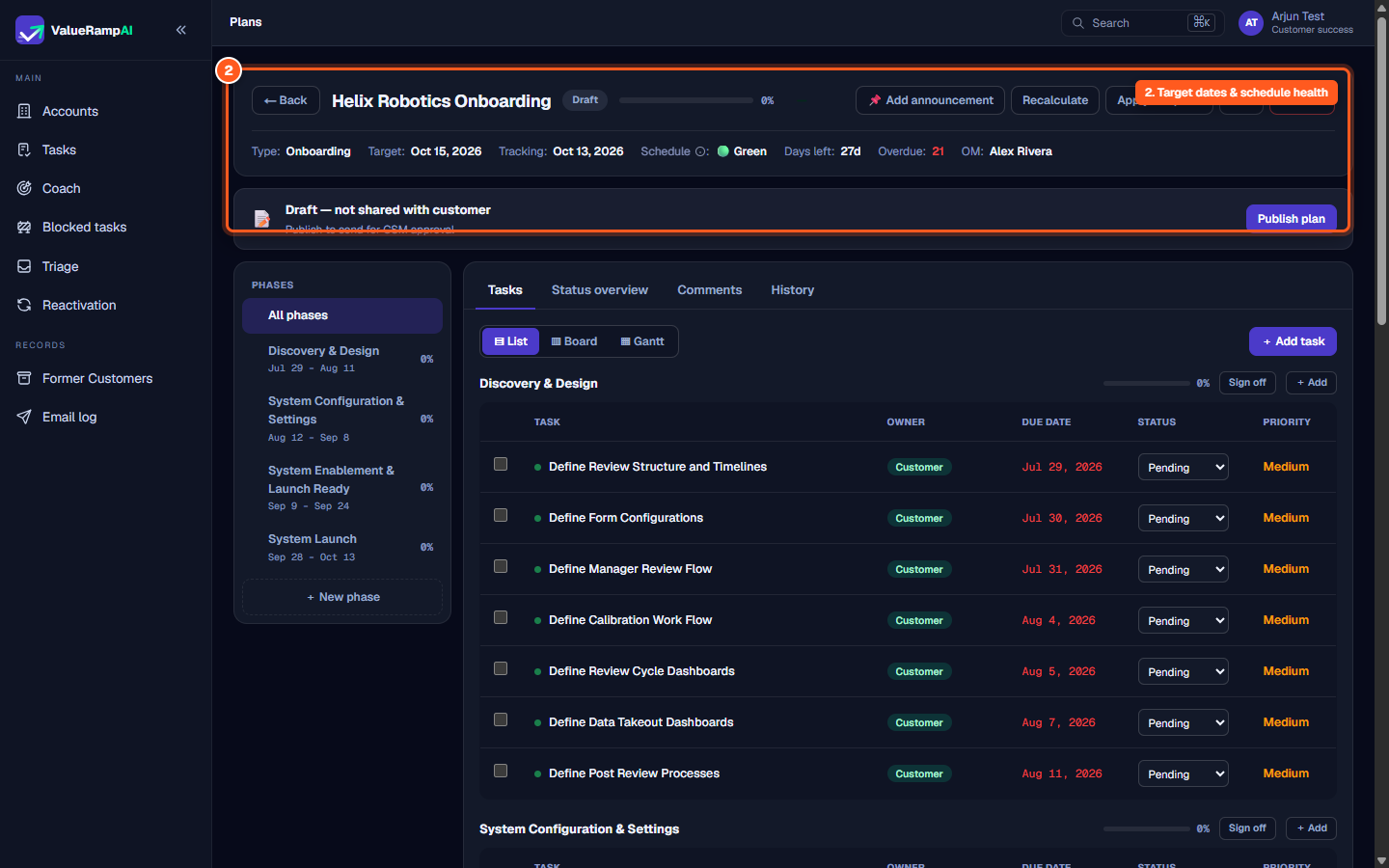
Structure delivery phases using the sidebar and click New phase to add milestones
Toggle between List, Board, and Gantt views, and click Add task to create action items
Assign task owners, configure due dates, and specify priority levels
Common questions
What does the Schedule indicator (Green, Amber, Red) mean?
What is the difference between an Onboarding plan and a Project plan?
Can customer stakeholders complete tasks directly?
What does 'Sign off' on a milestone do?
Was this helpful? Tell us what was missing