Set up renewals and the renewal window
Last verified 2026-09-17
Configure contract renewal lead times, set grace periods, and track upcoming customer renewals with In Window indicators and pipeline opportunities.
Proactive renewal management protects Annual Recurring Revenue (ARR) and eliminates last-minute churn surprises. ValueRamp automates the renewal timeline by calculating advance notice windows tailored to contract terms, surfacing In Window status badges, and tracking commercial negotiations on customer account records.
This guide explains how to configure workspace renewal windows, understand automated phase transitions, and track renewal deals on an account's Revenue tab.
How the renewal lifecycle works
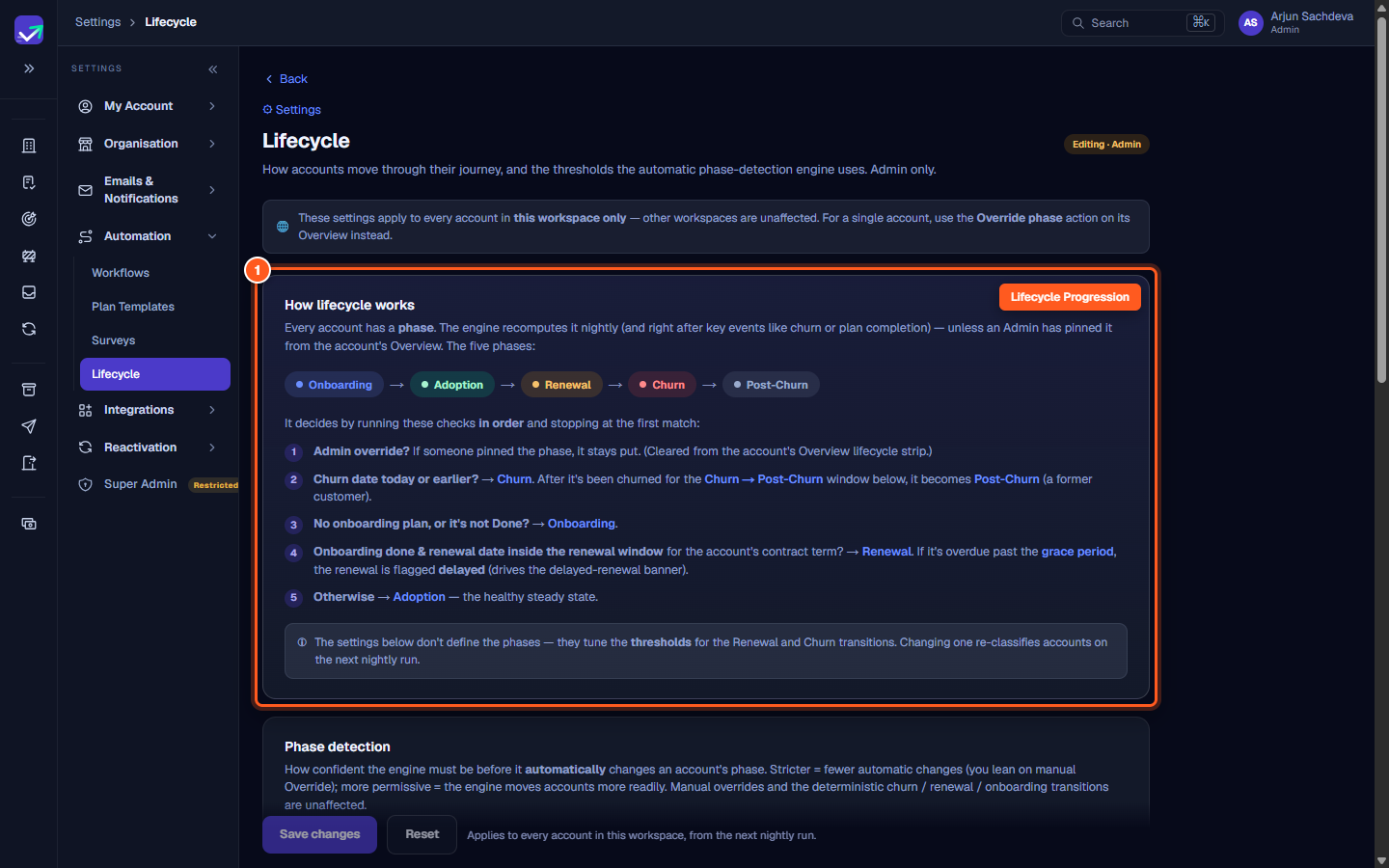
ValueRamp evaluates accounts nightly (and whenever an account page recomputes its phase), checking conditions in strict order:
- Admin Override: If an admin pinned an account's phase via Override phase, that manual lock takes precedence.
- Churn Check: If an account has churned, it enters the Churn phase. After the wind-down period, it flips to Post-Churn.
- Onboarding Check: If an account has an active onboarding plan that is not yet completed, it remains in Onboarding.
- Renewal Window Check: If onboarding is complete and the customer's renewal date falls within their contract term's renewal window, ValueRamp moves the account to Renewal. If the renewal date passes and exceeds the grace period, it is flagged as delayed.
- Adoption (Steady State): Otherwise, the account sits in Adoption.
Step 1: Open Lifecycle Settings to review progression rules
- In the left navigation sidebar under Settings, click Automation and select Lifecycle (
/settings/lifecycle). - The How lifecycle works card illustrates the account progression flow: $$\text{Onboarding} \longrightarrow \text{Adoption} \longrightarrow \text{Renewal} \longrightarrow \text{Churn} \longrightarrow \text{Post-Churn}$$
- Review the Phase detection confidence thresholds (Strict, Balanced, or Permissive) that govern how aggressively the engine auto-updates accounts.
Step 2: Set renewal lead times for contract terms
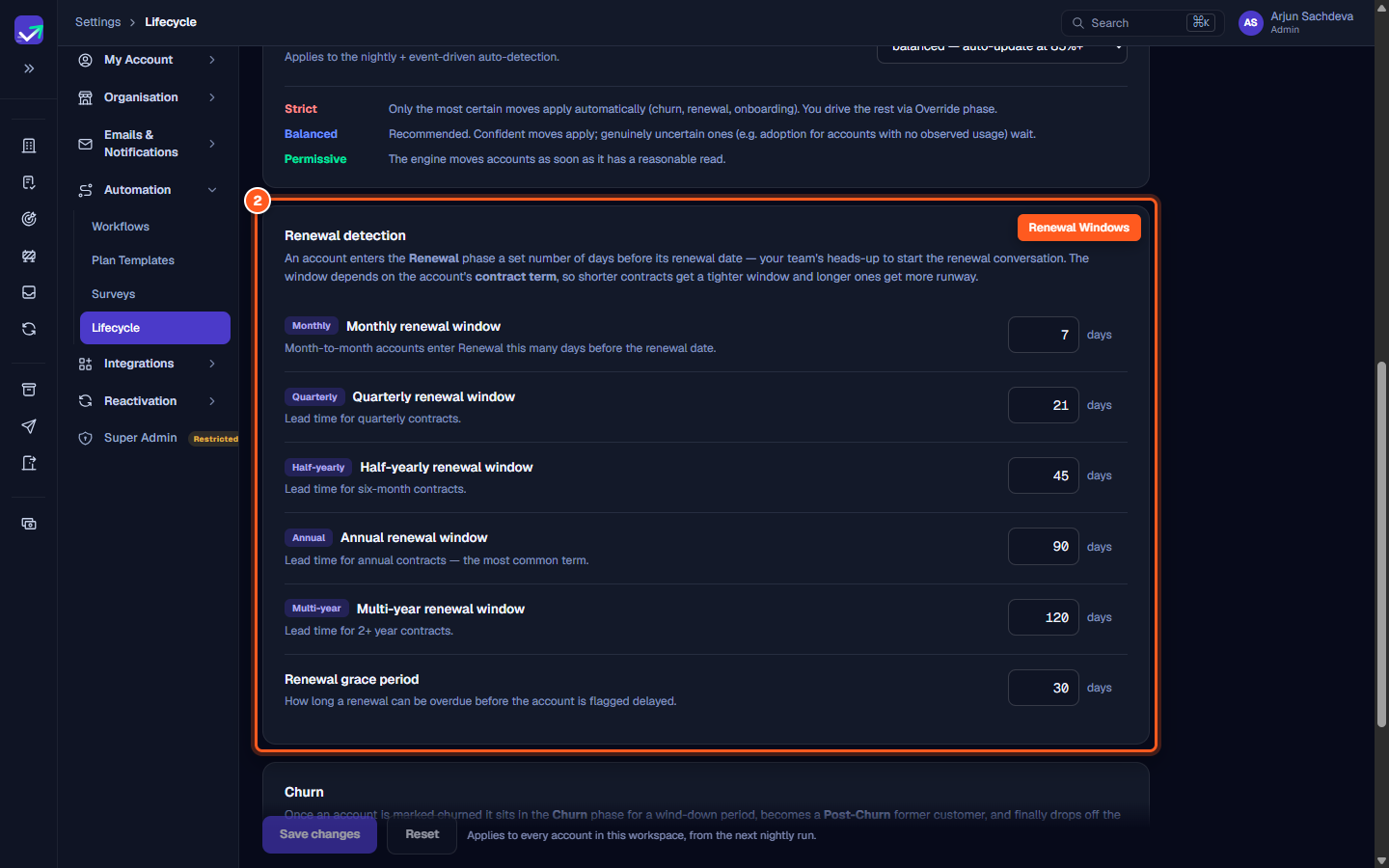
- Scroll down to the Renewal detection card.
- ValueRamp applies contract-specific lead times so that shorter contracts receive tighter notice and enterprise agreements receive ample preparation:
- Monthly renewal window: Number of days before renewal for month-to-month contracts (e.g.
7days). - Quarterly renewal window: Lead time for 3-month agreements (e.g.
21days). - Half-yearly renewal window: Lead time for 6-month contracts (e.g.
45days). - Annual renewal window: Lead time for standard 12-month agreements (e.g.
90days). - Multi-year renewal window: Lead time for multi-year enterprise contracts (e.g.
120days).
- Monthly renewal window: Number of days before renewal for month-to-month contracts (e.g.
- Adjust the day counts to align with your customer success team's renewal outreach playbook.
Step 3: Define the renewal grace period and save thresholds
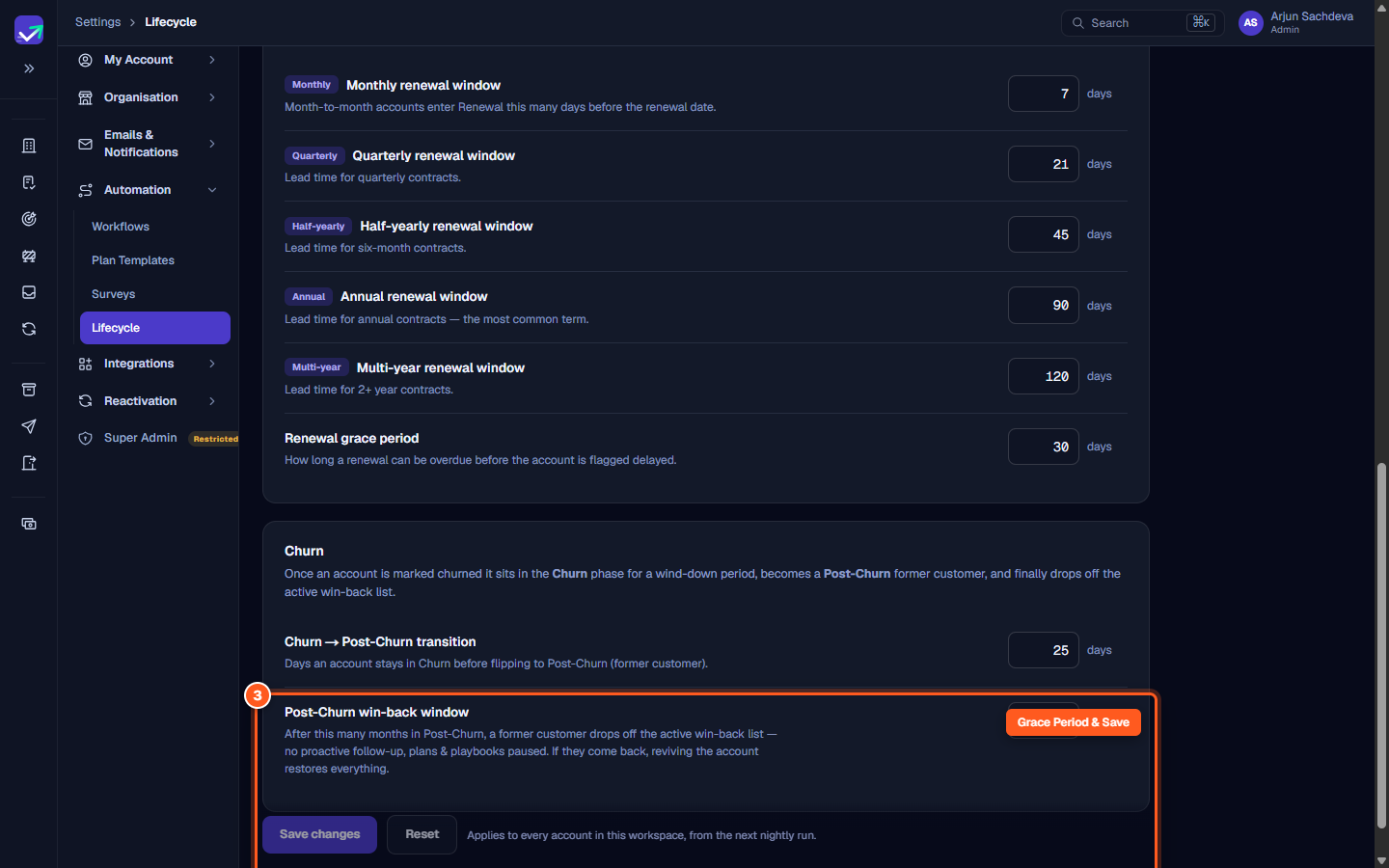
- Immediately below the contract window inputs:
- Renewal grace period: Specify how many days a renewal can remain open past its renewal date before ValueRamp marks its renewal status as Delayed.
- Review the Churn → Post-Churn transition and Post-Churn win-back window settings.
- Click the purple Save changes button at the bottom of the page.
- ValueRamp saves these thresholds for your workspace; new classifications take effect during the next nightly engine run.
Step 4: Verify renewal status and contract details on the Revenue tab
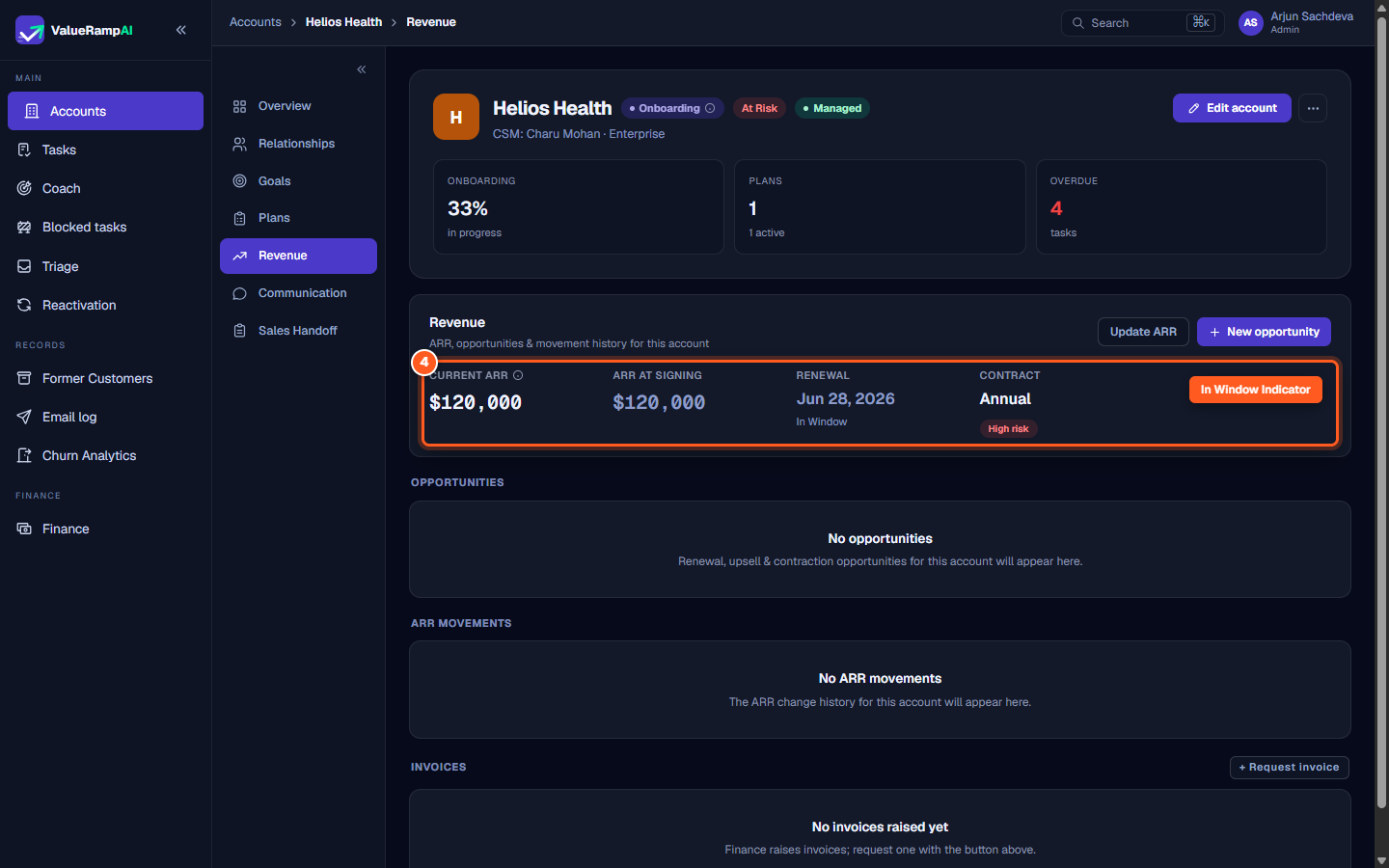
- From the main navigation, open Accounts and select a customer account.
- Click the Revenue tab in the account sub-navigation (
/accounts/[id]/revenue). - The revenue overview displays:
- Current ARR: The active annual contract value.
- Renewal Date: The scheduled renewal anniversary (e.g.
Jun 28, 2026). - Renewal Status: Displays the orange In Window pill when the renewal date falls inside your configured lead time.
- Contract Term: Identifies contract duration (e.g. Annual or Multi-year) alongside computed renewal risk.
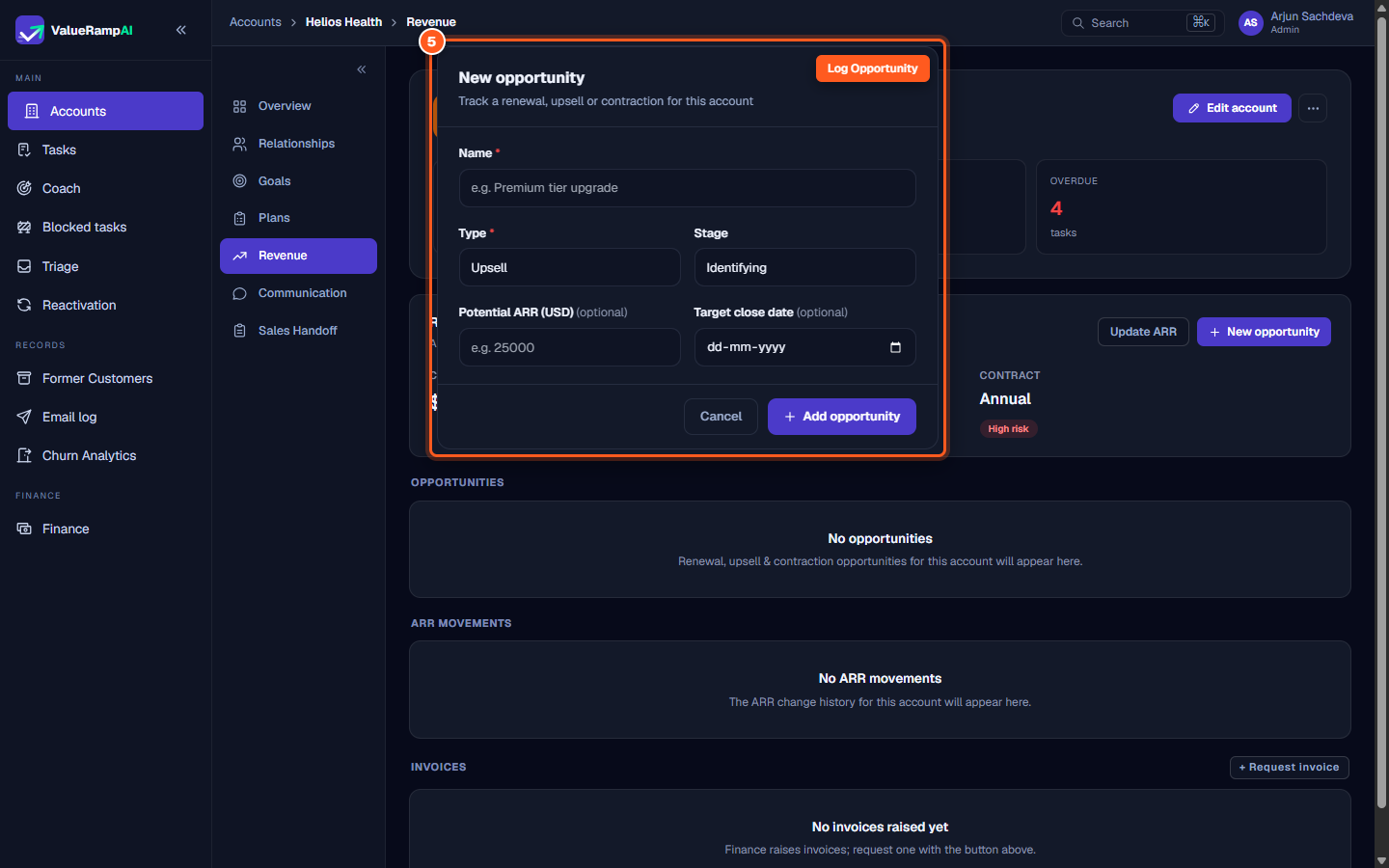
Step 5: Log renewal opportunities and manage commercial terms
- On the Revenue tab, click the purple New opportunity button in the upper-right corner.
- In the modal:
- Name *: Enter an identifying title (e.g. FY27 Helios Health Annual Renewal).
- Type *: Select Renewal (or Expansion, Upsell or Cross-sell if pitching more).
- Stage: Track progress from Identifying through Qualifying, Proposed, and Negotiating.
- Potential ARR (USD): Enter the expected renewal or expansion contract value.
- Target close date: Set the anticipated signature date.
- Click Add opportunity to add the deal to your renewal pipeline and forecast commercial movement.
Frequently asked questions
Does changing the renewal window immediately re-classify accounts?
No. Modifying thresholds in Lifecycle Settings schedules a re-calculation. The phase detection engine runs nightly, at which point accounts meeting the new window criteria automatically transition to the Renewal phase.
Can a CSM manually initiate a renewal conversation before the window opens?
Yes. CSMs can create a Renewal opportunity on the account's Revenue tab at any point in the lifecycle. The In Window badge is a signal for your team — nothing runs automatically when it appears.
What happens if an account has an active onboarding plan when renewal is due?
By design, ValueRamp prioritizes onboarding completion over renewal transitions. An account with an incomplete onboarding plan remains in Onboarding until its plan finishes, preventing premature renewal automation while initial delivery is underway.
Steps
Open Lifecycle Settings to review automated phase progression rules
Set renewal lead times for monthly, quarterly, annual, and multi-year contracts
Define the renewal grace period and save workspace lifecycle thresholds
Verify the renewal date, contract term, and In Window status on the Revenue tab
Click New opportunity to track renewal negotiations and pipeline value
Was this helpful? Tell us what was missing