Win back a former customer
Last verified 2026-09-17
Identify churned customer comeback opportunities, analyze historical exit feedback, review tailored re-engagement drafts, and dispatch outreach.
Before you start
- ValueRamp CSM, Admin, or OM role
- Open reactivation opportunities in the pipeline
Overview
A former customer already knows your product and has been through your security and procurement once, so a win-back conversation starts further along than a new sale.
ValueRamp operationalizes win-back efforts through the Reactivation Pipeline (/reactivation/pipeline) and dedicated Opportunity Workspaces (/reactivation/opportunities/[id]), ensuring outreach is timed to genuine catalysts rather than arbitrary calendar schedules.
The Win-Back Procedure
A successful customer win-back follows five structured phases:
- Trigger Identification: Filter the pipeline by reactivation path (Customer Comeback, Stakeholder Follows Person, Parent Company cycle, or Competitor Failure) and trigger event (such as buying-cycle anniversaries or competitor contract renewals).
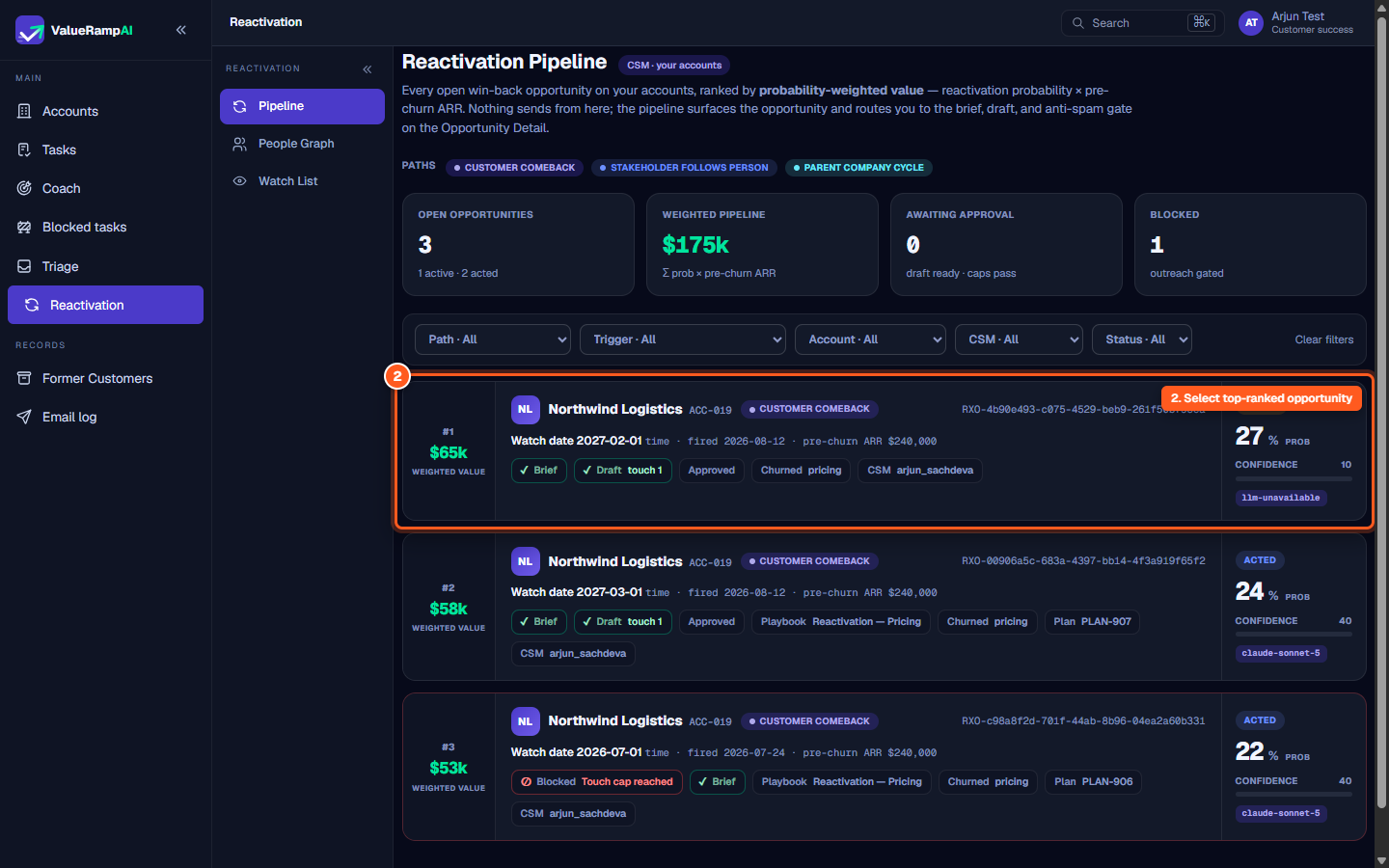
- Prioritization by Weighted ARR: Focus effort on accounts where pre-churn ARR and win-back probability combine to yield the highest expected return.
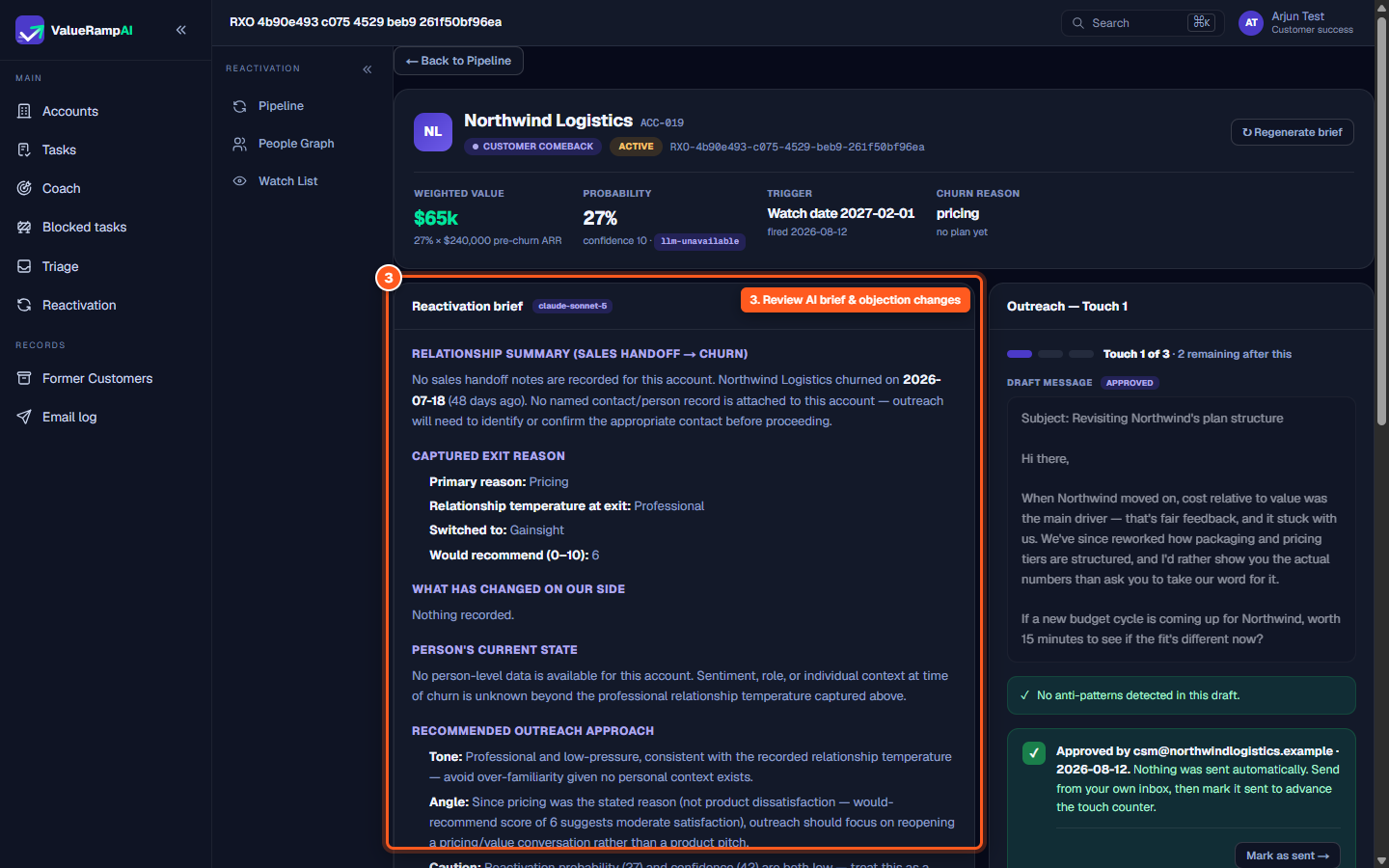
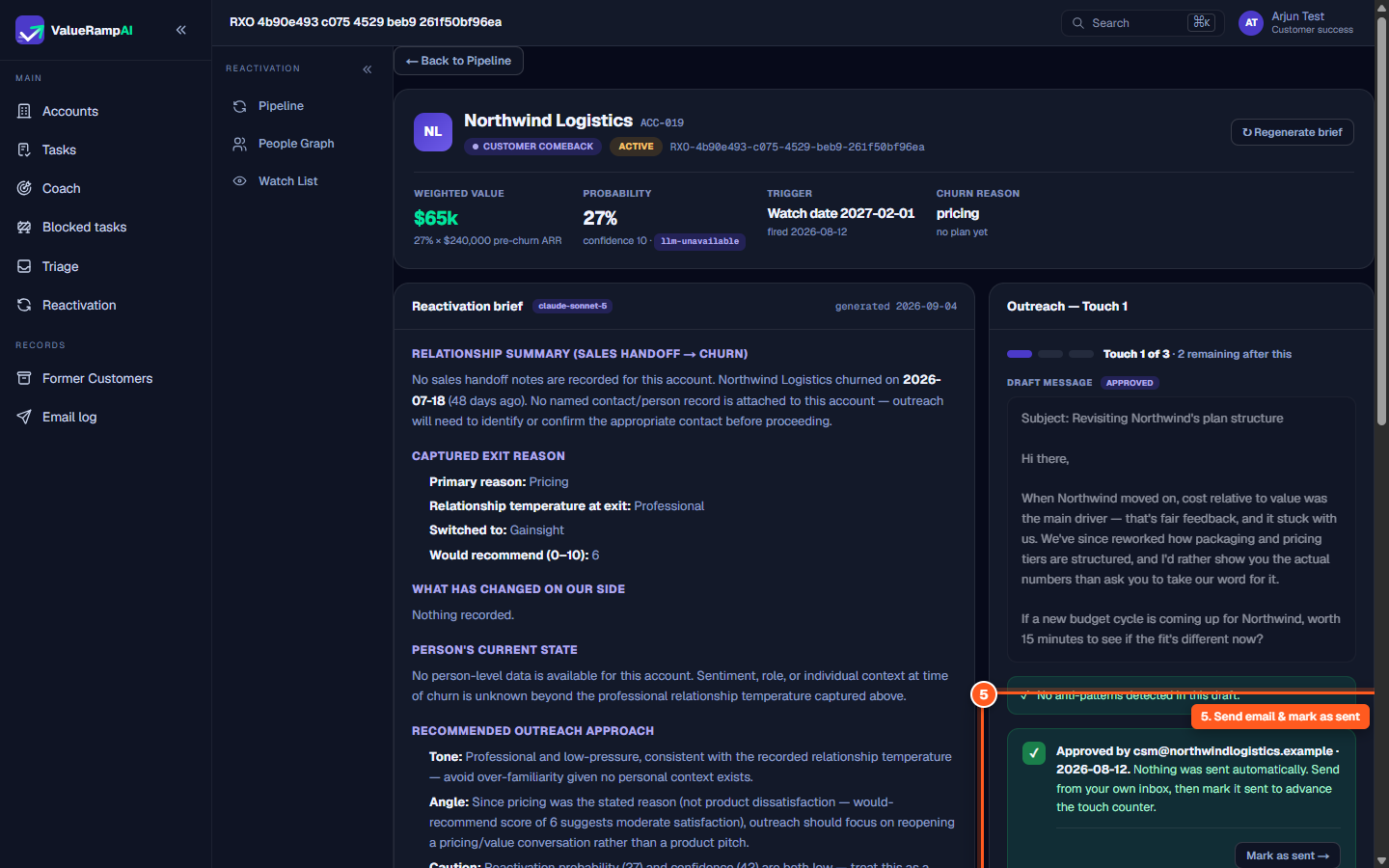
- Contextual Brief Review: Read the AI Reactivation Brief to understand the captured exit reason (pricing, product fit, a champion's departure…) and the person's current state. Its What has changed on our side section reads Nothing recorded unless a change was captured — add anything relevant to the draft yourself.
- Draft Verification: Review the pre-drafted outreach touchpoint. Confirm that anti-pattern checks have passed, verifying that the copy acknowledges past feedback without high-pressure sales rhetoric.
- Approve and send by hand: Click Approve outreach (or acknowledge the flags and Approve anyway) — this also creates the reactivation plan. Copy the draft into your email client, send it, and click Mark as sent → to log the touch and advance the counter.
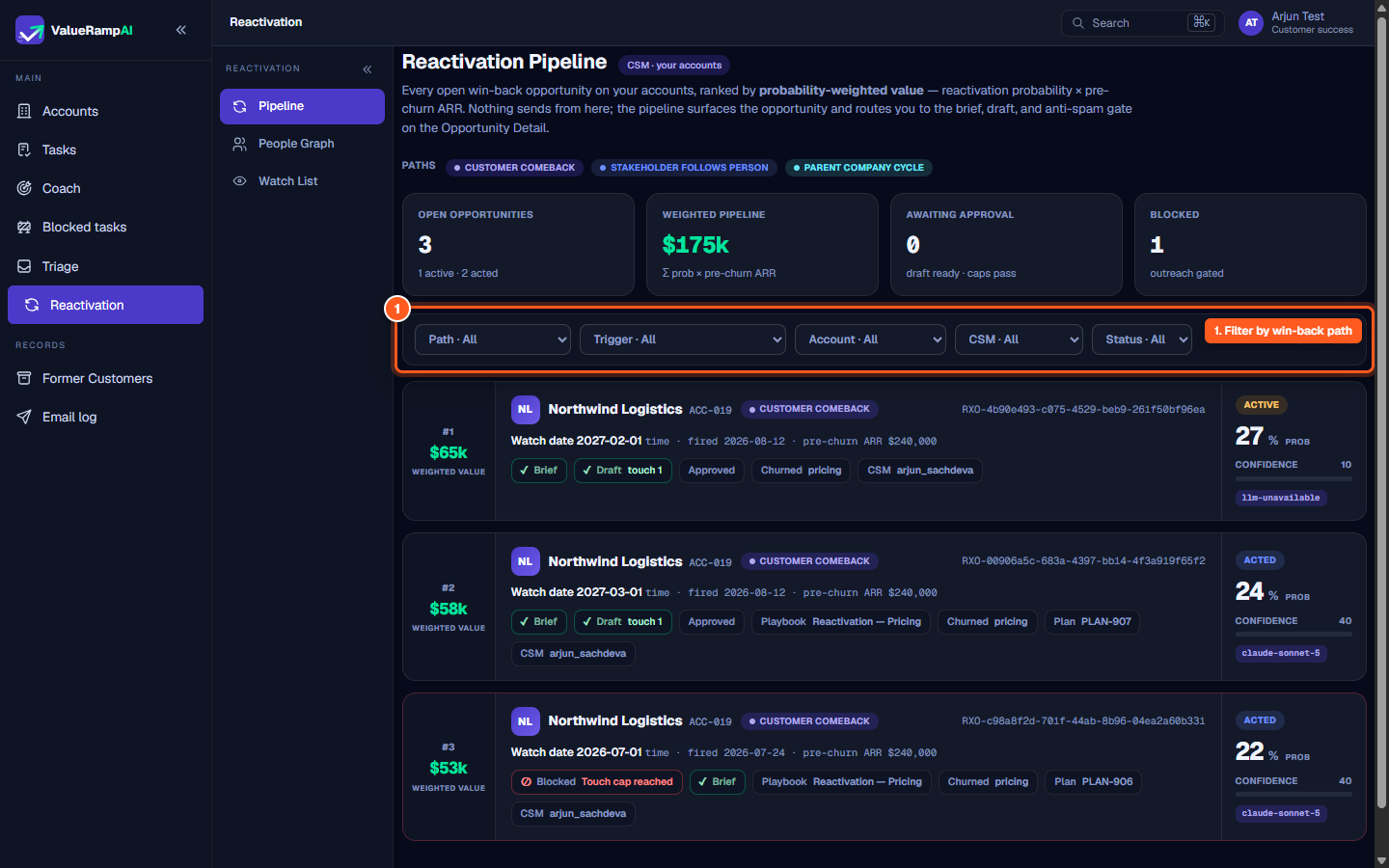
Steps
Filter the Reactivation Pipeline by path to isolate direct Customer Comeback opportunities
Select the highest-ranked opportunity card to open its win-back workspace
Review the AI Reactivation Brief and the captured exit reasons
Verify the drafted multi-touch message and ensure anti-pattern heuristics pass
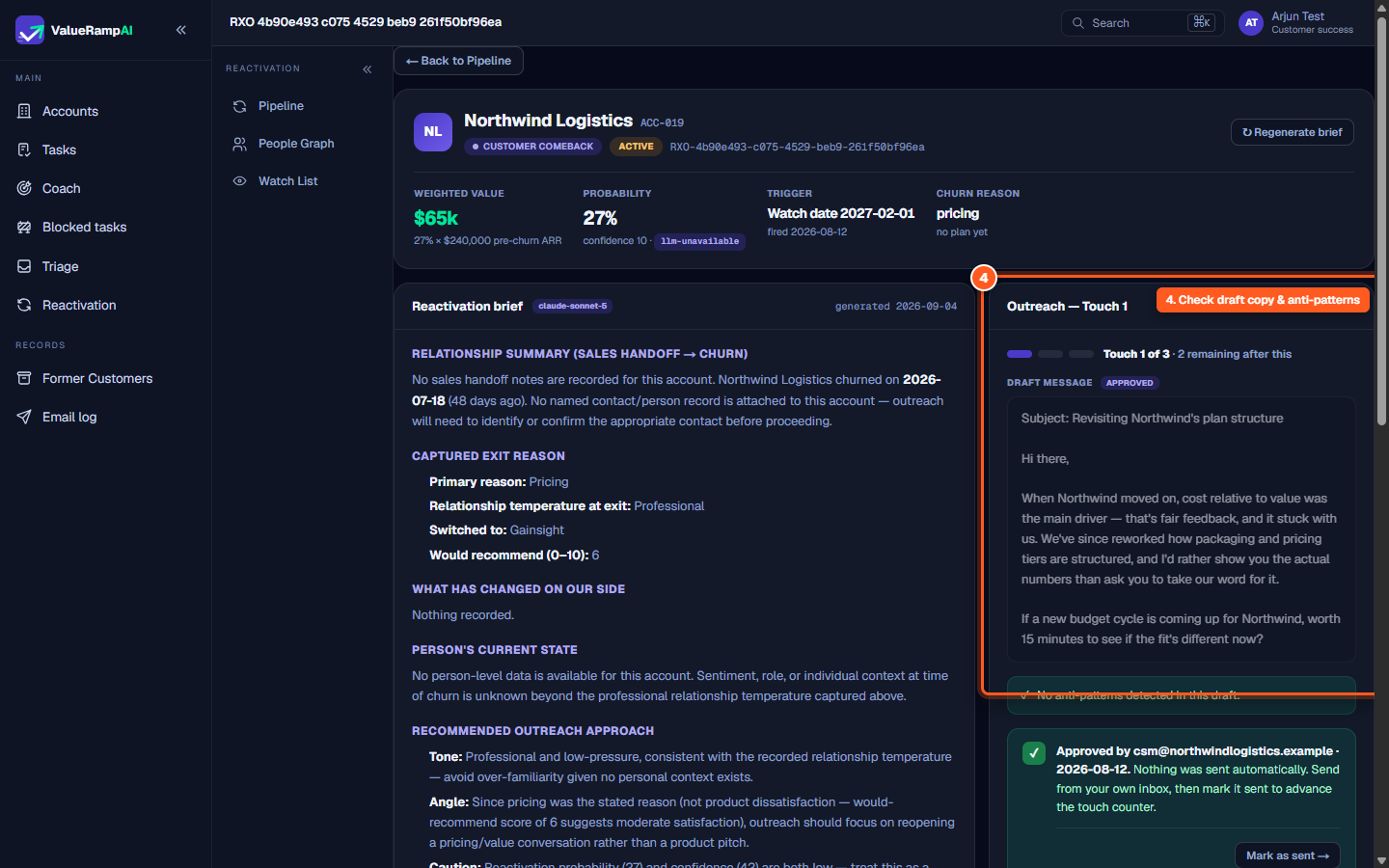
Approve the draft, send it from your inbox, and click Mark as sent
Common questions
When is the best time to attempt a customer win-back?
Why must I send emails from my own email client?
What happens if a former customer responds positively?
How does the pipeline prevent spamming churned contacts?
Was this helpful? Tell us what was missing