Forward customer email into ValueRamp
Last verified 2026-09-17
Forward or BCC your work email to bring customer threads, sentiment changes and risk signals onto account timelines, without inbox OAuth access.
Before you start
- ValueRamp account
- Google Workspace / Gmail or Microsoft 365 / Outlook work email
Email forwarding allows ValueRamp to capture customer communication signals—including renewal intent, executive sentiment, delivery blockers, and risk indicators—without requiring full OAuth mailbox permissions or third-party inbox access.
Each team member configures email forwarding individually from Settings → My Connections (/my-integrations). Because email connections are per-user, each teammate receives a distinct ingest address mapped to their user profile.
How Ingestion Works
ValueRamp processes customer email using a zero-credential forwarding model:
- You receive a unique, private ingest address ending in
@in.valuerampai.com. - You set up a forwarding rule in Gmail or a redirect rule in Outlook that forwards emails matching your customer domains to this address (or BCC the address on outgoing messages).
- When mail arrives, ValueRamp parses message headers, checks sender and recipient domains against your workspace's Accounts directory, extracts milestones and sentiment, and attaches the thread to the customer's timeline.
- Messages that do not match a known customer domain are dropped immediately with the text discarded.
Setting Up Gmail Forwarding
To set up automatic forwarding in Gmail or Google Workspace:
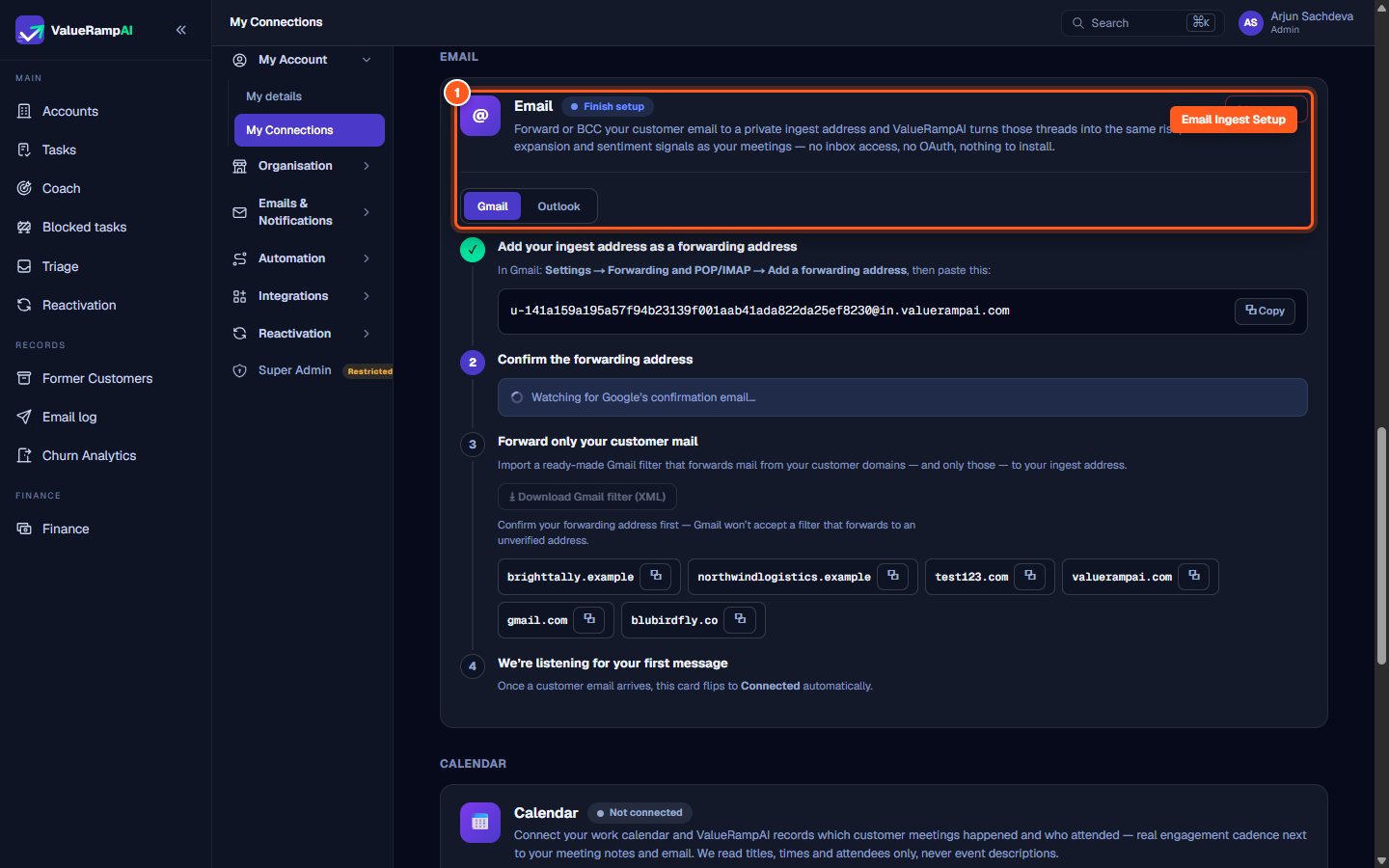
- Navigate to My Connections (
/my-integrations) and locate the Email card. - Click Connect email. ValueRamp generates your dedicated ingest address (e.g.
u-141a159a...@in.valuerampai.com). - Click the Gmail tab.
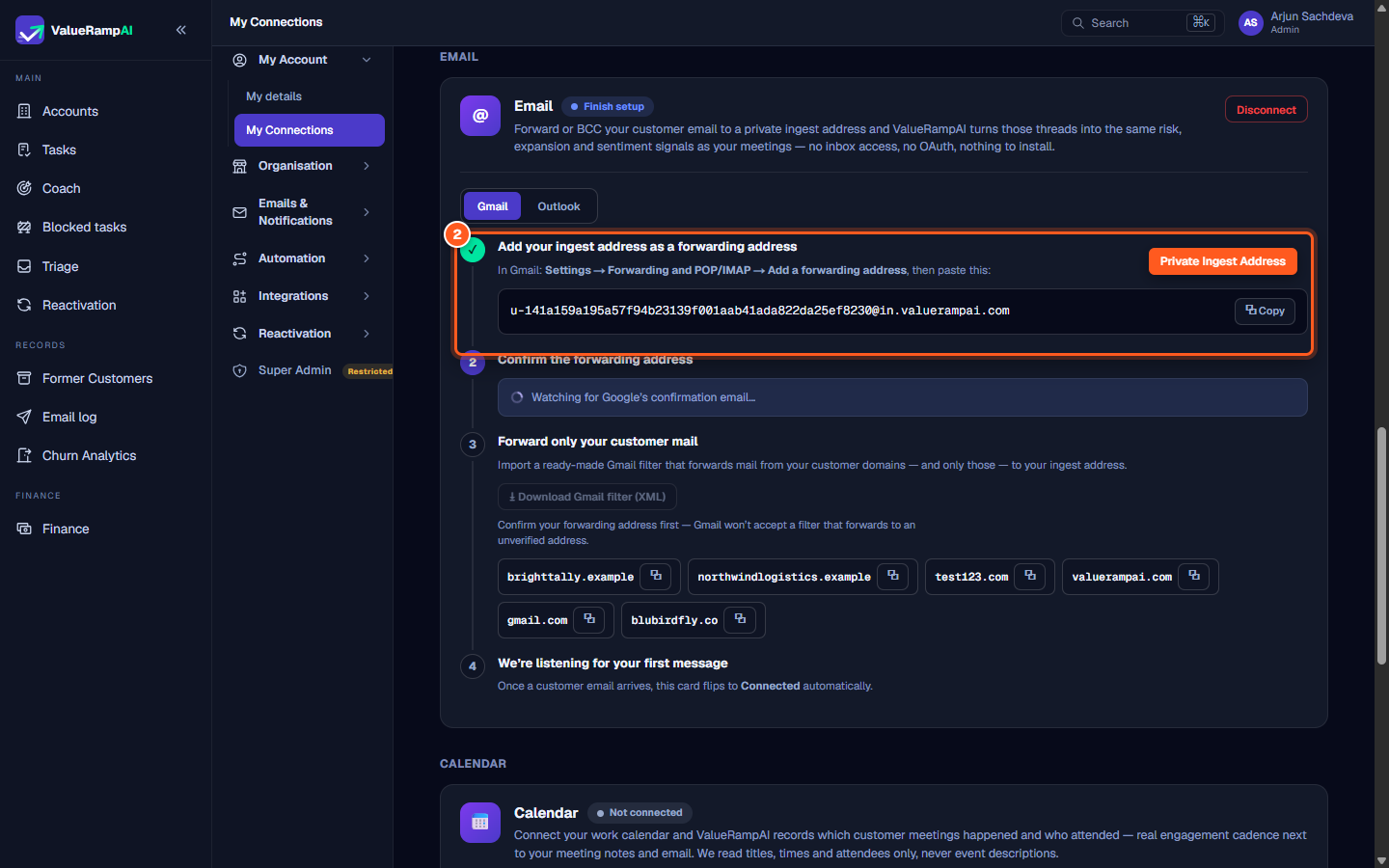
- Copy the ingest address and open Gmail:
- Go to Settings (gear icon) → See all settings → Forwarding and POP/IMAP.
- Click Add a forwarding address and paste your ValueRamp ingest address.
- Google dispatches a verification email.
- In ValueRamp, Step 2 watches for Google's confirmation email. Once received, copy the confirmation code and enter it in Gmail (or click the provided confirmation link).
- Click I've entered the code in Gmail in ValueRamp to unlock Step 3.
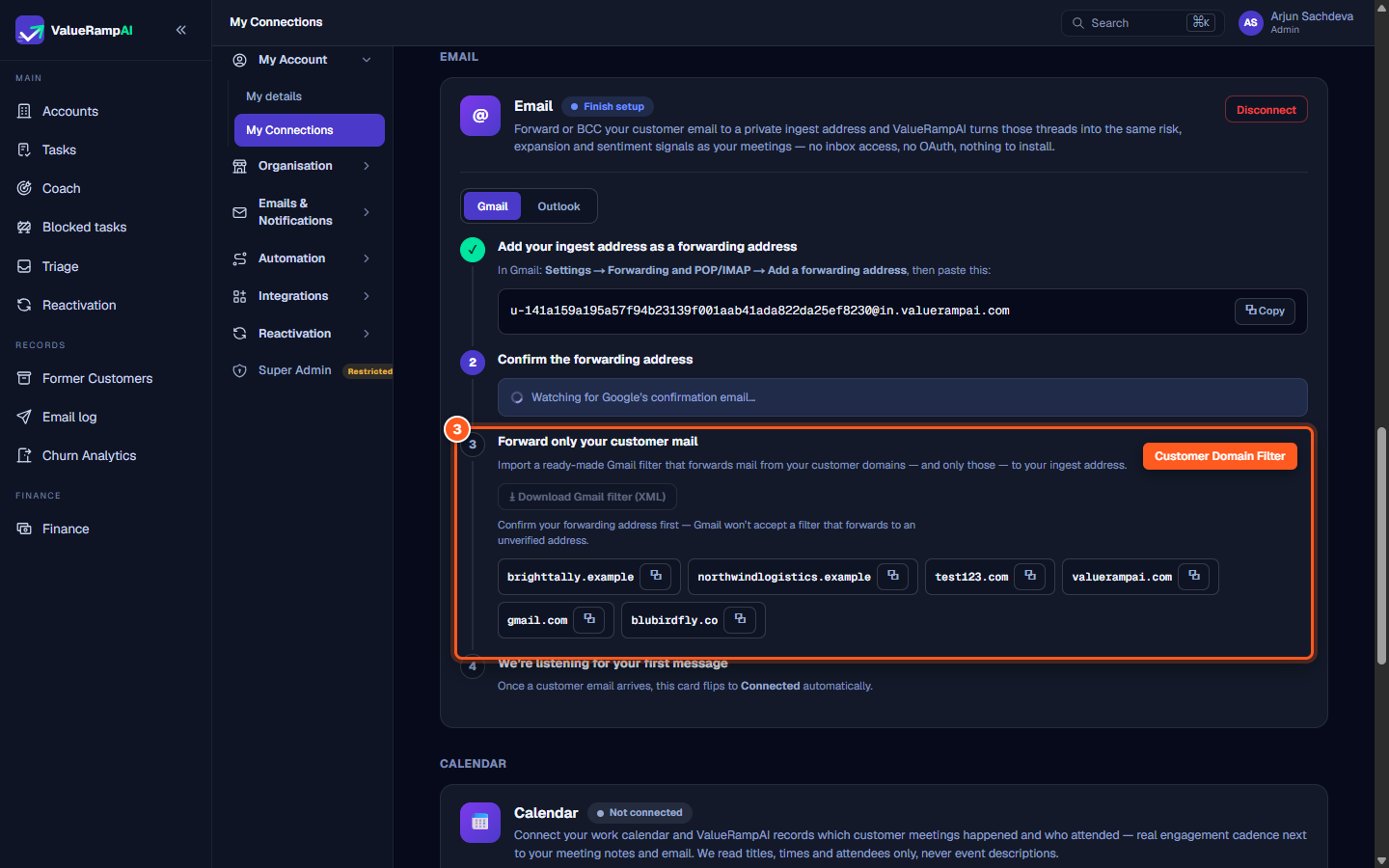
- Click Download Gmail filter (XML). This produces a pre-built filter containing all verified customer domains in your workspace.
- In Gmail, navigate to Settings → Filters and Blocked Addresses → Import filters, select the downloaded XML file, and confirm creation.
Setting Up Microsoft Outlook Redirect
Microsoft Outlook and Office 365 handle message routing via inbox rules:
- On the Email card in My Connections, select the Outlook tab.
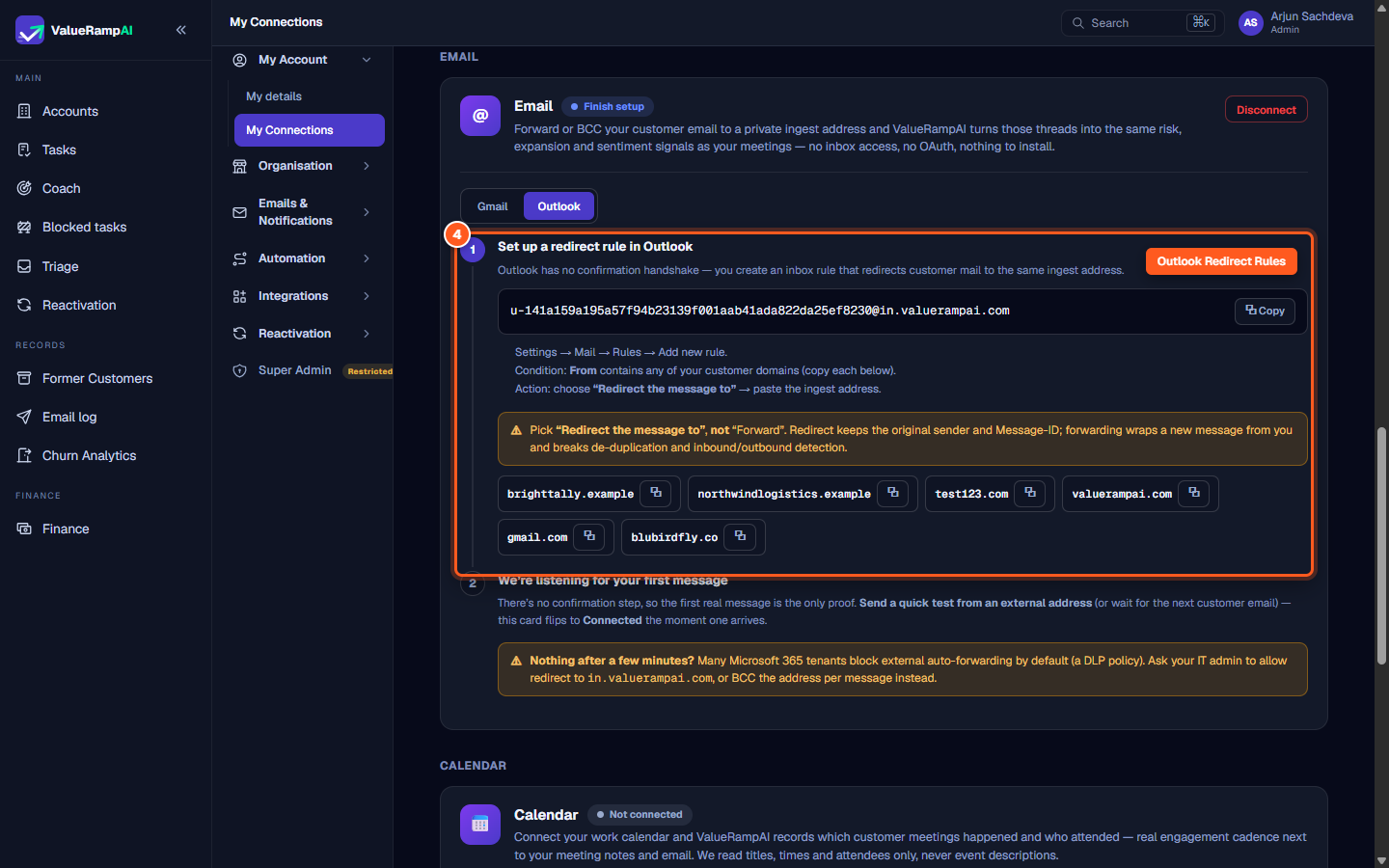
- Copy your private ingest address and copy the customer domain list.
- Open Outlook:
- Navigate to Settings → Mail → Rules → Add new rule.
- Set the condition: From contains any of these domains (paste your customer domains).
- Set the action: Choose "Redirect the message to" and paste your ValueRamp ingest address.
- Important: Always select "Redirect the message to" rather than "Forward". Redirecting preserves the customer's original
From:header andMessage-ID, ensuring ValueRamp can correctly map the message author and detect thread replies.
Manual BCC Workflow
If you prefer not to configure mailbox-wide forwarding rules, or if corporate Data Loss Prevention (DLP) policies prevent automated forwarding, you can add your unique ingest address to the BCC field of any customer email. ValueRamp processes BCC'd messages identically to forwarded threads.
Steps
Locate Email Forwarding under My Connections and initiate setup
Copy your unique workspace ingest address into your email settings
Download pre-configured customer domain filters
Configure Outlook message redirect rules to preserve sender headers
Common questions
Does ValueRamp require access to my entire email inbox?
What happens if an email from a non-customer or personal contact arrives at the ingest address?
Why should Outlook users choose 'Redirect the message to' instead of 'Forward'?
Can I BCC the ingest address manually instead of setting up automated forwarding?
What if my company has a DLP policy blocking external auto-forwarding?
Was this helpful? Tell us what was missing