Connect Fathom call recordings
Last verified 2026-09-17
Connect your personal Fathom API token to automatically pull meeting transcripts, AI summaries, and action items onto matching customer account timelines.
Before you start
- ValueRamp account
- Fathom AI meeting recorder account with API access
Connecting Fathom automatically pulls call recordings, full transcripts, executive summaries, risk signals, and action items into ValueRamp, linking conversational intelligence directly to the relevant customer account timeline.
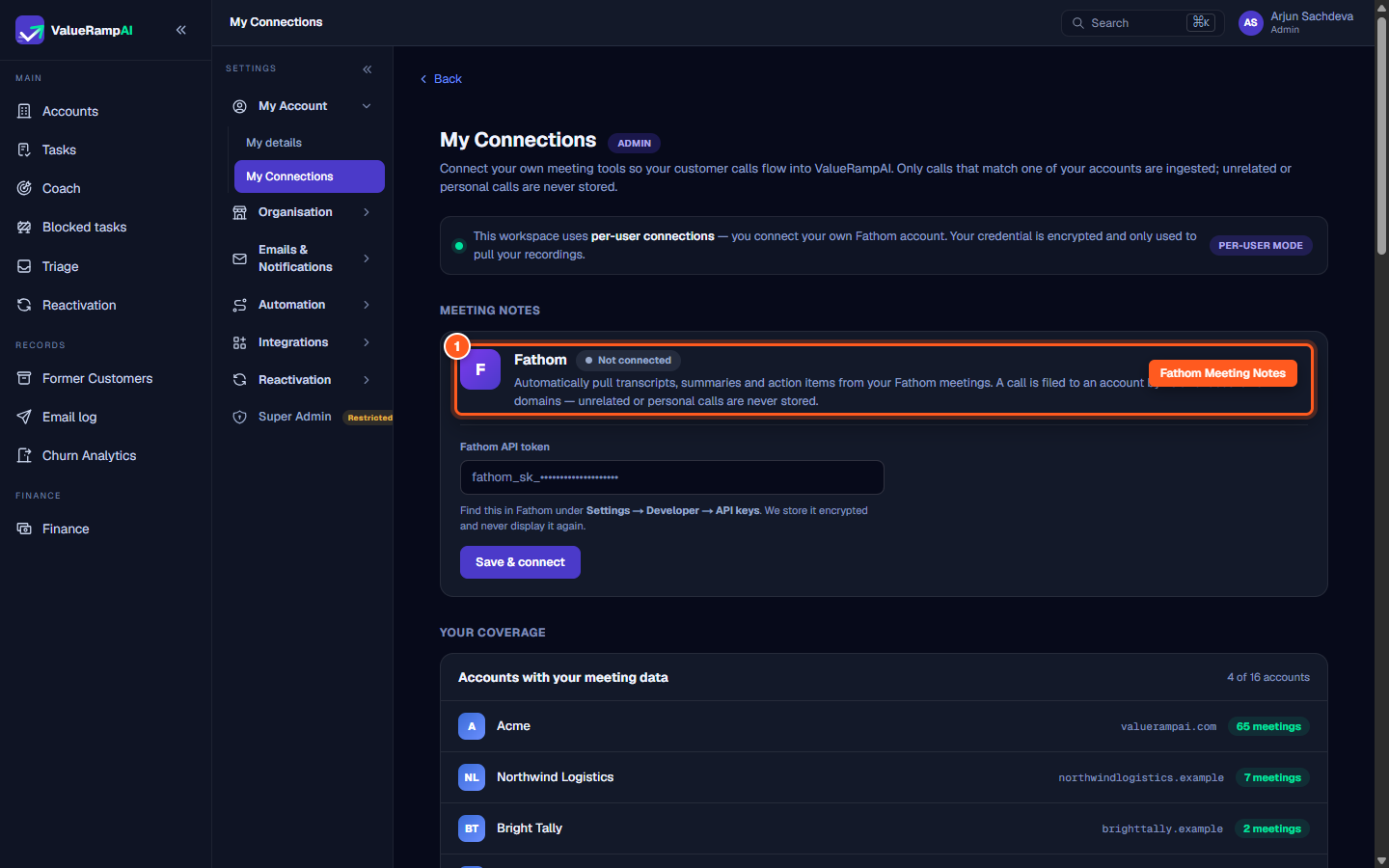
Fathom operates on a per-user model. Each team member (Admins, CSMs, and Onboarding Managers) connects their own Fathom account under Settings → My Connections (/my-integrations).
How Fathom Ingestion Works
- Personal API Token: You generate an API key in your Fathom account and paste it into ValueRamp. ValueRamp encrypts the token at rest.
- Scheduled Sync: A background job queries Fathom's API on a regular cadence for completed recordings.
- Domain Matching: ValueRamp examines the email domains of all call attendees against verified customer domains in your Accounts list.
- Timeline Filing:
- Matching calls are filed to the corresponding customer's account timeline with transcript highlights, key sentiment markers, and identified action items.
- Calls with no matching customer domain (such as internal team syncs or personal conversations) are not attached to any customer record: the row is marked
no_accountand its transcript is deleted at that point. The call is fetched before that check is made, so it is not the case that it is never received.
Connecting Fathom
To connect your Fathom account:
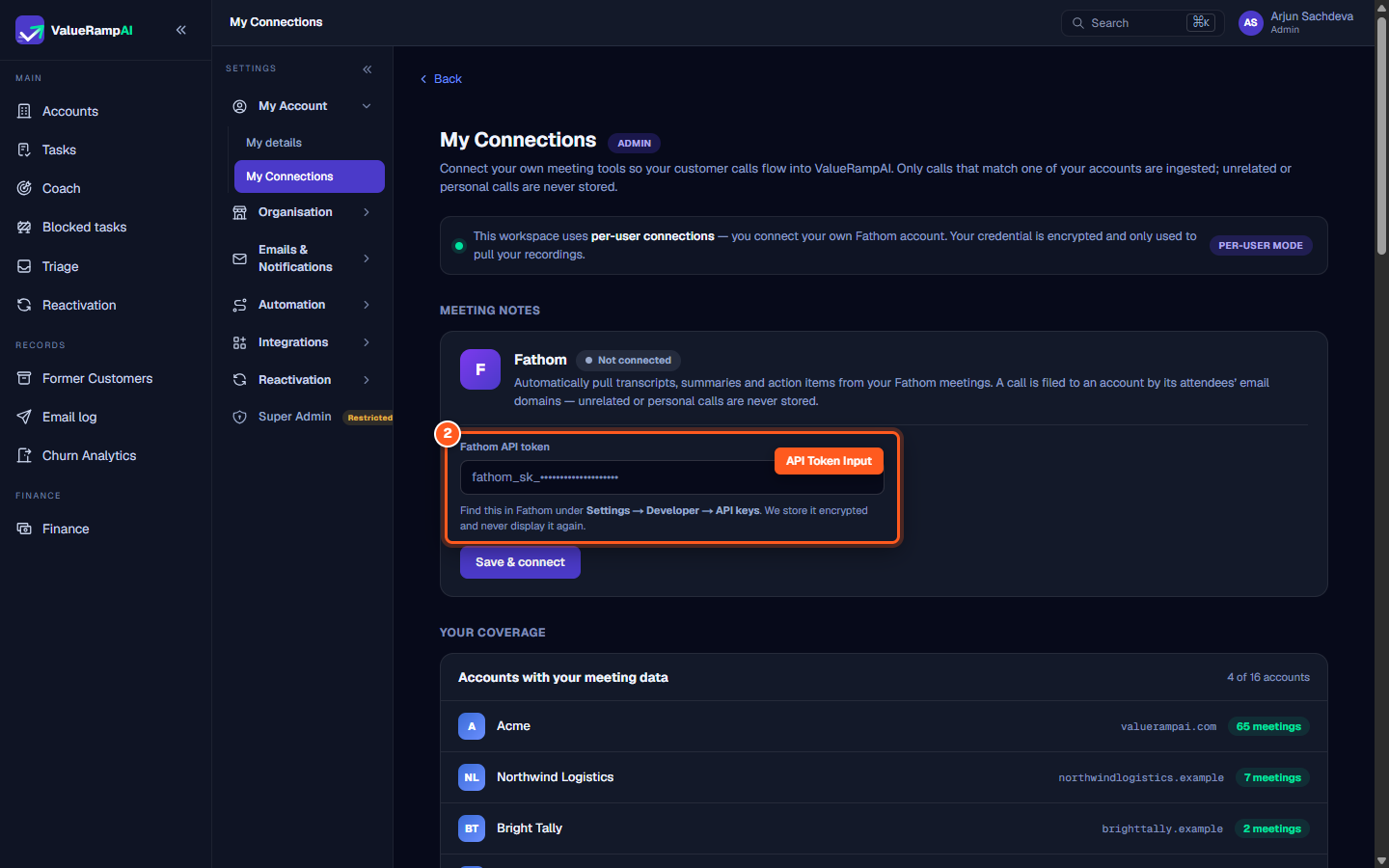
- In a new tab, open Fathom and navigate to Settings → Developer → API keys.
- Generate or copy your personal API token (prefixed with
fathom_sk_). - In ValueRamp, navigate to Settings → My Connections (
/my-integrations). - In the MEETING NOTES section, locate the Fathom card.
- Paste your API token into the Fathom API token field.
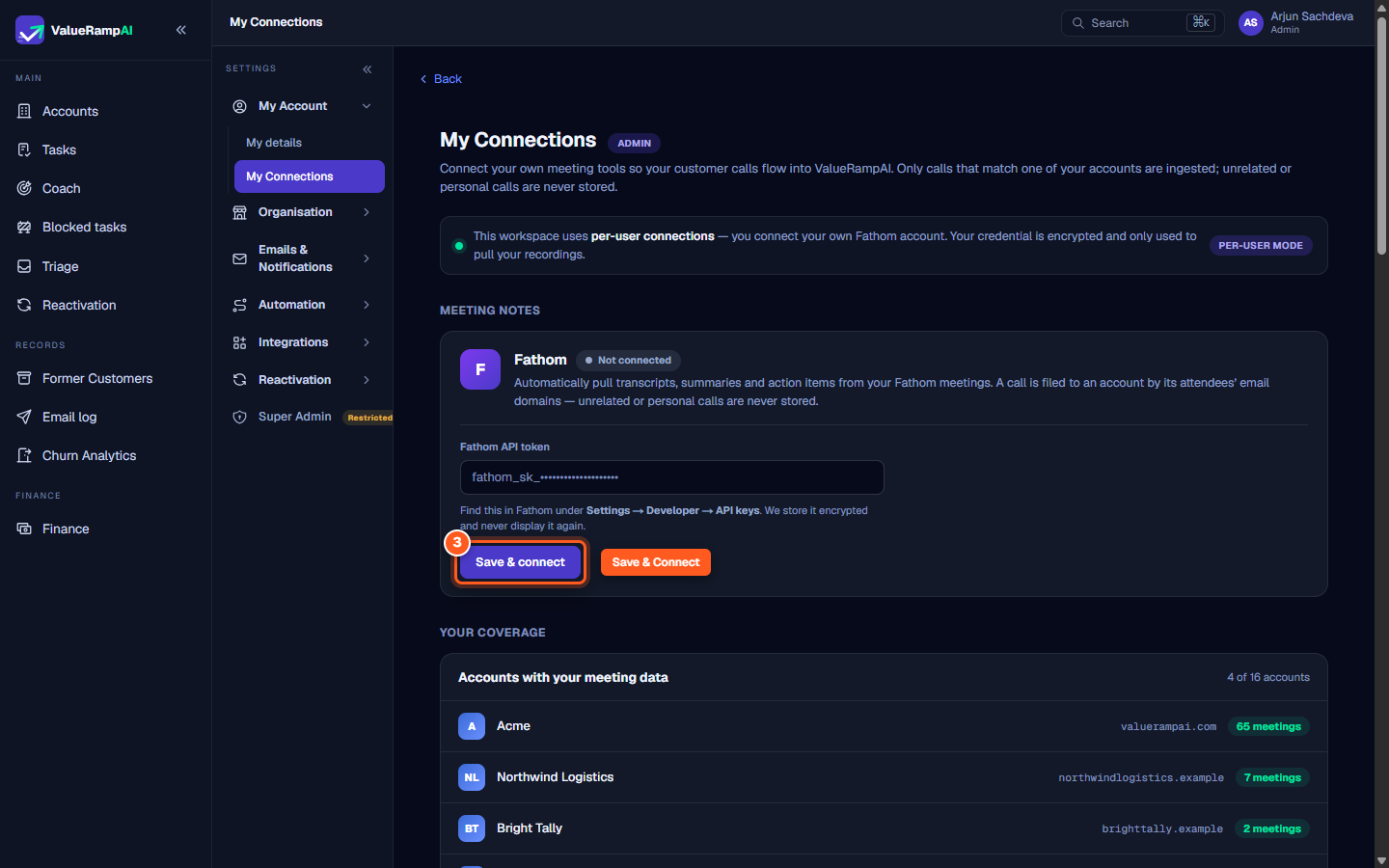
- Click Save & connect.
- ValueRamp verifies the token against Fathom's API and updates the card status to green
Connected, displaying your connected user identity and last sync timestamp.
Monitoring Account Coverage
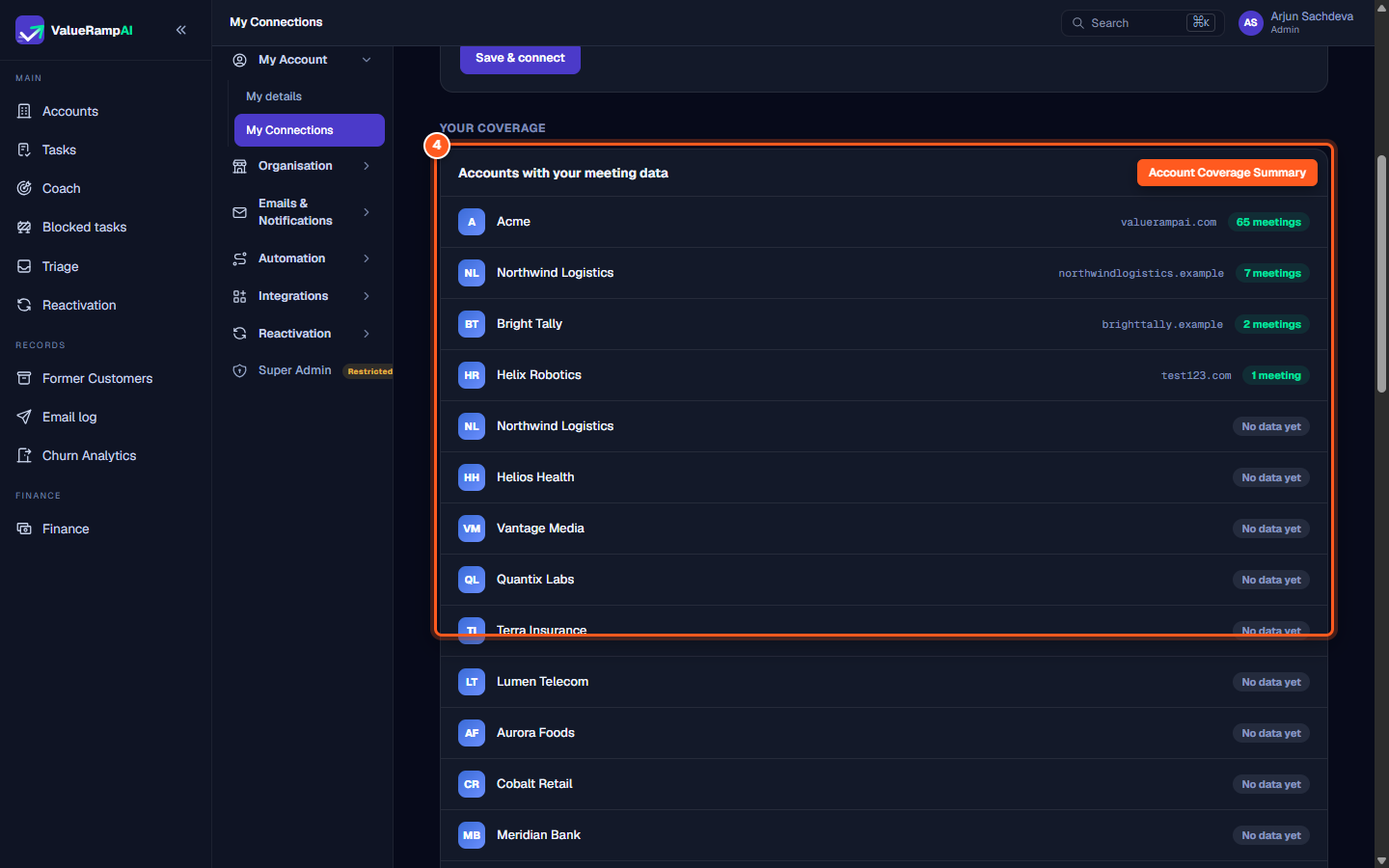
Below the Fathom connection card, the YOUR COVERAGE table displays all customer accounts where your meetings have been matched:
- Accounts with meeting data: Summarizes how many workspace accounts have ingested calls (e.g.
4 of 16 accounts). - Account details: Shows the account name, primary email domain, and the number of meetings ingested (e.g.
Acme · 65 meetings). - No data yet: Accounts with zero recorded meetings are listed so you can verify whether customer interactions have commenced.
Re-authenticating and Disconnecting
- Action needed / Token expired: If you rotate or revoke your token in Fathom, ValueRamp detects the 401 Unauthorized response, marks the card with an amber
Action neededbadge, and presents a New Fathom API token field so you can re-authenticate without losing existing meeting timelines. - Disconnect: Click Disconnect at any time to remove your encrypted credential and cease syncing. Previously ingested calls and action items remain securely preserved on your customer accounts.
Steps
Locate Fathom Meeting Notes under My Connections
Retrieve and paste your personal Fathom API token
Click Save & connect to activate automated background sync
Monitor Account Coverage and attendee domain matching
Common questions
Where do I find my Fathom API key?
Are meeting recordings from other team members ingested through my connection?
What happens if a call does not match any customer account?
What should I do if the Fathom card shows 'Action needed'?
Was this helpful? Tell us what was missing