Share your Google Calendar
Last verified 2026-09-17
Connect your Google Calendar by sharing it with ValueRamp's read-only service account to record meeting cadences and attendance without OAuth credentials.
Before you start
- ValueRamp account
- Google Workspace work account with calendar sharing rights
Connecting Google Calendar enables ValueRamp to maintain an accurate, objective record of customer engagement cadence, executive sponsor attendance, and meeting momentum alongside Fathom call recordings and customer email threads.
Google Calendar is configured per user in Settings → My Connections (/my-integrations). Because calendar connections are per-user, each teammate connects their own work calendar to correlate their personal appointments with customer account records.
The Zero-OAuth Sharing Model
Rather than requesting wide OAuth scopes that grant full mailbox access, ValueRamp connects to Google Calendar via a dedicated, read-only Google Cloud service account:
- You grant ValueRamp's service account read access to your specific primary work calendar.
- ValueRamp queries only that calendar for meetings containing customer attendees.
- You can revoke access at any time directly in Google Calendar without revoking other workspace integrations.
Step-by-Step Setup Guide
To connect your Google Calendar:
- Navigate to My Connections (
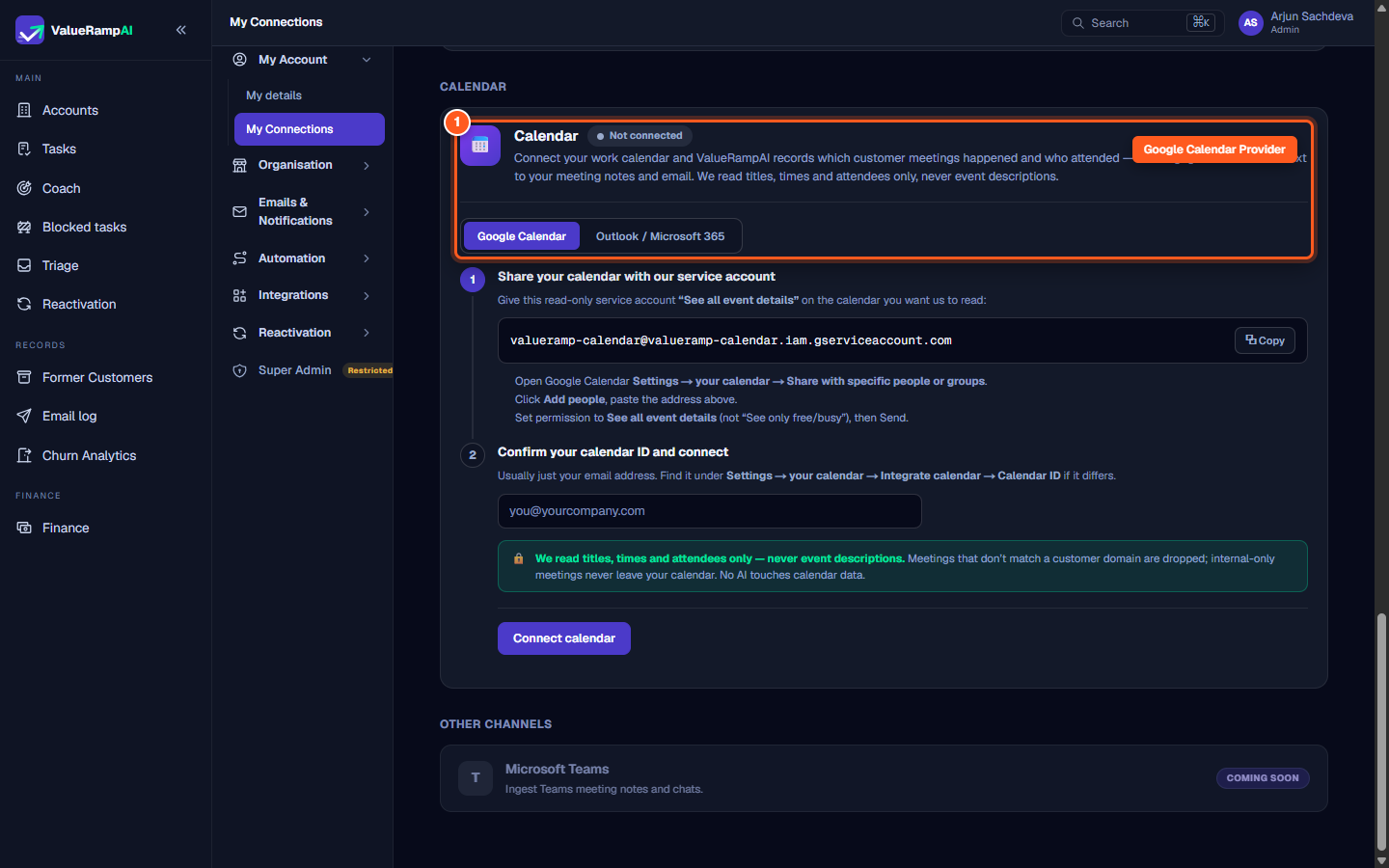
/my-integrations). - Scroll to the Calendar card and confirm the Google Calendar tab is active.
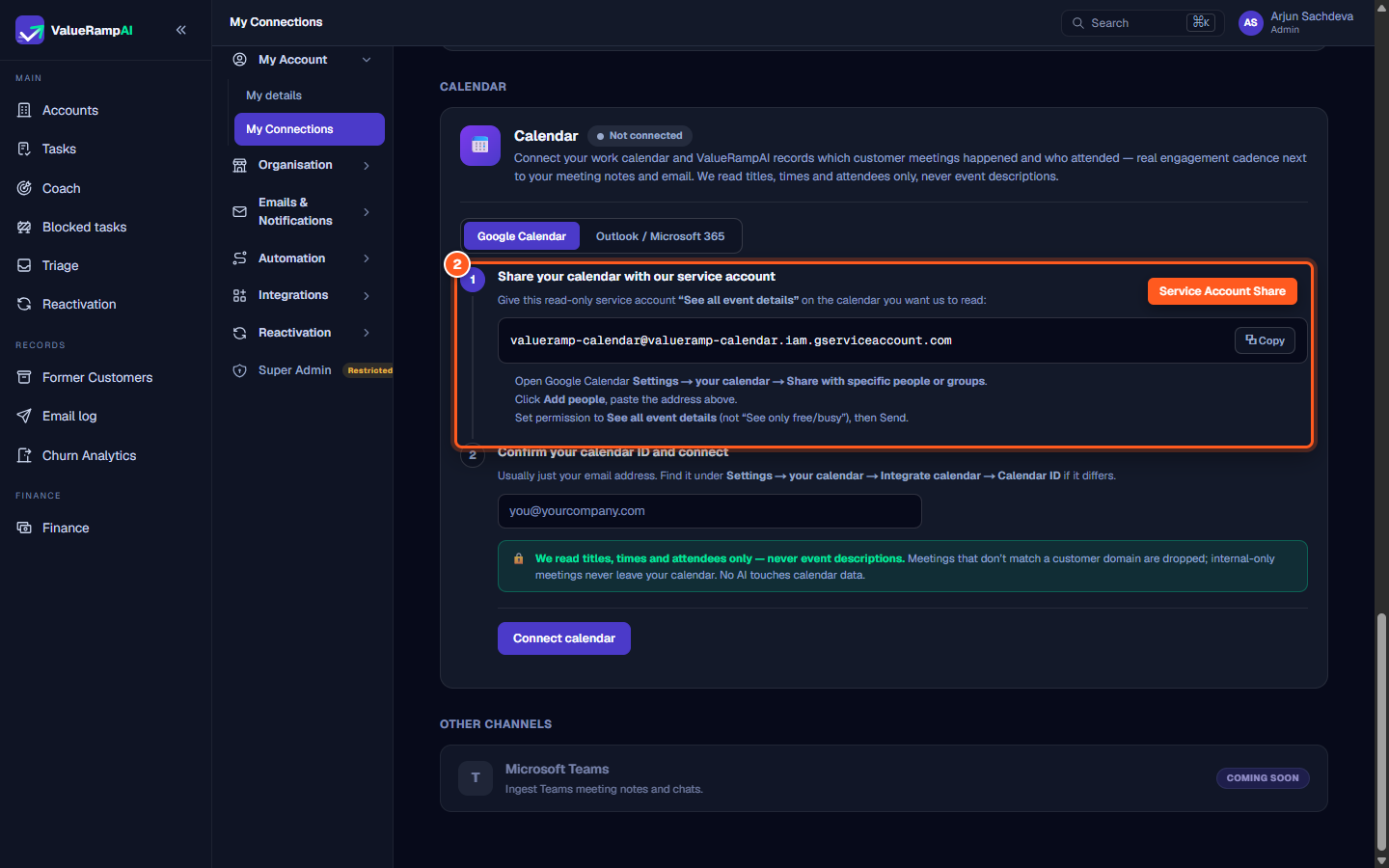
- In Step 1, copy the service account address:
valueramp-calendar@valueramp-calendar.iam.gserviceaccount.com - In a new browser tab, open Google Calendar:
- In the left sidebar, find My calendars and hover over your primary work calendar.
- Click the three dots (options) and select Settings and sharing.
- Scroll down to the Share with specific people or groups section and click Add people and groups.
- Paste the copied service account email address.
- Set permissions to See all event details (do not select "See only free/busy").
- Click Send.
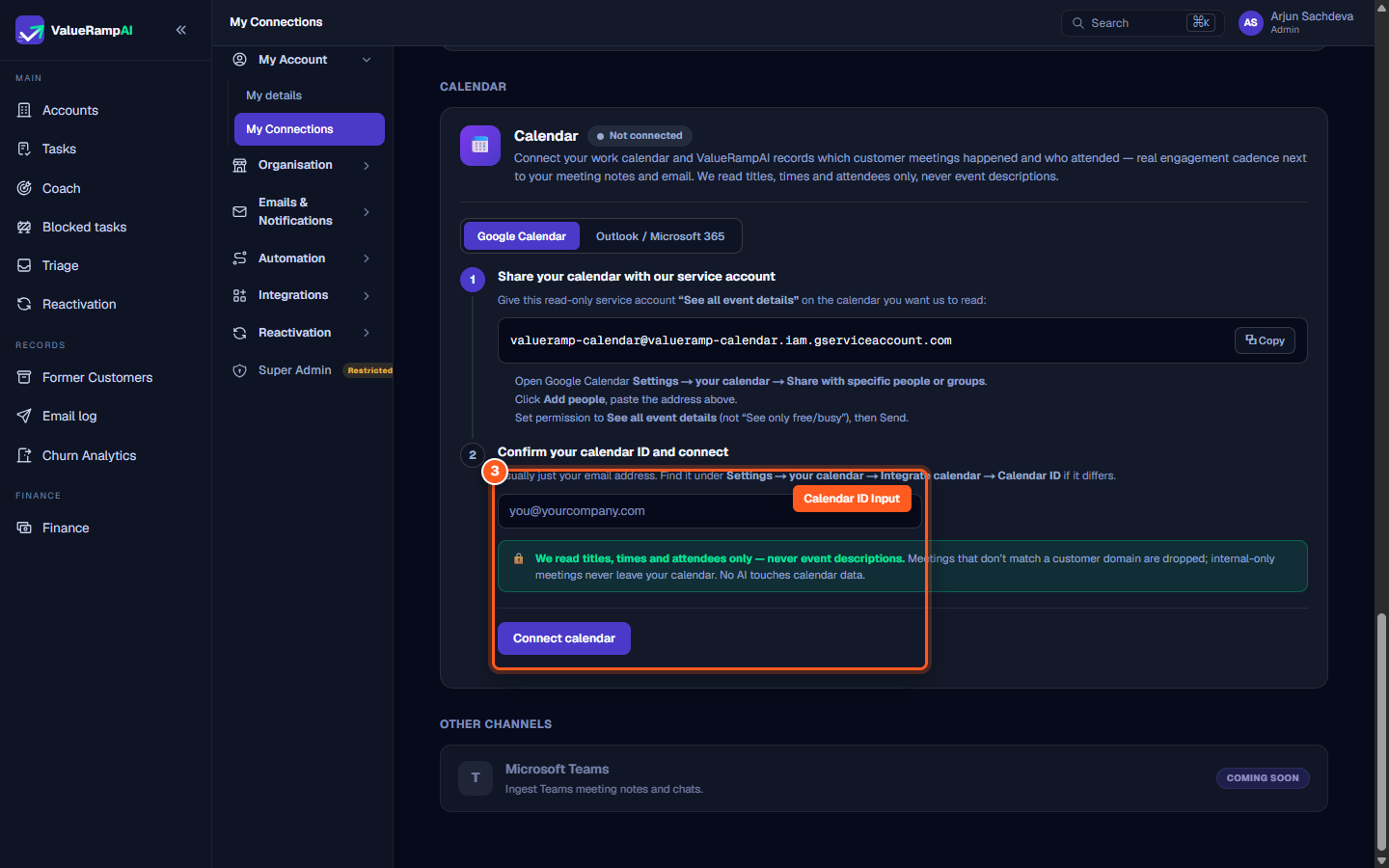
- Return to ValueRamp and navigate to Step 2:
- Enter your Calendar ID (for primary work calendars, this is simply your corporate email address, e.g.
you@yourcompany.com). - Click Connect calendar.
- Enter your Calendar ID (for primary work calendars, this is simply your corporate email address, e.g.
- ValueRamp initiates a synchronization check against Google's API. Once verified, the status indicator turns green (
Connected).
Permission States and Troubleshooting
- Connected: The service account can read event titles, times, and attendees. Syncing operates automatically in the background.
- Limited access: If you selected "See only free/busy" during Google Calendar sharing, ValueRamp can see that a meeting occurred but cannot identify which customer attended. To resolve, edit the service account permission in Google Calendar to See all event details.
- Action needed / Errored: Indicates Google's API returned an authentication error, typically because the calendar has not yet been shared with the service account or the Calendar ID was mistyped.
Privacy Guarantees
ValueRamp adheres to strict data minimization for calendar synchronization:
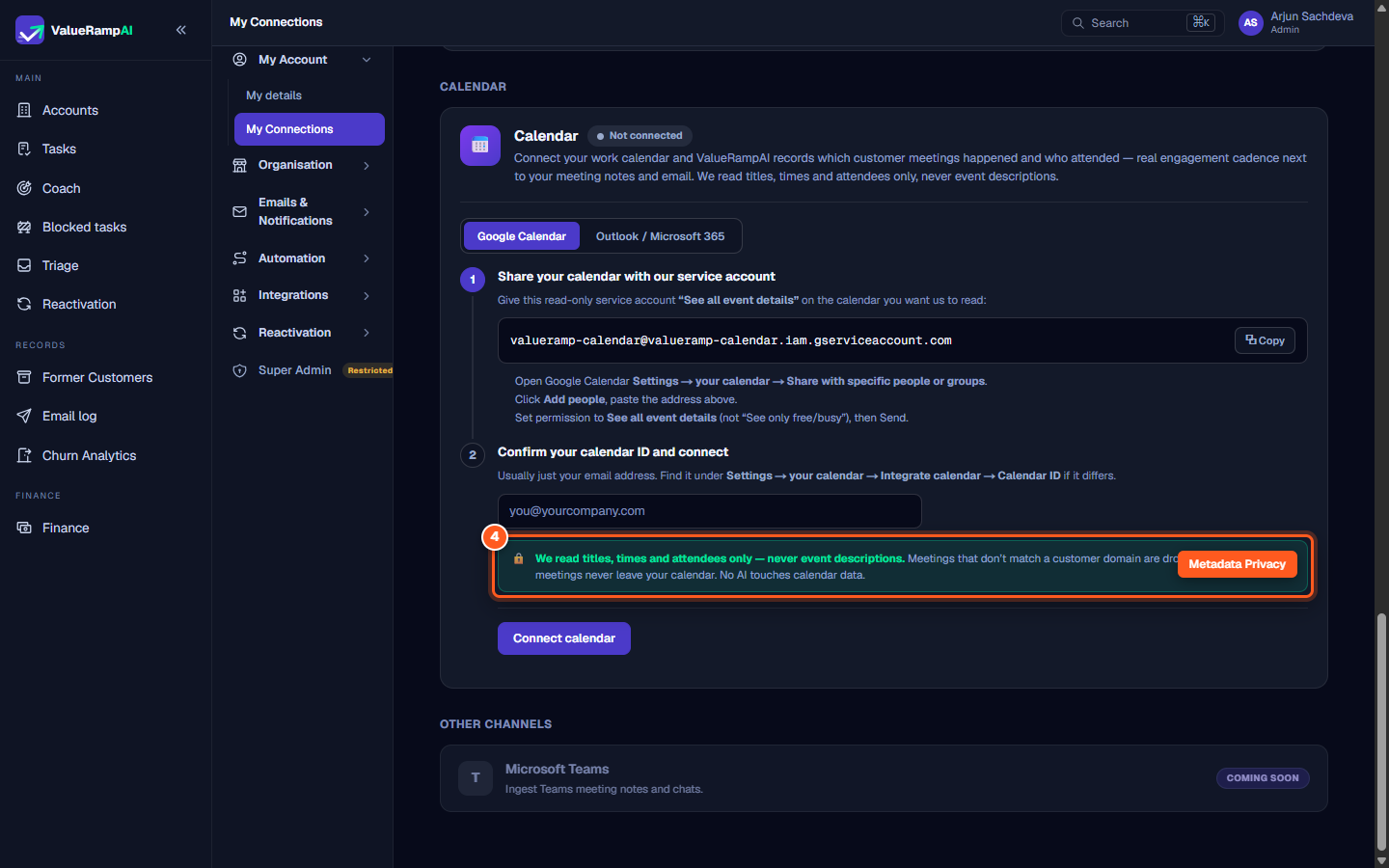
- Metadata only: We read meeting title, start/end time, and participant email addresses.
- No descriptions: Event descriptions, agenda notes, and meeting attachments are never fetched or stored.
- Customer domain matching: Only meetings where at least one external attendee matches an active account domain in your ValueRamp workspace are ingested.
- No AI access: Calendar events are used strictly for cadence metrics and timeline logging; no AI models process calendar data.
Steps
Select Google Calendar under My Connections
Share your calendar with ValueRamp's service account
Enter your Calendar ID and connect
Verify privacy safeguards that restrict data to titles, times, and attendees
Common questions
Why does ValueRamp use a service account rather than Google OAuth?
What permission level should I choose in Google Calendar?
Does ValueRamp read event descriptions or private notes?
What happens to internal team meetings that do not include customers?
Was this helpful? Tell us what was missing