Connect HubSpot and choose what syncs
Last verified 2026-09-17
Connect your HubSpot CRM portal to ValueRamp, verify required API scopes, import closed-won deals, and manage object mappings between accounts and companies.
Before you start
- ValueRamp Admin role
- HubSpot Super Admin permissions or app installation rights
Connecting HubSpot CRM to ValueRamp automates post-sales handoffs by synchronizing closed-won deals, customer company records, contacts, and line items into structured success accounts.
The HubSpot integration is administered at the workspace level from Settings → Workspace Integrations (/integrations). Only users with the Admin role can connect, test, configure, or disconnect HubSpot.
Connecting HubSpot via OAuth
To connect HubSpot:
- Navigate to Workspace Integrations (
/integrations). - On the HubSpot CRM card, click Connect HubSpot (or Reconnect if re-authorizing).
- ValueRamp redirects you to HubSpot's secure authorization portal. Choose your HubSpot account and approve the required permissions.
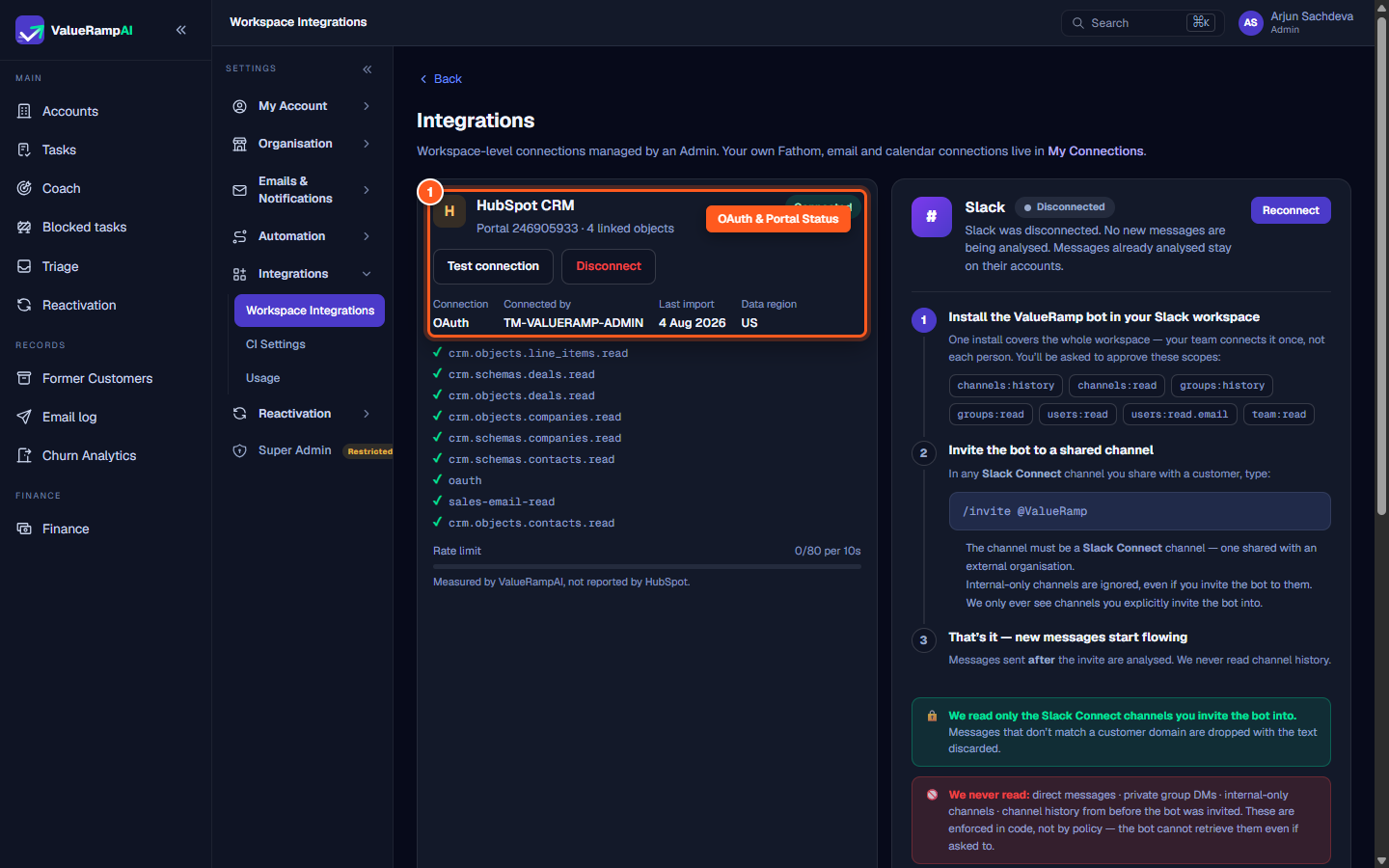
- Once authorized, HubSpot redirects back to ValueRamp. The card reflects the active state:
- Status badge: Green
Connectedindicator. - Portal ID: Displays your HubSpot account portal ID (e.g.
Portal 246905933). - Metadata: Details the connection protocol (
OAuth), connected user (TM-VALUERAMP-ADMIN), last import date, and data hosting region (US). - Diagnostic controls: Use Test connection to verify token validity, or Disconnect to revoke access.
- Status badge: Green
Granted Scopes and Rate Limiting
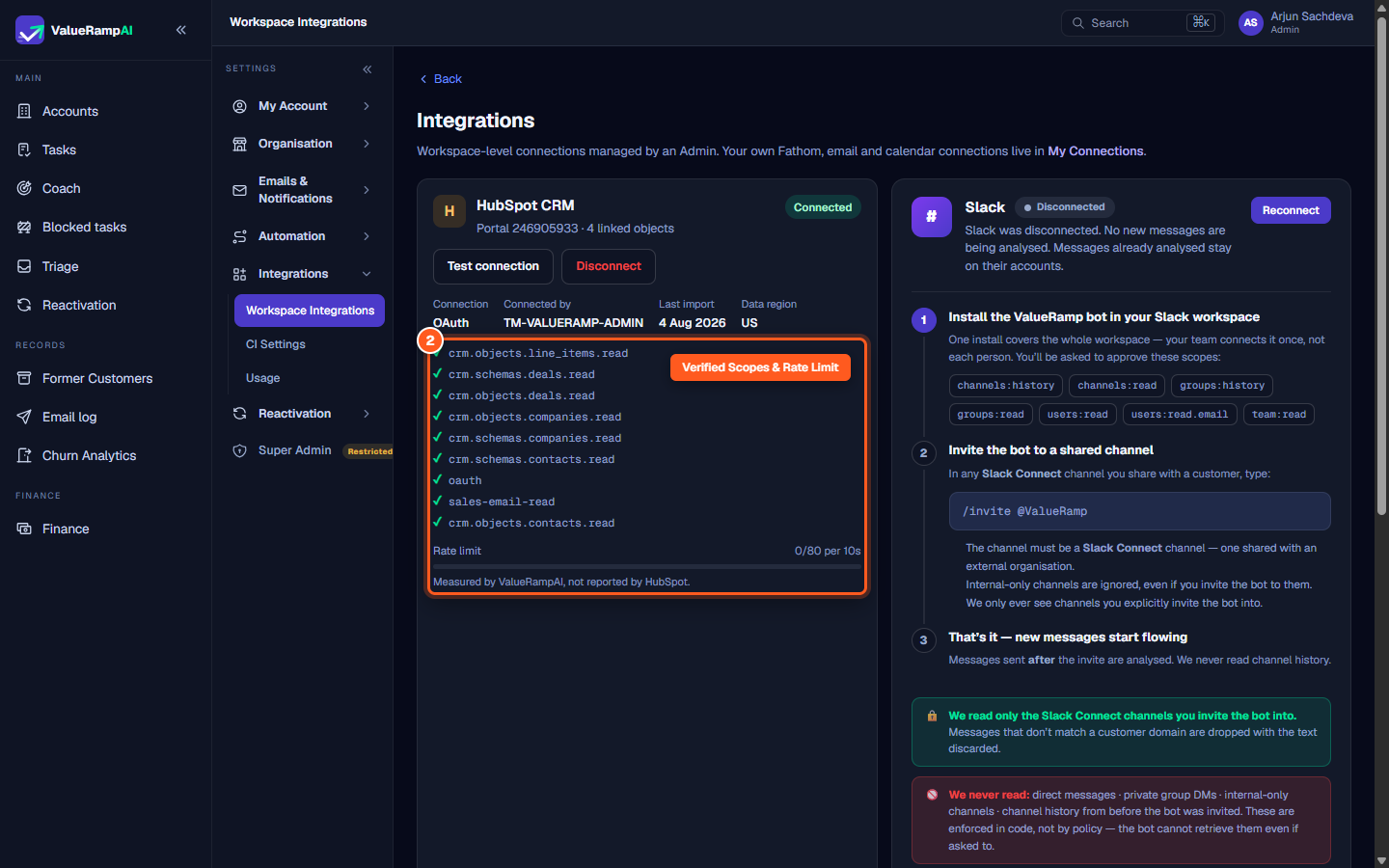
ValueRamp enforces strict principle of least privilege, requiring only read-level permissions necessary to populate accounts and commercial contracts:
- Line Items & Deals:
crm.objects.line_items.read,crm.schemas.deals.read,crm.objects.deals.read(ingesting contract values, terms, and closed-won details). - Companies & Contacts:
crm.objects.companies.read,crm.schemas.companies.read,crm.schemas.contacts.read,crm.objects.contacts.read(populating account profiles and stakeholder rosters). - Communications:
sales-email-read(associating sales handover threads with initial account context).
Rate Limit Meter
HubSpot enforces rate limits on standard API requests. ValueRamp tracks outbound consumption using a built-in meter:
- Threshold: 80 requests per 10-second rolling window.
- Client tracking: ValueRamp meters calls before dispatch to avoid 429 throttling errors from HubSpot.
Importing Closed-Won Deals
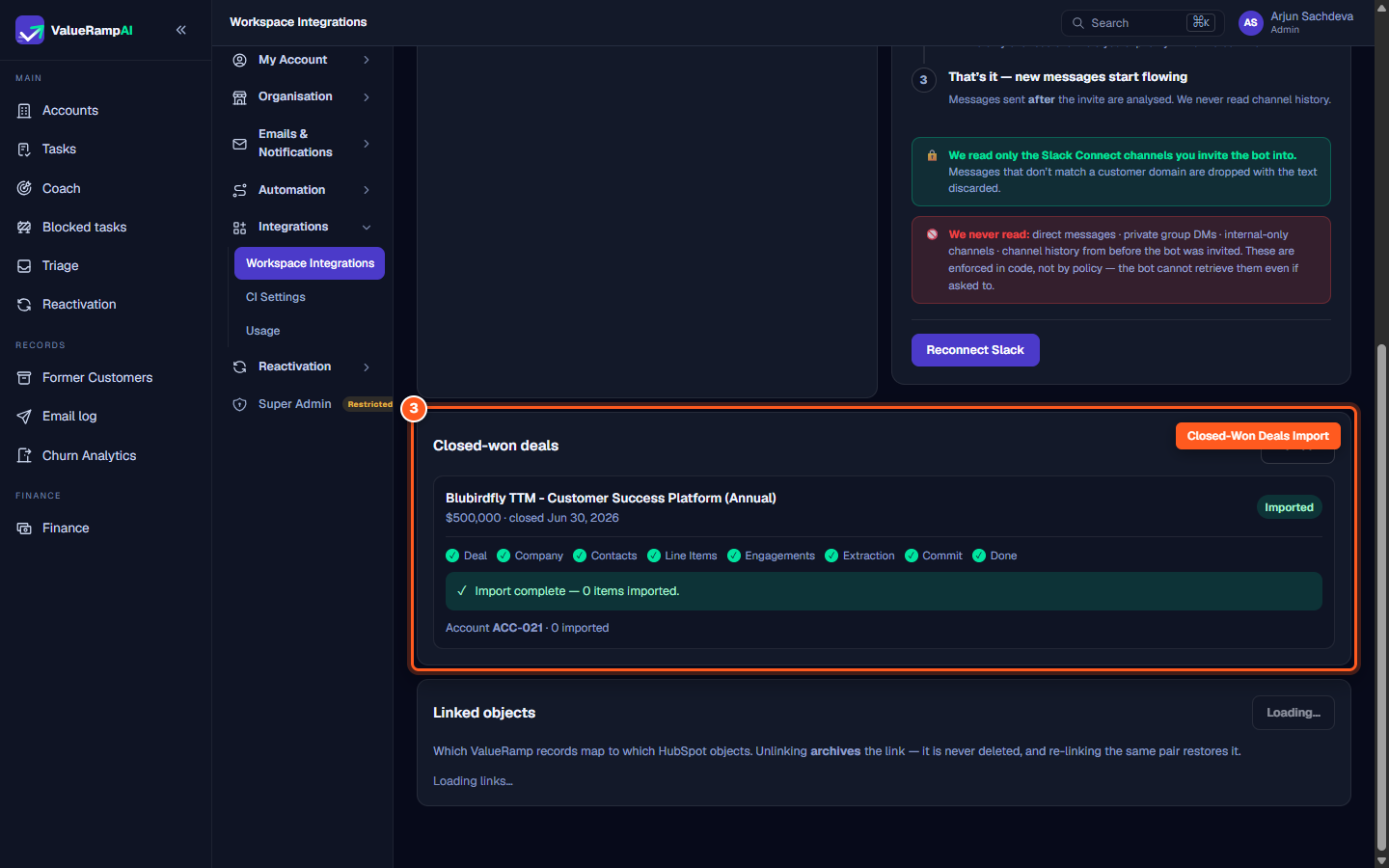
Once connected, the Closed-won deals panel displays recent qualified commercial wins eligible for post-sales onboarding.
When you initiate an import for a deal:
- ValueRamp runs an automated eight-phase pipeline:
- Deal: Verifies deal status, amount, and close date.
- Company: Locates or creates the matching company record.
- Contacts: Imports associated stakeholders with emails and titles.
- Line Items: Imports subscription tiers, recurring add-ons, and quantities.
- Engagements: Ingests historical sales notes and kickoff context.
- Extraction: Structures data into ValueRamp's relational model.
- Commit: Writes records atomically to your workspace database.
- Done: Confirms completion and links to the newly created Account (e.g.
Account ACC-021).
- The deal receives an
Importedbadge with the total item count and linked account identifier.
Managing Linked Objects
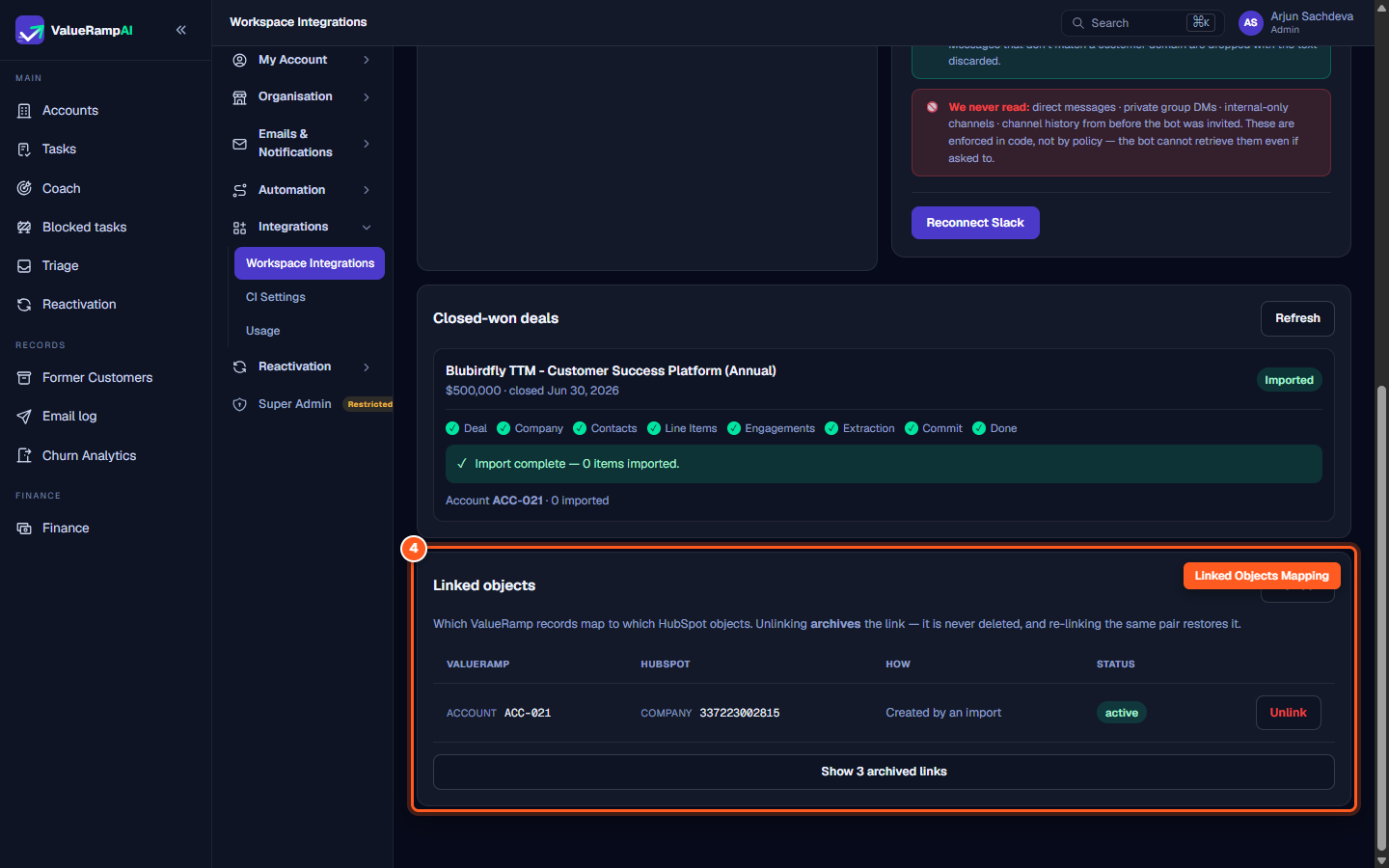
The Linked objects panel provides complete visibility into mapped records:
- VALUERAMP: The ValueRamp entity identifier (e.g.
ACCOUNT ACC-021). - HUBSPOT: The corresponding HubSpot CRM object identifier (e.g.
COMPANY 337223002815). - HOW: The synchronization source (e.g.
Created by an import). - STATUS: The relationship status (
activeorarchived). - Unlink: Clicking Unlink decouples the ValueRamp account from future HubSpot syncs. The link is archived rather than deleted, and can be restored at any time via Show archived links.
Steps
Review HubSpot CRM connection status and portal credentials
Inspect verified read scopes and real-time rate limit budget
Select closed-won deals and monitor the multi-phase import pipeline
Manage mapped accounts and recover archived links
Common questions
What scopes does ValueRamp request when connecting to HubSpot?
How does the rate limit safeguard work?
What happens when I import a closed-won deal?
What happens if I unlink an account from a HubSpot company?
Was this helpful? Tell us what was missing