Share your Outlook calendar
Last verified 2026-09-17
Connect Microsoft Outlook or Microsoft 365 calendar via Microsoft Graph OAuth to track customer meeting cadence, timestamps, and attendee participation.
Before you start
- ValueRamp account
- Microsoft 365 work account or Outlook.com account
Connecting Microsoft Outlook (Microsoft 365) allows ValueRamp to capture meeting cadence, calculate executive touchpoint frequency, and correlate customer attendance alongside meeting recordings and email threads.
Outlook Calendar integration is configured per user in Settings → My Connections (/my-integrations).
How the Microsoft 365 Integration Operates
Unlike Google Calendar (which uses service account delegation), Microsoft Outlook connects via standard OAuth 2.0 through Microsoft Graph:
- You authenticate directly with your Microsoft 365 work account.
- Microsoft prompts you to grant read-only calendar access (
Calendars.Read). - Upon approval, Microsoft redirects back to ValueRamp with an active authorization grant.
- ValueRamp periodically polls your calendar for customer meetings and files them to the appropriate account timeline.
Connecting Outlook Calendar
To connect your Outlook calendar:
- Navigate to My Connections (
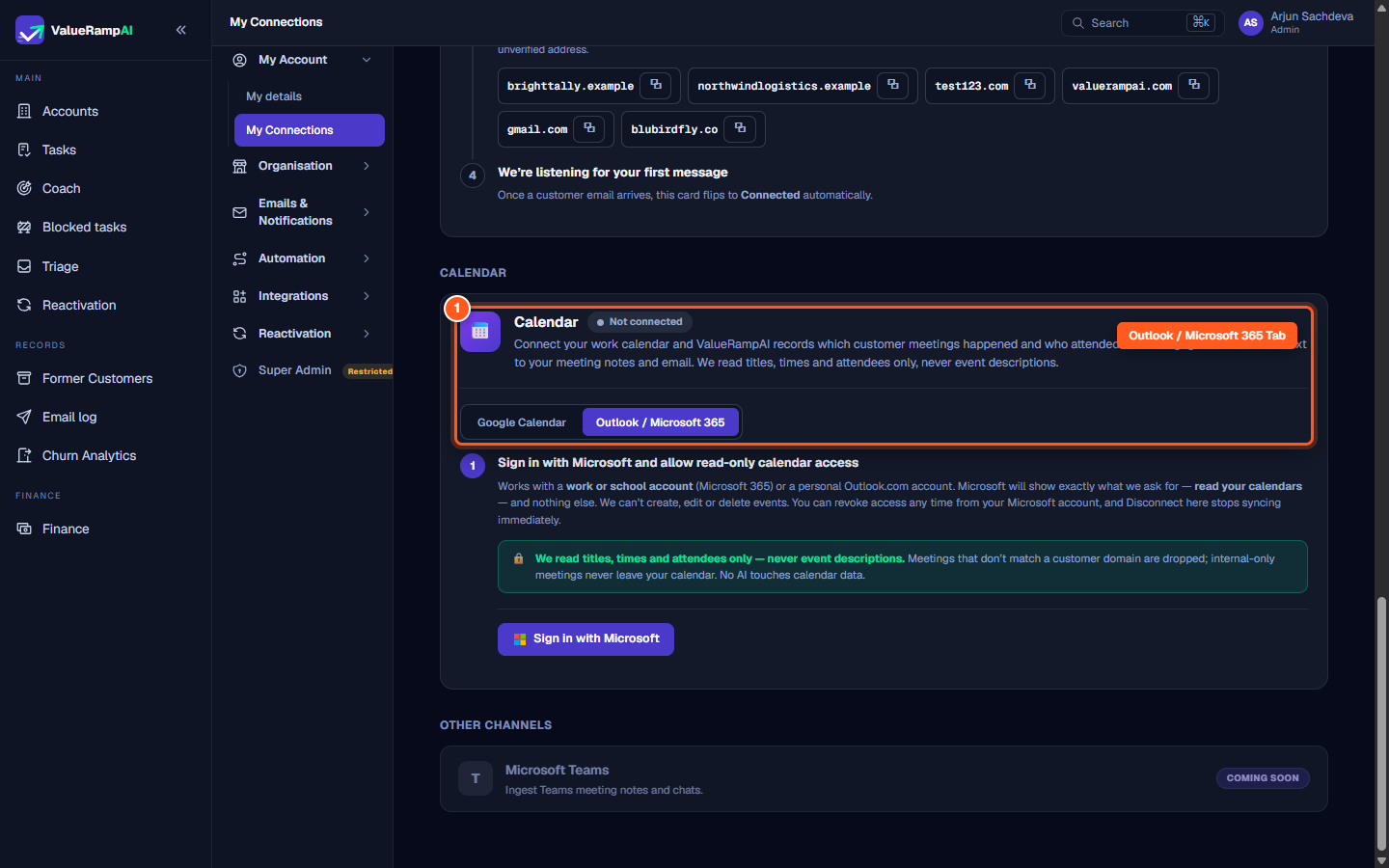
/my-integrations). - Locate the Calendar card and click the Outlook / Microsoft 365 tab.
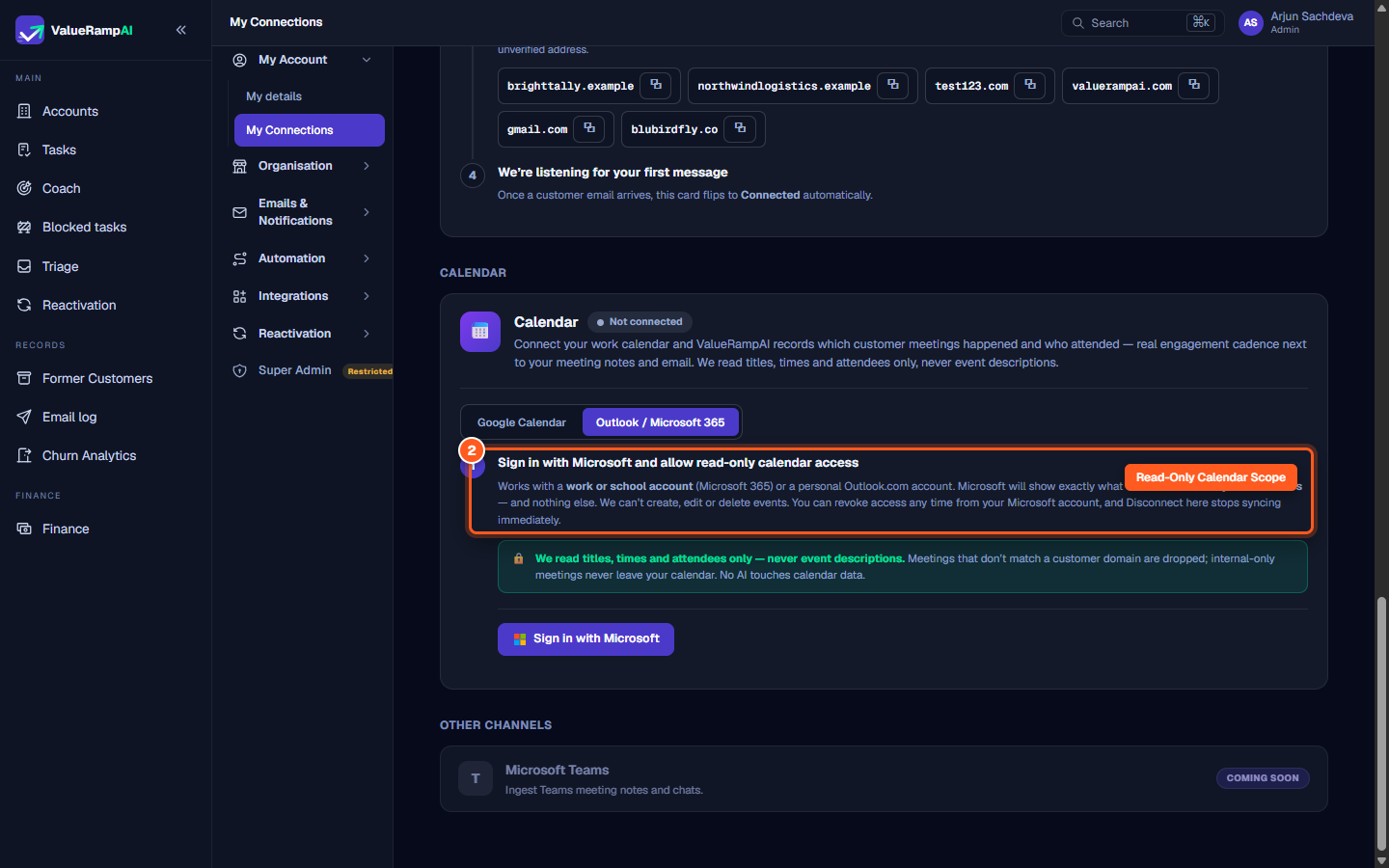
- Review the permission scope summary:
- Works with enterprise Microsoft 365 work/school accounts or Outlook.com personal accounts.
- Grants read-only calendar visibility.
- ValueRamp cannot schedule, update, or cancel events.
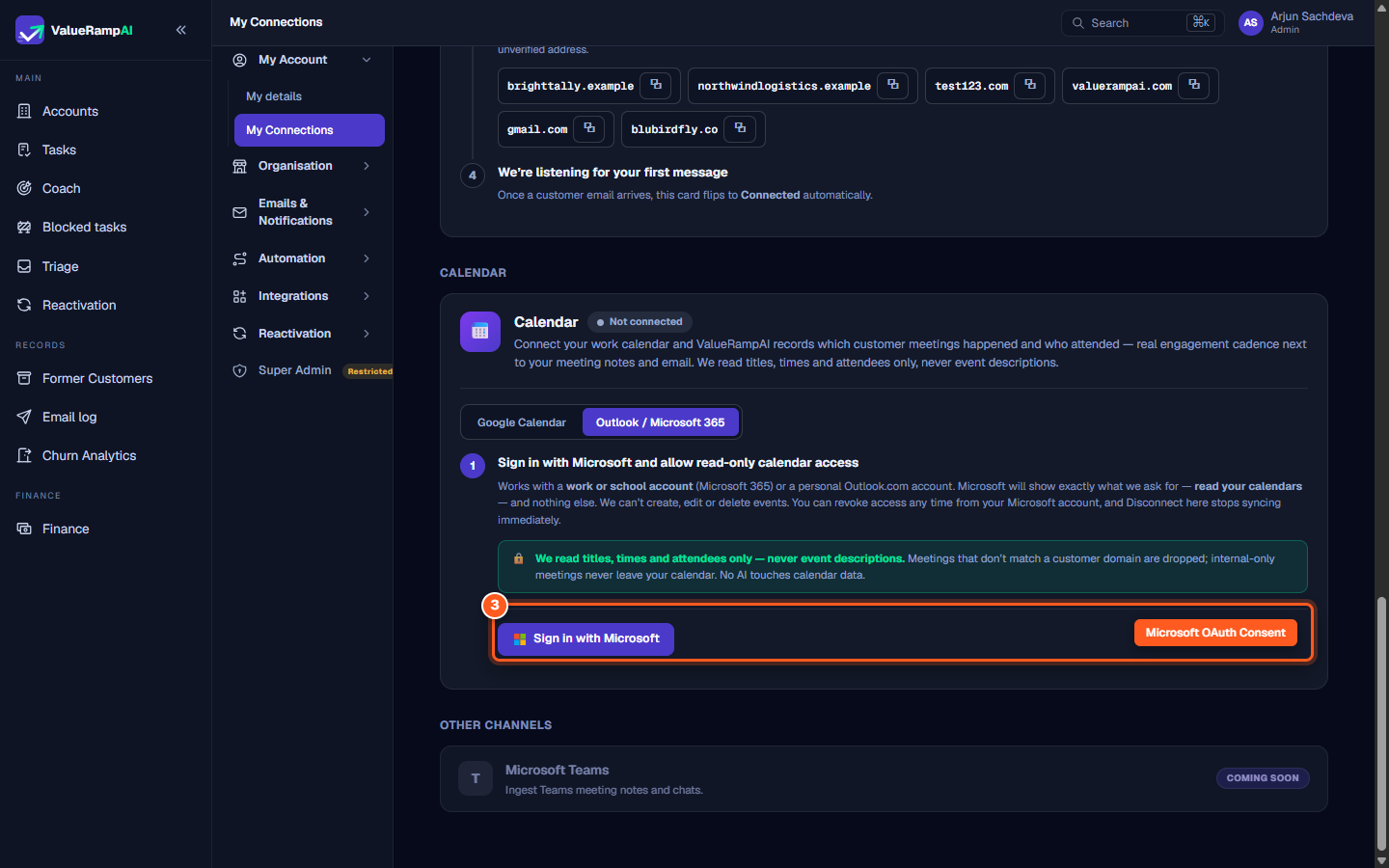
- Click the Sign in with Microsoft button.
- In the Microsoft login popup:
- Select your corporate Microsoft account.
- Review requested permissions and click Accept.
- Microsoft returns you to ValueRamp. The Calendar card updates to Connected, displaying your active account identifier and last sync timestamp.
One Active Calendar Provider
ValueRamp allows one active calendar connection per team member at any given time. If you previously connected Google Calendar, the provider tabs are replaced with your active connection details. To switch to Outlook, click Disconnect on the Google Calendar card, then select Outlook.
Disconnecting and Revoking Access
To disconnect your Outlook calendar:
- On the Calendar card in My Connections, click Disconnect.
- Confirm the prompt. ValueRamp immediately deletes stored access tokens and stops syncing.
- Historical meeting records already filed to account timelines remain intact.
- You can also revoke ValueRamp's authorization directly from Microsoft's account portal under Apps and services.
Privacy and Data Minimization
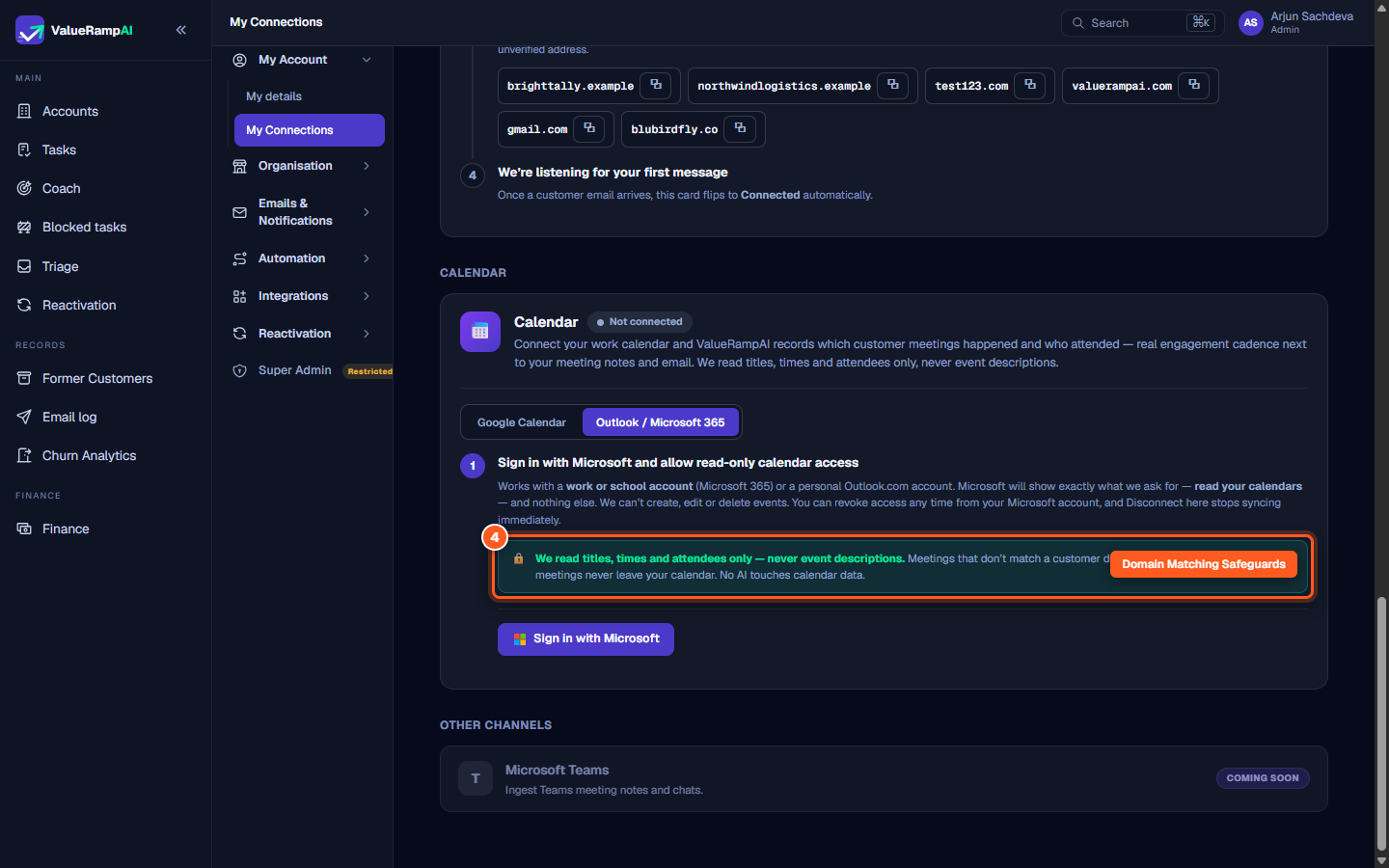
- Structured data only: ValueRamp extracts the meeting title, start time, end time, and participant email addresses.
- Descriptions stripped: Meeting body text, dial-in credentials, and attachments are never fetched or stored.
- Customer domain verification: Only meetings with external participants whose email domains match an active account in your workspace are recorded. Internal team meetings are dropped automatically.
Steps
Select Outlook / Microsoft 365 under My Connections
Review Microsoft Graph read-only calendar scope
Sign in with Microsoft and authorize calendar read access
Verify data privacy and attendee matching safeguards
Common questions
Can ValueRamp create, edit, or delete events on my Outlook calendar?
Can I connect both Google Calendar and Outlook Calendar simultaneously?
Does ValueRamp read meeting descriptions, notes, or attachments in Outlook?
What happens if my Microsoft account credentials expire?
Was this helpful? Tell us what was missing