What connects to ValueRamp
Last verified 2026-09-17
Understand the difference between workspace-level integrations managed by Admins and personal tool connections configured by individual team members.
Before you start
- ValueRamp account (Admin role required for workspace-level integrations)
ValueRamp connects with your existing tech stack to centralize customer context, operational milestones, meeting notes, and communication signals into a single post-sales operating system.
Integrations are organized into two distinct tiers: Workspace Integrations (organization-wide, configured once by an Admin) and My Connections (personal tools connected per user).
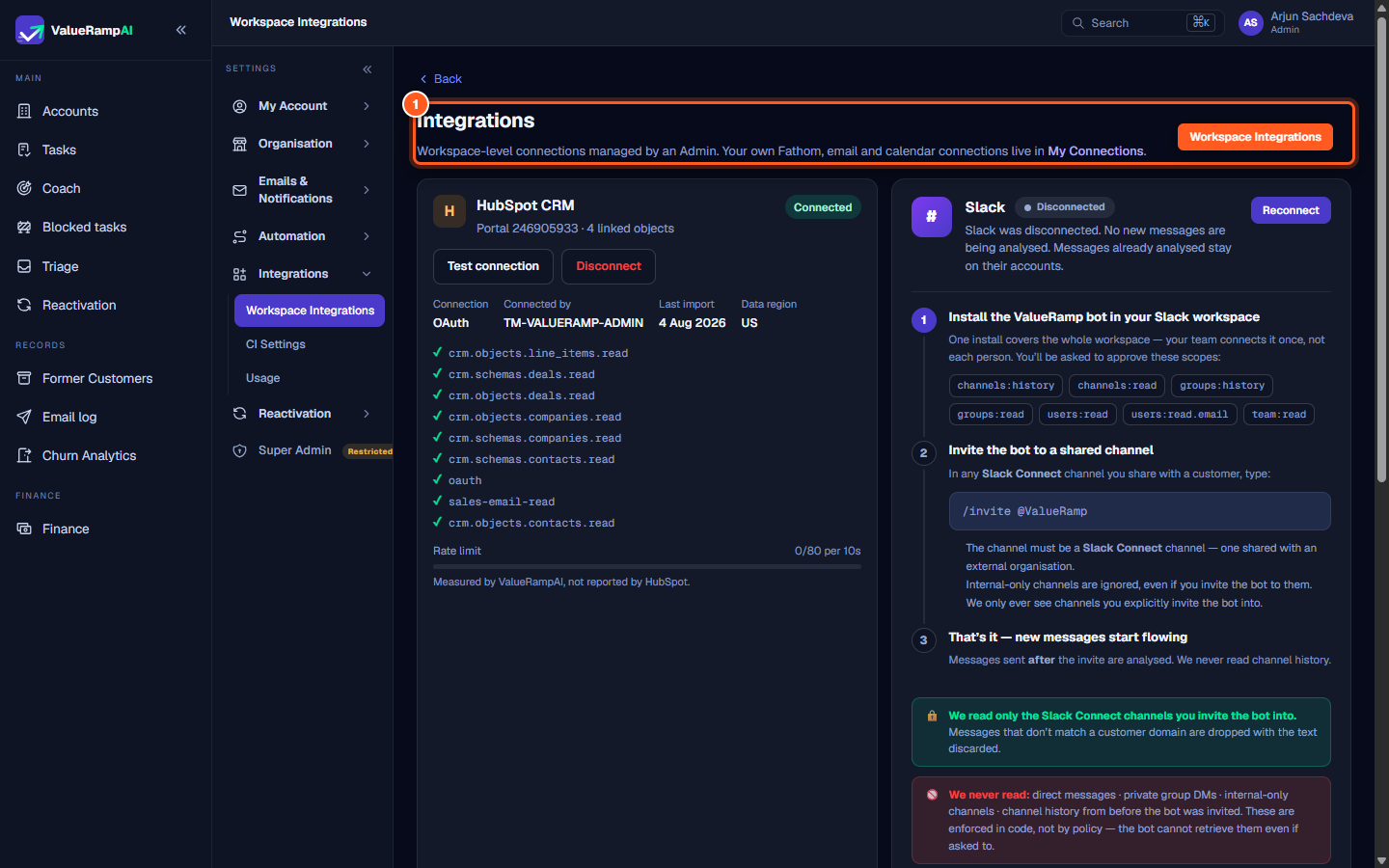
Workspace Integrations (/integrations)
Workspace-level integrations are administered exclusively by Admins and apply across the entire team.
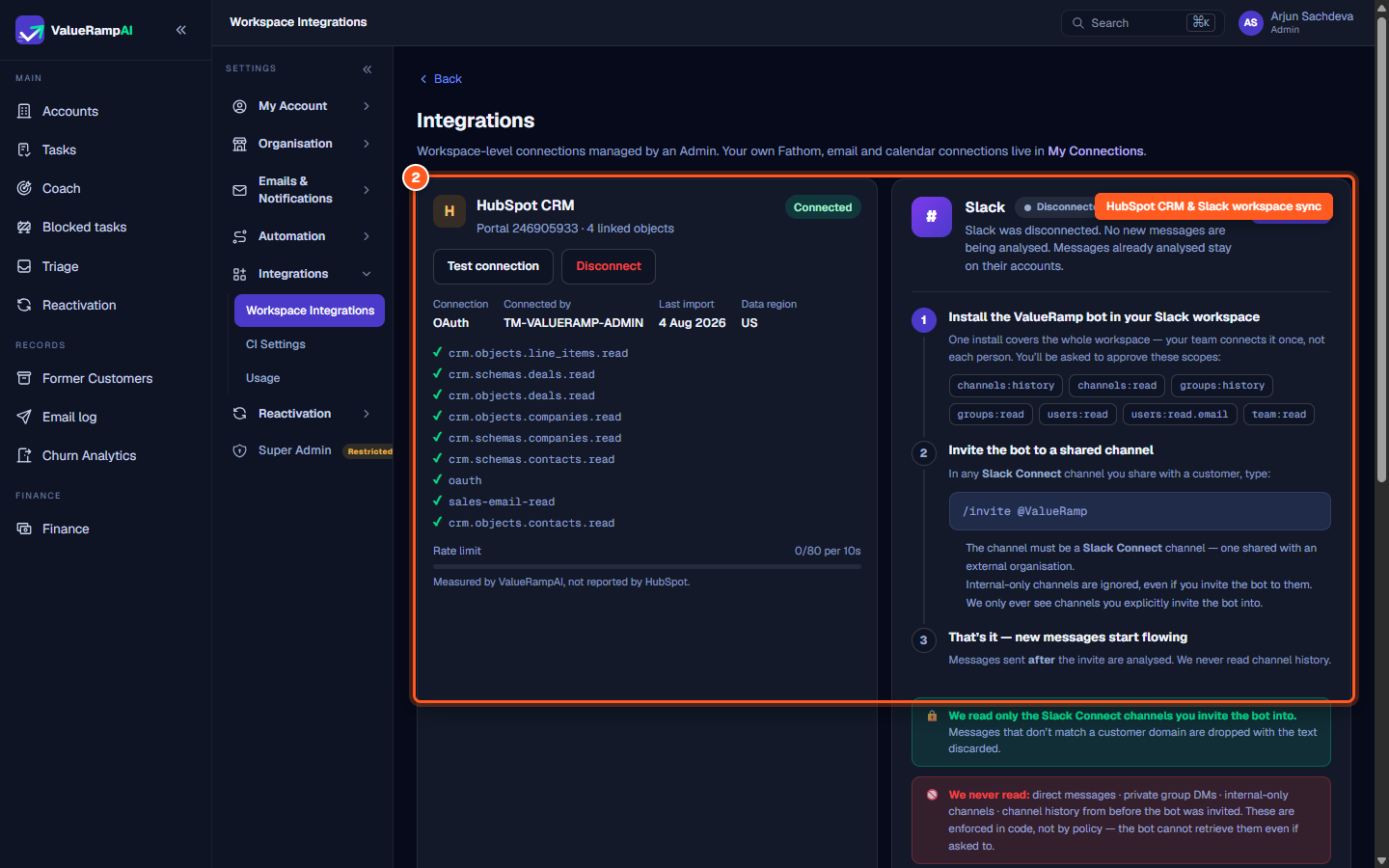
- HubSpot CRM: Synchronizes closed-won deals, company properties, contact rosters, and commercial renewal stages directly into ValueRamp accounts. When connected, Admins can inspect linked objects, review token permissions, and test API connectivity at any time.
- Slack: Installs a workspace bot that monitors shared Slack Connect channels. When invited into a customer-shared channel via
/invite @ValueRamp, the bot captures post-kickoff communications and routes sentiment signals without reading internal discussions or private direct messages.
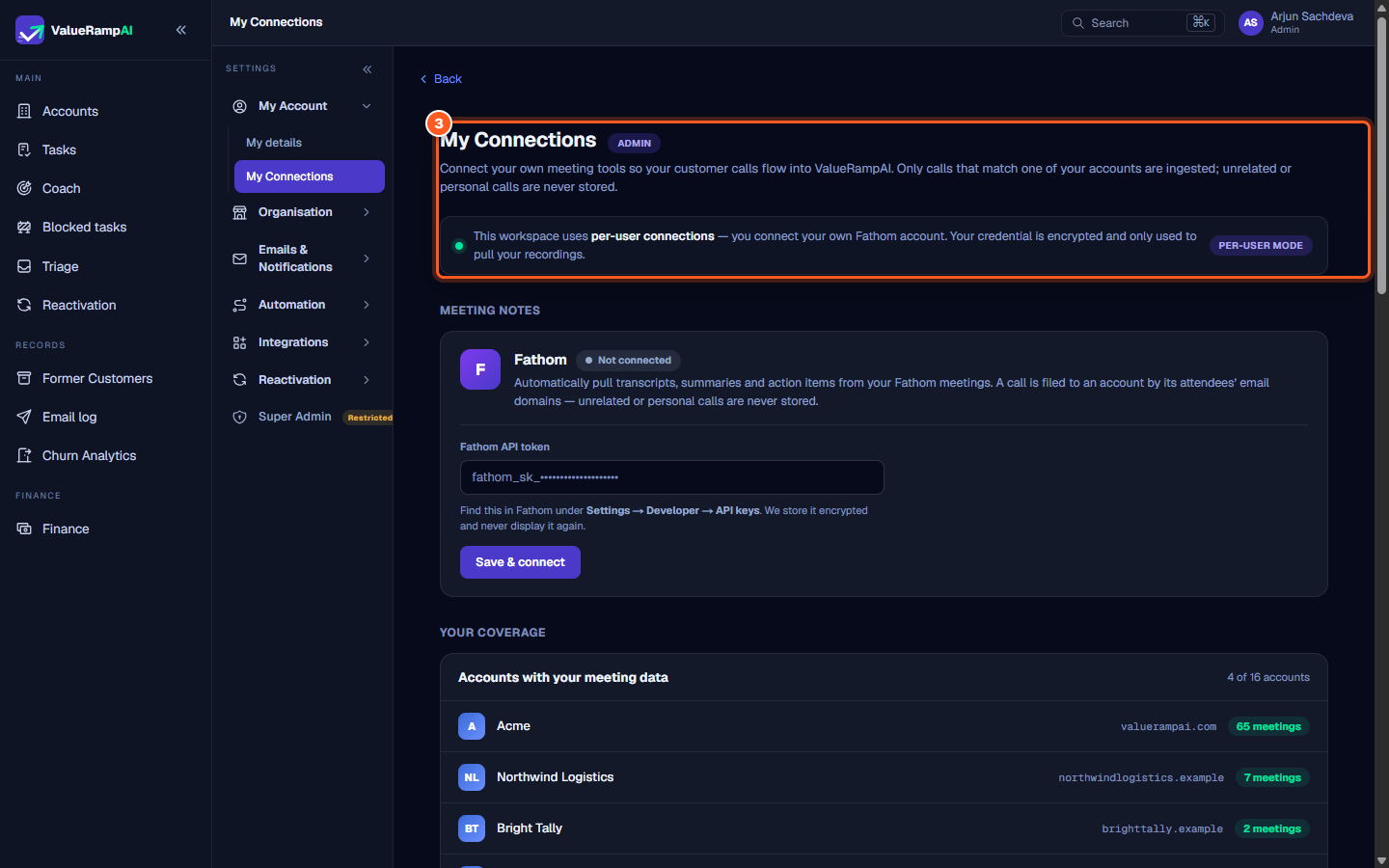
My Connections (/my-integrations)
Personal connections are managed individually by team members (Admins, CSMs, and Onboarding Managers) so that their customer interactions automatically populate relevant account timelines.
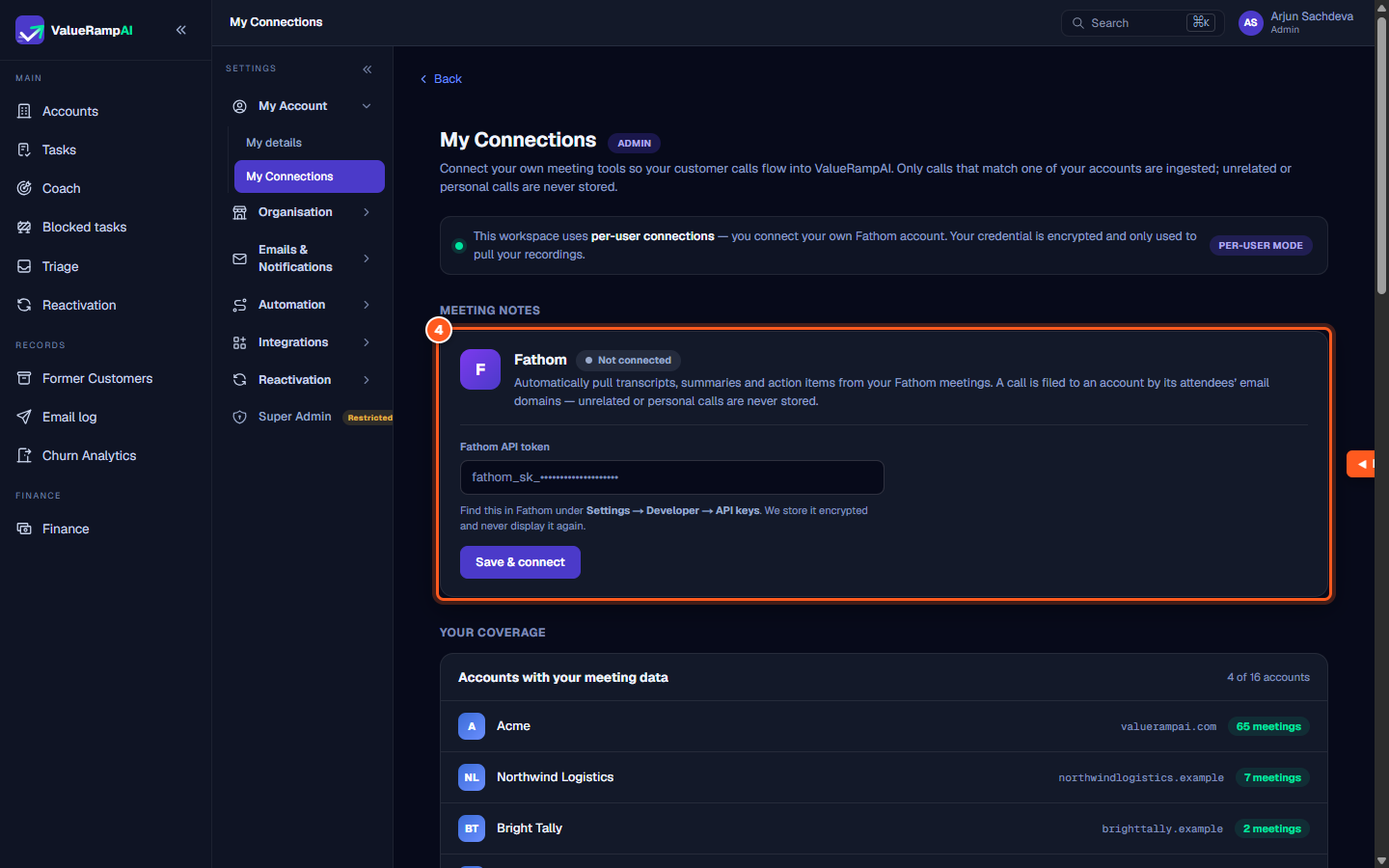
- Fathom: Enter your personal Fathom API key to ingest meeting transcripts, call recordings, executive summaries, and action items. ValueRamp maps calls to accounts automatically based on participant email domains.
- Email Forwarding: Forward customer emails or add your workspace's private ingest address (
in.valuerampai.com) as a BCC to track customer threads, sentiment changes, and risk indicators. - Calendar: Connect your Google Calendar or Microsoft Outlook calendar to track meeting cadence, verify attendance, and monitor customer engagement momentum.
How customer data matches
When customer signals arrive through personal connections (Fathom transcripts, forwarded emails, or calendar appointments), ValueRamp analyzes the attendee email addresses against verified domains in your Accounts directory. Matches are filed directly to that account's timeline, while unrelated external communications are securely dropped.
Steps
Open Workspace Integrations to manage organization-wide connections
Review workspace-level sync for HubSpot CRM and Slack notifications
Navigate to My Connections to configure personal tool integrations
Connect personal Fathom API keys, email forwarding, and calendar sync
Common questions
What is the difference between Workspace Integrations and My Connections?
Can non-Admin team members access /integrations?
Are customer calls and emails visible across the entire workspace?
Where do I find my Fathom API token?
Was this helpful? Tell us what was missing