Connect Read.ai meeting reports
Last verified 2026-11-18
An Admin sets Read.ai to Team mode (one workspace sign-in) or Individual mode (each person signs in to their own Read.ai in My Connections).
Before you start
- ValueRamp account
- Read.ai account (the Read.ai API is available on all Read.ai plans)
Connecting Read.ai brings call transcripts, summaries, key questions and action items from your Read.ai meetings into ValueRamp, filed to the relevant customer account.
Read.ai is configured under Settings → Integrations → Workspace Integrations (/integrations), where an Admin sets the workspace mode to either Team or Individual. A new workspace starts in Individual mode. Only Admins can switch the mode or manage the Read.ai page. CSMs and Onboarding Managers can open it read-only, where it shows the Mode and the connection status.
- Team mode: An Admin connects one Read.ai account on Workspace Integrations → Read.ai (
/integrations/read-ai). ValueRamp pulls the meeting reports that account can open in Read.ai. While the workspace is in Team mode, Read.ai is not shown on My Connections (/my-integrations). - Individual mode: Each team member connects their own Read.ai account under Settings → My Account → My Connections (
/my-integrations).
Read.ai connects by signing in on Read.ai's own page, so there is no key or token to copy. Whether meeting transcripts are analysed is switched under Meeting transcripts on the Channels card of Settings → Engines → Conversation intelligence (/settings/engines/conversation-intelligence). Only an Admin can reach that page.
Setting Up Read.ai
1. Open Workspace Integrations and review the Read.ai tile
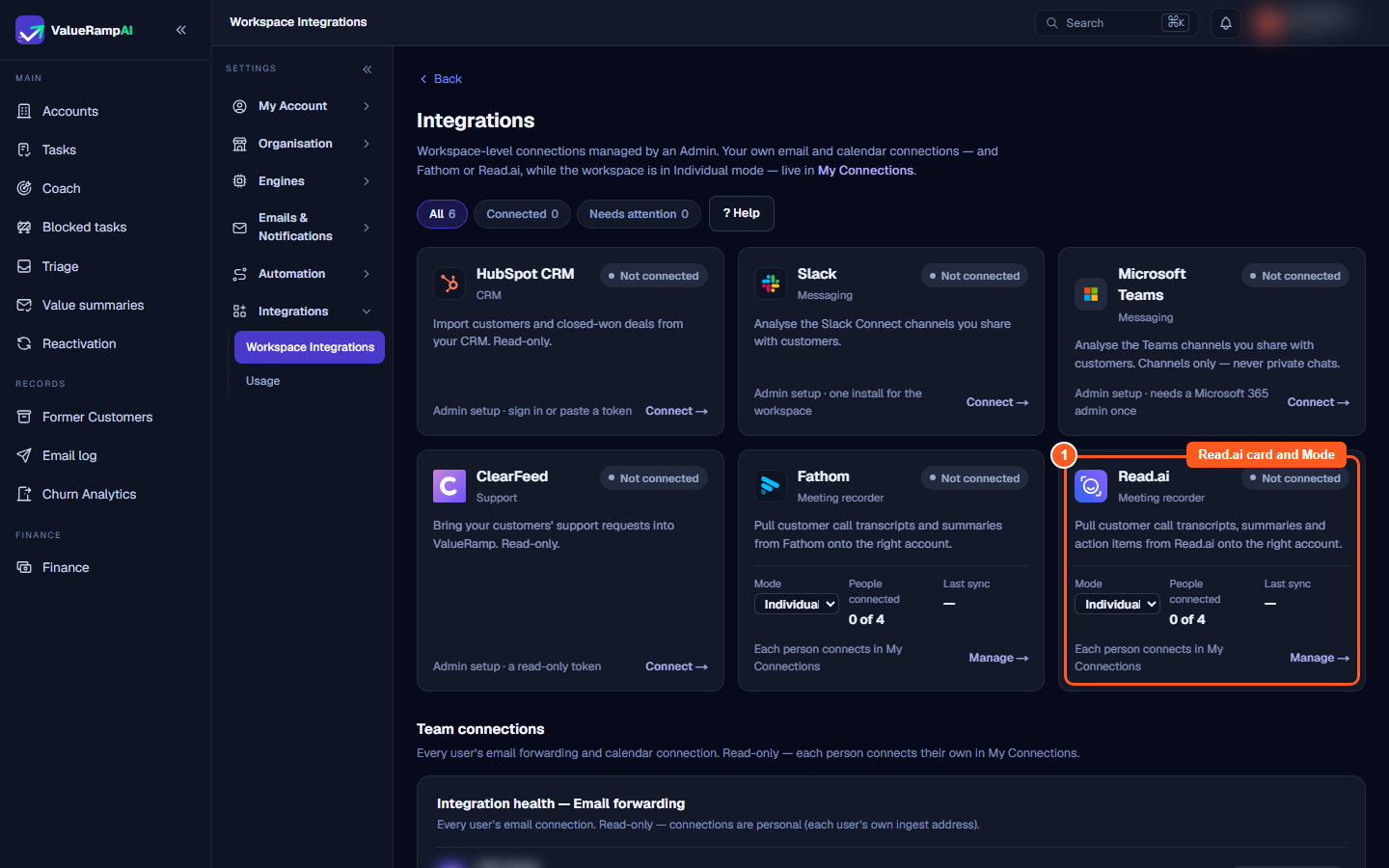
Navigate to Settings → Integrations → Workspace Integrations (/integrations) and locate the Read.ai (Meeting recorder) tile. On the tile, an Admin can view the connection status, switch the Mode dropdown between Team and Individual, and click Connect → or Manage → to open /integrations/read-ai.
2. Switch between Team and Individual mode
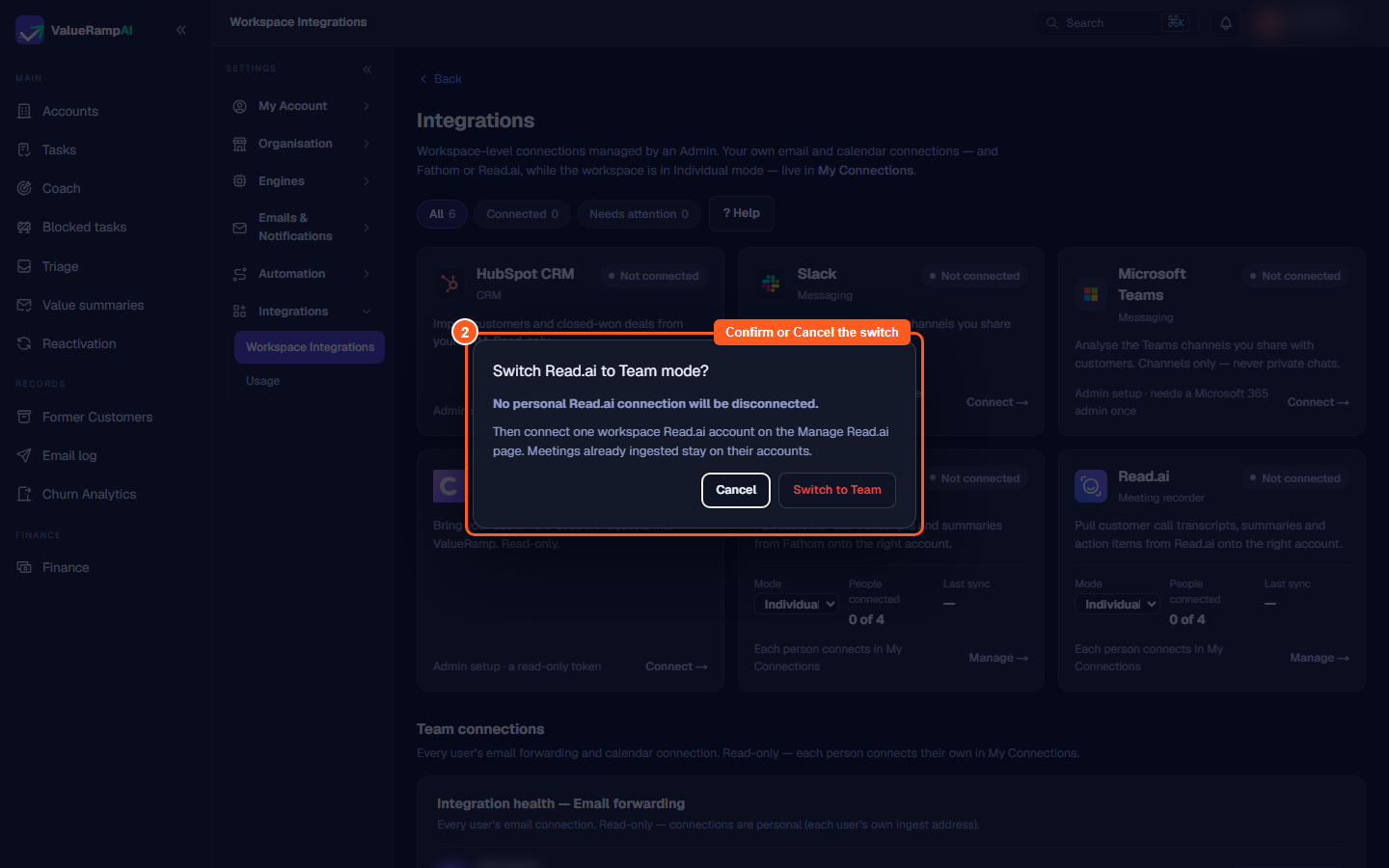
To switch how your workspace connects Read.ai, use the Mode dropdown on the Read.ai card in Workspace Integrations (/integrations):
- Selecting Individual opens the Switch Read.ai to Individual mode? confirmation dialog. If the workspace has a team connection (connected, or needing reconnection), confirming disconnects it and deletes its saved sign-in; each person then connects their own Read.ai in My Connections.
- Selecting Team opens the Switch Read.ai to Team mode? confirmation dialog. If personal connections exist, confirming disconnects them and deletes their saved sign-ins; an Admin then connects one workspace Read.ai account on the Read.ai page.
- In both directions, meetings already ingested stay on their accounts. Cancel leaves the mode unchanged.
3. Connect one workspace Read.ai account in Team mode
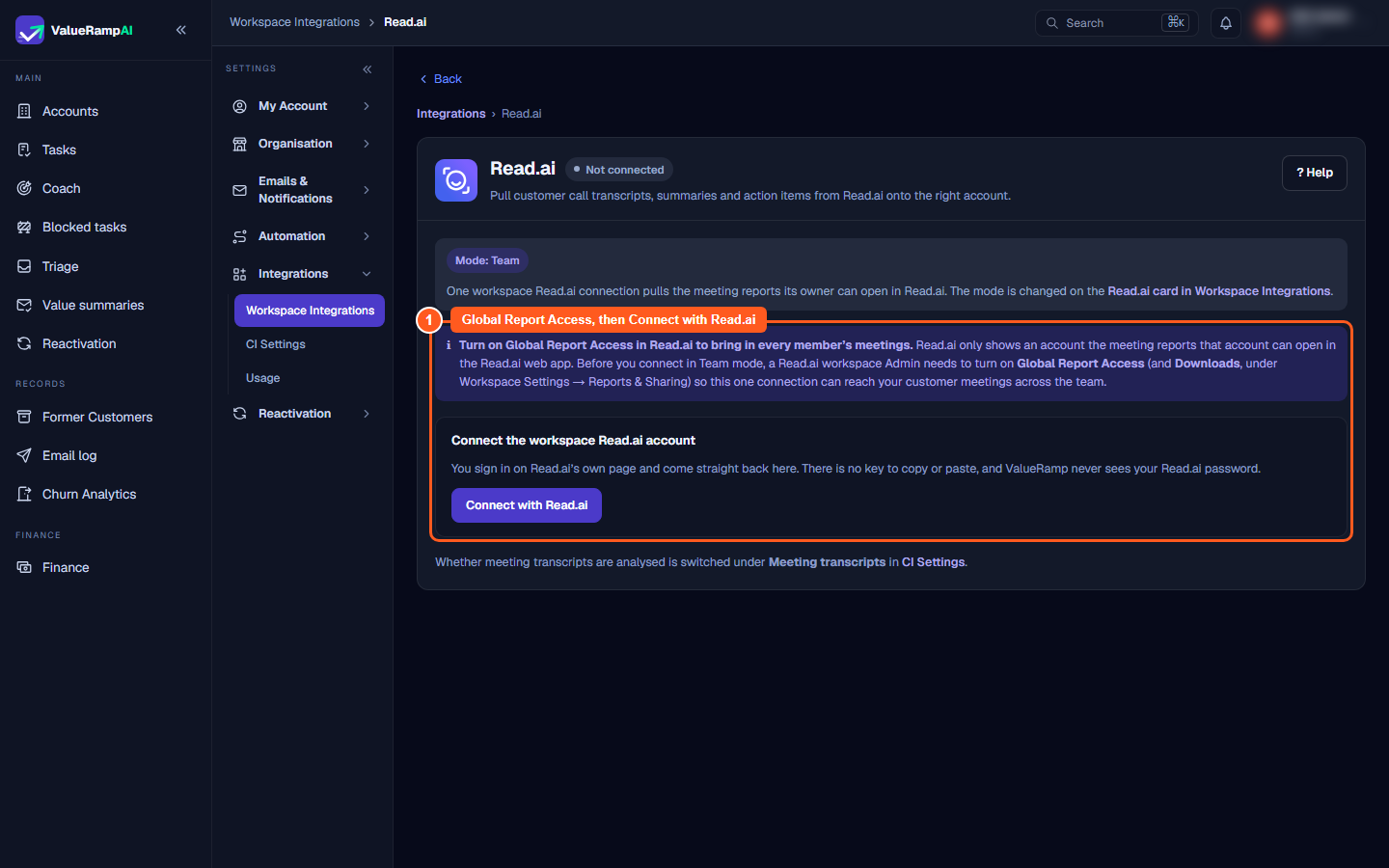
In Team mode, open Workspace Integrations → Read.ai (/integrations/read-ai):
- Read the note Turn on Global Report Access in Read.ai to bring in every member's meetings. A Read.ai workspace Admin needs to turn on Global Report Access, and Downloads must be enabled under Workspace Settings → Reports & Sharing in Read.ai, before you connect, so the one connection can reach customer meetings across the team.
- Click Connect with Read.ai. You sign in on Read.ai's own page, grant access, and come back to this page. There is no key to paste.
- Once connected, the page shows Test connection and Disconnect, and who the workspace is connected as and when it last synced. If Read.ai stops accepting the sign-in, the page offers Reconnect with Read.ai.
4. Monitor team connections in Individual mode
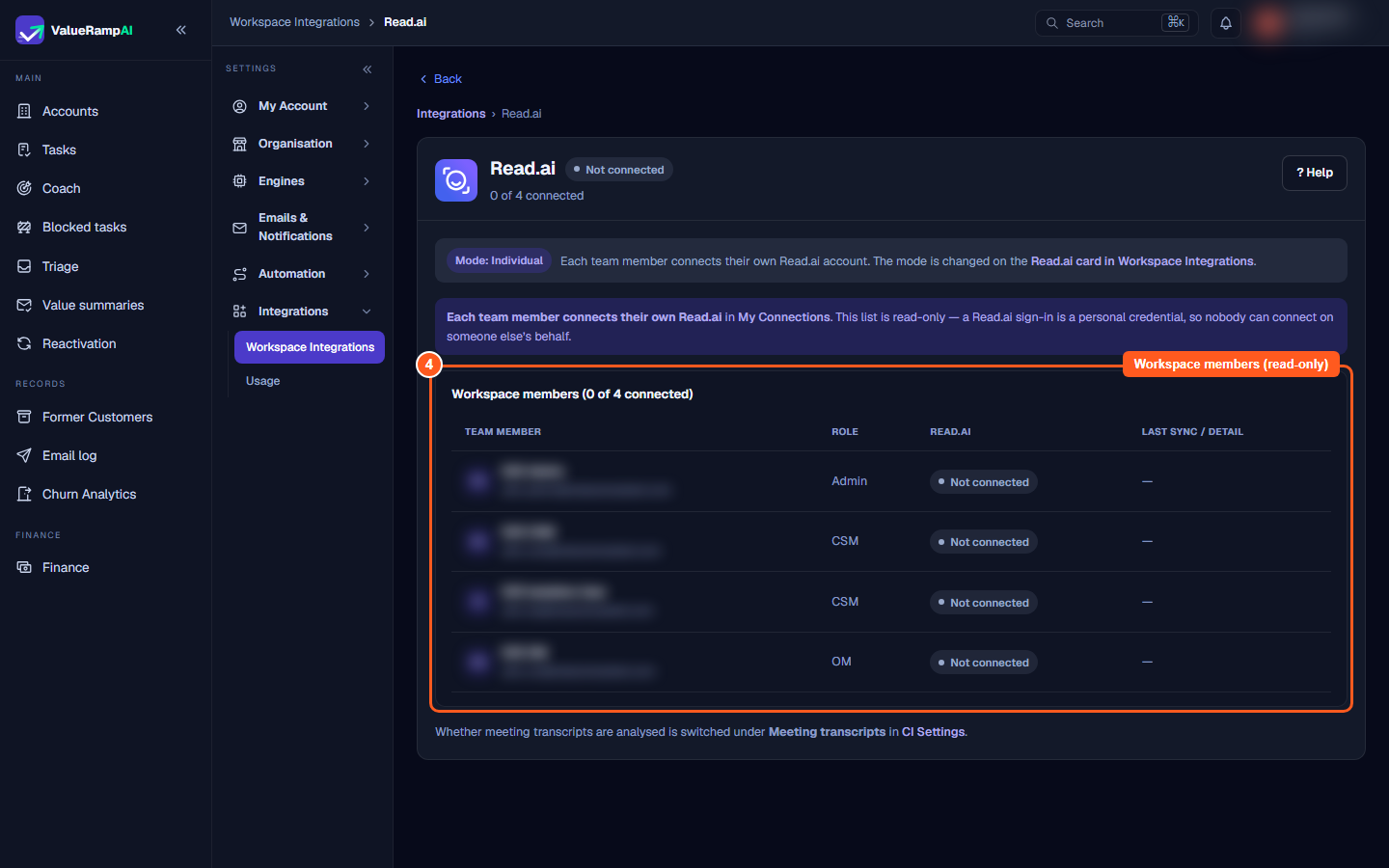
When the workspace is in Individual mode, Workspace Integrations → Read.ai (/integrations/read-ai) shows Mode: Individual and the read-only Workspace members table (Workspace members (X of Y connected)). A Read.ai sign-in is a personal credential, so nobody can connect on someone else's behalf. The table lets Admins review each team member's role, Read.ai connection status, and last sync detail.
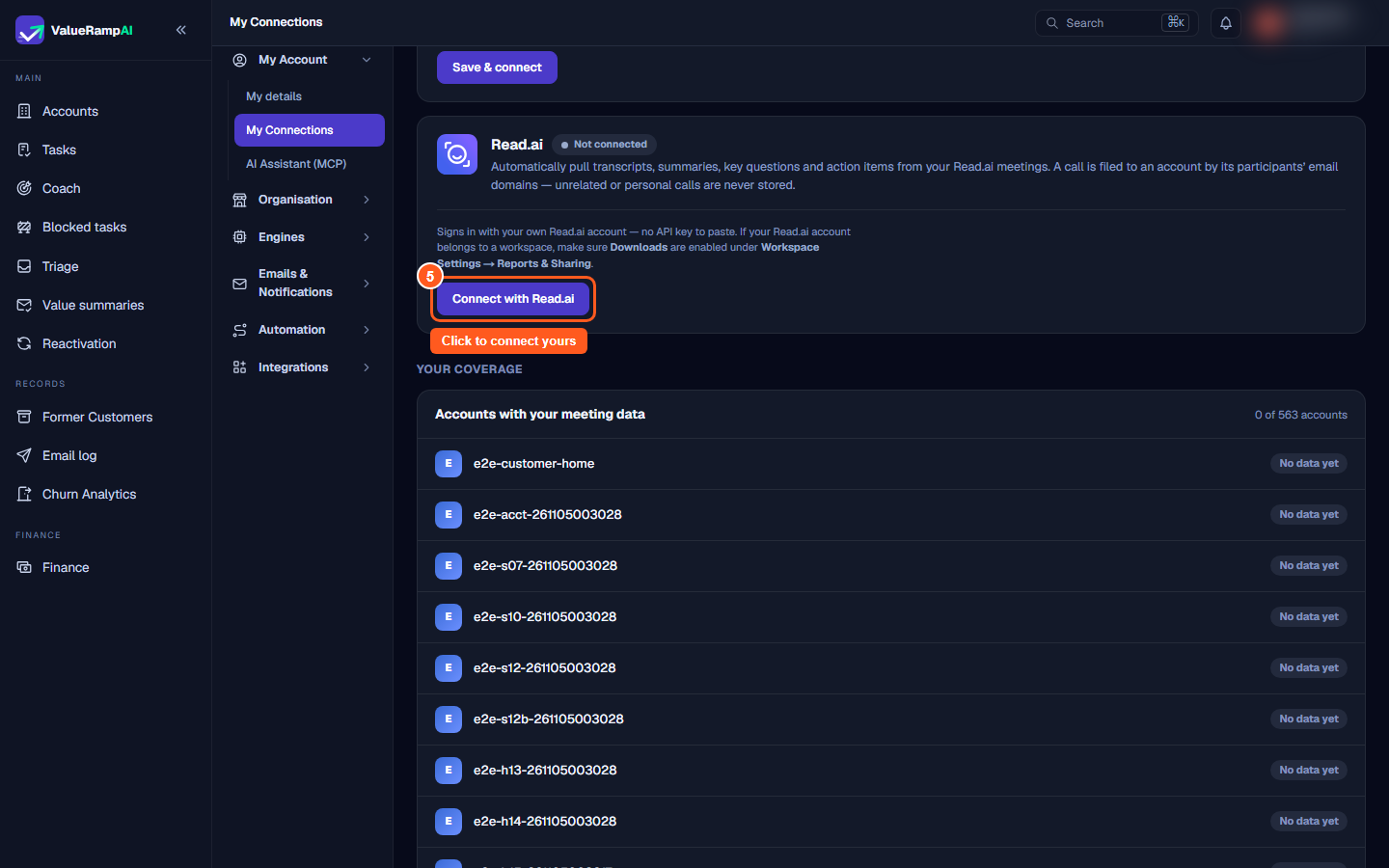
5. Connect your own Read.ai account in Individual mode
When the workspace is in Individual mode, each team member connects their own Read.ai account under Settings → My Account → My Connections (/my-integrations):
- Open My Connections. In the MEETING NOTES section, locate the Read.ai card.
- If your Read.ai account belongs to a workspace, make sure Downloads are enabled under Workspace Settings → Reports & Sharing in Read.ai.
- Click Connect with Read.ai and sign in with your own Read.ai account. There is no API key to paste.
(In Team mode, Read.ai is not shown on My Connections at all.)
How Read.ai Ingestion Works
- Sign-in, not a key: Read.ai connects through its own sign-in page, and ValueRamp never sees your Read.ai password.
- Domain Matching: A call is filed to an account by its participants' email domains. Unrelated or personal calls are never stored.
- Filed to the account: Matching calls appear on that account's Communication tab, under Meeting notes. Meetings already ingested stay on their accounts if you disconnect or switch mode.
Steps
Open Workspace Integrations and locate the Read.ai card
Switch between Team and Individual mode on the Read.ai card
Click Connect with Read.ai in Team mode, after Global Report Access is on in Read.ai
Monitor team connections on the read-only Workspace members table in Individual mode
Connect your own Read.ai account under My Connections in Individual mode
Common questions
What is the difference between Team mode and Individual mode for Read.ai?
Why do I not see every team member's meetings in Team mode?
Do I need to paste an API key?
What happens when an Admin switches Read.ai between Team and Individual mode?
What does the Read.ai page show if I am a CSM or Onboarding Manager?
Where do I control whether Read.ai meeting transcripts are analysed?
Was this helpful? Tell us what was missing