Connect Slack for notifications and channel signals
Last verified 2026-09-17
Install the ValueRamp Slack bot, approve its channel scopes, and invite it to customer Slack Connect channels to capture communication signals.
Before you start
- ValueRamp Admin role
- Slack workspace administrator permissions or app installation approval rights
Connecting Slack enables ValueRamp to capture real-time conversational signals from customer-facing channels, extracting feature requests, renewal sentiment, blocker risks, and action items directly into post-sales account timelines.
The Slack integration is configured at the workspace level from Settings → Workspace Integrations (/integrations). Connecting and disconnecting Slack requires the Admin role.
Connecting Slack for your Workspace
Unlike individual meeting or calendar connections, Slack is installed once for your entire organization:
- Navigate to Workspace Integrations (
/integrations). - Locate the Slack card in the integrations grid.
- Click Connect Slack (or Reconnect if restoring a previously disconnected workspace).
- You will be redirected to Slack's OAuth authorization screen. Select the target Slack workspace and click Allow.
- Once returned to ValueRamp, the card displays your connection status:
- Connected: The bot is active and listening to customer channels.
- Needs a shared channel: The bot is installed in the workspace, but has not yet been invited into any Slack Connect channels.
- Disconnected: The bot token is inactive. No new messages are analyzed, but past account signals are preserved.
Requested Slack Permissions
ValueRamp requests only the OAuth scopes needed to read shared channels and match participants:
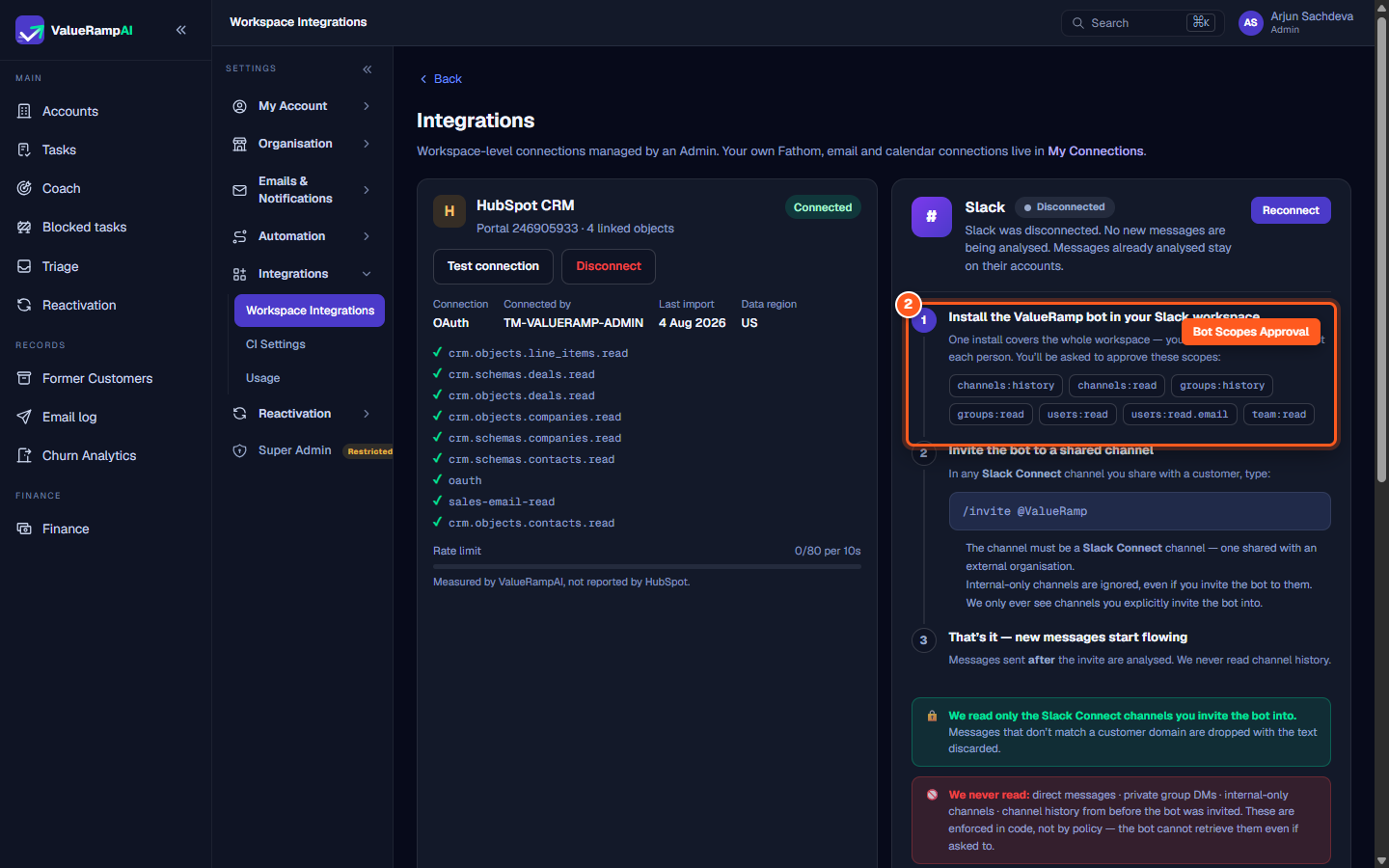
channels:historyandchannels:read: Reading public channels where the bot has been invited.groups:historyandgroups:read: Reading private channels and Slack Connect channels where the bot has been invited.users:readandusers:read.email: Mapping message authors to customer account stakeholders by verified email address.team:read: Identifying the host Slack workspace organization.
Inviting the Bot to Customer Channels
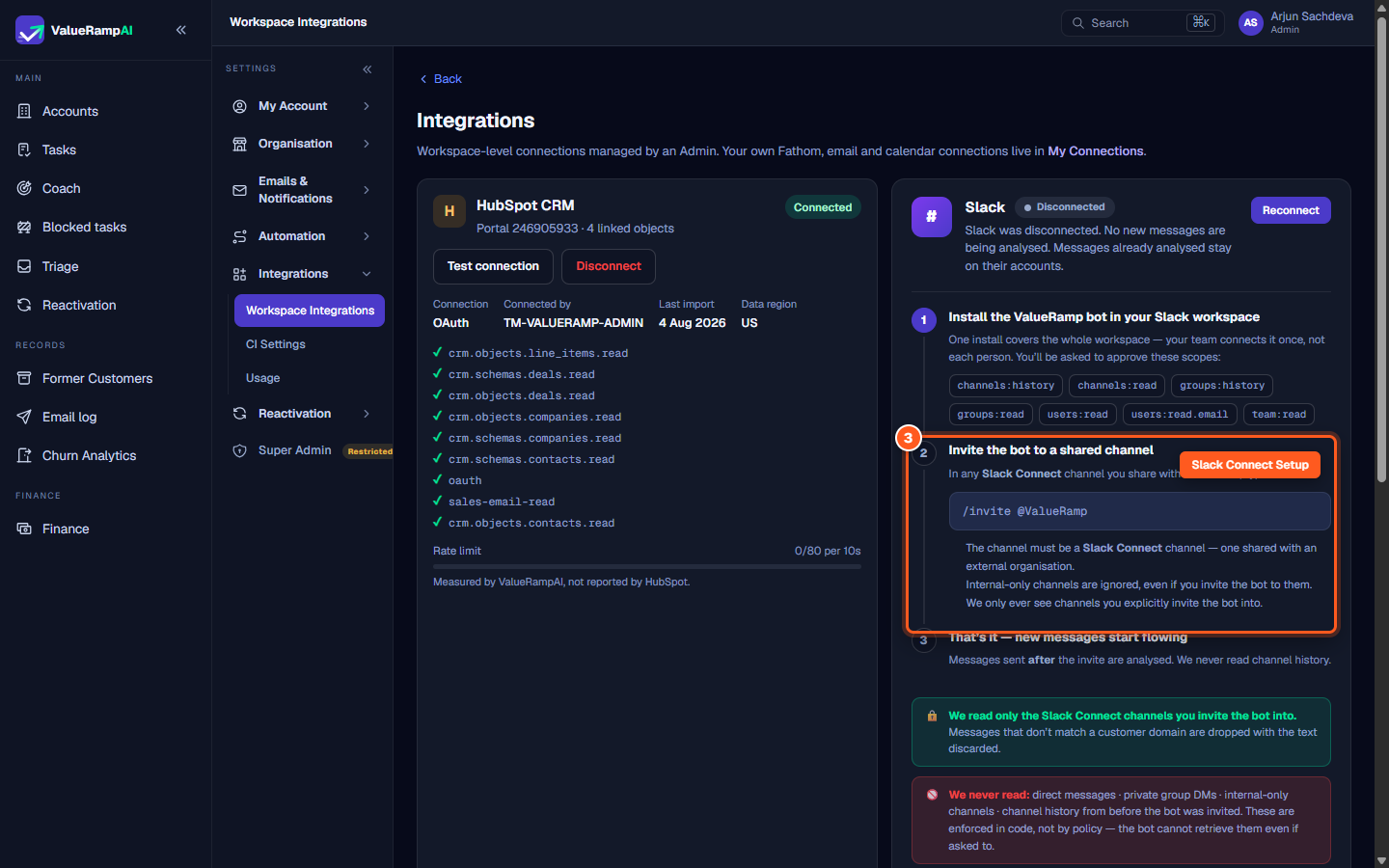
ValueRamp relies on Slack Connect to cleanly separate customer communications from internal chatter:
- Open any Slack Connect channel that your team shares with an external customer organization (e.g.
#ext-acme-valueramp). - In the message box, type:
/invite @ValueRamp - Press Enter. Slack invites the ValueRamp bot into the channel.
- As new messages are posted in that channel, ValueRamp ingests them, evaluates sentiment, and attaches milestones or action items to the matching customer account.
Privacy and Data Safeguards
ValueRamp enforces rigorous data minimization principles enforced in software logic:
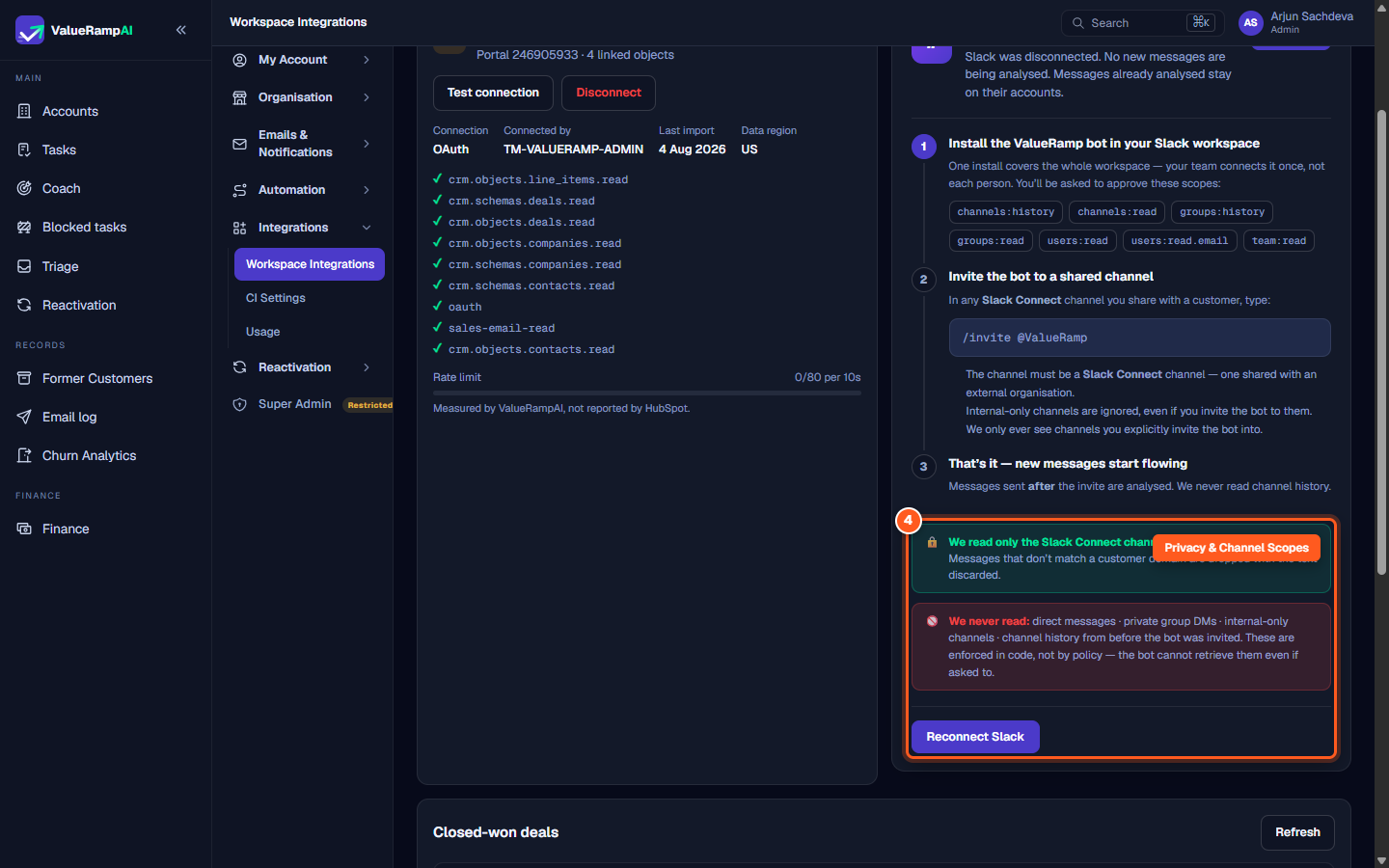
- Shared channels only: ValueRamp analyses channels Slack marks as shared. On Enterprise Grid this can also include channels shared internally across your own organisation. Ordinary internal company channels are strictly ignored, even if an employee invites the bot to them.
- No historical backfill: The bot only processes messages sent after it has been invited to the channel. Historical channel archives are never retrieved.
- No private communications: ValueRamp cannot read direct messages (DMs), group DMs, or internal private channels.
- Domain validation: If an incoming message cannot be verified against a customer domain in your active Accounts roster, the payload is immediately dropped and discarded.
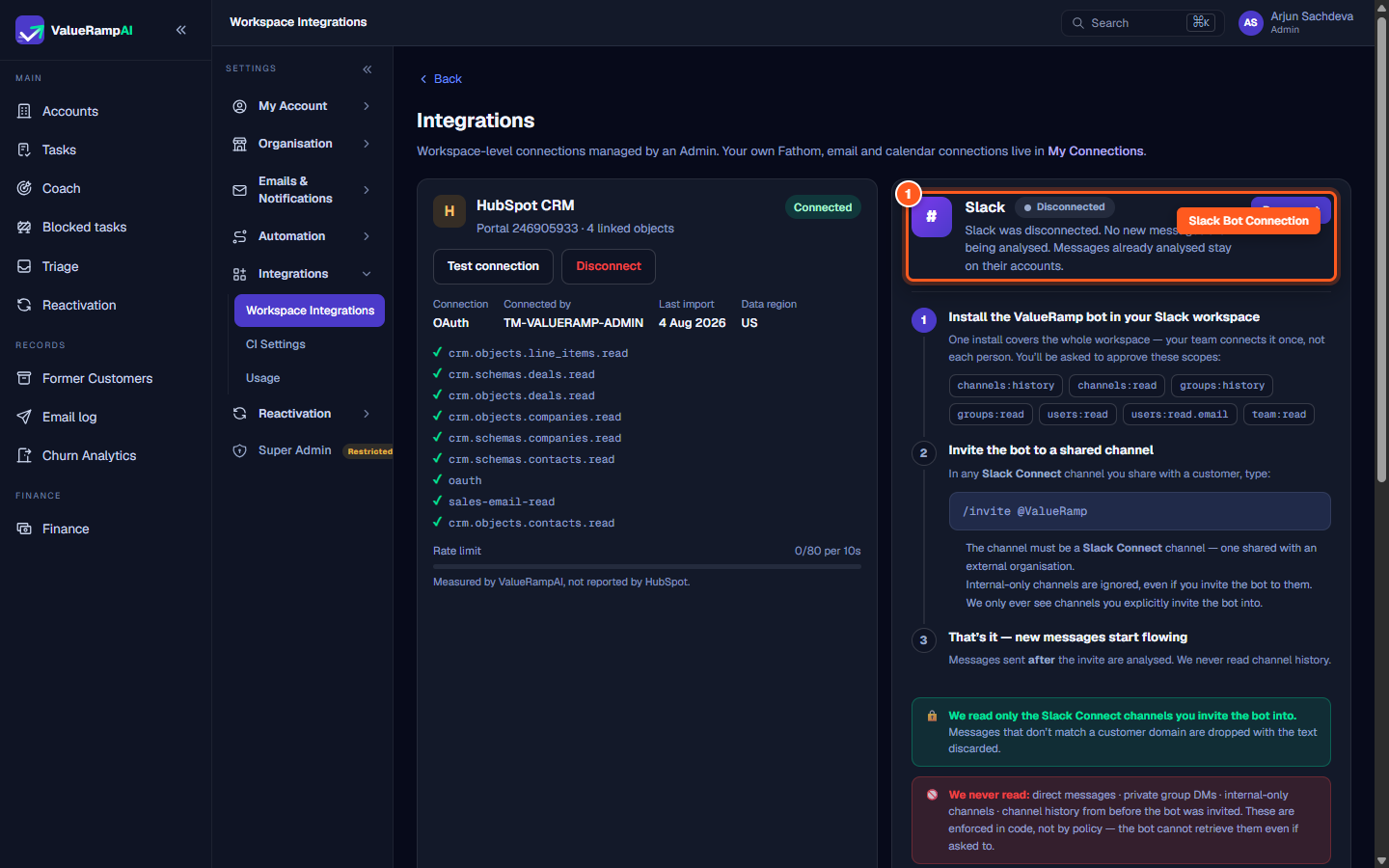
Steps
Review Slack workspace bot status and reconnection controls
Install the ValueRamp bot and approve requested channel scopes
Invite the bot to customer-shared Slack Connect channels
Verify privacy guarantees that exclude private DMs and internal chats
Common questions
Is Slack installed per user or for the whole workspace?
What types of Slack channels does ValueRamp monitor?
Does ValueRamp read private direct messages or pre-existing message history?
What happens if a message sent in a Slack Connect channel does not match a customer domain?
What happens when an Admin disconnects Slack?
Was this helpful? Tell us what was missing