Connect Microsoft Teams
Last verified 2026-09-24
Connect Microsoft Teams across your workspace to analyse customer signals in shared channels with automated domain matching and privacy safeguards.
Before you start
- ValueRamp Admin role
- A Microsoft 365 administrator who can approve access for your organisation (needed once)
Connecting Microsoft Teams lets ValueRamp pick up risks, expansion signals and feature requests directly from the channels you share with customers.
The Microsoft Teams integration is configured at the workspace level under Settings → Workspace Integrations (/integrations). Connecting or disconnecting Teams requires the Admin role in ValueRamp.
Connecting Microsoft Teams
Reading channel messages and members needs a Microsoft 365 admin to approve access once for your organisation. The Microsoft Teams card walks you through it:
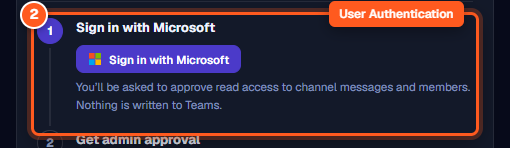
- Sign in with Microsoft: Click Sign in with Microsoft. You're taken to Microsoft to sign in and approve read access to channel messages and members. Nothing is written to Teams. If you're a Microsoft 365 admin, you can approve for your whole organisation here.
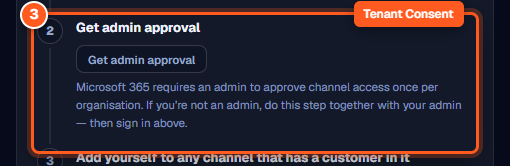
- Get admin approval: If you're not a Microsoft 365 admin, do this step together with your admin first: they click Get admin approval and approve access for the organisation. The card then reads "Admin approval received. Now sign in with Microsoft to finish connecting." — sign in as in step 1.
- Once you're signed in, ValueRamp returns you to
/integrationsand the card shows Connected.
How Channel Ingestion Works
ValueRamp reads messages exclusively from customer-facing channels, applying automated domain validation:
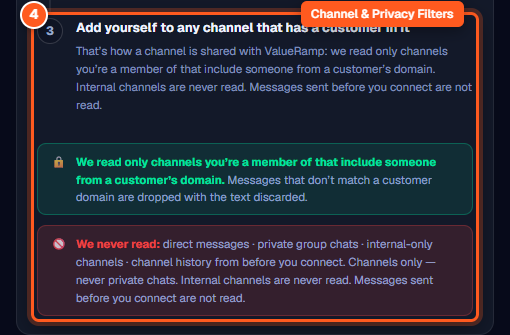
- Channel Membership: Add yourself or a teammate to the shared Microsoft Teams channel you collaborate in with your customer.
- Customer Domain Matching: When the background sync checks a channel, ValueRamp looks at the email domains of the channel's members. If at least one member's domain matches the domain of one of your accounts, the channel is a Customer channel and new messages are analysed.
- Internal Channels Skipped: Any channel containing only members from your own internal organization is completely skipped. The card summarizes these as internal channels that are not read.
- Sync Cadence: New messages posted in monitored customer channels are fetched and analyzed approximately every five minutes.
Privacy and Data Security
ValueRamp enforces strict data minimization at the API level:
- Channels only: ValueRamp never reads direct messages (1:1 DMs) or private multi-party group chats.
- No historical backfill: Messages sent before your connection was established are never read. Ingestion starts only from the timestamp of connection.
- Unmatched message disposal: Messages that don't match a customer domain are dropped, and their text is discarded.
Disconnecting Teams
An Admin can disconnect Microsoft Teams at any time:
- Navigate to Workspace Integrations (
/integrations). - On the Microsoft Teams card, click Disconnect.
- A warning banner confirms that stopping message analysis does not delete existing customer timelines or historical signals. Raw message text continues to expire on your workspace's standard retention schedule.
- Click Disconnect to confirm, or Cancel to keep the connection active.
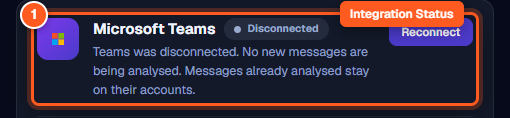
Steps
Review Microsoft Teams integration status and reconnection controls
Sign in with Microsoft to grant channel read permissions
Request tenant-wide administrator approval
Add teammates to customer-shared channels and verify privacy safeguards
Common questions
Who can connect Microsoft Teams to ValueRamp?
What is the difference between 'Sign in with Microsoft' and 'Get admin approval'?
Which Teams channels are monitored?
How quickly do new Teams messages appear in ValueRamp?
Does ValueRamp record Teams meetings or allow replying into Teams?
What happens when an Admin disconnects Microsoft Teams?
Was this helpful? Tell us what was missing