Connect a usage database (Postgres or MySQL)
Last verified 2026-09-17
Read product usage rows directly from your PostgreSQL or MySQL read replica into ValueRamp on an automated hourly or nightly schedule.
ValueRamp can read raw product usage rows directly from your PostgreSQL or MySQL read replica on an automated hourly or nightly schedule. This turns customer feature usage, active user counts, and adoption events into real-time health, risk, and renewal signals without requiring custom event pipelines or manual CSV uploads.
The connection is configured through a four-step self-serve wizard at /usage-ingestion/database. ValueRamp connects over TLS, enforces strict read-only execution guards, and uses an incremental watermark cursor so each sync collects only newly created events.
Architecture and security model
Before configuring your database source, review the architectural controls:
- Read replica or read-only view: Always point ValueRamp at a dedicated read replica or a restricted read-only SQL view on your primary database. Never point the connector at an unprotected primary database.
- Dedicated least-privilege user: Create a database user (e.g.
valueramp_ro) that possessesSELECTpermission exclusively on your usage view or table. - Strict read-only transaction guards: Every query executed by ValueRamp runs inside a read-only transaction with a 30-second statement timeout, capped at 200 rows for previews. Any non-
SELECTstatement is rejected before dispatch. - Mandatory TLS: All database traffic requires TLS encryption. If your server uses an internal or self-signed certificate, you can paste your custom Certificate Authority (CA) in PEM format. TLS verification cannot be disabled.
- No static IP allowlists required for managed databases: Managed providers with public endpoints (Neon, Aiven, Supabase, AWS RDS) require zero firewall modifications. The connector needs an endpoint it can reach over TLS; a read replica with a public endpoint is the supported shape.
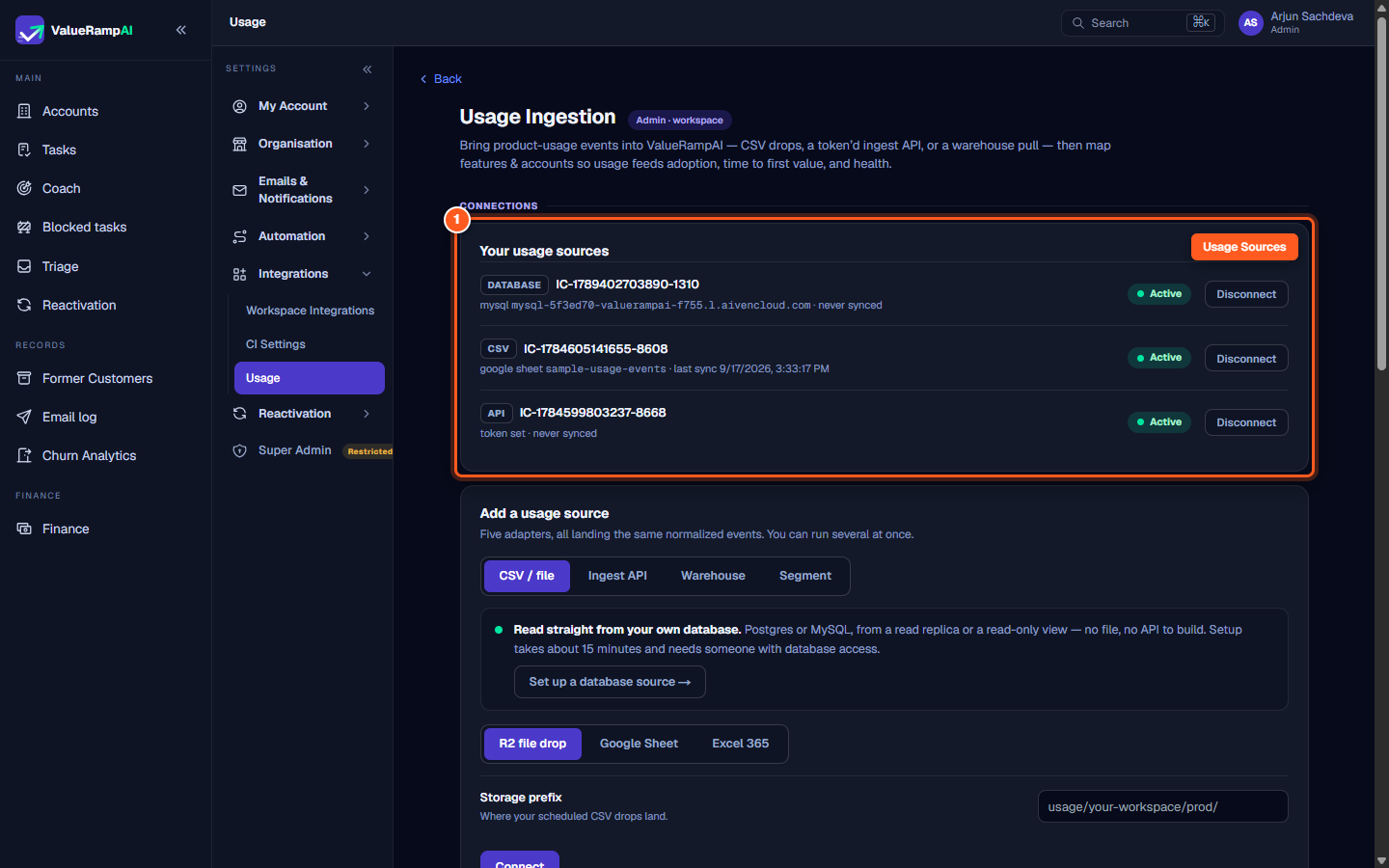
Step 1: Navigate to Usage Ingestion and open the database source
- Open the left sidebar and click Settings, then select Usage under the Integrations grouping (
/usage-ingestion). - The Usage Ingestion overview displays your active ingestion methods, including the Segment HTTP endpoint (
/api/ingest/usage), auto-discovered feature keys, and held account mappings. - Under Your usage sources, locate the Database source card and click Your database or Edit to open
/usage-ingestion/database. If connecting for the first time, click Set up a database source.
Step 2: Configure credentials and test the replica connection
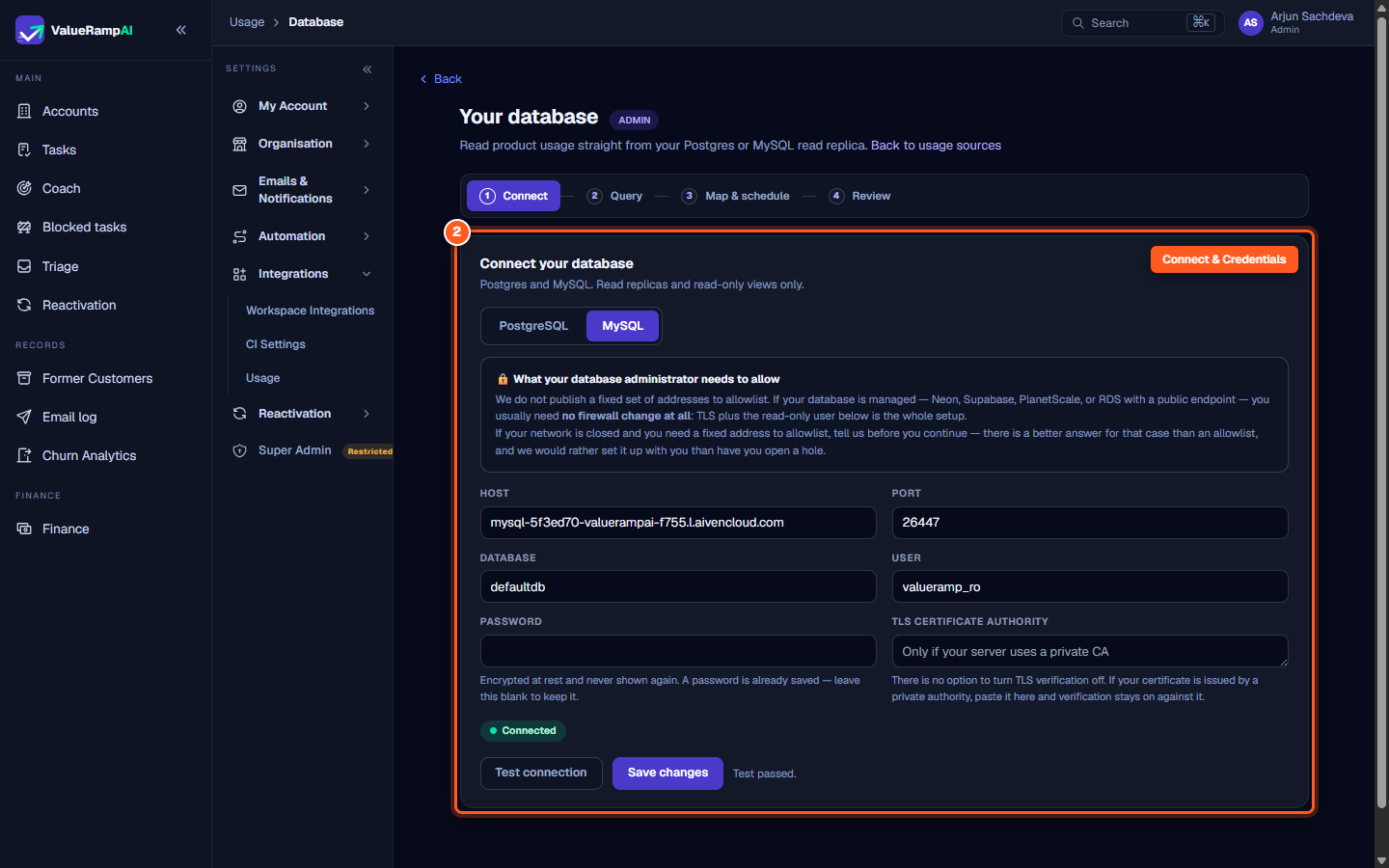
In Step 1: Connect of the setup wizard, configure your database credentials:
- Engine: Select PostgreSQL or MySQL.
- Host: Enter your read replica hostname (e.g.
replica.example.comor your cloud provider's endpoint). - Port: Defaults to
5432for PostgreSQL or3306for MySQL. - Database: Enter the database name containing your usage view.
- User: Enter the username of your dedicated read-only user (e.g.
valueramp_ro). - Password: Enter the user password. Passwords are encrypted at rest using AES-256-GCM and are never displayed in the interface.
- TLS Certificate Authority (Optional): If your database server uses a private CA, paste the certificate text in PEM format.
- Click Test connection. ValueRamp initiates a test handshake and verifies read permissions. Saving is disabled until the connection test passes.
- When the green Connected indicator appears, click Save and continue → to proceed to the query editor.
Step 3: Write your query and preview returned rows
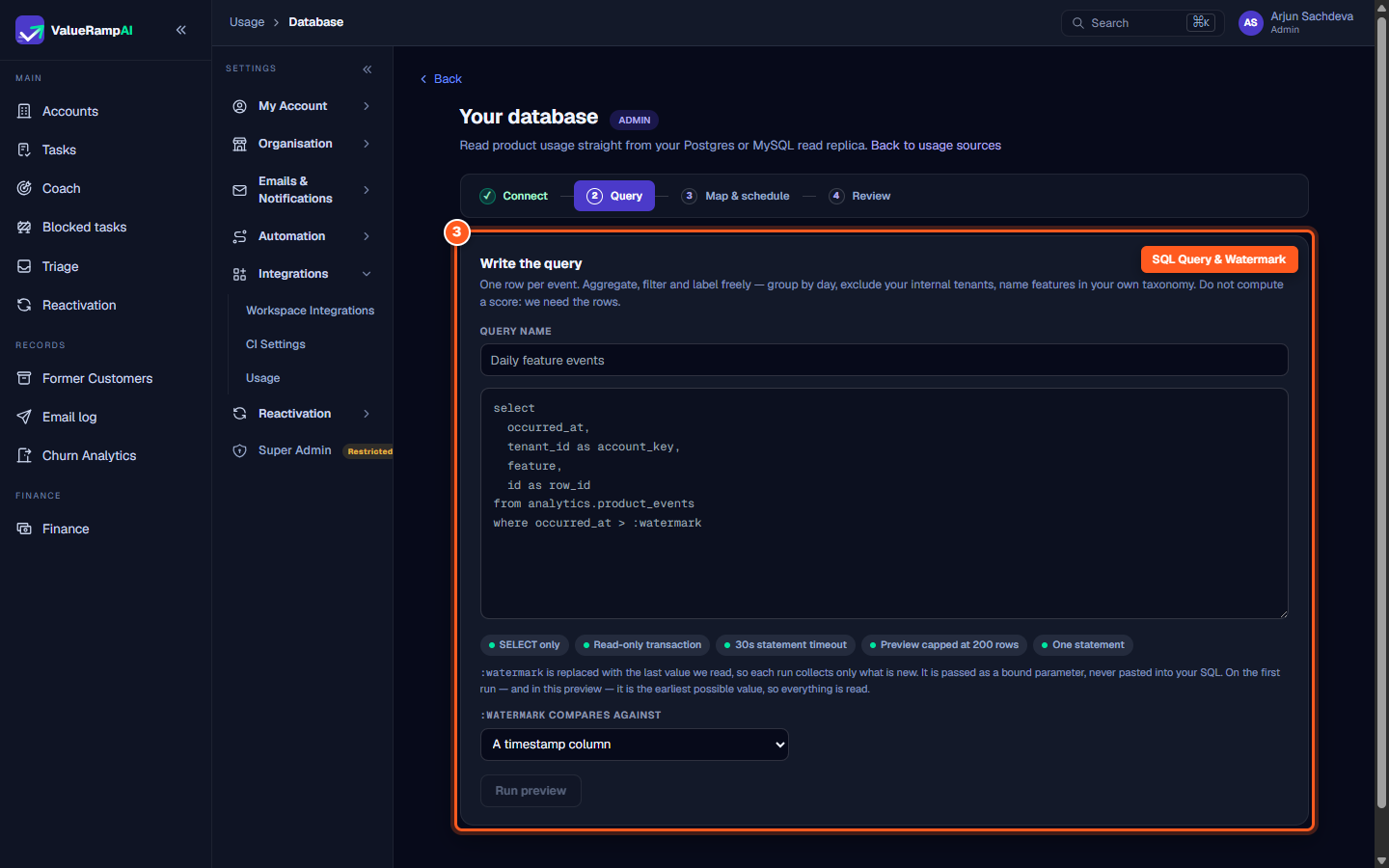
In Step 2: Query, write the SQL query that extracts event rows from your database:
- Query name: Enter a descriptive name for this sync (e.g.
Daily feature events). - SQL editor: Write a
SELECTstatement returning raw usage events. The query must filter against the:watermarkparameter so each run only reads new records:select occurred_at, tenant_id as account_key, user_id, feature as feature_key, action as event_type, id as row_id from valueramp.usage_events where occurred_at > :watermark order by occurred_at - Watermark comparison type: Specify whether
:watermarkcompares against A timestamp column or An auto-incrementing ID column. - Run preview: Click Run preview. ValueRamp executes the query with a sentinel watermark (
1970-01-01 00:00:00or0) and displays the first 200 rows in a preview table, confirming your column names and formatting. - Click Continue → to advance to column mapping.
Step 4: Map contract columns and set the sync schedule
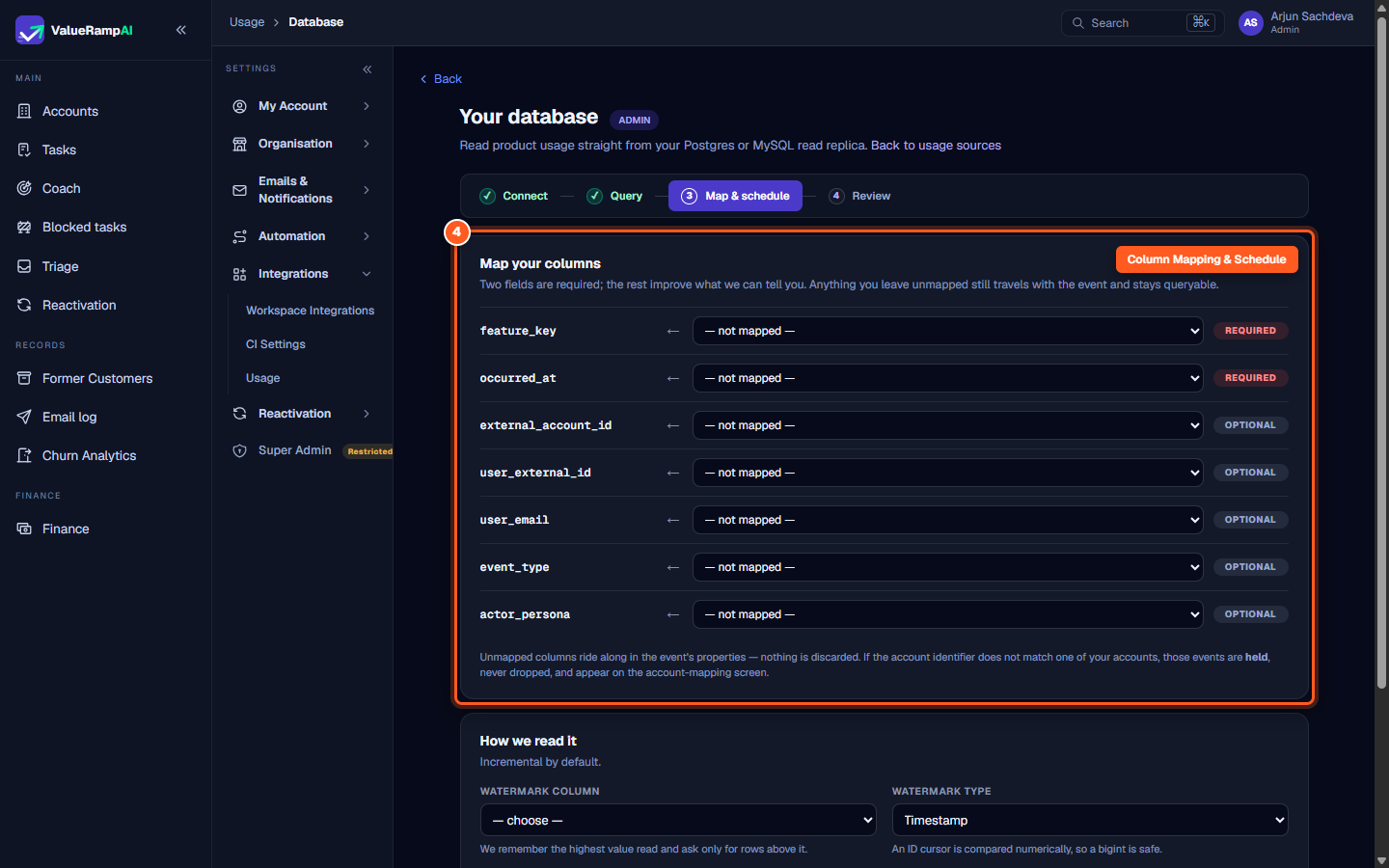
In Step 3: Map & schedule, associate your query's column names with ValueRamp's standard usage schema:
- Required fields:
feature_key: Maps to the feature identifier (e.g.dashboard.export,api.query).occurred_at: Maps to the event timestamp.
- Optional fields:
external_account_id: Maps to your customer's tenant or account ID. If an ID does not match an existing ValueRamp account, the events are held rather than discarded, allowing retroactive attribution once mapped.user_external_id: Unique identifier for the user who triggered the event.user_email: Email of the actor, enabling automated domain matching to customer accounts.event_type: Categorization of the action (e.g.click,run,create).actor_persona: Role of the user (e.g.admin,standard,service_account).
- Reading options:
- Watermark column: Select the monotonically increasing column (e.g.
occurred_atorrow_id). ValueRamp remembers the highest recorded value and queries only rows above it on subsequent runs. - Row identity column: Select a unique identifier column (e.g.
row_id) to ensure idempotent re-reads. If omitted, ValueRamp derives a row hash from mapped fields. - Frequency: Choose Hourly (runs every hour at minute :50) or Nightly (runs once daily at 00:35 UTC).
- Watermark column: Select the monotonically increasing column (e.g.
- Click Save query.
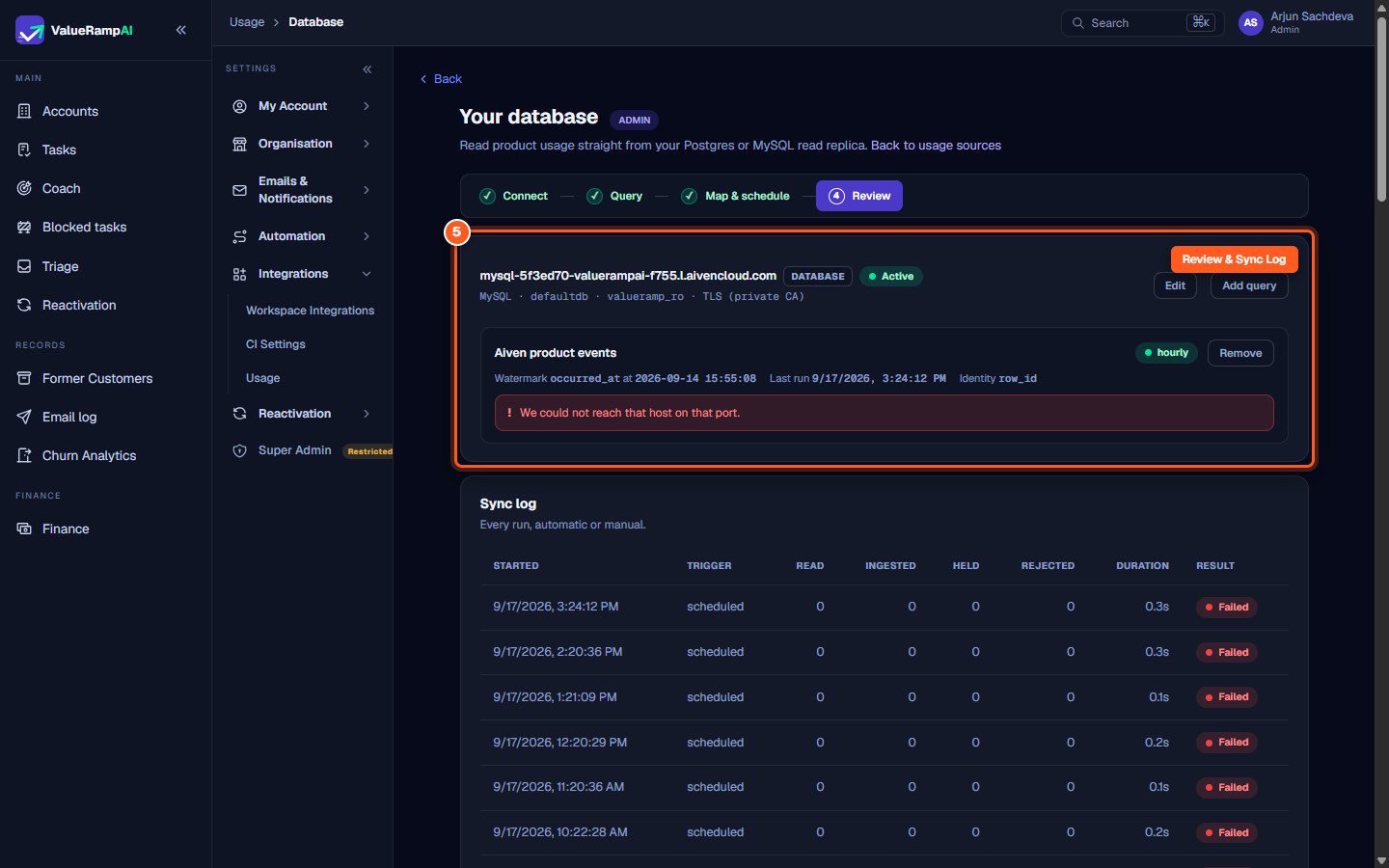
Step 5: Review active queries and inspect the sync log
In Step 4: Review, monitor the health and throughput of your usage ingestion pipeline:
- Connection overview: Review active connection parameters, database engine, user, and TLS status. Use Edit to update credentials or Add query to define additional queries (e.g. separate queries for seat counts and event logs).
- Active queries: Inspect the current watermark value, last run timestamp, and sync frequency.
- Sync log: Inspect the comprehensive ledger of every scheduled and manual run:
- Started: Timestamp of the execution.
- Trigger: Trigger source (
scheduledor manual). - Read: Total rows returned by the query.
- Ingested: Successfully attributed usage events.
- Held: Events with external account IDs not yet mapped to a ValueRamp account.
- Rejected: Malformed events missing required contract columns.
- Duration: Execution time in seconds.
- Result: Status badge (
OK,Held, orFailed).
Frequently asked questions
What happens if our database is temporarily unavailable during a scheduled run?
If ValueRamp cannot connect to your database or if the query times out after 30 seconds, the run is logged as Failed in the Sync log. Crucially, the watermark cursor does not advance. On the next scheduled run, ValueRamp will re-attempt the pull using the unchanged watermark, preventing any data loss.
Can ValueRamp modify or drop tables in our database?
No. ValueRamp enforces read-only connections at multiple layers:
- The database connection pool opens exclusively in read-only transaction mode.
- Queries are validated to permit only
SELECTandWITHstatements. - By following the setup guide, the database user you create only possesses
SELECTpermissions on a specific view.
What should I do if the Sync log displays "Held" rows?
A "Held" status indicates that ValueRamp successfully ingested events, but the external_account_id in your database does not match an existing account in ValueRamp. Navigate to Settings → Usage (/usage-ingestion) and locate the Account (External-ID) Mapping section. Map the external identifier to the corresponding ValueRamp account; all held events will be retroactively attributed on the next rollup.
Steps
Navigate to Settings Usage and select your database source
Select database engine and configure read-replica connection credentials
Write SQL extraction query with watermark parameter and test preview
Map query columns to contract fields, watermark cursor, and sync cadence
Review scheduled sync configuration and inspect execution logs
Was this helpful? Tell us what was missing