Network effect (Admin view)
Last verified 2026-09-17
Monitor relationship graph breadth, analyze multi-account champion movement, evaluate ICP alignment, and identify warm reactivation opportunities.
The Network Effect dashboard provides workspace administrators with executive intelligence into relationship graph coverage, executive stakeholder mobility, and warm reactivation pipeline opportunities.
When champions and key buyers transition to new companies, they represent your highest-converting pipeline. ValueRamp tracks people across accounts without overwriting history, automatically qualifying career transitions against your Ideal Customer Profile (ICP).
Read-Only Safety Invariant: The Network Effect view is strictly analytical. Nothing on this page sends emails, modifies contacts, or automatically launches campaigns. Detections become actionable outreach only after human CSM review and approval on individual opportunity records.
Core relationship metrics
ValueRamp continuously tracks stakeholder connections across customer accounts:
| Metric | What it Measures | Strategic Impact |
|---|---|---|
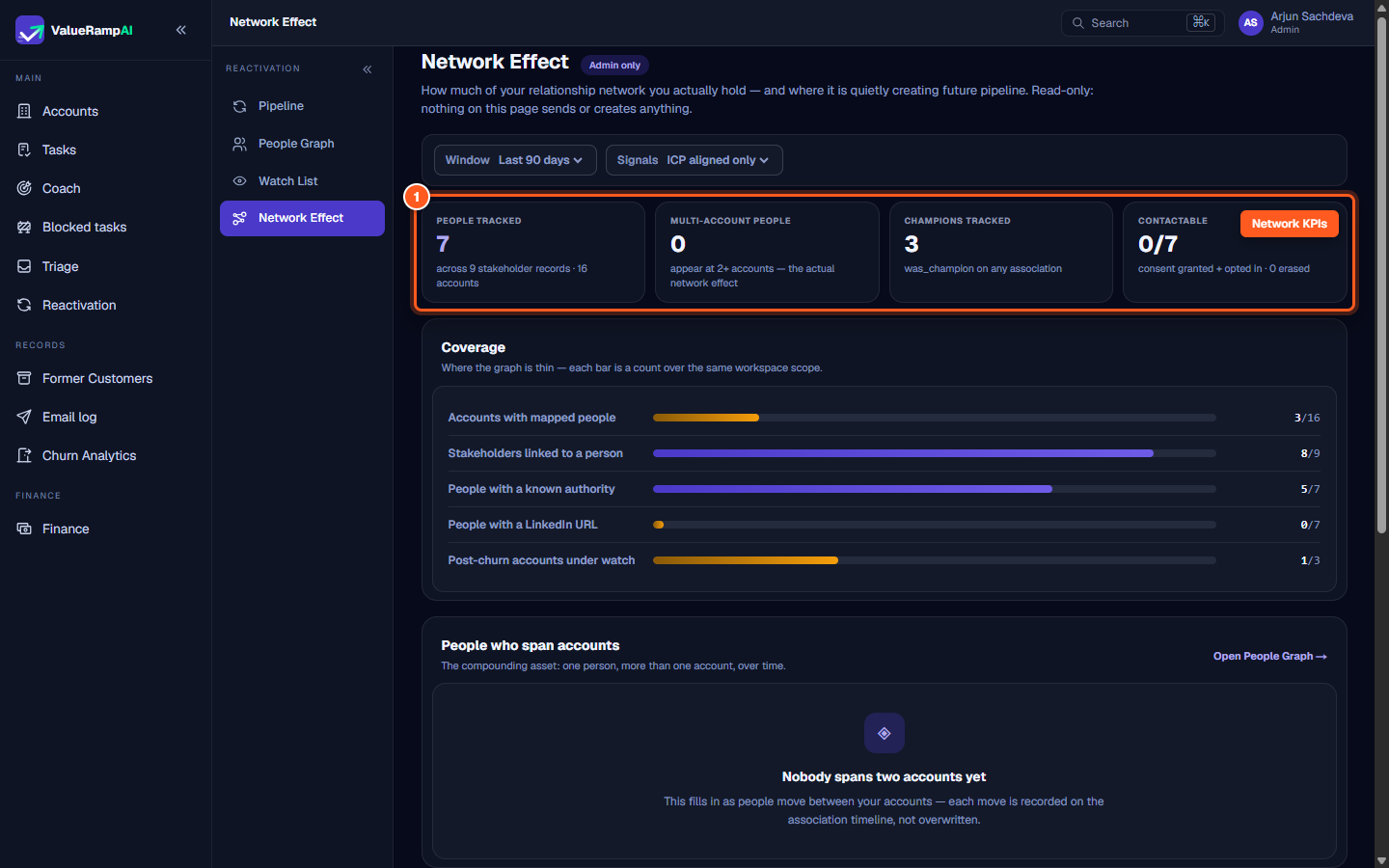
| People Tracked | Unique individuals identified across stakeholder rosters and customer email interactions. | Baseline size of your addressable network. |
| Multi-Account People | Contacts associated with two or more customer accounts over time. | The true compounding network asset. |
| Champions Tracked | Stakeholders designated as internal champions on any current or past engagement. | Primary targets for warm intro outreach when they switch roles. |
| Contactable | Contacts who have granted consent and opted in to future commercial contact. | Compliant audience available for outbound reactivation workflows. |
Step 1: Open Network Effect to review relationship graph KPIs
- In the left navigation sidebar under Main, click Reactivation and select Network Effect (
/reactivation/network-effect). - Review the top KPI cards:
- People Tracked: Total individual identities monitored across your workspace.
- Multi-Account People: Counts contacts who have worked at more than one customer organization.
- Champions Tracked: Highlights verified product champions.
- Contactable: Confirms privacy compliance and consent verification status.
Step 2: Filter relationship signals by window and ICP alignment
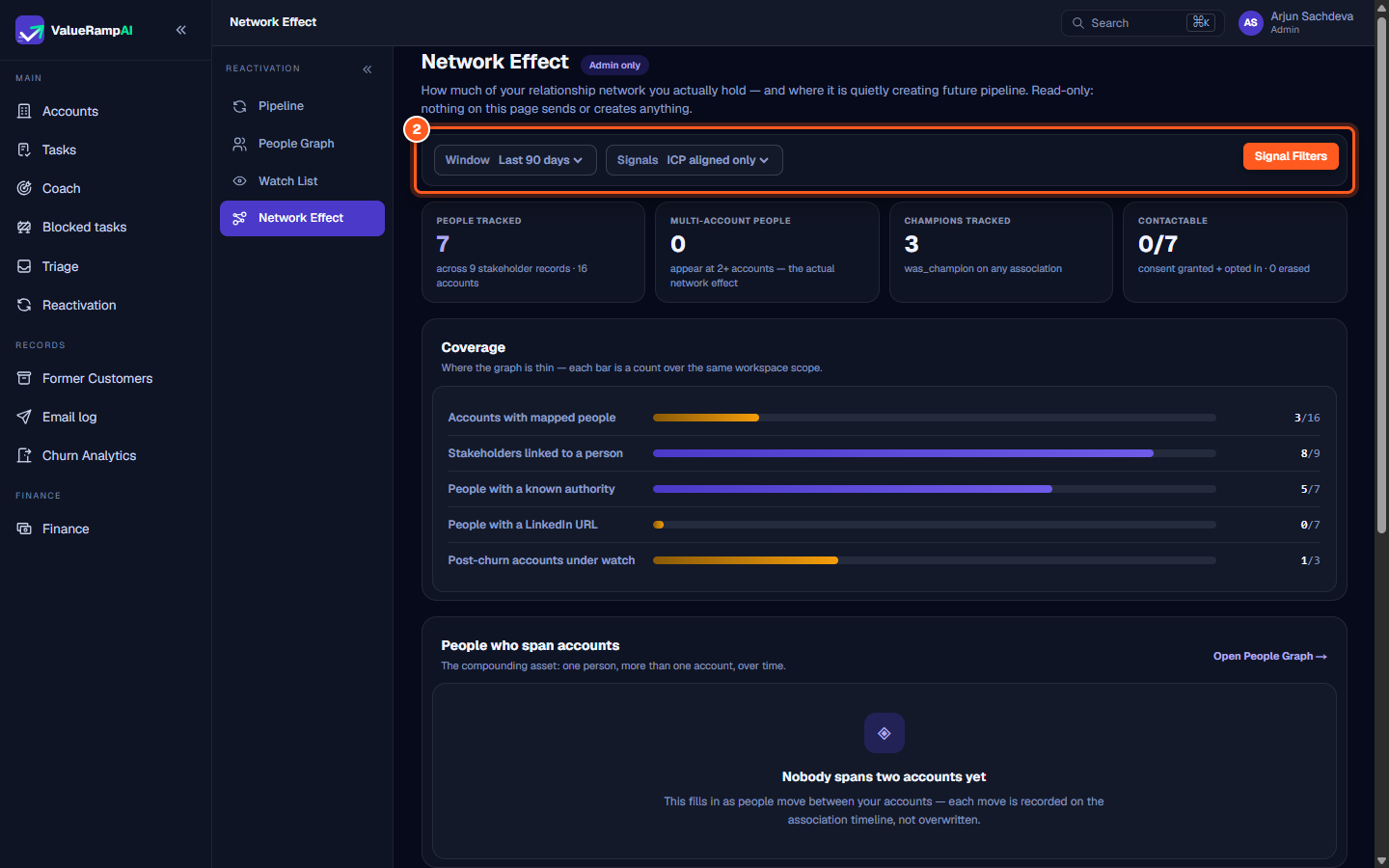
- In the header filter bar:
- Window: Toggle between Last 30 days, Last 60 days, or Last 90 days to evaluate recent market mobility.
- Signals: Switch between ICP aligned only (contacts whose new companies match your target profile) and All detected (all recorded career shifts).
- The metrics and detection rosters adjust dynamically to reflect the selected parameters.
Step 3: Analyze graph coverage across accounts and stakeholders
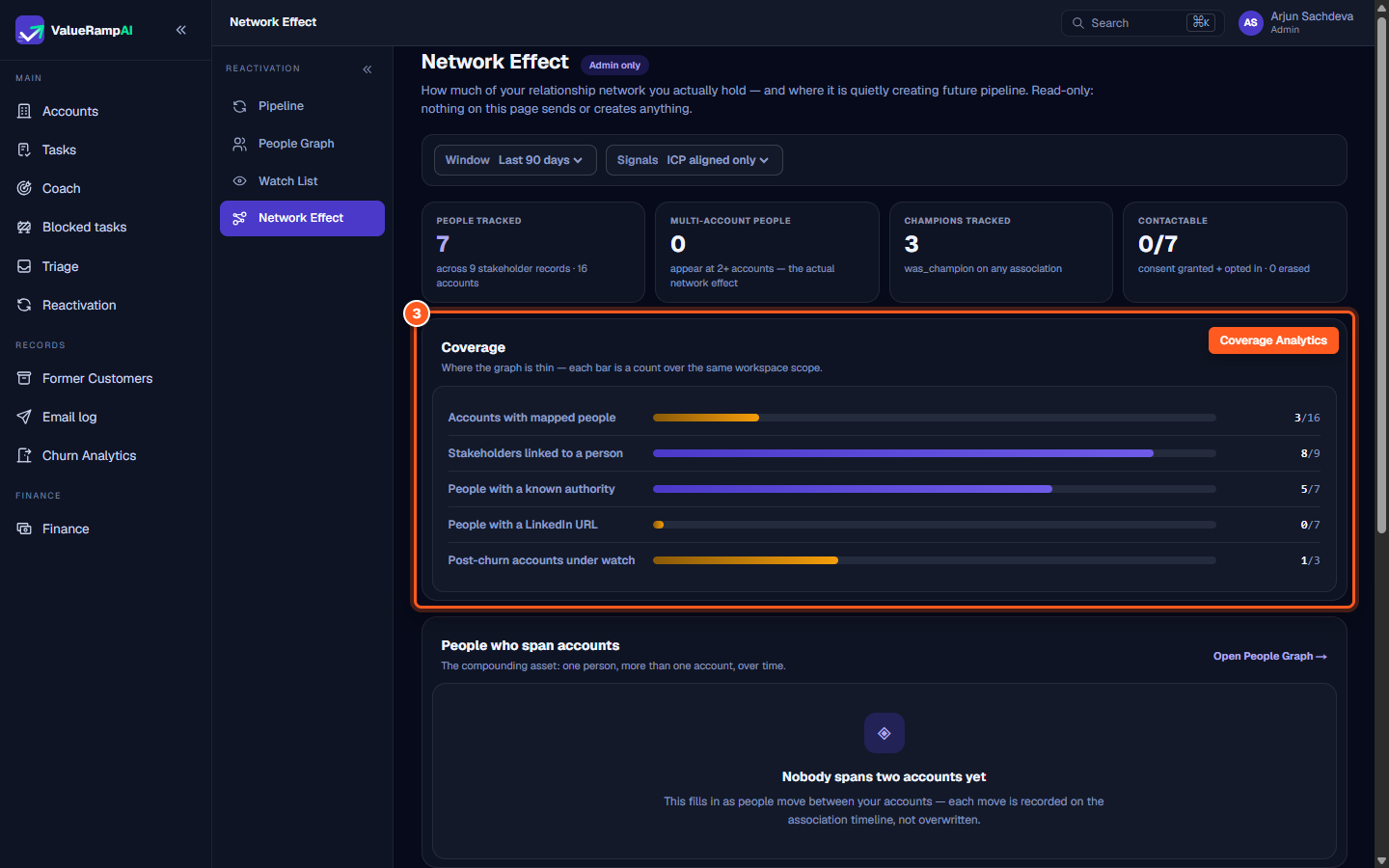
- Scroll down to the Coverage panel.
- ValueRamp audits graph completeness across five benchmarks:
- Accounts with mapped people: Percentage of customer organizations with active stakeholder records.
- Stakeholders linked to a person: Roster entries tied to deduplicated global identities.
- People with a known authority: Contacts categorized with verified decision-making authority.
- People with a LinkedIn URL: Contacts enriched with public social verification.
- Post-churn accounts under watch: Churned organizations actively monitored for leadership turnover.
- Use low coverage bars to guide CSM enrichment efforts on active accounts.
Step 4: Inspect multi-account champions and access the People Graph
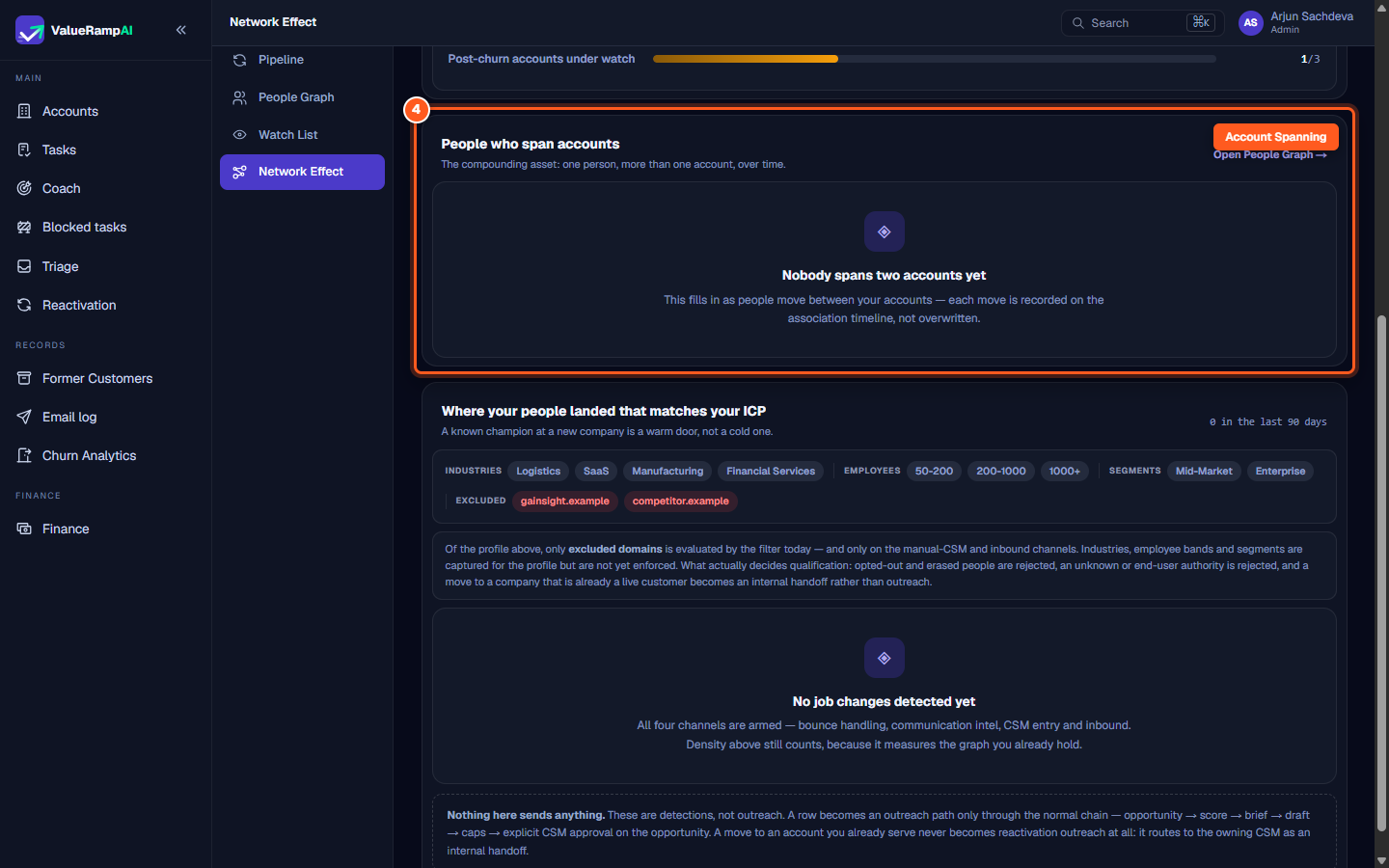
- In the People who span accounts section, ValueRamp highlights individuals who have championed your product across multiple organizations.
- Career transitions are preserved on an immutable association timeline, ensuring that tenure at previous customers remains linked to historical success records.
- Click Open People Graph → (
/reactivation/people) to visually inspect stakeholder connections, past tenures, and mutual coworker relationships.
Step 5: Review ICP qualification rules and detection channels
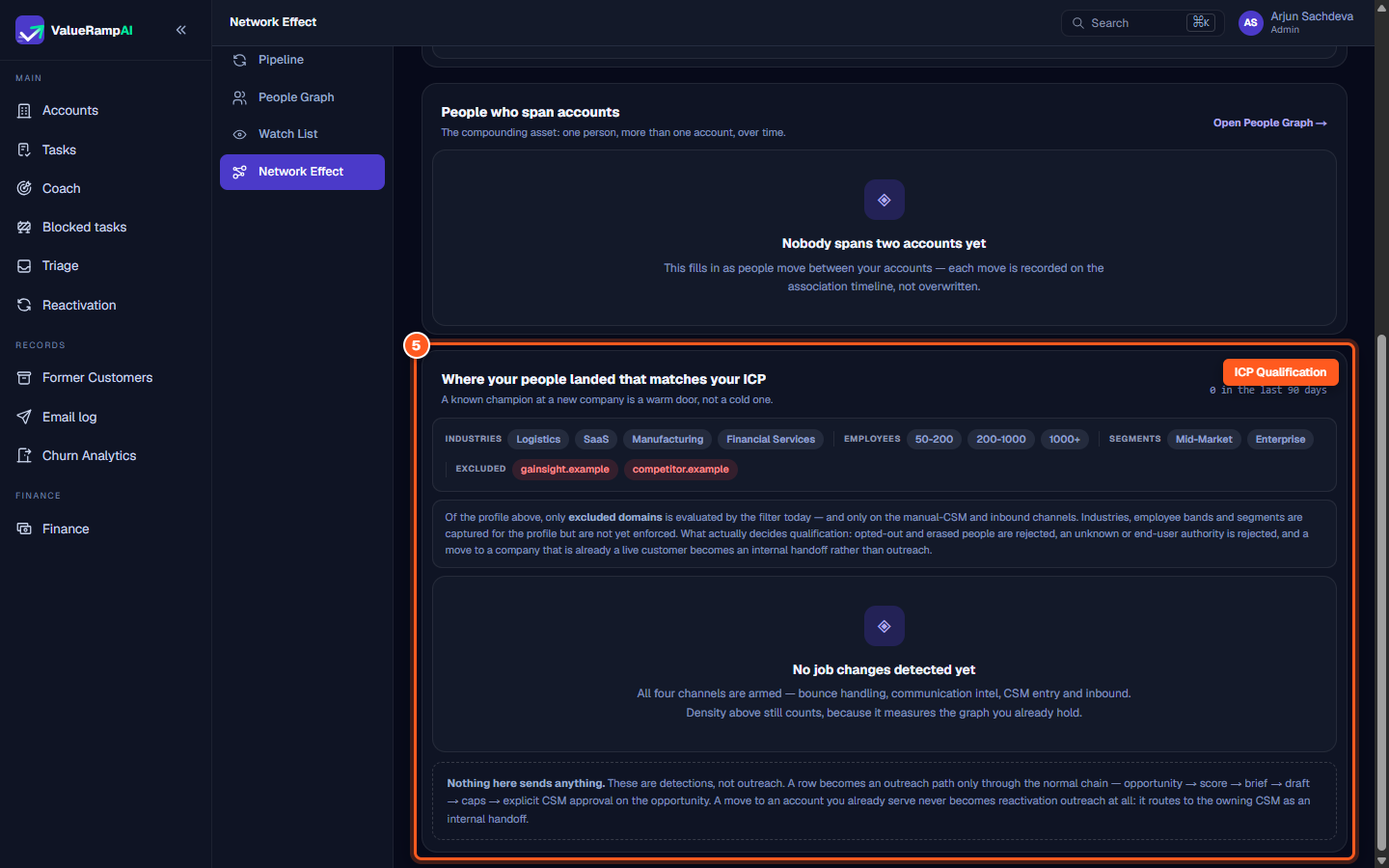
Scroll down to Where your people landed that matches your ICP.
Review your ICP criteria:
- Industries: Target verticals (e.g. Logistics, SaaS, Manufacturing, Financial Services).
- Employees: Target organizational size bands (e.g. 50-200, 200-1000, 1000+).
- Segments: Enterprise and Mid-Market tiers.
- Excluded Domains: Competitor or partner domains to leave out of reactivation outreach.
Today the engine applies the excluded-domains list to moves entered by a CSM or arriving as inbound leads (the two channels that carry a company domain); industries, employee bands and segments are recorded here for your team and are not yet applied automatically.
ValueRamp's four armed channels (bounce handling, communication intelligence, CSM entry, and inbound leads) continuously monitor moves.
If a champion moves to a company that is already a live customer, ValueRamp routes the signal to the owning CSM as an internal handoff rather than cold reactivation outreach.
Frequently asked questions
Who can access the Network Effect dashboard?
Network Effect is an Admin-only capability in ValueRamp. CSMs and team members work directly with individual opportunities on the Reactivation Pipeline (/reactivation/pipeline) and Watch List (/reactivation/watch-list).
Does Network Effect automatically send reactivation emails?
No. The Network Effect dashboard is strictly read-only intelligence. Outreach is never automated from this screen. Signals only become actionable after a CSM reviews the opportunity brief and explicitly approves a outreach draft.
What happens when a contact moves to an existing customer account?
ValueRamp detects if the contact's new organization is an active customer. Instead of creating a reactivation opportunity, the platform generates an internal handoff notification for the assigned CSM to welcome the champion to the new account.
Steps
Open Network Effect to review relationship graph KPIs and tracked champions
Filter relationship signals by time window and ICP alignment
Analyze graph coverage across accounts, stakeholders, and authority levels
Inspect multi-account champions and access the People Graph
Review ICP qualification rules and automated detection channels
Was this helpful? Tell us what was missing