An opportunity and its outreach
Last verified 2026-09-17
Review AI reactivation briefs, examine exit feedback, and manage sequenced outreach touches to win back churned customer accounts.
Before you start
- ValueRamp CSM, Admin, or OM role
- An open reactivation opportunity in the pipeline
Overview
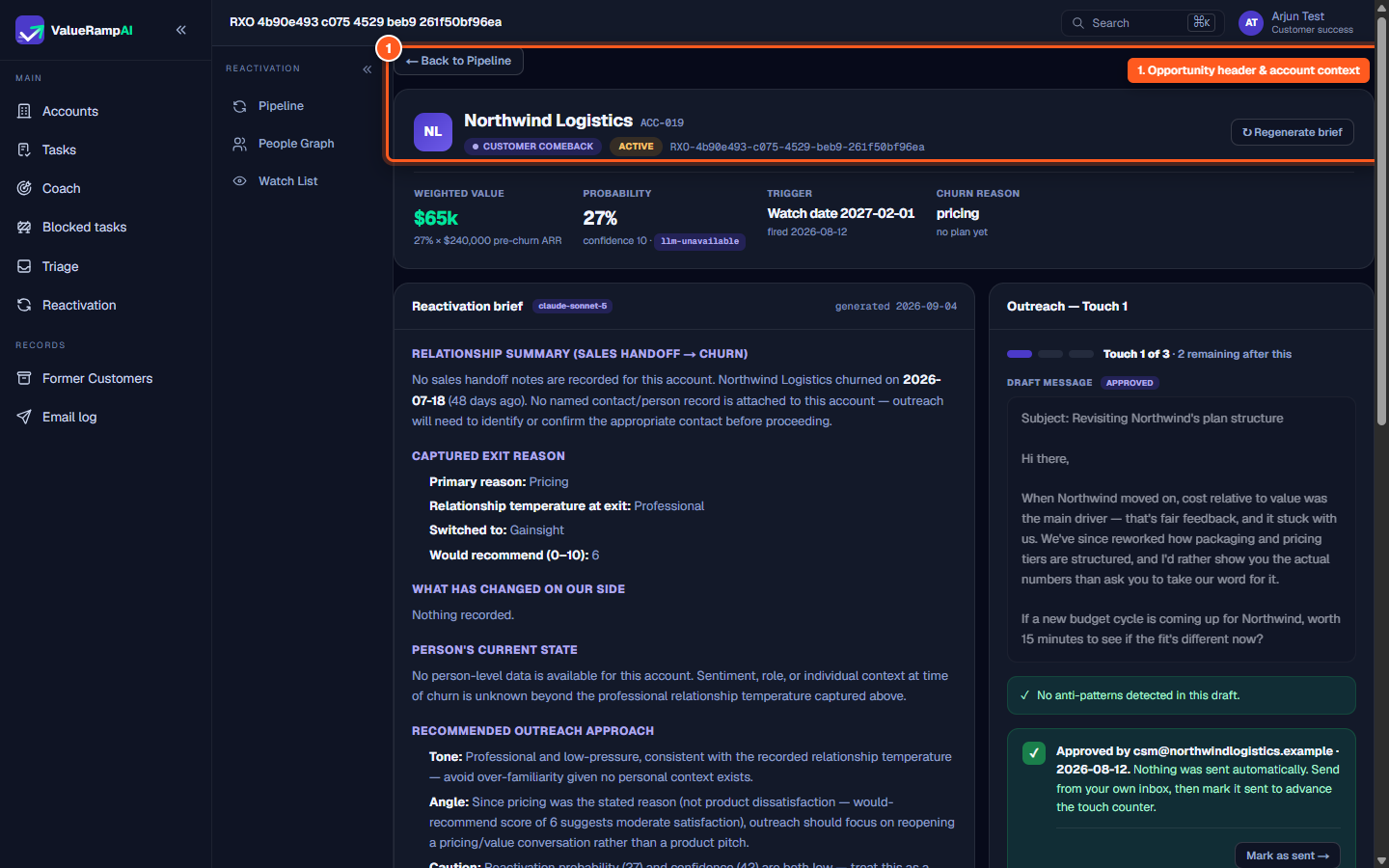
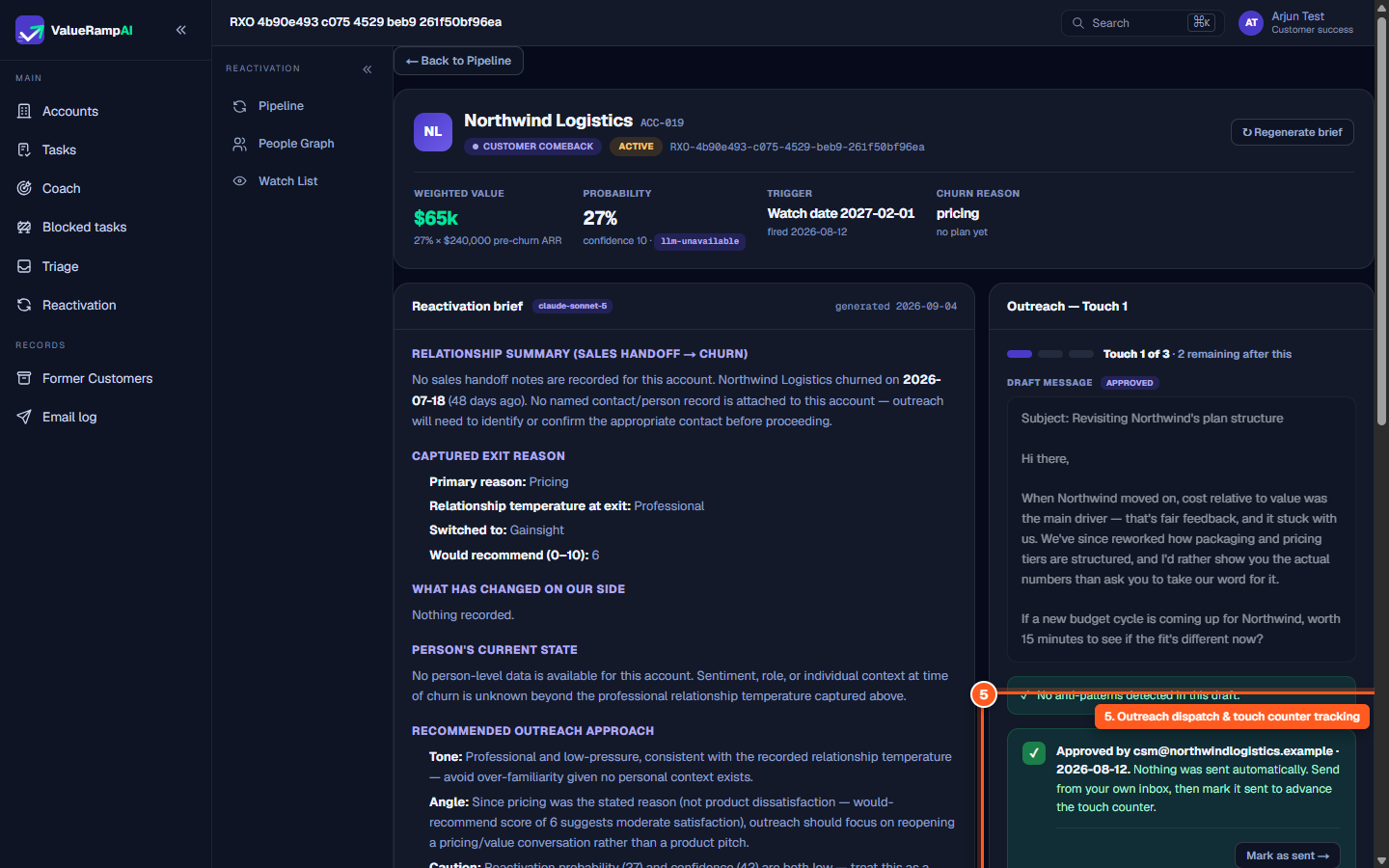
The Opportunity workspace (/reactivation/opportunities/[id]) provides a dedicated command center for managing re-engagement with a specific former customer account. Rather than cold-pitching churned buyers, account teams use this screen to review why the account originally left, what improvements have occurred since exit, and how to position a conversation that delivers genuine value.
The Reactivation Brief
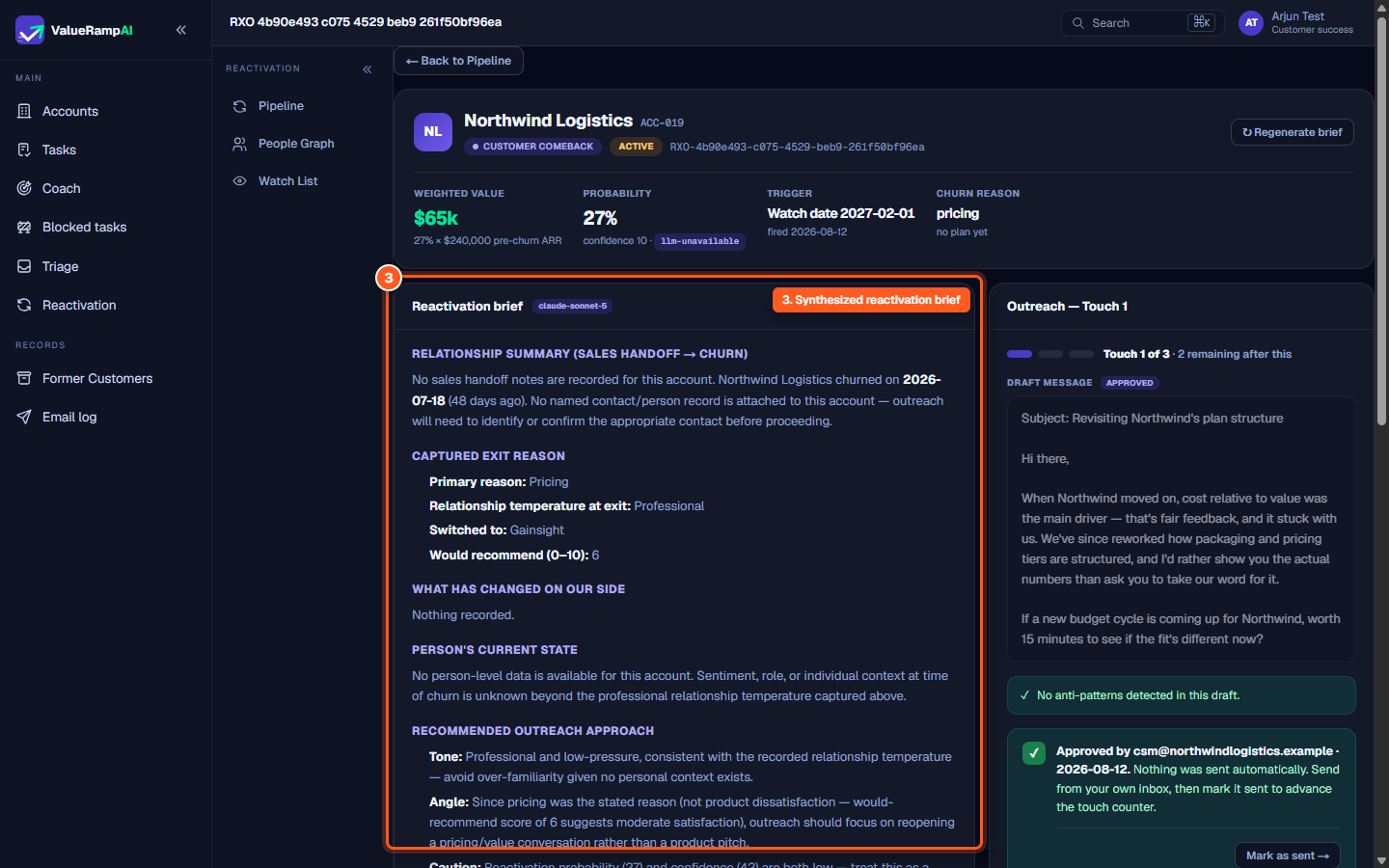
The left column features an AI-synthesized intelligence brief structured into distinct operational sections:
- Relationship Summary: Historical narrative covering initial sales handoff, onboarding milestones, adoption challenges, and churn date.
- Captured Exit Reason: Concrete categorization (such as pricing, missing feature, executive turnover, or competitor switch) and the relationship temperature at departure.
- What Has Changed on Our Side: Reads Nothing recorded. unless a change was captured in the inputs — no product changelog is fed to the brief, and it is instructed never to invent one.
- Person's Current State: Current role, seniority, and organizational moves of key champions and former decision-makers.
- Recommended Outreach Approach: Specific talking points, tone guidelines, and angle recommendations.
- Draft Initial Message: A first-touch draft, which the Outreach panel picks up.
Sequenced Multi-Touch Outreach
The right column manages the account's outreach campaign:
- Touchpoint Sequencing: Re-engagement is paced into numbered touches (e.g., Touch 1 of 3 — the cap is set in Lifecycle settings), with a minimum gap between sends.
- Pre-Drafted Messages: Tailored subject lines and body copy ready for review, incorporating past context without sounding generic.
- Anti-Pattern Guard: Each draft is checked for generic or templated copy, pressured tone, guilt appeals, presumed familiarity, outreach after a decline, and invented claims of change. Flags warn rather than block: acknowledge them, then Approve anyway.
- Approve, then send by hand: Approve outreach records the approval, re-runs the anti-spam gates and creates the reactivation plan. Nothing is sent automatically: send from your own inbox, then confirm with Mark as sent →. Approve, dismiss and re-draft belong to an Admin or the account's own CSM; everyone else sees the opportunity read-only.
Steps
Review opportunity details and account identity in the workspace header
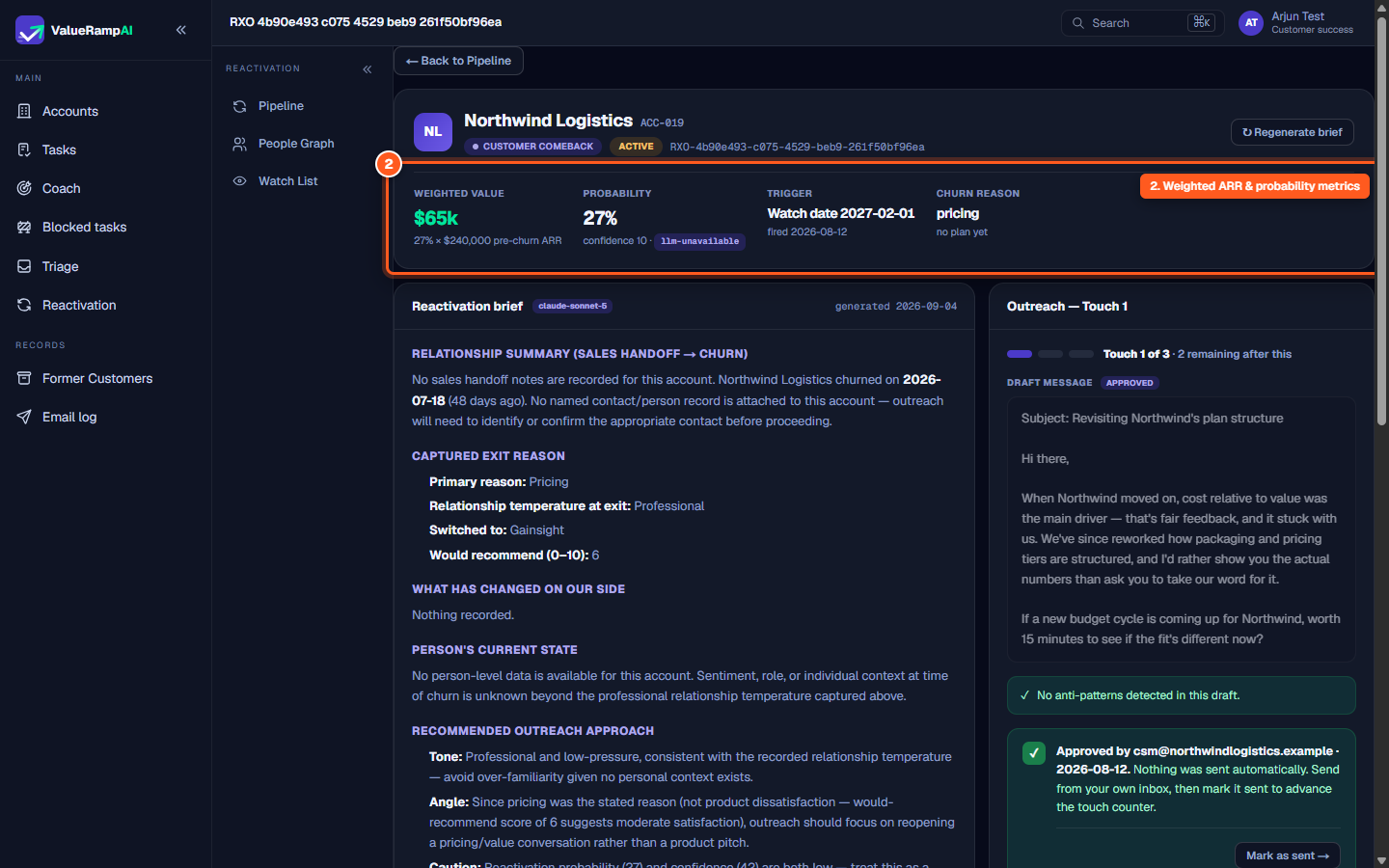
Examine weighted value, probability score, trigger event, and churn reason
Read the AI-generated reactivation brief and strategic recommendations
Review the drafted multi-touch message and anti-pattern validation
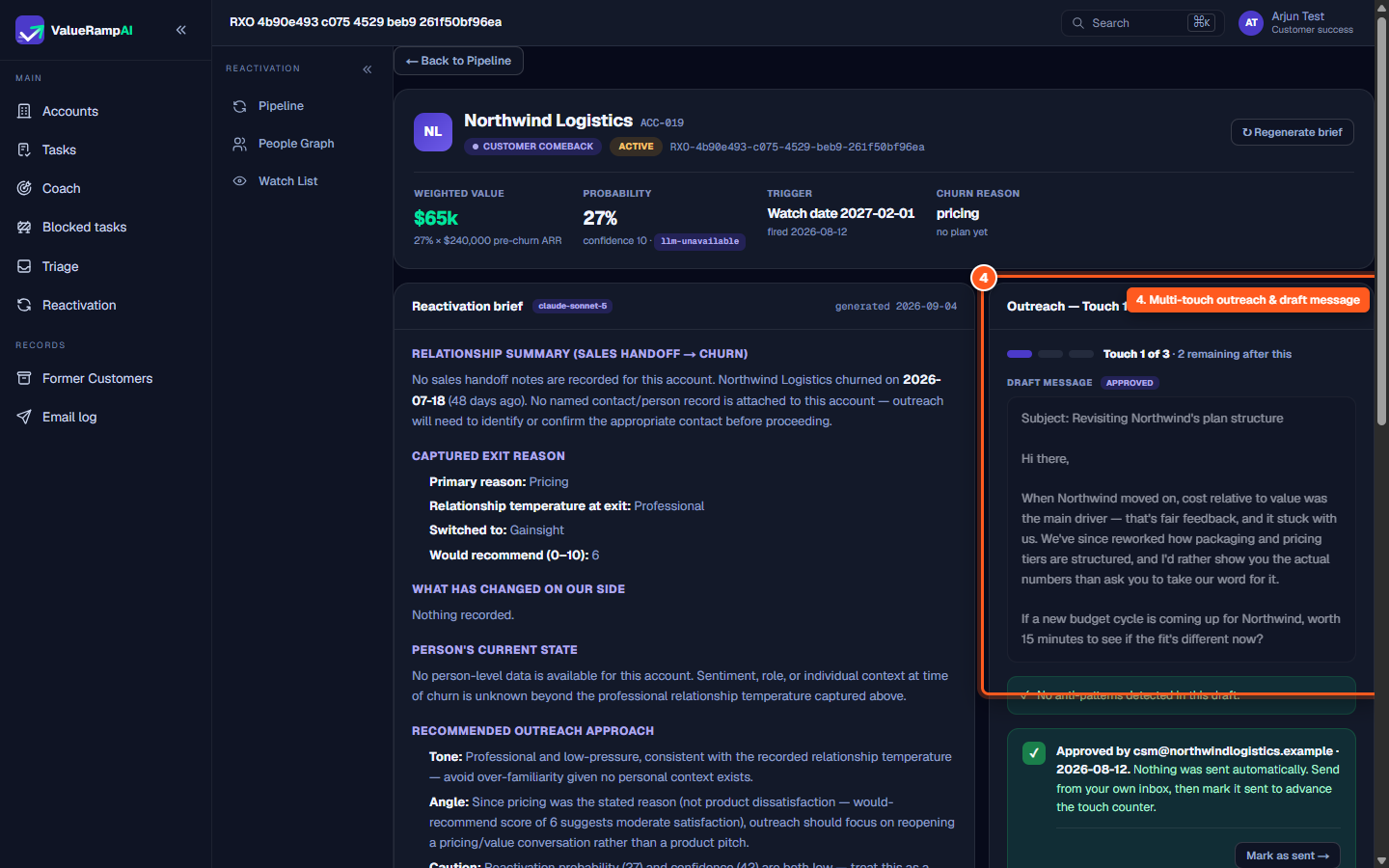
Approve the draft, send it from your inbox, and click Mark as sent
Common questions
Does ValueRamp send outreach emails automatically?
What happens when I click 'Mark as sent'?
What is an anti-pattern check?
Can I regenerate the AI brief if new account context is added?
Was this helpful? Tell us what was missing