Leave calendar and team time off
Last verified 2026-09-17
Manage team out-of-office, schedule personal leave, import company-wide public holidays, and maintain calendar SLAs.
Before you start
- ValueRamp staff account (Admin, CSM, or Onboarding Manager)
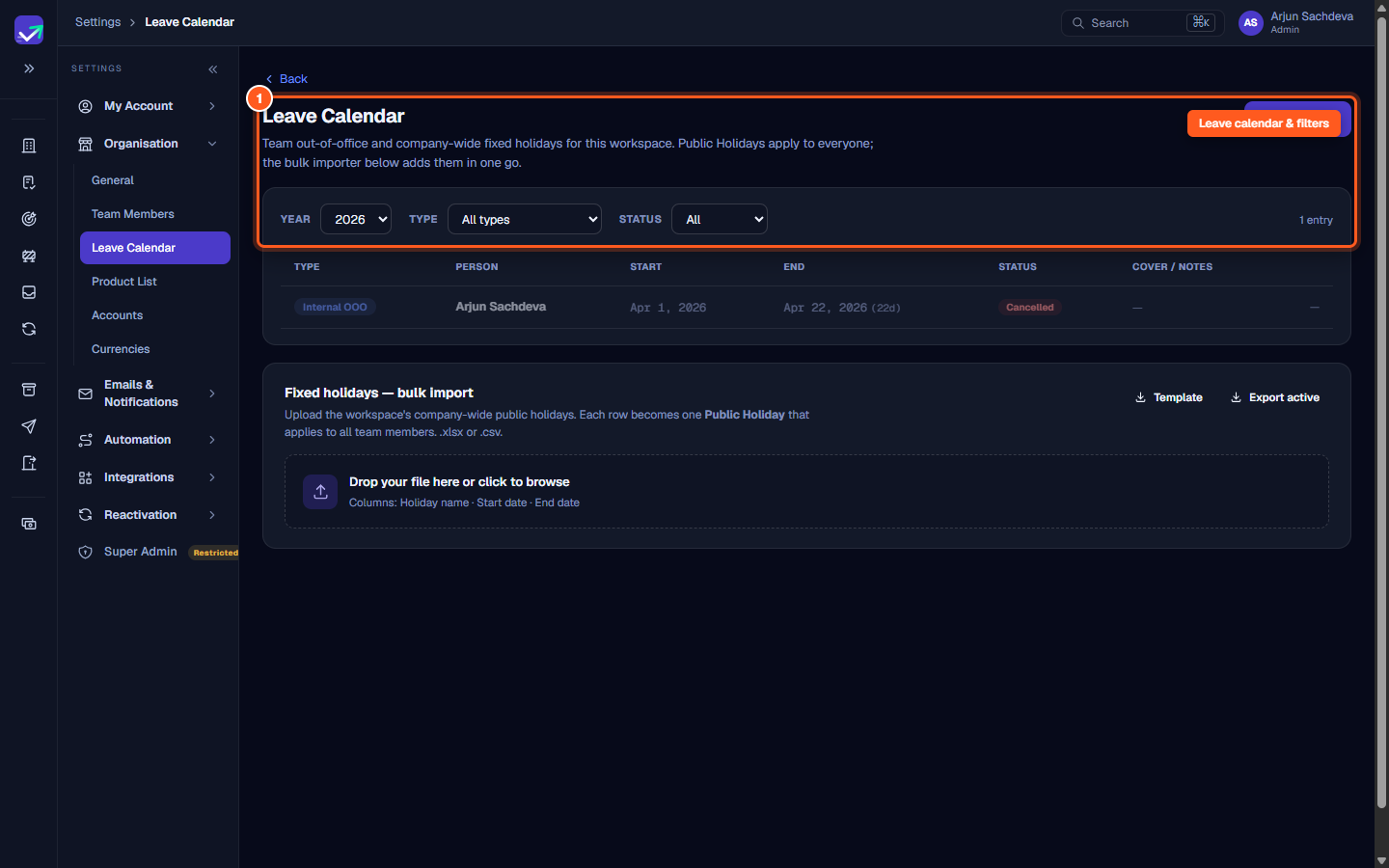
The Leave Calendar (/settings/organisation/leave) provides centralized visibility into team availability, scheduled time off, and fixed company holidays across your workspace.
Because customer success commitments and onboarding milestones depend on realistic working day calculations, recorded leaves directly integrate with ValueRamp's timeline scheduling engine.
Scheduling time off
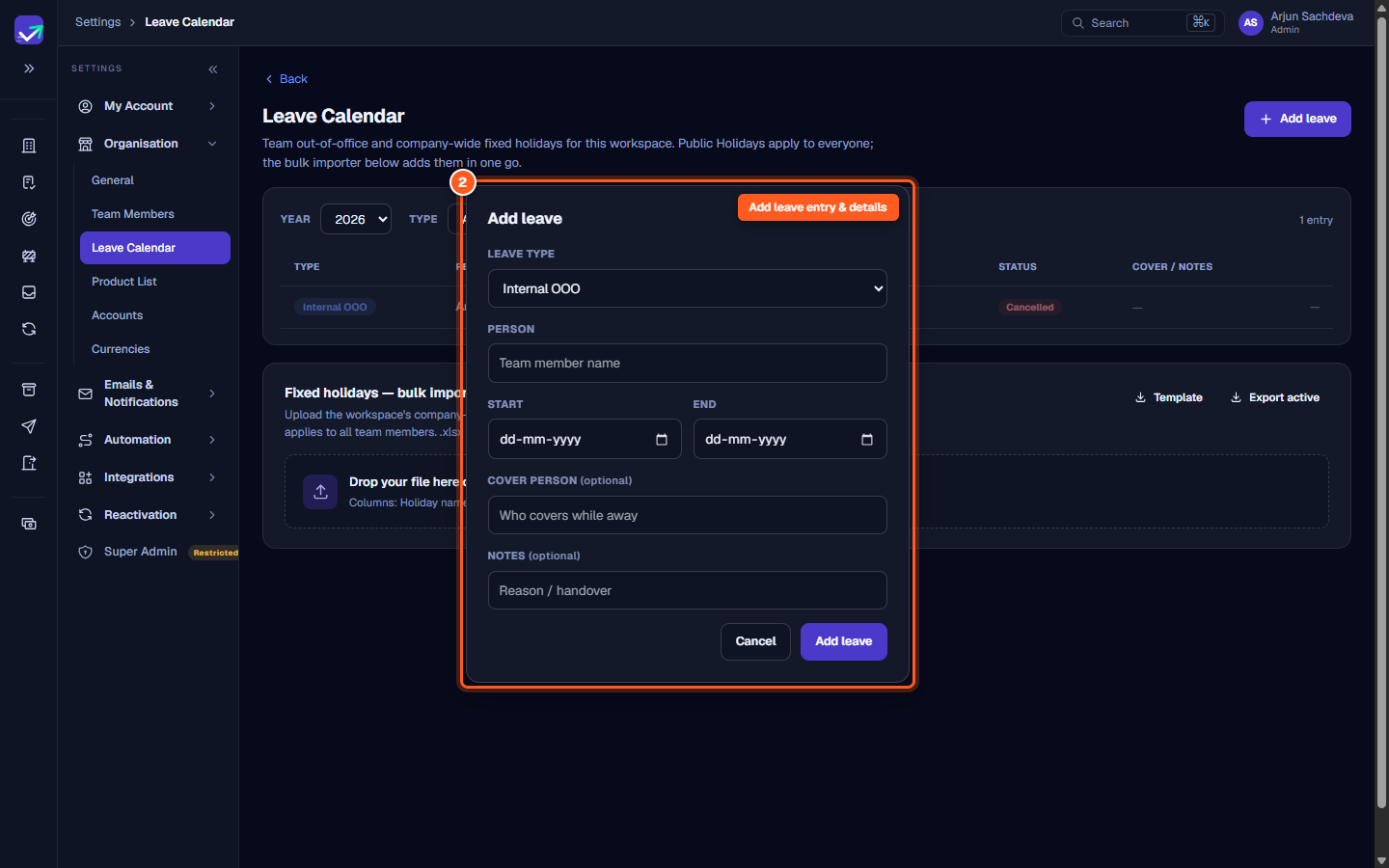
Team members and administrators can schedule leave by clicking Add leave:
- Leave type:
- Internal OOO: Personal time off, conferences, or scheduled absences.
- Public Holiday: Company-wide fixed holidays that apply to all teammates across the organization.
- Team member assignment:
- Admins can submit and edit leave for any staff member in the workspace.
- CSMs and Onboarding Managers have self-serve permissions to log their own Internal OOO entries.
- Date span & duration: Select start and end dates using standard ISO format. The system computes the net day duration automatically.
- Cover person & notes: Optionally designate a teammate covering client accounts during your absence and include handover instructions.
Timeline SLA and milestone integration
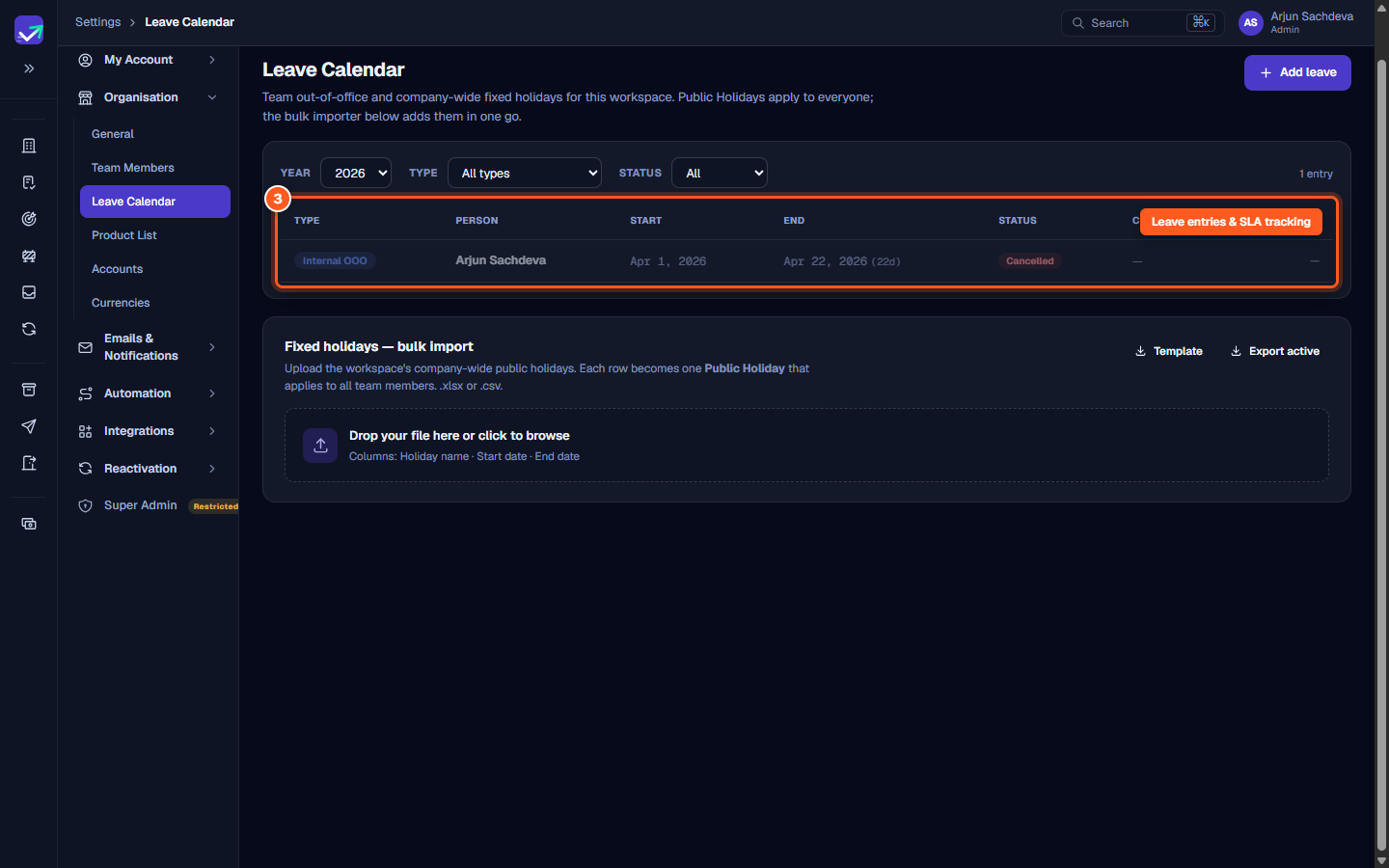
The entries recorded in your Leave Calendar back the workspace leave_calendar datastore:
- Working day recalculation: When calculating delivery timelines for onboarding plans or account milestones, ValueRamp skips active leave dates.
- Target dates: Milestones avoid falling on scheduled team holidays, preventing missed SLAs and alerting managers if coverage is needed.
Public holidays and bulk import
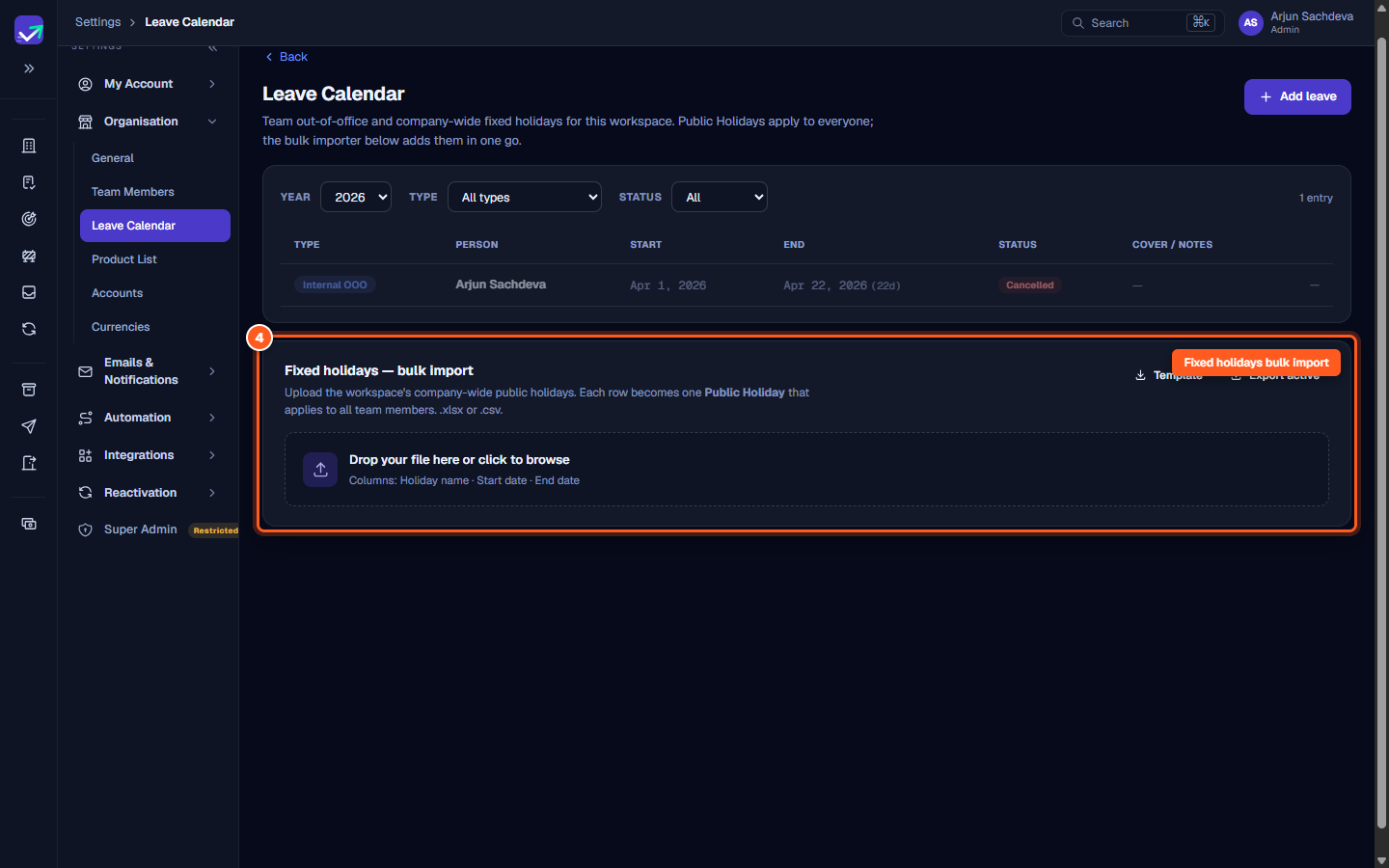
For company-wide holidays that apply to all staff, Admins can utilize the Fixed holidays — bulk import tool:
- Download template: Click Template to obtain an import file with required headers (
Holiday name,Start date,End date). - Validate & apply: Drop a
.csvor.xlsxspreadsheet into the upload zone to preview matched dates, detect duplicates, and commit company holidays in a single operation. - Export records: Click Export active to download current leave entries for payroll and resource planning reconciliation.
Steps
Open the Leave Calendar and filter entries by year and type
Click 'Add leave' and enter leave details, dates, and cover
Review active and cancelled leave in the schedule table
Download template and bulk import fixed public holidays
Common questions
Who can add and manage leave entries in ValueRamp?
How does scheduled leave affect customer onboarding and project timelines?
Can customer stakeholders see my team's scheduled leaves?
What file formats are accepted for bulk holiday imports?
How do I remove myself from a workspace?
Was this helpful? Tell us what was missing