Your details, avatar and password
Last verified 2026-09-17
Customize your personal profile, upload an avatar photo, select your interface theme, and manage your email sign-in password.
Before you start
- Signed-in ValueRamp account
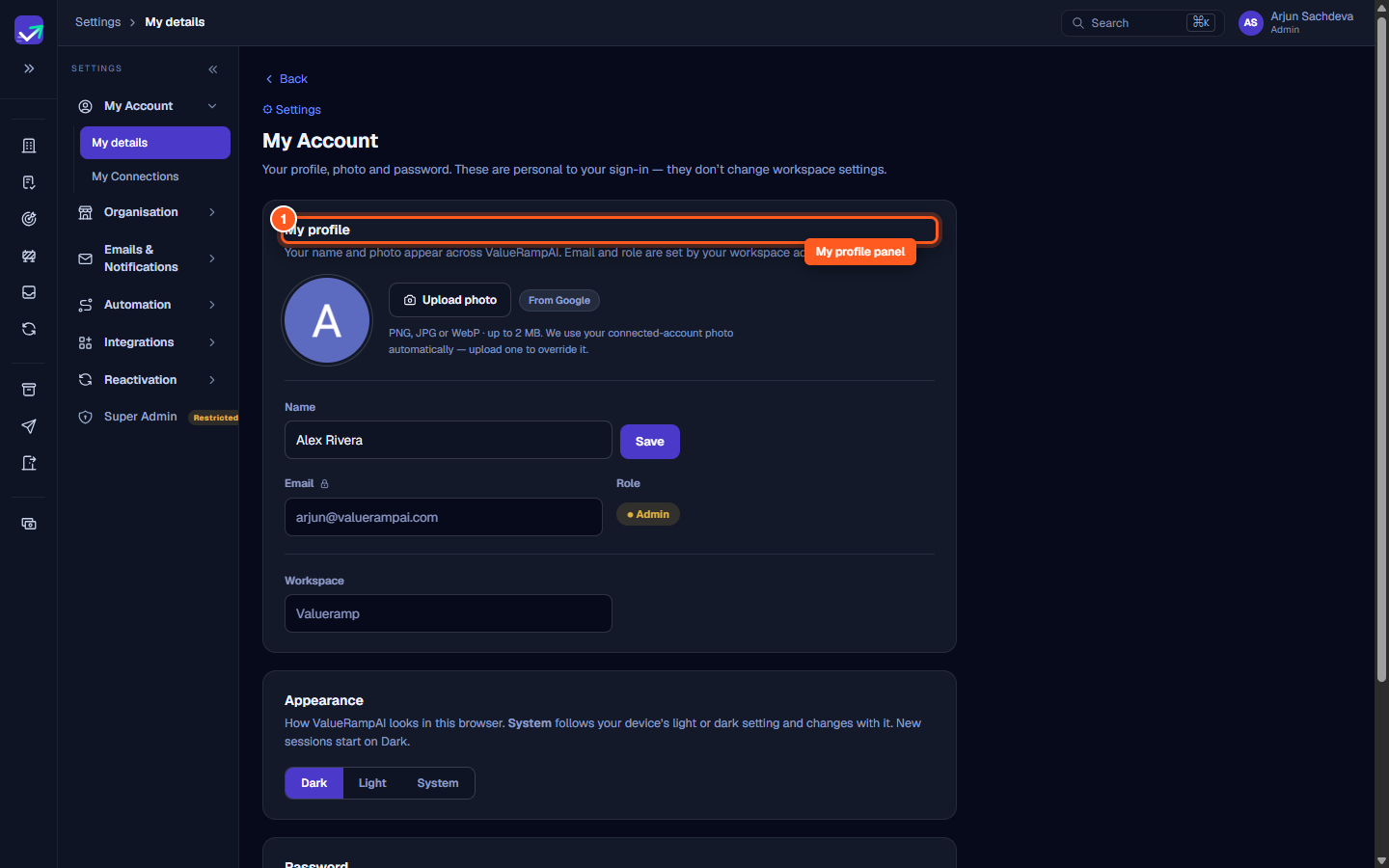
The My details page (/settings/me) is your personal account command center. Changes made here apply specifically to your individual login session and avatar presentation across ValueRamp, without altering workspace-wide business configurations.
Whenever you navigate to the main Settings icon in the sidebar, ValueRamp brings you directly to My details as your default landing view.
Personal profile settings
The My profile card lets you personalize how you appear to teammates and customers:
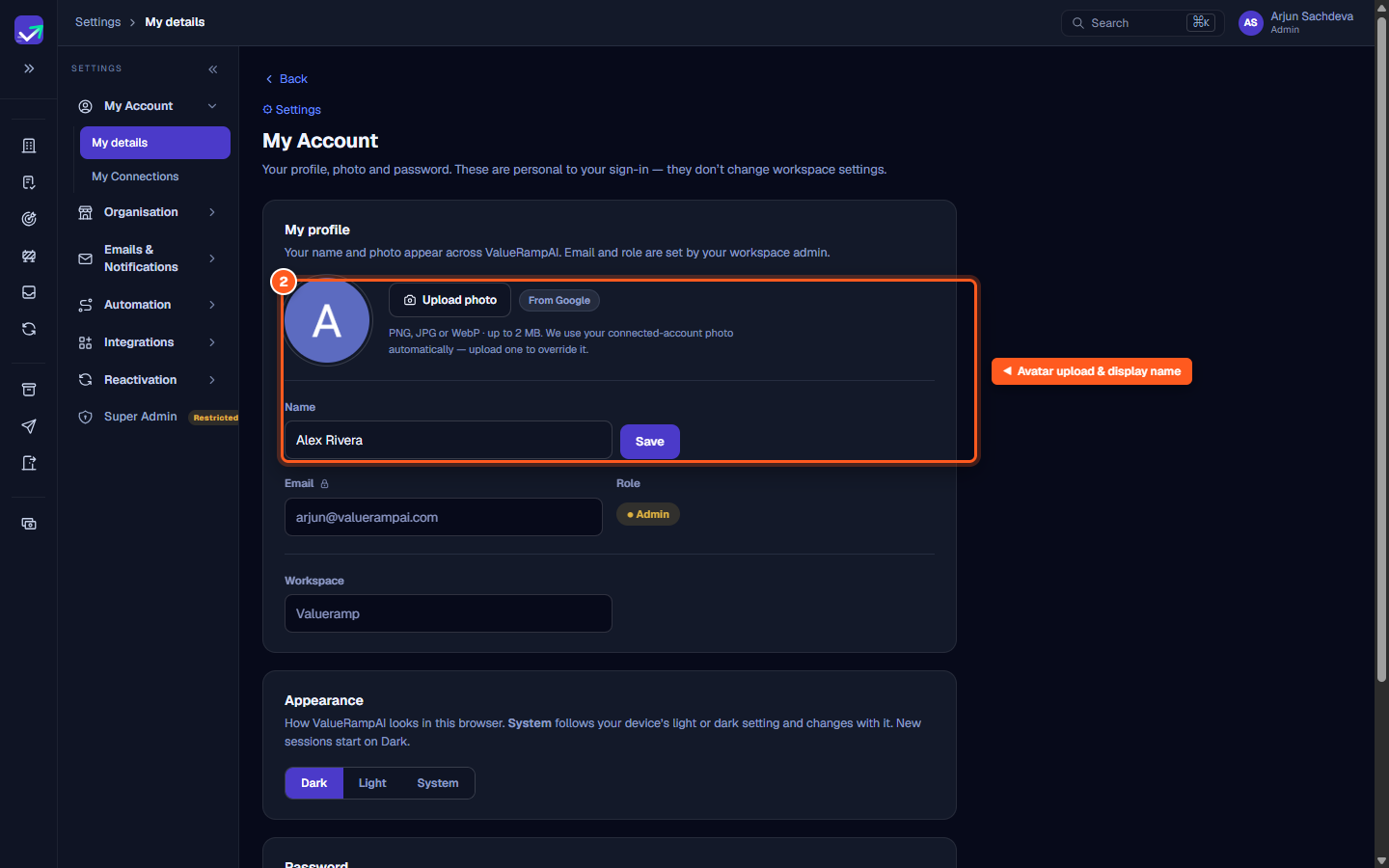
- Avatar photo: Click Upload photo (or Change photo) to upload a PNG, JPG or WebP headshot up to 2 MB. If you ever want to revert, click Remove to switch back to your automatic initials or provider avatar.
- Display name: Edit your name in the input field and click Save to update your identity on notes, triage replies, and task assignments.
- Email & Role: Displayed with lock indicators. Your primary email and operational role (Admin, CSM, OM, or Finance) are managed centrally in team settings.
- Workspace: Shows your currently active organization workspace name.
Interface appearance
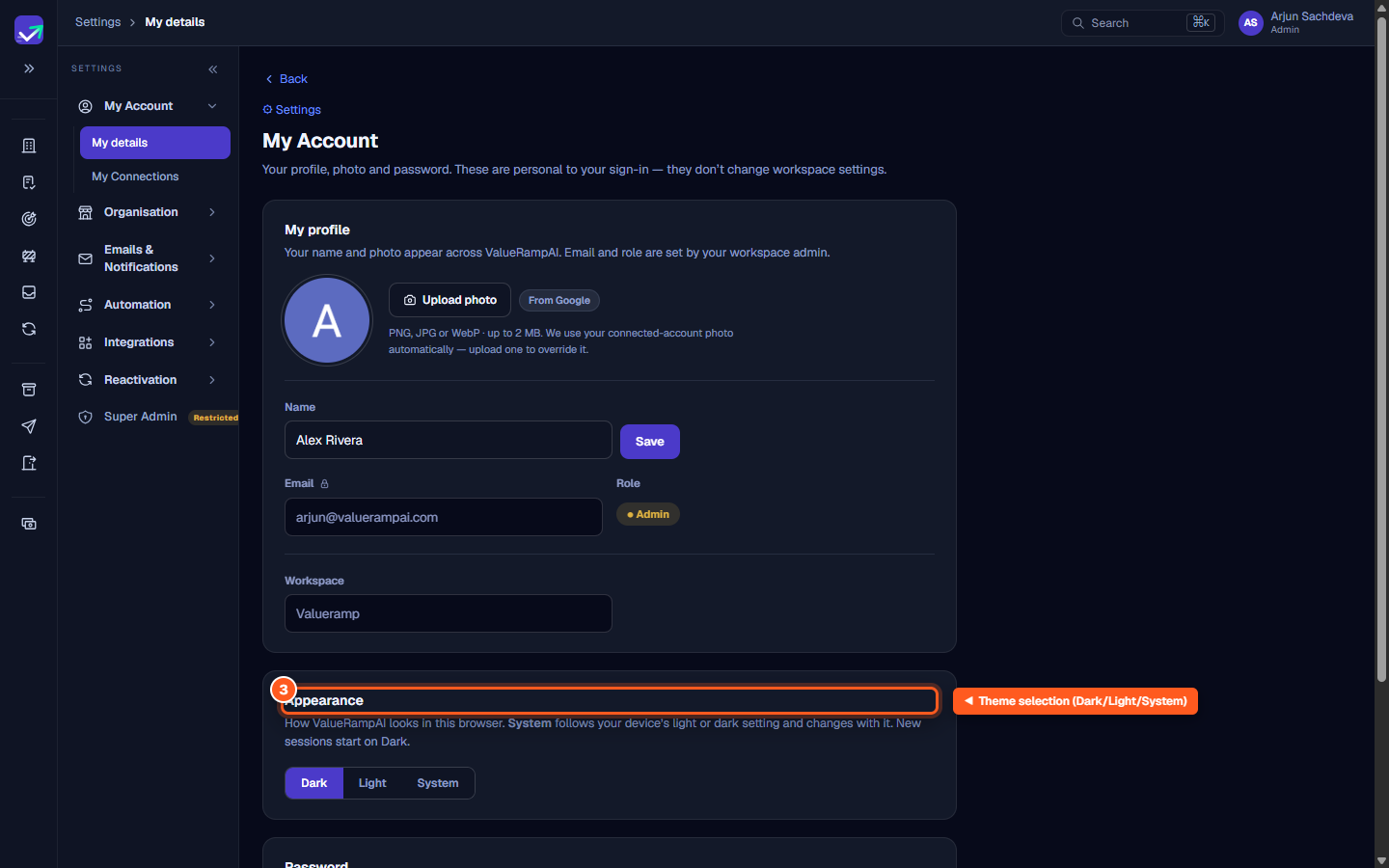
ValueRamp offers three display modes under the Appearance section:
- Dark (Default): Designed for focused day-to-day workflow with high-contrast inks and reduced visual strain.
- Light: High-clarity light theme with crisp ground fills.
- System: Automatically syncs ValueRamp's theme with your operating system preferences.
Theme selections are stored client-side in your current browser to ensure instantaneous rendering without layout shifts or color flashing on reload.
Password and credentials
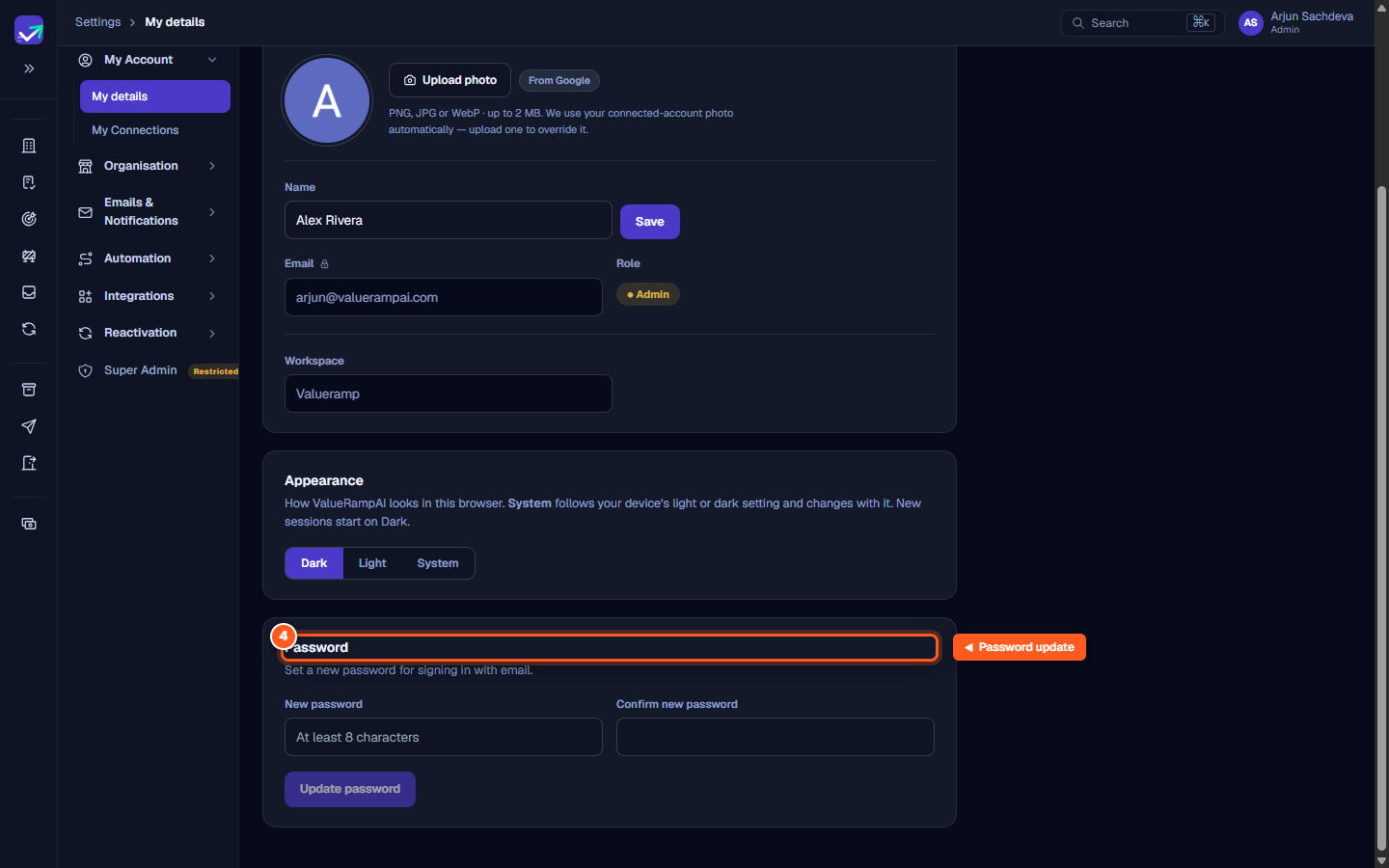
For users who authenticate via email and password:
- Enter your new password of at least 8 characters in the New password field.
- Re-enter the identical password in Confirm new password.
- Click Update password to save your updated credentials.
Steps
Open My details under My Account in Settings
Upload an avatar and update your display name
Select Dark, Light, or System interface appearance
Set and confirm a new email sign-in password
Common questions
Why can't I edit my email address or role from My details?
Does my Appearance theme follow me when I sign in on another computer?
What image formats are supported for avatar uploads?
What should I do if I sign in with Google or an SSO provider?
Was this helpful? Tell us what was missing