Set churn risk weights
Last verified 2026-11-18
Choose how much each signal counts in an account's churn risk score, from 0 (off) to 100. Admins only; new weights apply at the next nightly run.
Before you start
- A ValueRamp Admin role
Churn risk is built from six signals. By default some count for more than others. Use Churn risk weights to change how much each one counts for your workspace. Only an Admin can change them, and the change applies to every account in the workspace.
The six signals
| Signal | What it looks at | Default weight |
|---|---|---|
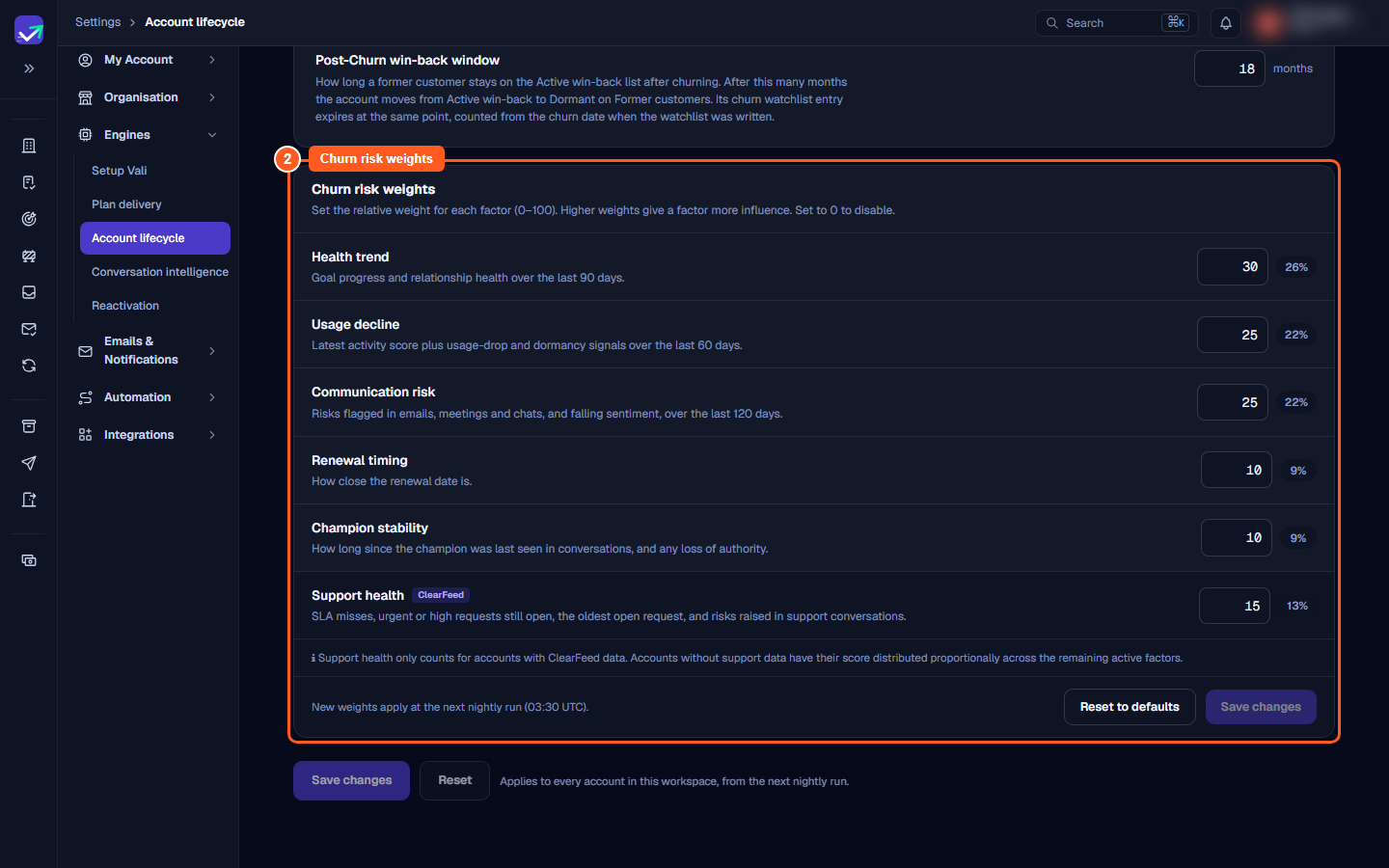
| Health trend | Goal progress and relationship health over the last 90 days | 30 |
| Usage decline | The latest activity score, plus drops in usage and dormancy over the last 60 days | 25 |
| Communication risk | Risks flagged in emails, meetings and chats, and falling sentiment, over the last 120 days | 25 |
| Renewal timing | How close the renewal date is | 10 |
| Champion stability | How long since the champion was last seen in conversations, and any loss of authority | 10 |
| Support health | ClearFeed support requests: SLA misses, urgent or high-priority requests still open, the oldest open request, and risks raised in support conversations | 15 |
Change the weights
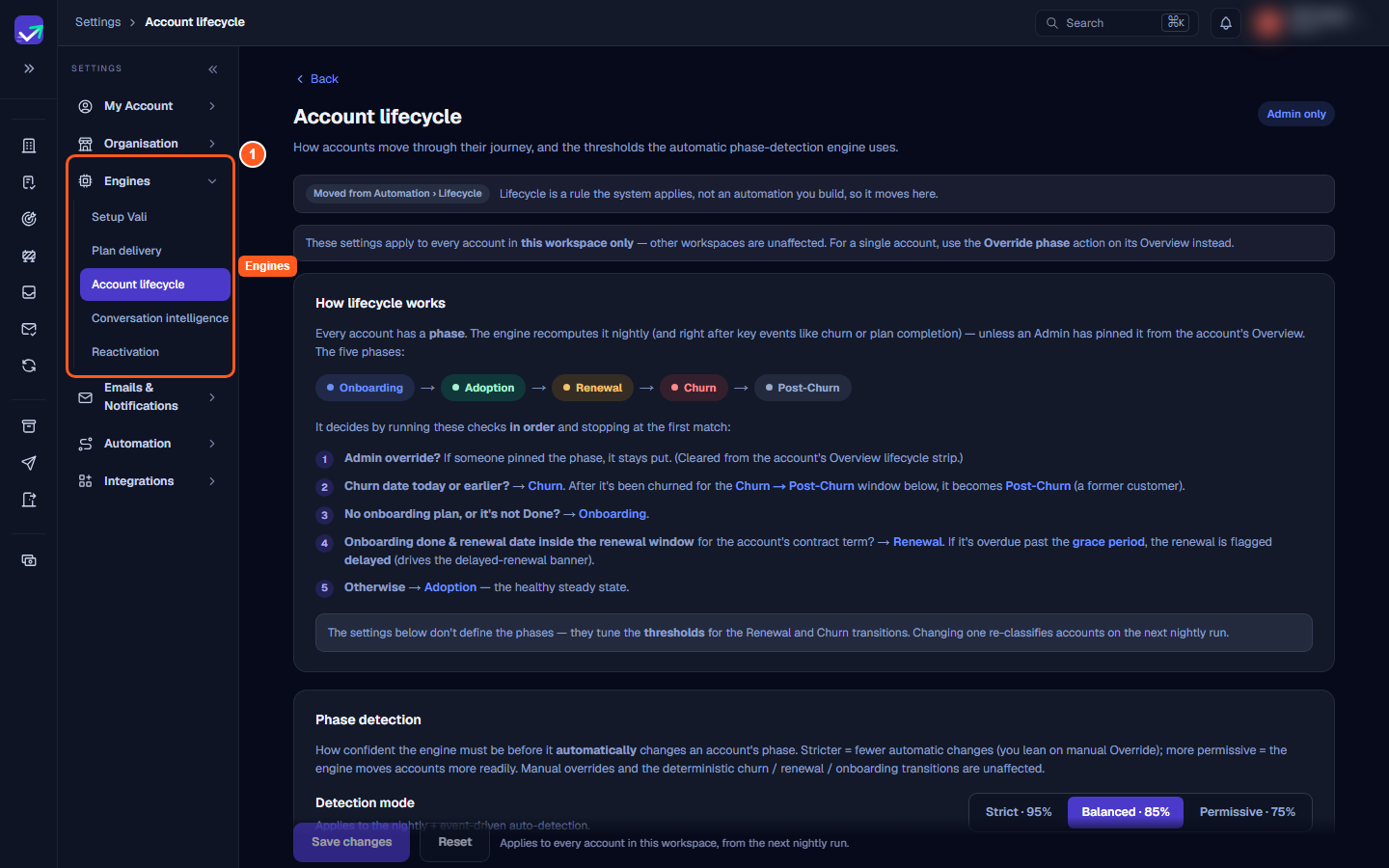
- Open Settings, then Engines, then Account lifecycle (
/settings/engines/lifecycle). Only an Admin sees the Engines group. - Find Churn risk weights.
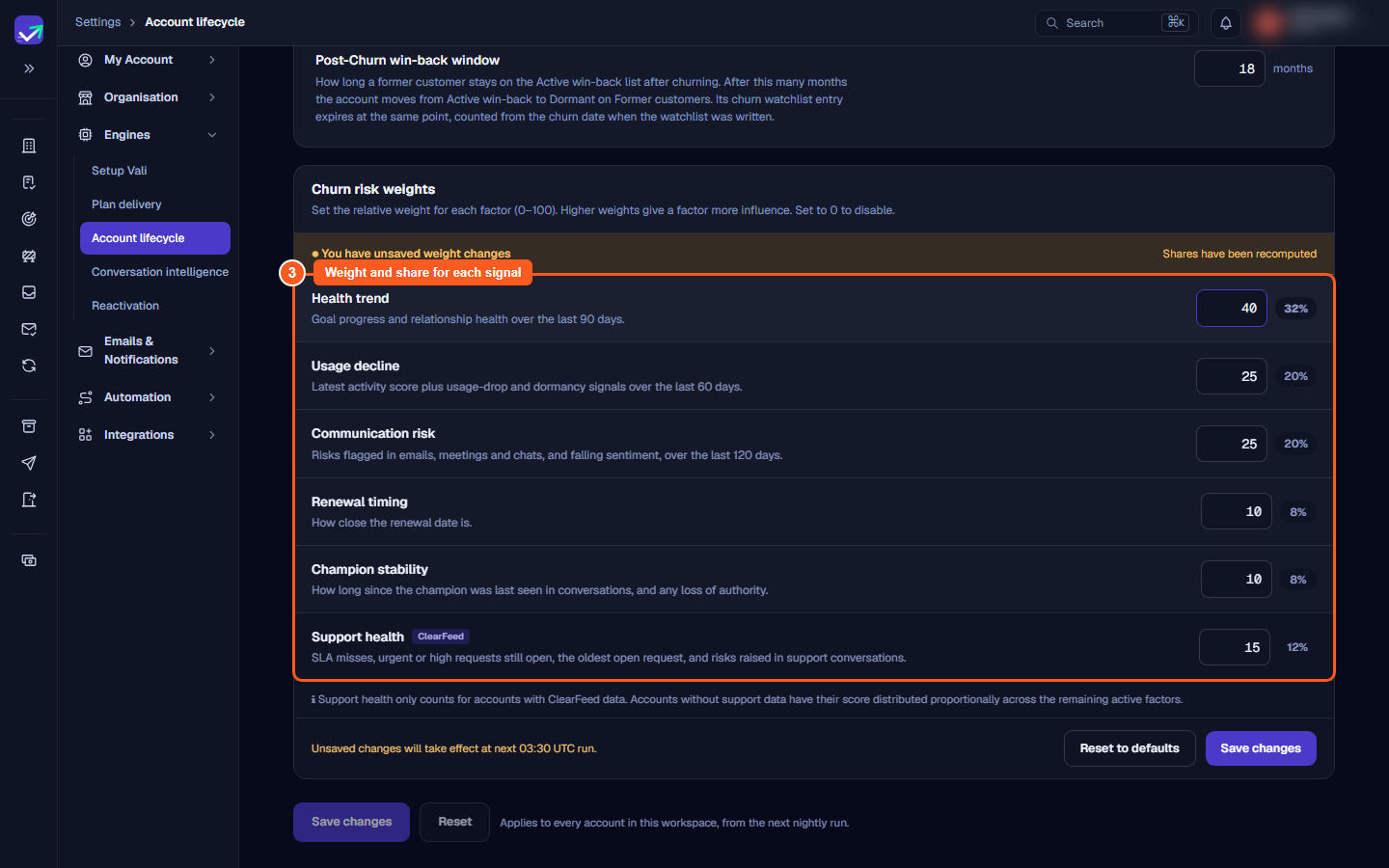
- Type a whole number from 0 to 100 for each signal. Next to each box, ValueRamp shows the signal's share of the total as a percentage, and updates it as you type.
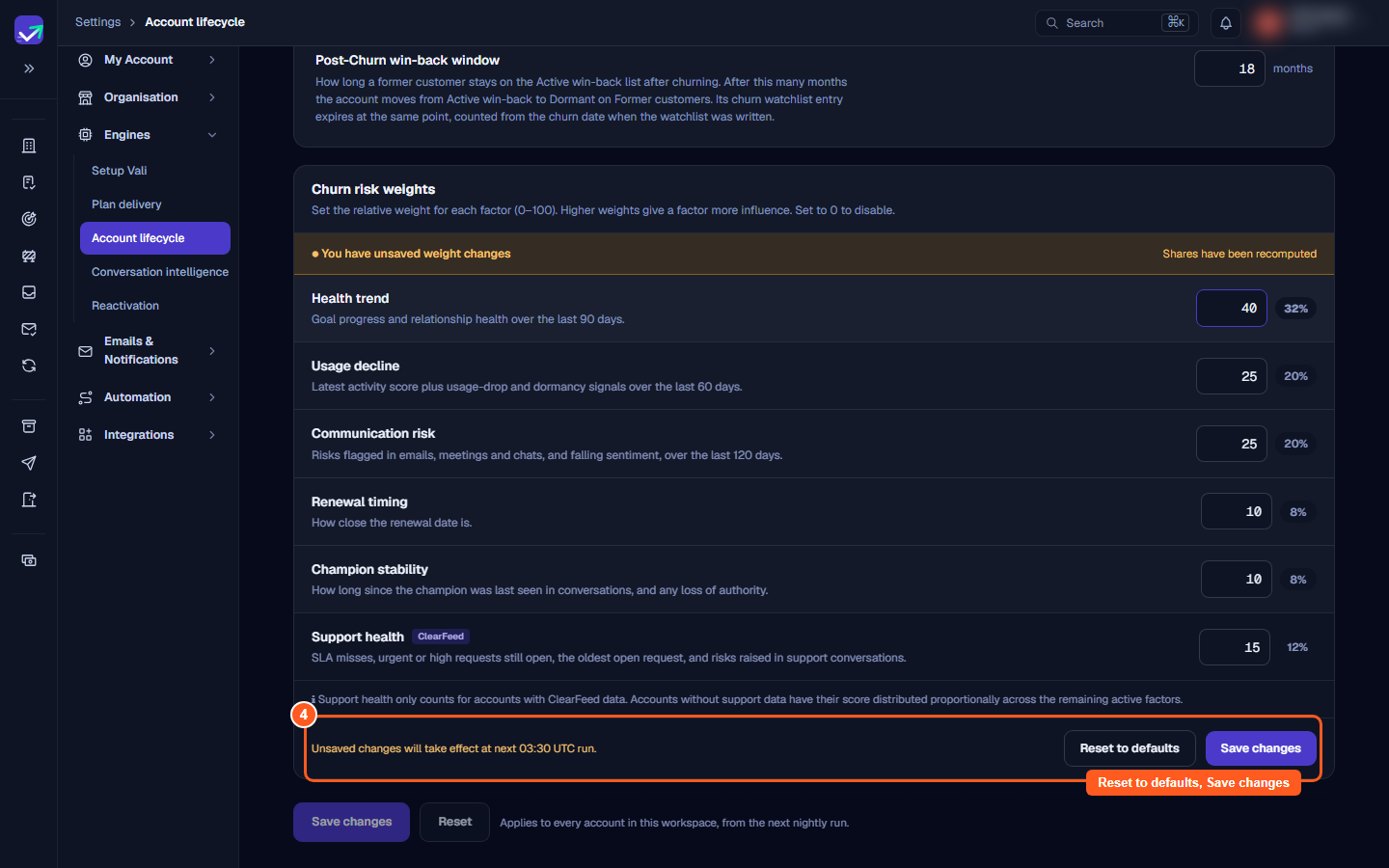
- Click Save changes.
The page tells you that new weights apply at the next nightly run (03:30 UTC). After you save, it also shows who last changed them and when.
What the numbers mean
- A higher weight gives that signal more influence on the score.
- 0 turns a signal off. It is left out of every account's score.
- At least one signal other than Support health must be above 0. If every other box is 0, ValueRamp tells you it cannot save, because Support health cannot carry the score on its own.
- The weights are relative. Setting every weight to 50 gives the same result as setting every weight to 10, because only each signal's share of the total matters.
Reset to defaults
Click Reset to defaults to fill the boxes with the original weights (30, 25, 25, 10, 10, 15). This only fills the boxes. It takes effect when you click Save changes.
Support health and accounts without support data
Support health counts only for accounts that have ClearFeed support requests. If your workspace has not connected ClearFeed, or an account has no support requests in the last 90 days, that signal is left out and its weight is shared across the other signals in proportion. An account's churn risk card shows that Support health was not counted. See Connect ClearFeed to ValueRamp to set it up.
Support health is for your team only. It never appears in the customer portal or in the monthly value summary email, and it does not change the engagement score.
When changes apply
Churn risk is calculated nightly. A change you save today is used from the next nightly run at 03:30 UTC. Until then, scores keep the weights they were last calculated with. You can also click Compute churn risk on an account to recalculate it on demand.
Every change is recorded
For each weight you change, ValueRamp records the old value, the new value, who made the change and when.
Steps
Open Account lifecycle under Engines in the Settings menu
Scroll down to the Churn risk weights card
Type a weight from 0 to 100 for each signal
Click Save changes, or Reset to defaults to start again
Common questions
When do new weights take effect?
What does a weight of 0 do?
How are the percentages worked out?
Why does Support health sometimes not count?
Can I undo my changes?
Is a change recorded?
Do these weights change the engagement score?
Was this helpful? Tell us what was missing