Email sending and behaviour
Last verified 2026-09-17
Configure workspace notification templates, per-account email overrides, and delay, batching, and blocker escalation timing.
Before you start
- ValueRamp Admin role
ValueRamp's email system delivers automated digests, milestone updates, and blocker alerts to both internal teammates and external customer stakeholders.
The email administration suite consists of two primary views:
- Email Settings (
/settings/emails): Toggle notification types, edit email wording and schedules, and configure per-account overrides. - Sending Behaviour (
/settings/emails/behaviour): Establish delay buffers, batching thresholds, and blocker escalation windows to prevent notification fatigue.
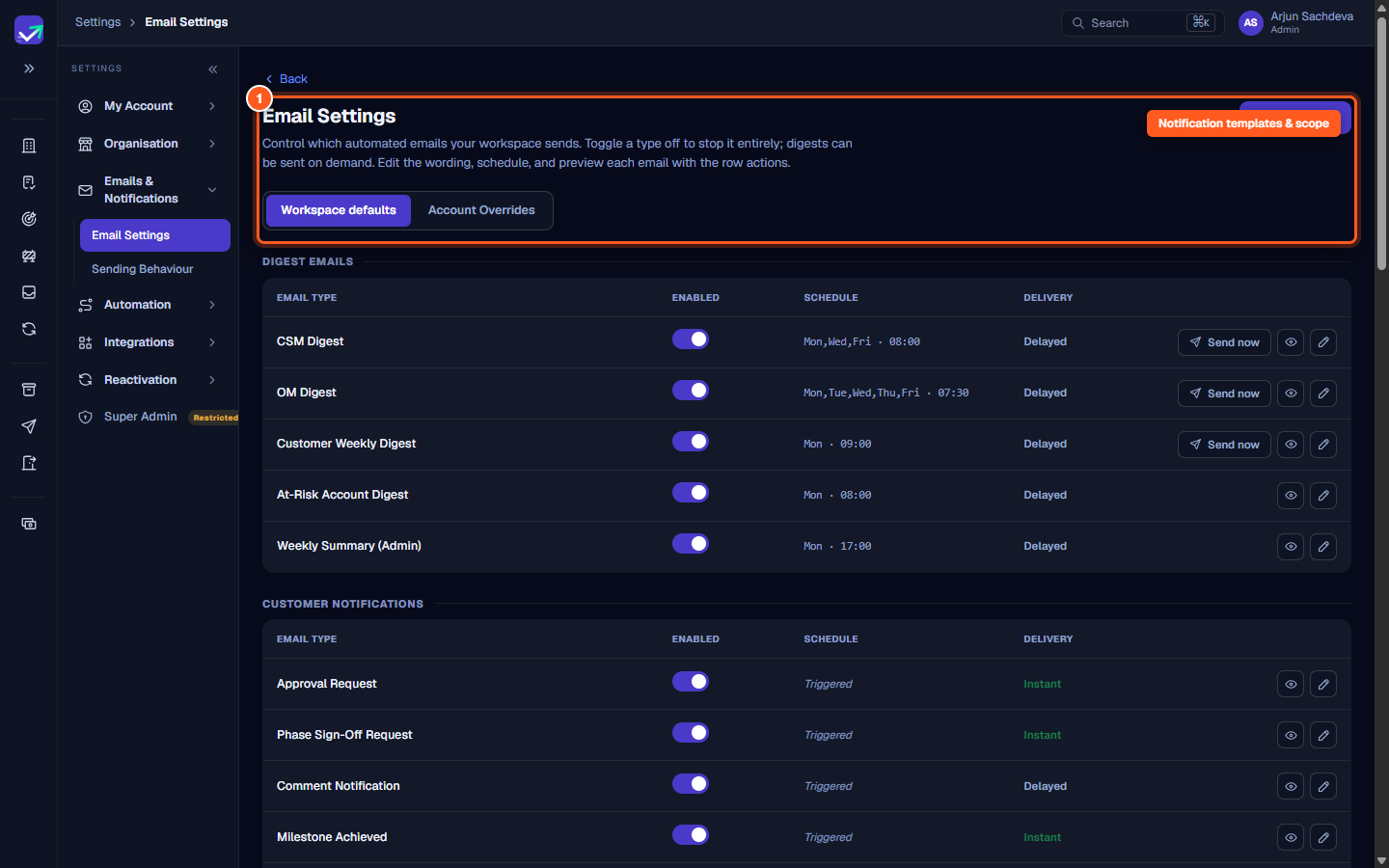
Notification templates and scope (/settings/emails)
Under Email Settings, Admins control what notifications your workspace generates:
- Scope switching:
- Workspace defaults: Applies globally across all accounts in your organization.
- Account Overrides: Select any managed account from the dropdown to customize notification triggers or turn off specific alerts for that client alone.
- New email: Click New email to create a custom notification template with custom trigger rules.
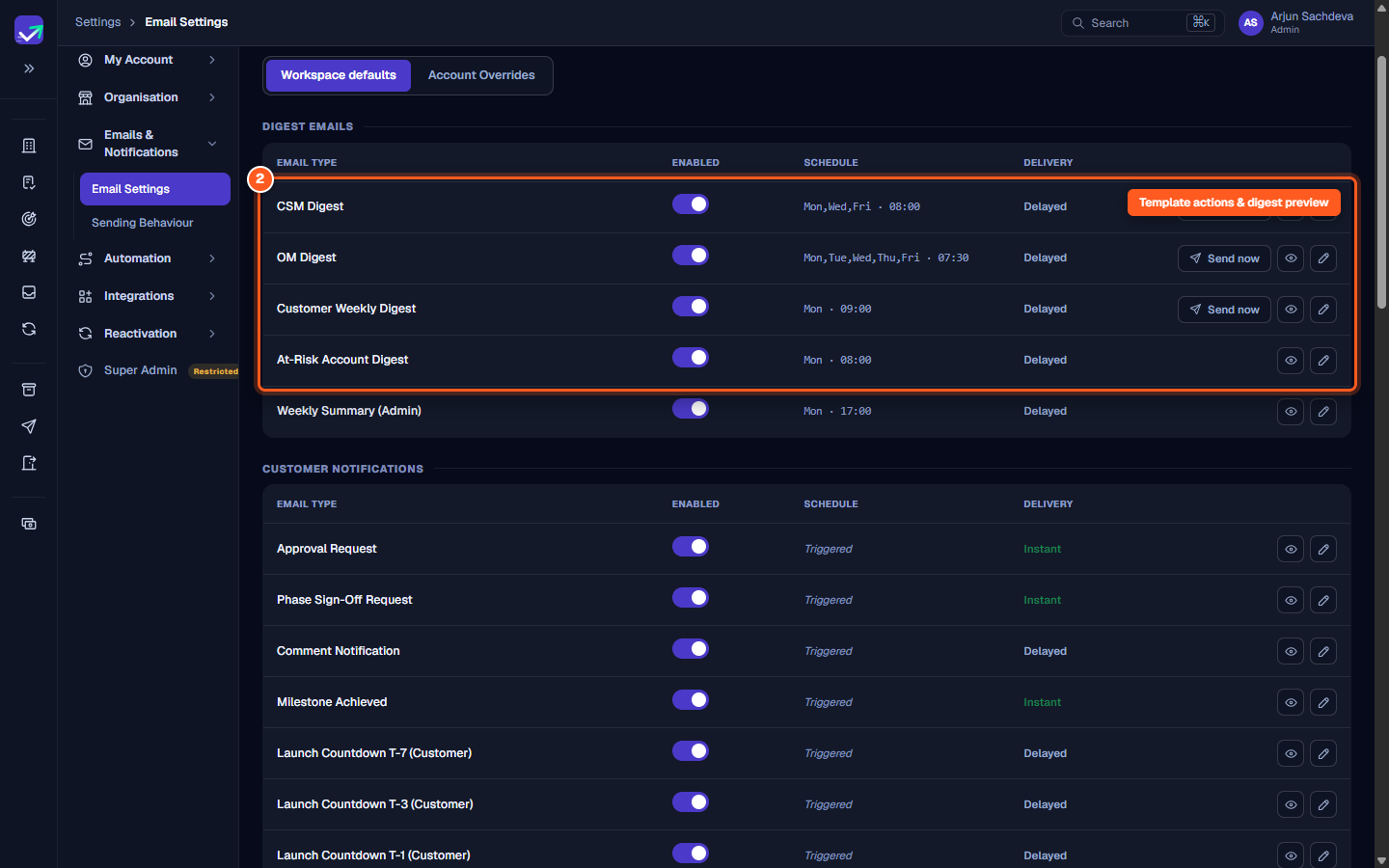
- Notification table:
- Enabled toggle: Instantly halt or activate any notification category.
- Schedule: Displays cadence rules (e.g. daily, weekly, or event-driven).
- Row actions:
- Preview: View the rendered HTML email design in a modal.
- Edit: Adjust the subject line, body text variables, and recipient groups.
- Send now: Manually trigger an immediate delivery for digest templates.
Sending behaviour pipeline (/settings/emails/behaviour)
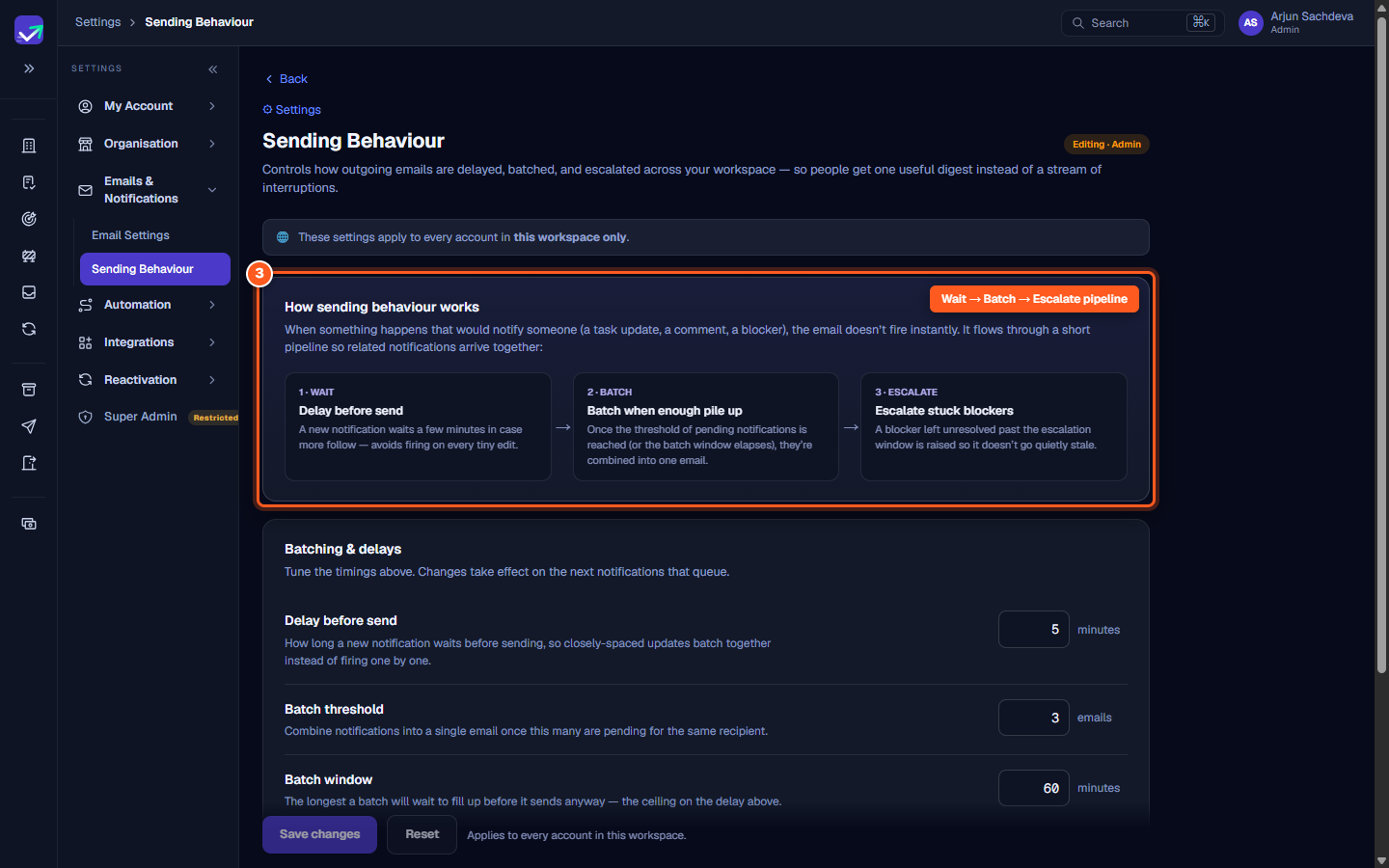
To prevent notification spam when team members make multiple edits, outgoing messages pass through a three-stage pipeline:
- 1 · WAIT (Delay before send): When an event occurs (such as a task update or comment), the email waits for a short duration in case related actions follow.
- 2 · BATCH (Batch when enough pile up): When pending notifications for a recipient reach the batch threshold, or when the batch window elapses, ValueRamp bundles them into a single digest.
- 3 · ESCALATE (Escalate stuck blockers): If a critical blocker remains unresolved past the escalation window, an escalation notification is sent to wider leadership.
Batching & delay configuration
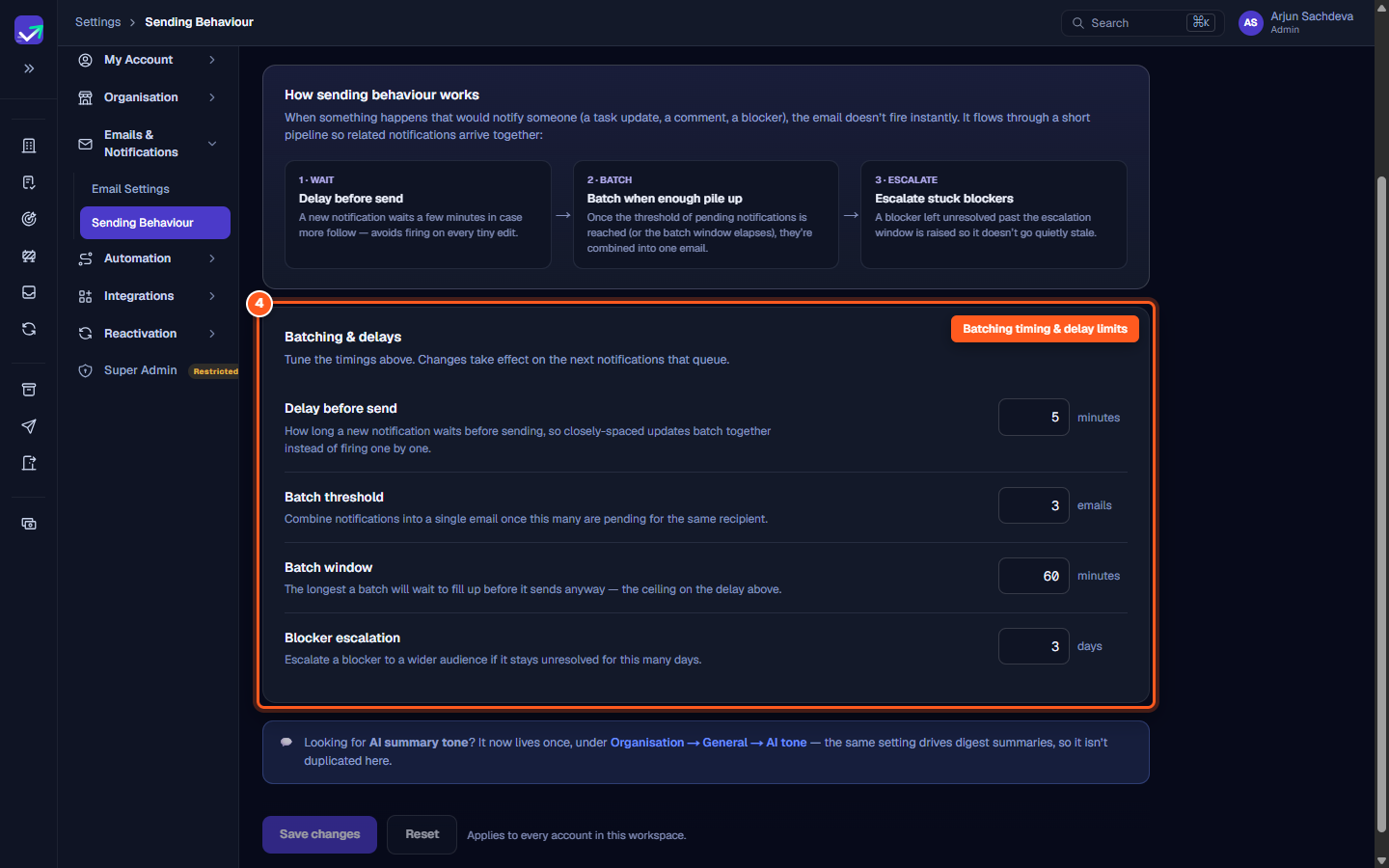
Admins can customize each timing threshold to match your team's workflow:
- Delay before send (default
5minutes): How long a new event pauses before queuing. - Batch threshold (default
3emails): The maximum number of pending notifications collected before a combined digest sends immediately. - Batch window (default
60minutes): The maximum time a batch will wait to fill up before sending regardless of count. - Blocker escalation (default
3days): The duration an active blocker can remain unaddressed before alerting project leads. - Click Save changes to apply modified thresholds across your entire workspace.
Steps
Configure notification template settings and select workspace or per-account scope
Toggle notifications on or off, edit subject lines, and preview rendered HTML
Review the three-stage Wait, Batch, and Escalate sending behaviour pipeline
Tune batch thresholds, delivery delays, and blocker escalation days
Common questions
What is the difference between Workspace defaults and Account Overrides?
Who can edit email templates and sending behaviour?
Can I trigger an email digest on demand before its scheduled delivery?
Why does an update wait before sending an email notification?
Where do I configure the AI summary tone used in digest emails?
Was this helpful? Tell us what was missing