Workspace settings overview
Last verified 2026-09-17
Understand how workspace administration and personal preferences are organized across the ValueRamp settings rail.
Before you start
- ValueRamp Admin role
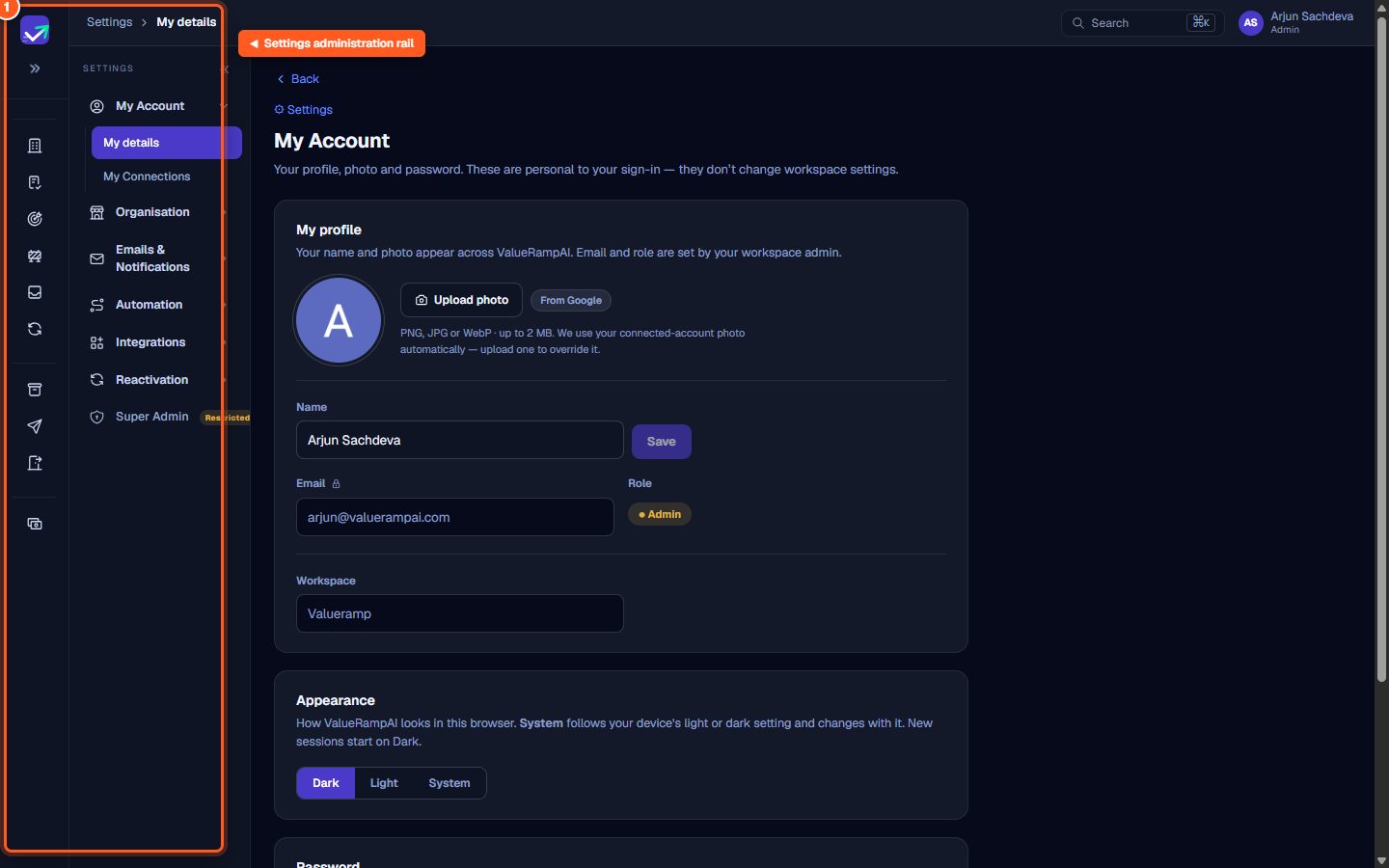
The ValueRamp Settings environment consolidates your personal account preferences and workspace-level administration into a unified secondary navigation rail. From this centralized hub, administrators can oversee team members, manage email infrastructure, configure automation playbooks, and connect third-party integrations.
When you open Settings, you land on your personal My details page (/settings/me). The persistent secondary rail on the left organizes all operational tools into logical administration groups.
Administration groups overview
My Account
- My details (
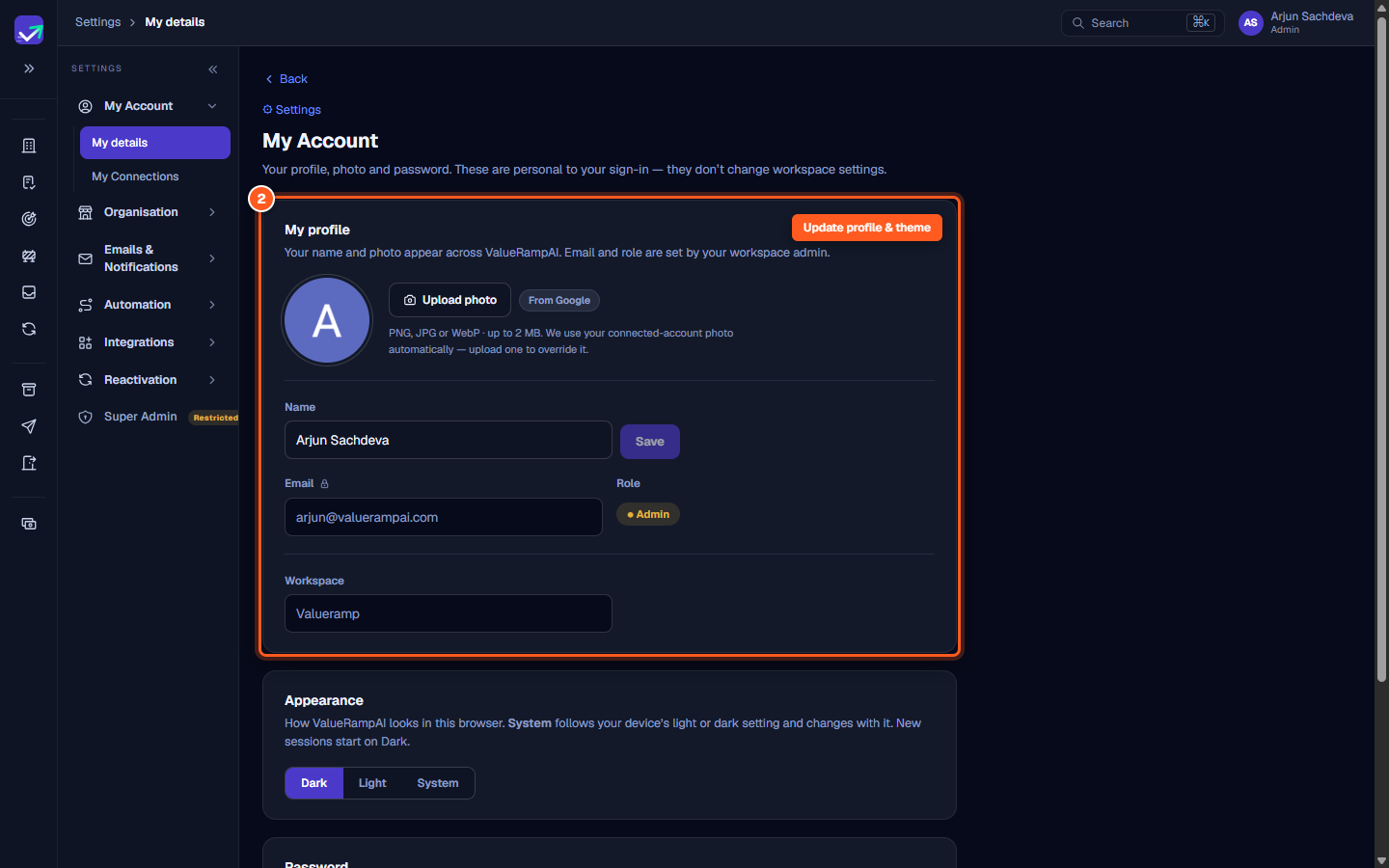
/settings/me): Set your profile display name, upload an avatar, select light, dark, or system interface theme, and reset your password. - My Connections (
/my-integrations): Manage your personal calendar, email forwarding, and call recording integrations.
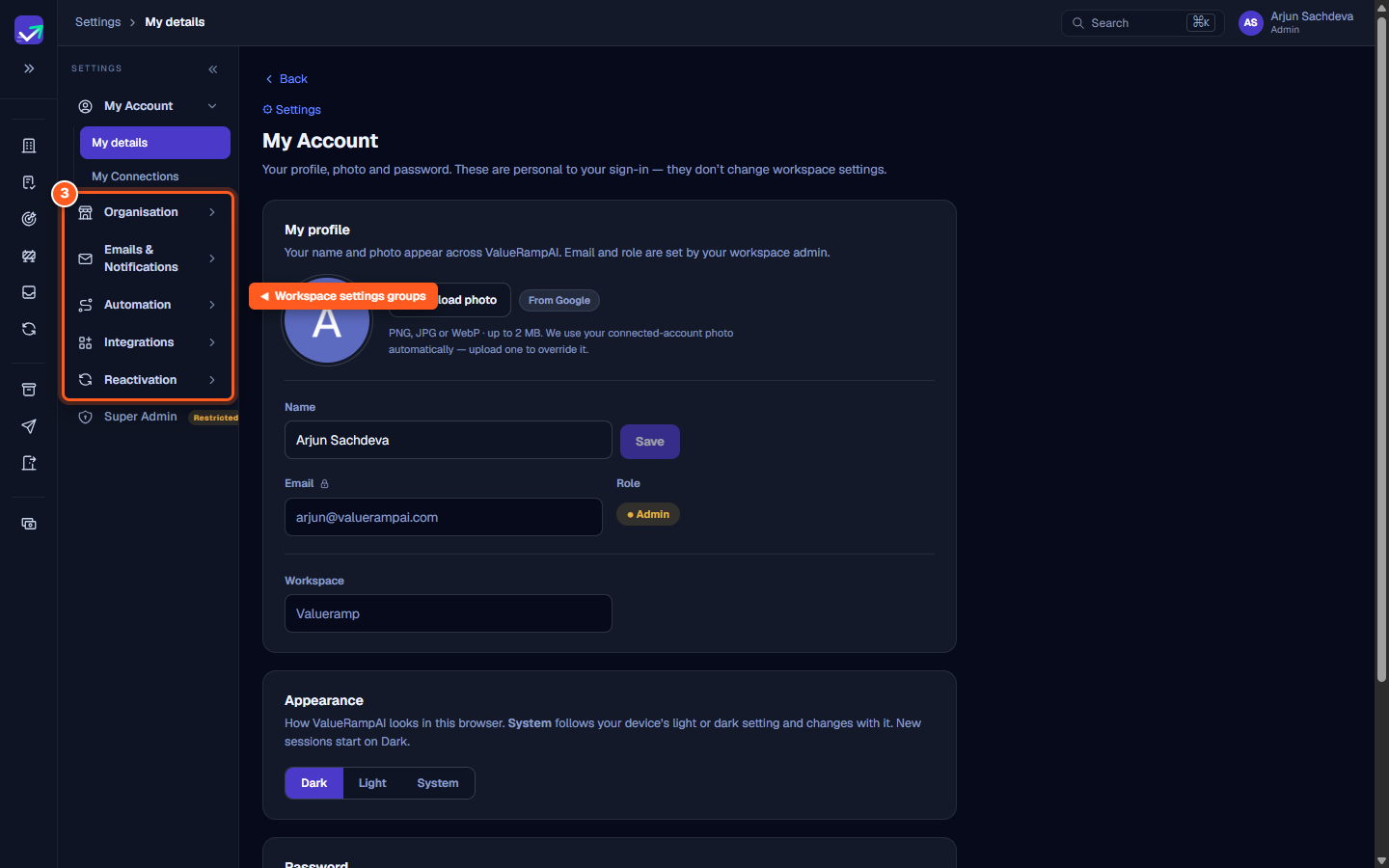
Organisation
- General (
/settings/organisation): Configure workspace business identity, default company timezones, and account governance policies. - Team Members (
/settings/team): Invite new teammates, assign access roles (Admin, CSM, OM, Finance), and manage team permissions. - Leave Calendar (
/settings/organisation/leave): Track staff availability and scheduled time off across your customer success team. - Product List (
/settings/organisation/products): Maintain active products and customer SKU definitions. - Accounts (
/settings/organisation/accounts): Configure unmanaged account rules and subscription tier defaults. - Currencies (
/settings/currencies): Set base workspace currency and manage active exchange rates.
Emails & Notifications
- Email Settings (
/settings/emails): Configure sending domain identity, DKIM authentication, and default support mailboxes. - Sending Behaviour (
/settings/emails/behaviour): Establish auto-response rules and customer communication throttle thresholds.
Automation
- Workflows (
/workflows): Build trigger-based event playbooks that run automatically based on customer signals. - Plan Templates (
/templates): Standardize onboarding and adoption project templates for new customers. - Surveys (
/surveys): Administer CSAT and milestone feedback surveys. - Lifecycle (
/settings/lifecycle): Define lifecycle health rules and phase transition conditions.
Integrations & Super Admin
- Workspace Integrations (
/integrations): Connect workspace-wide tools including HubSpot, Slack, Microsoft Teams, Fathom, Notion, and usage data warehouses. - CI Settings (
/ci-settings): Manage customer intelligence communication pipelines. - Super Admin (
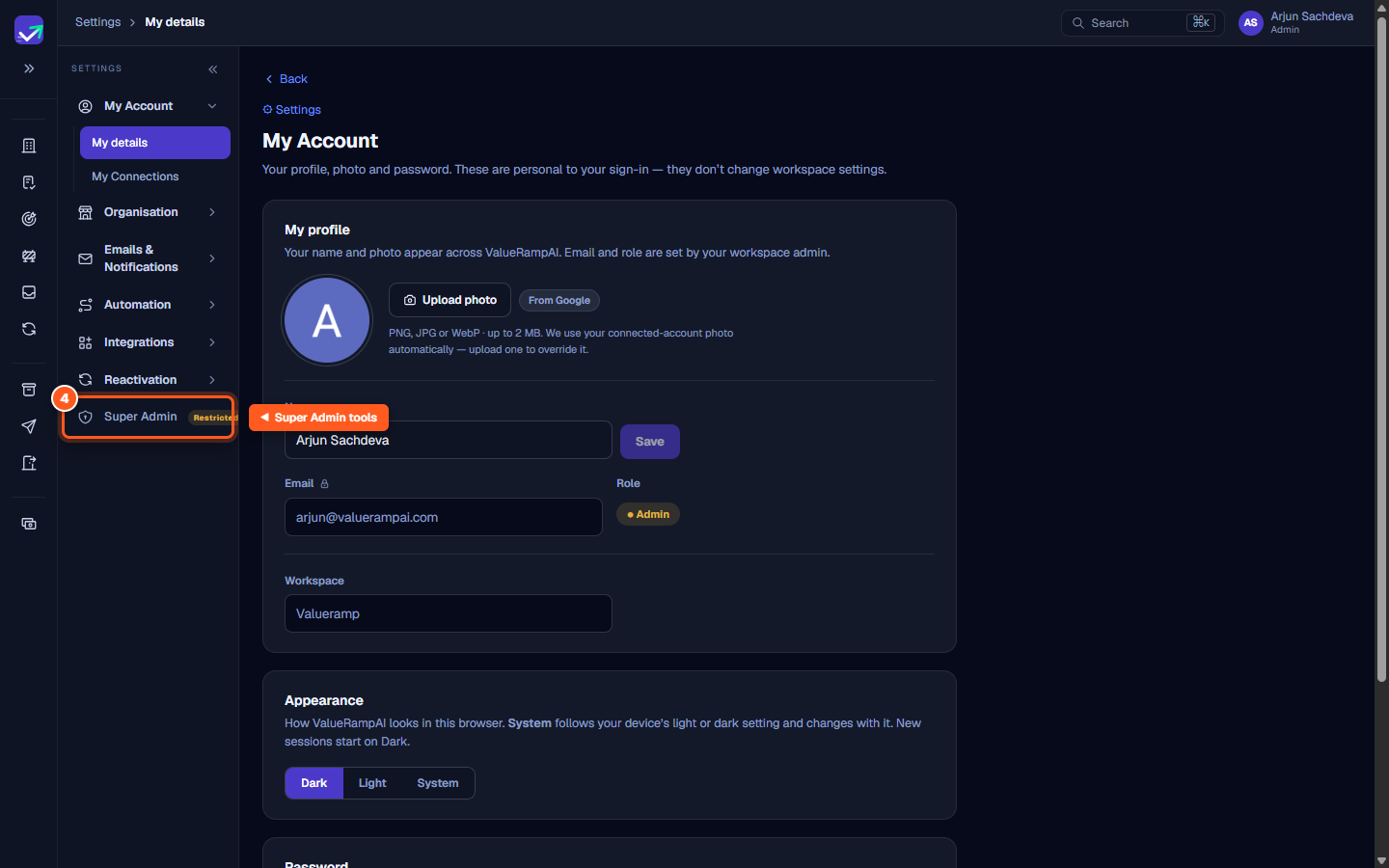
/super-admin): Restricted platform oversight tools, workspace provisioning, and support queue controls.
Steps
Open Settings to view the administration rail and personal account options
Update your profile photo, display name, and interface theme
Expand workspace settings groups to manage team, email, and automation rules
Access restricted Super Admin tools and system queues if authorized
Common questions
Where do I land when I navigate to /settings?
What is the difference between personal settings and workspace settings?
Who can see the Super Admin link in the settings rail?
Was this helpful? Tell us what was missing