The CSM's guide to ValueRamp
Last verified 2026-09-17
Manage your client portfolio, prioritize high-risk accounts, track cross-plan deliverables in Tasks, and execute adoption guidance as a CSM in ValueRamp.
Before you start
- ValueRamp Customer success (CSM) role
As a Customer Success Manager (CSM), ValueRamp serves as your post-sales execution operating system. You are responsible for delivering Time to First Value (TTFV), driving product adoption, mitigating churn risk, and securing contract renewals across your assigned customer portfolio.
This guide introduces the core workspaces CSMs use every day: the Accounts portfolio, the centralized Tasks workspace, and the Adoption Coach.
Core CSM responsibilities
- Portfolio Health & Lifecycle Tracking (
/accounts): Maintain proactive oversight over customer organizations across Onboarding, Adoption, and Renewal phases. Intervene early on at-risk accounts before churn signals escalate. - Deliverable Execution (
/tasks): Manage tactical action items across multiple onboarding and implementation plans. Stay ahead of milestone deadlines and resolve task blockers. - Proactive Intervention (
/coach): Leverage AI-assisted adoption recommendations to target un-adopted product features and guide customer adoption conversations. - Stakeholder Alignment (
/accounts/[id]/relationships): Identify buying committees, align executive sponsors, and grant client team members access to the collaborative Customer Portal.
Step 1: Open Accounts to review your portfolio
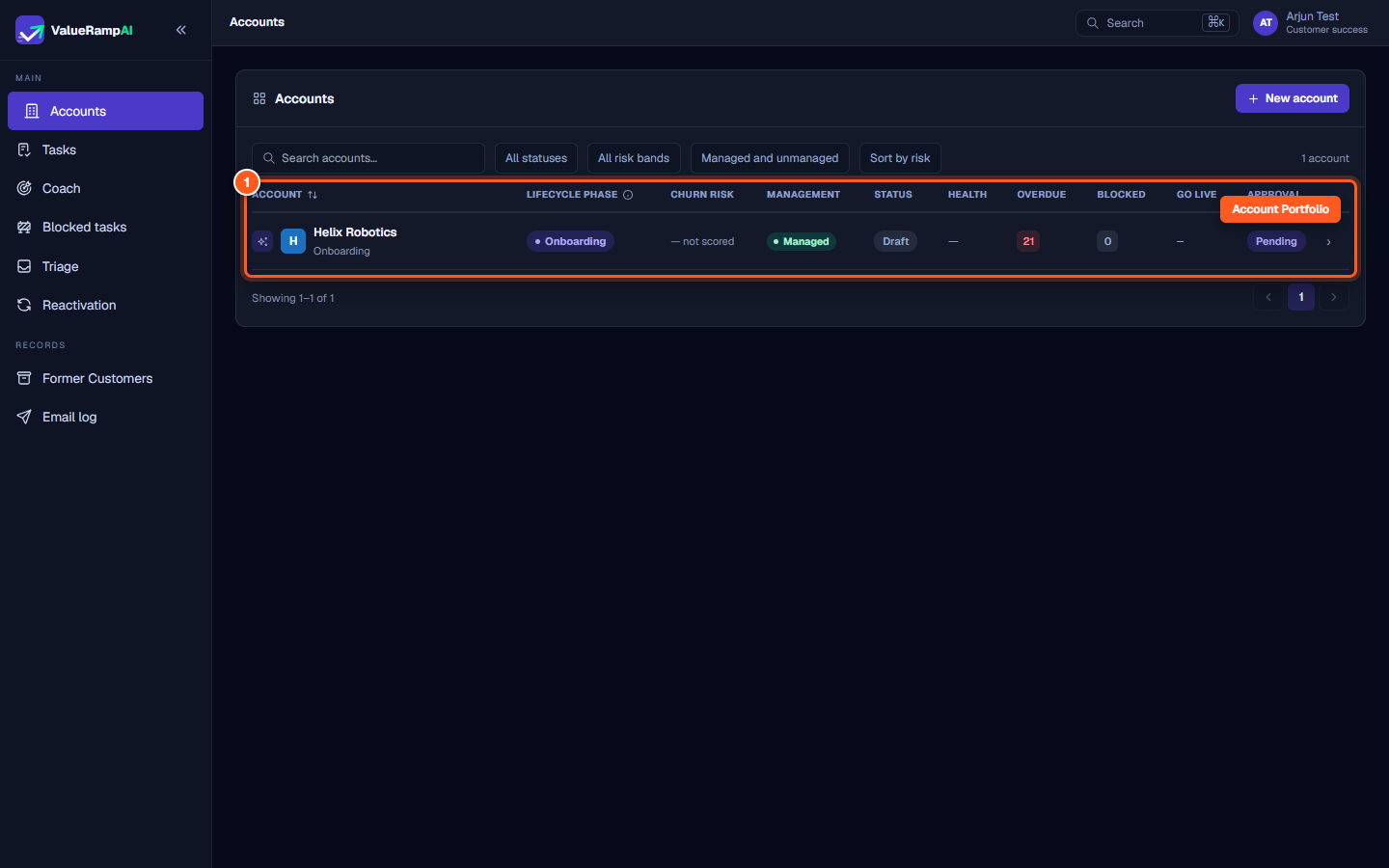
- In the main navigation sidebar under Main, click Accounts (
/accounts). - The Accounts directory displays all organizations assigned to your Book of Business.
- Key metrics on each row include:
- Lifecycle Phase: Shows whether the account is in Onboarding, Adoption, or Renewal.
- Churn Risk: Critical, High, Medium, Low, or Unscored.
- Management Tier: Managed vs. Unmanaged accounts.
- Task & Health Indicators: Counts of overdue tasks, blocked milestones, and target go-live dates.
Step 2: Filter accounts by risk and management tier
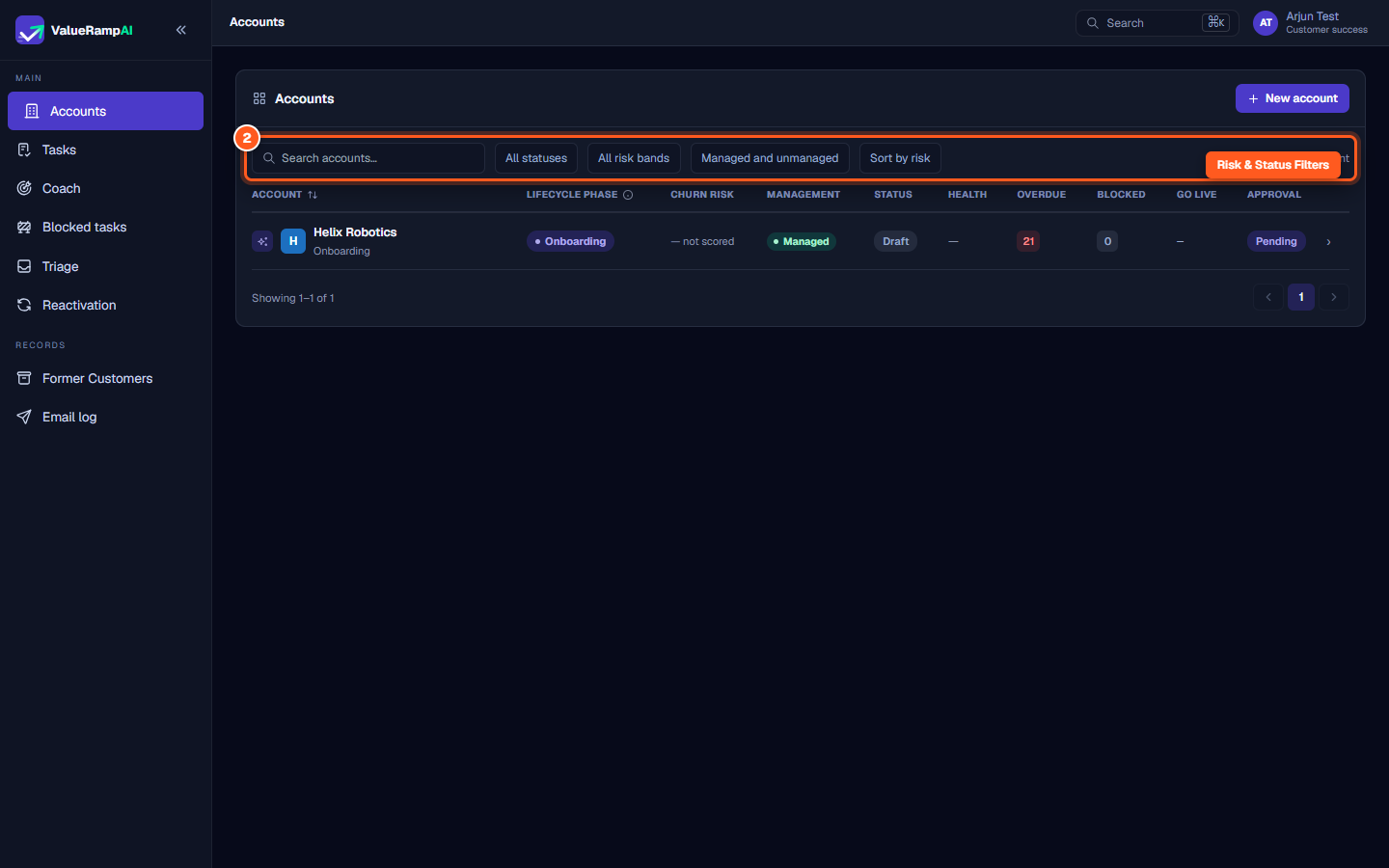
- Use the filter controls above the accounts table to focus your attention:
- Status: All statuses, or Active only.
- Risk Bands: Isolate the Critical and High bands (the five bands are Critical, High, Medium, Low and Unscored).
- Management Tier: Toggle between Managed only and Unmanaged only.
- Sort by risk: Reorder the directory to surface accounts with the highest churn risk at the top.
Step 3: Open Tasks to review cross-plan deliverables
- In the main navigation, click Tasks (
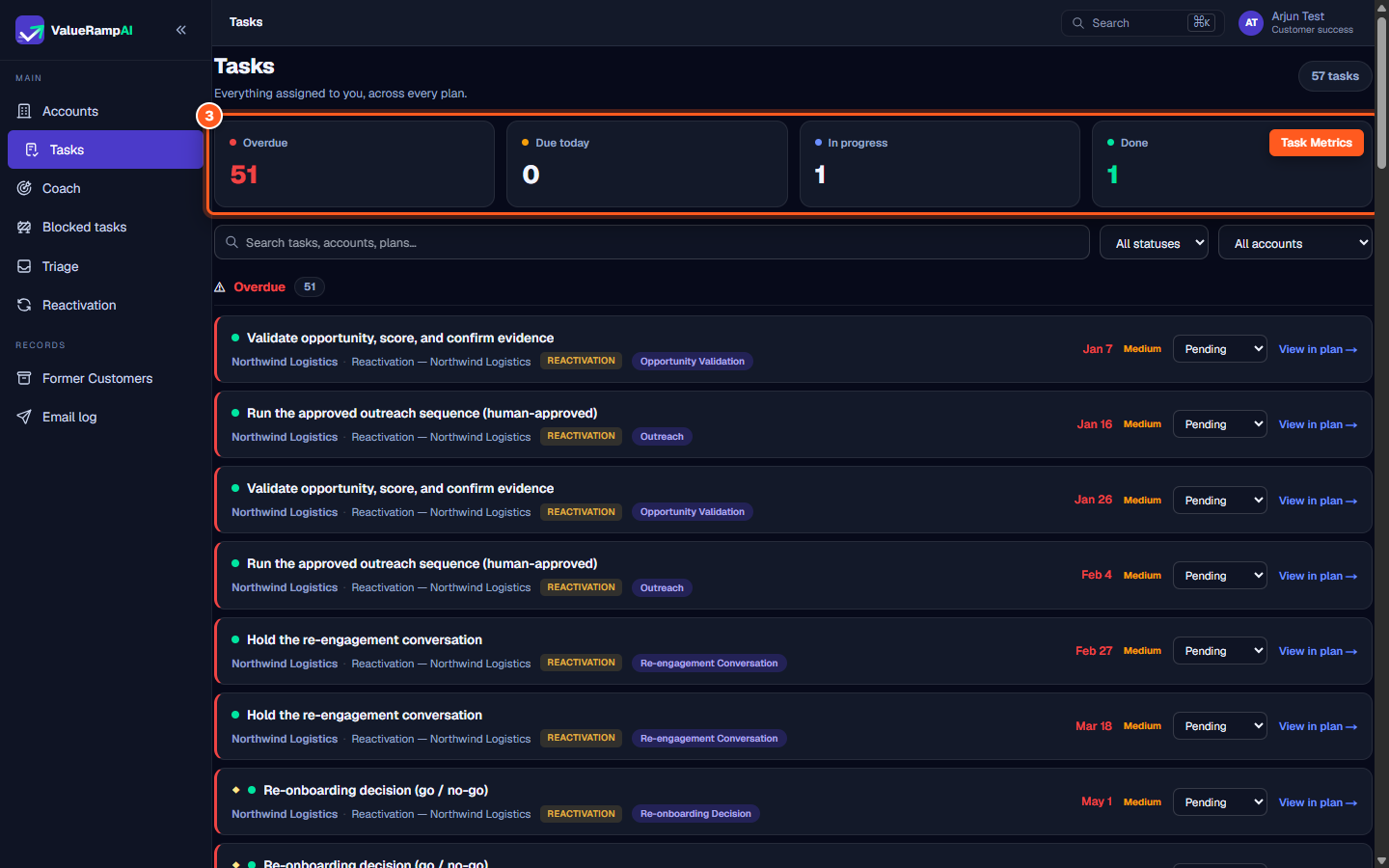
/tasks). - The Tasks overview aggregates every action item assigned to you across all active customer plans.
- The KPI bar at the top provides an instant summary:
- Total Tasks: All open assignments.
- Overdue: Tasks past their target completion deadline.
- Due Today: Items requiring completion by end-of-day.
- In Progress & Done: Operational execution velocity.
Step 4: Execute tasks and update statuses
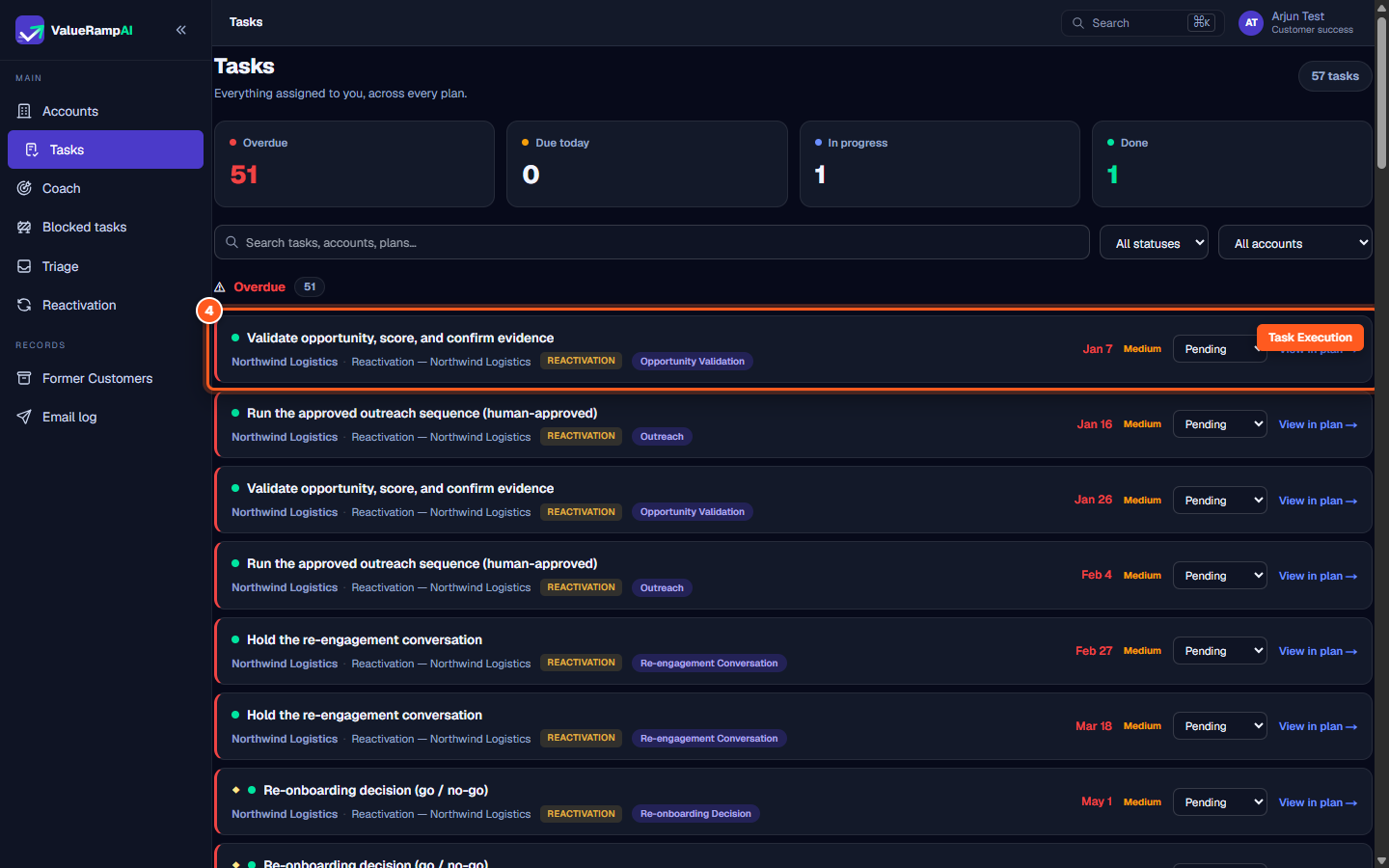
- Each task card displays:
- Task Title & Customer: The specific deliverable and customer account name.
- Phase & Plan: Identifies the active plan (e.g. Onboarding or Reactivation).
- Due Date & Priority: Target completion date and priority tier (High, Medium, Low).
- Update execution status directly on the card:
- Toggle between Pending, In Progress, Done, or Blocked.
- Marking a task as Blocked surfaces it in the Blocked Tasks queue at once and raises a
blocker_raisedworkflow event (a workflow rule decides who, if anyone, is notified). If it stays blocked past the workspace's escalation threshold (3 days by default), the CSM and OM receive an escalation email.
- Click View in plan → to jump directly to the customer's implementation roadmap.
Step 5: Review guidance in Adoption Coach
- In the main navigation, click Coach (
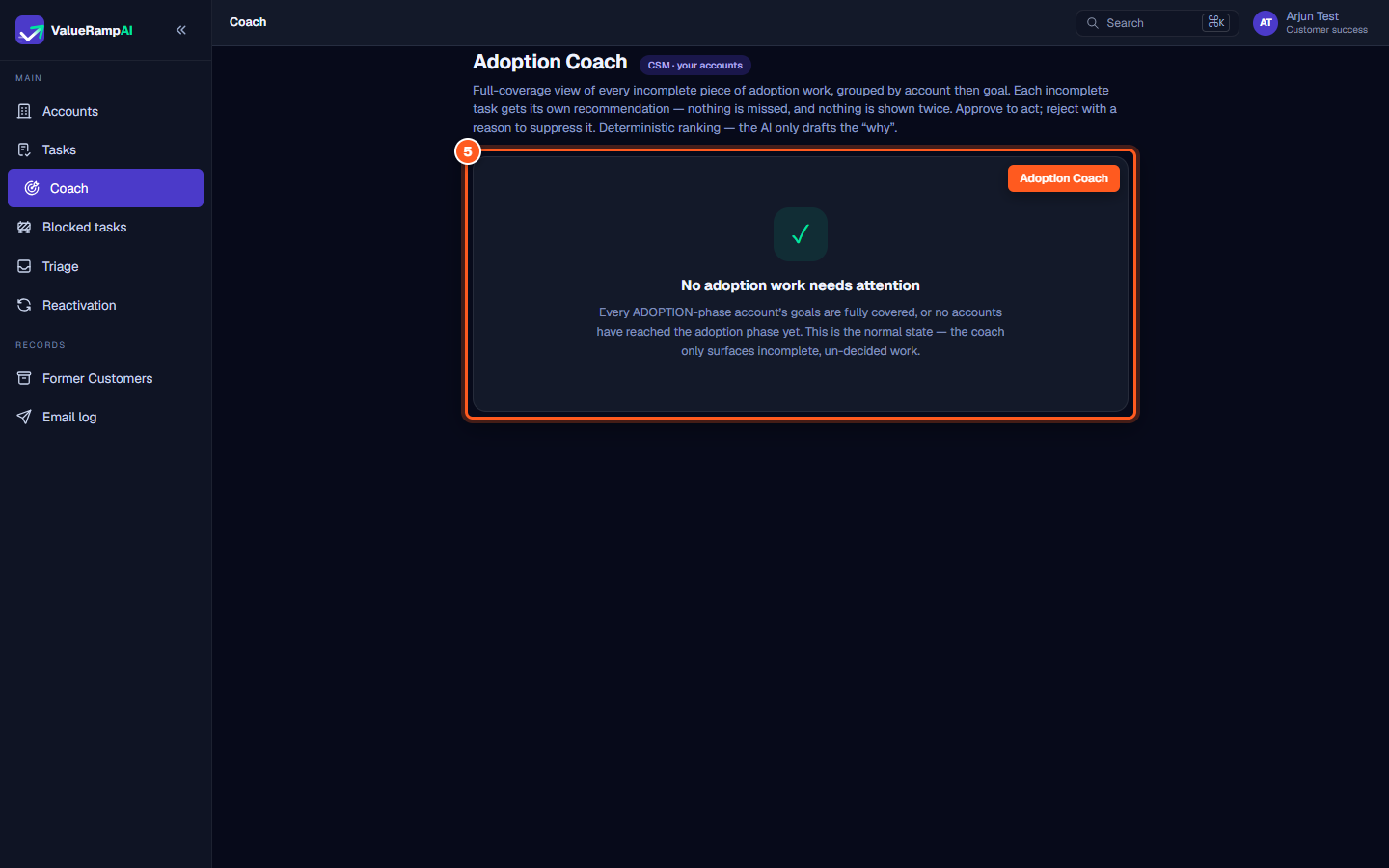
/coach). - The Adoption Coach reviews customer usage signals and adoption plans, surfacing uncompleted work grouped by account and customer goal.
- When recommendations appear:
- Review the deterministic ranking and AI-drafted context.
- Approve the recommendation: for an existing task it assigns that task to you (nothing new is created); for uncovered work it creates a standalone task on the account, owned by you.
- Reject with a reason to suppress false alarms or unneeded playbooks.
- When all accounts have full goal coverage, Coach displays: "No adoption work needs attention."
Frequently asked questions
Can a CSM create a new customer account?
Yes. Click the New account button in the upper-right corner of the Accounts directory to register a new organization, assign an owner, and initialize the onboarding phase.
How do I communicate directly with customer stakeholders?
Navigate to the account's Relationships tab (/accounts/[id]/relationships) to invite stakeholders to the Customer Portal, or use the Communications tab to review email threads and triage customer signals.
What should I do when a task is blocked by a customer dependency?
Set the task status to Blocked. ValueRamp prompts you to record the blocker reason, vendor dependency, or client bottleneck, immediately highlighting it on your dashboard and the Blocked Tasks rail.
Steps
Open Accounts to manage your client portfolio and track account lifecycle phases
Filter your assigned accounts by risk band and onboarding status
Open Tasks to review assignments, overdue deadlines, and status updates across plans
Filter tasks by customer account and update task execution statuses
Open Adoption Coach to review AI-assisted guidance and prioritized customer recommendations
Common questions
What is the primary role of a CSM in ValueRamp?
How does the CSM view differ from Admin?
Where do I track my day-to-day priorities?
Was this helpful? Tell us what was missing