The Finance guide to ValueRamp
Last verified 2026-09-18
Track collections schedules, reconcile payment histories, monitor ARR ledger movements, verify multi-currency FX rates, and process CSM invoice requests.
Before you start
- ValueRamp Finance role
As a Finance user, ValueRamp provides full visibility into revenue recognition, collections management, and recurring commercial operations. Working alongside Customer Success and Onboarding teams, you ensure contract commitments translate into timely collections and clean revenue accounting.
This guide introduces the core workspaces within the Finance module: Collections, Payment History, the ARR Ledger, FX & Gateways, and Invoice Requests.
Core Finance workspaces
- Collections Management (
/finance/collections): Track installment schedules, overdue accounts, and collection statuses across all client contracts in one unified ledger. - Payment Reconciliation (
/finance/payment-history): Inspect every payment recorded in the workspace, the gateway it was recorded against, and export the filtered set to CSV. - Revenue Movement Auditing (
/finance/arr-ledger): Audit the delta events — initial, expansion, upsell, cross-sell, renewal, contraction, churn, churn recovery and correction — that change workspace ARR. - Multi-Currency Operations (
/finance/fx-gateways): Review the foreign exchange rates to USD (the internal pivot) and manage the payment gateways payments are recorded against. - Requests Queue (
/finance/requests): Work invoice requests raised by CSMs from an account through to a sent invoice.
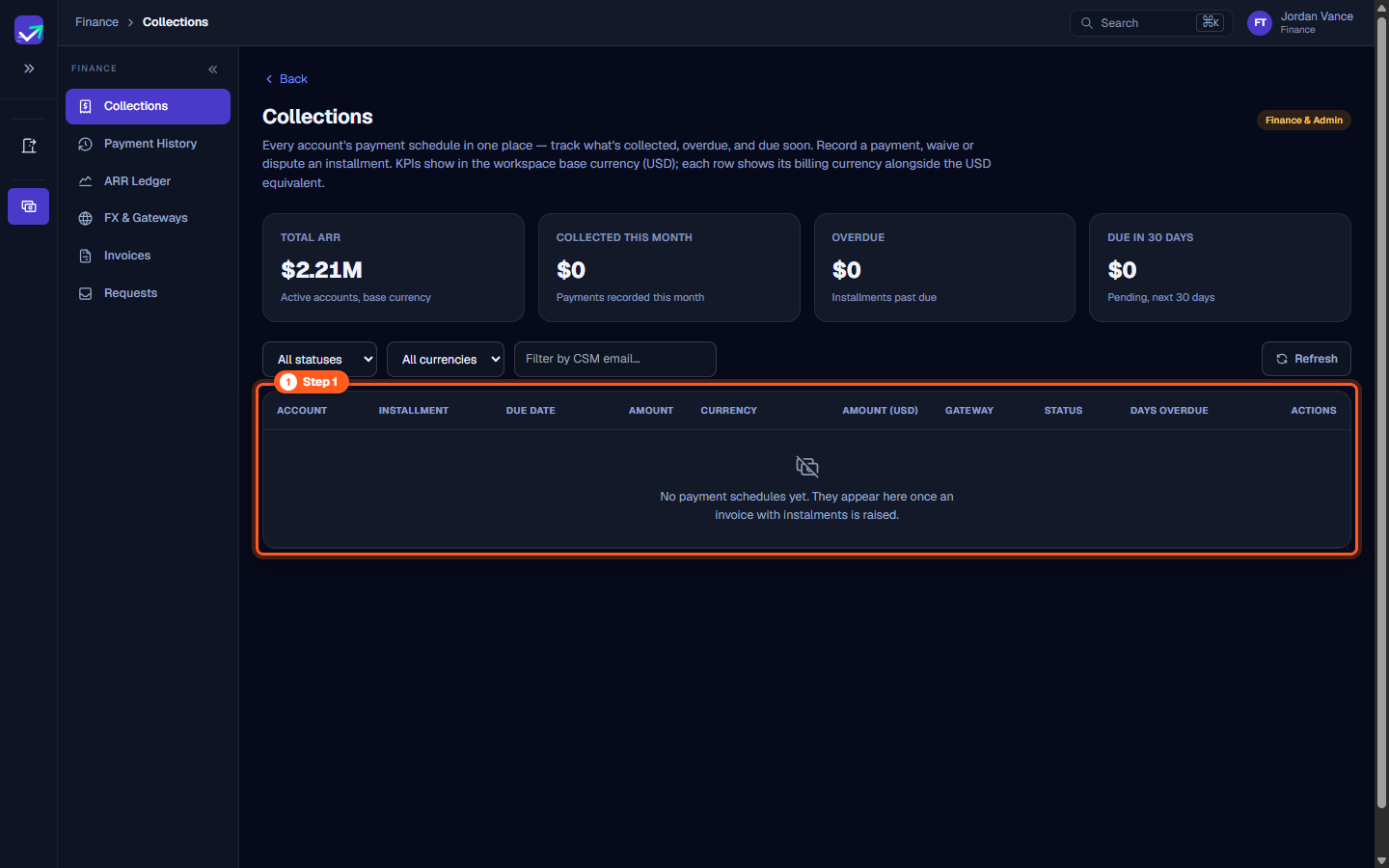
Step 1: Open Collections to monitor installment schedules
- In the sidebar under Finance, click Collections (
/finance/collections). - The Collections schedule centralizes payment milestones across all customer contracts:
- Account & Installment: The client organization and installment number.
- Due Date: Target settlement date.
- Amount & Currency: Contracted payment value in original currency and converted USD amount.
- Gateway & Status: The gateway the payment is recorded against and the status (Pending, Overdue, Partially Paid, Paid, Waived, Disputed).
- Days Overdue: Aging counter highlighting accounts requiring collection escalation.
- Click Mark paid on a Pending, Overdue or Partially Paid row to record incoming funds; Waive and Dispute (Finance only) act on Pending or Overdue rows.
- In this release no screen creates a payment schedule, so the table shows its empty state until one exists.
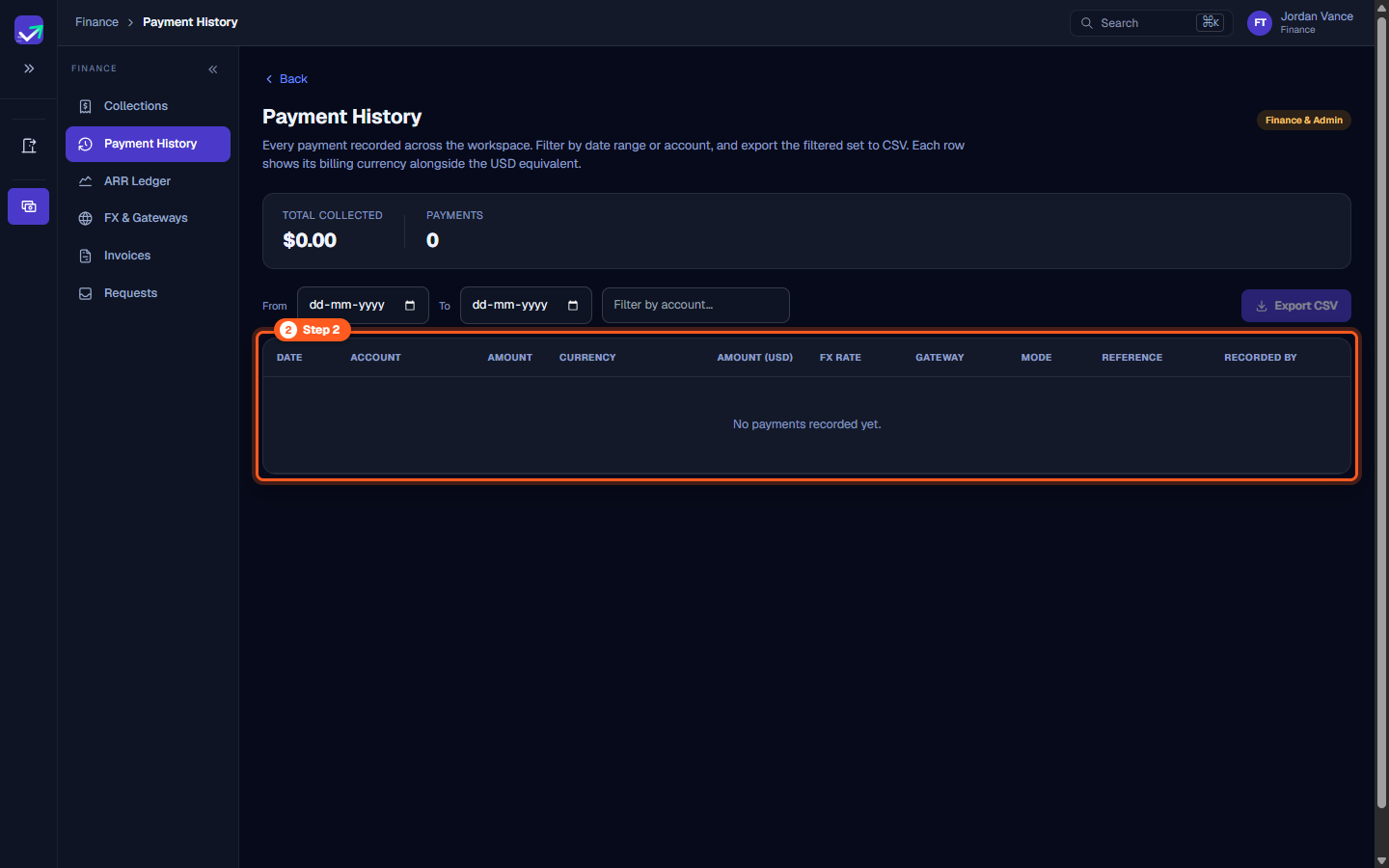
Step 2: Open Payment History to reconcile transactions
- In the sidebar under Finance, click Payment History (
/finance/payment-history). - The Payment History log records every payment recorded across your workspace.
- Columns: date, account, amount, currency, amount (USD), FX rate, gateway, mode, reference, and who recorded it.
- Filter by specific date ranges or customer accounts, and click Export to CSV to extract clean reconciliation data for your external accounting ERP.
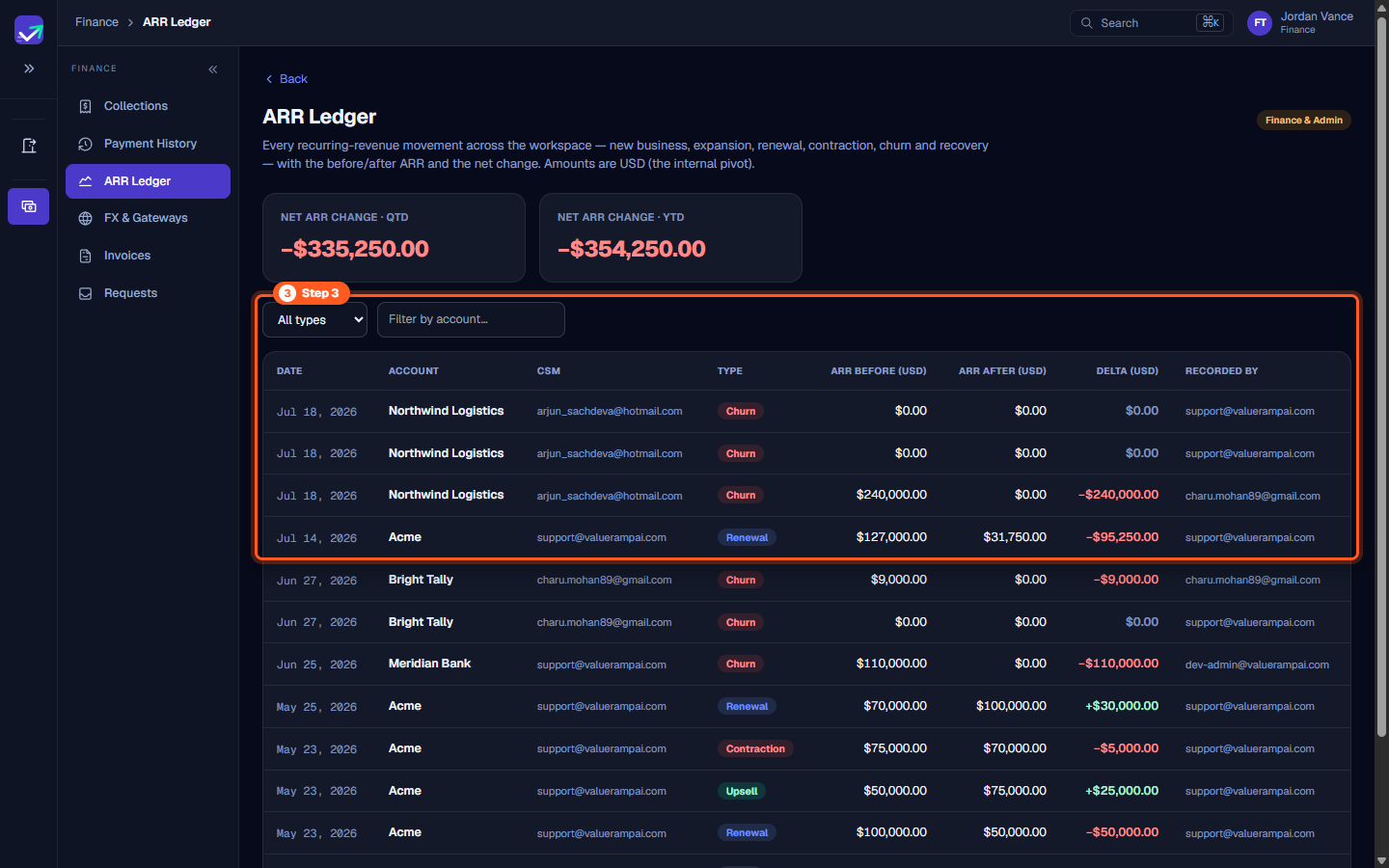
Step 3: Open the ARR Ledger to audit recurring revenue movements
- In the sidebar under Finance, click ARR Ledger (
/finance/arr-ledger). - The ARR Ledger lists every ARR movement recorded in your workspace:
- Movement types: initial, expansion, upsell, cross_sell, renewal, contraction, churn, churn_recovery and correction — written when an account's ARR is updated on its Revenue tab, when a won opportunity is closed, or when an account is marked churned.
- ARR before & after: The account's ARR before and after the movement, in USD.
- Date: The movement's effective date.
- Filter by movement category or account to analyze portfolio growth drivers.
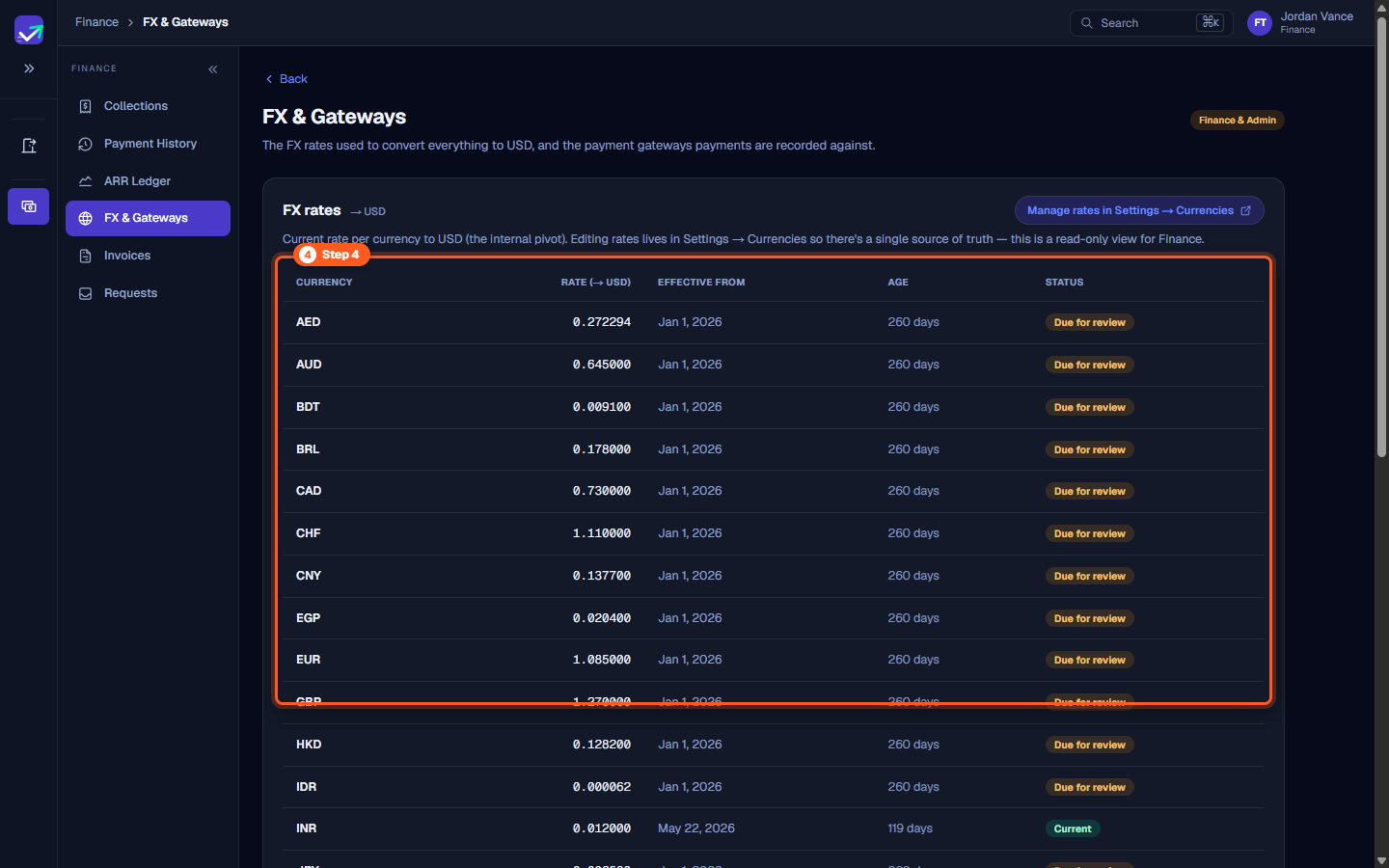
Step 4: Inspect FX rates and payment gateways
- In the sidebar under Finance, click FX & Gateways (
/finance/fx-gateways). - FX rates table: Each configured currency, its rate to USD, the date it took effect, its age in days, and whether it is Current or Due for review (set before the current financial year began). Read-only here — edit in Settings → Currencies.
- Payment gateways table: The gateways a payment can be recorded against (types: stripe, razorpay, bank_transfer, paypal, other) with default currency and account label. Finance can Add, Edit and Deactivate them here.
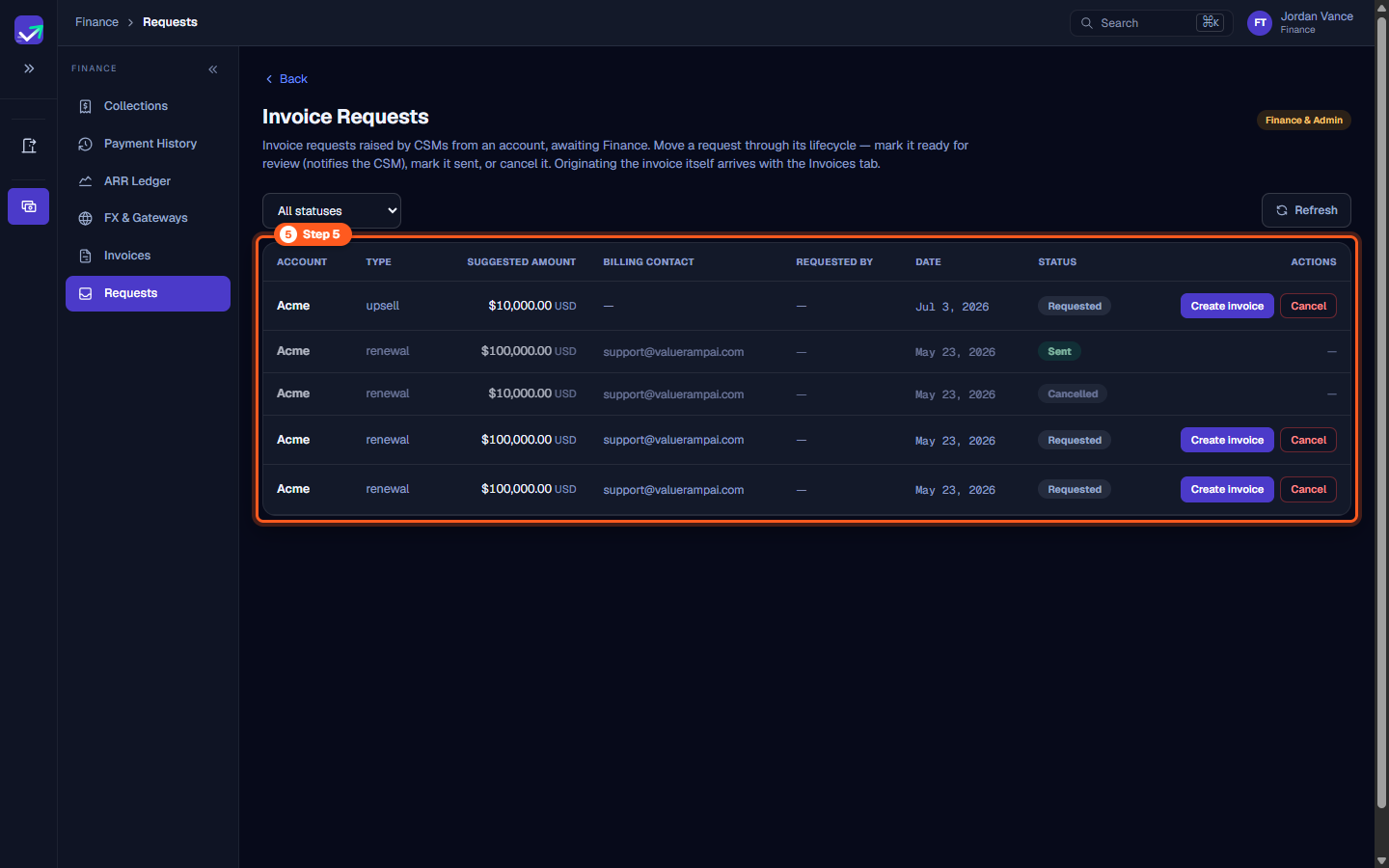
Step 5: Review and fulfill invoice requests in Requests
- In the sidebar under Finance, click Requests (
/finance/requests). - A CSM raises an invoice request from the account's Revenue tab (+ Request invoice), choosing a type (Upsell, Cross-sell, Renewal, Expansion, Manual / Other), a suggested amount and a billing contact.
- The queue displays account, type, suggested amount, billing contact, requested by, date and status (Requested, In Progress, Ready for Review, Approved, Sent, Cancelled).
- On a Requested row, click Create invoice: the New invoice form opens pre-filled, and the invoice you create is linked to the request (status In Progress). Then Mark ready (emails the account's CSM) and Mark sent; Cancel is available until a request is sent. Invoice PDFs are uploaded, not generated.
Frequently asked questions
What is the primary role of the Finance user in ValueRamp?
The Finance team oversees commercial operations: managing collection schedules, verifying payments, auditing ARR ledger additions and churn deltas, monitoring exchange rates, and reviewing invoice requests raised by account teams.
Where do I find overdue accounts and upcoming invoice installments?
Navigate to Collections (/finance/collections) to view the global payment schedule. The directory aggregates all pending installments, days overdue, and payment statuses across your customer accounts.
Can Finance edit foreign exchange rates in the FX & Gateways workspace?
The FX rates table on that page is read-only. Rates are edited in Settings → Currencies, which Finance and Admin can both open (Finance edits rates; only an Admin changes the base currency or the active set). The payment gateways on the same page are editable by Finance.
How do invoice requests flow from CSMs to Finance?
When a CSM raises an invoice request from the account's Revenue tab, it lands in the Requests queue (/finance/requests) with status Requested. Finance clicks Create invoice on it, which opens the New invoice form and links the resulting invoice to the request (In Progress), then marks the request ready (which emails the CSM) and sent.
Steps
Open Collections to monitor upcoming, overdue, and collected installment schedules
Open Payment History to verify processed transactions and export audit records
Open the ARR Ledger to audit recurring revenue movements and ARR delta categories
Inspect FX rates and payment gateways used for multi-currency conversion
Review and fulfill invoice requests submitted by Customer Success Managers
Common questions
What is the primary role of the Finance user in ValueRamp?
Where do I find overdue accounts and upcoming invoice installments?
Can Finance edit foreign exchange rates in the FX & Gateways workspace?
How do invoice requests flow from CSMs to Finance?
Was this helpful? Tell us what was missing