The Onboarding Manager's guide to ValueRamp
Last verified 2026-09-18
Run customer implementations from kickoff to go-live: track deliverables across plans in Tasks, clear blocked milestones, and watch go-live dates.
Before you start
- ValueRamp Onboarding Manager (OM) role
As an Onboarding Manager (OM), ValueRamp is your command center for orchestrating customer onboarding journeys, tracking milestone completion, and accelerating Time to First Value (TTFV). From initial sales handoff through kickoff calls, technical configuration, and final go-live sign-off, you ensure every deliverable stays on schedule.
This guide covers the three primary workspaces you use each day: the Accounts directory, the centralized Tasks workspace, and the dedicated Blocked Tasks triage center.
Core Onboarding Manager responsibilities
- Implementation Pipeline Tracking (
/accounts): Monitor organizations in the Onboarding lifecycle phase, ensure kickoff commitments are satisfied, and maintain visibility over target go-live deadlines. - Deliverable Execution & Status Management (
/tasks): Supervise assigned implementation tasks across customer plans, update progress statuses, and review deliverable timelines. - Blocker Remediation (
/blocked-tasks): Rapidly surface dependencies—such as missing client credentials, pending legal reviews, or technical integration delays—and track proactive customer communication. - Seamless CSM Transition: Partner with Customer Success Managers to ensure complete stakeholder alignment and clean handoffs once onboarding milestones achieve sign-off.
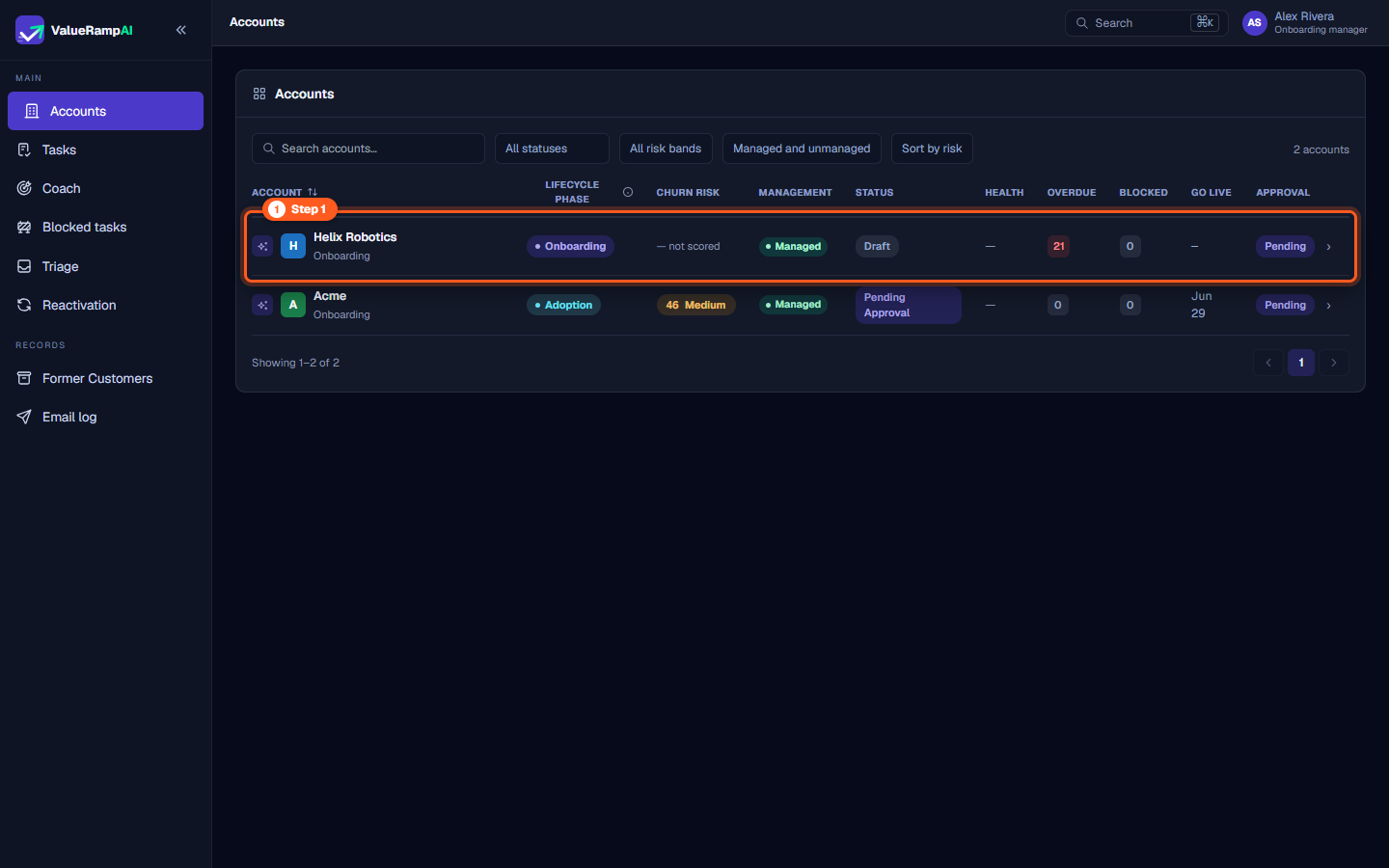
Step 1: Open Accounts to review active onboarding implementations
- In the sidebar under Main, click Accounts (
/accounts). - As an OM, the Accounts directory lists the accounts that have a plan you manage (you are its OM). Admins see every account.
- Identify accounts whose Lifecycle phase displays
Onboarding. For these accounts, ValueRamp prioritizes onboarding metrics:- Lifecycle phase: Reads
Onboardinguntil the account's onboarding plan is closed (status Closed, Closed with CSAT or Closed without CSAT); it then moves toAdoption. - Management: Managed (comms ingestion, scoring, coach and the AI layer run on the account; it counts toward your plan) or Unmanaged (the record, contacts, revenue and renewal alert stay; the intelligence is off).
- Go Live: Displays target launch dates (e.g.
Jun 29). - Approval: The onboarding plan's CSM approval —
PendingorApproved.
- Lifecycle phase: Reads
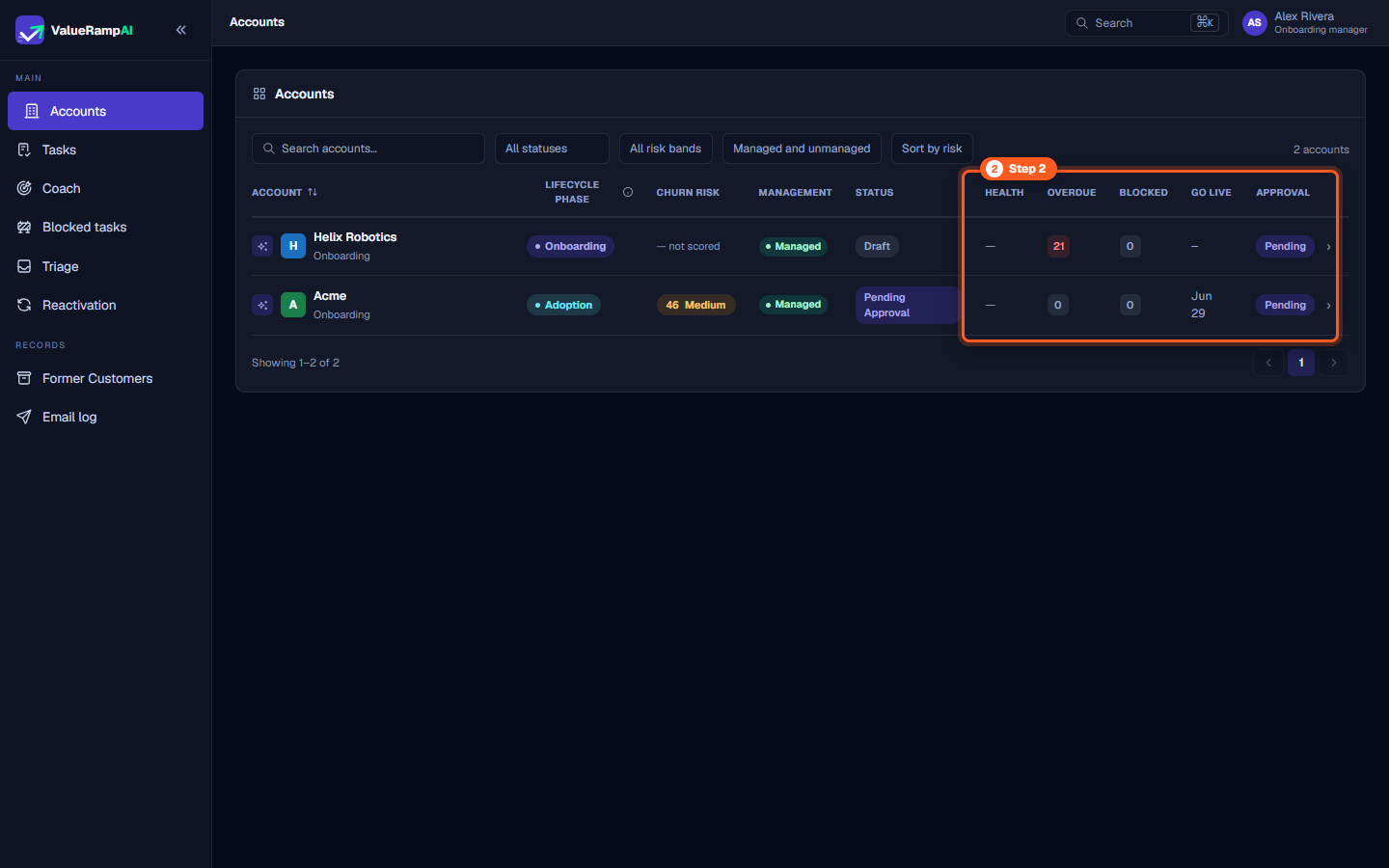
Step 2: Inspect account implementation health, overdue tasks, and blockers
- On the Accounts table, review the operational execution columns located on the right side:
- Health: The active plan's health score.
- Overdue: The count of the plan's tasks past their due date.
- Blocked: The number of the plan's tasks currently blocked.
- Go Live: The plan's launch date.
- Approval: The plan's CSM approval state (
PendingorApproved).
- Clicking any account row opens its full account overview, context tab, and onboarding plan history.
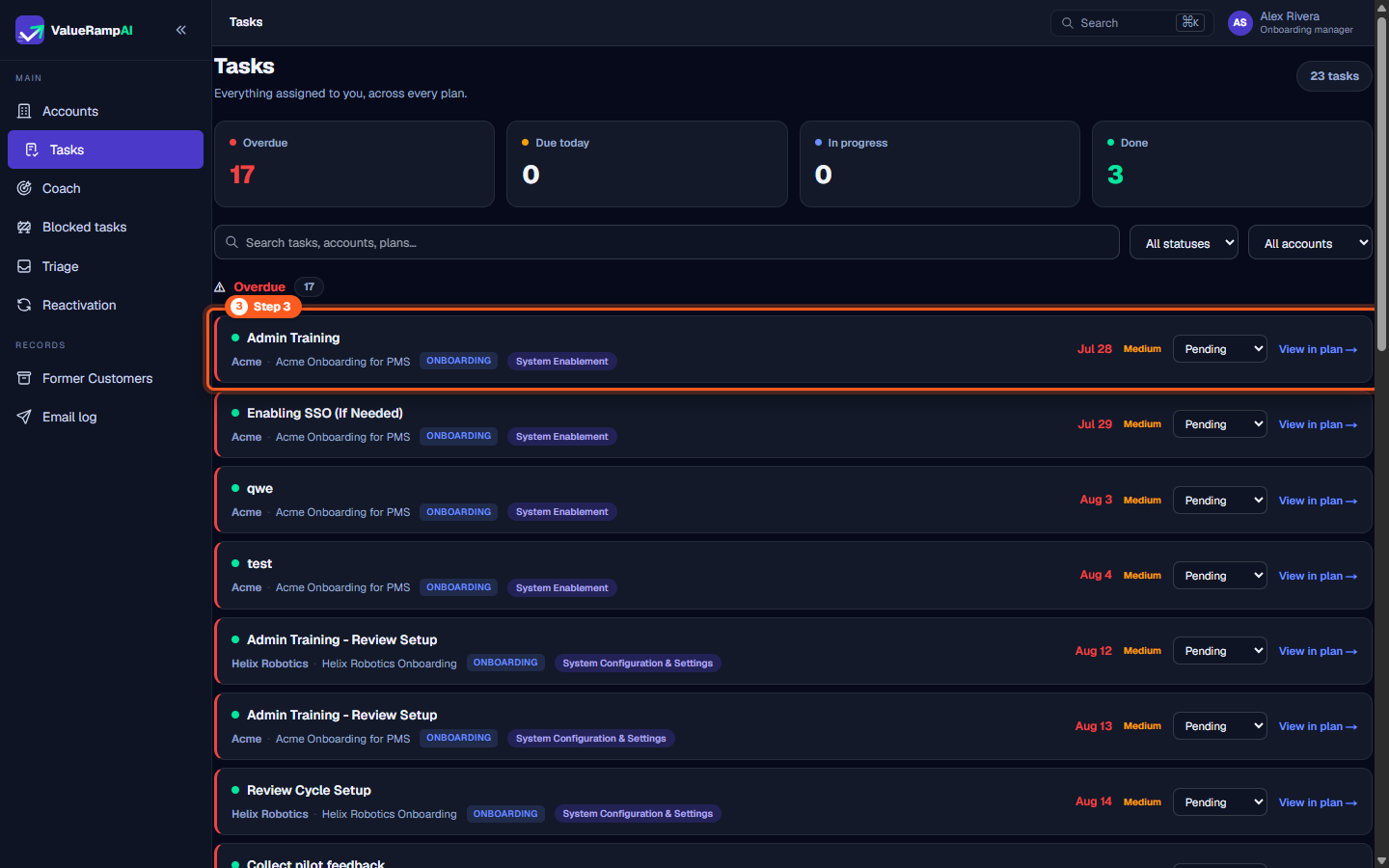
Step 3: Open Tasks to manage cross-account deliverables
- In the sidebar under Main, click Tasks (
/tasks). - The Tasks workspace ("My Tasks") lists the tasks owned by you — for an OM, tasks owned by the OM (or by both sides) on the plans you manage — bucketed by due date: Overdue, Due today, Due this week, Upcoming and Done.
- Each task card displays:
- Task Title: The deliverable name (e.g. Admin Training).
- Account & Plan: The parent account and plan title (e.g. Acme · Acme Onboarding for PMS).
- Phase Tag: The implementation phase (e.g.
ONBOARDINGorSystem Enablement). - Due Date & Priority: Target completion date and priority tier (
Low,Medium,High). - Status: An inline dropdown to set
Pending,In Progress,Done, orBlocked. - Plan Navigation: Click View in plan → to open the parent plan workspace.
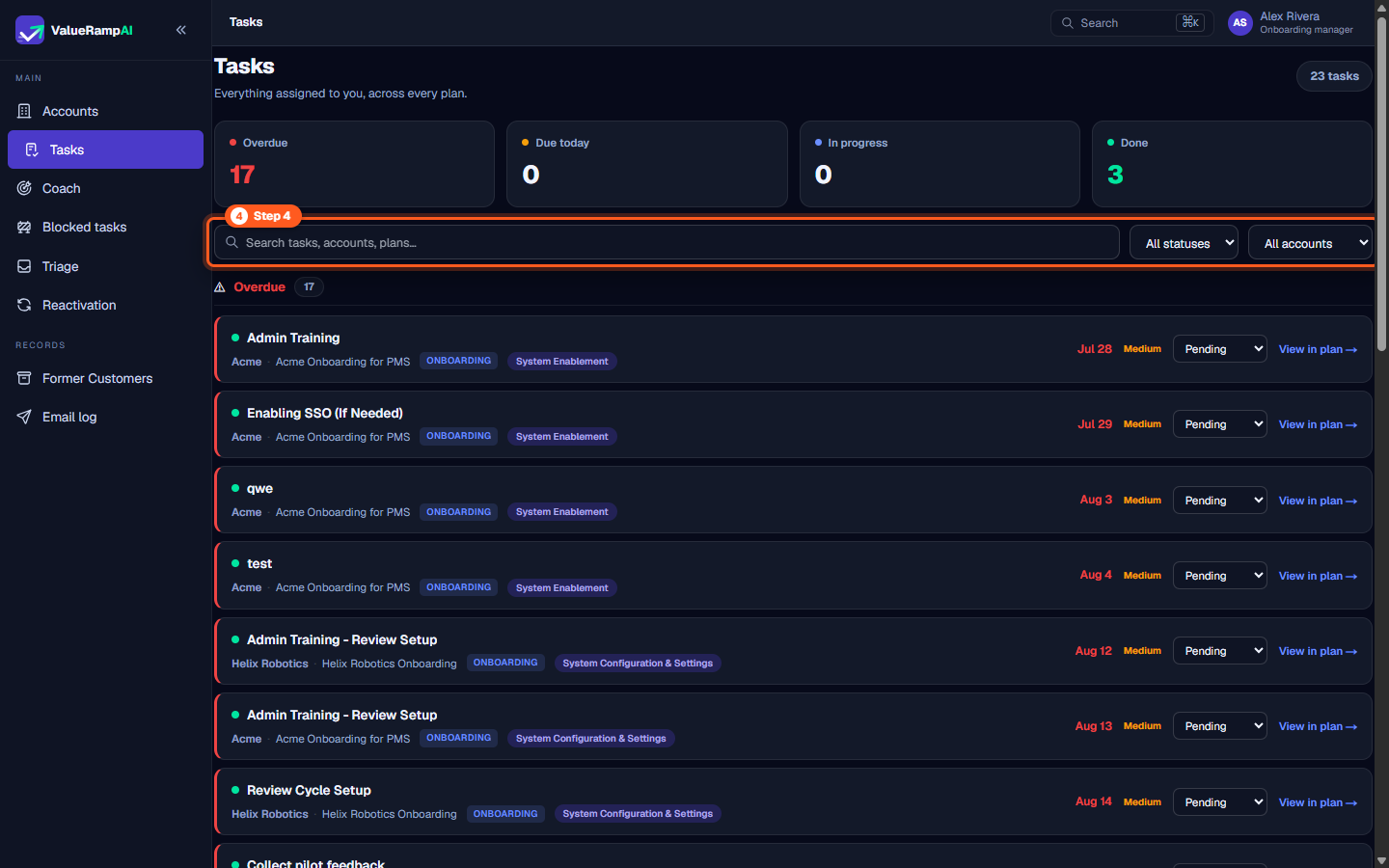
Step 4: Filter tasks and update deliverable progress
- Use the filter controls above the task list to organize your daily work:
- Search Input: Search tasks by keyword or deliverable name.
- All statuses: Filter between
Pending,In Progress,Done, andBlocked. - All accounts: Isolate deliverables for a specific customer organization (e.g. Acme or Helix Robotics).
- Update task states directly from the card row without having to navigate into sub-pages.
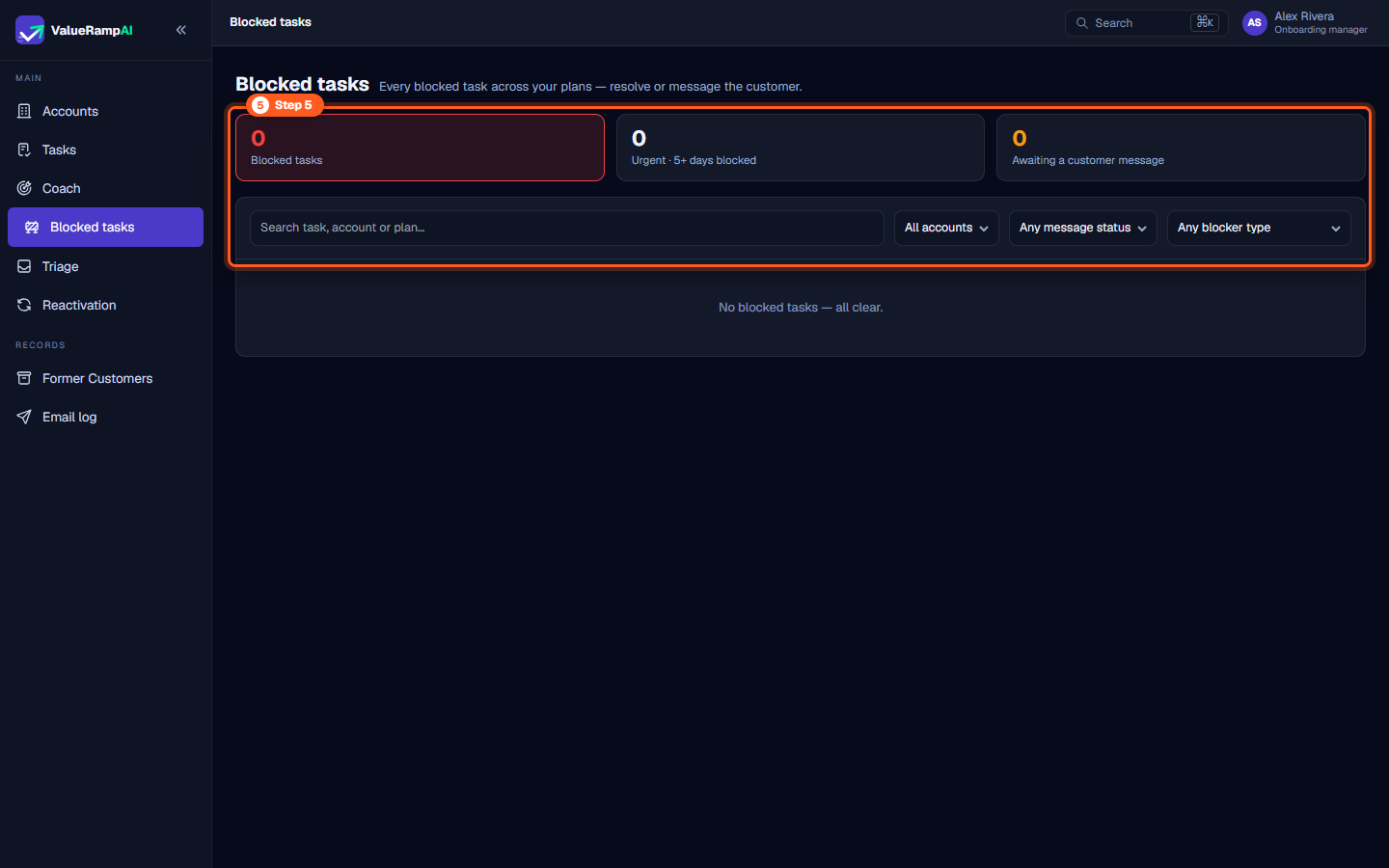
Step 5: Triage bottlenecks in Blocked Tasks
- In the sidebar under Main, click Blocked tasks (
/blocked-tasks). - This dedicated operational dashboard aggregates every blocked deliverable across your active plans:
- Summary stat tiles: Total blocked tasks, Urgent · 5+ days blocked, and Awaiting a customer message — blocked tasks for which no blocker message has been sent to the customer yet.
- Filter strip: Segment blockers by Account, Message status (Message sent vs. No message yet), and Blocker type (Awaiting Customer Input, Awaiting Internal Resource, Technical Dependency, Approval Pending, Scheduling Conflict, Other).
- Row actions: Message (or Message again) opens the blocker composer to write to the customer; Clear removes the blocker.
- Resolving blockers promptly prevents implementation drift and protects agreed go-live commitments.
Frequently asked questions
What is the primary responsibility of an Onboarding Manager in ValueRamp?
Onboarding Managers guide new customer organizations through implementation, system enablement, and kickoff milestones, ensuring accounts reach their scheduled go-live date before transitioning into active adoption.
How does the OM role differ from the CSM role?
While CSMs focus on long-term adoption, account health scoring, and contract renewals, Onboarding Managers concentrate on milestone execution, resolving technical blockers, configuring plans, and securing stakeholder sign-offs during onboarding.
Where can I view all blocked milestones across all customer accounts?
Navigate to Blocked Tasks (/blocked-tasks) in the sidebar. It lists the blocked tasks on the plans you manage, highlights items blocked for five or more days, shows whether a blocker message has gone to the customer, and lets you filter by blocker type.
How do I jump into a specific implementation plan from the Tasks list?
Every task card on the Tasks page features a View in plan → action button on its right side that directs you straight to the parent plan's detail workspace.
Steps
Open Accounts to track customer implementation phases and target go-live dates
Inspect account implementation health, overdue deliverables, and milestone blockers
Open Tasks to manage cross-account implementation deliverables and execution status
Filter tasks by customer account and status, or update execution progress
Open Blocked Tasks to triage aging bottlenecks and track customer communication
Common questions
What is the primary responsibility of an Onboarding Manager in ValueRamp?
How does the OM role differ from the CSM role?
Where can I view all blocked milestones across all customer accounts?
How do I jump into a specific implementation plan from the Tasks list?
Was this helpful? Tell us what was missing