Communication settings
Last verified 2026-09-17
Configure workspace CI settings, extraction quality thresholds, Fathom integration mode, raw transcript retention, competitor tracking, and active channels.
ValueRamp's Communication Intelligence (CI) engine analyses customer conversations across email, meeting transcripts, calendar events, and Slack Connect channels to automatically extract sentiment, risks, product feedback, and lifecycle signals.
The CI Settings page (/ci-settings) provides workspace-level administrative controls over how conversation data is ingested, processed, and retained. Access is strictly limited to users with the Admin role.
Workspace control architecture
- Workspace-Wide Scope: Settings applied here govern data ingestion for all customer success managers, onboarding managers, and integrated channels in the workspace.
- Batch Saving: Modifications made across settings cards are staged locally and committed to the backend when you click Save changes in the sticky top bar. Click Reset to discard unstaged modifications.
- Dual Escalation Engine: An AI extraction confidence threshold governs when conversation parsing automatically escalates from fast extraction models to deeper reasoning models.
- Strict Retention Bounds: Raw message bodies and transcript text are automatically purged after a window of 7 to 90 days. Extracted structured signals, sentiment tags, and meeting summaries persist. (ValueRamp never stores audio.)
- Read-Only Roster Visibility: Dedicated integration health panels allow Admins to audit the live connection and sync status of every team member without exposing personal OAuth tokens.
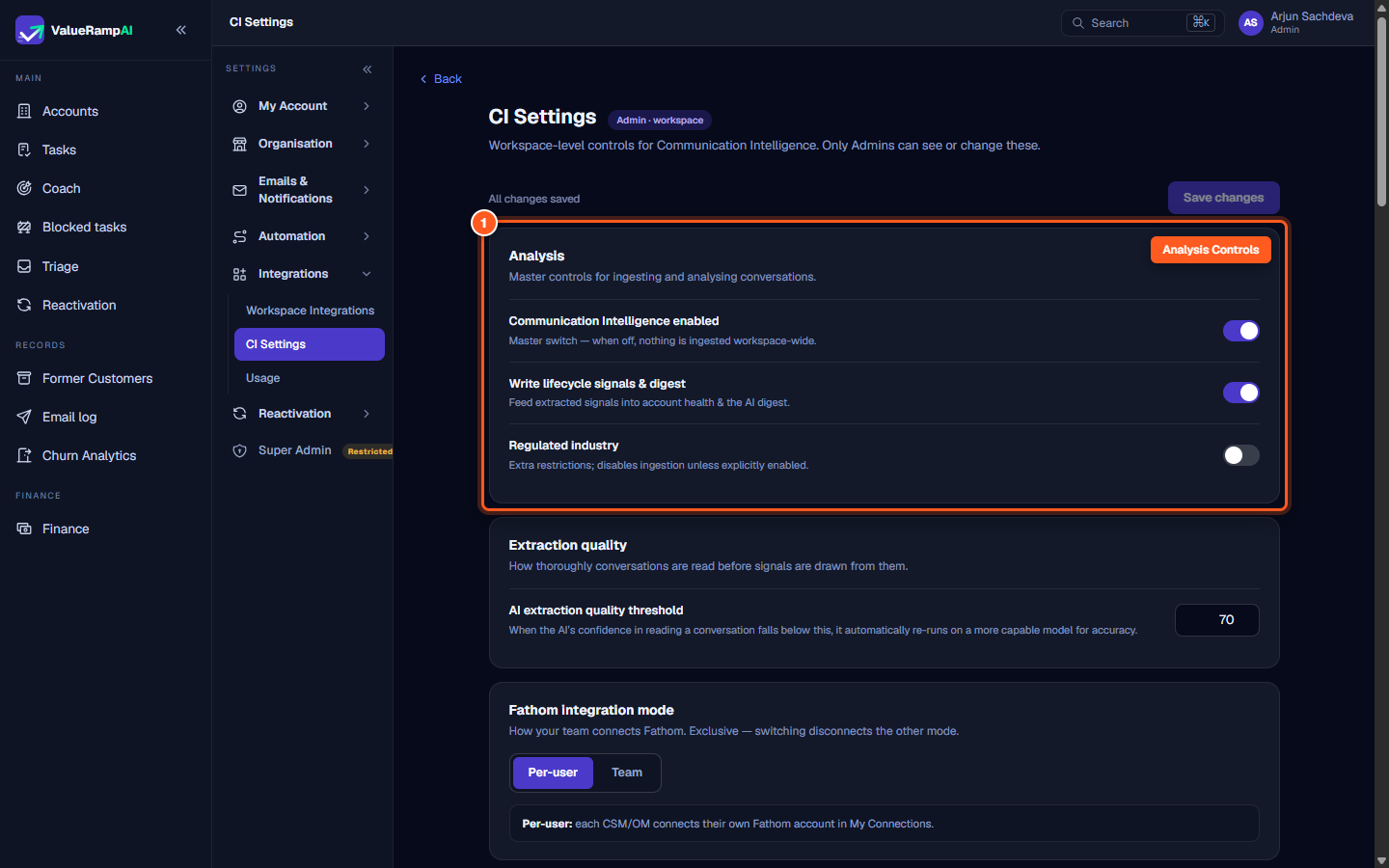
Step 1: Manage Analysis master switches and lifecycle signal writing
- Navigate to CI Settings (
/ci-settings) via the sidebar under Integrations → CI Settings. - Locate the Analysis card at the top of the page.
- Configure the three core operational switches:
- Communication Intelligence enabled: The master workspace kill switch. When toggled off, all conversation ingestion and signal processing halts immediately across all sources.
- Write lifecycle signals & digest: When enabled, extracted conversation signals feed directly into customer health scores, risk alerts, and executive AI digests. When turned off, extractions remain viewable in conversation logs but do not influence account scores.
- Regulated industry: Switches automated ingestion off for the workspace — email, Slack and transcript processing all stop while it is on.
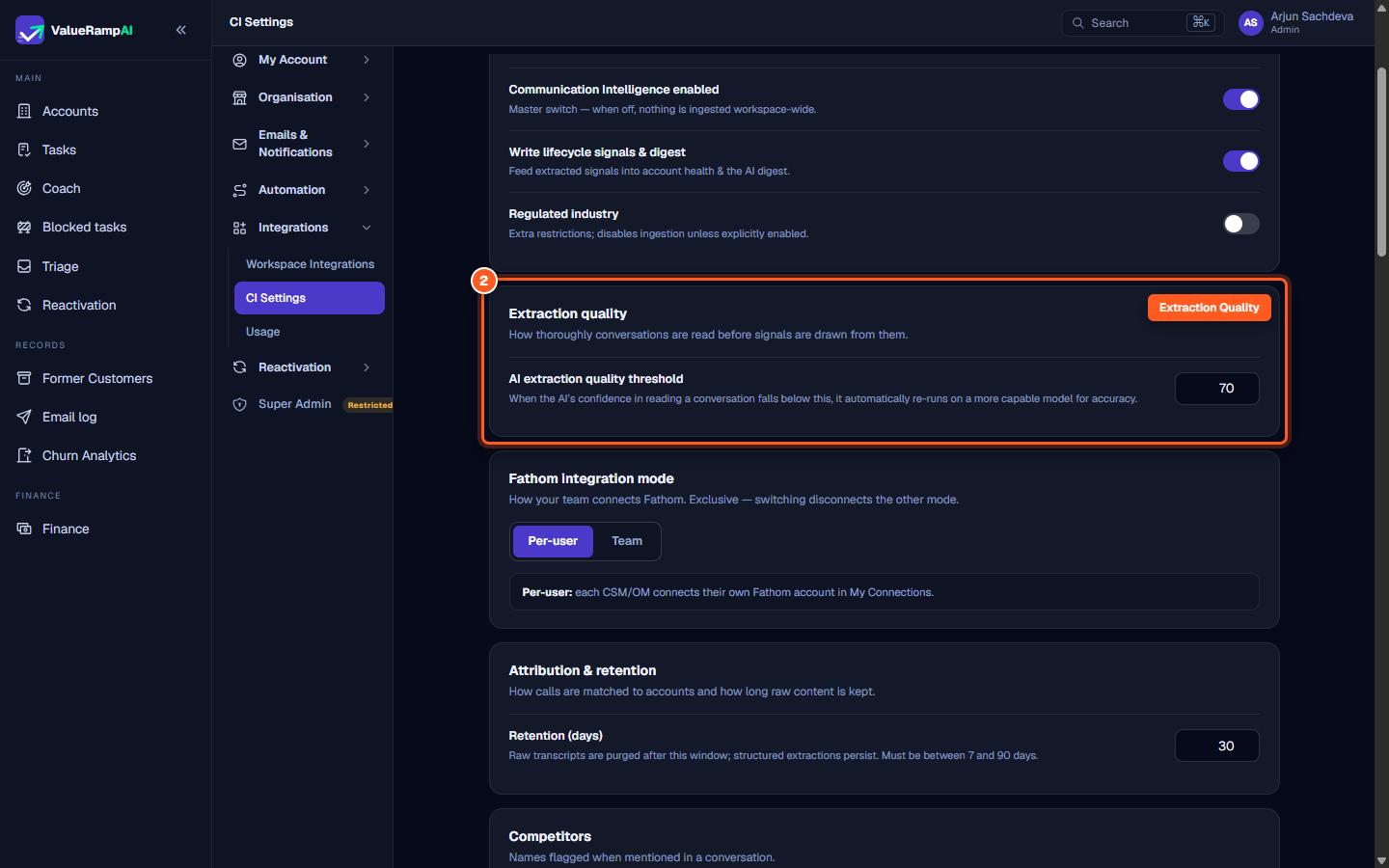
Step 2: Set the AI extraction quality threshold for model escalation
- In the Extraction quality card, locate the AI extraction quality threshold field.
- Enter an integer value between 0 and 100 (default is
70). - How Escalation Works:
- Every conversation is initially parsed by ValueRamp's high-speed extraction engine.
- If the engine's confidence score falls below your configured threshold, the conversation automatically re-runs on a more capable model to resolve ambiguous context and ensure signal accuracy.
- Entering an invalid value outside 0–100 highlights the field in red and prevents saving.
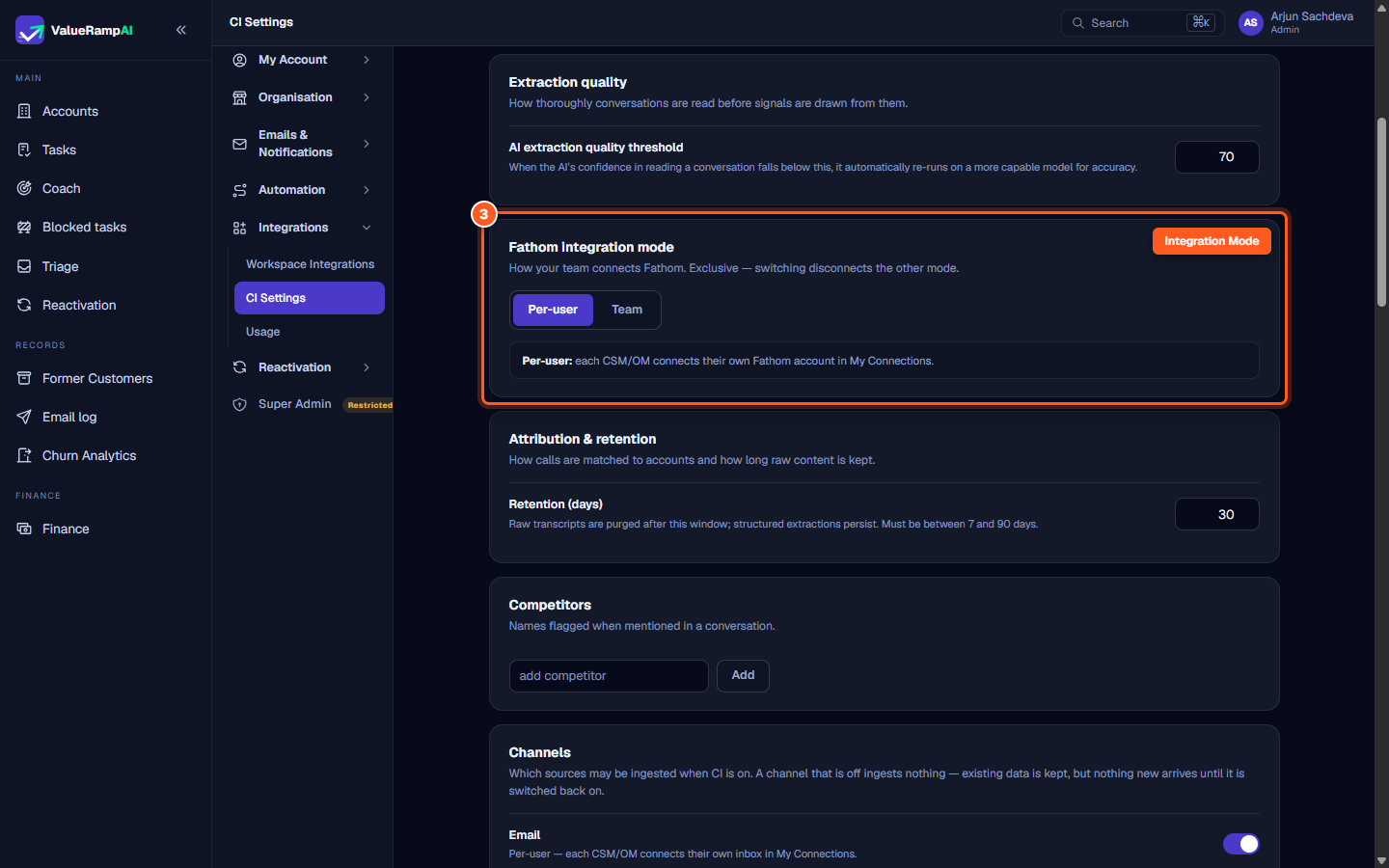
Step 3: Select Fathom integration mode (Per-user vs Team)
- Scroll to the Fathom integration mode card.
- ValueRamp supports two mutually exclusive connection architectures:
- Per-user: Each CSM and OM connects their own individual Fathom account in Settings → Team → My Connections. This mode ensures each rep's recordings are attributed under their personal OAuth session.
- Team: A single workspace-level Fathom API token (
fathom_sk_...) is provided by an Admin to ingest calls recorded across the entire team.
- If switching to Team, enter the Fathom API key into the Team Fathom credential input and click Connect team.
- Switching modes automatically disconnects the previous mode to prevent duplicate transcript ingestion.
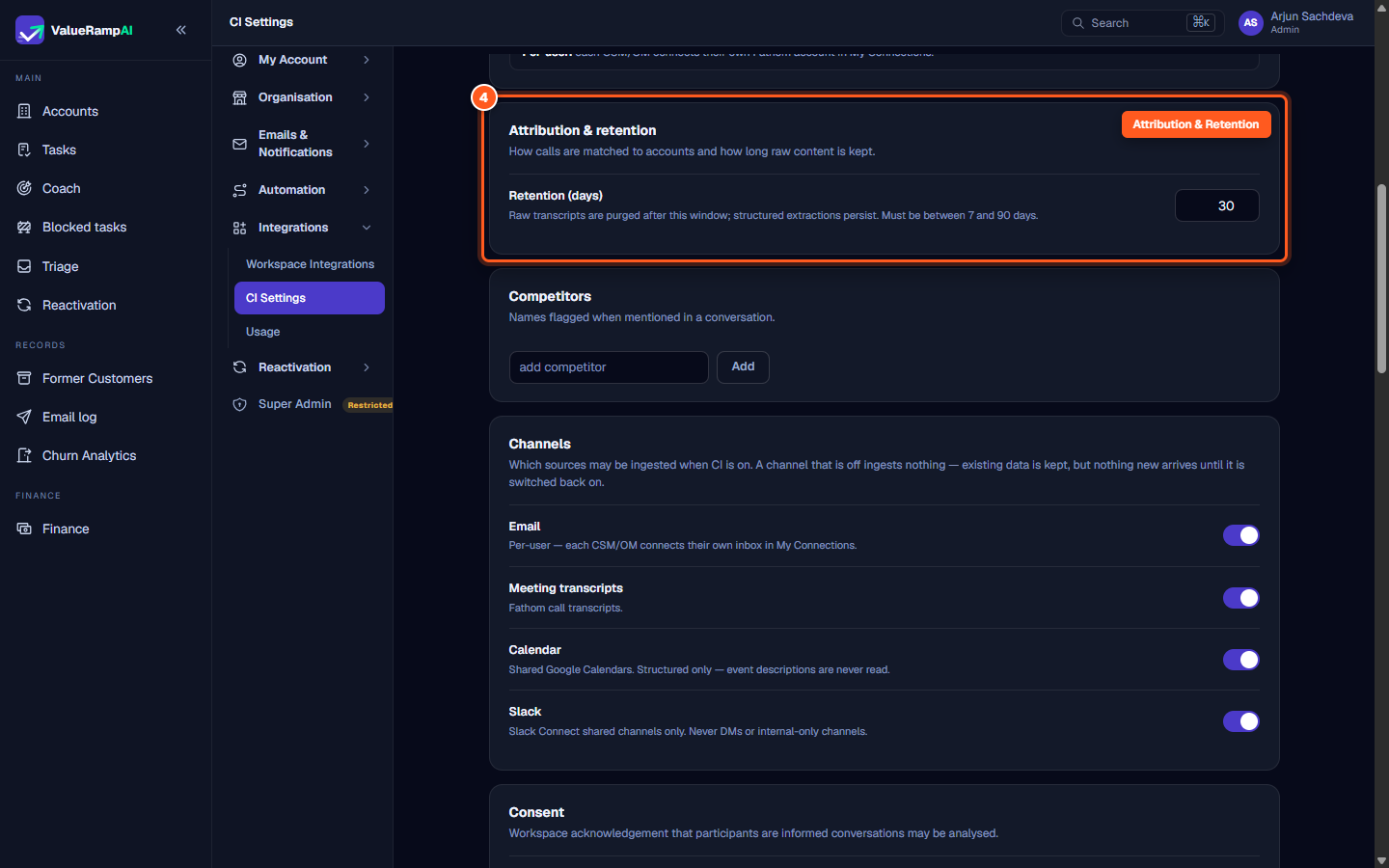
Step 4: Define raw transcript retention and track competitor mentions
- Scroll to the Attribution & retention card.
- In the Retention (days) field, enter a whole number between 7 and 90 days:
- ValueRamp automatically purges raw message bodies and transcript text once they exceed this age window.
- Extracted metadata, customer quotes, identified risks, and sentiment ratings are preserved in perpetuity.
- The platform strictly rejects retention durations shorter than 7 days or longer than 90 days.
- In the Competitors card below:
- View currently tracked competitor keyword chips.
- To add a new competitor, enter the company name into the add competitor field and click Add (or press
Enter). - Any time a tracked competitor name is detected in customer conversations, ValueRamp highlights it in conversation summaries and adds a competitive risk signal.
- Click the
×on any competitor chip to remove it from tracking.
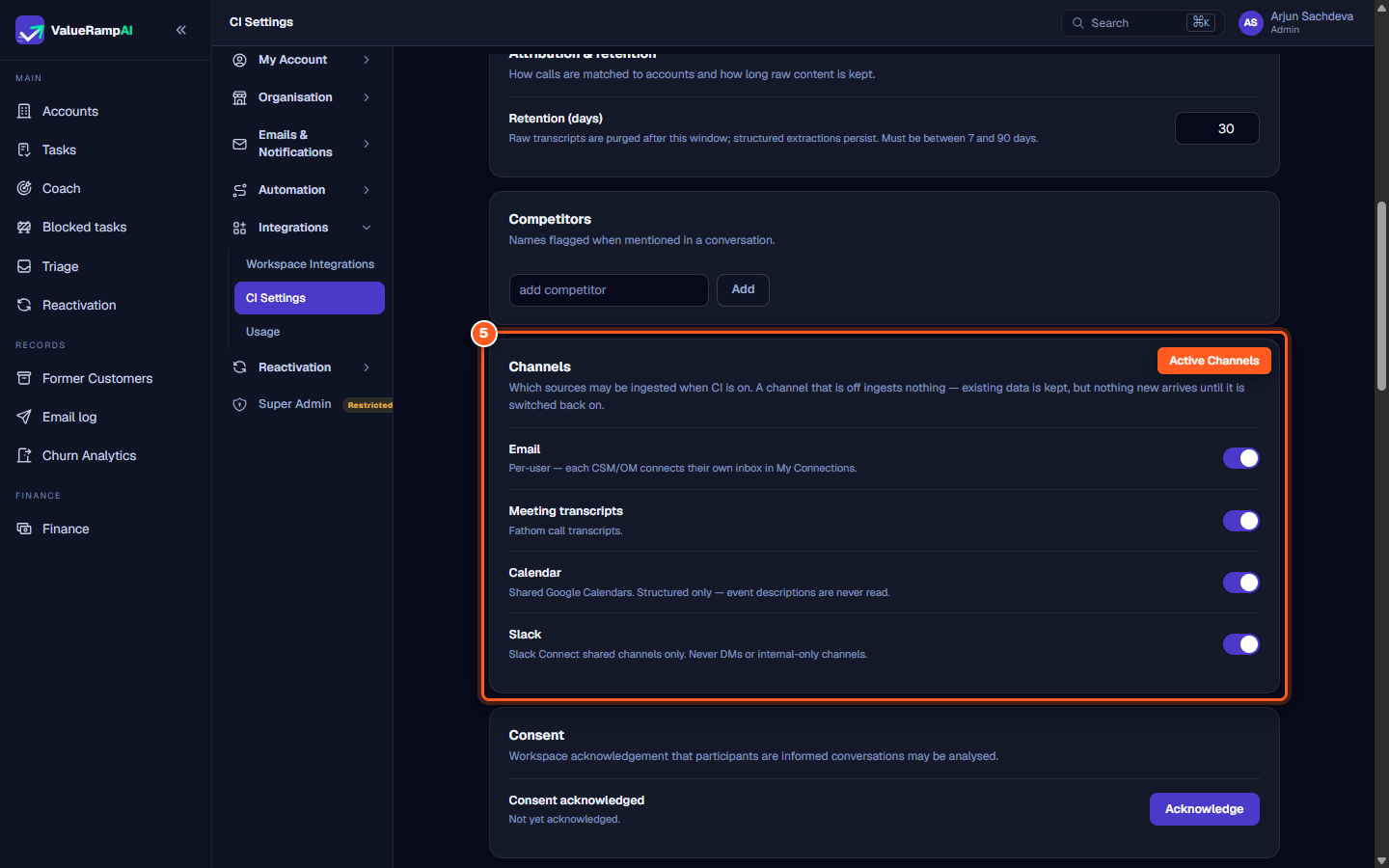
Step 5: Toggle active ingestion channels and audit integration health
- In the Channels card, control which external communication sources are ingested into ValueRamp:
- Email: Per-user email forwarding (each team member forwards customer email to their ValueRamp address).
- Meeting transcripts: Fathom call recordings and AI transcripts.
- Calendar: Shared Google Calendar or Outlook 365 events (structured event metadata only; private event bodies are never read).
- Slack: Slack Connect channels only — direct messages are never read. On Enterprise Grid, channels shared across your own organisation also qualify.
- Toggling off any channel stops new incoming messages immediately while preserving past conversations.
- Workspace Consent: In the Consent card, click Acknowledge to verify that conversation participants have been informed of analysis in accordance with privacy requirements.
- Integration Health Panels: At the bottom of the page, review read-only health rosters for Fathom, Email forwarding, Calendar, and Slack to identify broken connections or users needing re-authentication.
Frequently asked questions
Who can modify Communication Intelligence settings?
Only users assigned the Admin role can access /ci-settings and modify workspace-level parameters. Other roles (CSM, OM, Finance) are automatically redirected to the dashboard.
What happens when a channel is toggled off?
When a channel toggle is turned off, ValueRamp halts all background ingestion jobs and webhook processing for that specific source. All previously ingested conversations, summaries, and signals remain intact and searchable.
Can an Admin connect Fathom or email on behalf of a teammate?
No. In Per-user mode, personal credentials and mailbox forwarding rules belong to the individual team member. Admins can view connection status in the read-only Integration Health tables, but each team member must connect their own accounts under My Connections.
Steps
Configure master Communication Intelligence and signal writing toggles
Set the AI confidence threshold for model escalation
Select between Per-user or workspace-wide Team connection
Set raw transcript retention (7–90 days) and configure competitor keyword tracking
Toggle conversation ingestion across Email, transcripts, calendar, and chat
Was this helpful? Tell us what was missing