The email log
Last verified 2026-09-17
Audit outbound system emails, filter by recipient or delivery status, inspect skipped reasons, and monitor customer communication history.
Before you start
- ValueRamp account access (CSM, Admin, or OM role)
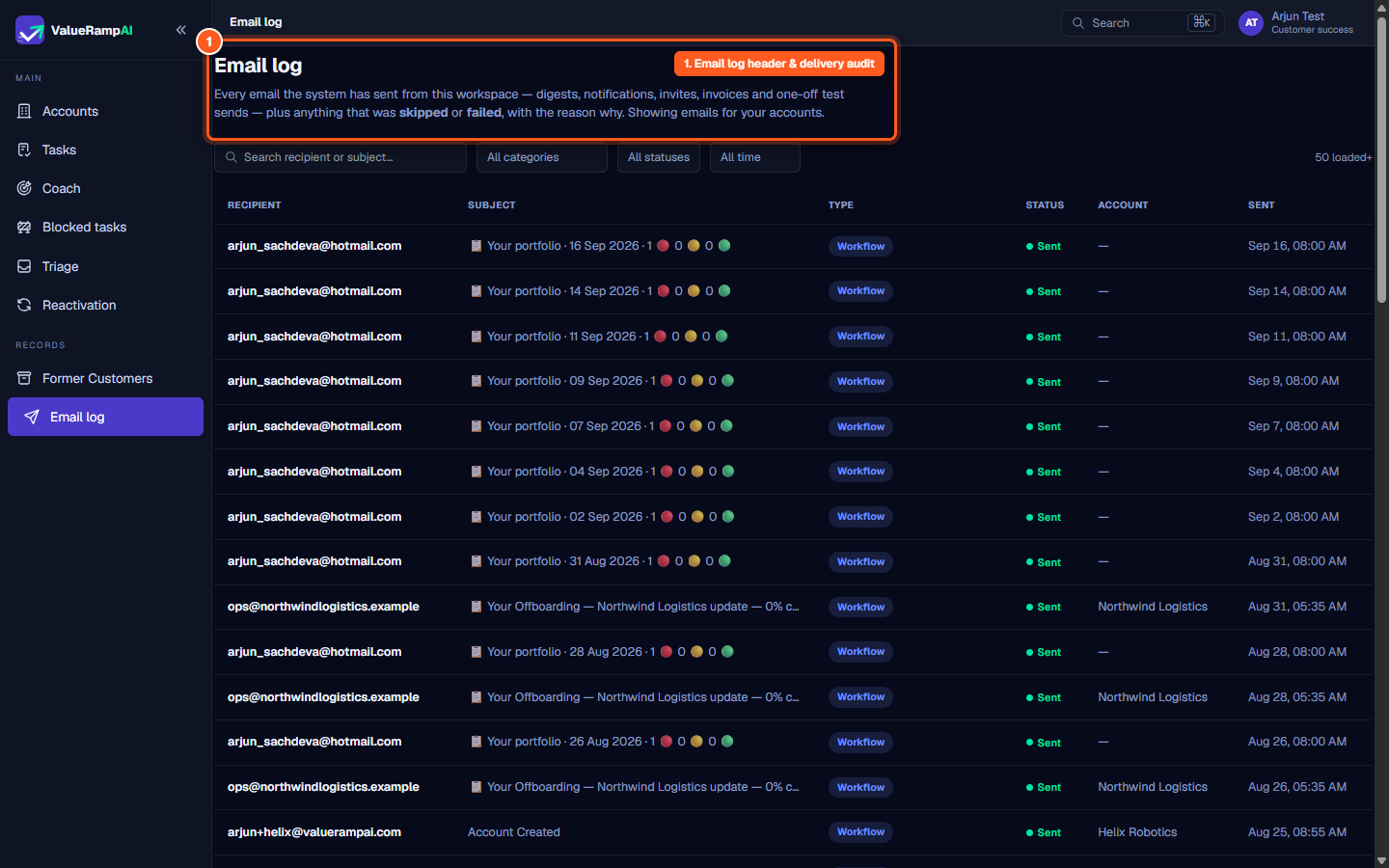
The Email log (/email-log) provides customer success managers and workspace administrators with a comprehensive, immutable audit ledger of every transactional and automated email processed by the platform.
Delivery auditing and role-based scoping
Every email dispatched from your workspace—whether an automated executive portfolio digest, an onboarding plan milestone update, or a customer portal invitation—is logged with delivery receipts:
- CSM view: Your own accounts, plus any email addressed to you.
- OM view: The accounts of plans you own, plus any email addressed to you.
- Admin view: Full workspace visibility across all internal teammates and customer contacts.
Filtering and searching delivery history
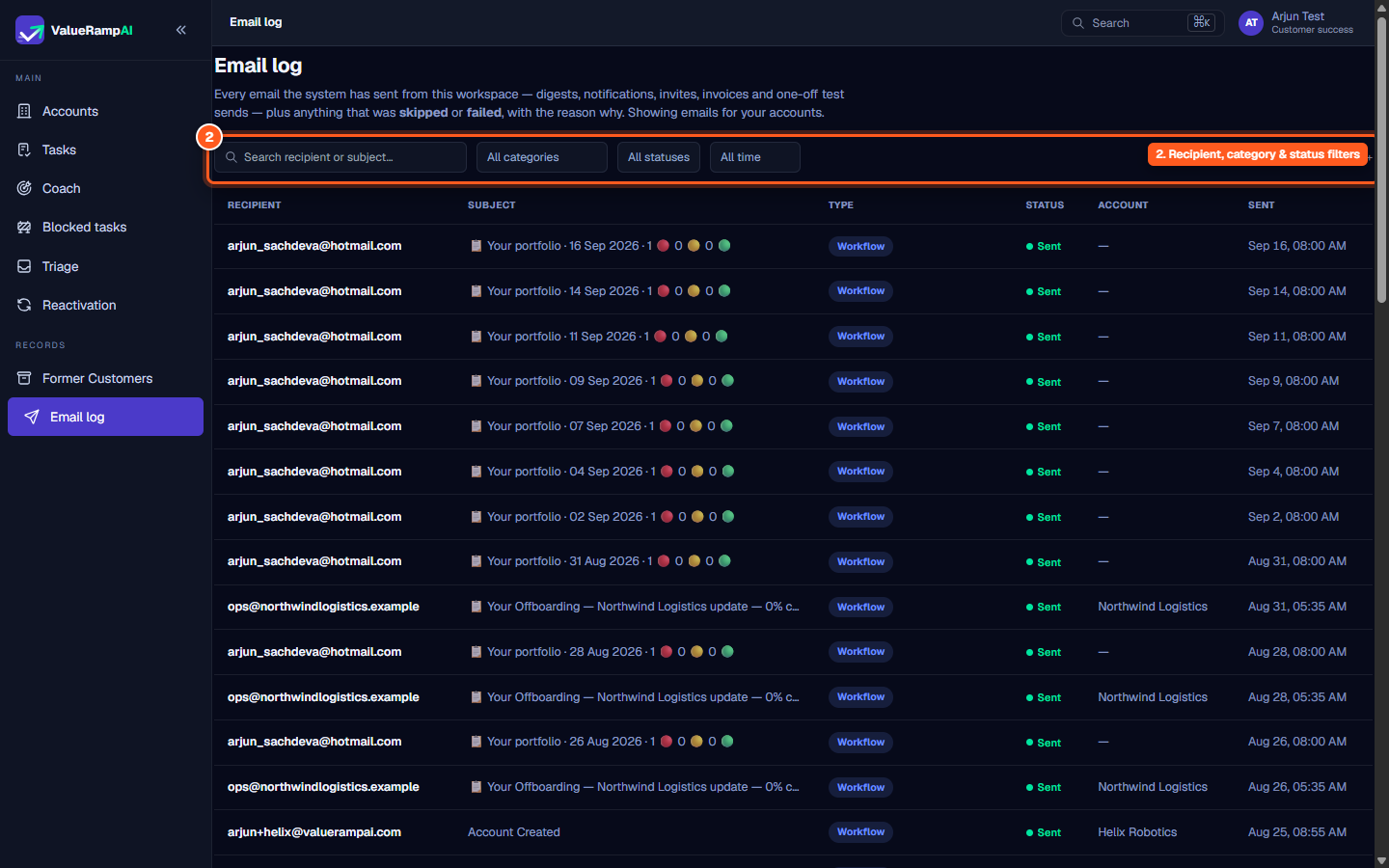
The filter toolbar allows operations to isolate specific delivery streams:
- Search recipient or subject…: Debounced text search matching email addresses or subject keywords (e.g., searching
northwindfilters immediately to Northwind Logistics messages). - Category dropdown: Filter by delivery context:
Digests— CSM digest, OM digest, Customer digest.Notifications— Workflow, Workflow (batch), Comment, Approval request, Phase sign-off, Plan published, Handoff request.Onboarding & invites— Welcome, Workspace invite, Team invite.Finance— Invoice.
- Status dropdown: Isolate delivery outcomes by
Sent,Skipped, orFailed. - Date range dropdown: Filter by
Last 7 days,Last 30 days(default),Last 90 days, orAll time.
Delivery table columns and message details
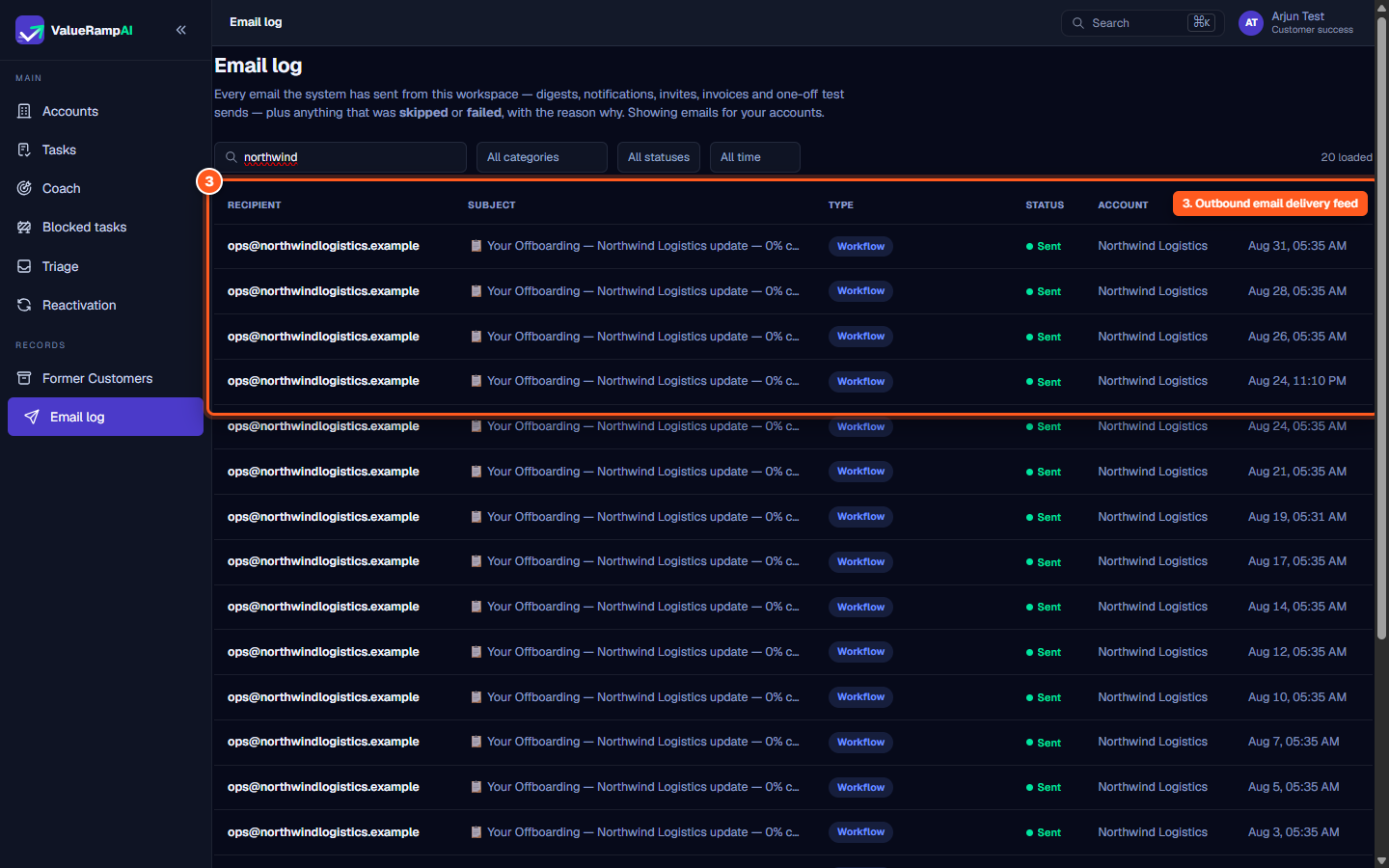
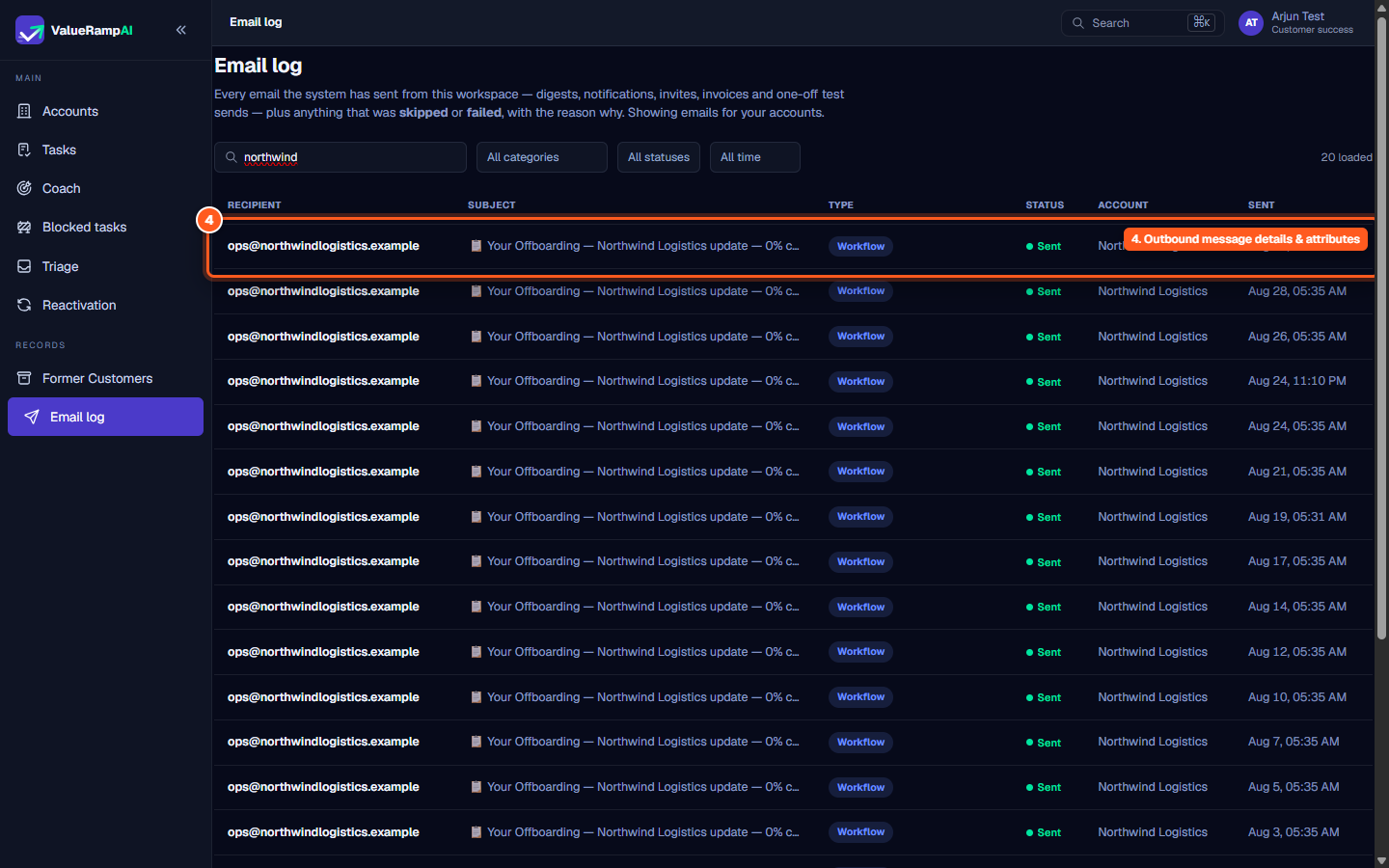
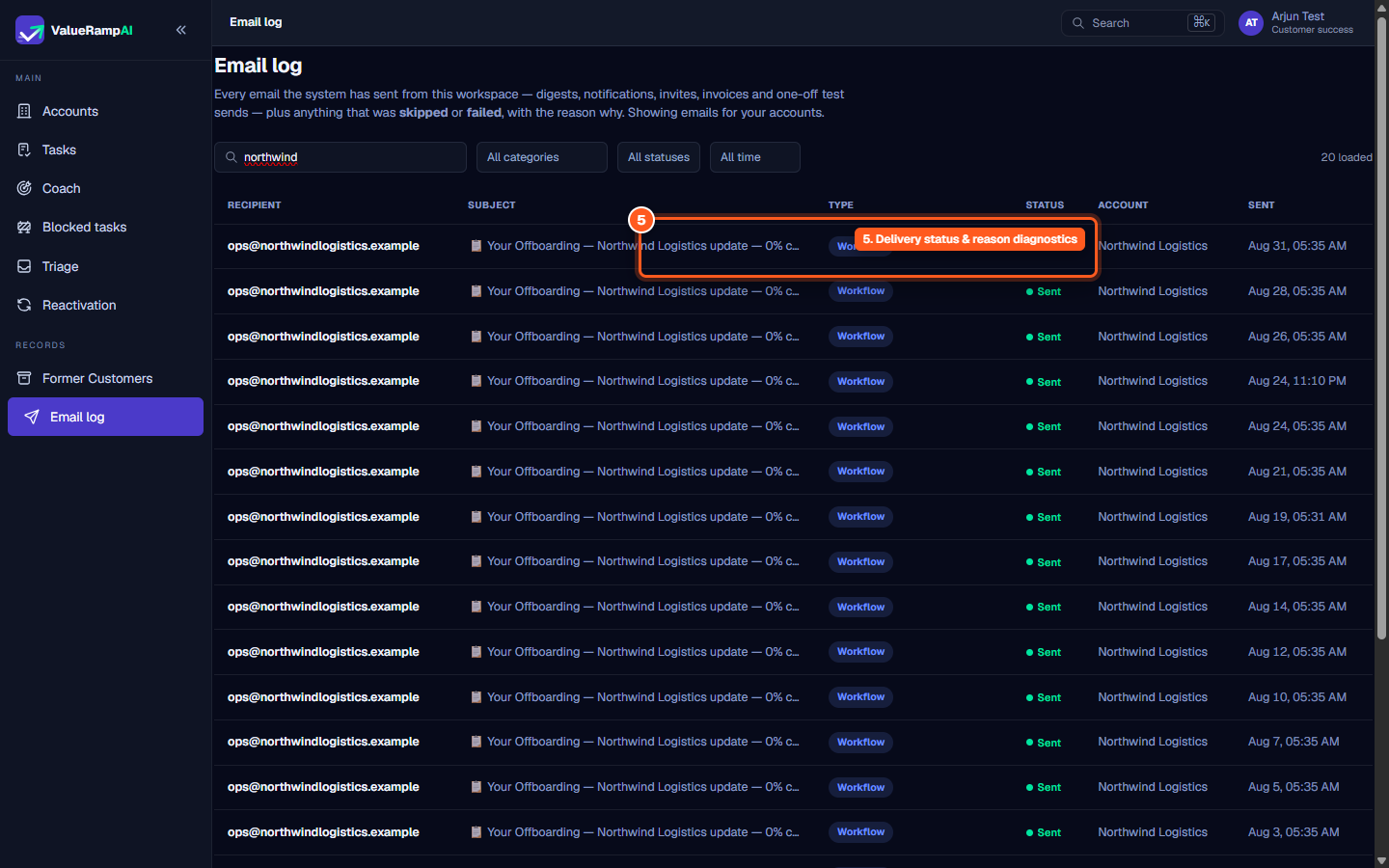
The central delivery table surfaces complete transmission metadata across six standardized columns:
- Recipient: The destination email address. One-off test sends display an inline
TESTbadge. - Subject: The full email subject line. Hovering reveals complete unclipped subject text.
- Type: Colored badge indicating the workflow engine or email category.
- Status: Live status indicator:
- Sent: Confirmed dispatch with a green indicator.
- Skipped: Deliberately not sent, with an inline reason (e.g., no longer a workspace member, not a scheduled digest day, no customer email on account). Hover the reason for the raw code.
- Failed: Transmission failure with an actionable error tag.
- Account: The associated customer organization name.
- Sent: Exact local timestamp when the message was dispatched or evaluated.
Keyset pagination
The log pages by keyset, so a page costs the same however large the log grows:
- The loaded counter shows how many rows are on screen, with a
+when older rows remain (e.g.,20 loaded+). - Clicking Load older fetches the next sequential batch of historical messages without full page reloads.
Steps
Review the Email log header and delivery scope
Filter logs by recipient, category, status, and timeframe
Inspect the outbound delivery table feed
Examine individual message attributes and customer associations
Review delivery statuses and diagnostic suppression reasons
Common questions
What types of emails appear in the Email Log?
What does a 'Skipped' status mean?
Can CSMs see emails sent to other managers' accounts?
How long is email log history retained?
Was this helpful? Tell us what was missing