Triage: the inbox of customer signals
Last verified 2026-09-17
Review and resolve ambiguous meeting transcripts and failed communication ingestion messages across your customer accounts.
Before you start
- ValueRamp account access (CSM, Admin, or OM role)
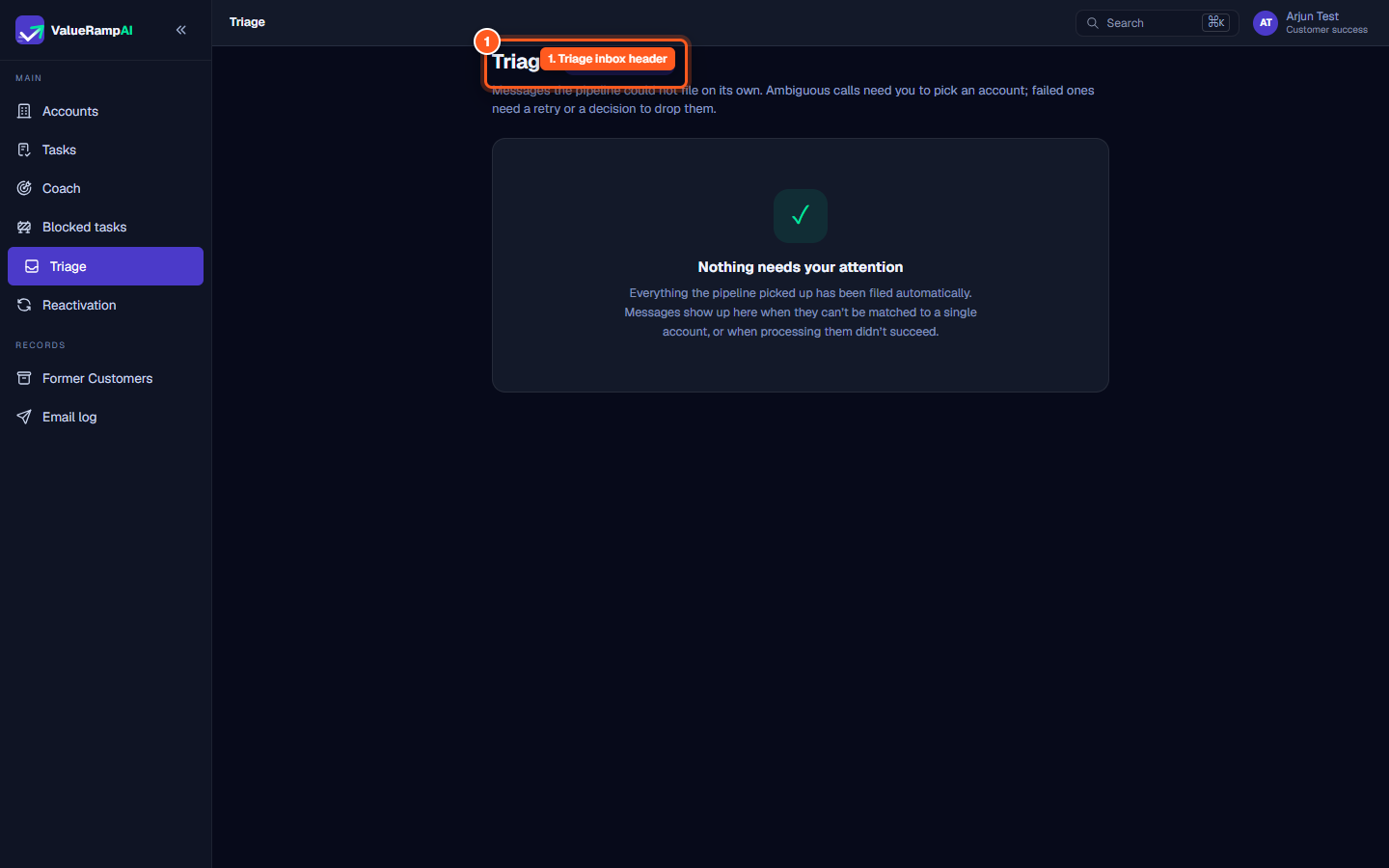
The Triage hub (/triage) serves as the manual exception clearinghouse for the ValueRamp communication intelligence pipeline, ensuring that every customer meeting, recording, and incoming message is accurately filed against the correct customer account.
The dual-bucket triage architecture
The Triage surface operates on two distinct operational categories:
- Needs a decision (
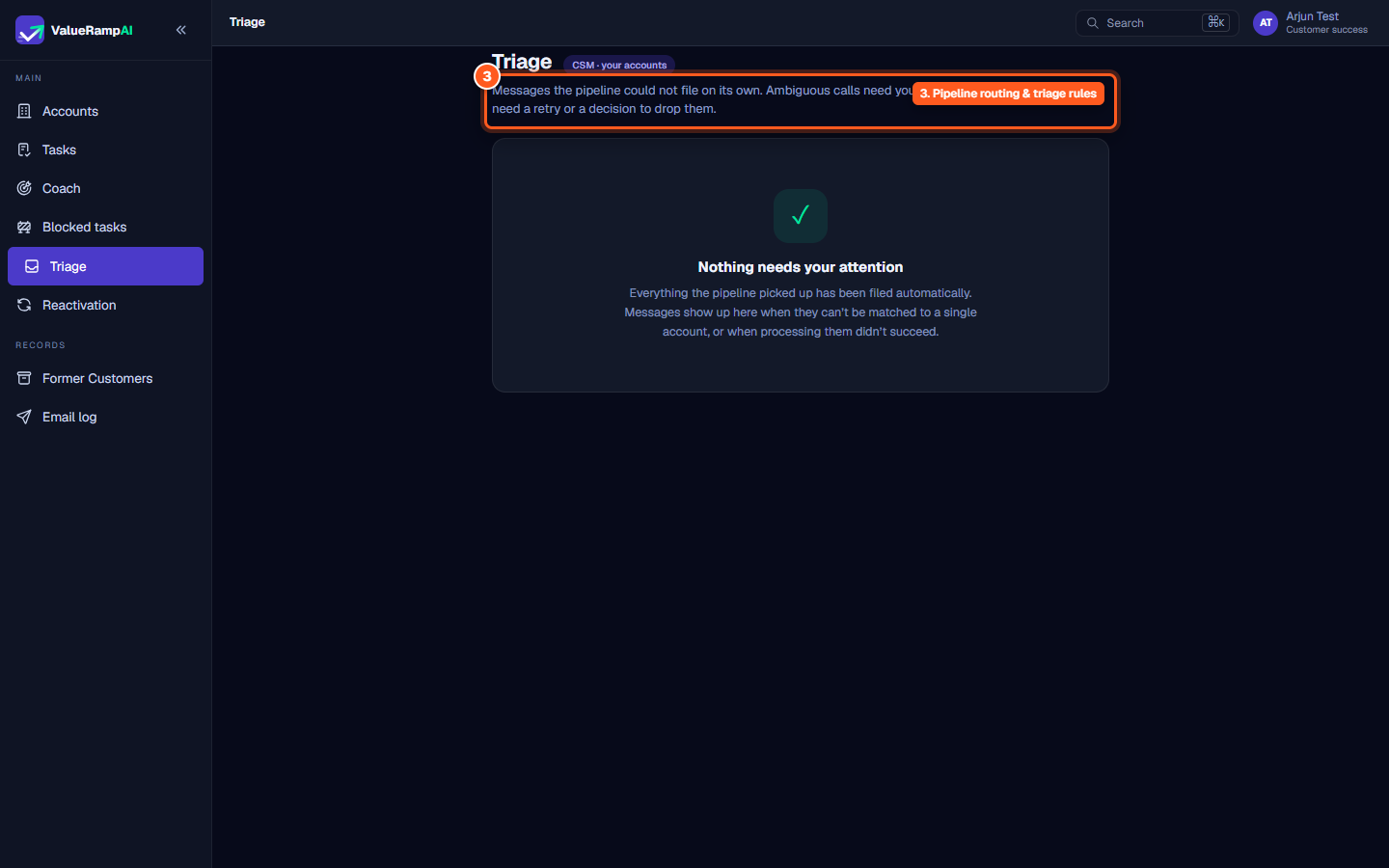
status='triage'):- Captures meetings whose attendee domains matched more than one customer account. (A meeting that matches no account is skipped silently, not triaged.)
- Allows you to read the transcript on demand (View transcript). Note that a triage row's content expires with the workspace's retention window; once expired it cannot be filed.
- Provides two resolution actions: select the target customer account from a bounded candidate list and click File to account, or click Discard to ignore internal or irrelevant meetings.
- Failed to process (
status='failed'):- Captures messages whose processing threw an error, or that were parked by the stale-claim reaper.
- Requeue puts the message back in line for the next ingestion sweep (not immediate); each row shows how many retries remain out of a cap of five. Discard removes it permanently.
Account-scoped role boundaries
Triage access is strictly bounded to internal stakeholders:
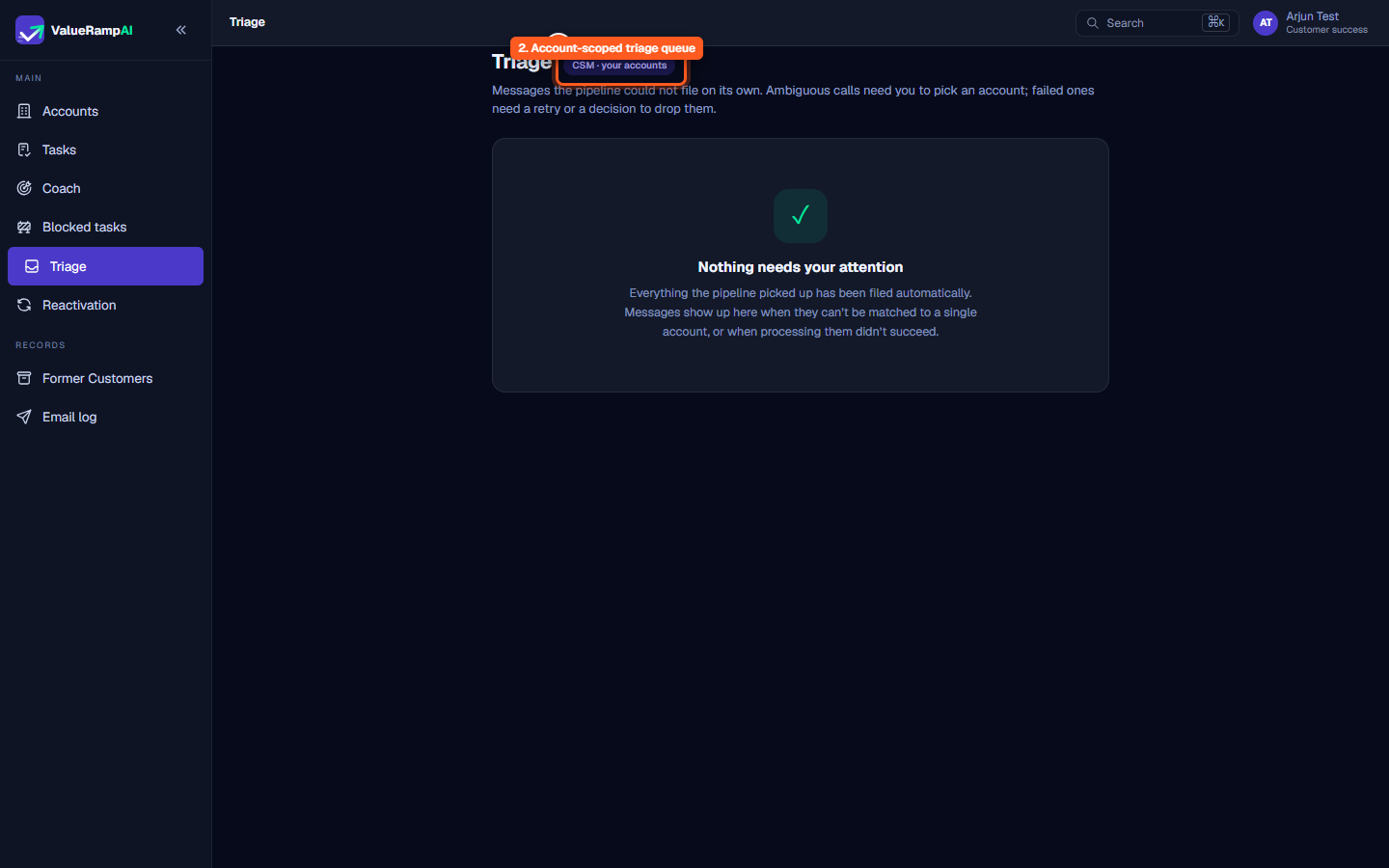
- CSMs and OMs (
CSM · your accounts/OM · your accounts): In Needs a decision, only meetings they attended. In Failed to process, CSMs see their own accounts and OMs the accounts of plans they own. - Admins: Full visibility across all ambiguous or failed communications workspace-wide (
Admin · whole workspace). - External roles (Customers, Stakeholders, Finance) are denied access to the internal triage surface.
Operational health and empty queue state
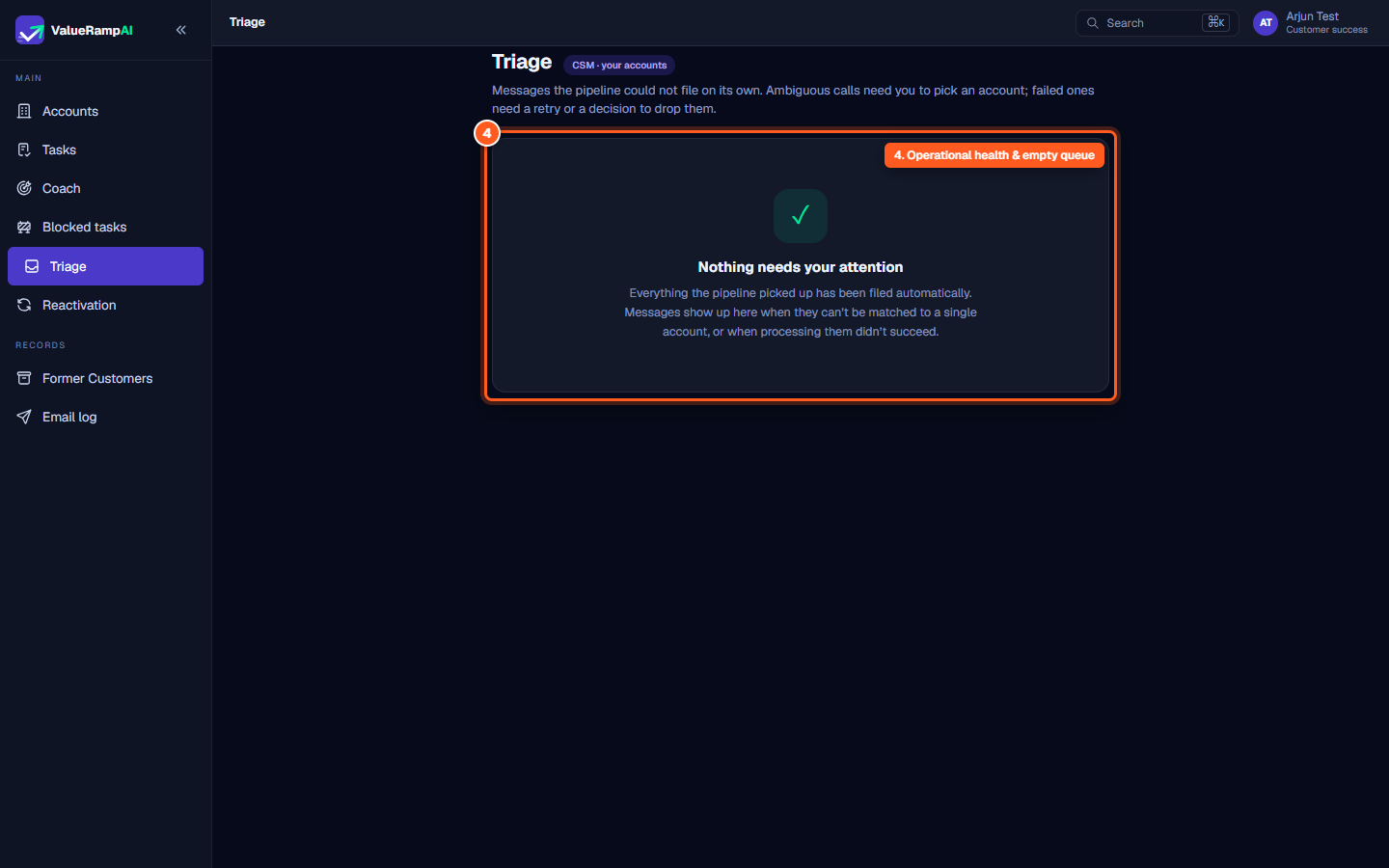
When all inbound communication signals are successfully resolved and filed to accounts automatically:
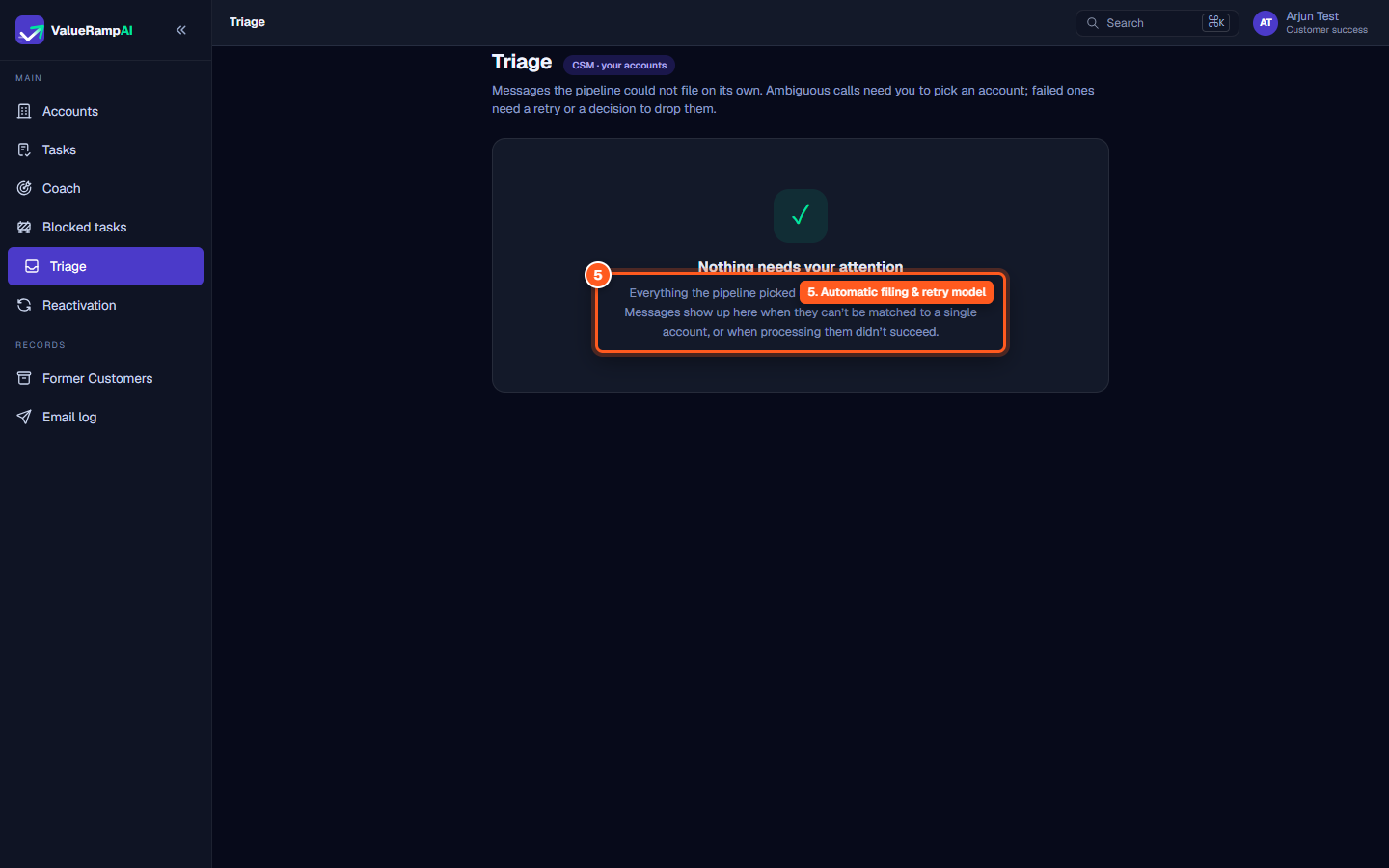
Nothing needs your attention
Everything the pipeline picked up has been filed automatically. Messages show up here when they can’t be matched to a single account, or when processing them didn’t succeed.
This clean queue confirms that your portfolio's meeting transcripts, customer emails, and relationship health indicators are fully up to date.
Steps
Access the central Triage inbox header
Confirm account-scoped role visibility
Review pipeline routing and triage decision rules
Inspect the all clear operational health state
Understand automated filing and failure retry logic
Common questions
What causes a customer communication to land in Triage?
What are the two operational buckets in Triage?
Who can see items in Triage?
What happens when I file an ambiguous call to an account?
Was this helpful? Tell us what was missing