Sign in with single sign-on
Last verified 2026-09-24
Sign in to ValueRamp using your corporate identity provider (Okta, Entra ID, Google) with your work email or accept an invitation with SSO.
Before you start
- An active ValueRamp user account or pending workspace invitation
- Single sign-on enabled by your organization's Admin for your corporate email domain
- Active credentials with your company's Identity Provider (Okta, Microsoft Entra ID, Google Workspace)
Single sign-on (SSO) allows team members to authenticate into ValueRamp using existing enterprise identity credentials, such as Okta, Microsoft Entra ID, or Google Workspace.
When your organization enables SSO, you can sign in with your company account instead of a ValueRamp password. Your company's Identity Provider (IdP) handles the sign-in, including its password rules and multi-factor authentication (MFA).
Signing In with Single Sign-On
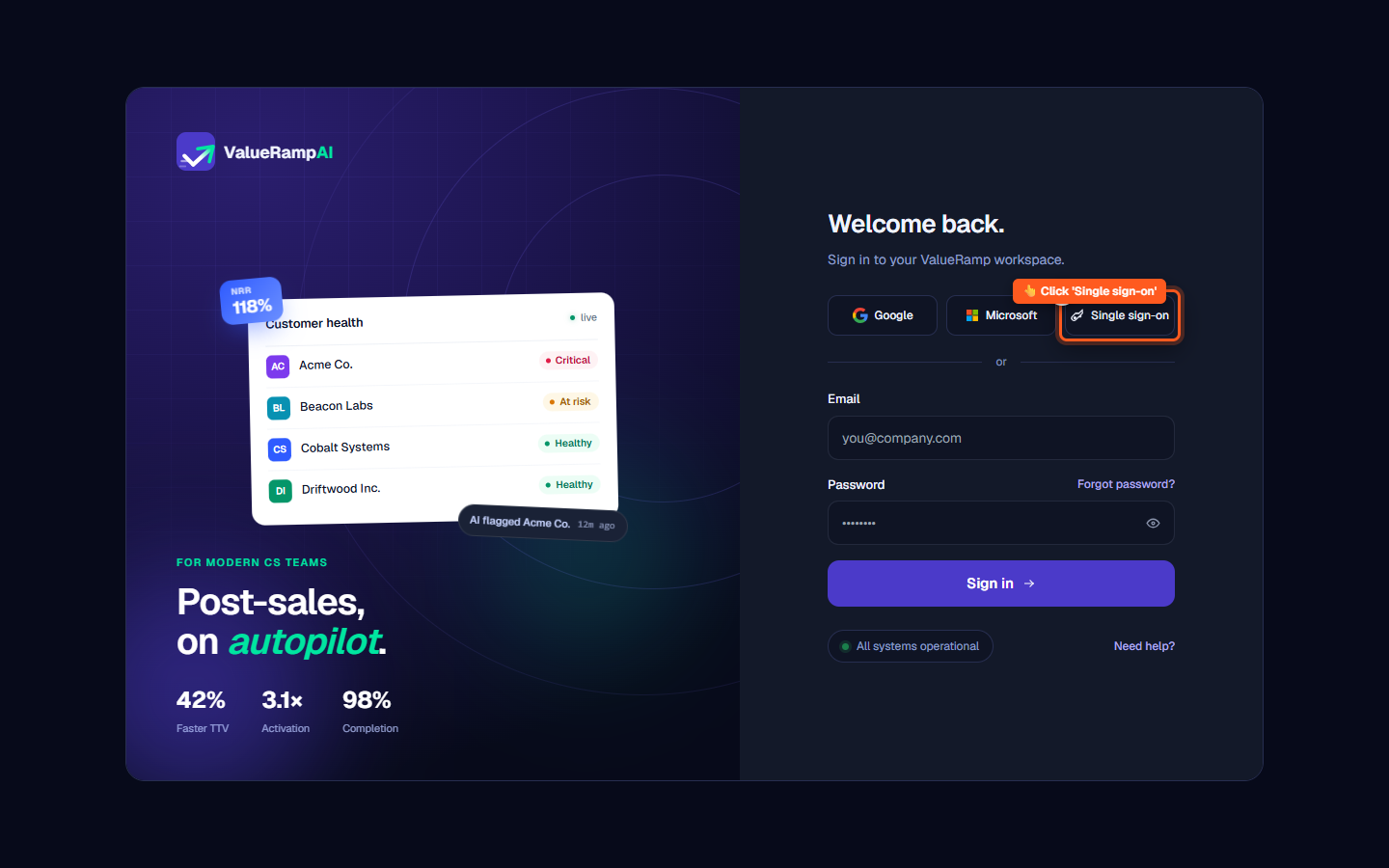
Signing in with single sign-on is initiated from the main ValueRamp login page:
- Navigate to the ValueRamp login screen at
/login. - Beneath the welcome heading, click the Single sign-on option located alongside Google and Microsoft.
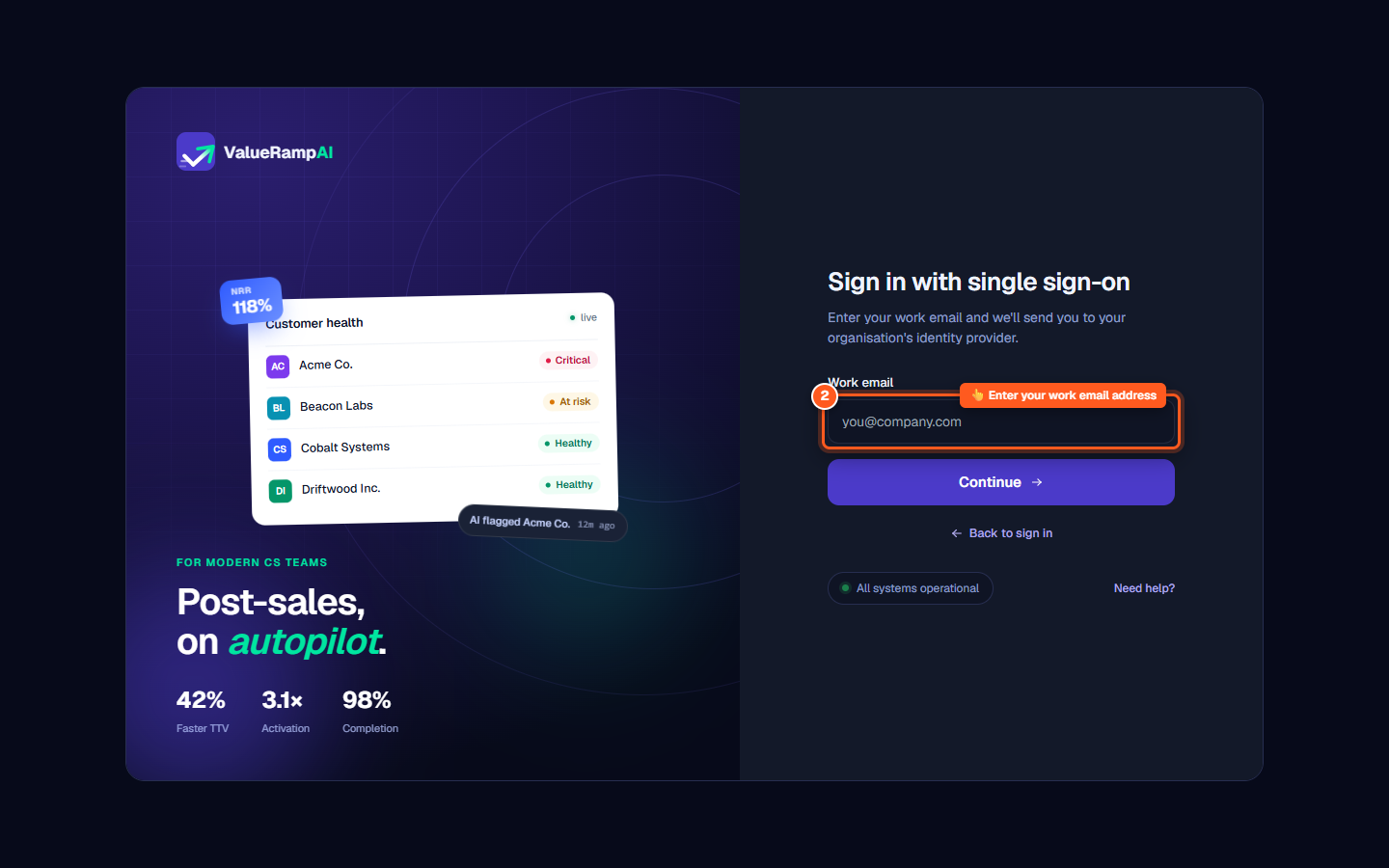
- You will be routed to the single sign-on page at
/login/sso. - In the Work email field, enter your corporate email address (for example,
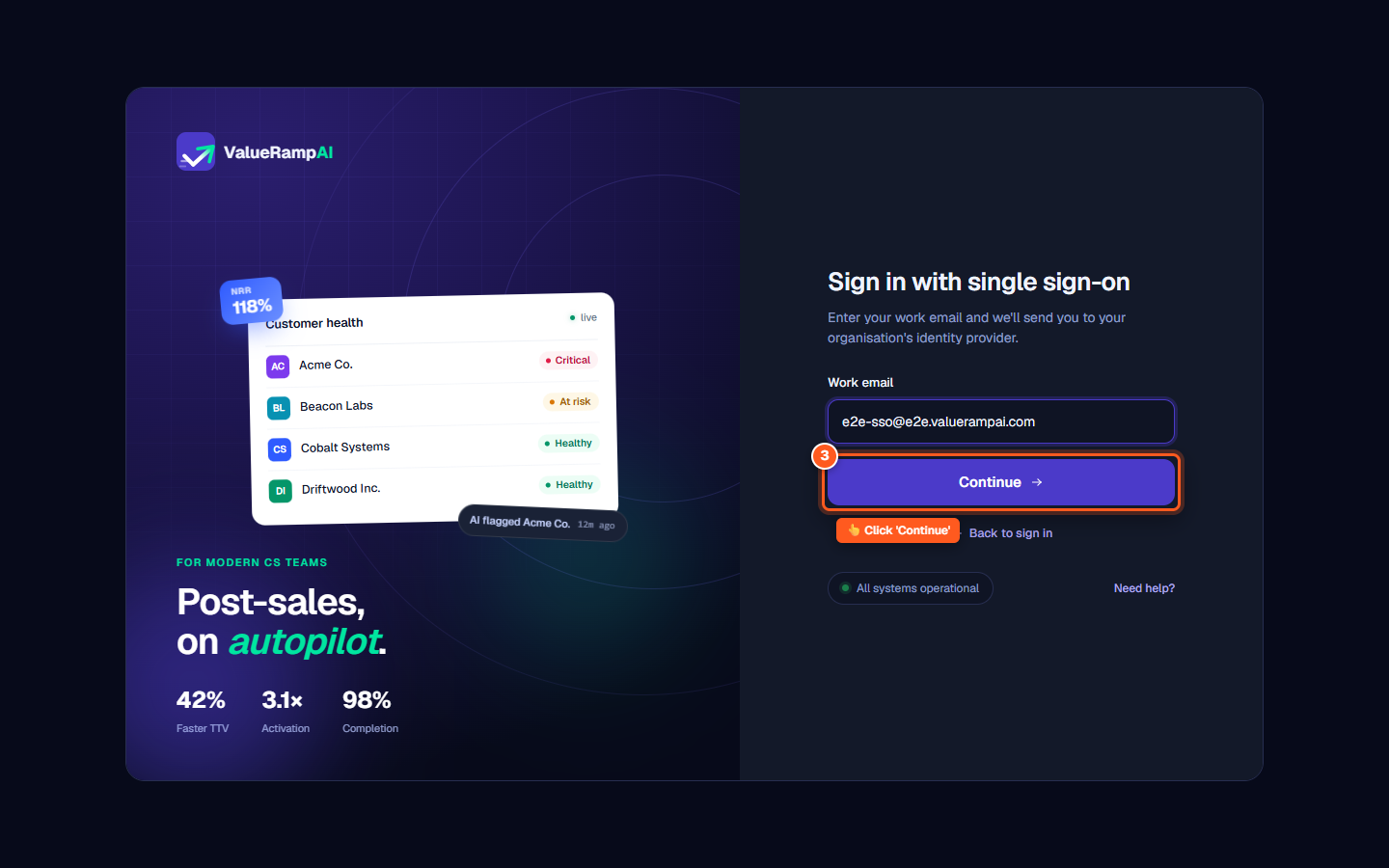
alex@acme.com). - Click Continue.
- ValueRamp matches your email domain against your organization's verified domain list and redirects your browser to your company's IdP login portal.
- Enter your corporate credentials and complete any required multi-factor authentication prompt.
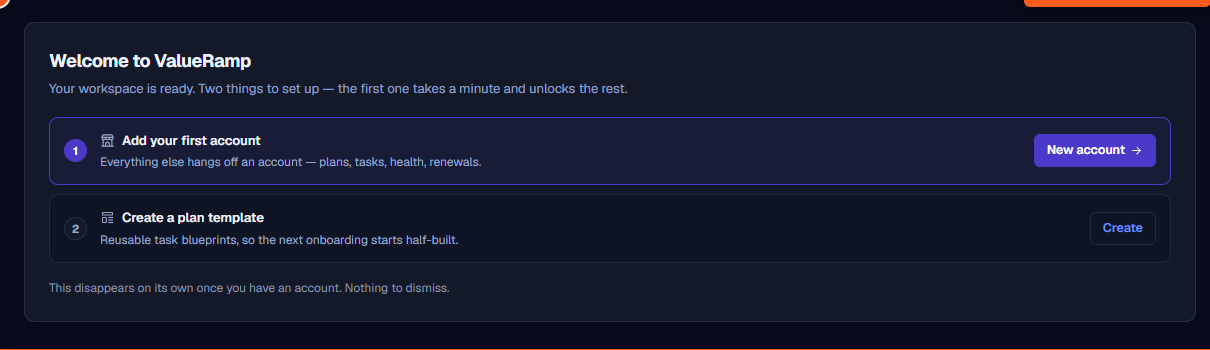
- Upon successful verification, your IdP returns you directly to your ValueRamp workspace dashboard.
First-Time Users: Accepting an Invitation
Single sign-on verifies the identity of established workspace members. If you are joining a workspace for the first time, you must begin from your email invitation:
- Locate the ValueRamp invitation email in your corporate inbox.
- Click the invitation link to open the invite acceptance screen at
/accept-invite. - Team invitations offer Continue with single sign-on alongside Google and Microsoft. (Customer portal invitations don't — single sign-on is for your team only.)
- If your company signs in through an identity provider, click Continue with single sign-on and sign in with your company account.
- ValueRamp links your corporate identity to your workspace membership role, landing you directly in the portal without requiring a local password.
Staff Enforcement and Permitted Sign-In Methods
Workspaces can operate in two authentication modes:
- Optional Single Sign-On: Teammates can sign in using single sign-on or standard email and password.
- Enforced Single Sign-On: If your Admin turns on Require single sign-on for all staff, password login and third-party buttons (Google, Microsoft) are rejected for all internal team members. Entering your email and password will prompt you to use single sign-on instead.
External customers and client stakeholders collaborating through the customer portal are exempt from internal staff enforcement and continue using their standard login methods.
For details on how Admins configure connections, DNS verification, and enforcement, consult the Set up single sign-on for your team guide.
Steps
Click 'Single sign-on' on the login screen
Enter your corporate work email address
Click 'Continue' to route to your identity provider
Authenticate with your corporate credentials to access your workspace
Common questions
Can a new teammate sign in through SSO without an invite?
What does 'Single sign-on isn't set up for that email domain' mean?
Can I still sign in with a password or social login if SSO is enabled?
How do first-time users accept an invitation using single sign-on?
What should I do if my identity provider session fails or expires?
Was this helpful? Tell us what was missing