Connect ClearFeed to ValueRamp
Last verified 2026-11-18
Connect ClearFeed so your customers' support requests appear on their accounts in ValueRamp. An Admin connects it once with a read-only ClearFeed token, and ValueRamp never changes anything in ClearFeed.
Before you start
- A ValueRamp Admin role
- A ClearFeed plan that includes API access, and a ClearFeed admin who can create a Personal Access Token
Use this to bring your customers' support requests from ClearFeed into ValueRamp, so you can see how an account's support is going without opening ClearFeed. It is read-only: ValueRamp reads your requests and never writes anything back to ClearFeed.
Before you start
- You need the Admin role in ValueRamp.
- You need a ClearFeed plan that includes API access, and a ClearFeed admin to create the token.
Step 1: Create a read-only token in ClearFeed
- In ClearFeed, open Settings, then Developer Settings.
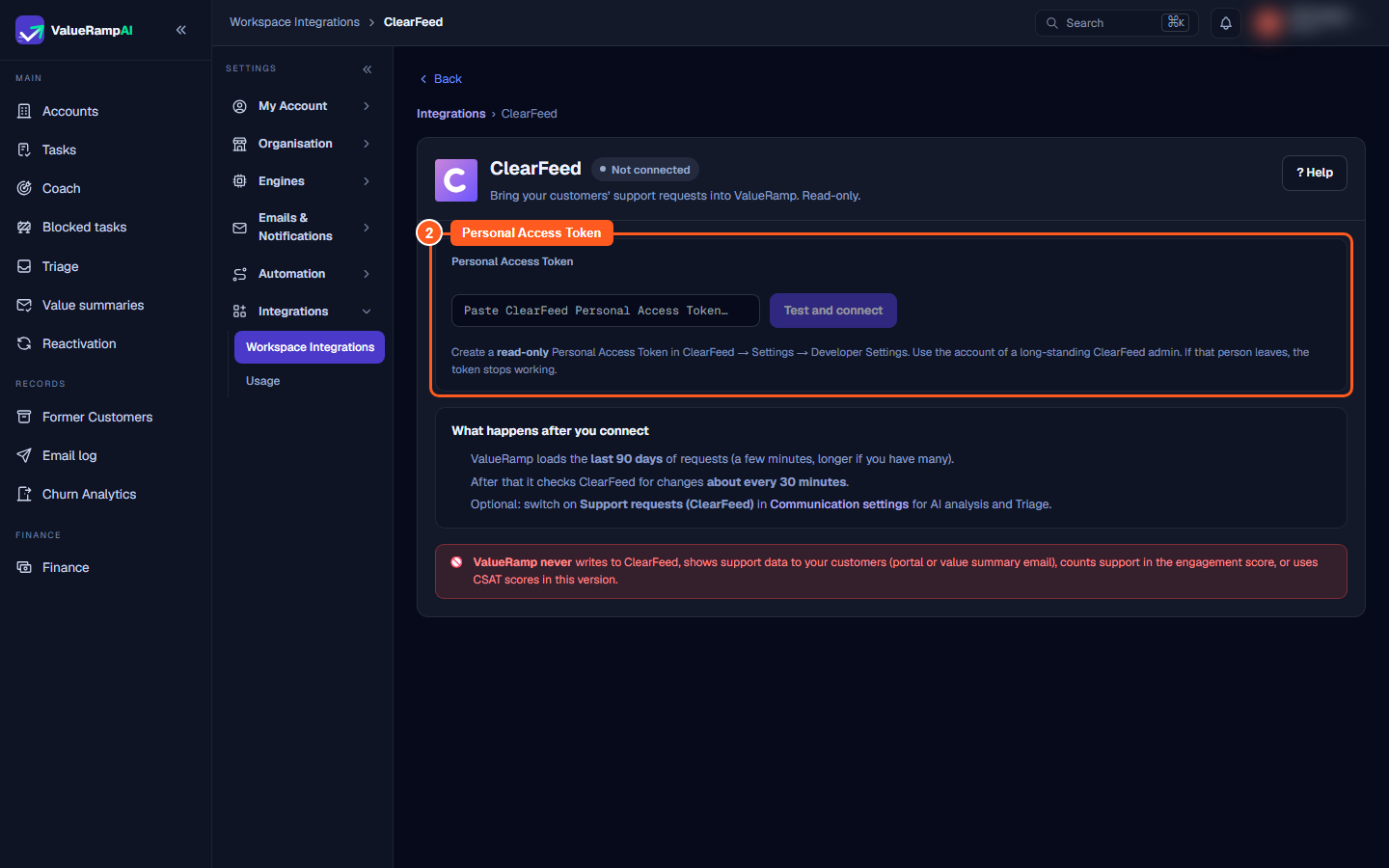
- Create a Personal Access Token and choose the read-only option.
- Use the account of a long-standing ClearFeed admin. A token belongs to the person who made it, so if that person is deactivated or leaves, the token stops working and the connection needs a new one.
Treat the token like a password. ValueRamp stores it encrypted and never shows it again.
Step 2: Connect ClearFeed in ValueRamp
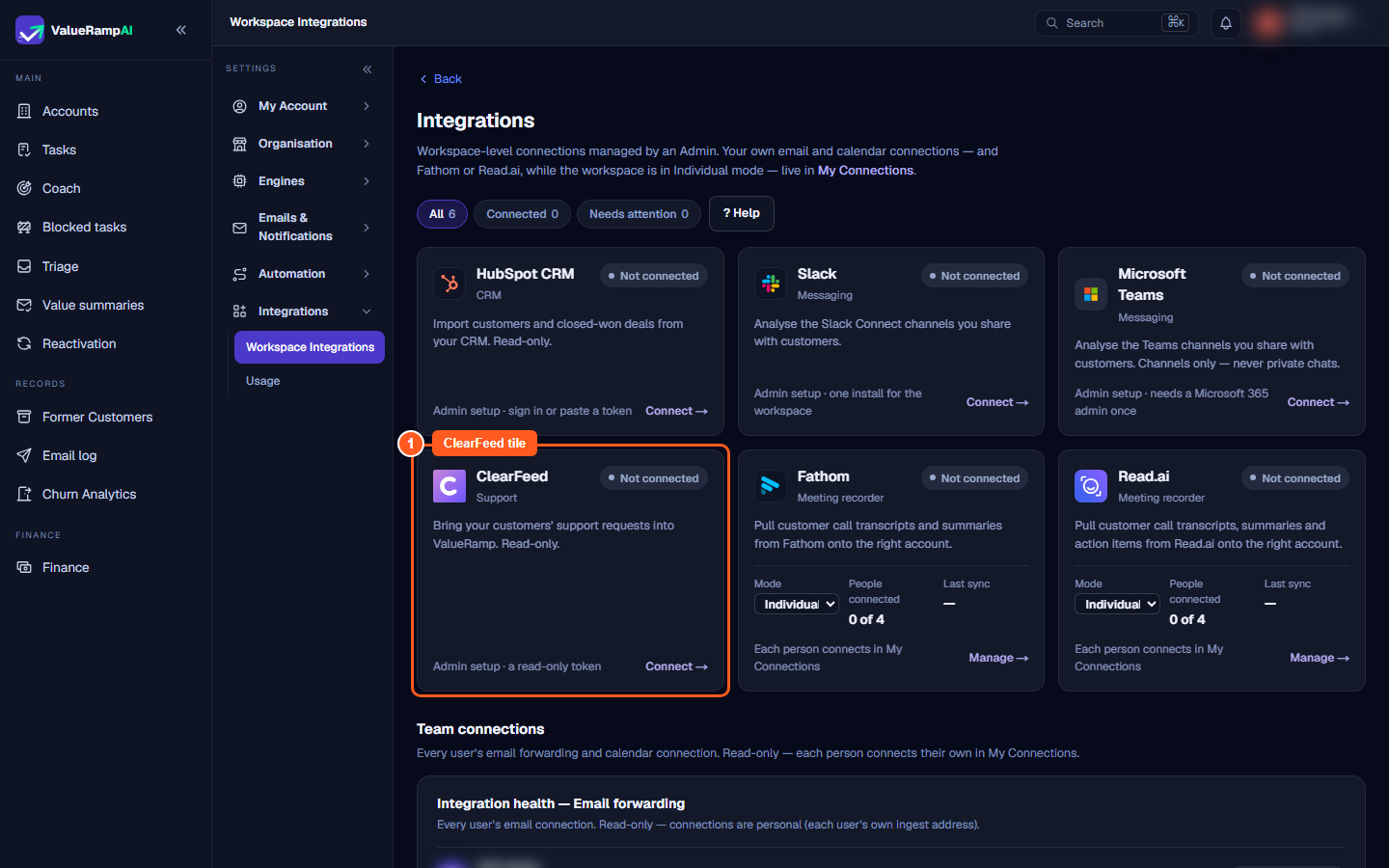
- Open Settings, then Workspace Integrations (
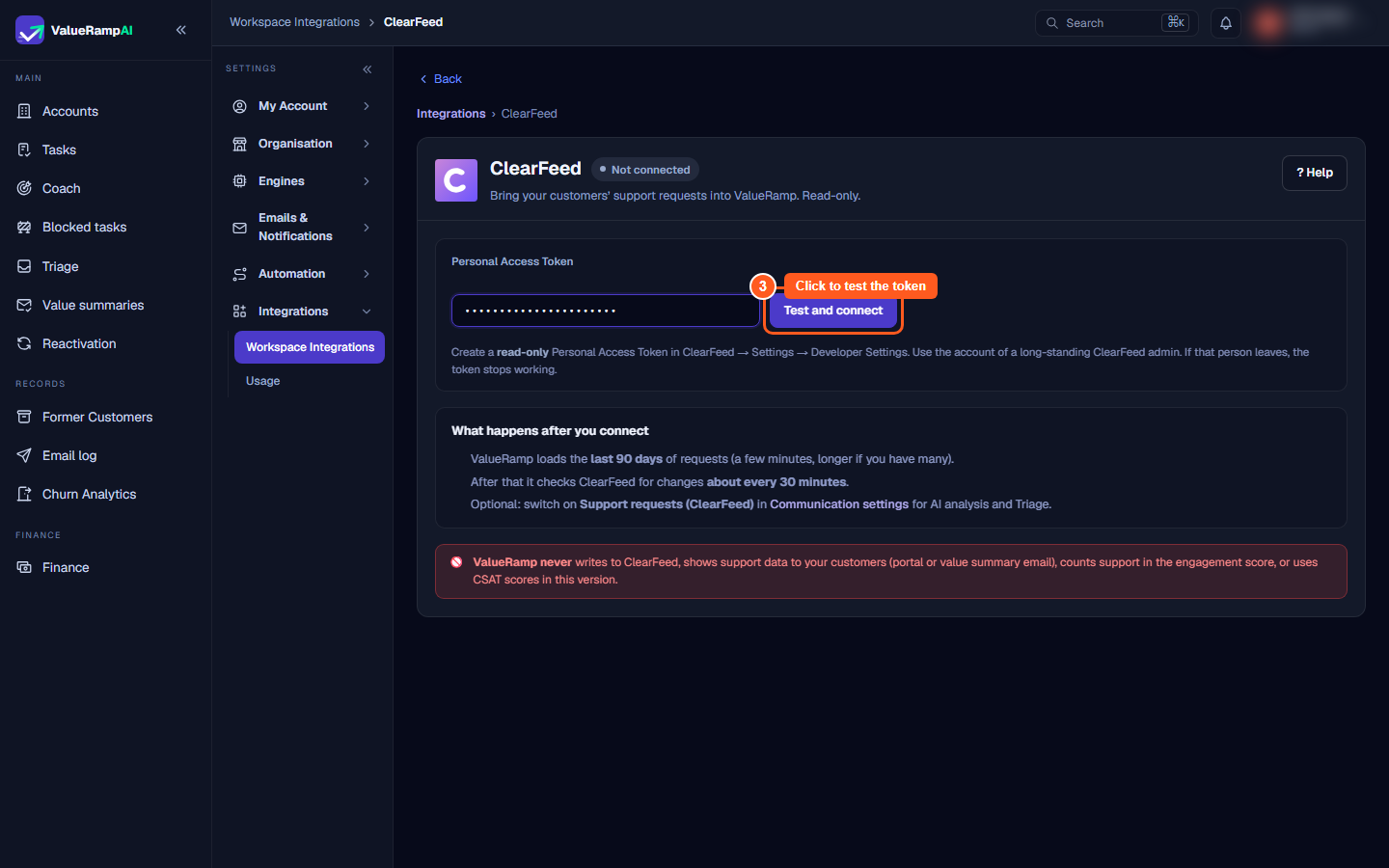
/integrations), and choose the ClearFeed tile. Its page is at/integrations/clearfeed. If there is no ClearFeed tile, ClearFeed is not available for your workspace. - On the ClearFeed page, paste the token into Personal Access Token and click Test and connect.
- ValueRamp checks the token with ClearFeed before it saves anything. If ClearFeed does not accept it, the page says so and nothing is saved.
- When it works, the status badge shows Connected.
Connecting is enough to load your requests. Step 3 is only about AI analysis of the conversations.
What the ClearFeed page shows
The ClearFeed page is a single page with no tabs. Once ClearFeed is connected, the page header has Test connection and Disconnect. Test connection checks the stored token with ClearFeed. It answers that ClearFeed accepted the token; or that ClearFeed no longer accepts it, and you should paste a new one; or that ValueRamp could not reach ClearFeed just now, so nothing was checked or changed. It is hidden while the status is Needs reconnecting, because pasting a new token is then the fix.
The page shows who connected ClearFeed, whether the first 90-day load is done, and that access is a read-only token. It has a Matching box (see below), an Unmatched customers box with the number of customers waiting in Triage and an Open Triage button, and an Analysis switch box. The Analysis switch box says On or Off. It is read-only and links to Communication settings, which opens Settings → Engines → Conversation intelligence (/settings/engines/conversation-intelligence), where Support requests (ClearFeed) lives on the Channels card. If the switch is off, the Unmatched customers box says why customers are not going to Triage.
Step 3: Turn on analysis of support requests (optional)
- Open Settings → Engines → Conversation intelligence (
/settings/engines/conversation-intelligence) and find the Channels card. Only an Admin can open it. - Switch on Support requests (ClearFeed).
- Click Save changes.
Connecting loads your requests straight away. This switch controls AI analysis of support conversations and sends unmatched customers to Triage. It is off by default, and while ClearFeed is not connected the row is disabled with a link back to Integrations.
Analysis and Triage also need Communication Intelligence on and Regulated industry off, both in Settings → Engines → Conversation intelligence: Conversation intelligence is the master switch on the Analysis card, and Regulated industry is on the Attribution and retention card. Ask Vali answers questions about support requests whenever Communication Intelligence is on. A workspace set to Regulated industry still loads request titles and timings, but ValueRamp never keeps the message text.
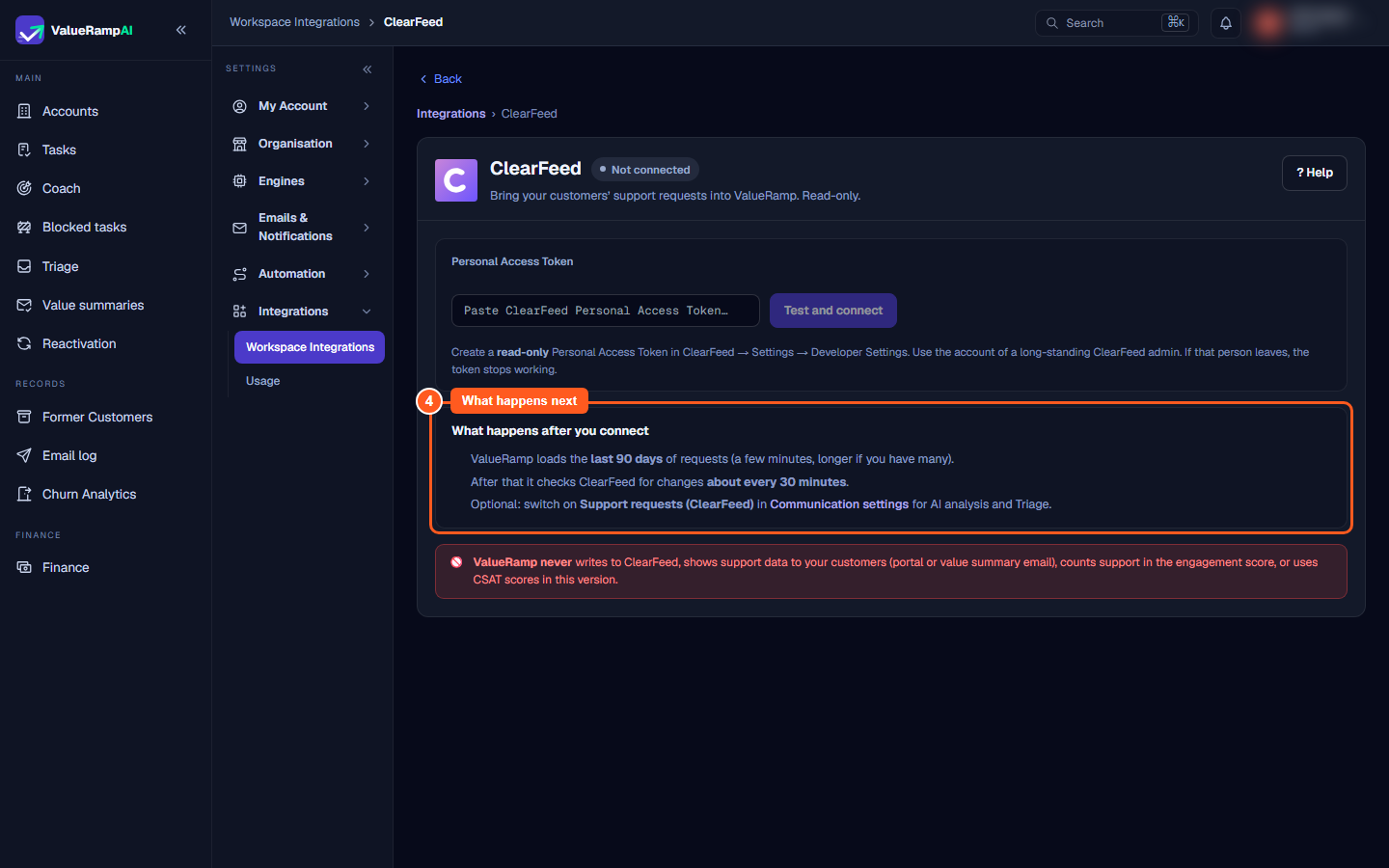
What happens next
- ValueRamp loads the last 90 days of requests. While it does, the page says it is loading the last 90 days. This takes a few minutes, and longer if you have a lot of requests.
- After that it checks ClearFeed for changes about every 30 minutes. The page shows when it last updated.
- Customers ValueRamp cannot match to an account wait in Triage (
/triage) for an Admin, as long as the Support requests (ClearFeed) switch is on.
How requests are matched to accounts
ValueRamp matches each ClearFeed customer to one of your managed accounts, once, trying these in order:
- HubSpot link. The ClearFeed customer is linked to a HubSpot company that is already linked to an account in ValueRamp.
- Customer domains. The web domains ClearFeed holds for the customer match an account's domains.
- Requester email domains. The email domains of the people who sent the requests match an account's domains.
If exactly one managed account matches, ValueRamp links the customer to it, and all of that customer's requests, past and future, appear on that account. If nothing matches, or more than one account does, the customer goes to Triage while the Support requests (ClearFeed) switch is on.
Match unmatched customers in Triage
Only an Admin sees ClearFeed customers in Triage (/triage).
- Each unmatched customer is one card, showing the customer's name, how many requests it has and the newest request.
- If ValueRamp found likely accounts, they are listed with the reason, such as the same email domain. If it found none, search for any managed account in your workspace.
- Choose the account and click Confirm match (or Match to selected account, after a search).
All of that customer's requests move to the account, and ValueRamp remembers the choice, so future requests from that customer follow automatically.
Where support shows in ValueRamp
- Support health strip. On every account, under the header, a strip shows open requests (with a count of urgent, high and normal), the age of the oldest open request, SLA misses in the last 30 days, the median time to first response over the last 30 days, and how many requests came in over the last 30 days compared with the 30 days before. An SLA miss is a request ClearFeed marks as late on its first response or its resolution.
- Support sub-tab. In the account's Communication tab, each request shows its first message, status, priority, when it was opened and whether its SLA was met. Open in ClearFeed takes you to the full conversation. ValueRamp shows the first message only; the rest of the history stays in ClearFeed.
- Churn risk. Support health is one of the factors in an account's churn risk score. It counts only for accounts that have support requests, and an Admin can set how much it counts. See Set churn risk weights.
- Ask Vali. On the Communication tab, Vali can answer questions about an account's support requests and cites the requests it used.
Admins, CSMs on their own accounts, and Onboarding Managers on accounts where they own a plan can see support data. An account with no support requests in the last 90 days says so. If ClearFeed is not connected, an Admin sees a link to connect it and everyone else is told to ask their Admin.
What ValueRamp never does
- It never writes to ClearFeed.
- It never shows support data to your customers, in the customer portal or in the monthly value summary email.
- It never counts support in the engagement score.
- It does not show or use satisfaction (CSAT) scores in this version.
How long the first message is kept
The first message of each request follows the Retention setting (days of raw text kept, 7 to 90) on the Attribution and retention card in Settings → Engines → Conversation intelligence. When that period passes, the message is removed. The request keeps its title, status, timings and its link to ClearFeed.
An account set to Do not analyse is left out of the analysis of its conversations, and Ask Vali is off for it.
If the connection stops working
If ClearFeed stops accepting the token, for example because the person who created it left, the status badge shows Needs reconnecting. Create a new read-only token in ClearFeed, paste it into the ClearFeed page and click Test and reconnect. ValueRamp carries on from where it stopped.
Disconnect ClearFeed
- On the ClearFeed page, click Disconnect.
- A dialog titled Disconnect ClearFeed? says that support updates stop and the saved token is deleted. Confirm to disconnect.
Requests already loaded are kept in ValueRamp but no longer shown on the account or counted in churn risk; reconnecting shows them again. The first message of each is removed when it passes your retention period.
Steps
Open Workspace Integrations and choose the ClearFeed tile
Paste your read-only token into Personal Access Token
Click Test and connect
Read What happens after you connect
Common questions
Who can connect ClearFeed?
Can ValueRamp change anything in ClearFeed?
Whose ClearFeed account should create the token?
How far back does it load, and how often does it update?
Why is a ClearFeed customer waiting in Triage?
Can my customers see any of this?
Does ValueRamp show customer satisfaction (CSAT) scores?
Who in my team can see the support data?
What happens to my data when I disconnect?
Was this helpful? Tell us what was missing