Engines settings and what moved where
Last verified 2026-11-18
Find the rules ValueRamp applies on its own, in one Admin-only Settings group, set up Vali step by step, and see which old Settings page each one came from.
Before you start
- ValueRamp Admin role
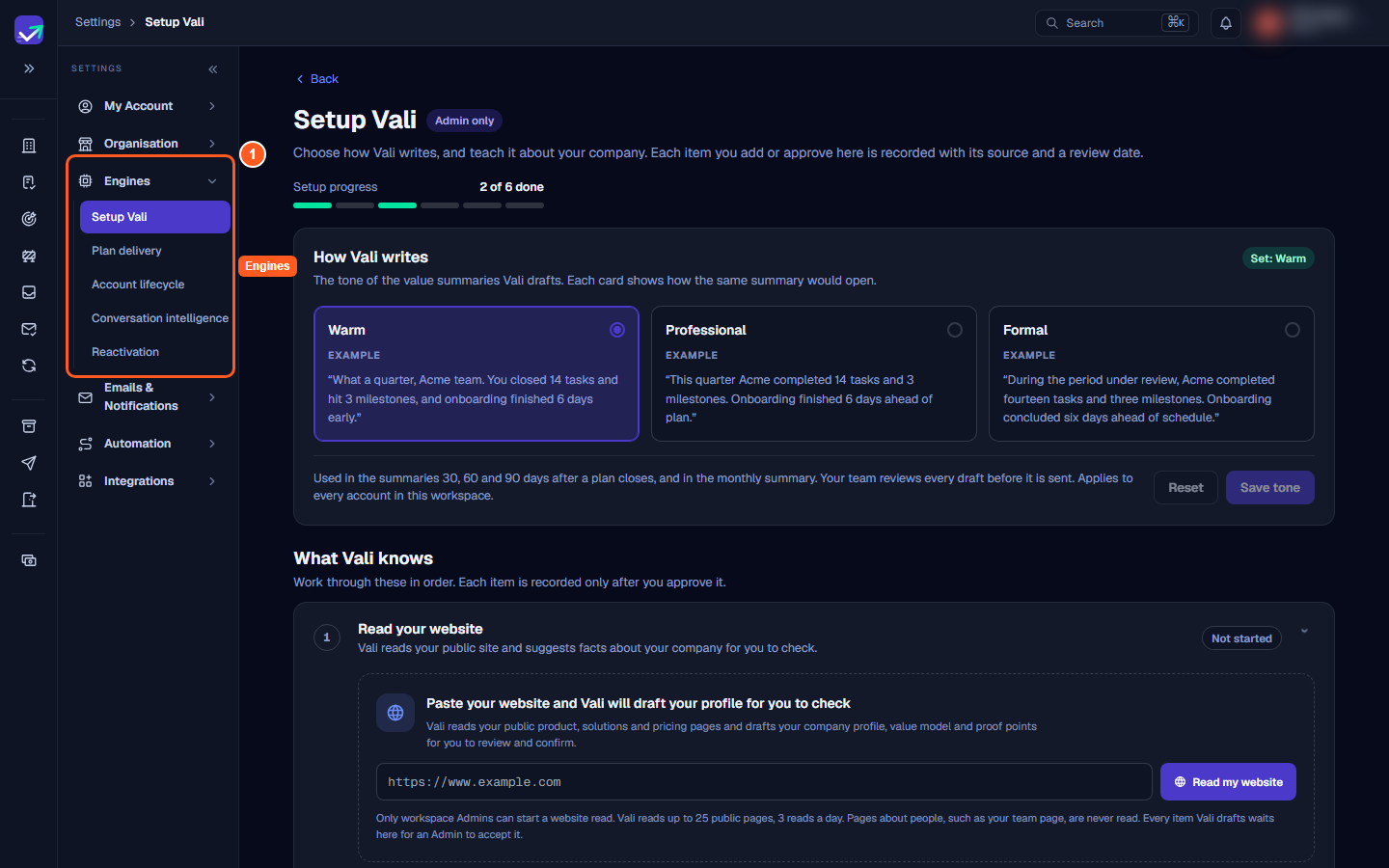
Engines is the Settings group for the rules ValueRamp applies on its own: how plans are rated, how accounts move between phases, how conversations are analysed, how former customers are spotted, and how Vali writes and what it knows. Each engine has one page, so a rule is in one place.
The group is its own group in the Settings menu, placed after Organisation. It is Admin only: it does not appear for a CSM, an Onboarding Manager or a Finance user, and if one of them opens an Engines address directly, ValueRamp sends them to Settings → Organisation. Every page shows an Admin only label at the top. (The tone and every Teach Vali control moved with their pages.)
The Engines pages
The group lists five pages, in this order:
| Page | Address |
|---|---|
| Setup Vali | /settings/engines/vali |
| Plan delivery | /settings/engines/plan-delivery |
| Account lifecycle | /settings/engines/lifecycle |
| Conversation intelligence | /settings/engines/conversation-intelligence |
| Reactivation | /settings/engines/reactivation |
There is no Overview page. The old address /settings/engines sends you to Setup Vali.
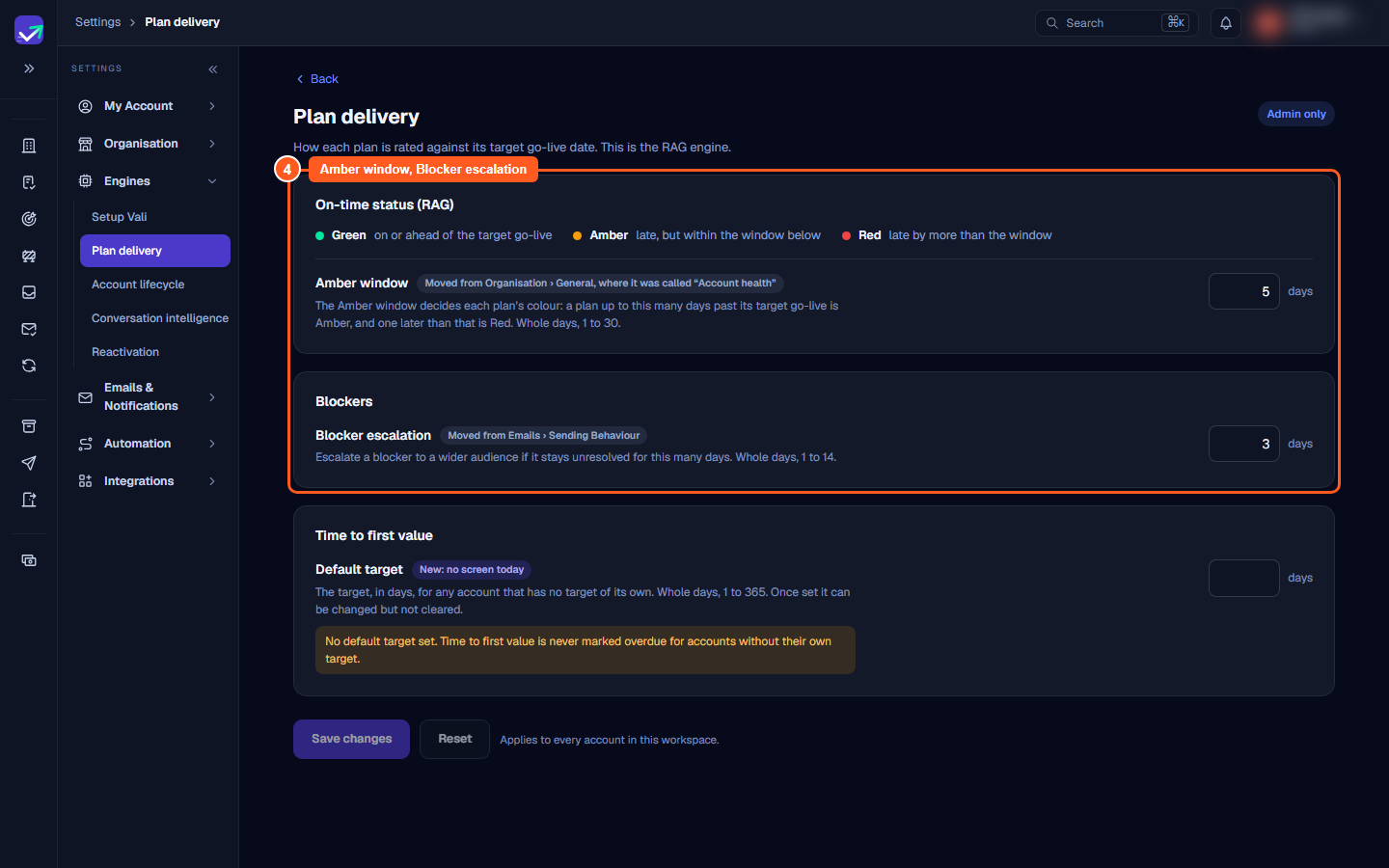
Plan delivery (/settings/engines/plan-delivery)
Three rules that decide when ValueRamp calls a plan late, when it chases a blocker, and when an account is slow to get value. They apply to every account in this workspace. Only an Admin can open this page. Each rule is a sentence with a number box in it. Under each sentence a small picture redraws as you type, using example plans and accounts with made-up names (Acme Cloud, Northwind, Globex, Initech and Umbrella Health), so you can see what the number does before you save it. The one exception is the third rule while no default target is set: it shows a note instead of a picture until you type a number.
- 1 · When is a plan late? A plan is Green while its last task is due on or before its go-live date. It turns Amber when the last task is due up to the Amber window (a number of days) after go-live, and Red when it is later than that. Enter whole days from 1 to 30. The picture is a scale with go-live marked on it and three example plans rated against it. The rating is a forecast worked out from the task due dates, so a plan can turn Amber before go-live arrives. A plan with no go-live date or no tasks yet shows Green, and Draft, pending-approval and closed plans are not rated. Ratings update when a task changes, and again every night. You see them on plan pages and lists, and in the OM dashboard's "Plans on track" count.
- 2 · When do we chase a blocker? When a task has been blocked for the Blocker escalation number of days, ValueRamp emails the customer contact (if the account has one), the CSM, and the plan's OM (if it has one), then again every Blocker escalation number of days while it stays blocked. Enter whole days from 1 to 14. The picture marks the days of the first ten that carry an email. This is checked once a day, and accounts that are paused are skipped. The two escalation emails, the customer one and the team one, can be switched off or edited in Email Settings, which the page links to.
- 3 · How fast should a new account get value? The Default target is the number of days, counted from the start of an account's first onboarding plan, within which it should reach first value. After that the account is shown as overdue. Enter whole days from 1 to 365. An account that already has a target of its own keeps it, and this default covers every account without one. Once a default is set it can be changed but not cleared. While no default is set the box is empty, the page shows a note saying so, and accounts without a target of their own are never shown as overdue. Leaving the box empty in that case is fine, and you can still change the other two rules. You see the result in the Time to First Value tile of the Time to Value card on each account page.
There is one save bar at the bottom of the page. It says No unsaved changes, or how many changes you have made, and it stays in view while you have unsaved changes. Discard puts the saved values back, and Save changes saves only the rules you changed. Both are off until something changes. If a number is outside its range, its box turns red and says what is allowed, the bar adds "Fix the highlighted value to save", and Save changes stays off until you fix it. If one rule fails to save, the page tells you which rules were already saved.
Account lifecycle (/settings/engines/lifecycle)
How accounts move through Onboarding, Adoption, Renewal, Churn and Post-Churn. The page holds the How lifecycle works explainer, Phase detection (Strict, Balanced or Permissive), Renewal detection (five renewal windows by contract term and the grace period), Churn (the churn risk scoring switch, the Churn → Post-Churn transition and the Post-Churn win-back window) and Churn risk weights, which saves separately with its own button. The page is documented in full in Lifecycle phases and how accounts move and Set churn risk weights.
Churn risk scoring is a switch. Off stops the nightly scoring and the AI churn narrative. Scores already computed stay visible, and a manual recompute still scores. Turning it off asks you to confirm first, and the change applies when you click Save changes.
Conversation intelligence (/settings/engines/conversation-intelligence)
How meetings, email and chat are turned into signals on each account. These rules apply to every account in the workspace. The page has these cards:
- Analysis: the Conversation intelligence master switch (when off, nothing is ingested workspace-wide), the Extraction quality threshold (0 to 100) and Write lifecycle signals and digest. When the AI's confidence in reading a conversation falls below the threshold, it re-runs on a more capable model.
- Attribution and retention: Regulated industry (when on, ingestion stops on email, meetings, calendar and chat, and ClearFeed stores no message text; ClearFeed support requests still load with their title, status, timings and link), Retention (days of raw text kept, from 7 to 90) and Competitors, names flagged when mentioned in a conversation.
- Channels: one switch each for Email, Meeting transcripts, Calendar, Chat (Slack, Teams) and Support requests (ClearFeed). For the first four, a channel that is off ingests nothing new. Support requests (ClearFeed) switches AI analysis of support requests only: while ClearFeed is connected, its requests still load whatever this switch says.
- Consent: the workspace acknowledgement that participants are informed conversations may be analysed, with an Acknowledge button.
- A pointer to Workspace Integrations → Fathom, where Fathom's connection mode, key and member list are managed.
Reactivation (/settings/engines/reactivation)
How former customers are spotted and handed to someone to win back. The page follows the engine's three steps, with a strip at the top that links to each card and an On or Off pill beside the title. Nothing applies until you select Save changes; the bar appears only when something has changed, counts the changes, and offers Discard. Every saved change is recorded in the audit log with its old and new value.
1 · Spot job changes: one switch, Reactivation. Turning it off stops the watching itself, not just the emails:
- job changes stop being spotted: while it is off nothing is scanned, and when you turn it back on, email bounces from the off period are still picked up, but conversation mentions older than 14 days are not;
- Vali stops ranking opportunities and drafting outreach;
- opportunities and plans you already have are kept.
Turning it off asks you to confirm in a box under the switch (Keep it on or Turn off). Turning it on needs no confirmation.
2 · Who is worth winning back: the ideal customer profile, written as a sentence: Create an opportunity when the new company has [company size] employees, is in [industries], and fits [segments] segment.
- Select choose or + add to pick from the values your own accounts already have, with how many accounts have each. Company size also takes a custom range, written as 50-200 or 1000+.
- A line left on any skips that filter.
- A company ValueRamp knows to be outside a filter you set is left out. A company it cannot identify still qualifies and is flagged "industry/size not known". Industries, segments and company size are matched against your accounts' industry, tier and company size.
- A saved value that no account has is kept and marked matches no account, with a warning. It stays until you remove it, and Save stays available.
- Never contact: company domains to keep out completely, such as competitors. It is checked whenever a detected move carries the new company's domain. The two detectors running today, email bounces and conversation mentions, do not carry one, so today this list blocks nothing.
- Always applied: these cannot be changed. Opt-outs and erasures are respected. A move by an end user, or by someone whose role is unknown, never becomes an opportunity. A move to a company that is already your customer never becomes outreach; it is recorded in the audit log with that account's CSM.
3 · How often to reach out: four boxes in one sentence. A box outside its range turns red, says what the range is, and disables Save.
- Messages per opportunity (1 to 10): the most messages one opportunity can have.
- Days apart (0 to 365): the least time between one sent message and the next on the same opportunity, counted from the last message sent.
- New campaigns per account in a year (1 to 12): counted over the last 365 days. It applies only when approving a message would start a new campaign; messages inside a campaign already under way are exempt.
- Months before trying again after someone says no (0 to 60): a month counts as 30 days, and 0 means no wait. It applies to that opportunity.
A timeline under the boxes shows one opportunity with these limits (message 1 on day 0, then each message once the gap has passed, then the wait after a no) and redraws as you type. Every message is drafted for your team to approve, and nothing is sent automatically. Two checks are not set on this page: the per-account flag that allows reactivation outreach, and the person-level opt-out check.
Setup Vali (/settings/engines/vali)
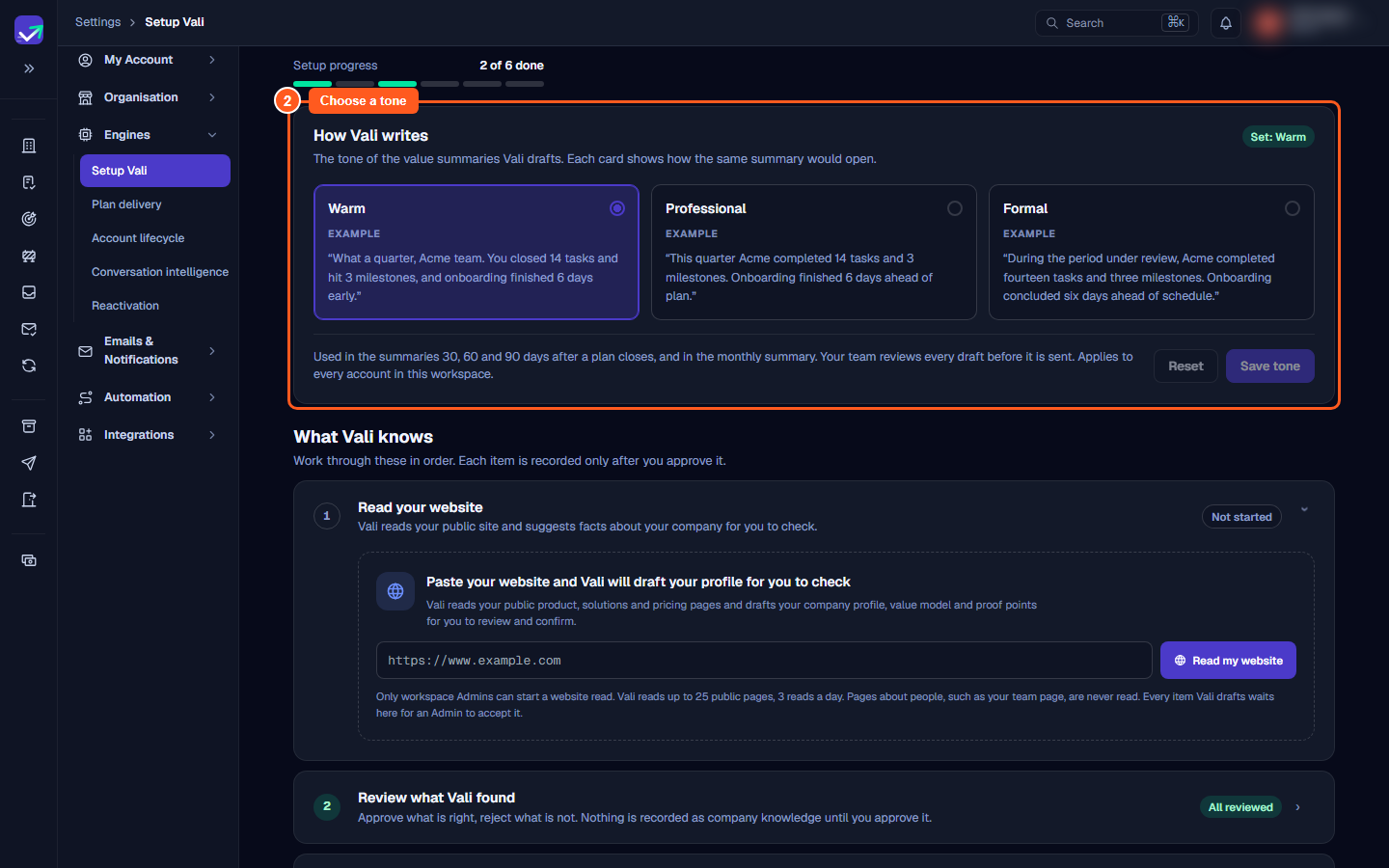
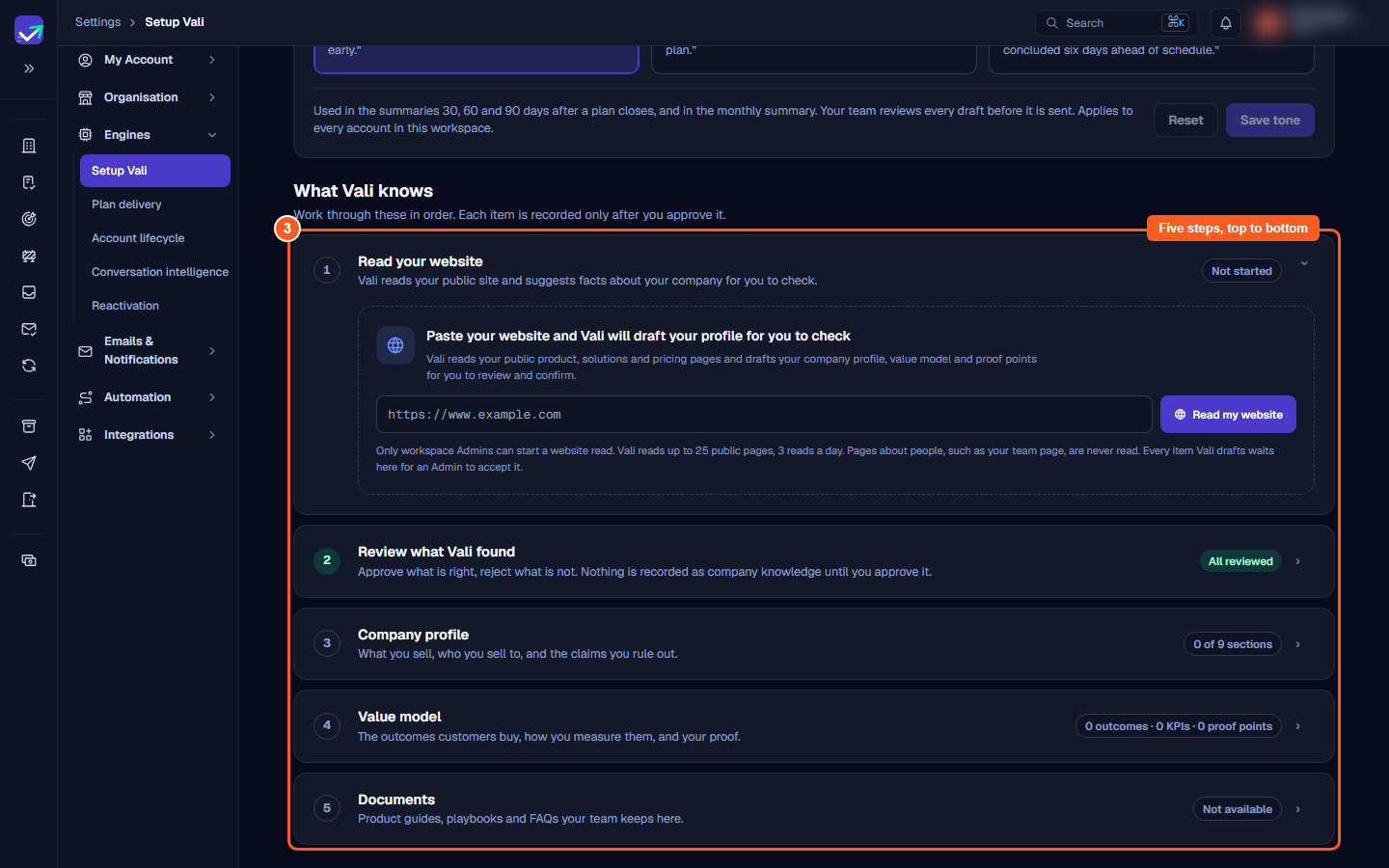
A page you work through from top to bottom to get Vali ready. Under the page heading, a progress line reads "N of 6 done" with six segments: the tone, then the five steps. A segment turns green when that item is done and amber when it is started but not finished.
How Vali writes
The AI summary tone, with the choices Warm, Professional and Formal. Each choice is a card that shows the same summary opening written in that tone. These are fixed examples, not a preview of your own data. Pick a card and click Save tone; the button is on only when your pick differs from the saved tone, and Reset puts the saved tone back. A label beside the heading shows the saved tone, for example "Set: Warm". If the current tone cannot be read at that moment, the cards are disabled and a note says so.
Vali writes value summaries in the saved tone: the summaries 30, 60 and 90 days after a plan closes, and the monthly value summary. Each is a draft your team reviews before it is sent. If no tone is chosen, Vali uses Warm. The tone applies to every account in the workspace. The tone counts as done when it is set.
What Vali knows
Five numbered steps. Each is a card with a one-line purpose and a status label; click a card to open it in place. Everything on this page records what you tell ValueRamp about your company. Nothing in a step says what Vali does with an item.
- Read your website. Paste your website address and Vali reads up to 25 public pages, up to 3 reads a day, and drafts items from them for you to check. Pages about people, such as a team or careers page, are never read, except the address you paste, which is always read. A running read shows how many pages it has read and has a Cancel read button. When it finishes, the step shows the site, when it was last read, the pages read and the items suggested. Read again reads the same site; Change site lets you paste another. A failed or blocked read says why and when to retry, with Try again and Dismiss. The step shows your latest read and is done when that read has finished successfully; a cancelled read shows "Cancelled".
- Review what Vali found. Each item waiting for you shows where it would go, its text, where it was found and the quote it came from. Approve records it, Reject discards it, and Edit & accept opens the item so you can change it first. When two or more items are waiting, Approve all approves exactly the items listed. This step opens by itself when anything is waiting, and shows "Everything Vali found has been reviewed" when nothing is. The step is done when nothing is waiting.
- Company profile. Nine sections as tiles: What you do, Ideal customer, Segments, Value propositions, Differentiators, Competitors, Claims you approve, Claims to never make and Glossary. A tile shows how many approved items the section has and an example. An empty section is dashed with an Add button; an empty required section is marked Empty in red, and the Glossary is marked Optional. Click a filled tile to see its items, each with Edit and Archive (Archive asks you to confirm), and Add. An item can carry a review-by date; "Claims to never make" items can carry an optional key phrase. Below the tiles are the profile owner and review date, with Edit owner and date. The step is done when every section except the Glossary has at least one approved item.
- Value model. Outcomes grouped by product (or company-wide). Each outcome can be linked to usage features, and shows its KPIs and proof points. A KPI needs a measurement source (Usage, CRM, Survey or Manual) and can carry a metric reference. An outcome with no proof point shows "No proof point yet" in amber. You can add, edit and archive outcomes, KPIs and proof points; an outcome under a deactivated product can only be archived. The step is done when at least one approved outcome has an approved KPI.
- Documents. The workspace documents list and upload: PDF, Word, PowerPoint, plain text and Markdown files up to 25 MB. Every file is virus-checked before it can be opened, which can take up to 15 minutes. You can download, rename and archive a document, and an Admin can release a file that was held for review when the reason allows it. The step is done when at least one document is ready.
Only items you approve are counted as company knowledge here. Pending items wait in step 2 until an Admin approves or rejects them.
What moved where
| Setting | Where it was | Where it is now |
|---|---|---|
| Amber window | Organisation → General, in the Account health card | Engines → Plan delivery |
| Blocker escalation | Emails & Notifications → Sending Behaviour | Engines → Plan delivery |
| Default time to first value target | No screen | Engines → Plan delivery (new) |
| Lifecycle settings, including Churn risk weights | Automation → Lifecycle (/settings/lifecycle) |
Engines → Account lifecycle |
| Churn risk scoring switch | No screen | Engines → Account lifecycle (new) |
| CI Settings | Integrations → CI Settings (/ci-settings) |
Engines → Conversation intelligence |
| Reactivation settings | Its own Reactivation group (/reactivation/settings) |
Engines → Reactivation |
| AI summary tone | Organisation → General | Engines → Setup Vali |
| Teach Vali | Organisation → Teach Vali (/settings/organisation/company) |
Engines → Setup Vali, as five steps |
| Engines Overview | Engines → Overview (/settings/engines) |
Removed; the address sends you to Setup Vali |
| Custom account fields | Organisation → General | Organisation → Accounts (Admin only) |
What did not change
- The old addresses
/settings/lifecycle,/ci-settings,/reactivation/settings,/settings/organisation/companyand/settings/enginesstill work. Each sends you to its new page. - Every field that was on a moved page is on its new page.
- Every page in Settings now sits in one centred column with the same maximum width of 1080 pixels, so pages no longer change width as you move between them.
- A CSM, an Onboarding Manager or a Finance user who used to see read-only copies of the Amber window, blocker escalation, the AI summary tone or Teach Vali no longer reach those pages. The settings still apply to every plan and account.
Steps
Open Engines in the Settings menu and choose Setup Vali
Choose a tone in How Vali writes
Work through the five steps under What Vali knows
Set the Amber window and Blocker escalation on Plan delivery
Common questions
Who can see the Engines group?
I used to find Lifecycle, CI Settings or Reactivation settings in another place. Did they go?
Where did the Amber window go?
Where did blocker escalation go?
Where do I choose the AI summary tone?
Where did Teach Vali go?
Where did the Engines Overview page go?
Where did custom account fields go?
Can the Default target for time to first value be cleared once it is set?
What does turning off churn risk scoring do?
Was this helpful? Tell us what was missing