Your ValueRamp portal: a guide for customers
Last verified 2026-09-28
Navigate your shared customer portal, review onboarding and project plans, complete assigned action items, and track partnership journey milestones.
Before you start
- ValueRamp customer portal invitation or authenticated login
Welcome to your ValueRamp customer portal. This shared environment is designed to eliminate opaque status spreadsheets, keep implementation deliverables transparent, and align both your team and your vendor on measurable business outcomes.
As a customer collaborator, you have a direct window into the work your success team is doing with you—from onboarding kickoff through ongoing adoption and business review milestones.
Navigating your portal
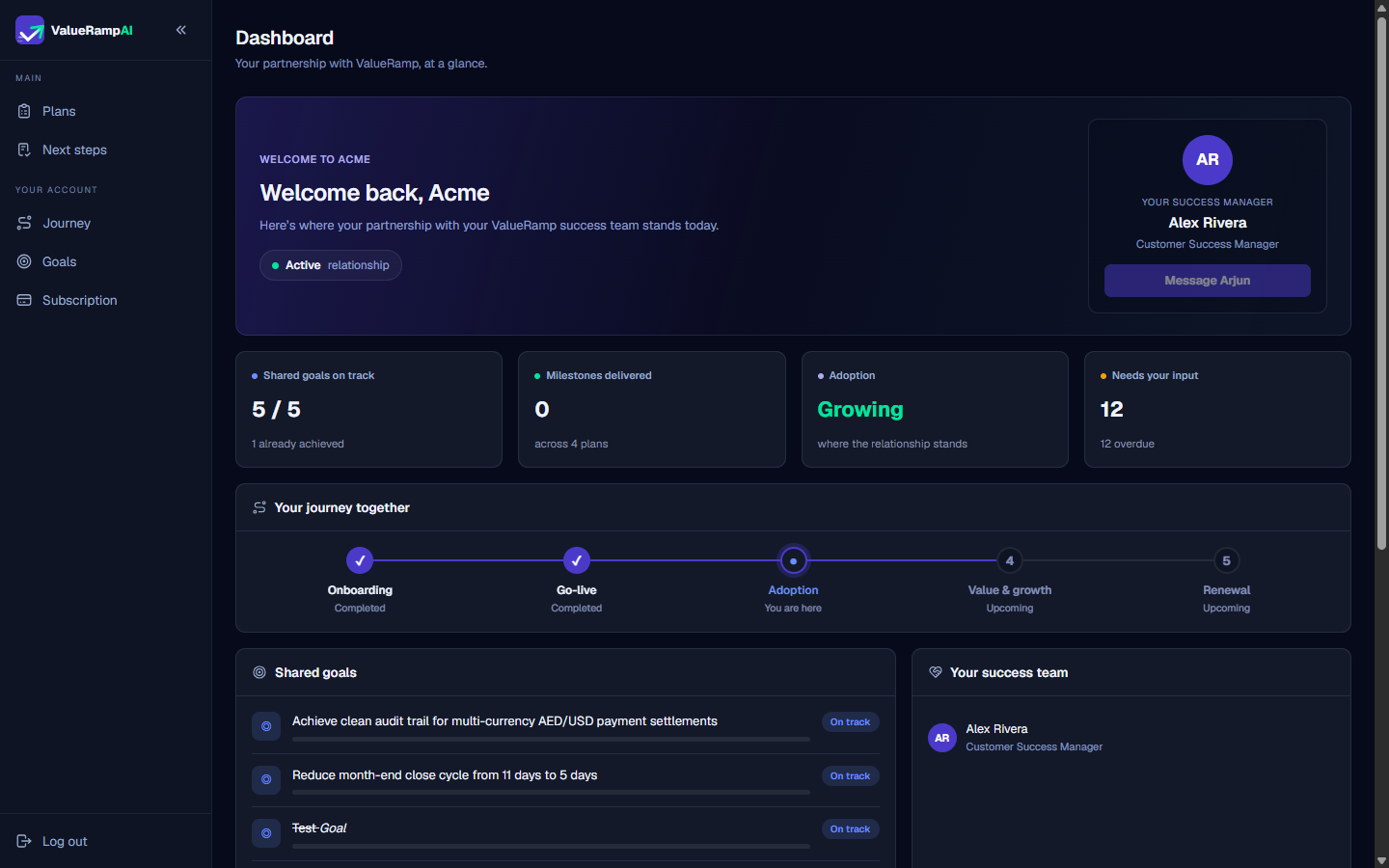
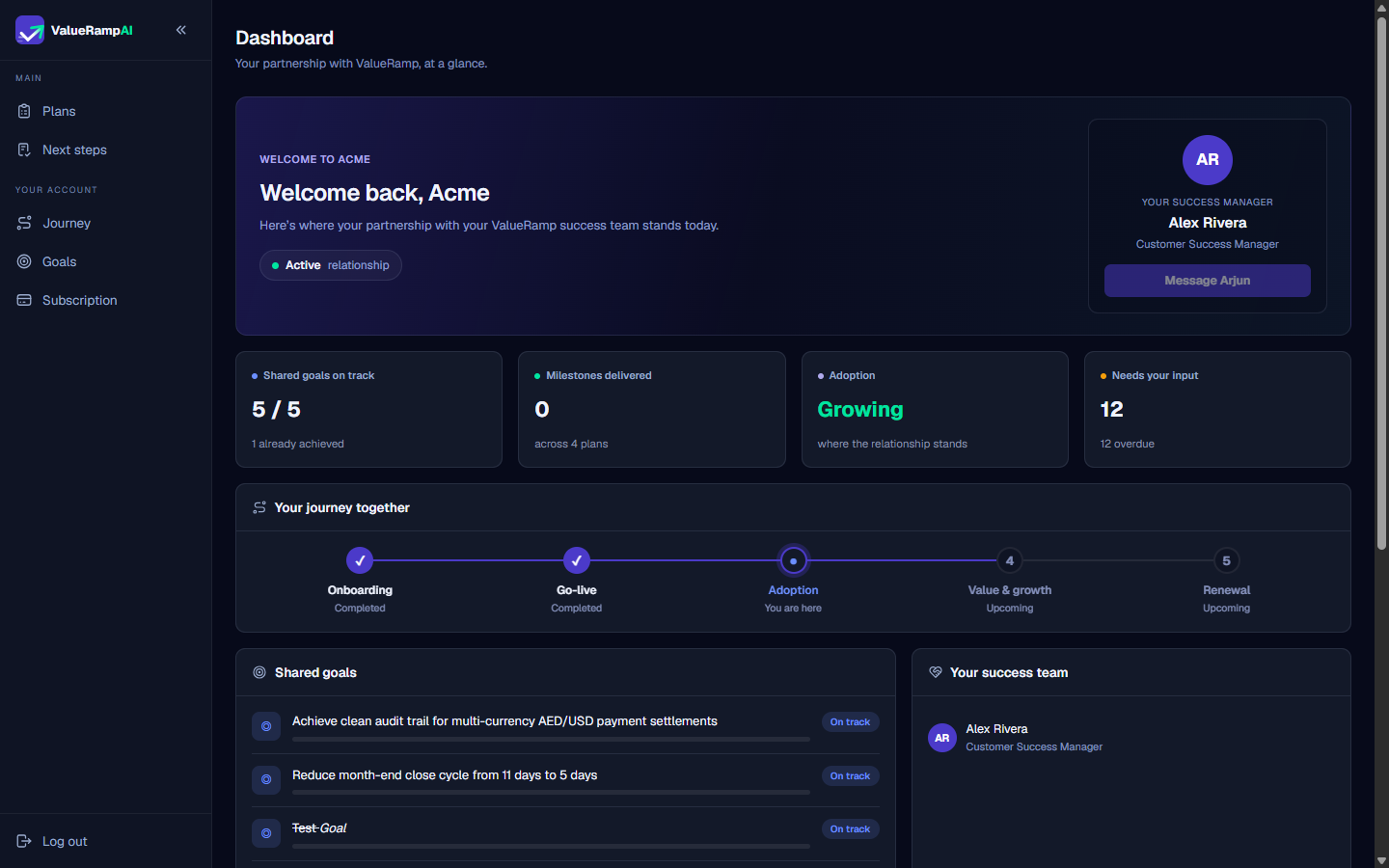
The portal sidebar is organized into two primary sections:
- Main delivery workflows:
- Plans: Review onboarding and project plans, approve a plan, sign off on completed phases, and mark your own tasks done.
- Next steps: See every task on your active plans that is waiting on your team, overdue first.
- Messages: Send direct messages to your Customer Success Manager and success team.
- Your account context:
- Journey: View your high-level lifecycle roadmap across Onboarding, Go-live, Adoption, Value & Growth, and Renewal.
- Goals & Subscription: Track the goals agreed with your success team and review the products and contract terms recorded for your account.
What to do first
- Verify your Dashboard status: Confirm that your onboarding or adoption phase is accurately represented and note who your Customer Success Manager is.
- Clear pending Next Steps: Open Next steps to see the tasks your vendor's delivery team is waiting on; each opens its plan, where you mark it done.
- Review active Plans: Open Plans to review milestone timelines and track phase completion.
Steps
Navigate your shared workspace using the customer portal sidebar
Review your active partnership status and dedicated Customer Success Manager
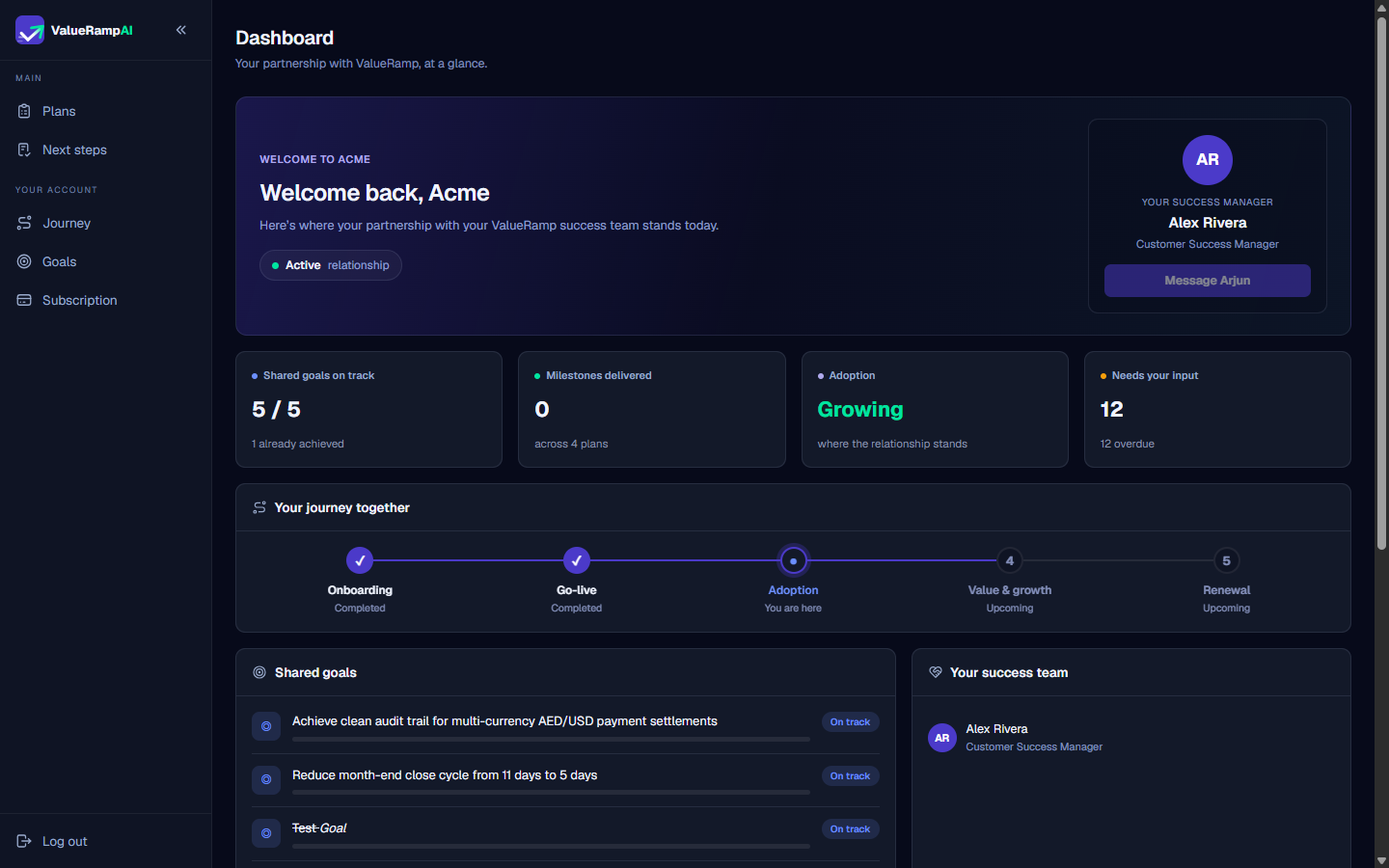
Inspect high-level partnership metrics and pending customer input items
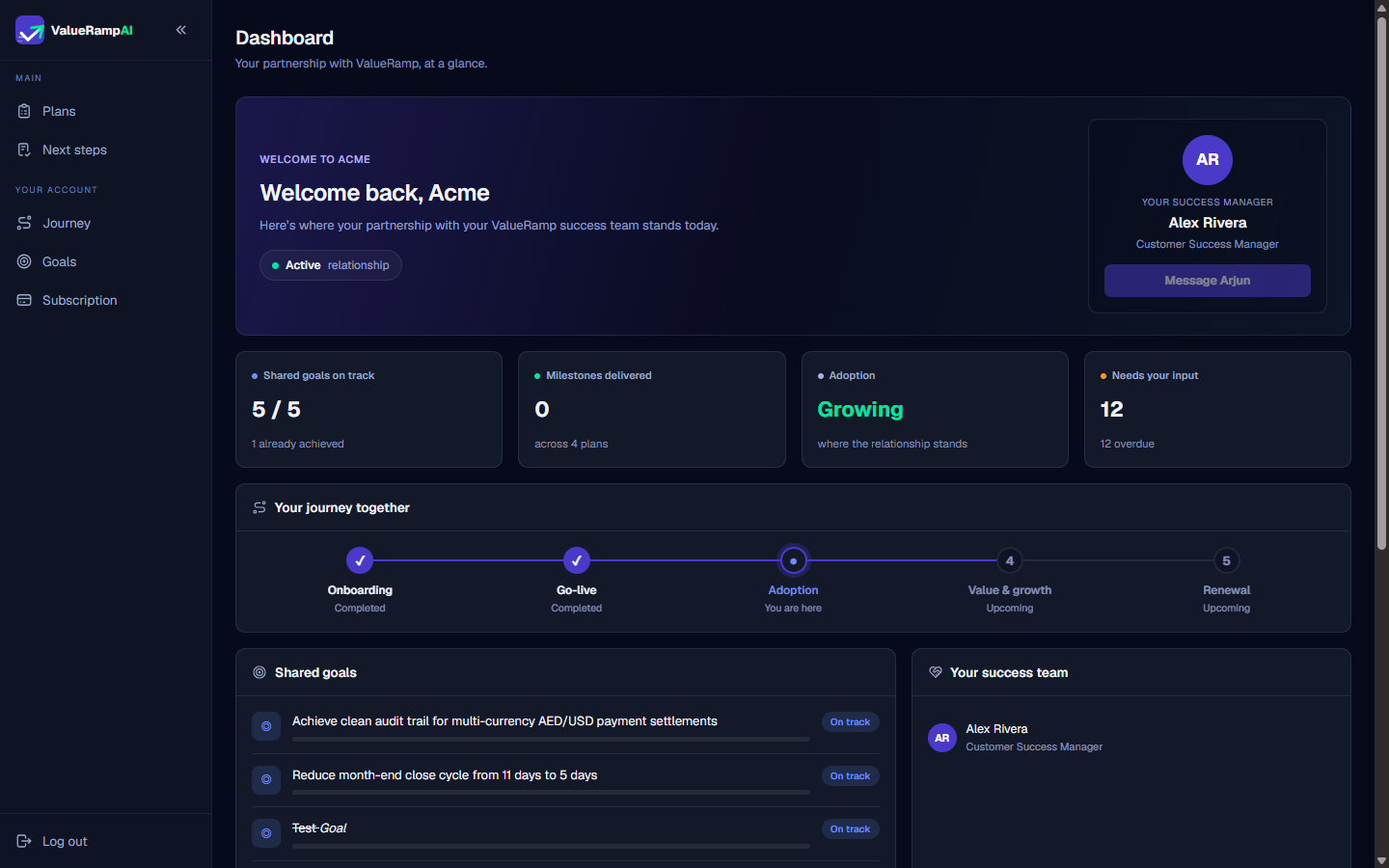
Track your progress across the five-stage customer lifecycle journey
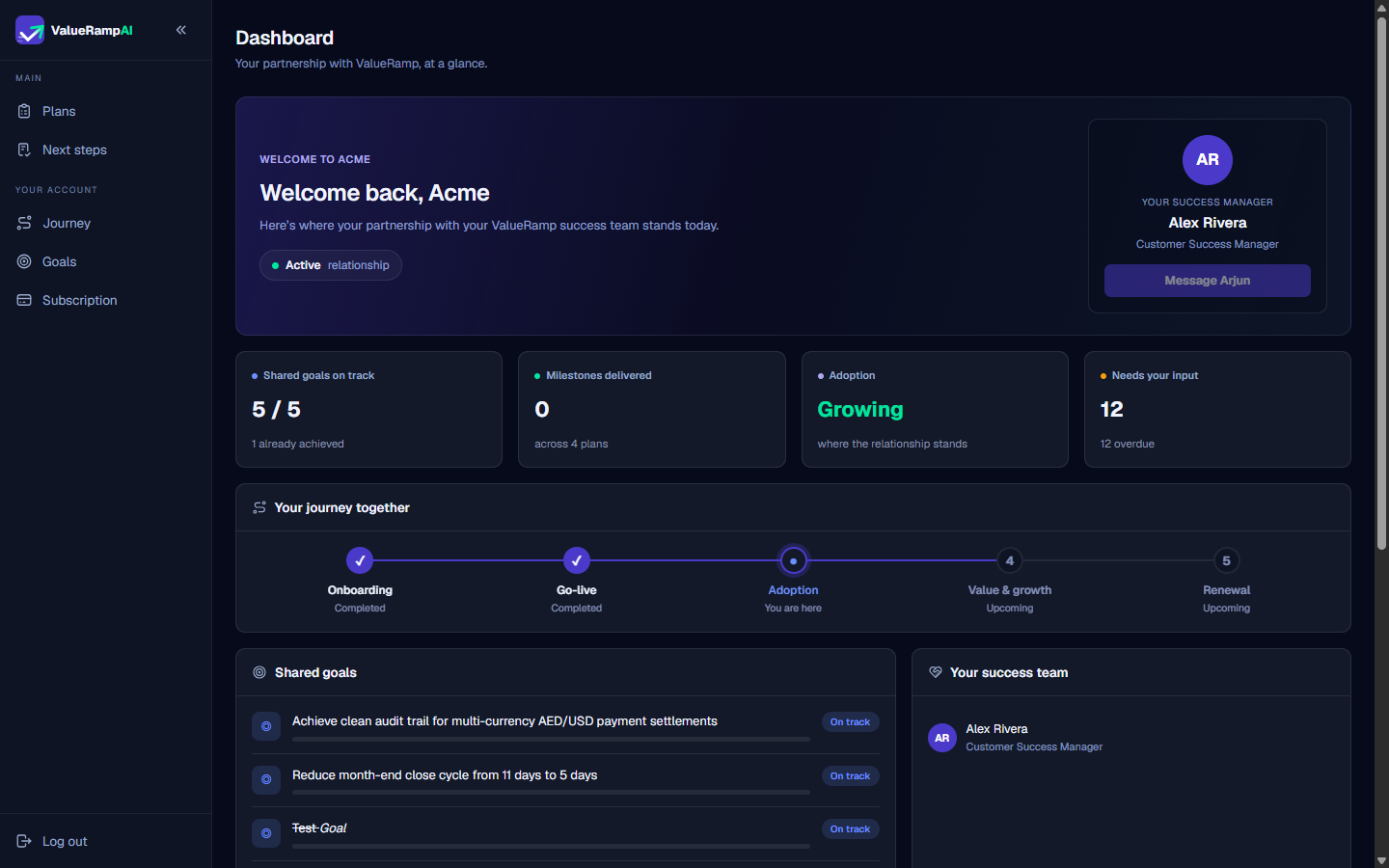
Monitor agreed business objectives in the Shared Goals panel
Common questions
What is the ValueRamp customer portal?
What can I do as a Customer user compared to a Stakeholder user?
Where do I see tasks that require my immediate attention?
How do I contact my Customer Success Manager?
Was this helpful? Tell us what was missing